Orientation and navigation(方向与导航)
You can think of the Palantir platform as an operating system for the data in your organization. This page provides information about how to navigate and find the tools and resources required to work effectively in this operating system.
This page provides information about the workspace navigation sidebar that serves as a home base for moving around the platform and the search feature for locating resources or data of interest. You will also learn about the support options available to you while working in the platform. Finally, your Palantir account settings will allow you to configure your public user and platform settings.
Workspace navigation sidebar
The sidebar is your constant companion in the platform and the starting point for navigation. Open and collapse the sidebar with the icon in the upper right or with the keyboard shortcut Cmd+O (macOS) or Ctrl+O (Windows).
The sidebar has five primary sections that allow you to navigate to different features and tools within the platform:
 |
① Home: Return to your organization's landing page ① Search...: Open the Quicksearch dialog ① Notifications: View platform and application notifications ① What's New: Read product announcements and release notes in the platform ② Recent: Quickly navigate to recently accessed resources ② Files: Jump to the Projects landing page, powered by Compass ② Applications: Find and access all platform applications using this portal ③ Applications (Favorited): Find applications you have previously added a star to. Organize and access your favorite applications ④ Files (Favorited): Find files you have previously added a star to. Organize and access your favourite resources and objects ⑤ AIP Assist: LLM-powered assistant for getting help ⑤ Support: Access Palantir documentation, training resources, and help ⑤ Account: Find account details and review permissions and groups ⑤ Other Workspaces: Access custom Workspaces and the Control Panel (availability depends on permissions) |
AIP Assist
We recommend AIP Assist, Palantir's LLM-powered assistant, as your first stop in getting help regarding the Palantir platform. AIP Assist can answer questions about the platform in multiple languages and can provide guidance about how to use the platform, including tutorials.
You can access AIP Assist from the lower-right corner of the sidebar or by using the keyboard shortcut Cmd+U (macOS) or Ctrl+U (Windows).
AIP Assist is "context-aware" in that it can detect which application you are currently working in, but AIP Assist does not have access to any of the data you are working with.
Home
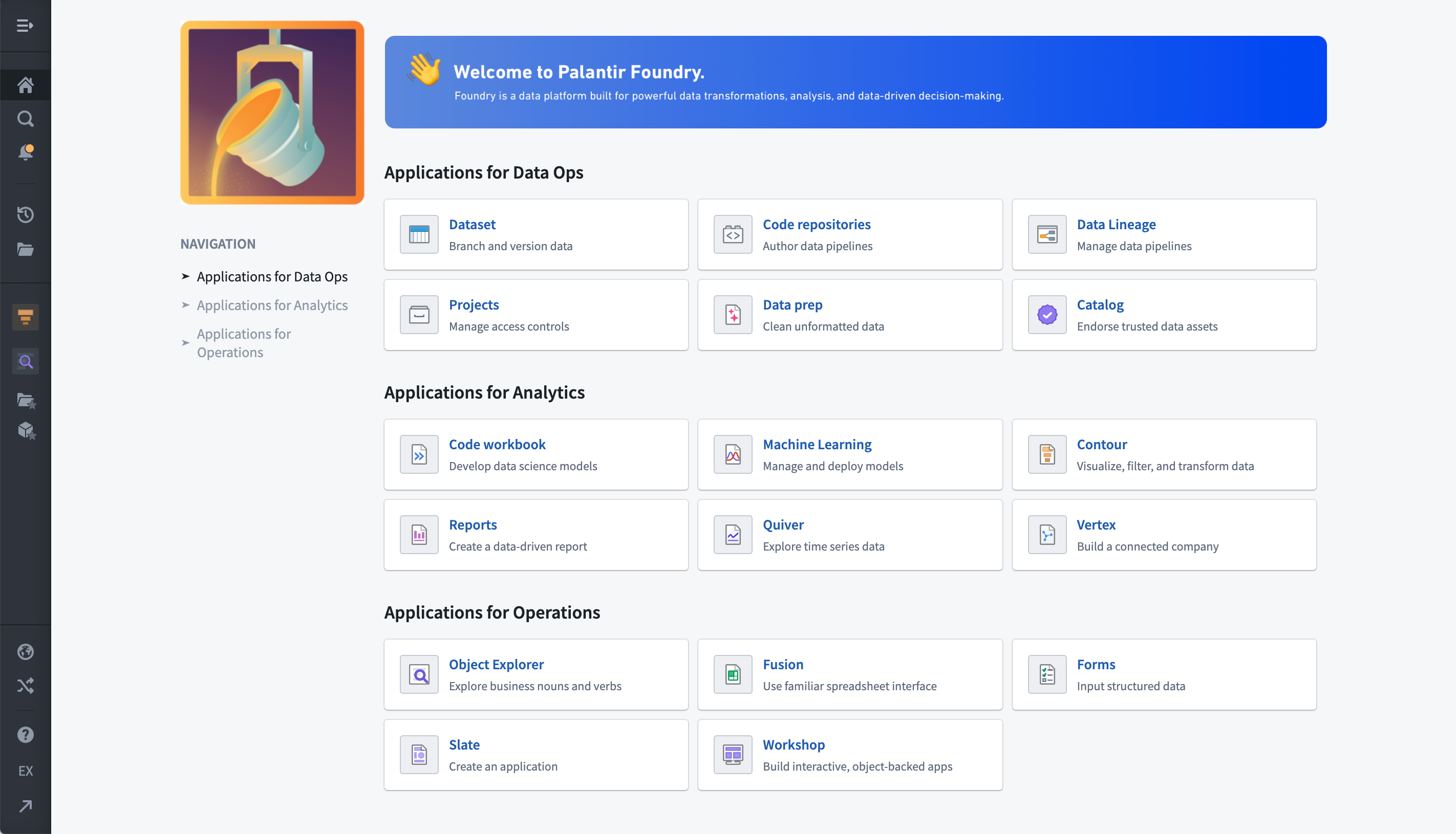
New Palantir enrollments come with a default home page that helps users orient themselves and learn about the platform. Administrators or builders can also create custom landing pages for various user groups on the platform. Some enrollments may use a completely customized home page, while others may use standard components to provide access to frequently-used parts of the platform.
While most home pages focus on navigation, you may also find announcements about the platform, starting points for common workflows within your organization, or links to custom documentation on the landing page.
Search
Search, also known as Quicksearch, is a tool for navigation and discovery of elements in the platform. Search is made of two parts:
- Jump-to mode: Provides a short list of personalized results to directly navigate users to the main types of available content: platform applications, custom applications, objects, datasets, and other resources.
- Full results mode: Designed to help users find content and discover what exists in the platform. Users can perform searches of platform apps, objects, datasets, and other files with advanced filters, rich metadata, and a ranking algorithm to highlight the most relevant results.
:::callout{theme="neutral"}
To open Quicksearch, select Search... in the navigation sidebar, or use ⌘ + J (macOS) or Ctrl+J (Windows).
:::
Notifications
The Notifications panel collects notices from across the platform, ordered from newest to oldest. Most notifications include links to navigate directly to the relevant resources. Some, such as access requests, can be responded to inline without needing to navigate to another page.

By default, notifications are delivered both within the platform in the Notifications panel and by email. Under the See all link, notifications are grouped by type for easier navigation. The notification Settings give you granular control over global and per-notification-type delivery preferences. If notifications are unread, the bell icon will have a small, yellow badge. If a notification occurs while you’re using the platform, a small pop-up in the lower left corner will briefly show the message.
Recent
The Recent panel simply lists the last 20 resources you have opened or interacted with. Between Favorites and Recent, it’s possible to quickly navigate between primary resources in use for any project without needing to return to Search or browse through the Project folder structure.

Files
Files, powered by the Compass application takes you to the landing page for the Project folder structure, where you can access top-level Portfolios, Projects, Your files, and Shared with you shortcuts. You will learn more about Projects in the next step of this guide.
Applications portal
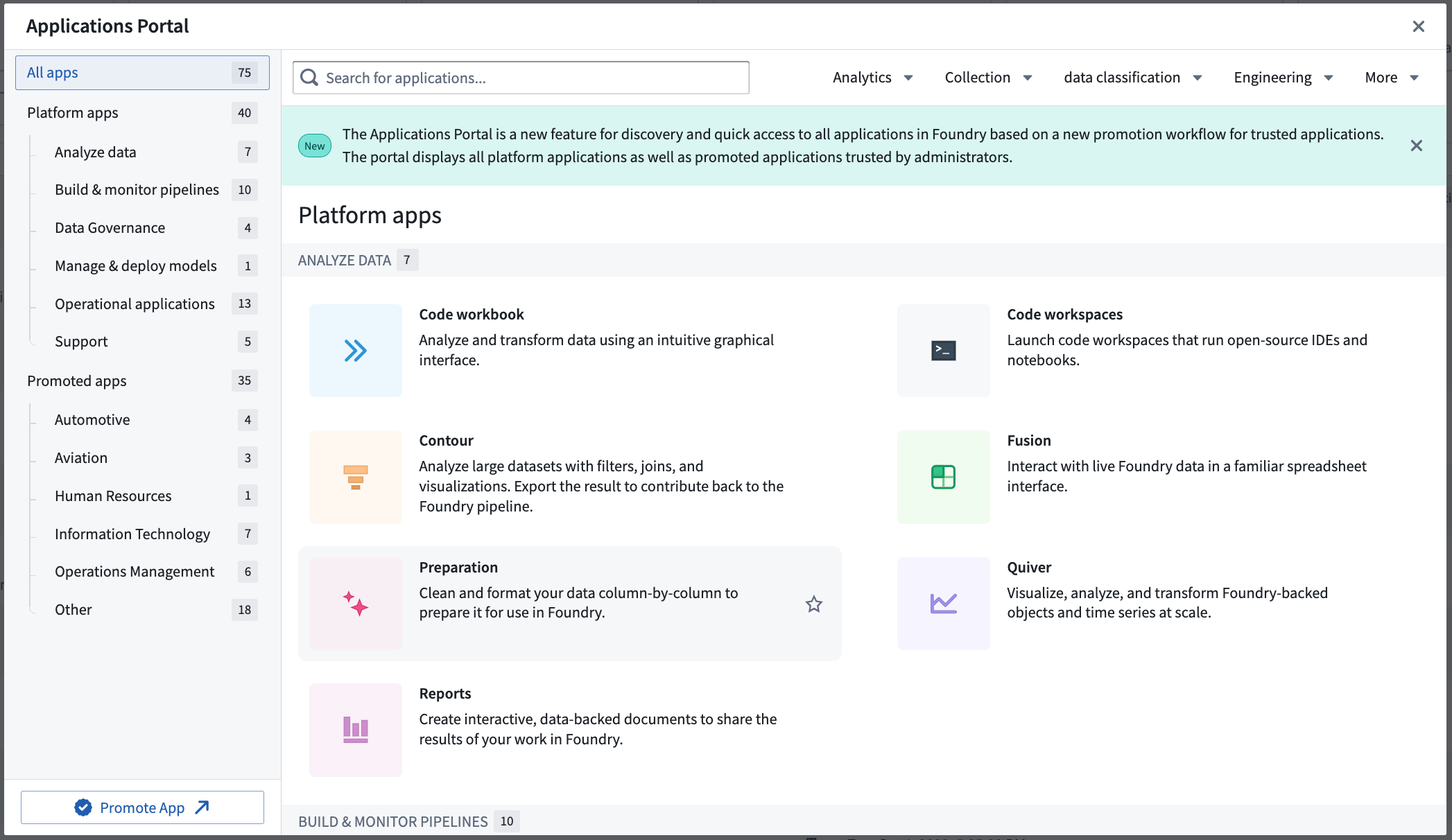
The Applications portal is a tool for finding and accessing all apps in the platform, including both platform apps and custom promoted applications.
Favorites
The Favorites section of the sidebar keeps links to specific applications, resources, and individual objects for quick navigation. Use Ctrl + Click on Windows or Cmd + Click on macOS to open a favorited resource in a new browser tab.
When you first use the platform, your Favorites section is empty and only Applications will show in the sidebar. Hover over the Applications header and select View all to see all the different applications in the platform.
 |
 |
In this view, you will see suggested applications and resources based on your recent usage. We will cover which applications we recommend based on your role later in this guide. To learn more, consider looking at the application reference.
Promoted applications
From the Applications portal, you can pin useful applications to mark them as "promoted" for easier access on screen. From the portal, find your desired application and select the star icon on the portal (see left), or find the Promoted apps heading on the left sidebar and use the ✔ Add option. Promoted apps appear under a dedicated section for quick access (see right).
 |
 |
Favorites
You can add and remove favorites with the star icon while navigating the folder structure or from within an open resource in a Palantir platform application.


Think of favorites as shortcuts that you can add and remove to keep frequently used resources close at hand.
Favorite objects, object types, and object type groups
Object Explorer is an application you can use to explore objects and links in the platform. When you navigate to an individual object view, you can select the star next to its title to save it as a favorite. This will add the object to your sidebar.

Support
Palantir has a wide range of capabilities, features, and components available for your use cases and workflows. To help you understand how the platform can best serve your needs, the Support panel is a starting point for learning more and getting answers to your questions. From here, you can access:
- Ask AIP Assist: Ask AIP questions.
- Training: Learn about the platform through the Training application, in conjunction with the Palantir Learning portal ↗.
- Explore Examples: Find motivation from an existing use case solution.
- Platform documentation: Review documentation.
- Report issue: Submit a platform issue to the Issues application.
- View support tickets: View existing tickets.
- Platform updates: In-platform announcements and release notes.
- Status page: Access your Palantir platform's status page (where enabled).
- About: License information.
The Palantir Customer Success Services team ↗ offers support, training, and consultation services to help you and your organization get the most out of the platform. If included in your agreement, you can contact the team with questions using the Report issue option to create a support ticket in the Issues application.
Review the documentation on getting help.
Account
Select Account in the Account panel to bring up your account overview. Here, you can select your name to see your User ID and permission Groups, navigate to Settings to edit your user and platform settings, change platform language, log out, and more.
You can customize your profile with a profile image and additional information to be stored in the platform for viewing by users in your organization. This information will appear when other users hover over your name in Projects and resources. Adding distinguishing information is helpful for operational workflows that rely on assigning work or sharing resources, especially in cases where you share the same name with another coworker.
Within Settings, the Notifications section is a control center for changing notification delivery settings.
Other workspaces
The main platform workspace is defined by the Workspace sidebar that we have been exploring. You can access other workspaces by selecting Open other workspaces.
Control Panel
Administrators can access the Control Panel workspace for managing an enrollment. See the Administration documentation for further resources.
Carbon Workspaces
Application builders can use Carbon to create curated, custom workspaces for their end users. A wide range of applications can be combined to provide a tailored experience.
中文翻译
方向与导航
您可以将 Palantir 平台视为组织数据的操作系统。本页面提供有关如何导航和查找在此操作系统中高效工作所需的工具和资源的信息。
本页面将介绍作为在平台中移动的基地的工作区导航侧边栏,以及用于定位感兴趣的资源或数据的搜索功能。您还将了解在平台中工作时可用的支持选项。最后,您的 Palantir 账户设置将允许您配置公共用户和平台设置。
工作区导航侧边栏
侧边栏是您在平台中的常伴工具,也是导航的起点。使用右上角的图标或键盘快捷键 Cmd+O (macOS) 或 Ctrl+O (Windows) 可以打开和收起侧边栏。
侧边栏包含五个主要部分,允许您导航到平台内的不同功能和工具:
|
① 首页(Home): 返回您组织的登录页面 ① 搜索(Search...): 打开快速搜索对话框 ① 通知(Notifications): 查看平台和应用通知 ① 新功能(What's New): 在平台内阅读产品公告和发布说明 ② 最近(Recent): 快速导航到最近访问的资源 ② 文件(Files): 跳转到由 Compass 驱动的项目登录页面 ② 应用(Applications): 使用此门户查找和访问所有平台应用 ③ 应用(已收藏): 查找您之前添加星标的应用程序。整理和访问您喜爱的应用 ④ 文件(已收藏): 查找您之前添加星标的文件。整理和访问您喜爱的资源和对象 ⑤ AIP 助手(AIP Assist): 基于大语言模型(LLM)的助手,用于获取帮助 ⑤ 支持(Support): 访问 Palantir 文档、培训资源和帮助 ⑤ 账户(Account): 查找账户详情并查看权限和群组 ⑤ 其他工作区(Other Workspaces): 访问自定义工作区和控制面板(可用性取决于权限) |
AIP 助手
我们推荐使用 AIP 助手(AIP Assist),即 Palantir 基于大语言模型(LLM)的助手,作为您获取 Palantir 平台帮助的第一站。AIP 助手可以用多种语言回答关于平台的问题,并提供如何使用平台的指导,包括教程。
您可以从侧边栏的右下角或使用键盘快捷键 Cmd+U (macOS) 或 Ctrl+U (Windows) 访问 AIP 助手。
AIP 助手具有"上下文感知"能力,可以检测您当前正在使用的应用程序,但 AIP 助手无法访问您正在处理的任何数据。
首页
新的 Palantir 注册环境会附带一个默认首页,帮助用户熟悉平台并了解其功能。管理员或构建者也可以为平台上的不同用户组创建自定义登录页面。某些注册环境可能使用完全自定义的首页,而其他环境可能使用标准组件来提供对平台常用部分的访问。
虽然大多数首页侧重于导航,但您也可能在登录页面上找到关于平台的公告、组织内常见工作流程的起点,或自定义文档的链接。
搜索
搜索,也称为快速搜索(Quicksearch),是一种用于导航和发现平台元素的工具。搜索由两部分组成:
- 跳转模式(Jump-to mode): 提供个性化的简短结果列表,直接引导用户访问主要类型的内容:平台应用、自定义应用、对象、数据集和其他资源。
- 完整结果模式(Full results mode): 旨在帮助用户查找内容并发现平台中存在的资源。用户可以使用高级筛选器、丰富的元数据和排序算法对平台应用、对象、数据集和其他文件进行搜索,以突出显示最相关的结果。
:::callout{theme="neutral"}
要打开快速搜索,请在导航侧边栏中选择 搜索(Search...),或使用 ⌘ + J (macOS) 或 Ctrl+J (Windows)。
:::
通知
通知面板收集来自整个平台的通知,按从最新到最旧的顺序排列。大多数通知包含直接导航到相关资源的链接。某些通知(如访问请求)可以直接在面板内响应,无需导航到其他页面。
默认情况下,通知会同时在平台内的通知面板和通过电子邮件发送。在 查看全部(See all) 链接下,通知按类型分组,以便于导航。通知 设置(Settings) 允许您精细控制全局和按通知类型的投递偏好。如果有未读通知,铃铛图标会显示一个小的黄色徽章。如果您在使用平台时收到通知,左下角会短暂弹出一个小窗口显示消息。
最近
最近面板仅列出您最近打开或交互过的最后 20 个资源。结合 收藏夹(Favorites) 和 最近(Recent),您可以快速导航任何项目中正在使用的主要资源,而无需返回 搜索(Search) 或浏览项目文件夹结构。
文件
文件,由 Compass 应用驱动 将您带到项目文件夹结构的登录页面,您可以在其中访问顶级 投资组合(Portfolios)、项目(Projects)、您的文件(Your files) 和 与您共享(Shared with you) 快捷方式。您将在本指南的下一步中了解更多关于项目的信息。
应用门户
应用门户(Applications portal) 是一种用于查找和访问平台中所有应用的工具,包括平台应用和自定义推广的应用。
收藏夹
侧边栏的 收藏夹(Favorites) 部分保留指向特定应用、资源和单个对象的链接,以便快速导航。在 Windows 上使用 Ctrl + 点击,在 macOS 上使用 Cmd + 点击 可在新的浏览器标签页中打开收藏的资源。
当您首次使用平台时,收藏夹(Favorites) 部分为空,侧边栏中仅显示 应用(Applications)。将鼠标悬停在 应用(Applications) 标题上并选择 查看全部(View all) 以查看平台中的所有不同应用。
|
|
在此视图中,您将看到基于您最近使用情况推荐的应用和资源。我们将在本指南后面介绍根据您的角色推荐的应用。要了解更多信息,请考虑查看应用参考。
推广应用
从应用门户中,您可以固定有用的应用,将其标记为"推广",以便在屏幕上更轻松地访问。在门户中,找到您想要的应用并选择门户上的星标图标(见左图),或找到左侧边栏上的 推广应用(Promoted apps) 标题并使用 ✔ 添加(Add) 选项。推广的应用会出现在专用部分下,以便快速访问(见右图)。
|
|
收藏夹
您可以在浏览文件夹结构时,或在 Palantir 平台应用中打开的资源内,使用星标图标添加和移除收藏夹。
将收藏夹视为您可以添加和移除的快捷方式,以便将常用资源放在手边。
收藏对象、对象类型和对象类型组
对象资源管理器(Object Explorer) 是一个应用,您可以使用它来探索平台中的对象和链接。当您导航到单个对象视图时,您可以选择其标题旁边的星标将其保存为收藏夹。这会将对象添加到您的侧边栏。
支持
Palantir 拥有广泛的功能、特性和组件,可用于您的用例和工作流程。为了帮助您了解平台如何最好地满足您的需求,支持(Support) 面板是了解更多信息和获取问题答案的起点。从这里,您可以访问:
- 询问 AIP 助手(Ask AIP Assist): 向 AIP 提问。
- 培训(Training): 通过培训应用结合 Palantir 学习门户 ↗ 了解平台。
- 探索示例(Explore Examples): 从现有用例解决方案中寻找灵感。
- 平台文档(Platform documentation): 查看文档。
- 报告问题(Report issue): 向问题应用提交平台问题。
- 查看支持工单(View support tickets): 查看现有工单。
- 平台更新(Platform updates): 平台内公告和发布说明。
- 状态页面(Status page): 访问您的 Palantir 平台状态页面(如果启用)。
- 关于(About): 许可信息。
Palantir 客户成功服务团队 ↗ 提供支持、培训和咨询服务,以帮助您和您的组织充分利用平台。如果您的协议中包含此项服务,您可以使用 报告问题(Report issue) 选项在 问题(Issues) 应用中创建支持工单来联系团队。
账户
在账户面板中选择 账户(Account) 以打开您的账户概览。在这里,您可以选择您的姓名查看 用户 ID(User ID) 和权限 群组(Groups),导航到 设置(Settings) 编辑您的用户和平台设置、更改平台语言、注销等。
您可以使用个人资料图片和附加信息自定义您的个人资料,这些信息将存储在平台中,供您组织中的用户查看。当其他用户将鼠标悬停在项目和资源中的您的姓名上时,这些信息将显示出来。添加区分性信息对于依赖分配工作或共享资源的操作工作流程非常有帮助,尤其是在您与另一位同事同名的情况下。
在 设置(Settings) 中,通知(Notifications) 部分是更改通知投递设置的控制中心。
其他工作区
主平台工作区由我们一直在探索的工作区侧边栏定义。您可以通过选择 打开其他工作区(Open other workspaces) 来访问其他工作区。
控制面板
管理员可以访问 控制面板(Control Panel) 工作区来管理注册环境。请参阅管理文档以获取更多资源。
Carbon 工作区
应用构建者可以使用 Carbon 为其最终用户创建精心策划的自定义工作区。可以组合各种应用以提供量身定制的体验。