Add application resources(添加应用资源)
Once you create a new use case, you can start add new application resources to your use case. Adding an application allows you to navigate directly to Foundry applications such as Workshop, Slate, and Quiver from your use case.
- Workshop: An application builder for creating interactive and high-quality applications for operational users in a no-code environment.
- Slate: An application builder for constructing dynamic and responsive applications with a drag-and-drop interface in a code-first environment.
- Quiver: An analytical and dashboarding suite for visualizing, analyzing, and transforming Foundry-backed objects and time series at scale.
Create a new application
There are two ways to create a new application within the Use Case app: from the overview page, or from the application page through the left sidebar.
Create new application from overview page
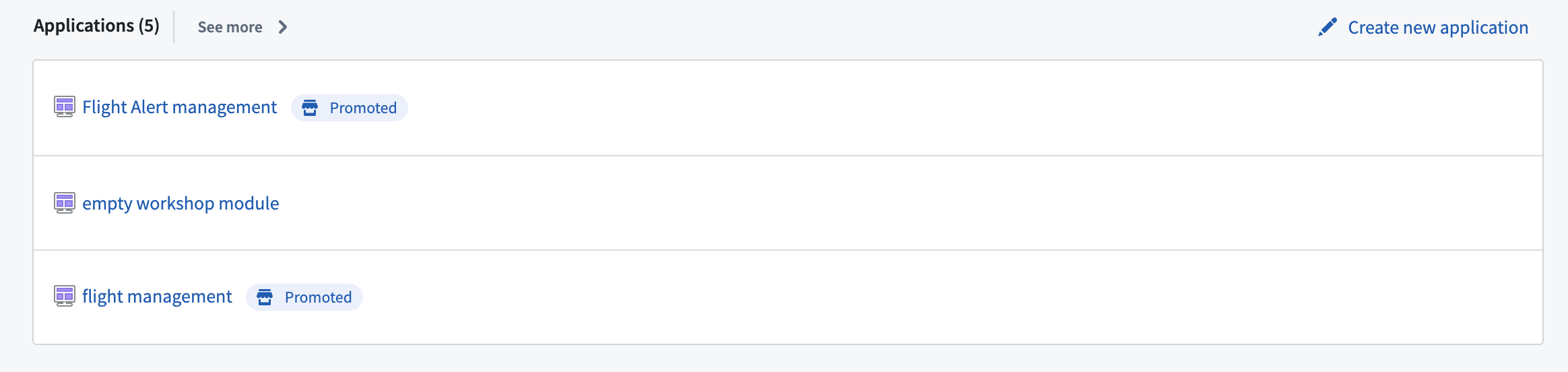
From your use case overview page, select + Create new application to the right of the Applications section.
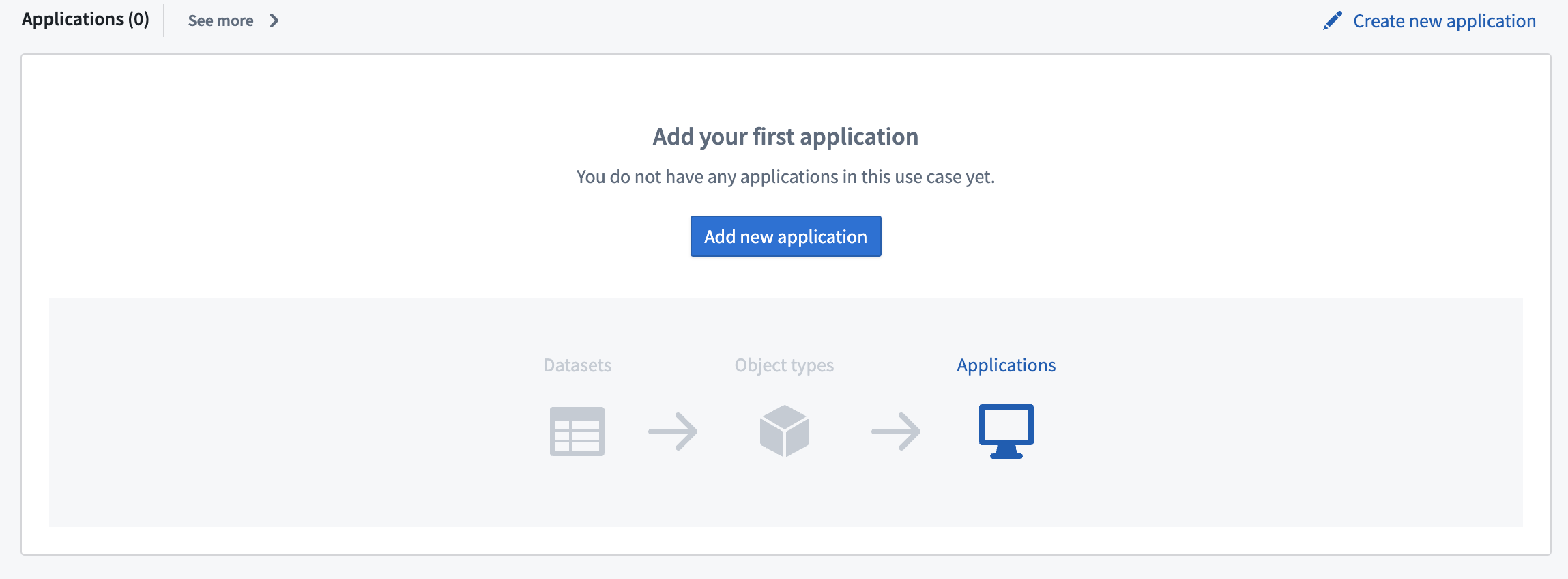
If you do not have any saved applications for your use case yet, you can also select + Add new application in the center of the section.
Create new application from left sidebar
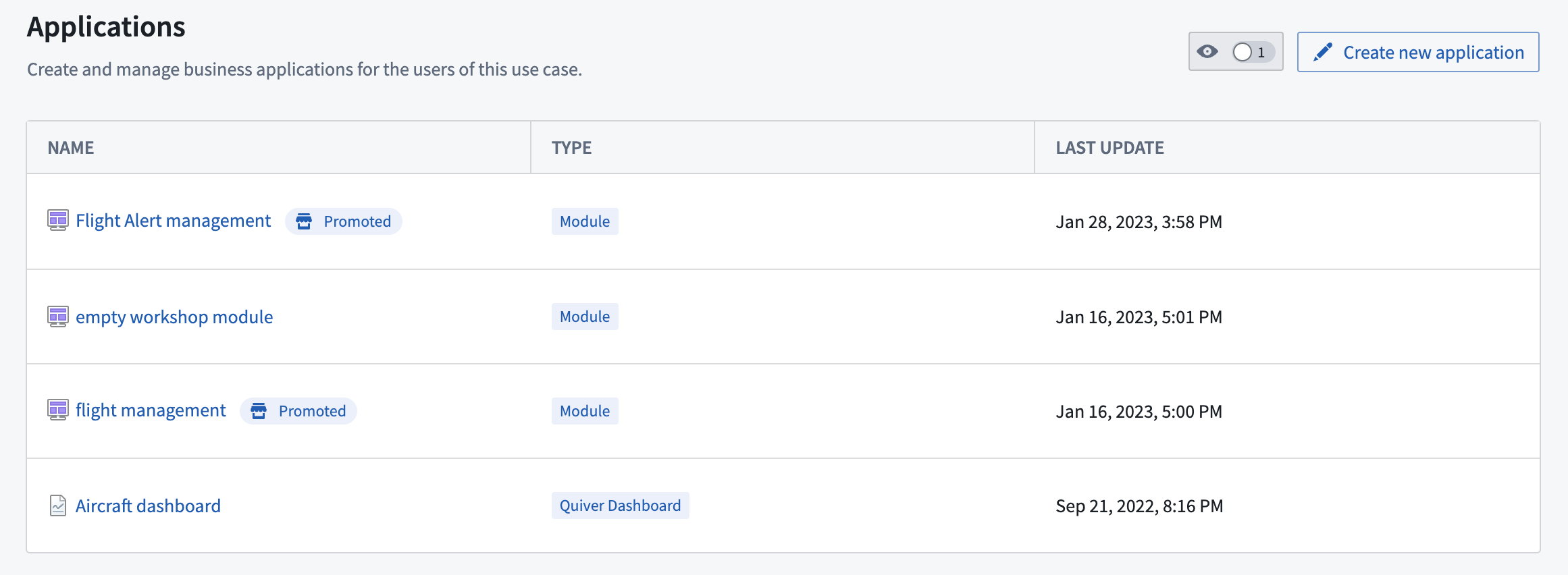
Select Applications in the left sidebar to open the applications page. Then, select Create new application in the upper right corner.
In the Create new application modal, select the application you would like to build, then select Create.
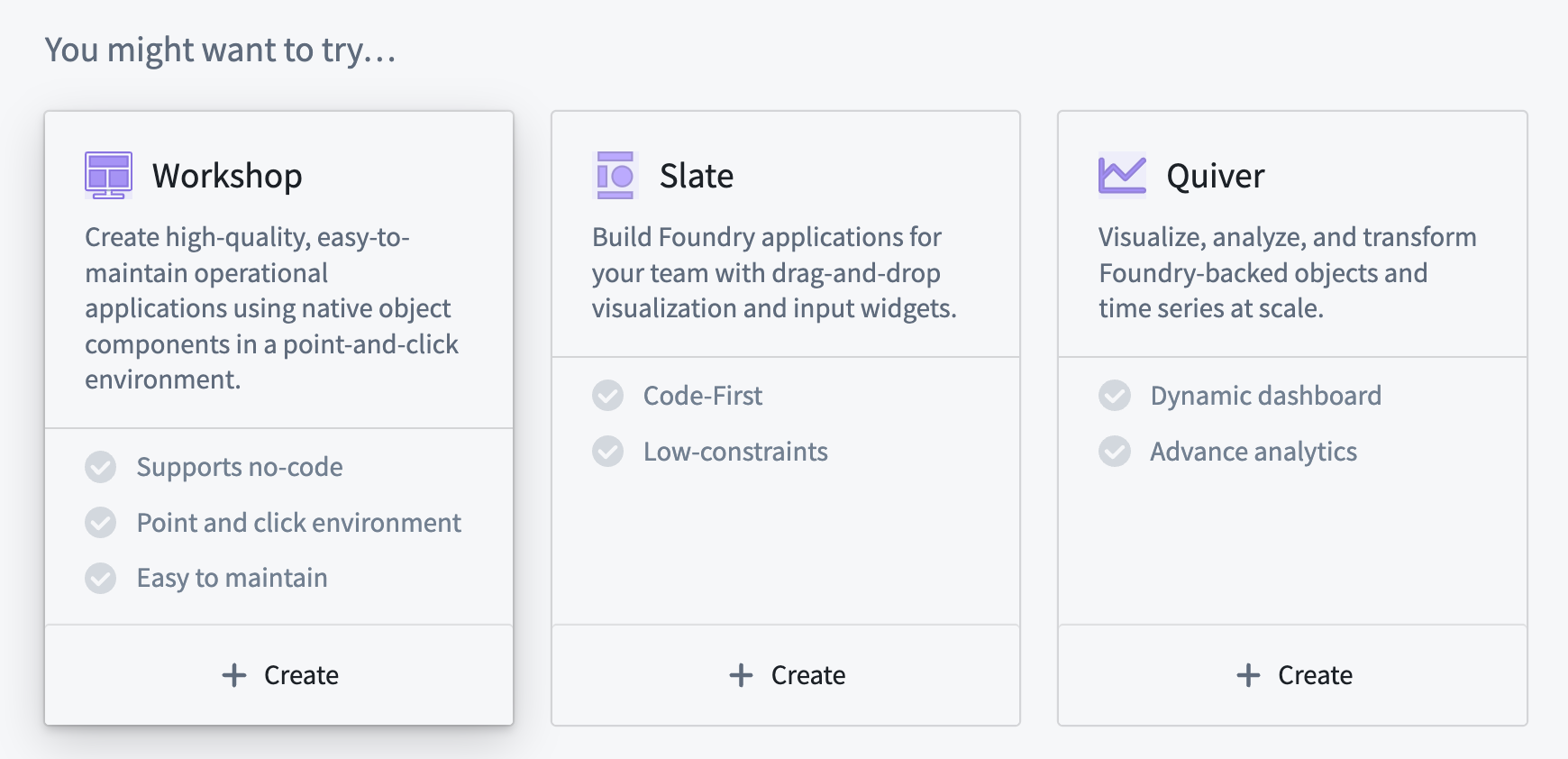
You can also select the Workshop, Slate, or Quiver card directly on the Application page.
You will be directed to the selected Foundry workspace to start building your application. Once you save a new application resource, it will automatically save to your use case along with any referenced Ontology resources.
Learn more about building in Workshop, Slate, and Quiver, and learn more about navigating between your use case and Foundry applications.
中文翻译
添加应用资源
创建新用例后,您可以开始向用例中添加新的应用资源。添加应用后,您可以直接从用例导航至 Workshop、Slate 和 Quiver 等 Foundry 应用。
- Workshop:一种应用构建工具,可在无代码环境中为操作人员创建交互式高质量应用。
- Slate:一种应用构建工具,可在代码优先环境中通过拖放界面构建动态响应式应用。
- Quiver:一套分析和仪表板套件,用于大规模可视化和分析基于 Foundry 的对象及时间序列数据。
创建新应用
在用例应用中,可通过两种方式创建新应用:从概览页面创建,或通过左侧边栏的应用页面创建。
从概览页面创建新应用
在用例概览页面中,点击 应用 部分右侧的 + 创建新应用。
如果您的用例尚未保存任何应用,也可以点击该部分中央的 + 添加新应用。
从左侧边栏创建新应用
点击左侧边栏中的 应用 打开应用页面,然后点击右上角的 创建新应用。
在 创建新应用 弹窗中,选择您要构建的应用,然后点击 创建。
您也可以直接在应用页面上点击 Workshop、Slate 或 Quiver 卡片。
系统将引导您进入所选 Foundry 工作区开始构建应用。保存新的应用资源后,该资源将自动保存至您的用例,同时保存所有引用的 Ontology 资源。
详细了解如何构建 Workshop、Slate 和 Quiver 应用,以及如何在用例与 Foundry 应用之间进行导航。