Edit metadata(编辑元数据)
After creating your use case with an existing or new backing Project, you can modify the metadata that helps define your use case. This metadata can be found in your use case overview page and includes the use case name, description, owners, and status.
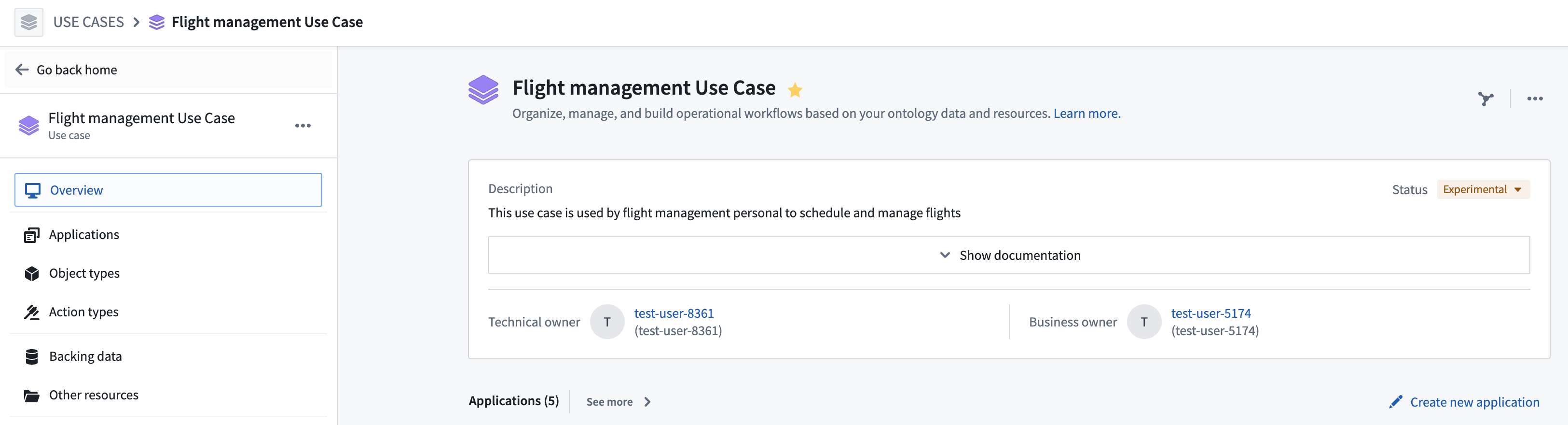
Name
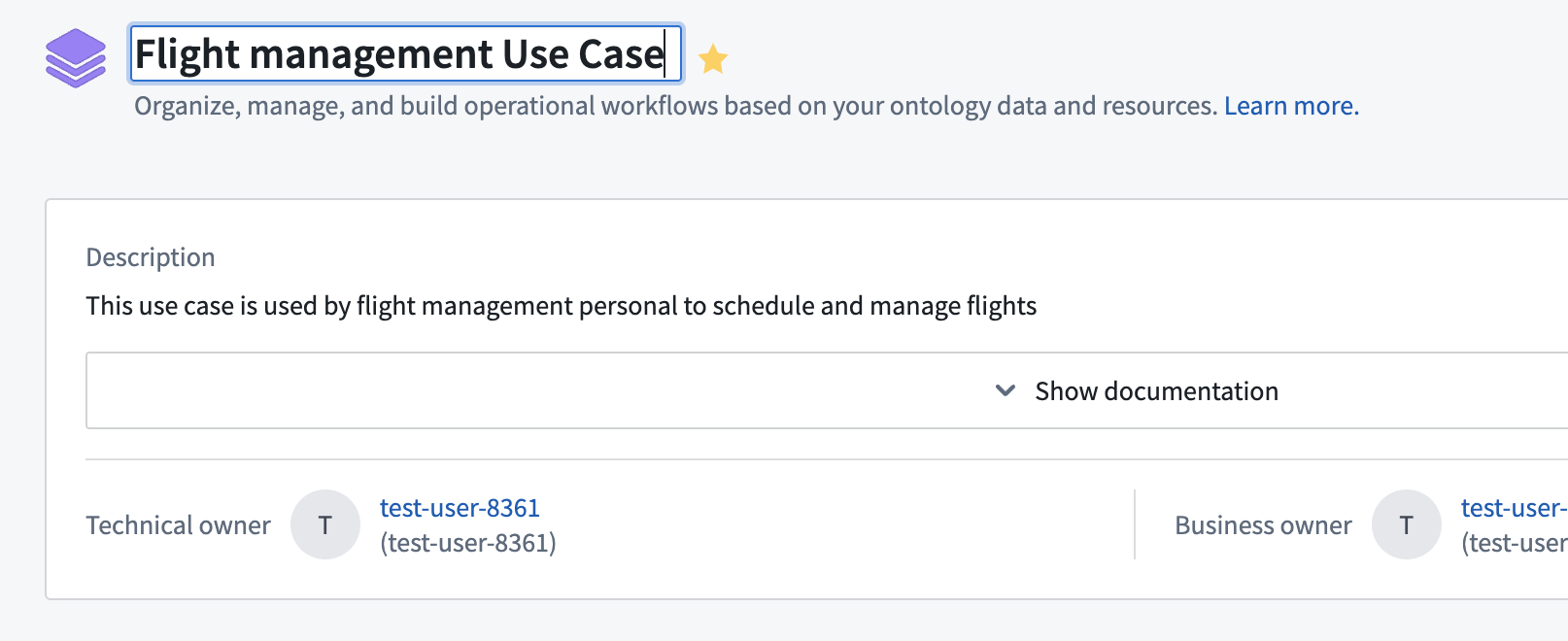
Change the name of your use case by clicking on the use case name at the top of the page and editing within the text field.
Description
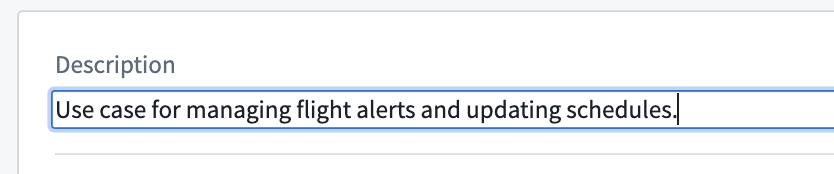
Change the description of your use case by clicking on the description at the top of the page and editing within the text field. As a builder, you can use this field to document the use case, describing its purpose and any relevant information that will help with maintenance over time.
:::callout{theme="neutral"} You can also add a description to each application in the use case by clicking into the application page and editing the description field. :::
Documentation
You can view and edit use case documentation using Markdown language. Expand the documentation section by selecting Show documentation > Edit.
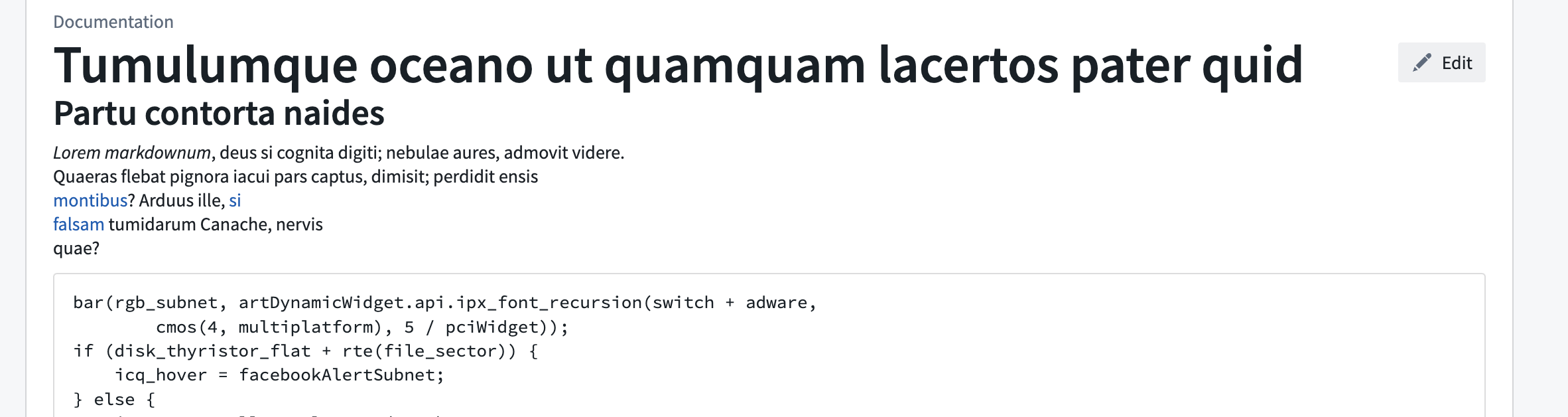
In the Markdown editor, use the Write tab to input or update the use case documentation, and the Preview tab to view your changes before saving them.
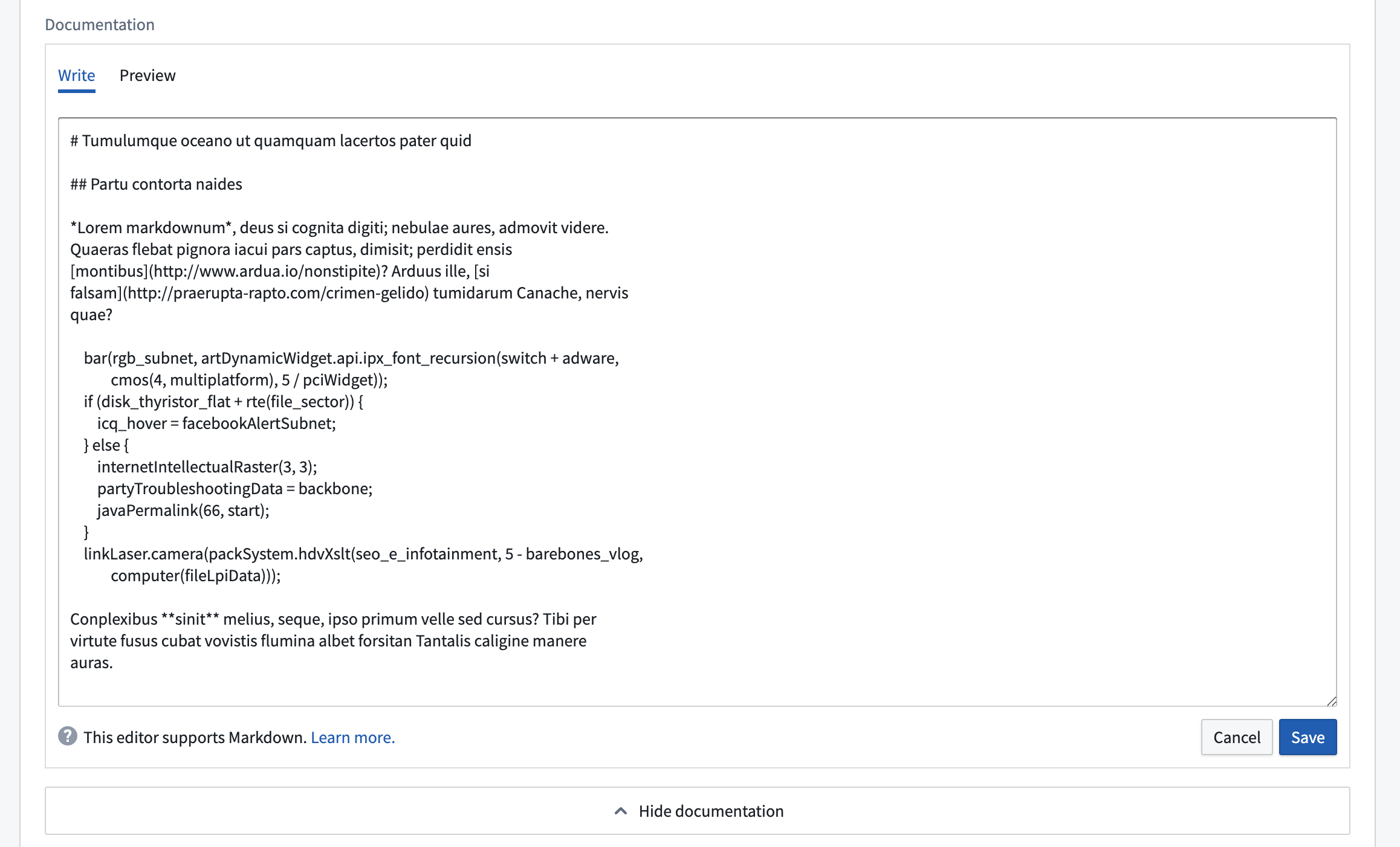
:::callout{theme="neutral"} To edit use case documentation, you must have case editor or owner role and edit rights on the project cover page as use case documentation is stored on the backing project cover page. :::
Owners
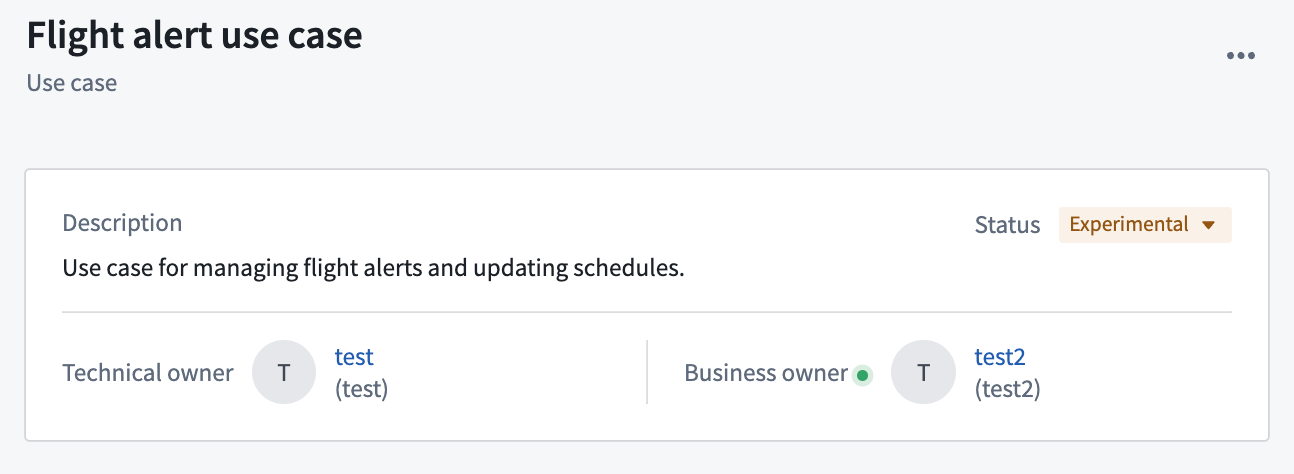
There are two types of owners that you can assign to your use case: Technical and Business. Both can be assigned to an individual user or a group.
- Technical owner: The technical owner is generally the application builder who is developing the use case.
-
The user who created the use case is the default technical owner of the use case.
-
Business owner: The business owner is typically a user who tracks workflow progress and financial details of a use case.
- There is no default user assigned as a business owner to your use case.
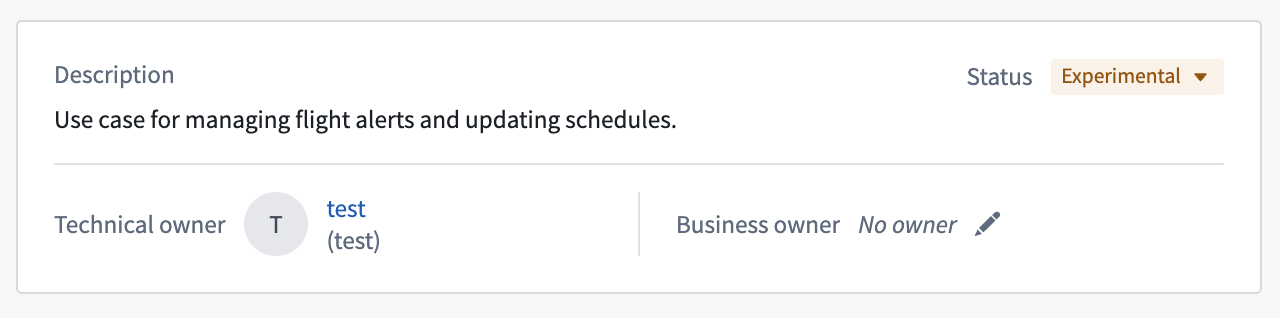
To change the owners of your use case, hover over the name or empty field and select the pencil icon. This will open a search dropdown where you can scroll through or search for available users or groups.
Status
You can assign your use case a status related to its operation status:
- Active: Published and operating within your Foundry instance.
- Experimental: In-progress and not actively published.
- Deprecated: No longer in operation.
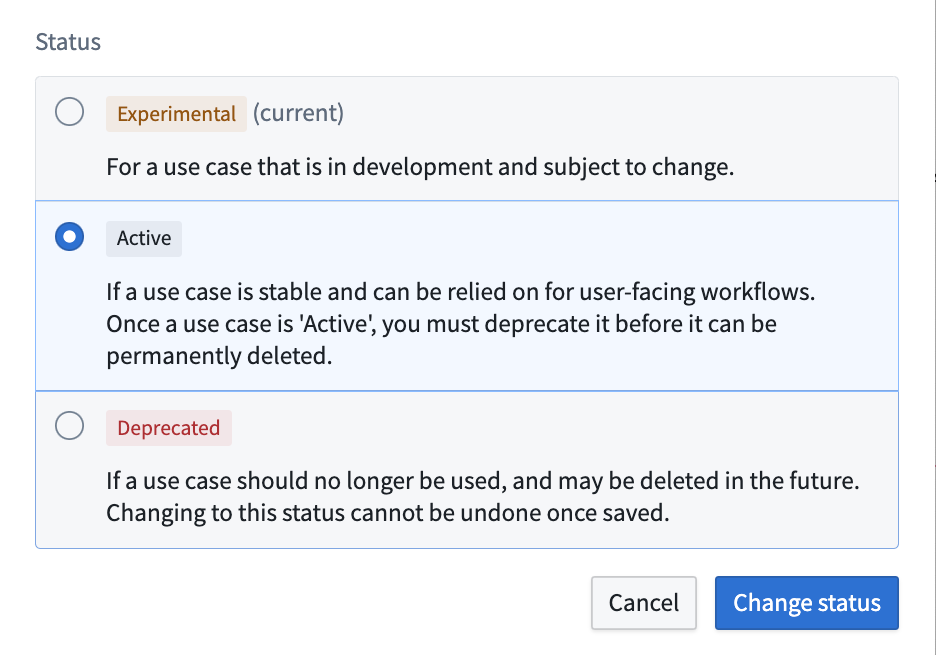
To change the status of our use case from Experimental to Active, select the status dropdown, choose Active, then click Change status.
:::callout{theme="neutral"}
If you change a use case status to Active while the use case has object types or action types in Experimental or Deprecated status, a warning sign will appear near the status dropdown and in the top left sidebar indicating a disparity between resource and use case statuses. We generally do not recommend creating this discrepancy.
:::
中文翻译
编辑元数据
在使用现有或新建的支持项目创建用例后,您可以修改用于定义用例的元数据。这些元数据可在用例概览页面中找到,包括用例名称、描述、负责人和状态。
名称
点击页面顶部的用例名称,在文本字段中编辑即可更改用例名称。
描述
点击页面顶部的描述内容,在文本字段中编辑即可更改用例描述。 作为构建者,您可以使用此字段记录用例信息,描述其用途及任何有助于长期维护的相关内容。
:::callout{theme="neutral"} 您还可以通过点击进入应用页面并编辑描述字段,为用例中的每个应用添加描述。 :::
文档
您可以使用 Markdown 语言查看和编辑用例文档。选择 显示文档 > 编辑 展开文档部分。
在 Markdown 编辑器中,使用 编写 选项卡输入或更新用例文档,使用 预览 选项卡在保存前查看更改效果。
:::callout{theme="neutral"} 要编辑用例文档,您需要拥有用例编辑者或负责人角色,并具备项目封面页的编辑权限,因为用例文档存储在支持项目的封面页中。 :::
负责人
您可以为用例分配两种类型的负责人:技术负责人 和 业务负责人。两者均可分配给个人用户或用户组。
- 技术负责人: 技术负责人通常是开发用例的应用构建者。
-
创建用例的用户默认为该用例的技术负责人。
-
业务负责人: 业务负责人通常是跟踪工作流进度和用例财务细节的用户。
- 您的用例默认没有分配业务负责人。
要更改用例的负责人,请将鼠标悬停在名称或空白字段上,然后选择铅笔图标。这将打开一个搜索下拉菜单,您可以在其中滚动或搜索可用的用户或用户组。
状态
您可以为用例分配与其运行状态相关的状态:
- 活跃: 已发布并在您的 Foundry 实例中运行。
- 实验性: 正在进行中,尚未正式发布。
- 已弃用: 不再运行。
要将用例状态从 实验性 更改为 活跃,请选择状态下拉菜单,选择 活跃,然后点击 更改状态。
:::callout{theme="neutral"}
如果在用例包含处于 实验性 或 已弃用 状态的对象类型或操作类型时,将用例状态更改为 活跃,状态下拉菜单附近和左上角侧边栏将出现警告标志,提示资源与用例状态不一致。我们通常不建议造成这种差异。
:::