Navigation(导航)
The Use Cases application includes a variety of navigational features and tools that enable a streamlined workflow across Foundry resources. We recommend familiarizing yourself with the various pages and elements within the Use Cases application before creating your first use case.
Get started navigating the Use Cases app by clicking the icon under Apps on the Foundry navigation sidebar. If the Use Cases application is not visible there, select View all to expand the application list.
Home
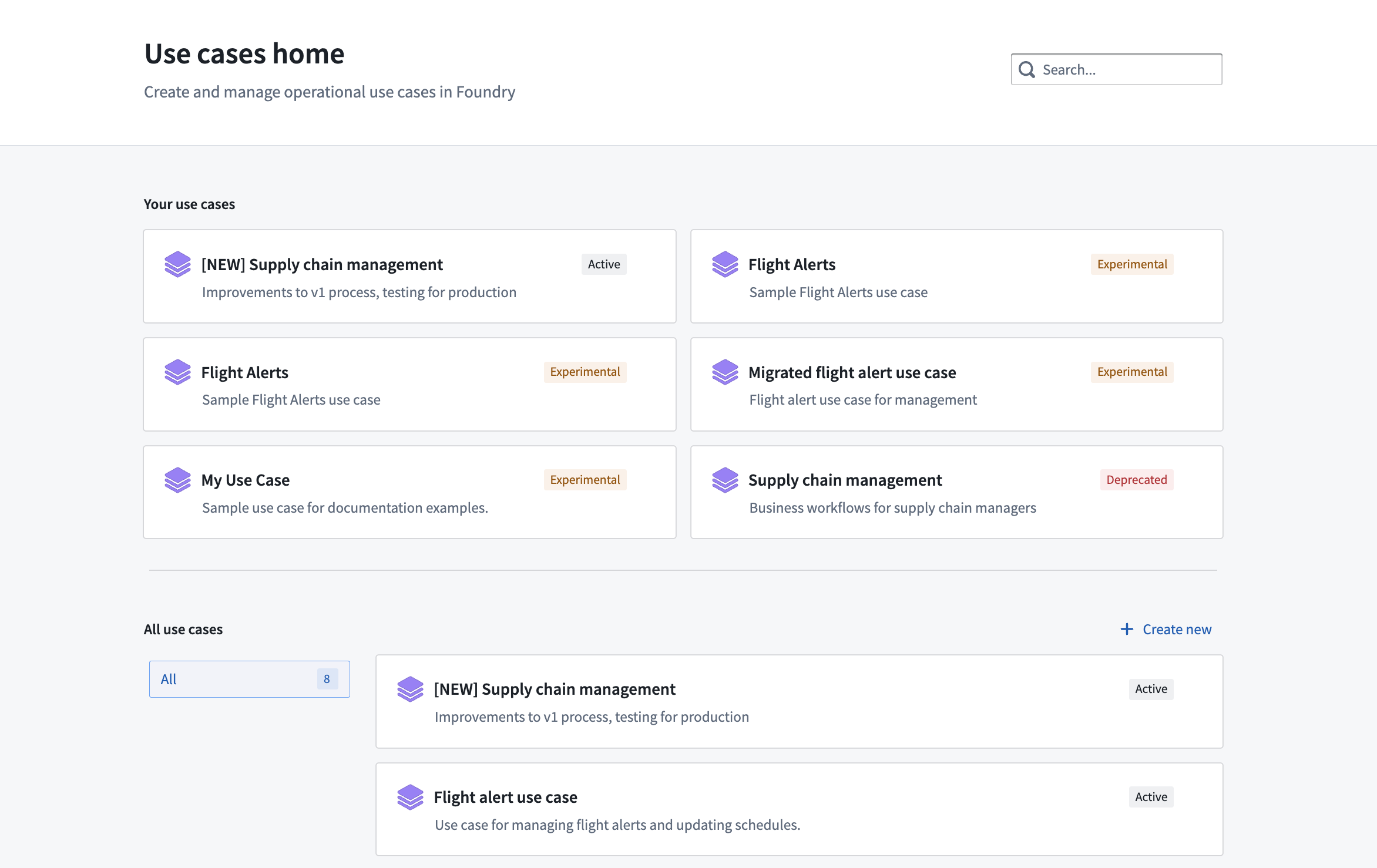
The first view of the Use Cases application is a home page where you can see and search for all use cases, as well as create new ones.
Search
Use the search bar in the upper-right corner of your screen to search for an existing use case, application, or Ontology resource.
Your use cases
In this section, you will find a list of your recent use cases. Use cases are tagged with Active, Experimental, or Deprecated statuses:
- Active: Published and operating within your Foundry instance.
- Experimental: In-progress and not actively published.
- Deprecated: No longer in operation.
Learn more about use case metadata.
Select a use case to explore more details in the use case Overview page.
Navigation between Foundry applications
Part of the convenience in using the Use Cases app when managing resources is the ability to navigate back and forth between your use case and other Foundry applications. This is especially useful when you want to stay focused on a particular use case but need to update applications or edit Ontology components.
When opening a resource that is present in a use case, you will find a navigation breadcrumb header built into the interface. This allows you to easily return to your use case after viewing or modifying a resource. The navigation header appears as shown in the screenshot below:
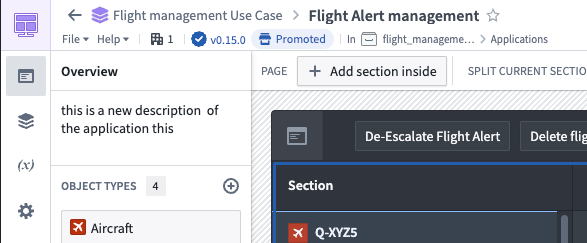
In the example above, selecting the Flight Alert use case header will navigate you back to the overview page of that use case.
Ontology Manager
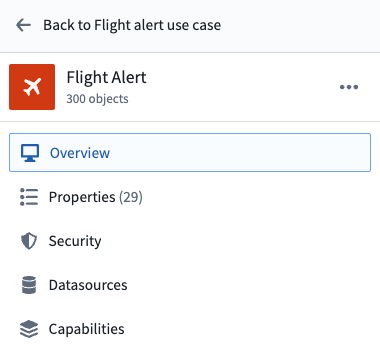
Use case application allows you to jump directly to the object type definition page in Ontology Manager by clicking the View and edit in Ontology Manager in the top right corner of the object type page.

To return to your use case, click Back to [use case name] in the upper left corner of the Ontology page.
Learn more about the Ontology and how to edit object types.
Navigate between Use Cases application and Project view
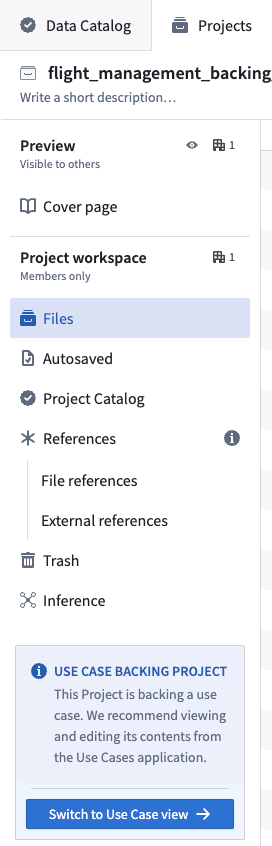
Every use case has a backing Project that stores the applications and other resources used in the use case. You can always switch between the Project view and the Use Cases application view.
To switch to the Project view from the Use Case view select Switch to Project view from the bottom of the left menu.
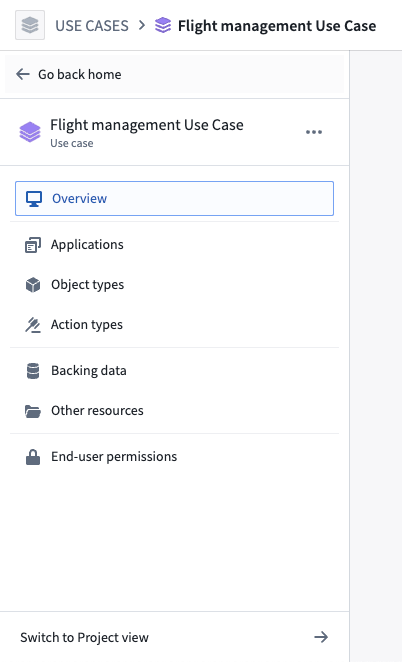
To switch back to the Use Case view, select Switch to Use Case view at the bottom of the Project view.
中文翻译
导航
用例(Use Cases)应用程序包含多种导航功能和工具,可帮助您在 Foundry 资源间实现流畅的工作流程。我们建议您在创建第一个用例之前,先熟悉用例应用程序中的各个页面和元素。
要开始导航用例应用程序,请点击 Foundry 导航侧边栏中 Apps 下的图标。如果用例应用程序未显示在该位置,请选择 View all 展开应用程序列表。
首页
用例应用程序的第一个视图是首页,您可以在其中查看和搜索所有用例,以及创建新用例。
搜索
使用屏幕右上角的 搜索栏 搜索现有的用例、应用程序或本体(Ontology)资源。
您的用例
在此部分,您将找到最近使用的用例列表。用例会标记为 Active(活跃)、Experimental(实验性)或 Deprecated(已弃用)状态:
- Active: 已在您的 Foundry 实例中发布并运行。
- Experimental: 正在进行中,尚未主动发布。
- Deprecated: 不再运行。
了解更多关于用例元数据的信息。
选择一个用例以在用例概览页面中查看更详细的信息。
在 Foundry 应用程序之间导航
使用用例应用程序管理资源时,其便利之处之一在于能够在您的用例与其他 Foundry 应用程序之间来回导航。当您希望专注于某个特定用例,但又需要更新应用程序或编辑本体组件时,这一点尤其有用。
当打开用例中的某个资源时,您会在界面中看到一个导航面包屑标题。这使您能够在查看或修改资源后轻松返回您的用例。导航标题如下图所示:
在上面的示例中,选择 Flight Alert use case 标题将导航回该用例的概览页面。
本体管理器
用例应用程序允许您通过点击对象类型页面右上角的 View and edit in Ontology Manager,直接跳转到本体管理器(Ontology Manager)中的对象类型定义页面。
要返回您的用例,请点击本体页面左上角的 Back to [use case name]。
在用例应用程序与项目视图之间导航
每个用例都有一个支持项目(Project),用于存储该用例中使用的应用程序和其他资源。您可以随时在项目视图和用例应用程序视图之间切换。
要从用例视图切换到项目视图,请选择左侧菜单底部的 Switch to Project view。
要切换回用例视图,请选择项目视图底部的 Switch to Use Case view。