View resources(查看资源)
Once you create a new use case, you can view connected applications and Ontology resources from the use case overview page. If you created a use case from an existing backing Project, those resources will automatically appear in your use case. If you created a new Project with your new use case, you will need to add application resources or datasources before you can view them and their connected Ontology components.
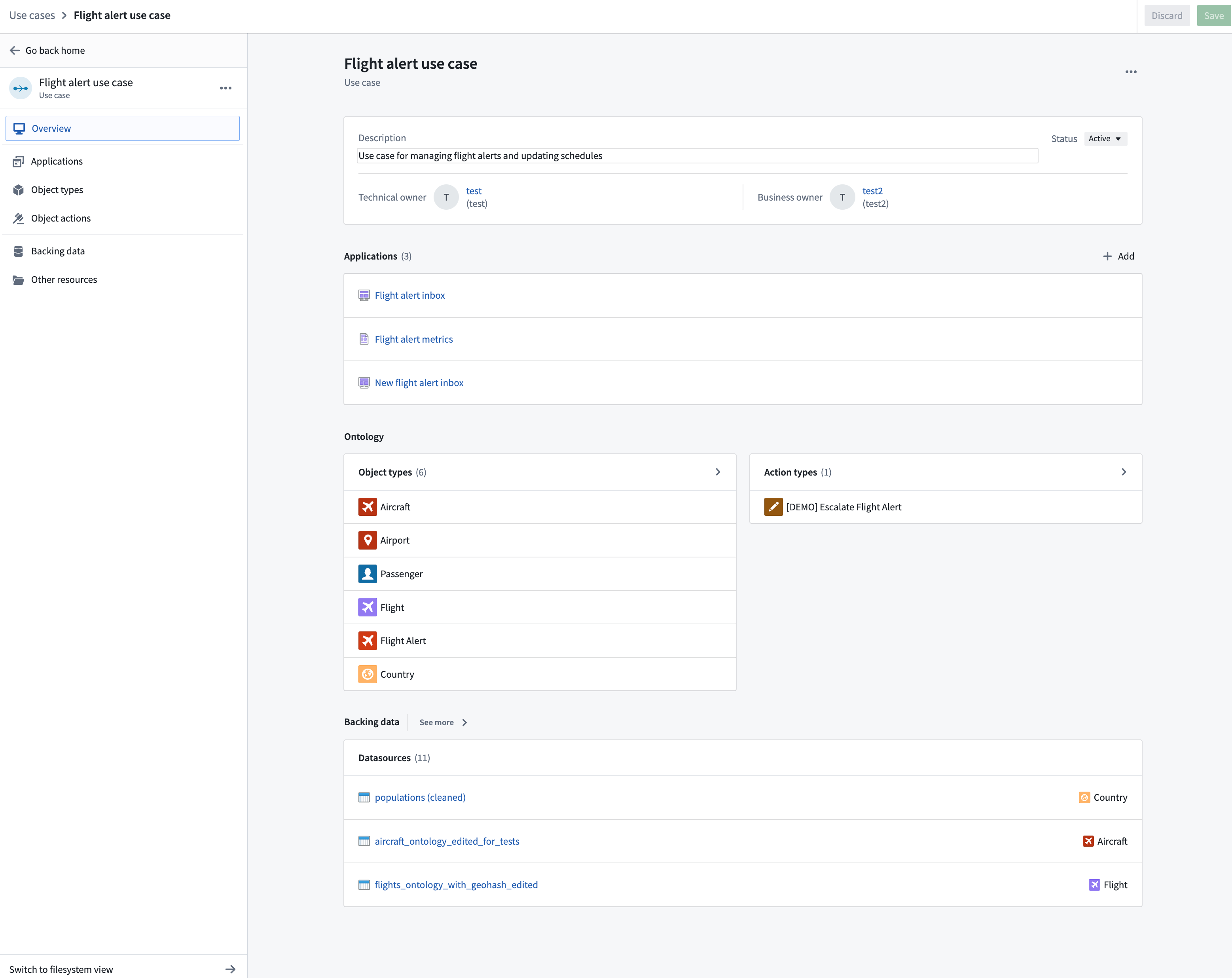
The use case overview provides metadata including a description of the use case workflow, names of the use case owners, and the status of the use case. The overview also contains sections for Applications, Ontology, and Backing data resources. Ontology resources are categorized by object types and action types. Select the section titles in the overview or left sidebar to open the resource pages.
View applications
In the Applications page, you will find all the application resources you created for your use case or brought in with an existing Project, including Workshop modules, Slate documents, and Quiver analyses. In the example below, our use case includes two Workshop modules and a Slate document.
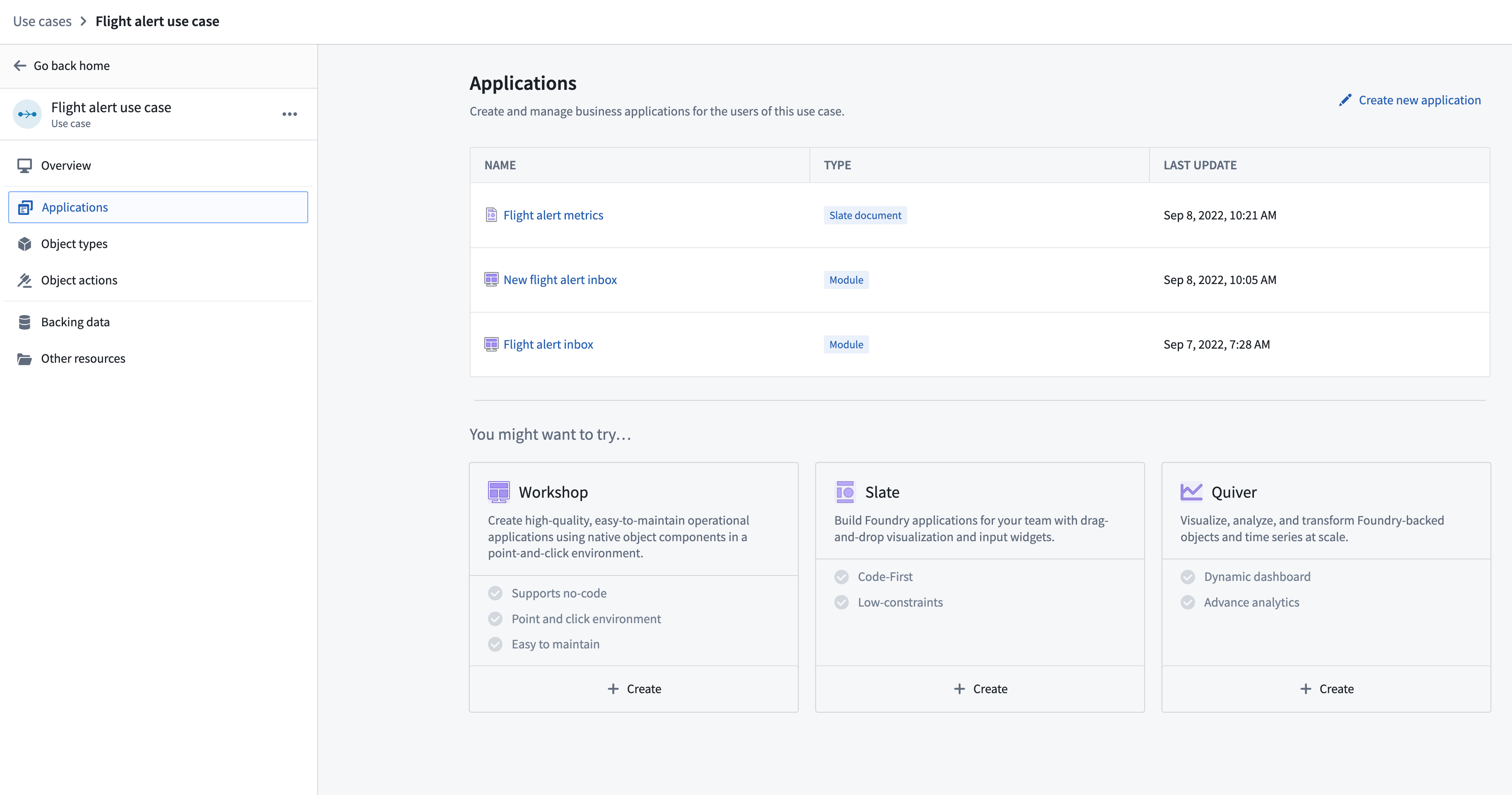
Select the name of an application resource to open the application page.
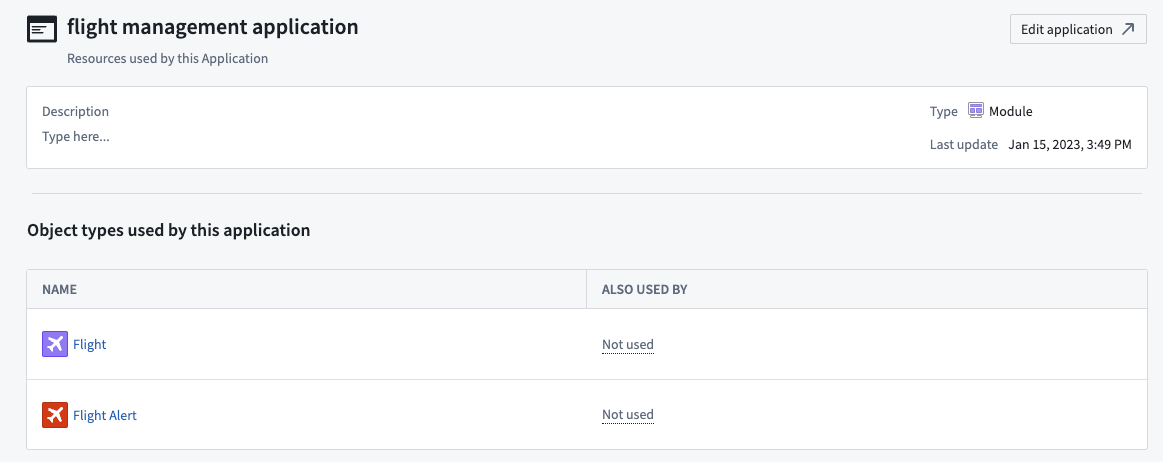
In the application page, you can view the object types used by this application and any other applications in which that object type is used.
The Actions menu in the table list of use case applications allows you to navigate directly to the Foundry application that was used to make that resource. To modify an application resource, hover over any row in the table and select Edit application.

View Ontology components
Use case Ontology resources include both object and action types. Object types and action types that are referenced in the applications in your use case will automatically populate as Ontology resources in your use case.
Learn more about creating Ontology components.
Object types
In the Object types page, you will find all object types that are used by any of the application in your use case. Continuing with our example above, several object types were used in our two Workshop module applications.
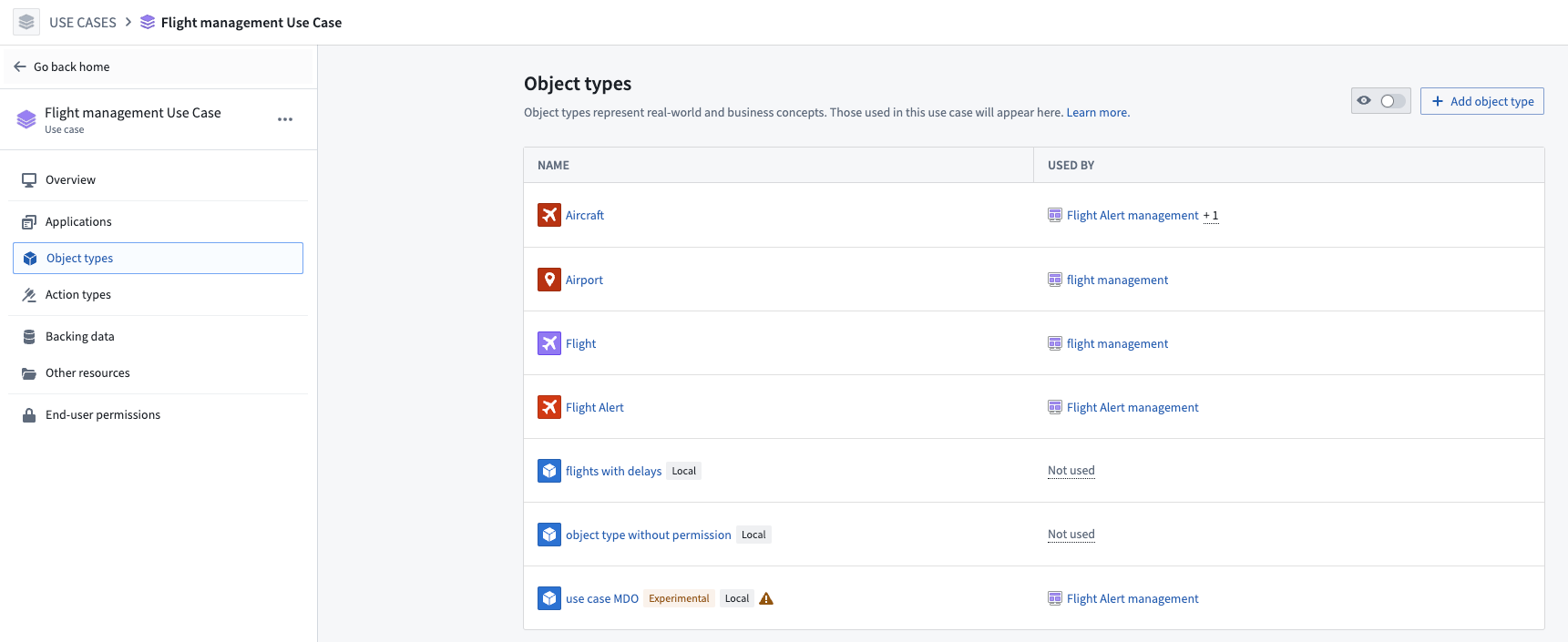
The Actions menu in the table list of object types allows you to navigate directly to the Ontology Manager app to edit the definition of the object type. You can also select Remove to remove any manually added object types if they are not being used by any application in the use case.

The object types listed in the table may include the following indicators:
- Object type status: Object types in
ExperimentalorDeprecatedstatus will show a status tag on the row. Object types without a status tag are inActivestatus. - Shared/Local status: Object types that are backed by datasources in the use case Project will show a
Localtag. Object types without theLocaltag are backed by datasources in a different Project than the use case Project.

When an object type is marked by the Local tag but is also used by applications not in this use case, a warning indicator will appear indicating that we recommend moving all backing datasets for a use case into a shared ontology Project.

Select an object type to view additional details about the resource, including properties, datasources, and source system details. In the example below, we can see additional details about the Flight object type.
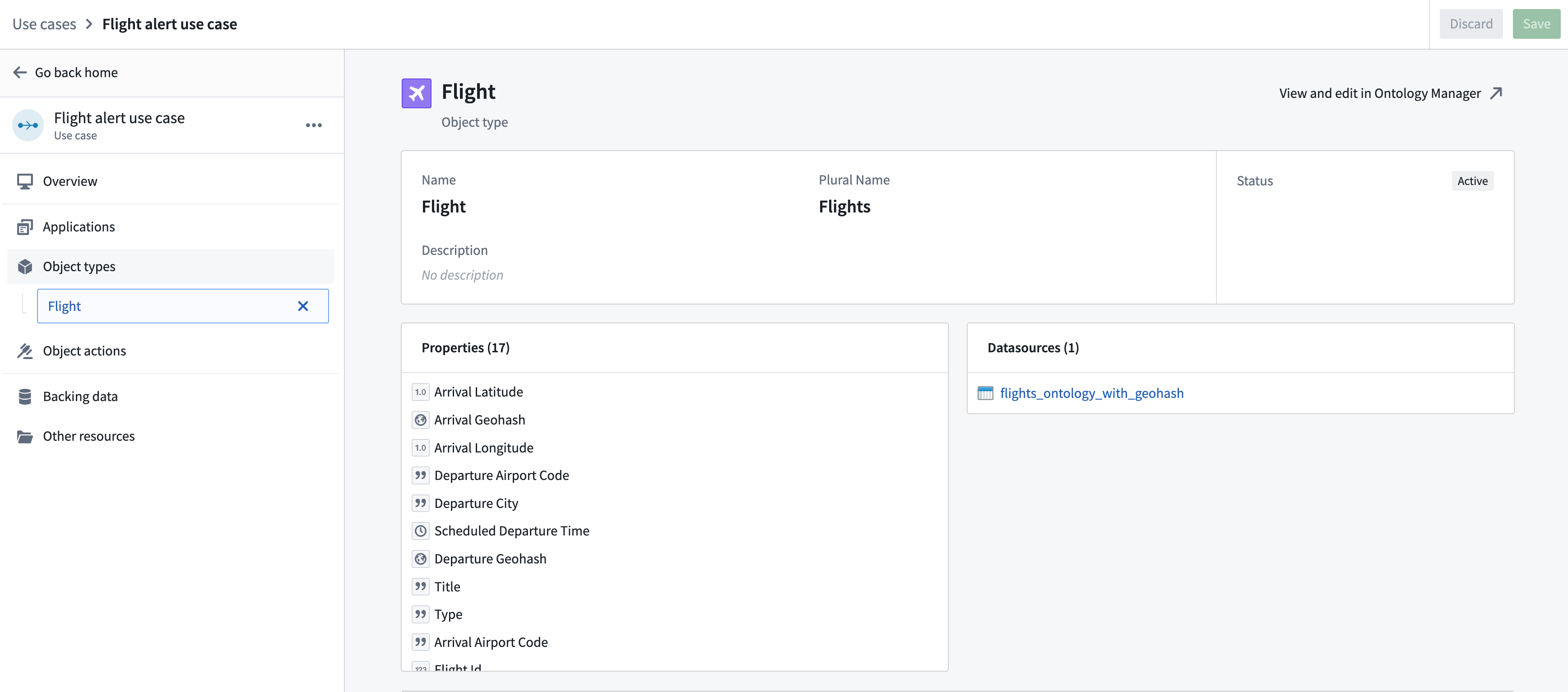
Click View and edit in Ontology Manger to open the object type in the Ontology Manager application.
Learn more about editing object types and navigating to and from the Ontology Manager.
Action types
In the Action types page, you will find all action types from your Ontology that are connected to application resources in the use case.
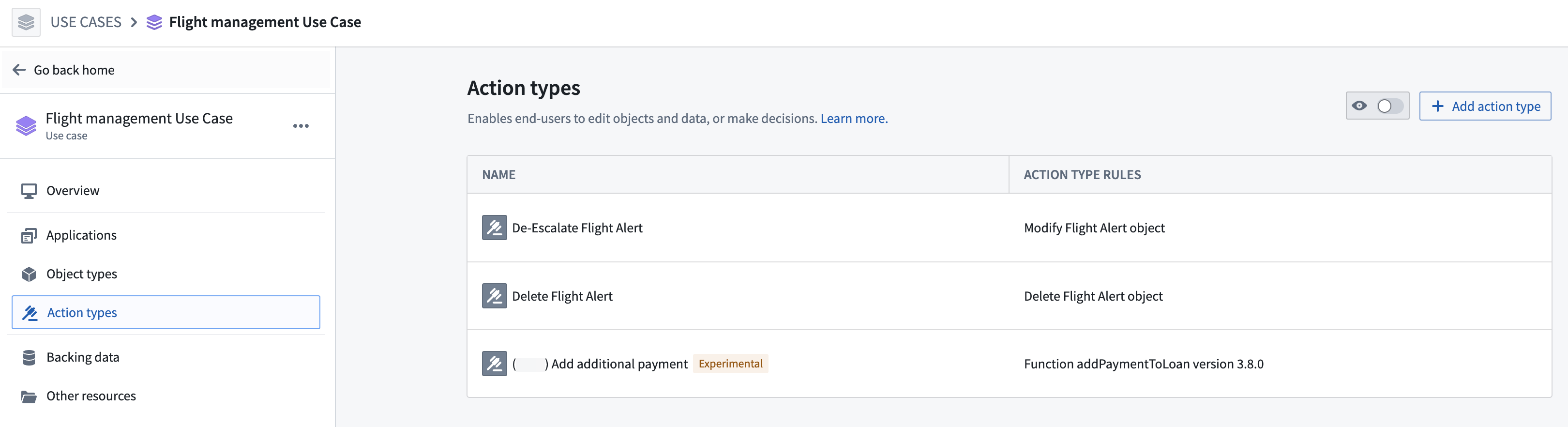
The Actions menu in the table list of action types allows you to navigate directly to the Ontology Manager app to edit the definition of the action type. You can also select Remove to remove any manually added action types if they are not being used by any application in the use case.

The action types listed in the table may include the following indicator:
Action type status: Action types in Experimental or Deprecated status will show a status tag on the row. Action types without a status tag are in Active status.
Learn more about creating an Ontology.
View datasources
The Backing data section provides a list of the datasources that hydrate the Ontology object types used in your use case. Select a datasource to view it in Dataset Preview.
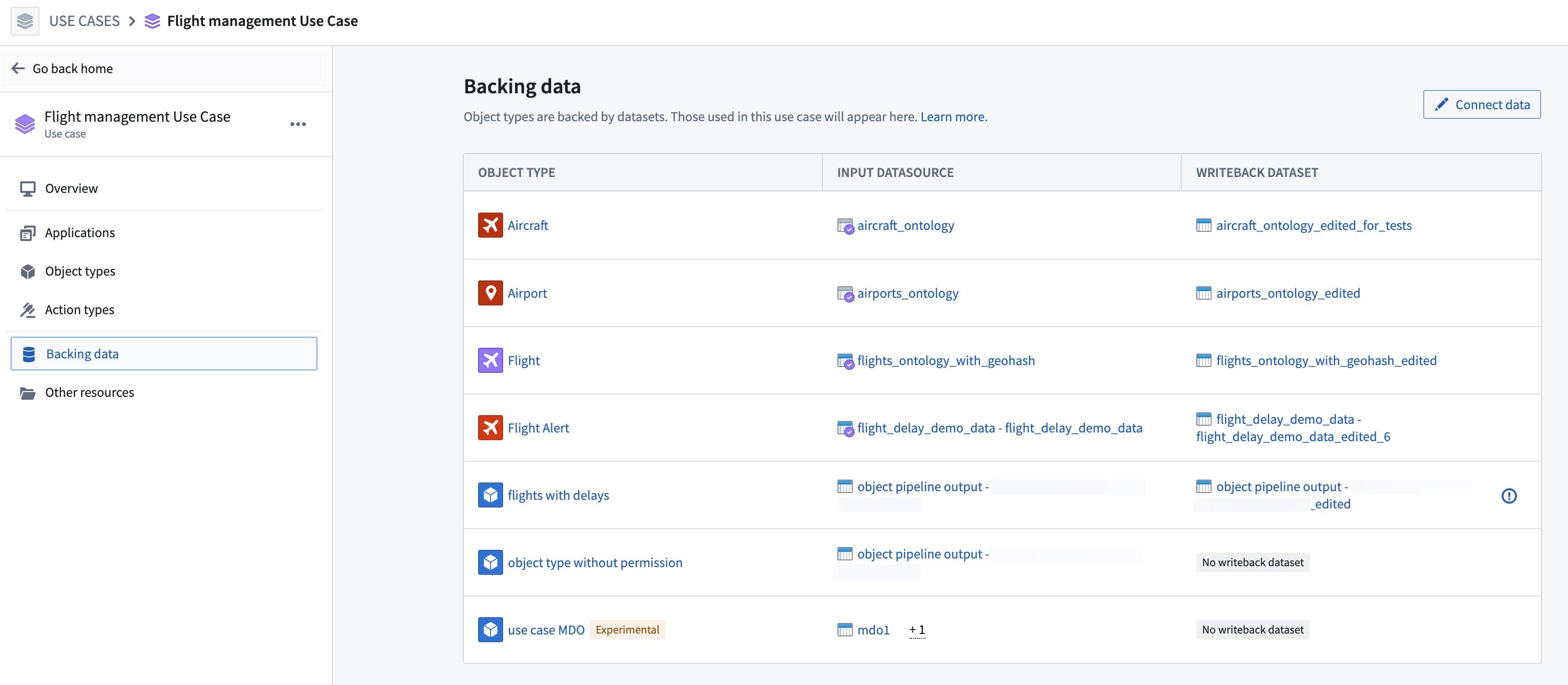
The Actions menu in the table list of backing data allows you to open the Data Lineage graph of the input and writeback datasource. You can also see the Update via resource that feeds this datasource.
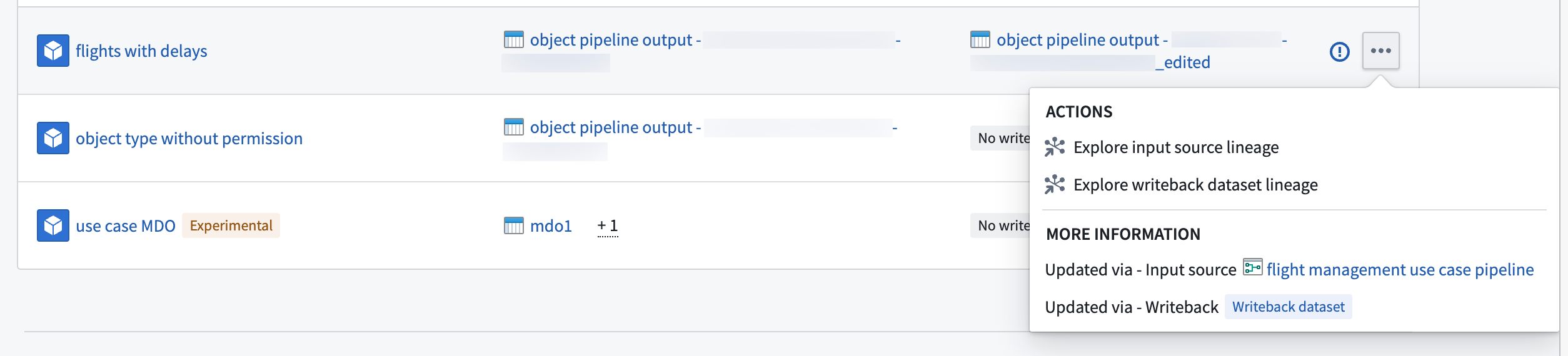
The backing datasources listed in the table may include the following indicators:
Object type status: Object types in Experimental or Deprecated status will show a tag on the row. Note that object types without a status tag are in Active status.
Writeback indicator: When a writeback datasource is present but located in a different Project, the input datasources and an information indicator will show on the row.

Learn more about connecting to data in Foundry and creating pipelines in Pipeline Builder.
中文翻译
查看资源
创建新用例后,您可以从用例概览页面查看已连接的应用程序和Ontology资源。如果您基于现有支持项目创建用例,这些资源将自动显示在用例中。如果您随新用例创建了新项目,则需要先添加应用程序资源或数据源,才能查看它们及其关联的Ontology组件。
用例概览提供元数据,包括用例工作流的描述、用例负责人的名称以及用例状态。概览页面还包含应用程序、Ontology和支持数据资源板块。Ontology资源按对象类型和操作类型进行分类。选择概览页面或左侧边栏中的板块标题,即可打开相应资源页面。
查看应用程序
在应用程序页面中,您将找到为用例创建或通过现有项目引入的所有应用程序资源,包括Workshop模块、Slate文档和Quiver分析。在以下示例中,我们的用例包含两个Workshop模块和一个Slate文档。
选择应用程序资源的名称,即可打开该应用程序页面。
在应用程序页面中,您可以查看该应用程序使用的对象类型,以及使用该对象类型的其他应用程序。
用例应用程序表格列表中的操作菜单允许您直接导航到用于创建该资源的Foundry应用程序。要修改应用程序资源,请将鼠标悬停在表格中的任意行上,然后选择编辑应用程序。
查看Ontology组件
用例Ontology资源包括对象类型和操作类型。在用例应用程序中引用的对象类型和操作类型将自动填充为用例中的Ontology资源。
了解更多关于创建Ontology组件的信息。
对象类型
在对象类型页面中,您将找到用例中任何应用程序所使用的所有对象类型。继续以上述示例为例,我们的两个Workshop模块应用程序中使用了若干对象类型。
对象类型表格列表中的操作菜单允许您直接导航到Ontology Manager应用程序以编辑对象类型的定义。您也可以选择移除来删除任何手动添加的对象类型(如果它们未被用例中的任何应用程序使用)。
表格中列出的对象类型可能包含以下指示符:
- 对象类型状态: 状态为
Experimental或Deprecated的对象类型会在行上显示状态标签。没有状态标签的对象类型处于Active状态。 - 共享/本地状态: 由用例项目中的数据源支持的对象类型会显示
Local标签。没有Local标签的对象类型由非用例项目的其他项目中的数据源支持。
当对象类型标记有Local标签,但同时被非此用例的应用程序使用时,会出现一个警告指示符,表明建议将用例的所有支持数据集移至共享的Ontology项目中。
选择一个对象类型以查看该资源的更多详细信息,包括属性、数据源和源系统详情。在以下示例中,我们可以查看Flight对象类型的更多详细信息。
点击在Ontology Manager中查看和编辑,在Ontology Manager应用程序中打开该对象类型。
了解更多关于编辑对象类型以及导航至Ontology Manager和从其导航的信息。
操作类型
在操作类型页面中,您将找到Ontology中与用例中的应用程序资源相关联的所有操作类型。
操作类型表格列表中的操作菜单允许您直接导航到Ontology Manager应用程序以编辑操作类型的定义。您也可以选择移除来删除任何手动添加的操作类型(如果它们未被用例中的任何应用程序使用)。
表格中列出的操作类型可能包含以下指示符:
操作类型状态: 状态为Experimental或Deprecated的操作类型会在行上显示状态标签。没有状态标签的操作类型处于Active状态。
了解更多关于创建Ontology的信息。
查看数据源
支持数据板块提供了用于填充用例中使用的Ontology对象类型的数据源列表。选择一个数据源以在数据集预览中查看。
支持数据表格列表中的操作菜单允许您打开输入和回写数据源的数据沿袭图。您还可以查看提供此数据源的通过以下资源更新信息。
表格中列出的支持数据源可能包含以下指示符:
对象类型状态: 状态为Experimental或Deprecated的对象类型会在行上显示标签。请注意,没有状态标签的对象类型处于Active状态。
回写指示符: 当存在回写数据源但位于不同项目时,输入数据源和信息指示符会显示在行上。
了解更多关于在Foundry中连接数据以及在Pipeline Builder中创建管道的信息。