Walkthrough types(演练类型)
The Walkthroughs application offers two types of walkthroughs to support different onboarding workflows.
Configure a walkthrough
In the Walkthrough configuration page, you can switch between the available multiple and single resource Walkthrough types.
:::callout{theme="neutral"} When you switch types, the primary resource for a step may change. After switching, verify that each step’s primary resource is correct. :::
Multiple resource walkthroughs
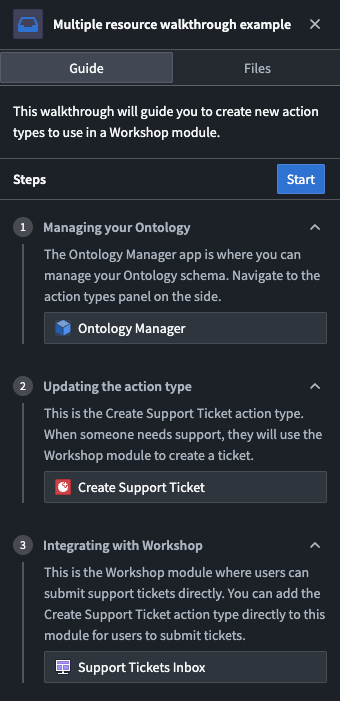
This is the default walkthrough type. Each step has its own primary resource that can be configured to help navigate users through Foundry.
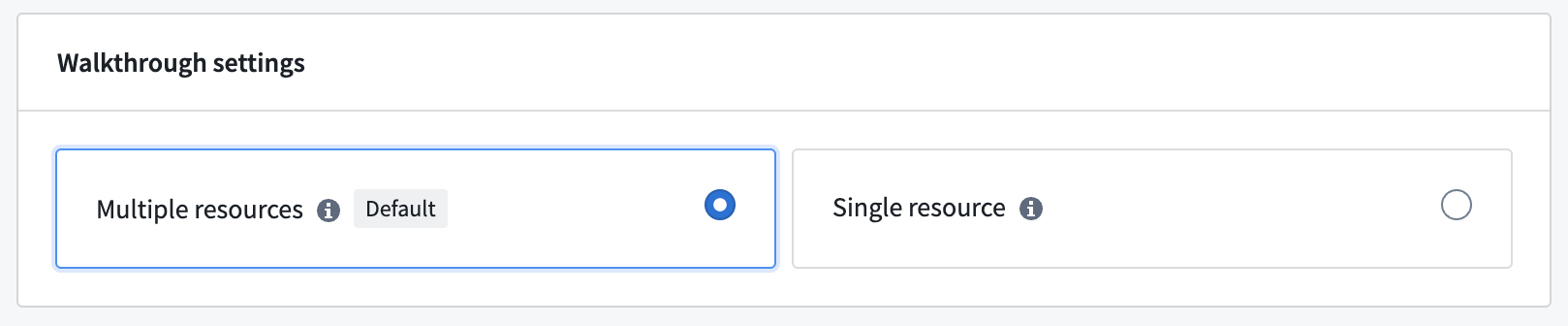
You should use this type for walkthroughs that have multiple different resources across steps. If there is a primary resource in a step, Walkthroughs will always navigate the user to that resource. For example, if you have a workflow that requires users to create an action type and then edit a Workshop module, you should use a multiple resources walkthrough.
Single resource walkthroughs
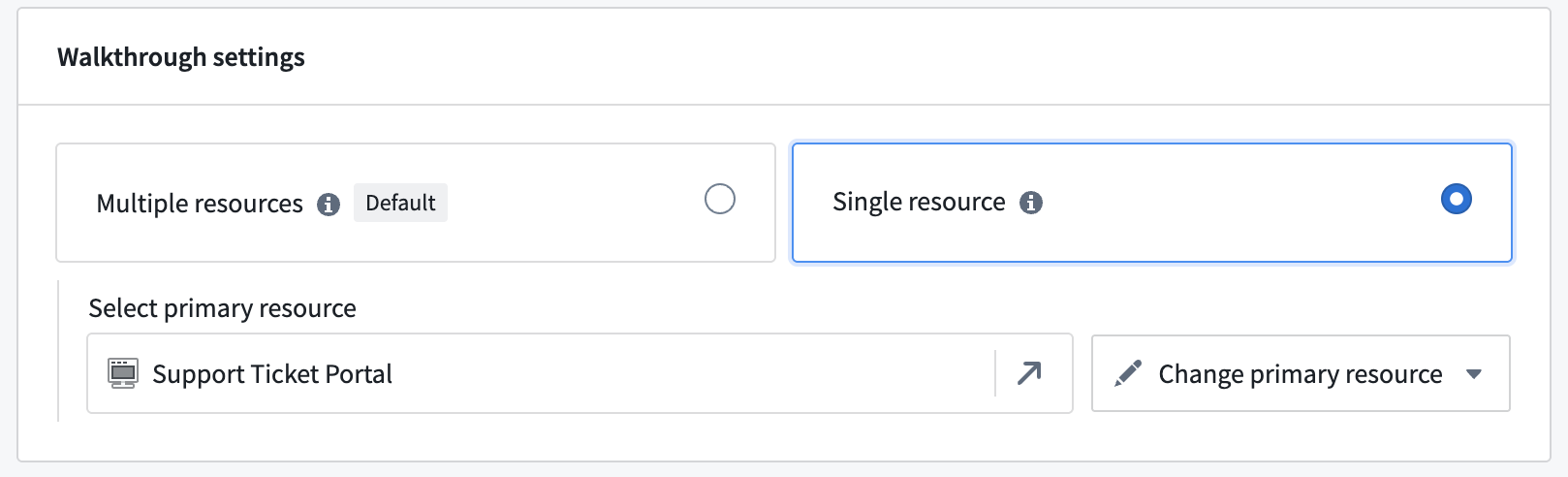
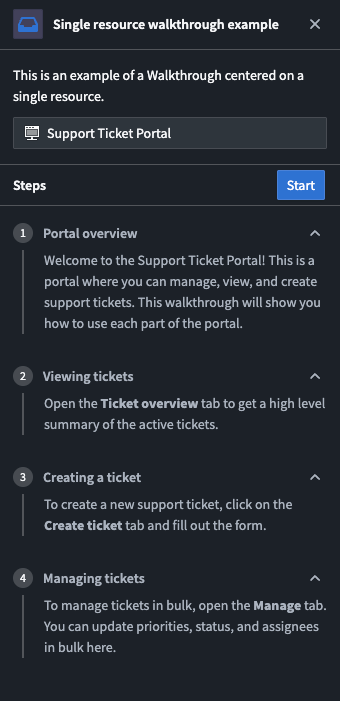
Single resource walkthroughs stay focused on one primary application or resource across all steps, removing repetitive setup and keeping context consistent for users.
You should use this type for walkthroughs or guides that are centered on a single application, Carbon workspace, or other resource.
Single resource walkthroughs have a few key differences in behavior compared with multiple resource walkthroughs:
- Auto-navigation is disabled between steps unless the active step has a configured URL suffix.
- In a single‑resource walkthrough, the Files tab and resources used in each step are hidden from users.
- Walkthroughs centered on a single Foundry application appear in the Walkthroughs sidebar when the user opens that application.
When switching to single resource walkthroughs, the primary resource of the walkthrough is automatically added as the primary resource of each step.
Although secondary resources are hidden in single resource walkthroughs, you can still use them to configure the primary resource. For example, to highlight Workshop modules within a Carbon workspace, add the modules as secondary resources and configure highlighting on them. When Workshop is open within the Carbon workspace, its widgets will be highlighted. You may also use the secondary resource configuration to configure behaviour for iframed resources.
Walkthrough type feature comparison
| Feature | Multiple resource type | Single resource type |
|---|---|---|
| Auto-navigation between steps | ✓ | Only with URL suffix |
| Files tab visible | ✓ | ✗ |
| Per-step resources | ✓ | ✗ |
| Best for | Cross-platform workflows | Application-specific training |
中文翻译
演练类型
演练应用提供两种演练类型,以支持不同的入职工作流程。
配置演练
在演练配置页面中,您可以在可用的多资源和单资源演练类型之间切换。
:::callout{theme="neutral"} 切换类型时,步骤的主要资源可能会发生变化。切换后,请验证每个步骤的主要资源是否正确。 :::
多资源演练
这是默认的演练类型。每个步骤都有自己独立的主要资源,可配置以帮助用户在 Foundry 中导航。
对于跨步骤包含多个不同资源的演练,应使用此类型。如果某个步骤中存在主要资源,演练将始终将用户导航至该资源。例如,如果您的工作流程要求用户先创建操作类型,再编辑 Workshop 模块,则应使用多资源演练。
单资源演练
单资源演练在所有步骤中始终聚焦于一个主要应用或资源,减少重复设置并保持用户上下文一致。
对于以单一应用、Carbon 工作空间或其他资源为中心的演练或指南,应使用此类型。
与多资源演练相比,单资源演练在行为上有几个关键差异:
- 除非当前步骤配置了 URL 后缀,否则步骤之间禁用自动导航。
- 在单资源演练中,文件选项卡和每个步骤中使用的资源对用户隐藏。
- 当用户打开某个 Foundry 应用时,以该应用为中心的演练会显示在演练侧边栏中。
切换为单资源演练时,演练的主要资源会自动添加为每个步骤的主要资源。
虽然在单资源演练中次要资源被隐藏,您仍可使用它们来配置主要资源。例如,要突出显示 Carbon 工作空间中的 Workshop 模块,可将这些模块添加为次要资源并配置高亮显示。当 Workshop 在 Carbon 工作空间中打开时,其组件将被高亮显示。您也可以使用次要资源配置来配置 iframe 资源的行为。
演练类型功能对比
| 功能 | 多资源类型 | 单资源类型 |
|---|---|---|
| 步骤间自动导航 | ✓ | 仅限有 URL 后缀时 |
| 文件选项卡可见 | ✓ | ✗ |
| 每步资源 | ✓ | ✗ |
| 适用场景 | 跨平台工作流程 | 应用特定培训 |