Workshop integration(Workshop 集成)
You can integrate Walkthroughs with Workshop modules to enable more interactivity for end users.
Use Workshop modules in Walkthroughs
- In a Walkthrough module, navigate to the step that will include a Walkthrough.
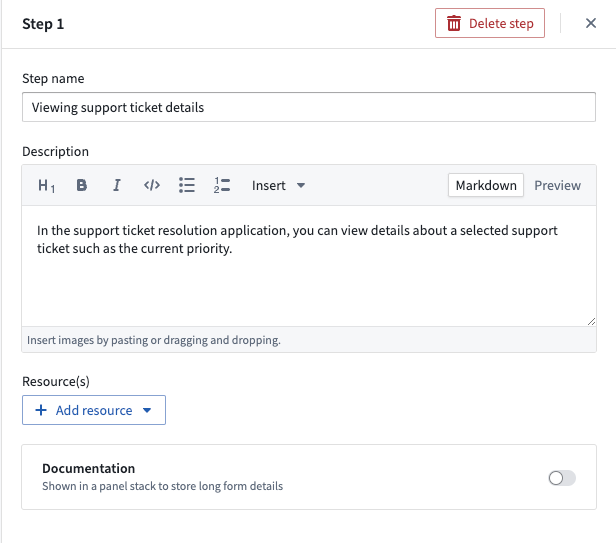
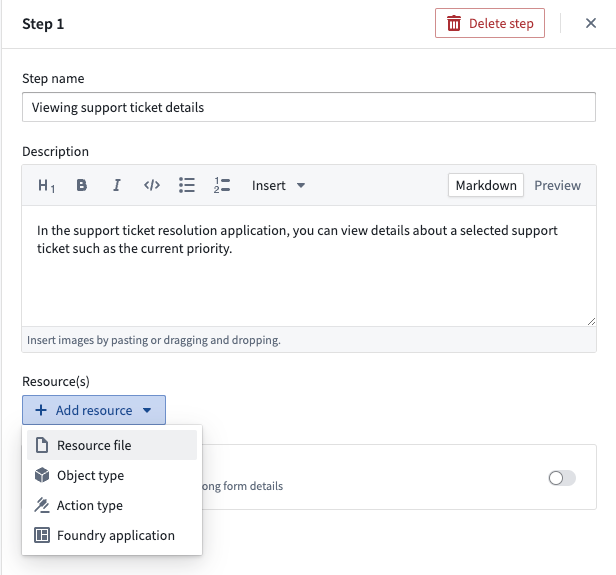
- Add a resource to this step and select a Workshop module to add.
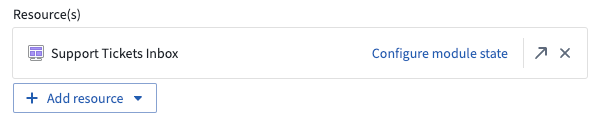
- Once the Workshop module is added, a Configure module state button will appear on the Workshop card. This button will take you to the Workshop configuration dialog.
Highlight Workshop widgets
Walkthrough builders can highlight specific parts of a Workshop module when an end user is in a walkthrough. By highlighting Workshop widgets, end users can easily identify and focus on key elements of the Workshop module.
- Open the Workshop configuration dialog of the step's linked Workshop module to be highlighted.
- Use the Select widgets button to enter widget selection mode.
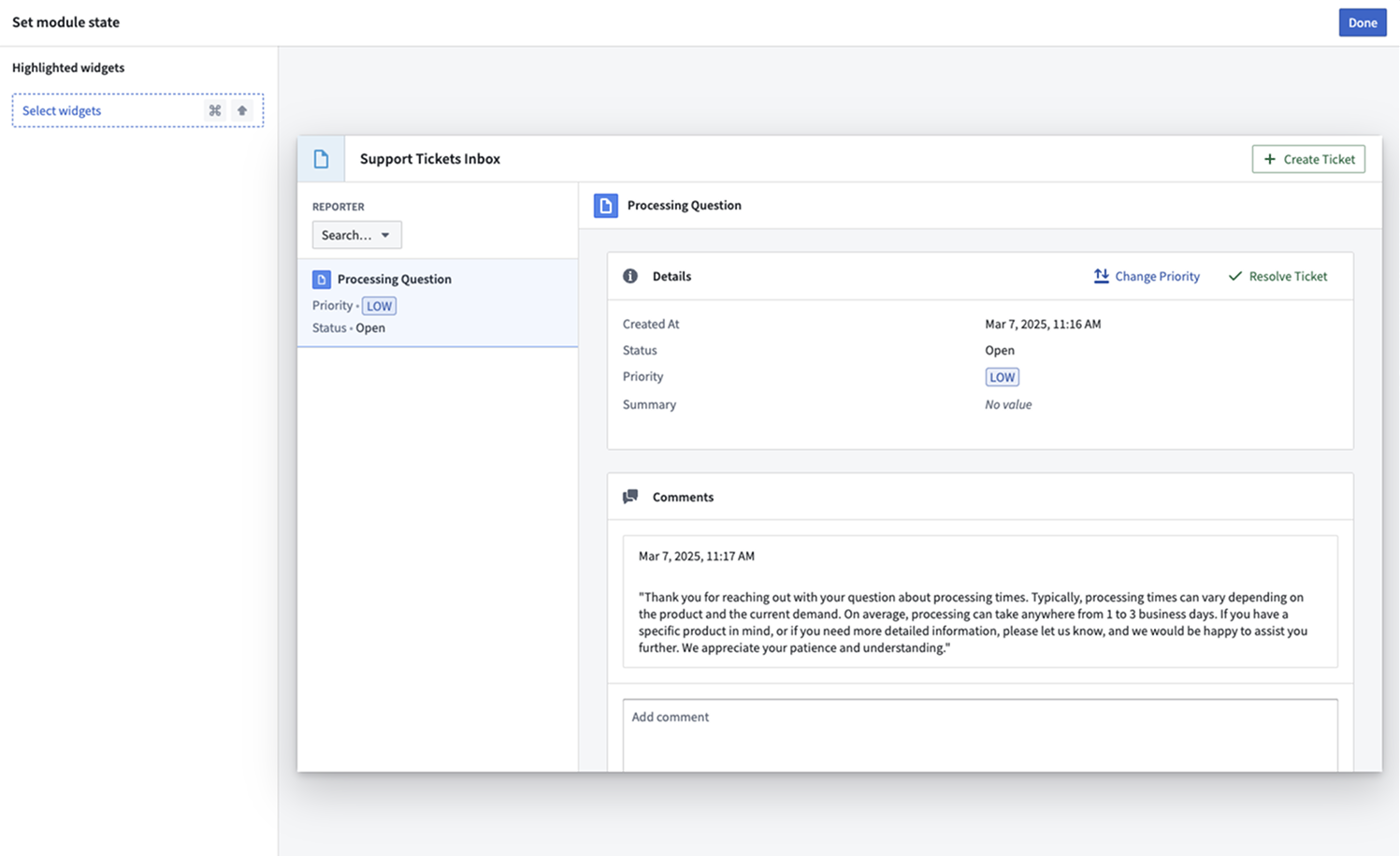
- While in widget selection mode, select the widgets to highlight in the walkthrough. Widgets can be deselected by clicking on them again or by using the Clear all button.
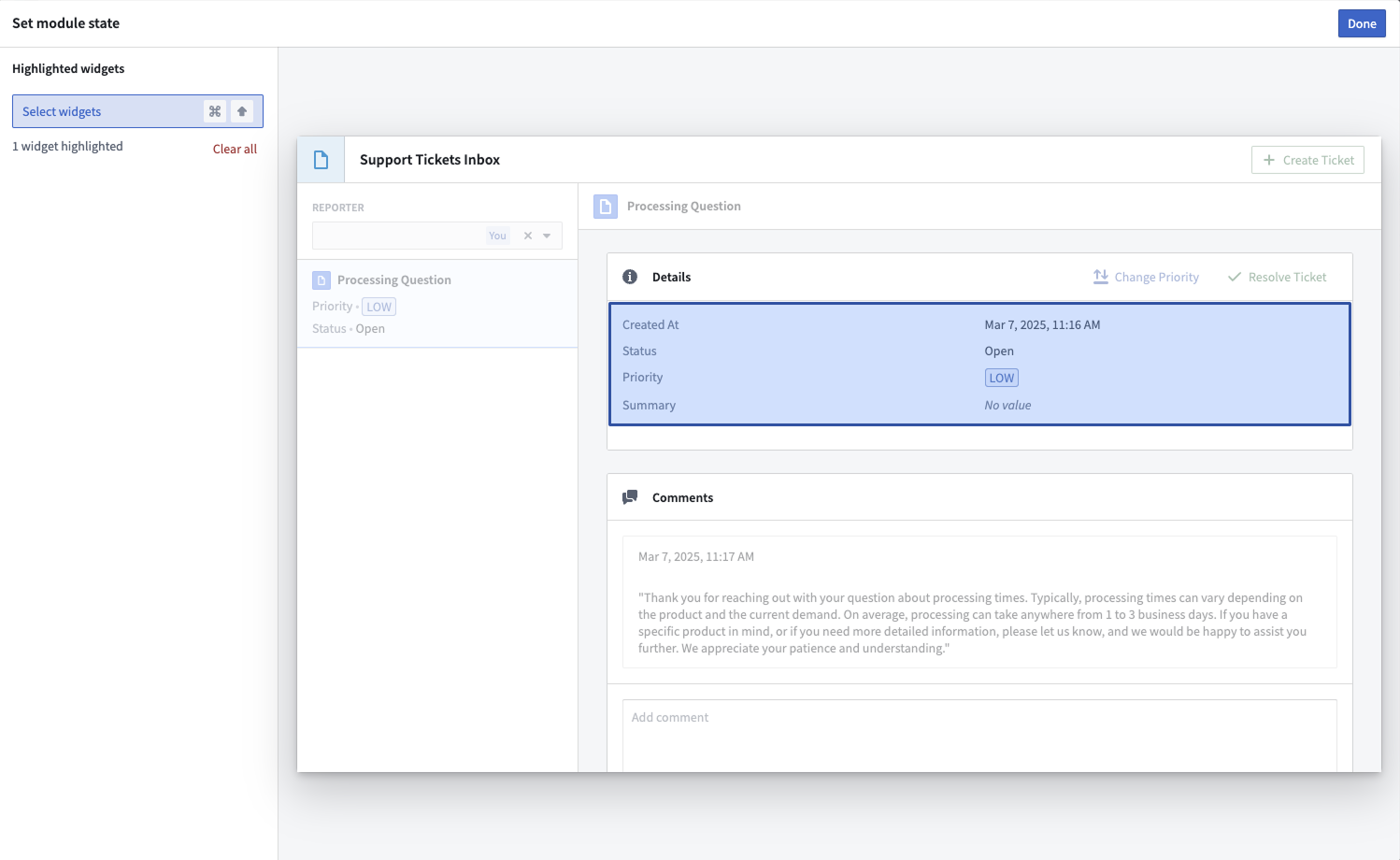
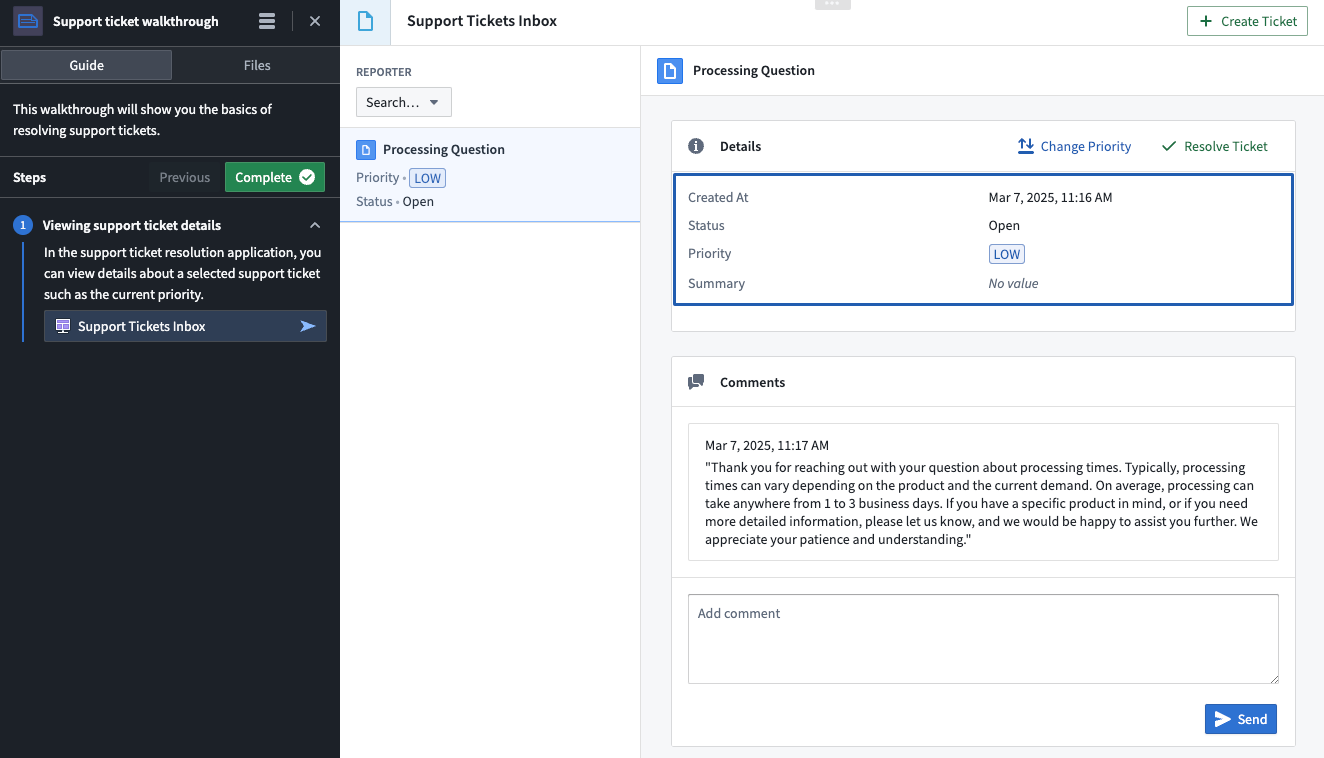
- When a user is in the walkthrough, the selected widgets will now be highlighted on that step.
:::callout{theme="neutral"} Only top-level widget highlighting is currently supported. This means that sections or subcomponents (such as individual buttons or tabs) cannot be directly highlighted. :::
中文翻译
Workshop 集成
您可以将 Walkthrough 与 Workshop 模块集成,为最终用户提供更强的交互性。
在 Walkthrough 中使用 Workshop 模块
- 在 Walkthrough 模块中,导航至将包含 Walkthrough 的步骤。
- 为此步骤添加一个资源,并选择要添加的 Workshop 模块。
- 添加 Workshop 模块后,Workshop 卡片上会出现一个 配置模块状态(Configure module state) 按钮。点击此按钮将进入 Workshop 配置对话框。
高亮 Workshop 小组件
Walkthrough 构建者可以在最终用户浏览 Walkthrough 时,高亮 Workshop 模块中的特定部分。通过高亮 Workshop 小组件,最终用户可以轻松识别并聚焦于 Workshop 模块的关键元素。
- 打开步骤中已链接的 Workshop 模块的配置对话框,以便进行高亮设置。
- 使用 选择小组件(Select widgets) 按钮进入小组件选择模式。
- 在小组件选择模式下,选择要在 Walkthrough 中高亮的小组件。再次点击小组件或使用 清除全部(Clear all) 按钮可取消选择。
- 当用户浏览 Walkthrough 时,所选小组件将在该步骤中高亮显示。
:::callout{theme="neutral"} 目前仅支持顶层小组件的高亮。这意味着无法直接高亮显示部分或子组件(例如单个按钮或选项卡)。 :::