Issues application(Issues 应用)
The Issues application is a support system that enables users to get help from within the Palantir platform.
Using the Issues application, you can:
- Ask questions about applications or the platform itself.
- Triage and resolve problems, requests, and questions transparently.
- Report problems on resources from anywhere inside the platform and see which resources have unresolved issues.
- Make requests for integrating more data within the platform.
Access the Issues application
From the platform home page:
- On the left navigation bar, select View all located to the right of the Platform Apps section.
- Select Issues from under Support.

Search for issues
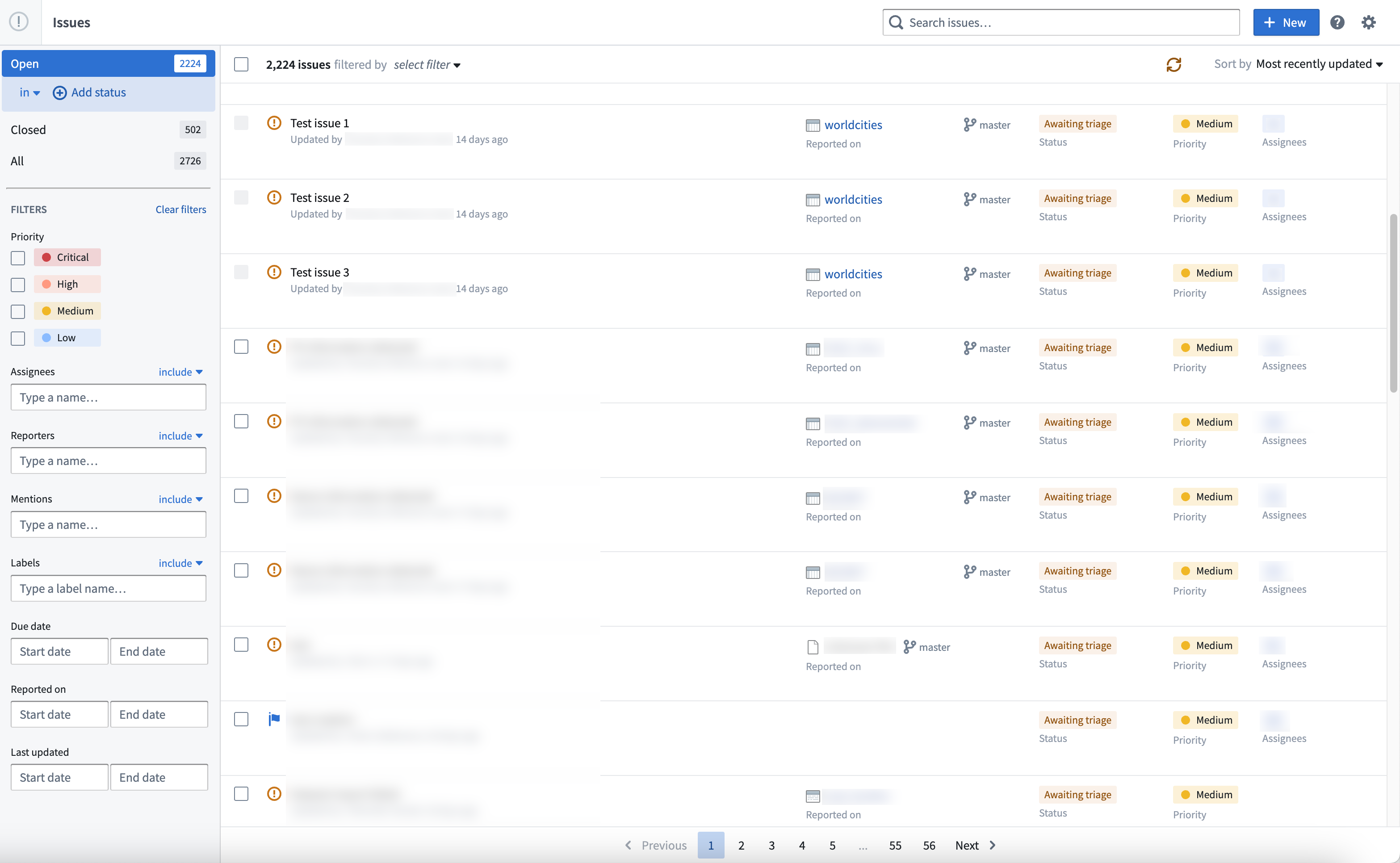
From the Issues home page, you can filter and search for specific issues to narrow down to issues of interest. By default, you'll see the Open issues overview page. You may also select Closed or All to see the respective view.
-
Sidebar filtering: The sidebar on the left offers options to filter by:
-
Priority
- Assignees
- Reporters
- Mentions
- Labels
- Due date
- Reported on date
-
Last updated date
-
Search issues: This search bar allows you to search through all the user-entered fields, including the Title and Comments.
-
Select Filters: The select filter option allows you to filter by issues that are related to you (for instance, issues assigned to you, reported by you, or mentioning you). There are multiple ways to sort the issues displayed in the Issues application, including:
- Best match
- Most recently updated (default)
- Least recently updated
- Recently created
- Oldest created
- Highest priority
- Lowest priority
- Earliest due date
- Latest due date
Report an issue
To report an issue, navigate to the Support section in your Workspace sidebar and select either Report issue or Contact support. View existing issues by selecting View support tickets.
Once your issue is created, you will be brought back to the Issues overview page where recent issues are listed, which will be reviewed by the relevant assignees. Select it to enter the issue-specific page and add a comment to provide further updates, or edit its status, priority, due date, assignee, inquiry type, (related) application, or label. Otherwise, select Close issue if a resolution has been reached.


When creating an issue:
- Select the support type that most accurately reflects your need.

- Provide as much information as possible, including a Title, Description, Priority, and any additional details such as Associated resources or Attachments where relevant. Then, select Create Issue.

:::callout{theme="neutral"} The assignee can only be modified after the creation of the issue, unless the selected support type has not been configured with an initial assignee, in which case the reporter is responsible for selecting the appropriate user or group to address their issue. :::
Issue permissions
Issues will generally be accessible to all other users in your Organization. However, if an issue is related to a dataset or resource, access can be controlled with roles on the project where the dataset or resource is located. You can control whether a user can see an issue based on the filesystem permissions that user has on the dataset or resource.
Note: Creating an issue on a dataset or resource does not grant other users access to that dataset or resource.
Collaboration across Organizations
Access to an issue is subject to the Organizations associated with it. By default, all issues are associated with the reporter's Organization. When assigning an issue to users or groups outside this Organization, the user updating the issue is able to add an Organization of those associated with the assignees to the issue. Assignees will only be able to view the issue if the issue is associated with an Organization to which they belong (for example, their Organization or an Organization to which they have been granted guest membership). This is also the case when re-assigning the issue.
When assigning issues to groups, there are no strict guarantees that any individual user of an assigned group will be able to view the issue. This is because individual members of the assigned group may not have access to any of the Organizations associated with the issue.
:::callout{theme="warning"} The association of a group with an Organization does not grant all members of that group access to the Organization. This can only be done through granting guest membership to an Organization. When assigning groups to an issue, you should investigate the permissions of group members to confirm which Organizations (if any) need to be added to the issue to ensure that members have access to respond to the issue. :::
Comment tags
When viewing comments on an issue, you may see colored tags displayed next to the commenter's name. These tags help identify the role or relationship of the commenter to the issue, making it easier to understand who is responding and their context.
Available tags
| Tag | Description |
|---|---|
| Assignee | Displayed for users who are assigned to the issue, either directly or through a group assignment. |
| Reporter | Displayed for the user who originally created the issue. |
| Automated | Displayed for auto-generated comments from the system. |
Tag display rules
- A single comment can have multiple tags if the commenter has multiple roles. For example, a user who reported an issue and is also assigned to it will see both the Reporter and Assignee tags.
- Tags are determined automatically based on the commenter's relationship to the issue and cannot be manually assigned or removed.
中文翻译
Issues 应用
Issues 应用是一个支持系统,使用户能够从 Palantir 平台内获取帮助。
通过 Issues 应用,您可以:
- 就应用或平台本身提出问题。
- 透明地分类和解决问题、请求及疑问。
- 从平台内任何位置报告资源问题,并查看哪些资源存在未解决的问题。
- 提出在平台内集成更多数据的请求。
访问 Issues 应用
从平台主页:
- 在左侧导航栏中,选择 Platform Apps 部分右侧的 View all。
- 在 Support 下选择 Issues。
搜索问题
在 Issues 主页上,您可以筛选和搜索特定问题,以缩小到您感兴趣的问题范围。默认情况下,您会看到 Open(开放)问题概览页面。您也可以选择 Closed(已关闭)或 All(全部)查看相应视图。
-
侧边栏筛选:左侧的侧边栏提供按以下条件筛选的选项:
-
优先级(Priority)
- 负责人(Assignees)
- 报告人(Reporters)
- 提及(Mentions)
- 标签(Labels)
- 截止日期(Due date)
- 报告日期(Reported on date)
-
最后更新日期(Last updated date)
-
搜索问题:此搜索栏允许您搜索所有用户输入的字段,包括 Title(标题)和 Comments(评论)。
-
选择筛选条件:选择筛选条件选项允许您按与您相关的问题进行筛选(例如,分配给您的、由您报告的或提及您的问题)。有多种方式可以对 Issues 应用中显示的问题进行排序,包括:
- 最佳匹配(Best match)
- 最近更新(Most recently updated,默认)
- 最早更新(Least recently updated)
- 最近创建(Recently created)
- 最早创建(Oldest created)
- 最高优先级(Highest priority)
- 最低优先级(Lowest priority)
- 最早截止日期(Earliest due date)
- 最晚截止日期(Latest due date)
报告问题
要报告问题,请导航到工作区侧边栏中的 Support 部分,然后选择 Report issue(报告问题)或 Contact support(联系支持)。通过选择 View support tickets(查看支持工单)查看现有问题。
创建问题后,您将返回到 Issues 概览页面,其中列出了最近的问题,相关负责人将对其进行审核。选择该问题进入问题专属页面,添加评论以提供进一步更新,或编辑其状态、优先级、截止日期、负责人、查询类型、(相关)应用或标签。如果问题已解决,请选择 Close issue(关闭问题)。
创建问题时:
- 选择最能准确反映您需求的支持类型。
- 提供尽可能多的信息,包括 Title(标题)、Description(描述)、Priority(优先级)以及任何其他详细信息,如相关的 Associated resources(关联资源)或 Attachments(附件)。然后选择 Create Issue(创建问题)。
:::callout{theme="neutral"} 负责人只能在问题创建后修改,除非所选的支持类型(support type)未配置初始负责人,在这种情况下,报告人负责选择适当的用户或群组来处理其问题。 :::
问题权限
问题通常对您组织中的所有其他用户可见。但是,如果问题与数据集或资源相关,则可以通过数据集或资源所在项目上的角色(roles)来控制访问权限。您可以根据用户在数据集或资源上的文件系统权限来控制用户是否可以看到问题。
注意: 在数据集或资源上创建问题并不会授予其他用户对该数据集或资源的访问权限。
跨组织协作
问题的访问权限受与其关联的组织(Organizations)限制。默认情况下,所有问题都与报告人的组织关联。当将问题分配给此组织之外的用户或群组时,更新问题的用户可以将与负责人关联的组织添加到问题中。负责人只有在问题与所属组织(例如,他们的组织或已获得访客成员资格的组织)关联时才能查看问题。重新分配问题时也是如此。
将问题分配给群组时,无法严格保证被分配群组的任何单个用户都能查看该问题。这是因为被分配群组的个别成员可能无法访问与问题关联的任何组织。
:::callout{theme="warning"} 群组与组织的关联并不授予该群组所有成员对该组织的访问权限。这只能通过授予组织的访客成员资格来实现。将群组分配给问题时,您应调查群组成员的权限,以确认需要将哪些组织(如果有)添加到问题中,以确保成员有权响应问题。 :::
评论标签
查看问题评论时,您可能会在评论者姓名旁边看到彩色标签。这些标签有助于识别评论者与问题的角色或关系,使您更容易理解谁在回复以及他们的背景。
可用标签
| 标签 | 描述 |
|---|---|
| Assignee(负责人) | 显示给直接或通过群组分配被分配到问题的用户。 |
| Reporter(报告人) | 显示给最初创建问题的用户。 |
| Automated(自动) | 显示给系统自动生成的评论。 |
标签显示规则
- 如果评论者具有多个角色,单条评论可以包含多个标签。例如,报告问题同时也被分配到该问题的用户将同时看到 Reporter(报告人)和 Assignee(负责人)标签。
- 标签根据评论者与问题的关系自动确定,无法手动分配或移除。