Edit a recipe(编辑配方(recipe))
Based on your permission level, you can perform different actions on a recipe. Recipes can be edited via the Recipe Management page. Learn more about the recipe permissions model.
First, click on the recipe you would like to modify, then select the settings cog to open a menu.
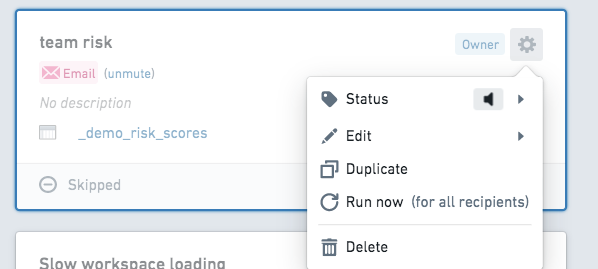
Select Edit, then Configuration to modify the recipe.
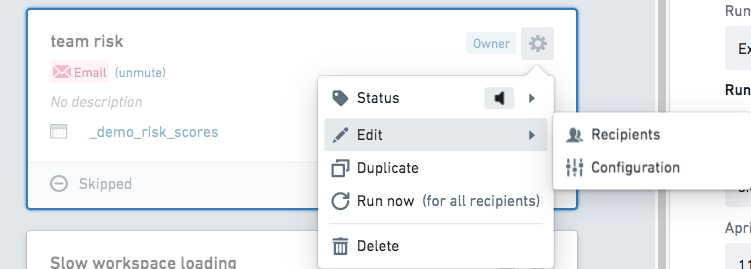
Add recipients to a recipe
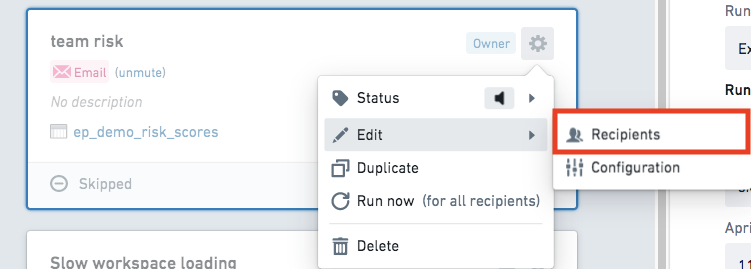
To add recipients to an existing recipe, select Recipients from the Edit menu.
Note that by default, the maximum number of recipients is set to 25 to preserve overall performance.
Mute or pause a recipe
If you wish to stop receiving notifications from a particular recipe, you can mute the recipe. A muted recipe is not deleted, but it stops sending notifications. Muting a recipe will silence your notifications, but other recipients of the recipe will still receive them.
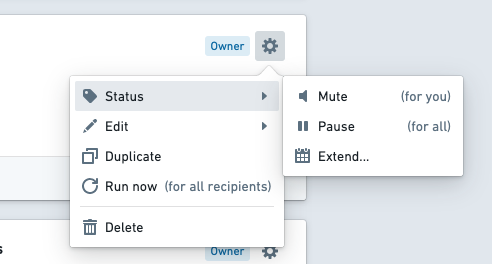
Owners of recipes can Pause for all which will stop notifications to all recipients. This may be useful if, for example, recipients are away from their computers for an extended period of time and may not wish to receive notifications, or if there is a planned maintenance event on a monitored sensor.
To mute or pause a recipe, select the setting cog on the recipe panel to open a menu. Select Status, then choose Mute or Pause based on your preference.
Change the expiration date of a recipe
Recipe expiration dates can be extended at any time from the Recipe Management page.
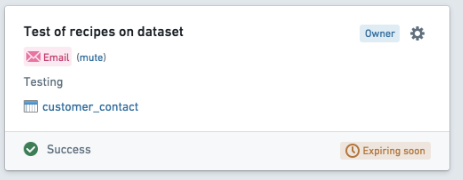
Click on the recipe you wish to modify, then click the settings cog. Select Status from the menu.
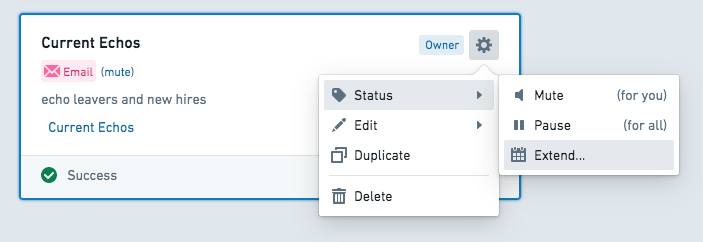
To extend an active recipe, click Extend.
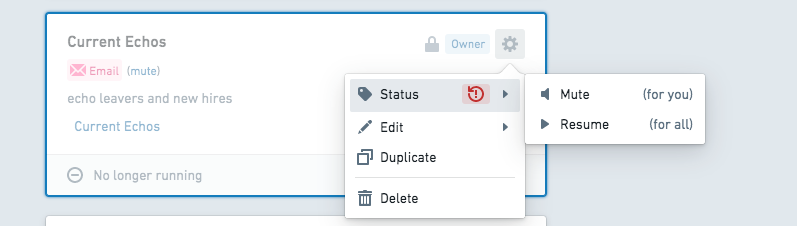
To resume an expired recipe, click Resume.
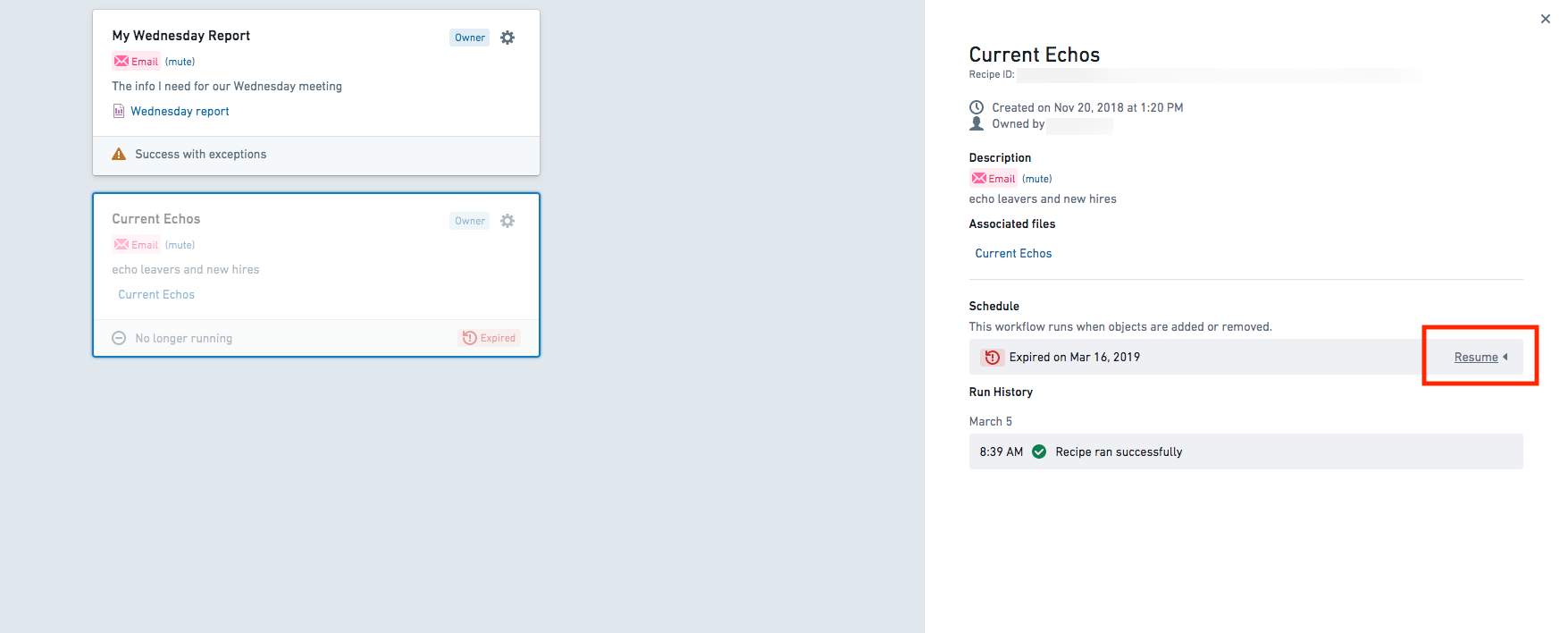
Additionally, recipes can be extended by first selecting the recipe card on the Recipe Management page, then selecting Resume from the information panel on the right side of the screen. Authors should receive an email reminding them to extend their recipe that includes a link to this view.
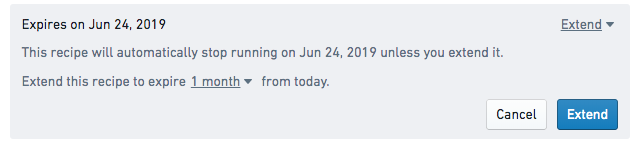
Learn more about recipe expiration.
Delete a recipe
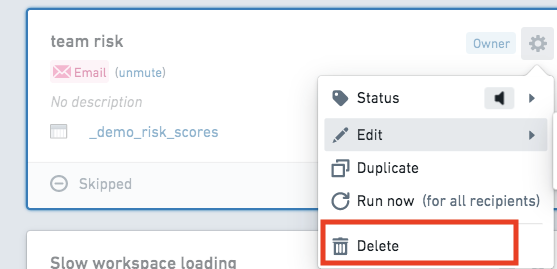
From the Recipes Management page, first click on the recipe you would like to modify. Then, select the settings cog to open a menu. Select Delete.
:::callout{theme="warning"} You can only delete recipes you own. A deleted recipe will no longer operate for other recipients of that recipe. To stop a recipe from notifying you without deleting it, mute the recipe. :::
中文翻译
编辑配方(recipe)
根据您的权限级别,您可以对配方执行不同的操作。配方可通过"配方管理"(Recipe Management)页面进行编辑。了解更多关于配方权限模型的信息。
首先,点击您想要修改的配方,然后选择设置齿轮图标以打开菜单。
选择编辑(Edit),然后选择配置(Configuration)以修改配方。
为配方添加接收者
要为现有配方添加接收者,请从编辑菜单中选择接收者(Recipients)。
请注意,默认情况下,为保持整体性能,最大接收者数量设置为25。
静音或暂停配方
如果您希望停止接收某个特定配方的通知,可以将该配方静音。静音的配方不会被删除,但会停止发送通知。静音配方将关闭您的通知,但该配方的其他接收者仍会收到通知。
配方所有者可以选择为所有人暂停(Pause for all),这将停止向所有接收者发送通知。例如,当接收者长时间离开电脑不希望接收通知,或监控传感器有计划维护事件时,此功能可能非常有用。
要静音或暂停配方,请选择配方面板上的设置齿轮图标以打开菜单。选择状态(Status),然后根据您的偏好选择静音(Mute)或暂停(Pause)。
更改配方的过期日期
配方的过期日期可随时从"配方管理"页面进行延长。
点击您想要修改的配方,然后点击设置齿轮图标。从菜单中选择状态。
要延长一个活跃的配方,请点击延长(Extend)。
要恢复一个已过期的配方,请点击恢复(Resume)。
此外,还可以通过先在"配方管理"页面上选择配方卡片,然后从屏幕右侧的信息面板中选择恢复来延长配方。作者应会收到一封提醒其延长配件的电子邮件,其中包含指向此视图的链接。
了解更多关于配方过期的信息。
删除配方
从"配方管理"页面,首先点击您想要修改的配方。然后,选择设置齿轮图标以打开菜单。选择删除(Delete)。
:::callout{theme="warning"} 您只能删除自己拥有的配方。已删除的配方将不再对该配方的其他接收者生效。若要在不删除配方的情况下停止接收通知,请将配方静音。 :::