Announcements(公告)
REMINDER: Sign up for the Foundry Newsletter to receive a summary of new products, features, and improvements across the platform directly to your inbox. For more information on how to subscribe, see the Foundry Newsletter and Product Feedback channels announcement.
Share your thoughts about these announcements in our Developer Community Forum ↗.
Announcing Machinery, for building and optimizing your processes in a comprehensive view
Date published: 2025-02-27
Real-world events, such as business workflows, government operations, healthcare procedures, and more, can be thought of as processes. Machinery can help you understand and manage all aspects of a process, identify unwanted behavior, and make improvements towards a desired outcome. Create processes in Machinery, then build custom applications to supervise your AIP workflow in real time, bring humans into the loop for manual actions, and iterate on process inefficiencies to increase automation.
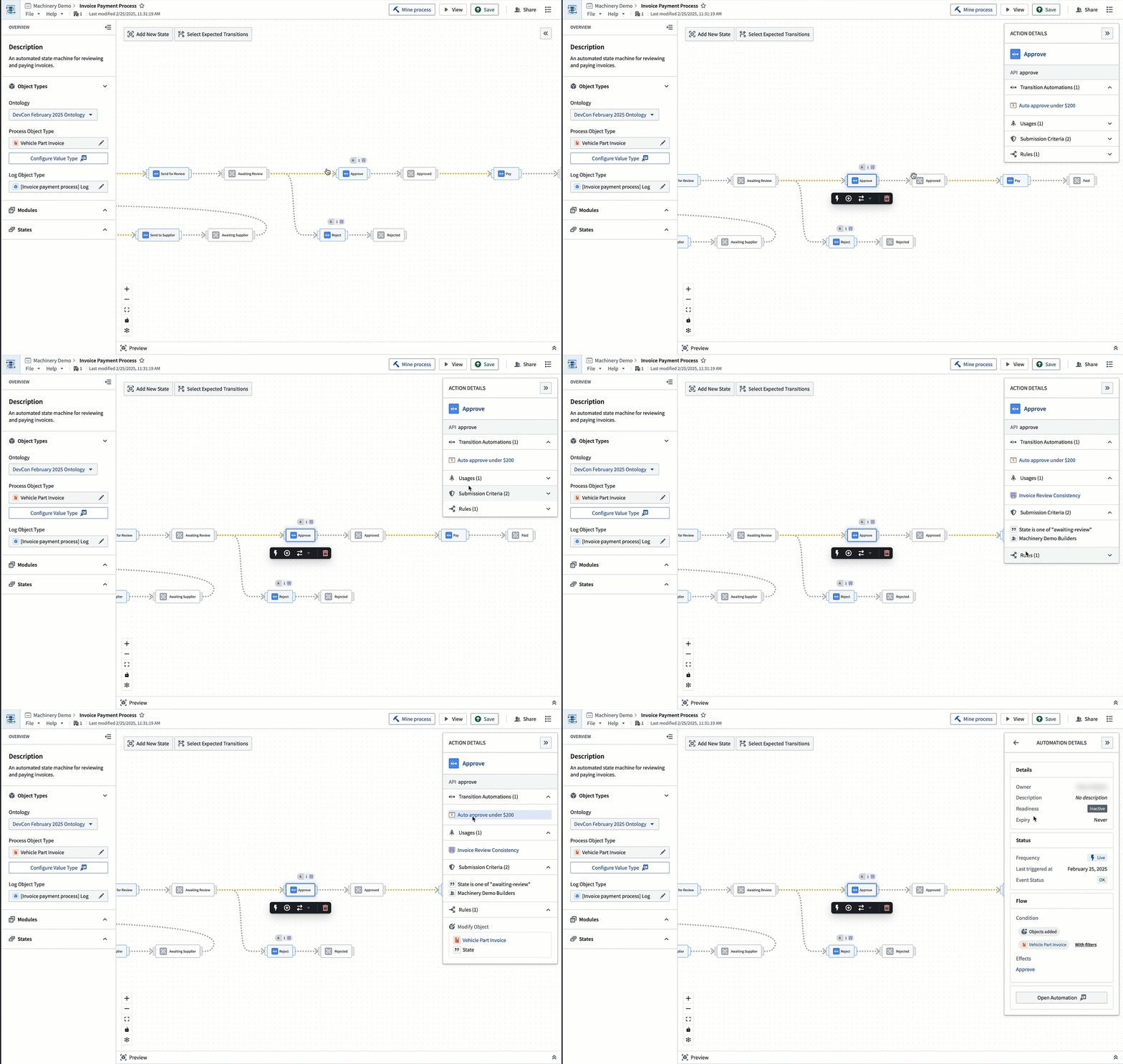
Implement a process from scratch, review, and optimize with Machinery in a comprehensive view.
Common workflows for Machinery include:
- Resolving process inefficiencies with the help of AIP and automation
- Managing an AIP use case end to end by orchestrating several AI agents
- Mining an ongoing process from external event logs to gain visibility into an existing process
- Defining and monitoring performance metrics and expectations to identify process bottlenecks
- Building operational applications to supervise AIP workflows with real-time human intervention
To use Machinery, an enrollment administrator must first enable it in Control Panel.
Author a process in a comprehensive view
Implementing a process in the Palantir Platform involves many individual resources, such as object types, Actions, and automations. Machinery now provides a comprehensive view for all these components and lets you inspect and control all relevant details. Its unique state-centric perspective and intuitive graph allow you to draw, define, and understand an ordered flow of Actions. Machinery also integrates value types and submission criteria, providing you an additional layer conformance guarantees.

Whether you want to draw a process from scratch or mine an ongoing process, Machinery provides step-by-step guidance during the setup process.
Keep the process flowing with Action automation
Add an Action between states to help keep your process moving. Configure automatic state transitions by setting property filters directly in Machinery or switch to a linked object set with predefined filters.
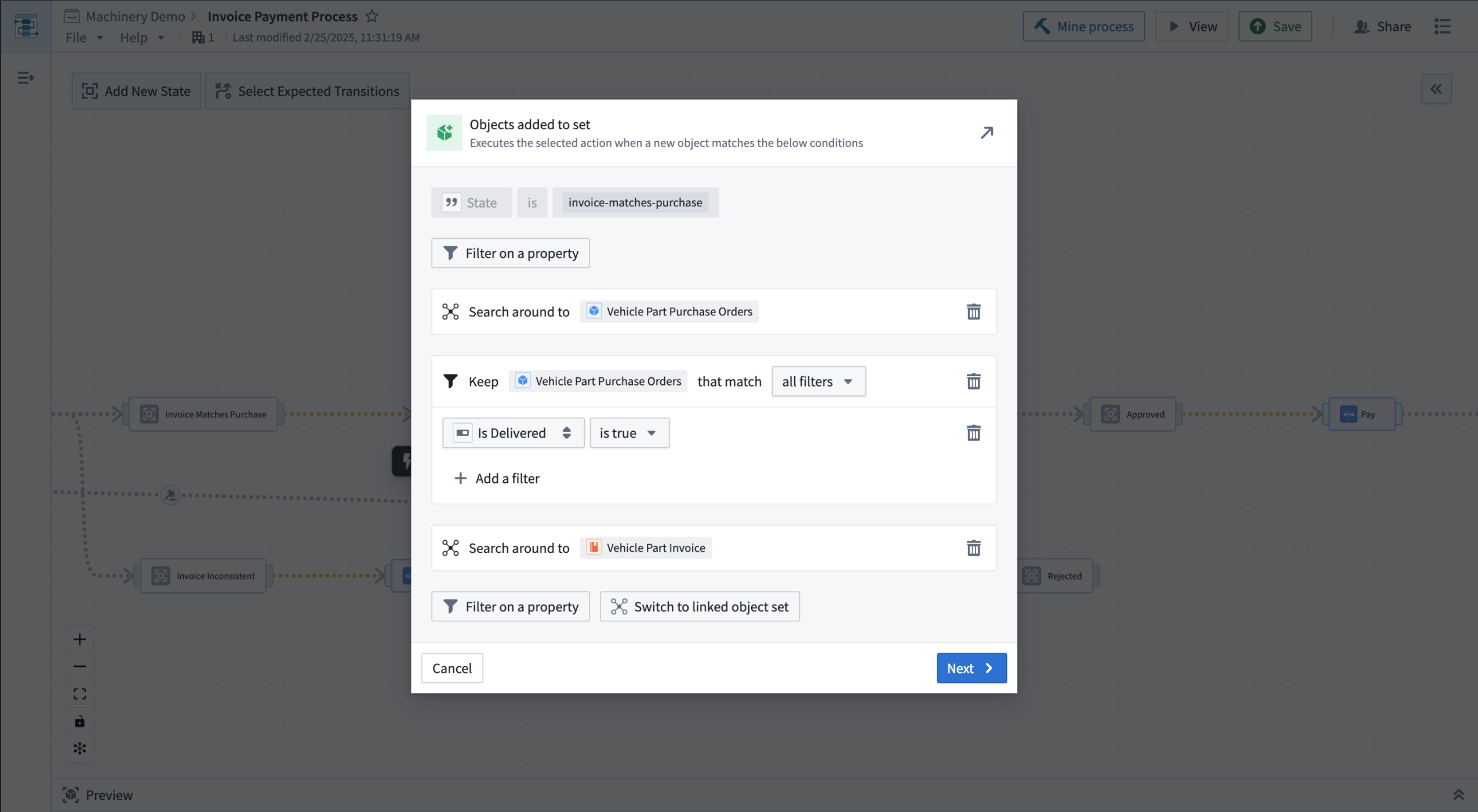
Configure state transitions by setting up filters to adhere to your personalized conditions for the process.
Incorporate AIP Logic to your process seamlessly
Create an Action backed by a Logic Function and incorporate extensive and robust AIP capability to power your process. This Function can be further configured in the AIP Logic application.
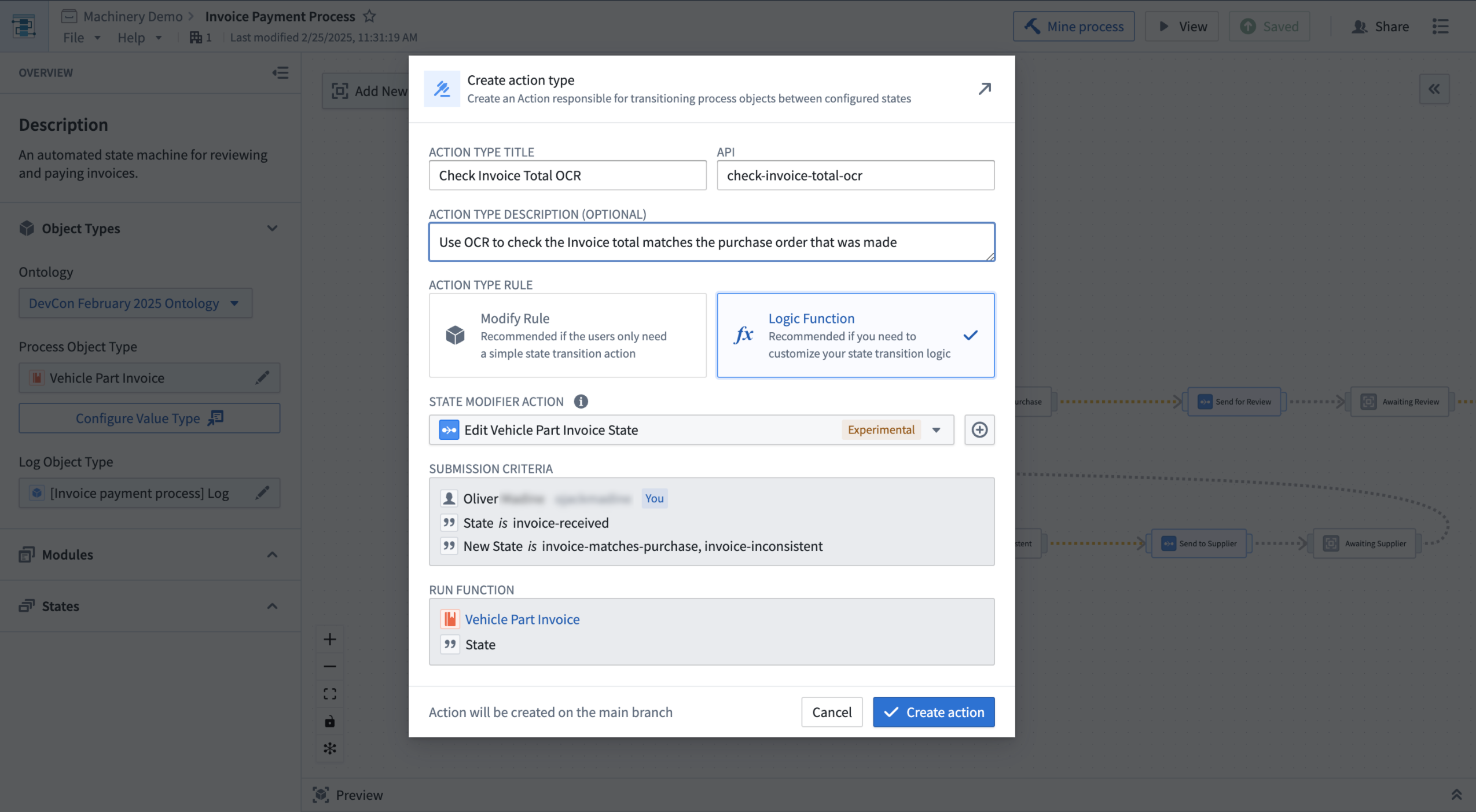
Power your process by incorporating AIP Logic to help move objects between transitions.
Bootstrap your development by generating a Workshop module
To operationalize your process in the Palantir platform, you can quickly bootstrap a Workshop module ("Machinery Express application") with a single click to initiate your application development. The express application serves as a dynamic playground where you can conduct preliminary analysis and then jump back into Machinery to refine, update, or optimize your processes with actions, automations, and AIP logic functions.
Whether you choose to use Machinery Express as a ready-to-use analysis tool or as a foundation to build your own applications, it facilitates a fluid interaction between process exploration and refinement. Additionally, the Machinery Express application enables you to immediately share this process with your operational users, providing them with the necessary context to effectively engage with the system in real time.
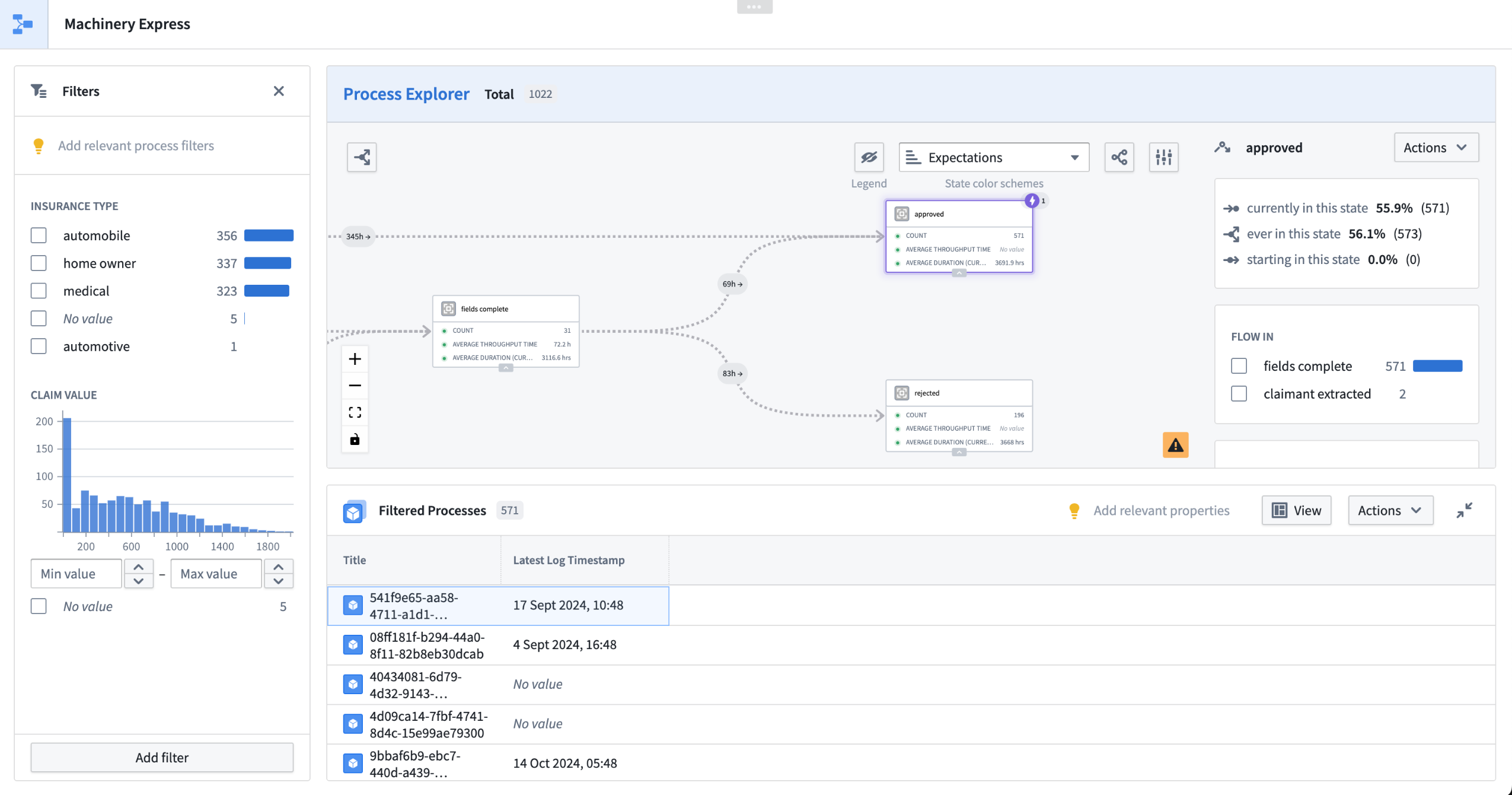
Generate a Machinery Express application to help get you started on application development in Workshop.
If you would rather build a new application from scratch or add Machinery to an existing Workshop module, you may add a Machinery Process Overview Widget in workshop.
For more information on Machinery, review the documentation.
We want to hear from you
As we continue to develop Machinery, we want to hear about your experiences and welcome your feedback. Share your thoughts with Palantir Support channels or our Developer Community ↗ and use the machinery ↗ tag.
Evaluate intermediate parameters and write run results to a dataset in AIP Evals
Date published: 2025-02-25
At the beginning of February, AIP Evals released new functionality that provides users with more flexibility to evaluate complex AIP Logic functions and incorporate the results of evaluation suite runs into their workflows.
Create intermediate parameters to evaluate block output in AIP Logic
Previously, only the final result of Logic functions could be evaluated with AIP Evals. However, LLM-backed functionality often includes multiple, complex operations; solely evaluating the end result can often be insufficient in determining the performance of prompts. Now, by selecting the flask icon next to one or more AIP Logic blocks, you can set up an intermediate parameter for evaluation with AIP Evals. Similar to the final output of the function, the intermediate outputs can be used for either setting up automated evaluators, or to simply look at the results.
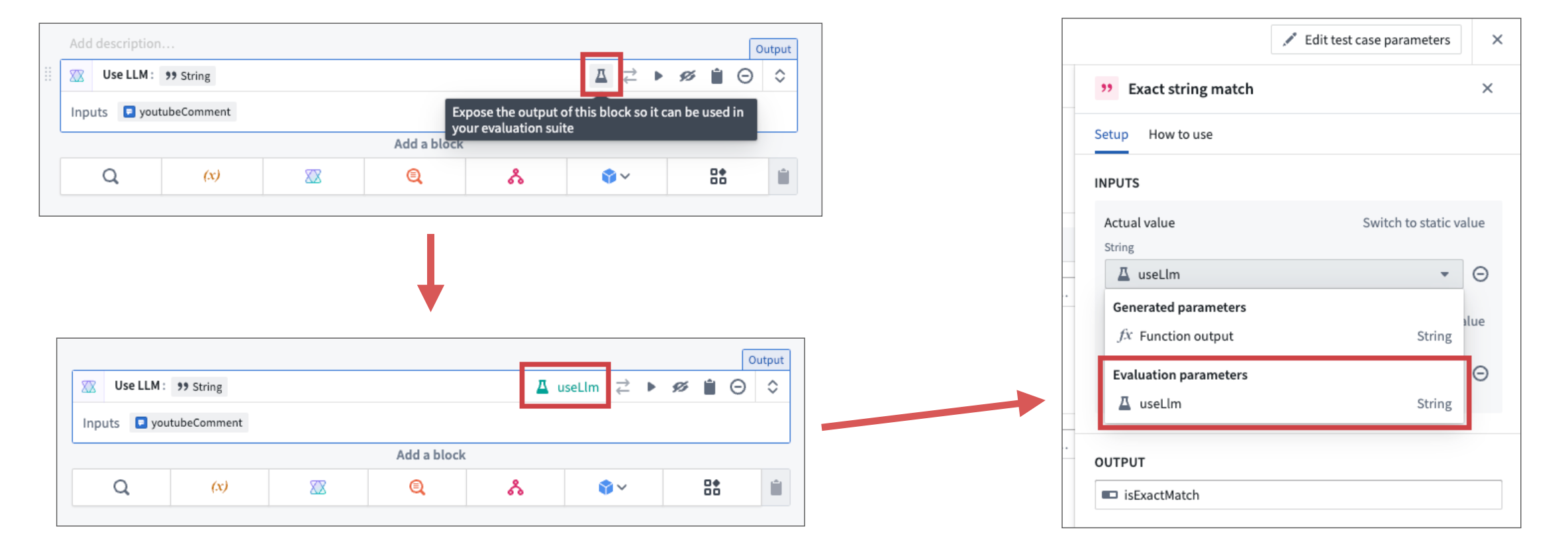
Selecting the flask icon on an AIP Logic block exposes the output as an intermediate parameter.
Write run results to a dataset for further analysis
Depending on the function and workflow that is evaluated, the results of evaluation suite runs may need to be surfaced in other parts of the platform. For example, subject matter experts may not be technical enough to look at results in AIP Evals and may want data from suite runs surfaced alongside other information in a dedicated Workshop application. With our new run results dataset functionality, this becomes possible.
When a run results dataset is configured and the evaluation suite is run with Project-scoped execution mode, all generated information from the run will be automatically written to a configured dataset. With this feature, we aim to have AIP Evals offer you the maximum flexibility on what can be done with the generated data. Using existing Foundry tooling, the data could be used for more complex calculations, writing it to objects and surfacing them in Workshop, or for deeper analysis in Contour.
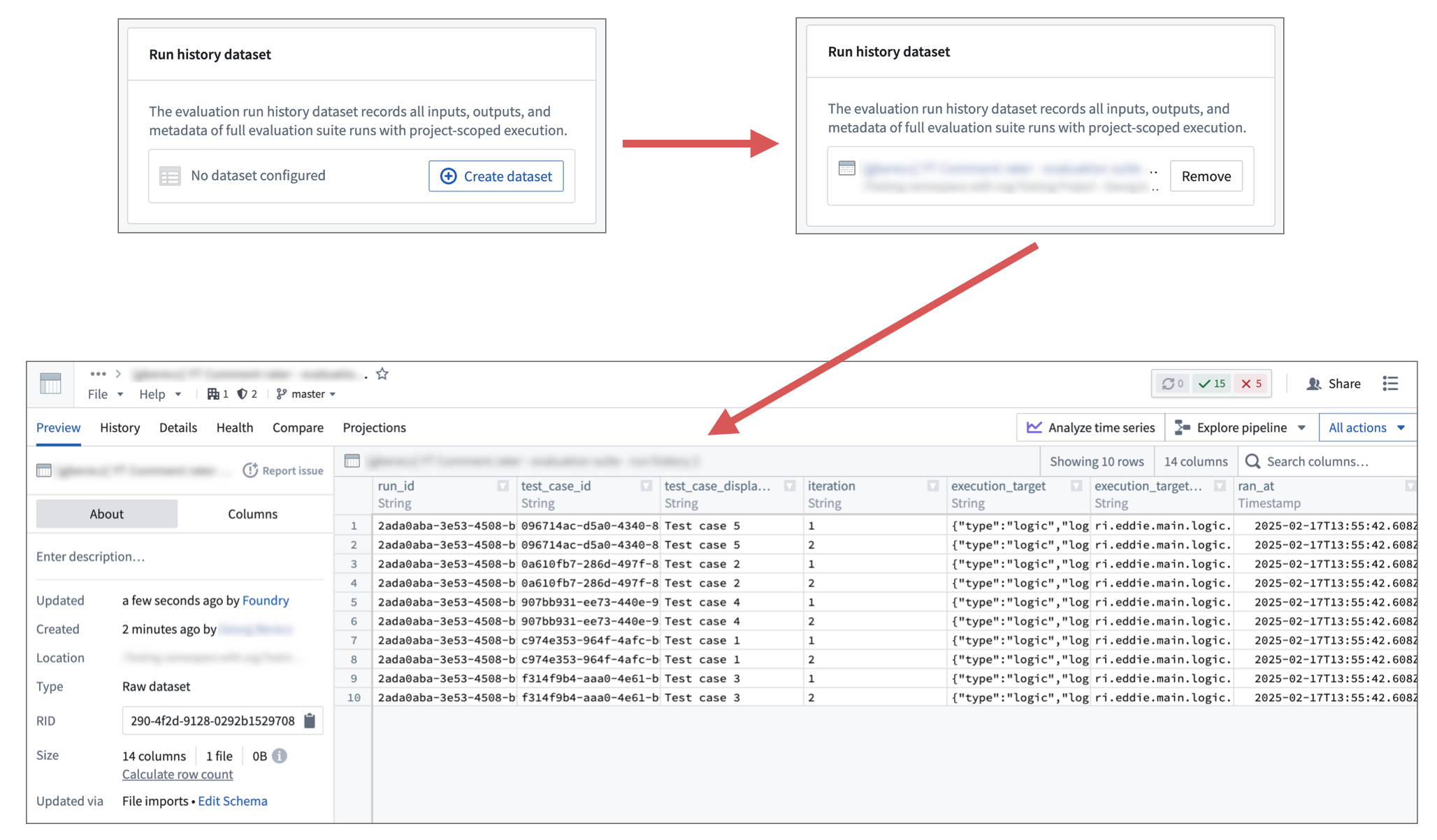
After adding a results dataset, evaluation suite run results will be written into the dataset.
Learn more about intermediate parameters and run result datasets.
Discover your Ontology with the new Object Explorer home page
Date published: 2025-02-25
We are pleased to announce that Object Explorer has a new homepage, designed to enhance Ontology discovery while surfacing relevant resources. The new home page is split into sections that allow users to view relevant objects at a glance and easily surface and organize object types. This update elevates the Object Explorer user experience and empowers builders to gain deeper insight into how their Ontology is leveraged across the platform.
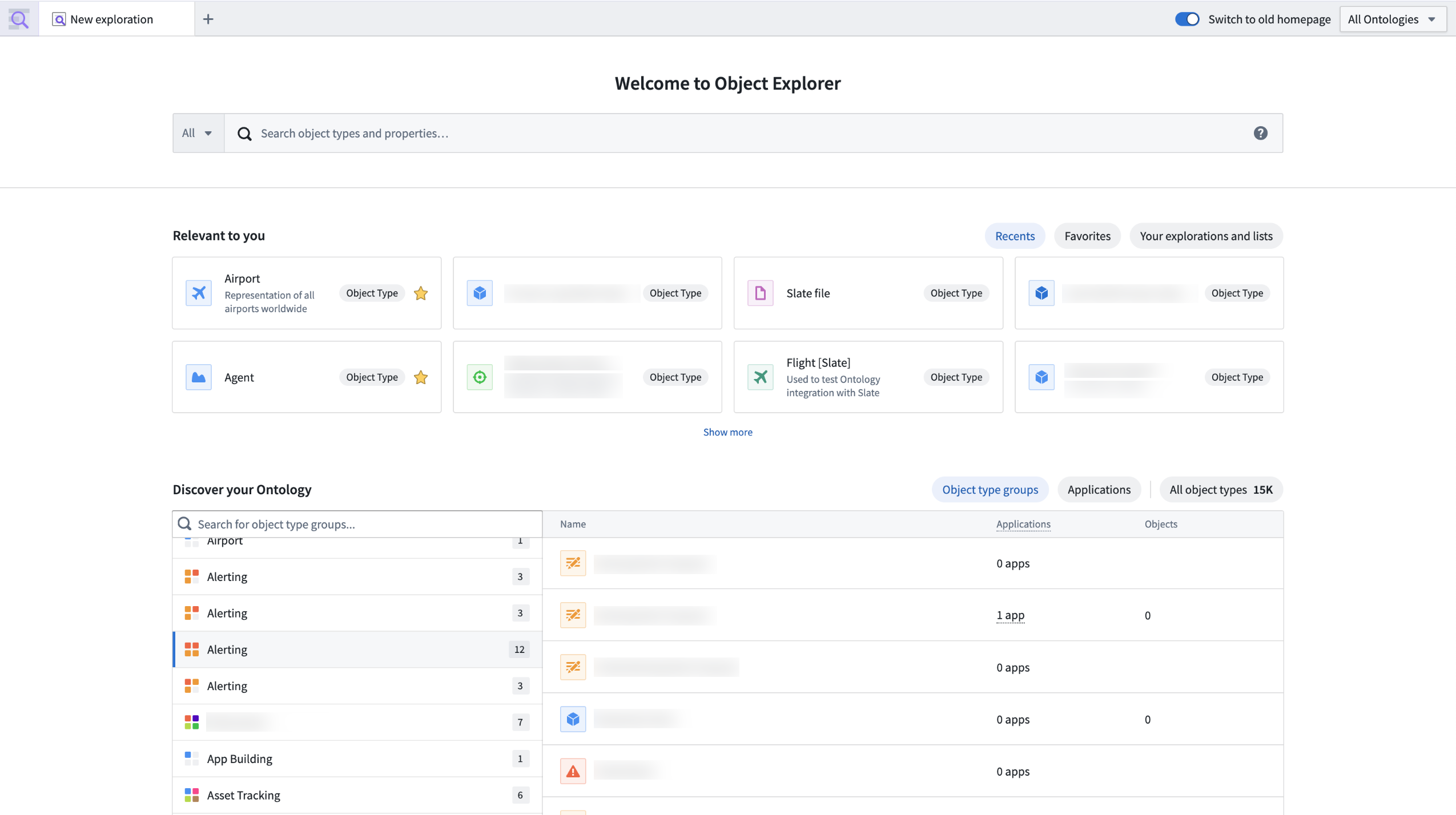
The new Object Explorer home page, featuring Relevant to you and Discover your Ontology sections.
The new homepage is organized into three sections:
-
Relevant to you: Shows a user's Recents and Favorites, including object types, object instances, object type groups and saved explorations. This section is located below the search bar to allow quick navigation to the most commonly accessed resources.
-
Discover your Ontology: Surfaces Ontology object type groups. These groups are created by Ontology editors and owners to organize object types into categories or themes. Users can also surface object types by the applications they are used in or look at the entire set of object types in one table. The following metrics have been introduced to help users navigate the Ontology and better understand which object types are being used most:
-
Active users: A count of users who have interacted with an object type in the past 30 days.
-
Applications: Indicates the number of Workshop applications that an object type is used in.
-
Saved explorations and lists: Provides access to saved explorations and lists, both created by and shared with a user.
This homepage update is the first of many improvements coming to Object Explorer. We are committed to improving Ontology search and discovery capabilities and will continue to improve the Object Explorer user experience.
Learn more about Object Explorer.
Media is now supported in TypeScript OSDK and platform APIs
Date published: 2025-02-20
We are excited to announce that the TypeScript Ontology SDK and platform APIs now support reading and uploading media to the Ontology. Object types and Actions with media references can now be included in your Ontology SDK application for reading and writing media items.
To get started with media in our SDKs, create a new Typescript application in Developer Console. Be sure to choose to create an Ontology SDK, and choose an Ontology containing object types and Action types with media references.
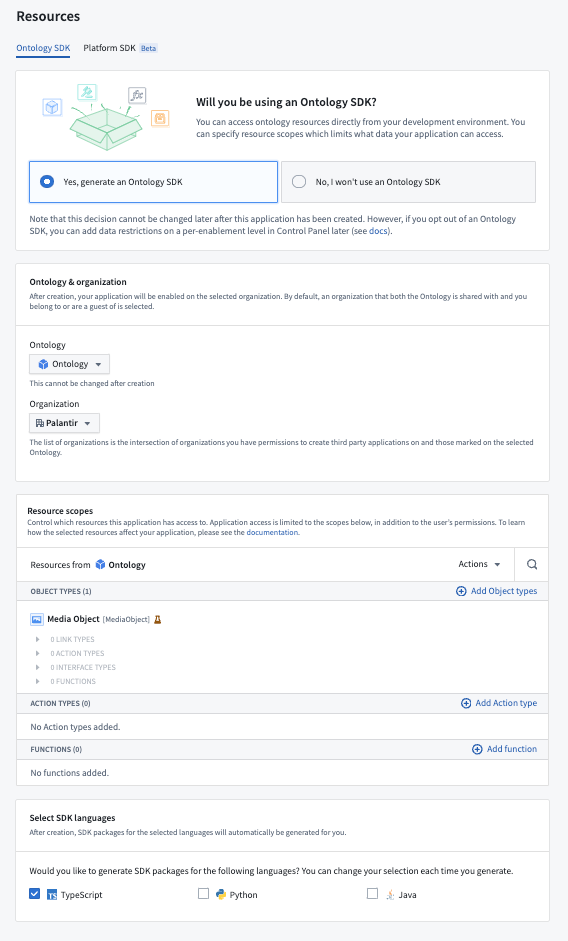
The Resources step when setting up an Ontology SDK application in Developer Console. The selected Ontology contains a Media Object type.
Media support in the Ontology SDK and platform APIs is in a beta state and subject to change during development. To enable media support in Typescript SDKs, navigate to SDK versions from the left side panel of Developer Console, then select Settings in the upper right corner to open the Package settings page. From here, toggle on TypeScript beta features. Doing so will enable any beta features available for TypeScript packages in Developer Console, including media APIs.
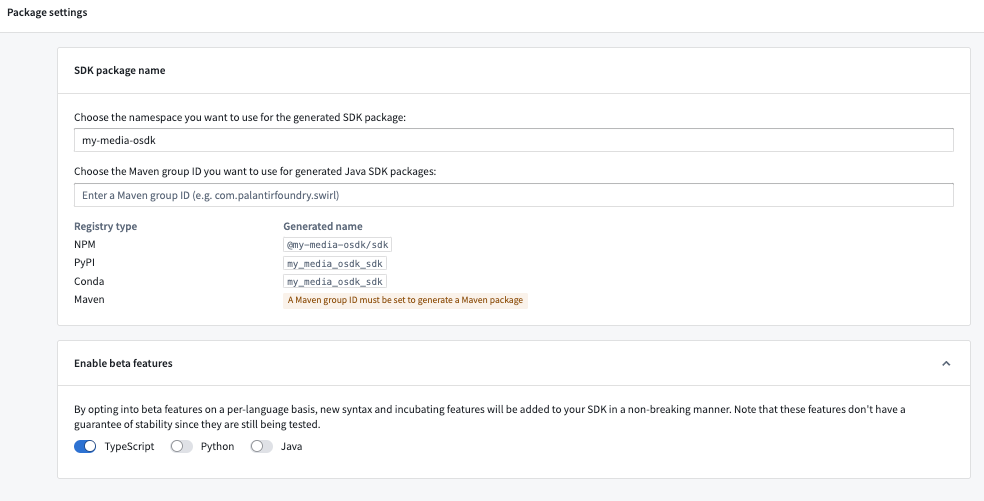
The Package settings page in Developer Console, with TypeScript beta features enabled.
Media calls in TypeScript OSDK
Media support in the TypeScript OSDK includes calls to read and upload media and use uploaded media in Ontology Actions. Examples of these calls are included below.
Read media reference properties
Fetch metadata and contents of your media reference property by calling fetchMetadata() and fetchContents() on the media reference property:
import { OsdkMediaObject } from "@my-media-osdk/sdk";
import { MediaMetadata, MediaReference } from "@osdk/api";
import { Osdk, Result } from "@osdk/client";

const result = await client(OsdkMediaObject).fetchOne("<primaryKey>");

// Fetch metadata of a media property
const mediaMetadata = await result.mediaReference?.fetchMetadata();

// Fetch contents of a media property
const response = await result.mediaReference?.fetchContents();

if (response.ok) {
    const data = await response.blob();
    ...
}
Upload media to the Ontology
To upload media to the Ontology, you must first upload it to a media property of an object type using the method shown below. This returns a MediaReference object, which can then be passed to an Action that accepts media as parameters:
import { OsdkMediaObject } from "@my-media-osdk/sdk";
import { __EXPERIMENTAL__NOT_SUPPORTED_YET__createMediaReference } from "@osdk/api/unstable";
import { Result, isOk } from "@osdk/client";
import { MediaReference } from "@osdk/api";

async function uploadMedia() {
    const file = await fetch("file.json");
    const data = await file.blob();

    // Upload media to an object type with a media property. This returns a media reference that can be passed to
    // a media parameter in an Action.
    return await client(
        __EXPERIMENTAL__NOT_SUPPORTED_YET__createMediaReference,
    ).createMediaReference({
        data,
        fileName: "myFile",
        objectType: OsdkMediaObject,
        propertyType: "MediaPropertyApi",
    });
}

const mediaReference: MediaReference = await uploadMedia();
const actionResult = client(mediaUploadingAction).applyAction({ media_parameter: mediaReference });
Use uploaded media in Actions
Once you have uploaded the media to Palantir, you can use the returned MediaReference to pass to an Action:
import { createMediaObject } from "@my-media-osdk/sdk";
import { MediaReference } from "@osdk/api";

const mediaReference: MediaReference = uploadMedia();
const result = await client(createMediaObject).applyAction(
    {
      "media_reference": mediaReference,
      "path": "value"
    },
    {
      $returnEdits: true,
    }
);
Media calls in platform APIs
View our platform API reference documentation to learn how to read and upload media content.
We want to hear from you
As we continue to develop media support in our platform, we want to hear about your experiences and welcome your feedback. Share your thoughts with Palantir Support channels or our Developer Community ↗ and use the ontology-sdk ↗ tag.
Ontology object and object set inputs are now supported in model adapters
Date published: 2025-02-20
We are excited to announce that Ontology object and object set inputs are now supported in model adapters. With Ontology object inputs in model adapters, developers can leverage the OSDK to interact with Ontology objects in their model adapter logic. This allows for faster iteration and a closer tie to the Ontology for models developed in platform.
You can define a model adapter with object and object set inputs in the api() class method of a model adapter. After creating an ontology_sdk package in Developer Console or Code Workspaces, you can use the objects in the model adapter as inputs:
from ontology_sdk.ontology.objects import Employee
from ontology_sdk.ontology.object_sets import EmployeeObjectSet

class ObjectsInModelApiAdapter(pm.ModelAdapter):
    ...

    @classmethod
    def api(cls):
        inputs = {
            "object_input": pm.Object(Employee),
            "object_set_input": pm.ObjectSet(EmployeeObjectSet)
        }
        outputs = {
            "param_out": pm.Parameter(type=str)
        }
        return inputs, outputs

    def predict(self, object_input, object_set_input):
        ....
To pass in an object or object set for testing, you can select inputs from the Ontology on the model query page when a direct model deployment is running. You can also publish a function from the left side panel with the Ontology inputs.
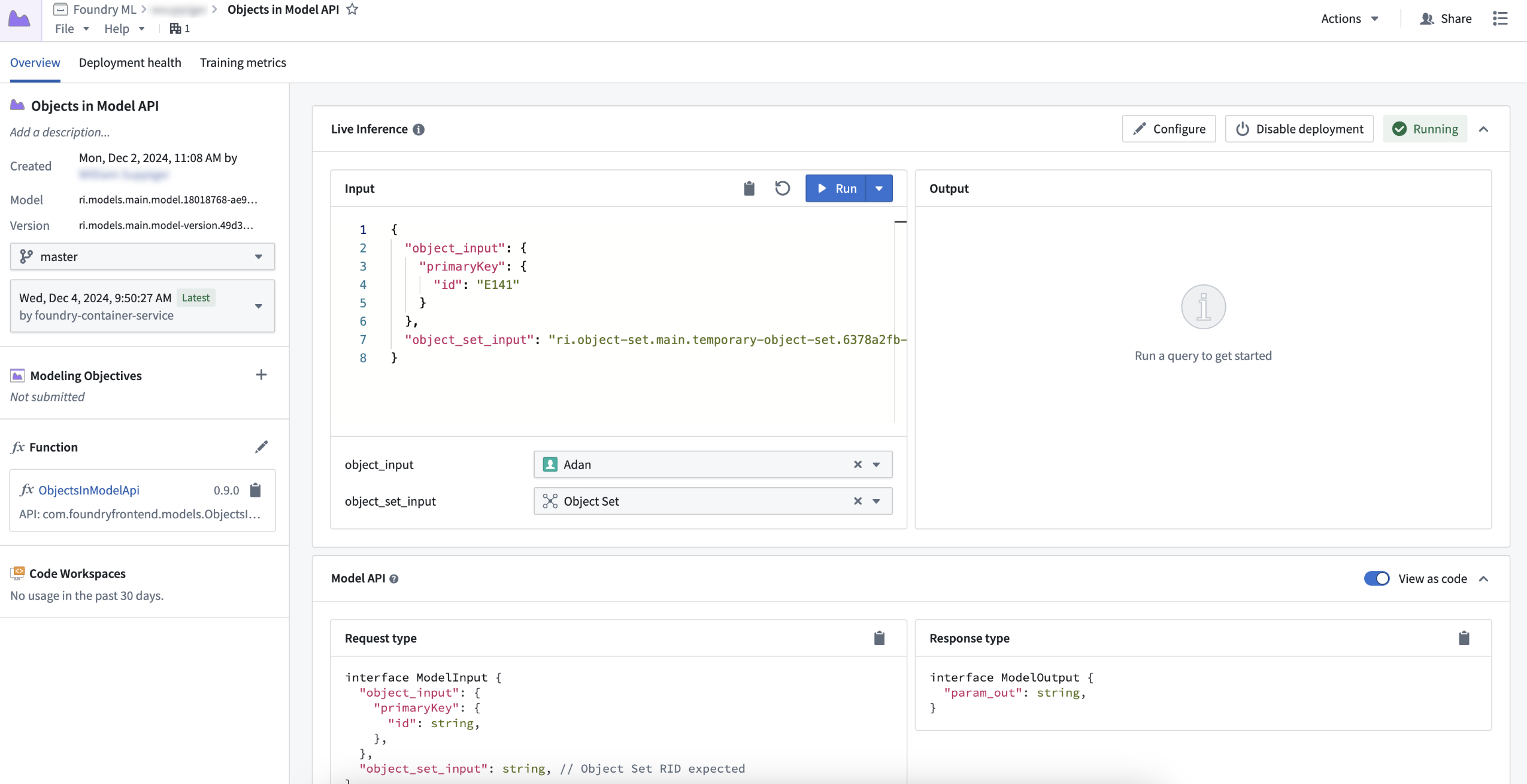
Example object and object set input on the model query page.
You can query functions, objects, and LLMs via the OSDK or platform SDK by usingFoundryClient() in models through the predict or transform method of a model. This allows for pro-code LLM-based workflows where you can interact with the Ontology and use traditional modeling techniques to produce more accurate predictions.
from ontology_sdk import FoundryClient

class ObjectsInModelApiAdapter(pm.ModelAdapter):
    ....

    def predict(self, employee_primary_key):
        client = FoundryClient()
        client_first_name = client.ontology.objects.Employee.get(employee_primary_key).first_name
        ...
Learn more about Ontology object and object set inputs for model adapters.
AIP Assist support for multi-threaded chats and chat history
Date published: 2025-02-20
In the coming weeks, users will be able to create, save, and engage with multiple concurrent chats in AIP Assist. Saved chats will be retained for seven days, allowing you to revisit topics and ensuring continuous access to valuable insights. Multi-threaded chats allow you to interact with different modes or agents simultaneously, so you can switch between chats as you shift contexts and maximize the potential of AIP Assist offerings.
To get started with multi-threaded chats, open the AIP Assist sidebar and select the chat icon on the top right. Here, you can switch between saved chats, or select Add chat to create a new thread. You can also delete chats that are no longer useful, or select the refresh icon to reset the current chat context.
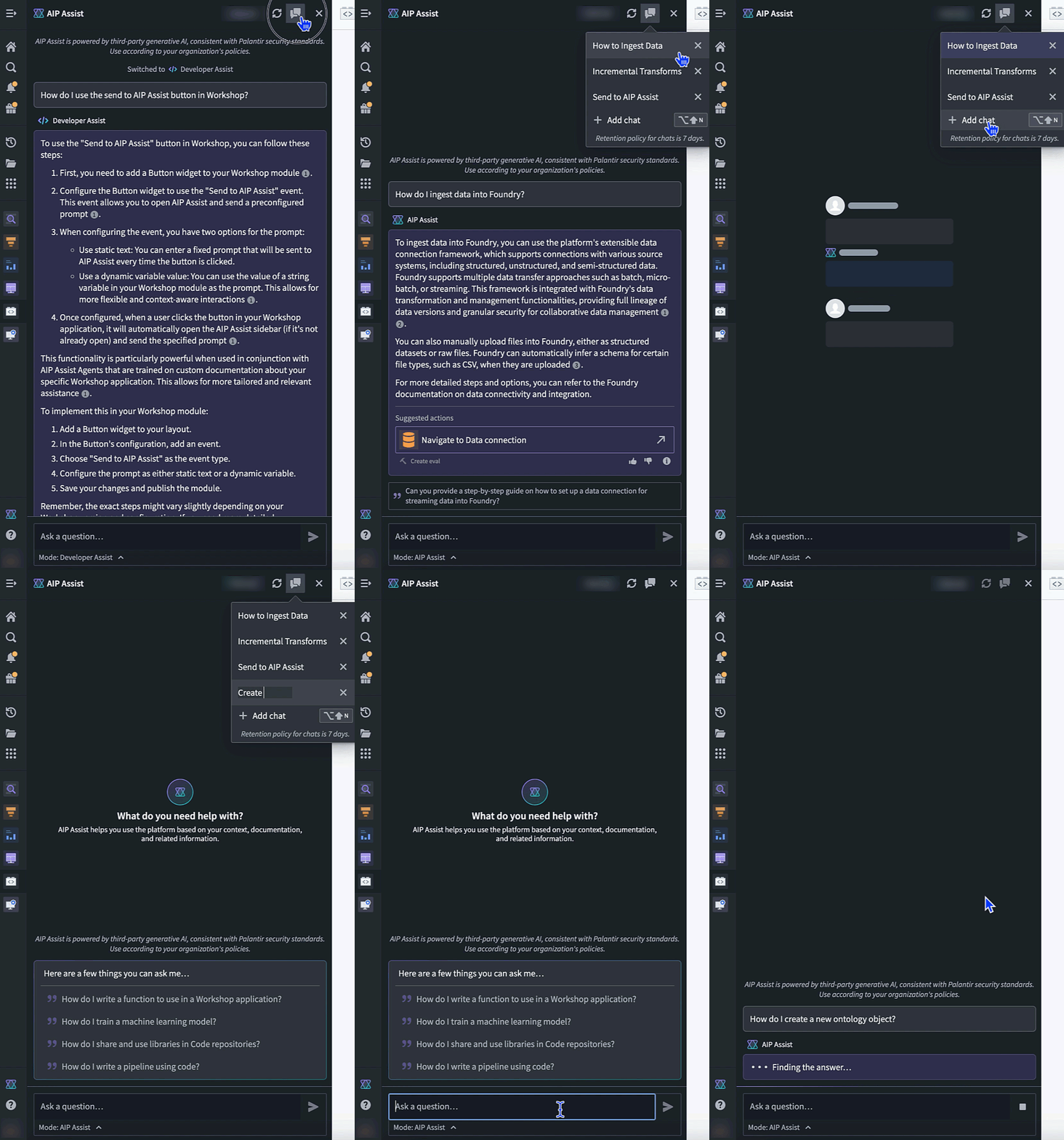
The AIP Assist sidebar, now featuring a chat thread selector with the option to add new chats or delete existing chats.
AIP Assist now tracks multiple conversations while preserving the relevant context, providing the support you need to achieve complex outcomes and optimize your use of AIP Assist capabilities.
Learn more about AIP Assist features and offerings.
Note: AIP feature availability is subject to change and may differ between customers.
Streamlined space settings management in Control Panel
Date published: 2025-02-18
To improve the experience of managing your spaces, we have migrated space management workflows into a set of settings pages in Control Panel. Starting today, you can directly update the following space level settings via the All Settings view:
- Linter configuration: Easily manage your code quality checks.
- Project templates: Access and modify templates with ease.
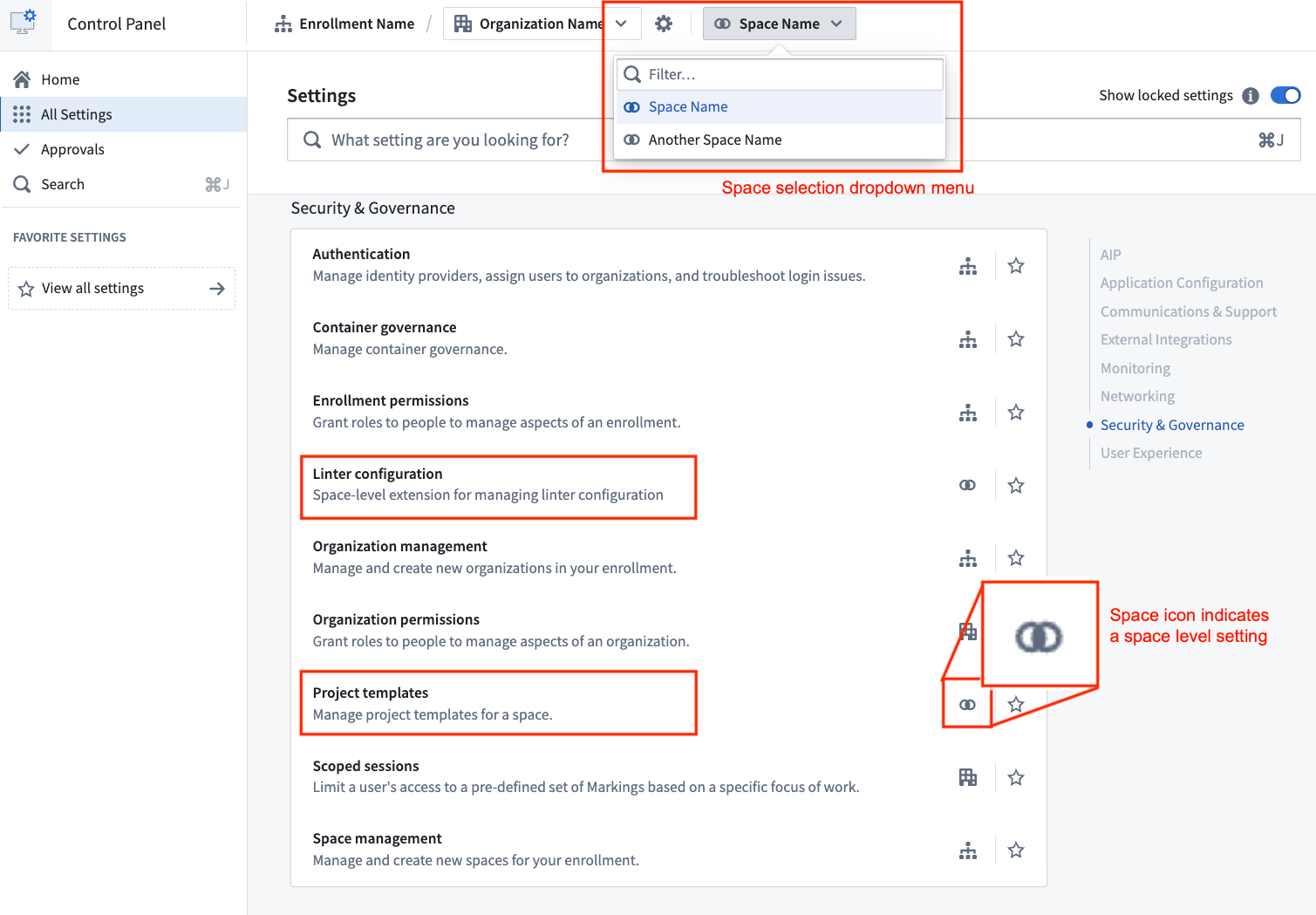
Access Linter configuration and Project templates settings on its own pages in Control Panel.
Additionally, the Spaces tab has been renamed as Space management within Control Panel.
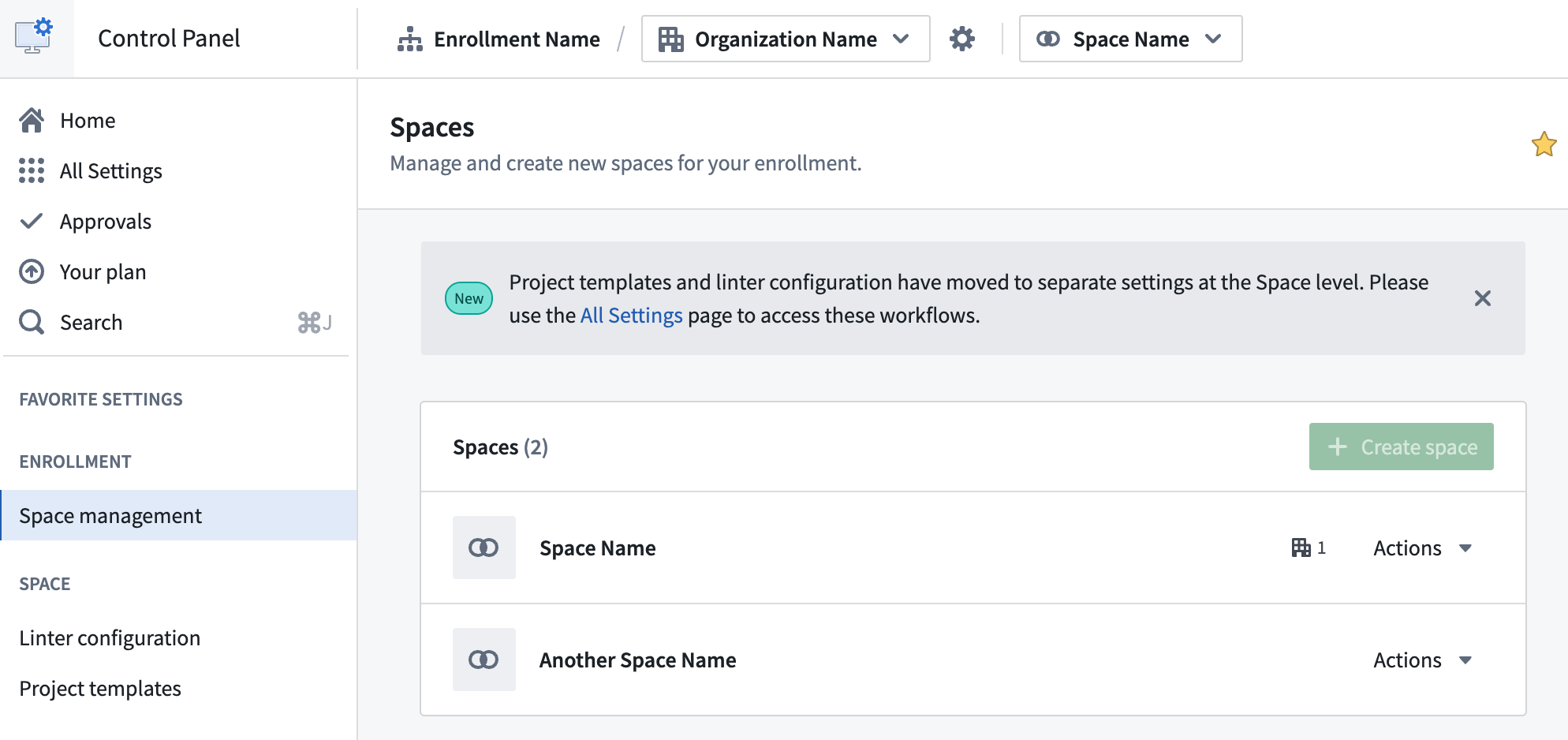
Space management is now a section of its own, allowing a more intuitive configuration experience.
These updates mark the beginning of an ongoing effort to improve space configuration. To access these settings quicker in the future, you can favorite them to save them to your Favorite settings sidebar section. We are actively working to introduce more controls and settings to spaces.
We welcome your feedback on these changes. Share your thoughts with us through Palantir Support channels and on our Developer Community Forum ↗.
To learn more about these updates and how they can benefit your workflow, review the spaces documentation.
Create new spaces in Control Panel
Date published: 2025-02-18
Enrollment administrators can now create new spaces using the Space management page in Control Panel. Spaces, formerly known as namespaces, are high-level containers for Projects with a shared Ontology and purpose across Organizations. Most Organizations will require only one space for all Projects. However, multiple spaces may be needed to separate sandbox and production environments, or to create a space shared by multiple Organizations.
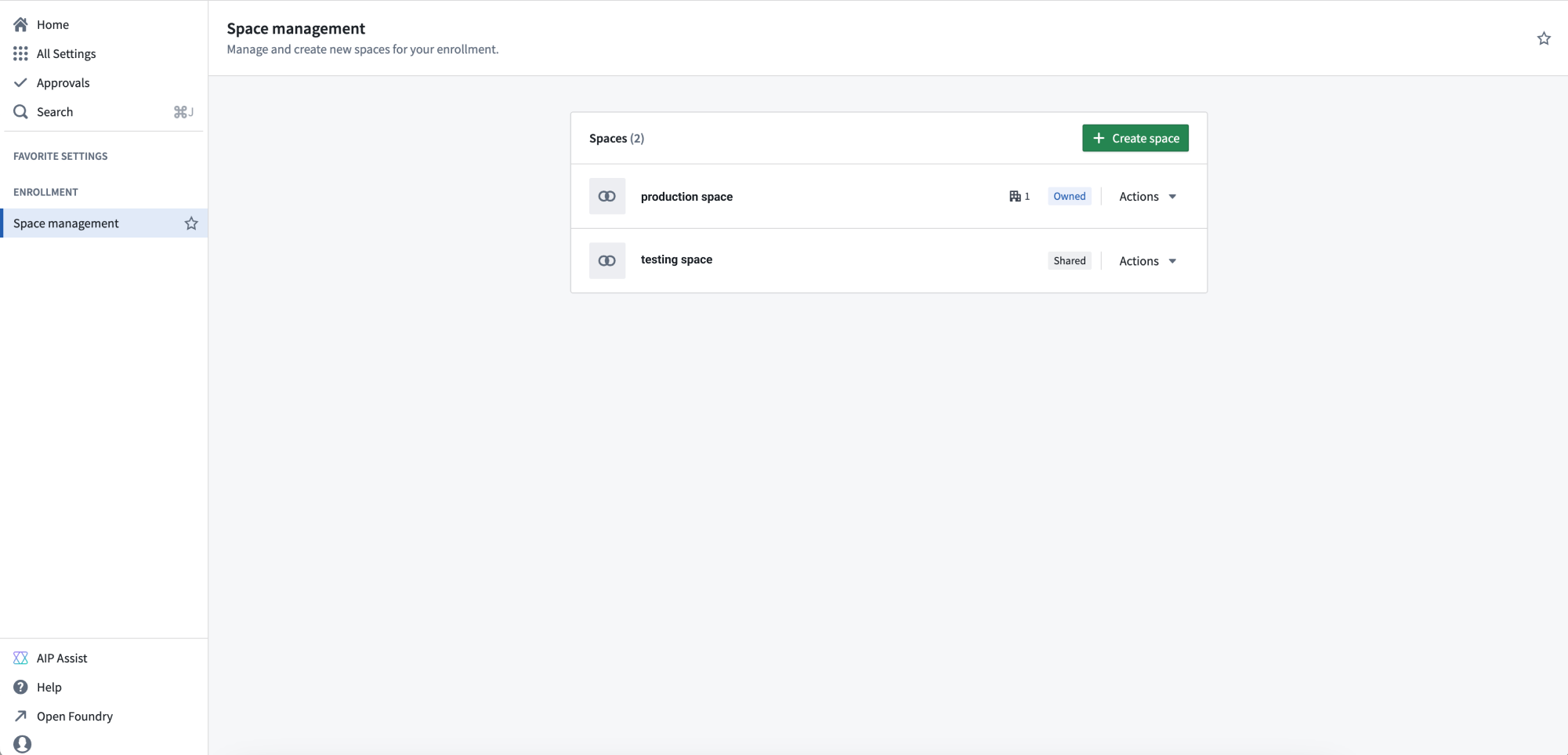
The Space management page in Control Panel.
Administrators can configure new spaces with the following settings:
Access requirements: A space and its contents are protected by Organization requirements. Users must meet the access requirements for at least one of the Organizations to access this space.
Deletion policy: The deletion policy defines when a space and its Projects will be deleted. A deletion policy is constructed with Organizations in a last-out semantic, meaning the space is deleted when all of the Organizations used for the deletion policy have first been deleted.
File system: The file system is where data in the space is stored for all Projects. The file system cannot be modified once set.
Usage account: Usage of resources in the platform are tracked by usage account. This setting decides the default usage account that Projects in the space will use. The usage account can be overridden on a per-Project basis.
Resource queue: Compute resources for a Project are allocated from its resource queue. This setting decides the resource queue used for all projects in the space.
Role set: A Project can only use roles from the role sets allowed for its space. By default, this is the Project defaults role set, but it can be replaced with a custom role set. If a custom role set is used, roles granted on the space will not inherit to Projects.
If you are an enrollment administrator but are not able to create a new space, it may be because your enrollment is not suitable or you have hit a quota limit. Contact Palantir Support for more information about your enrollment.
Diagnose and troubleshoot Workshop application performance with Performance Profiler
Date published: 2025-02-18
Workshop’s Performance Profiler is now generally available, giving builders the ability to capture application performance, diagnose the cause of high load times, and identify optimizations. With Performance Profiler, builders can access Profiler mode for insight into load times and tools to pinpoint performance bottlenecks, empowering builders to implement targeted improvements and create faster, more efficient applications.
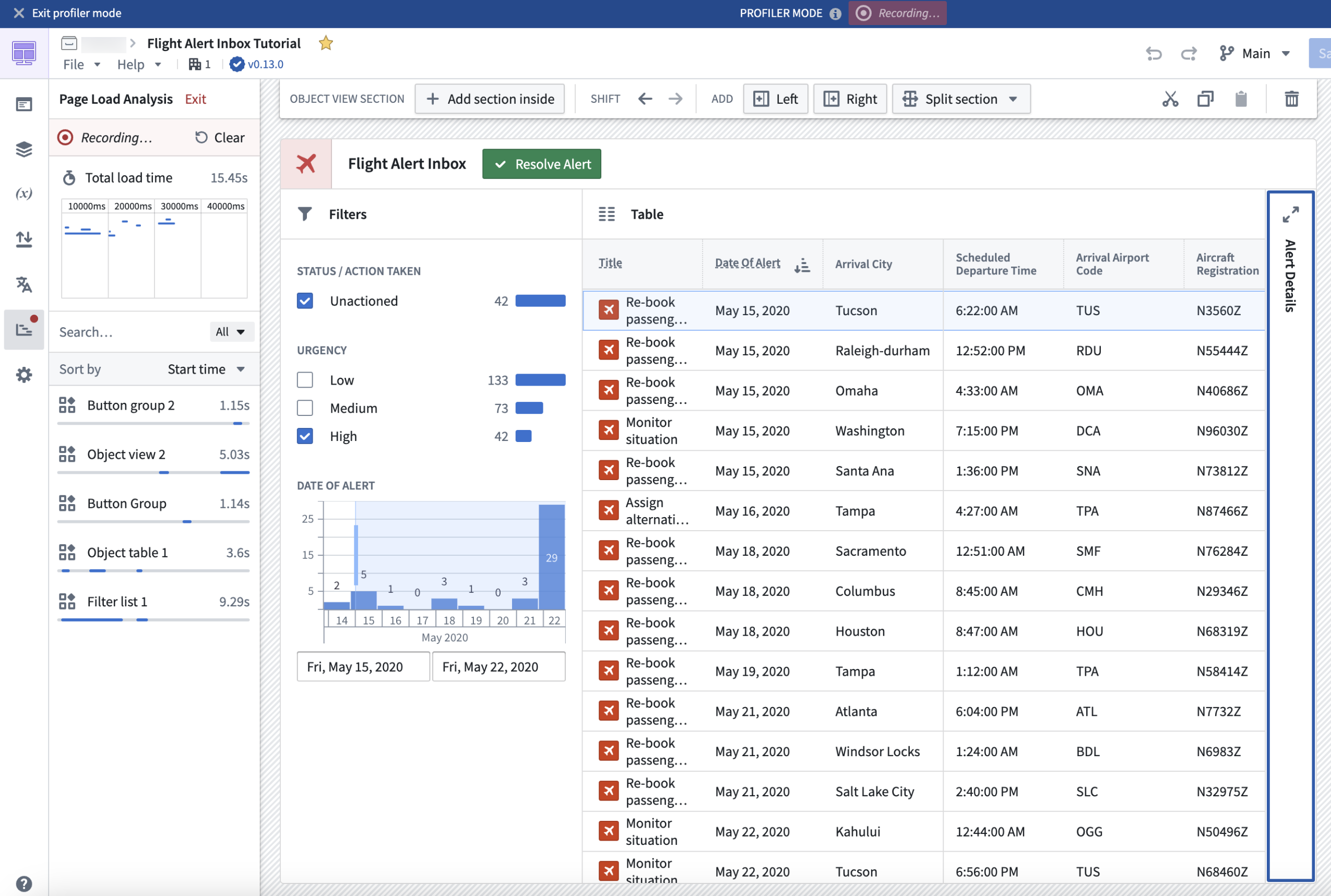
A Workshop application in Profiler mode.
In Profiler mode, load events and the start times of widgets and variables from module initialization will be recorded and displayed. Only widgets and variables that affect the on-screen display are calculated, meaning that not all widgets and variables will be immediately shown in Profiler mode. This mirrors the behavior and performance that users experience in View mode, allowing for more accurate performance profiling.
Builders can interact with a module in Profiler mode in several ways, such as by triggering new layout views to prompt loading of new widgets and variables, or triggering widget reloads or variable recalculations by running Actions, Functions, or events. As new widget and variable load and reload events occur, they will be recorded and viewable to builders within the profiler.
Profiler mode gives builders access to the following values:
- The total module load time
- The timeline view as widgets and variables load or reload
- The breakdown of load time by widgets and variables
These metrics provide builders with a deeper understanding of application behavior, fostering data-driven application development that can help improve the end-user experience.
To learn more about Performance Profiler, visit the documentation.
Synchronize object property edits with support for Ontology Actions in Notepad
Date published: 2025-02-13
Notepad users can now edit object properties directly in Notepad documents with Ontology Actions, making it easier to keep documents in sync with Ontology changes. Ontology Actions allow users to edit object properties with preconfigured inline edits in object card and object property widgets, allowing text properties to be edited and saved to the Ontology without switching between applications.
Object property widgets
To make Ontology edits in Notepad object property widgets, the object property must have configured inline edits. Hover over the property to display a menu that enables editing text properties, modifying the object with Actions, and opening the object in Object Explorer.
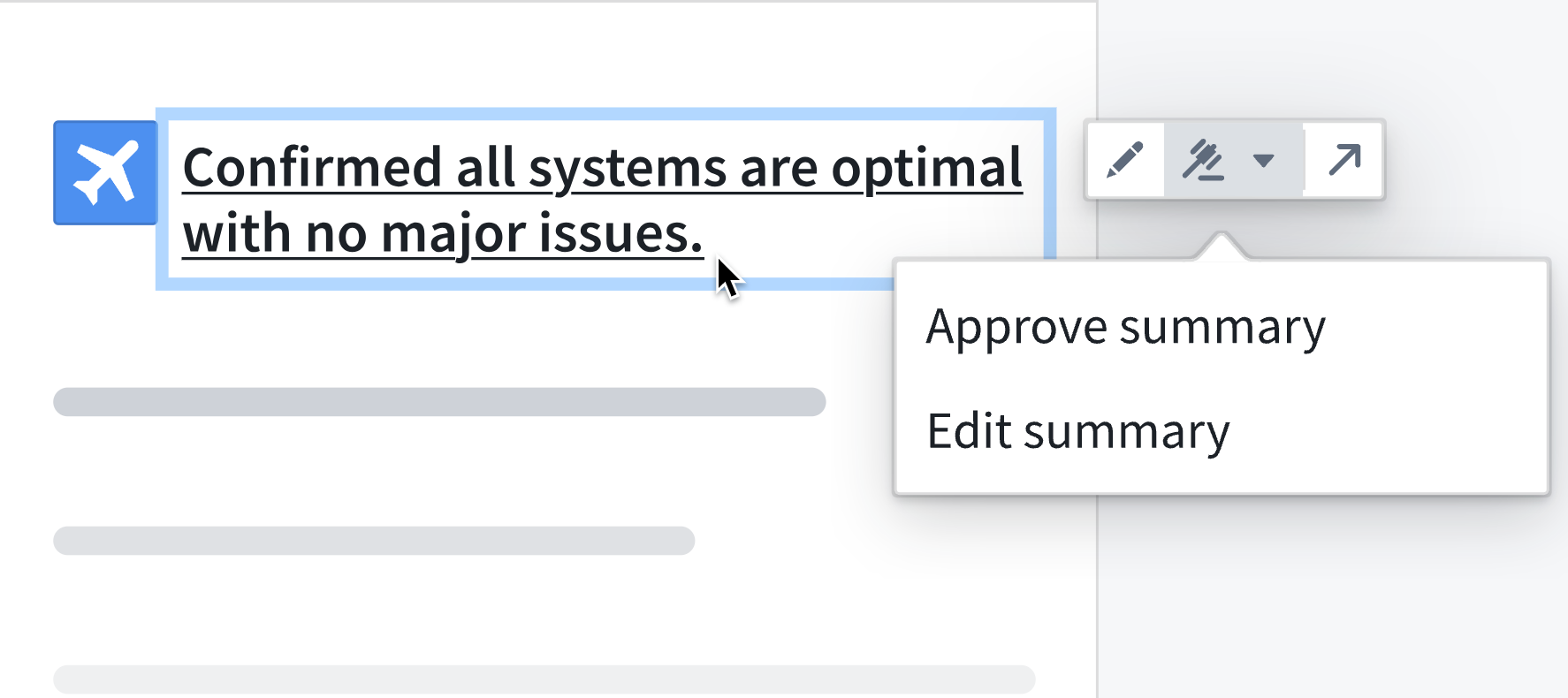
An object property widget, with the option to edit or approve a summary.
Object card widgets
In object card widgets, hover over the widget to display an Actions menu in the top-right corner that enables submitting Actions on the displayed object. Hover over properties with configured inline edits to display the edit option.
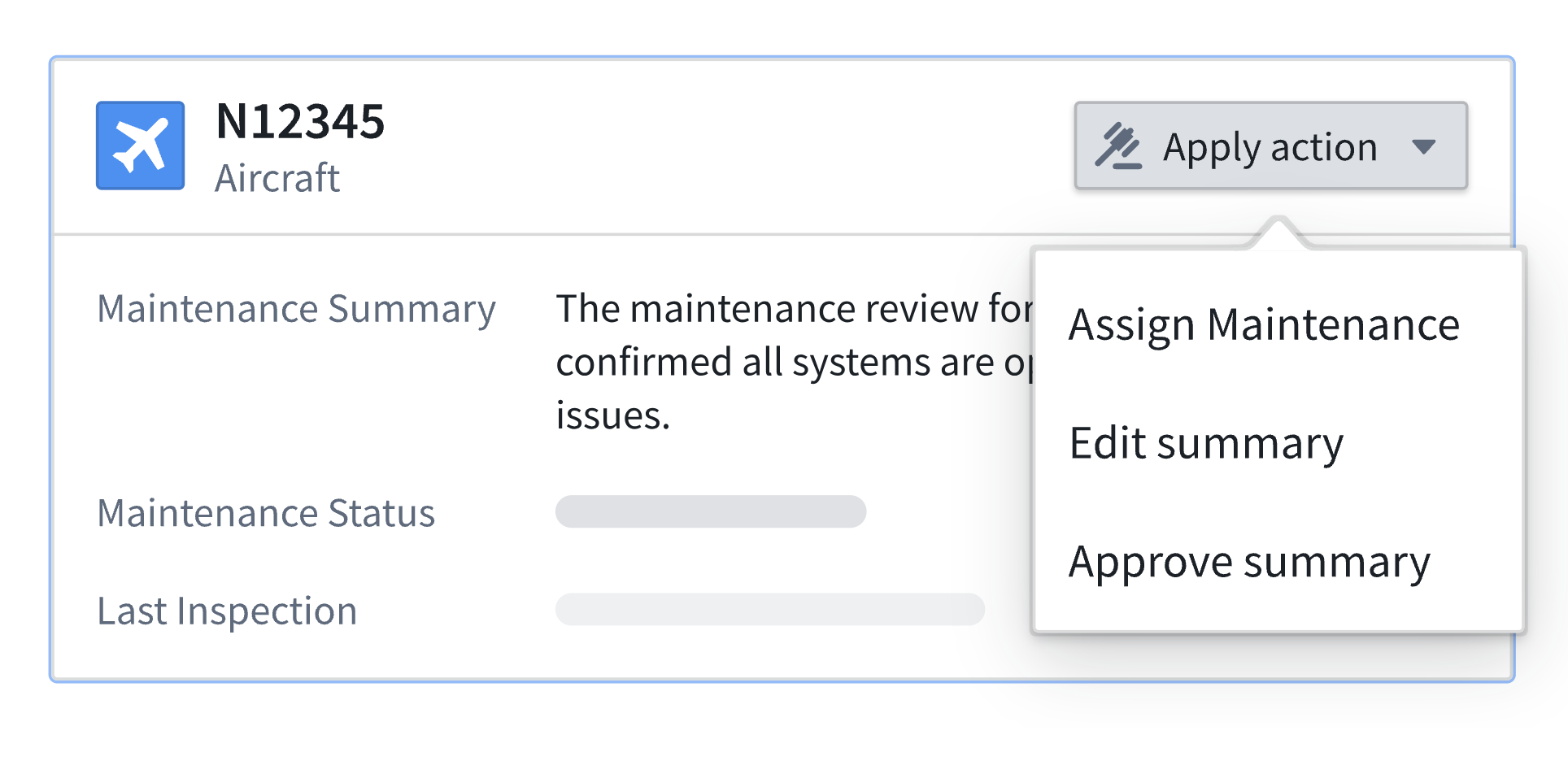
An object card widget, with an Actions menu in the top-right corner.
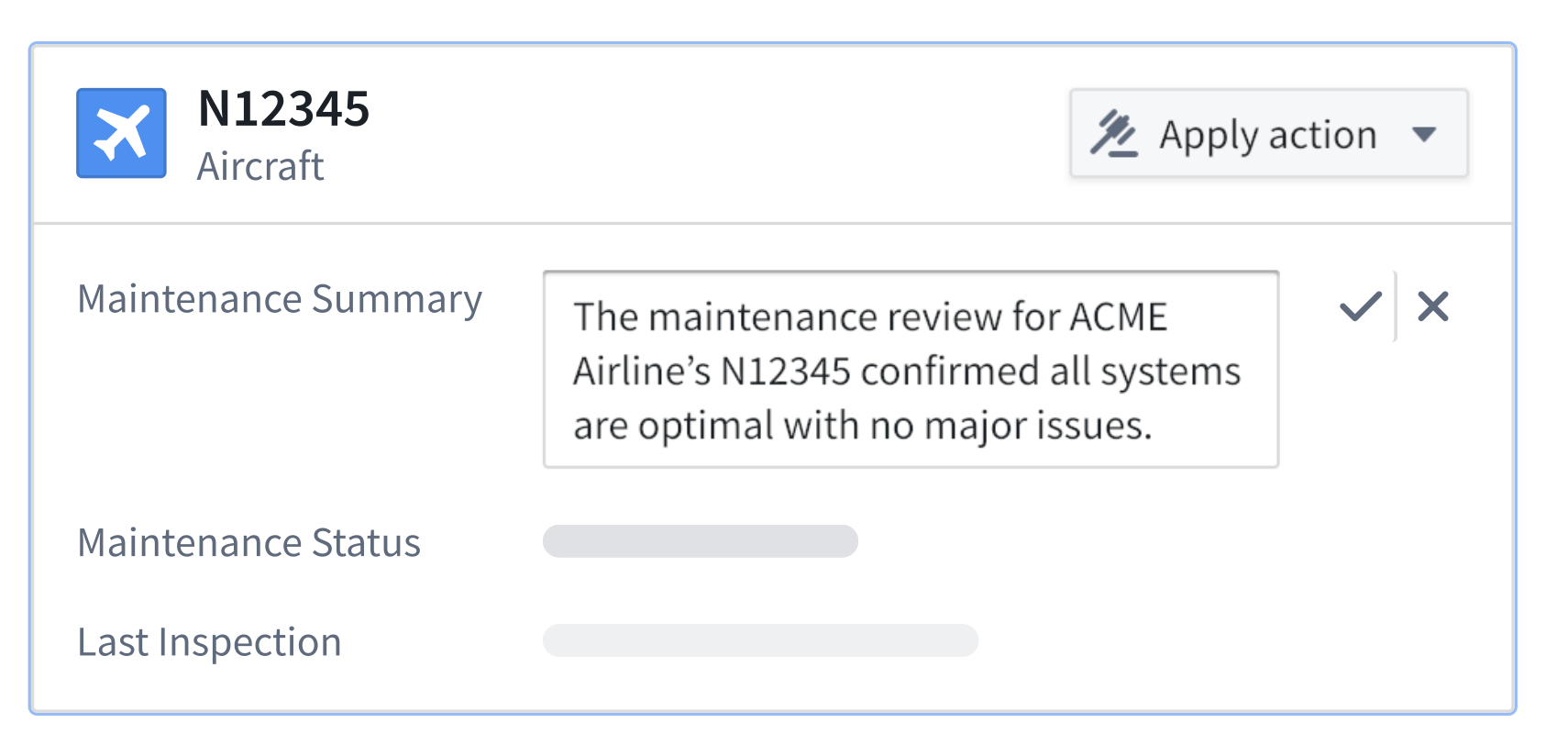
An object card widget displaying an inline summary edit.
Leverage Ontology Actions in Notepad to maintain document coherence with ongoing Ontology updates, ensure real-time synchronization of object property changes, and streamline document workflows.
Learn more about object property and object card widgets in Notepad.
Discover new Foundry and AIP training content on Palantir Learn
Date published: 2025-02-13
We are excited to announce the launch of four new courses on learn.palantir.com ↗ along with content updates within our training tracks ↗ for 2025. To help you understand how to navigate training content on Palantir, review our one-page Getting started with Palantir Learn ↗ guide.
New courses launched in January 2025
- Deep Dive: Data Analysis in Quiver ↗: Learn how to navigate Quiver for analyzing, transforming, and visualizing data stored in objects.
- Deep Dive: Data Protection Tools in Foundry ↗: Learn how to use Foundry tools to implement download controls, automate data scans, and obfuscate data.
- Speedrun: Mining Your First Business Process ↗: Use Foundry's Machinery application to visualize business processes, identify bottlenecks, and create alerts.
- Speedrun: Your First Ontology Function ↗: Learn how to integrate Typescript-based Functions to pull data from and update Ontology objects via a Workshop application.
Training tracks with new examples, videos, and partner-developed content
We have recently updated the Training Tracks ↗ on learn.palantir.com ↗ with the latest courses, use case examples, videos, and partner-developed content available. Use these persona-based collections of training resources as your one-stop shop for all related Foundry training material.
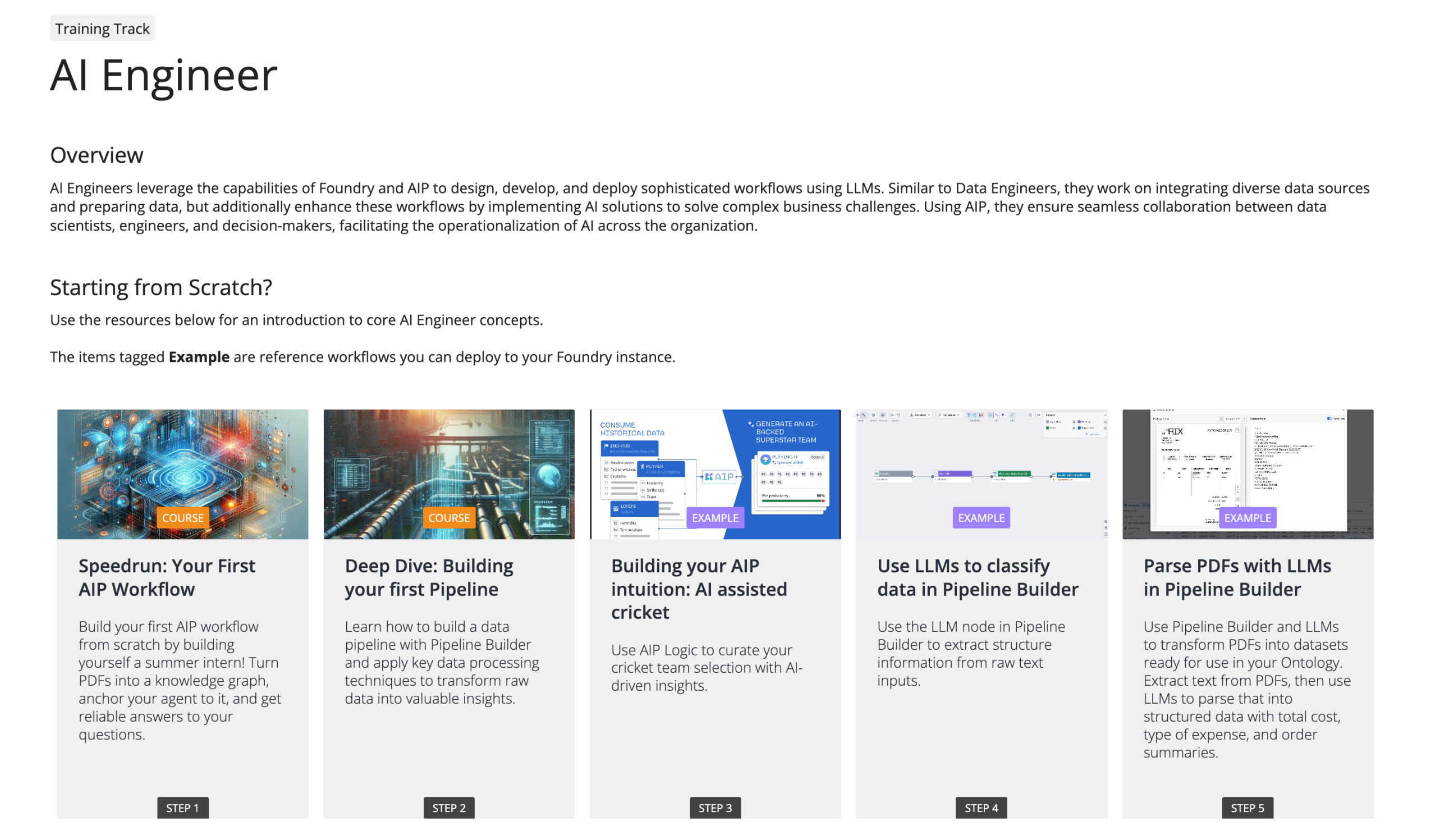
The AI Engineer training track featured on learn.palantir.com.
Get started with the Palantir Learn guide
New to the Palantir training program? Use this one-page guide ↗ to familiarize yourself with our various training resources and recommended learning program. The guide can be downloaded as a PDF to easily share within your organization.
Look out for more Palantir announcements as we continue to quickly evolve our training program. If you have questions on training content, issues, or suggestions for new content, contact training-feedback@palantir.com.
Enable custom retrieval with Function-backed context in AIP Agent Studio
Date published: 2025-02-13
Note: As of the week of April 27, 2026, AIP Agent Studio was renamed AIP Chatbot Studio. All existing features and functionalities remain unchanged.
AIP Agents now support custom retrieval Functions, a pro-code feature that enables builders to configure their own logic for context retrieval on each query. This is ideal for situations where the retrieval methods provided out-of-the-box through Ontology context or document context do not satisfy a given use case. For example, if a user wants to run a semantic search over multiple Ontology object types, the user can configure a Function for it even though it is not currently supported in AIP Agent Studio.
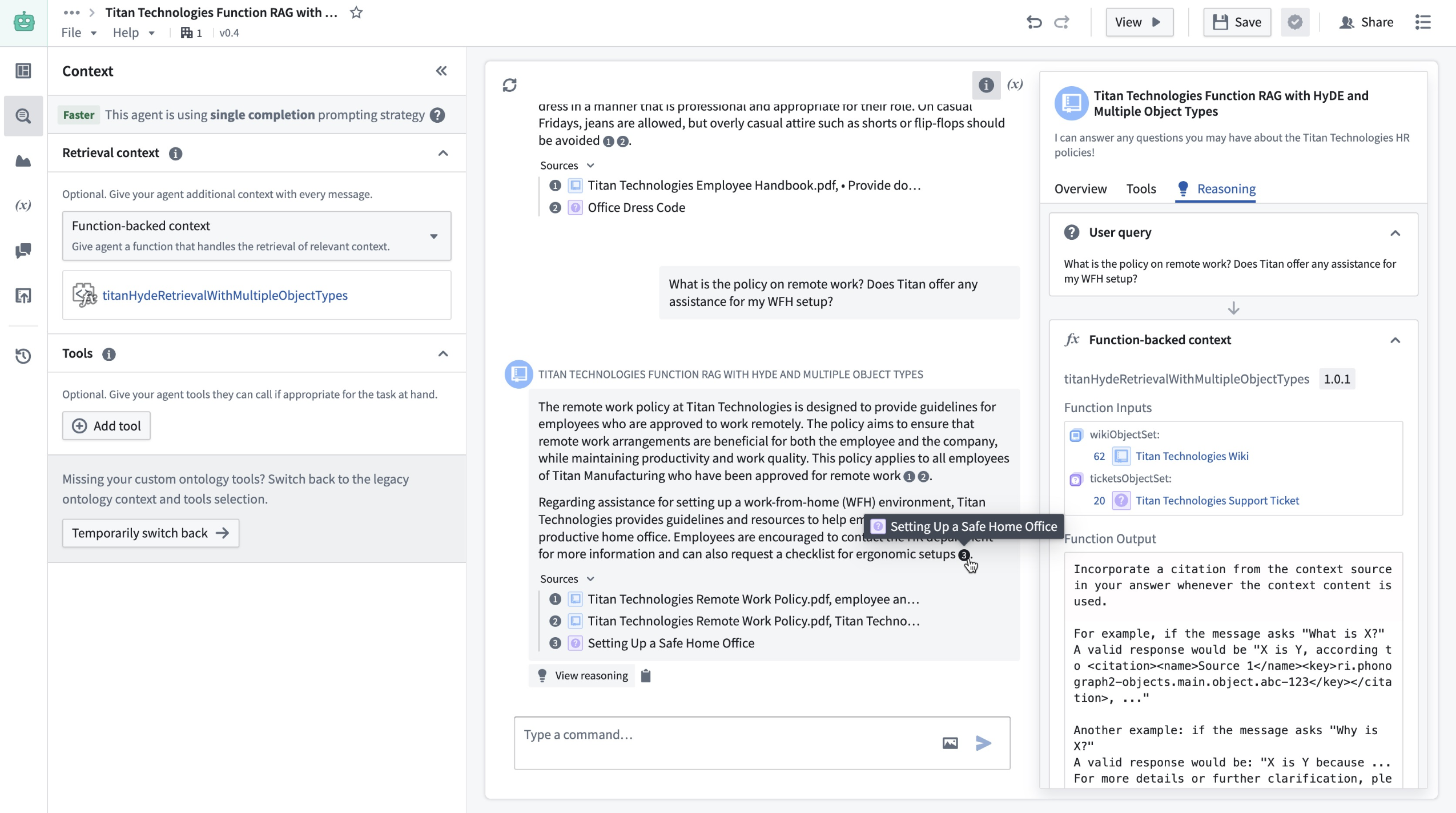
You can now use Function-backed context to perform custom retrieval on each query in AIP Agent Studio.
Write a custom retrieval Function
Users can write custom retrieval Functions in TypeScript in the Code Repositories application. To do so, navigate to a TypeScript repository and import the AipAgentsContextRetrieval function interface. Then, write a function that satisfies the interface as shown below. Note that the function must have messages as the only required input to satisfy the contract.
@AipAgentsContextRetrieval()
public exampleRetrievalFunction(messages: MessageList): RetrievedContext {
    let combinedText: string[] = [];
    messages.forEach((message) => {        '
         ...
    })
    return {
        retrievedPrompt: "..."
    }
}
The retrieval Function must output a string, which will be pasted into the LLM system prompt by AIP Agents to answer user queries. After publishing your Function, choose Function-backed context in Agent Studio under the Retrieval context panel to select a Function for retrieval.
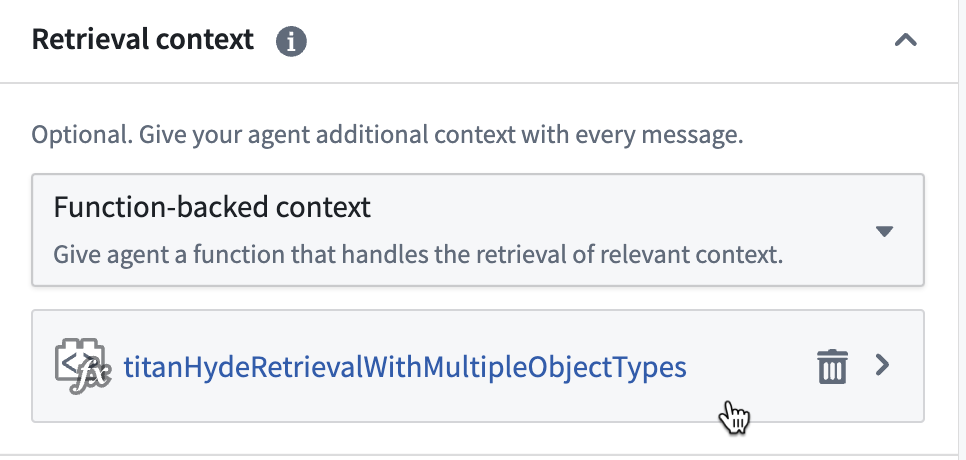
You can select the context and a Function for retrieval in Retrieval context.
Application variables in retrieval Functions
Custom retrieval Functions can also take in the values of application variables on the agent as input. To configure this, add optional arguments to the Function definition. Currently, only string and object set application variables are supported, so the Function input must be one of these types.
@AipAgentsContextRetrieval()
public movieRetrievalFunction(messages: MessageList, movieTitle?: string, movieSet?: ObjectSet<Movie>): RetrievedContext {
    ...
}
Use the API name for object types. This can be found in Ontology Manager.
You can then set a mapping between the application variables on the agent, and function inputs that match their respective types.
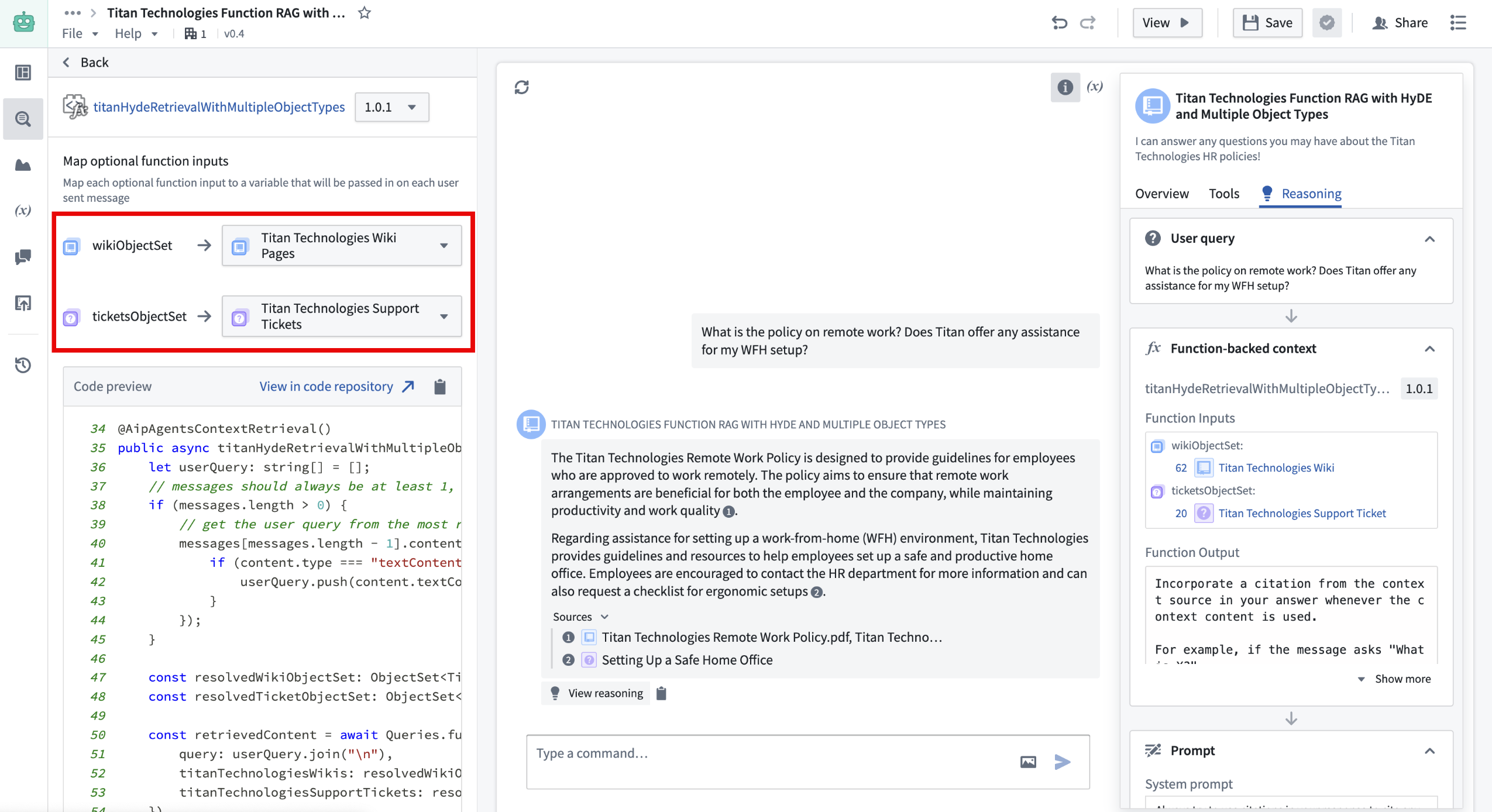
To create application variables, navigate to the application variables panel in Agent Studio.
Custom citations
In addition to support for custom retrieval Functions, AIP Agents now support custom citations. This means that if the LLM responds with citations in a specified format, the AIP Agent frontend will display citation bubbles that enable users to easily verify and explore information sources. With Function-backed context, users can take advantage of this by having their Function return a string that prompts the LLM to write citations in this given format. The supported citation formats are the following:
- Ontology object citations should be returned in the following format:
<citation><key>ri.phonograph2.object-set...</key></citation>
where the <key></key> tags encapsulate the object RID. Selecting the citation bubble will link to the Object Explorer view for that object.
* Document (PDF) citations should be returned in the following format:
<citation><mediaSetKey>ri.mio.main.media-set...</mediaSetKey><mediaItemKey>ri.mio.main.media-item...</mediaItemKey></citation>
Selecting the citation bubble will open a dialog that displays the first page of the document. * External URL citations should be returned in the following format:
<citation><name>My Website</name><href>www.mywebsite.com</href></citation>
The citation bubble will display the provided name, (for example: My website) and selecting it will link to the provided URL (for example: www.mywebsite.com).
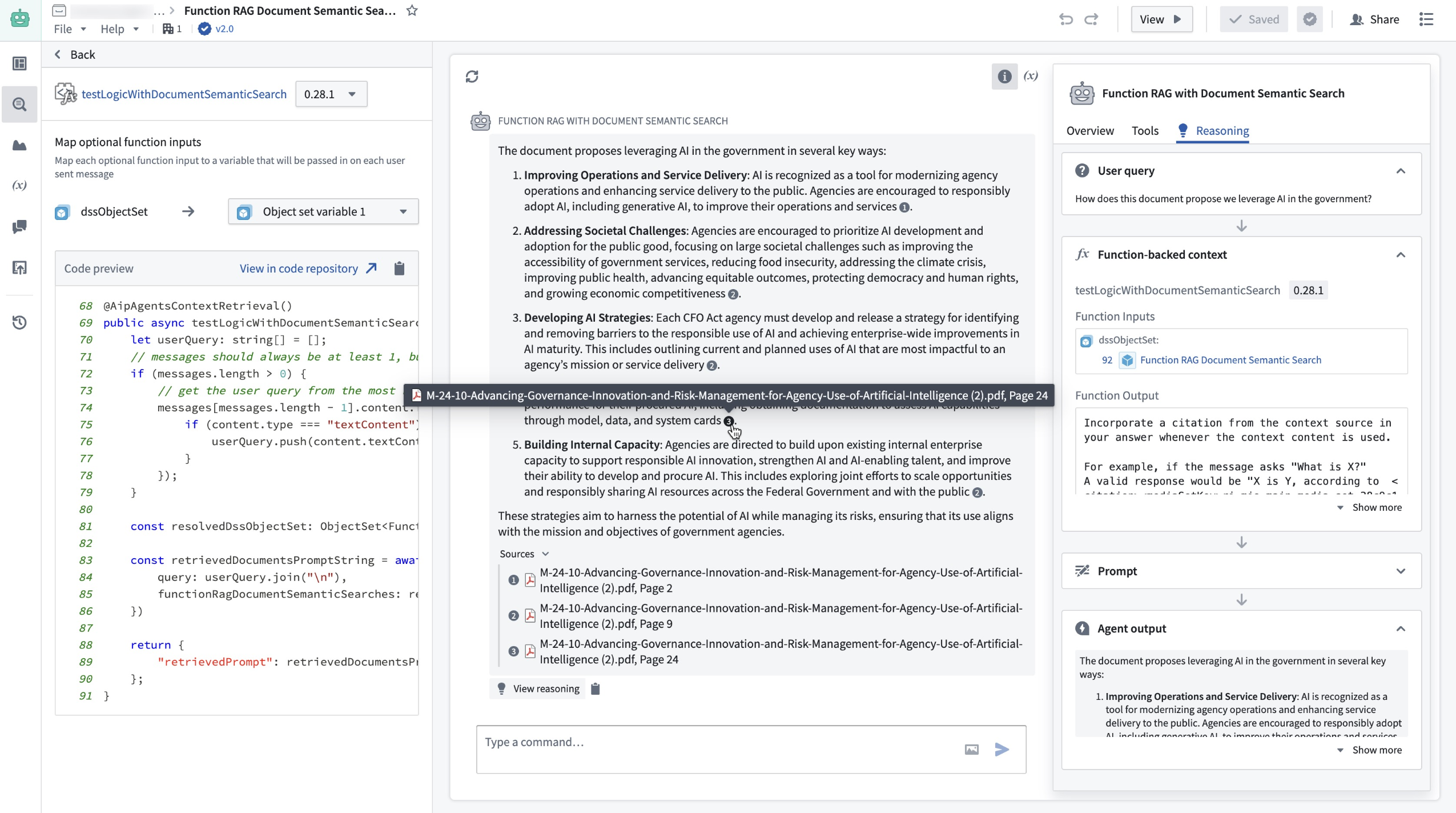
In this example, the Function accepts a set of document chunks that are represented as Ontology objects. It then conducts a semantic search on these objects and returns the five most relevant ones, formatted according to the citation style mentioned above.
What's next for AIP Agent Studio?
Users will soon also be able to write retrieval Functions in AIP Logic, which offers a walk-up usable interface for developing no-code LLM-powered functions. To take advantage of this in the meantime, we recommend writing a TypeScript function that satisfies the interface and calls the Logic function under the hood.
Learn more about retrieval context in AIP Agent Studio.
Bootstrap development with TypeScript OSDK Templates
Date published: 2025-02-11
OSDK Templates is an experimental feature designed to accelerate and bootstrap development, saving time and reducing setup complexities. Using a customized TypeScript OSDK Template as a preconfigured starting point, developers can rapidly start building projects with built-in OSDK packages. By leveraging OSDK Templates, you can ensure consistency across TypeScript projects, or incorporate essential tools and best practices from the outset.
Use TypeScript OSDK Templates to streamline the following use cases:
- Running a bootcamp or a workshop in which all developers need to bootstrap their code with a preconfigured OSDK application.
- Providing an example for users to kickstart their work.
- Enforcing a set of UI standards for all React projects.
- Providing a React template that uses a shared set of Ontology resources. Review the note on using Ontology resources below.
Build an OSDK Template
To create an OSDK Template, first create a TypeScript Developer Console application and select the option to Bootstrap using VS Code in Foundry under the Start developing section. This will create a repository for your application code, allowing you to develop the application exactly as you intend users to experience it. Be sure to debug and test your application before creating a template.
When you are satisfied with your application code, create a template using the following steps:
- Replace variable instances with handlebars like so:
{{SAMPLE_VARIABLE}}. Sample variables are listed below:
{{FOUNDRY_HOSTNAME}}="yourdomain.palantirfoundry.com" // .env files, .npmrc, foundry.config.json
{{APPLICATION_CLIENT_ID}}="1564cead075af0e23eb1799ac0f6381f" // .env files
{{APPLICATION_PACKAGE_NAME}}="osdk-sample-app-20" // package.json and any code file which references the package
{{APPLICATION_RID}}="ri.third-party-applications.main.application.7ebc94b7-bad3-45a9-a063-d7fc0ccd2873" // foundry.config.json
{{REPOSITORY_RID}}="ri.stemma.main.repository.35d25ea4-973d-4112-a7d3-04c31efa1875" // .npmrc setting.sh
-
Note that your application package should not include
@or a trailing/sdk. The version in thepackage.jsonmust be set tolatestor0.1.0. -
You can also add custom handlebars as input parameters when the package is deployed, as shown below:
{{AGENT_RID}}="ri.aip-agents..agent.f4a3033a-8b8d-4313-a365-3d8d7099fa95"
-
Commit your changes. The CI check will fail at this point, but this is expected behavior.
-
Navigate to Marketplace to create a new product from your repository.
-
Name your product, choose Repository under Add by resource type and select the repository you created. The chosen repository will be displayed under Repositories in the Content section.
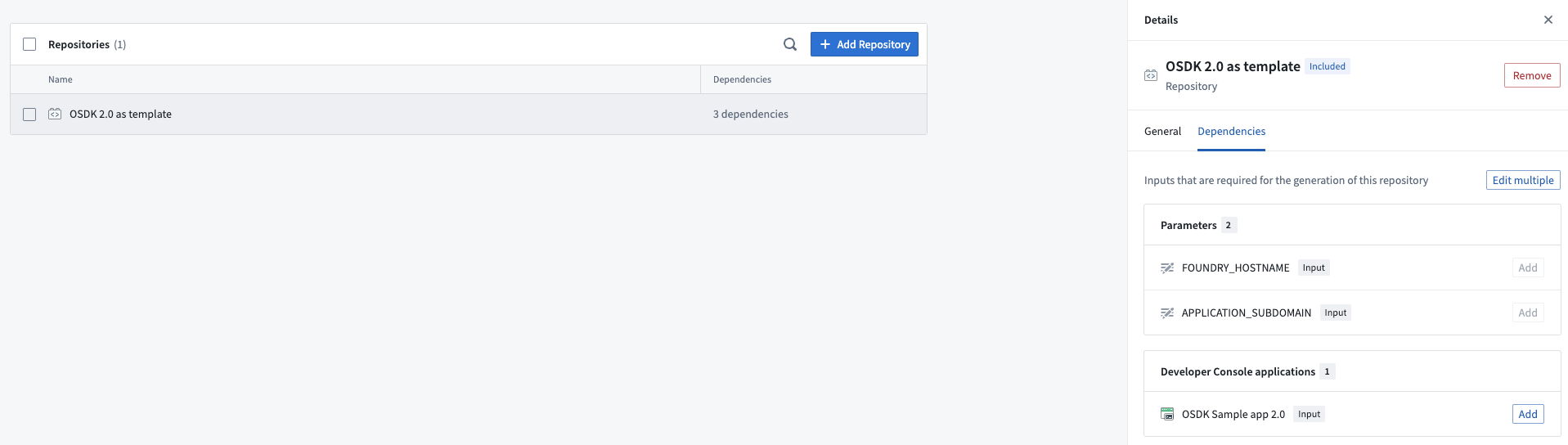
A list of repositories added as dependencies to the template in Marketplace.
- Select + Add Repository on the top right of the Repositories list under Content to include Developer Console as a dependency. We recommend not including Ontology resources in the package for reasons explained below in using Ontology resources.
Your package is now ready to be distributed on Marketplace.
A note on using Ontology resources
OSDK applications use API names to link to Ontology resources, so your code will contain API names from the Ontology used by your template.
For example, the API name of the loaded object types below is Aircraft:
const response: Result<PageResult<Osdk.Instance>> = await client(Aircraft).fetchPageWithErrors({ $pageSize: 30 });
We do not recommend including Ontology resources in your package. Marketplace will attempt to install them during deployment and create duplicate Ontology resources with different API names, which will lead code to break.
To avoid this, we recommend one of the following options:
-
If the template application does not need to use Ontology resources, you can build a progressive web application (PWA) template that can work with any Ontology resource. You can also build a React template that adopts customers' design styles for OSDK-backed applications.
-
If users need to access a shared Ontology, they will be prompted to input the necessary Ontology resources during template installation, allowing Ontology resources to be referenced in code.
Distribute packages on Marketplace
Users can find your packaged template in the relevant Marketplace store. When installing the template from Marketplace, a new repository and a linked Developer Console application will be automatically created for the user. When using this package for bootstrapping, the Bootstrap option must be selected during installation. Improvements to user discovery for OSDK Templates are currently in development to facilitate surfacing templates.
We created OSDK Templates to accelerate the initial phases of development and help you focus on building, rather than on setup tasks. We encourage you to share feedback with Palantir Support channels and on our Developer Community ↗ using the ontology-sdk tag ↗.
Learn more about OSDK and Marketplace.
Configure row-level permissions on objects in Pipeline Builder
Date published: 2025-02-06
Row-level permission configuration is now available for objects in Pipeline Builder. Apply row-level permission policies to objects using Restricted Views to ensure users only see the objects they are permitted to access.
Why use Restricted Views?
While Markings and roles provide robust access controls, certain workflows demand more specific permissioning. For example, an Organization might want to ensure that its sales representatives can only view details of customers that are assigned to their branch. Restricted Views offer this additional level of control by limiting dataset access to the rows users are authorized to see.
Set up granular security policies
You can now set up detailed security policies by navigating to the output object and selecting Configure granular security.
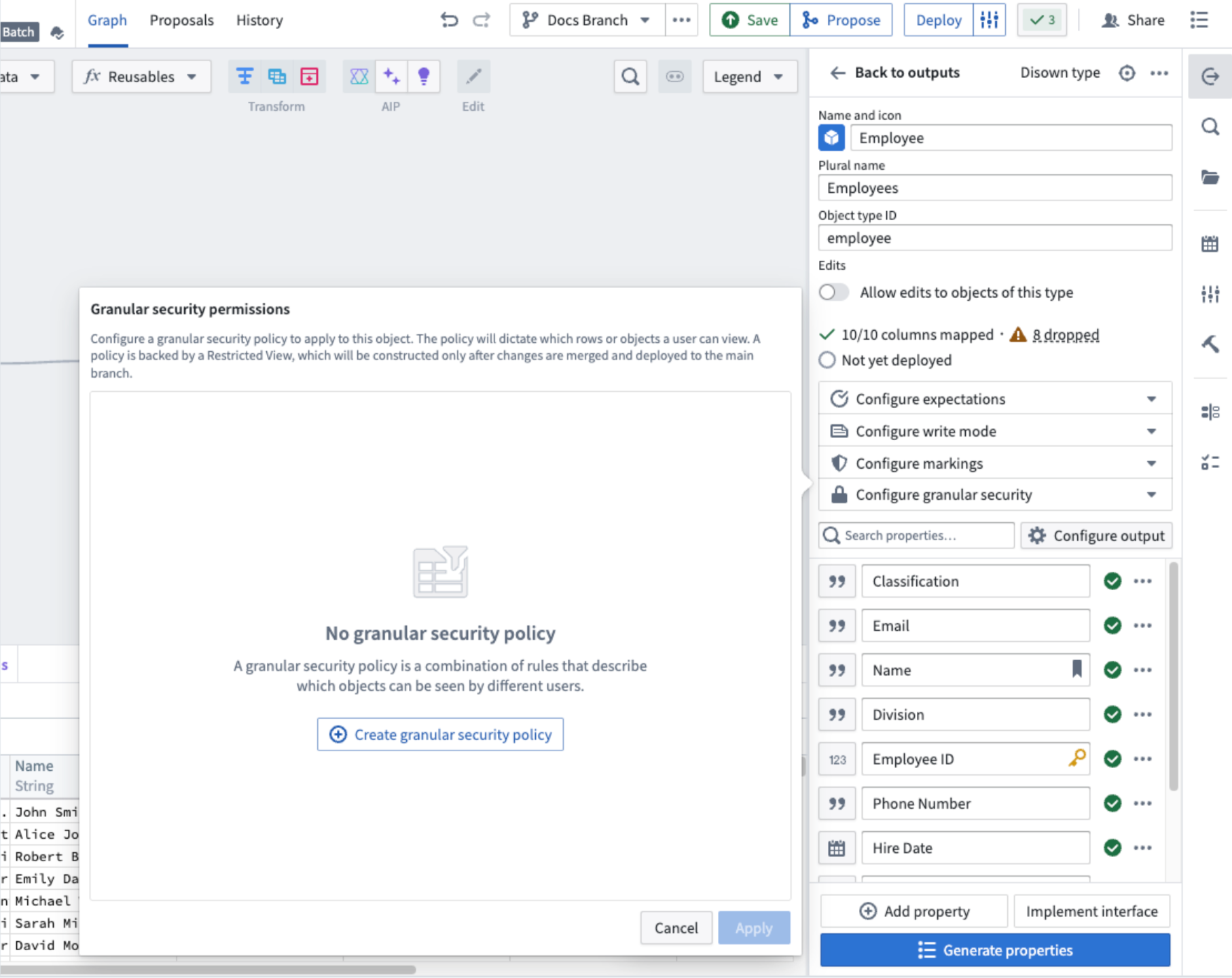
The output object configuration panel in Pipeline Builder, with the option to add granular security permissions.
Then, select Create granular security policy to start configuring your policy.
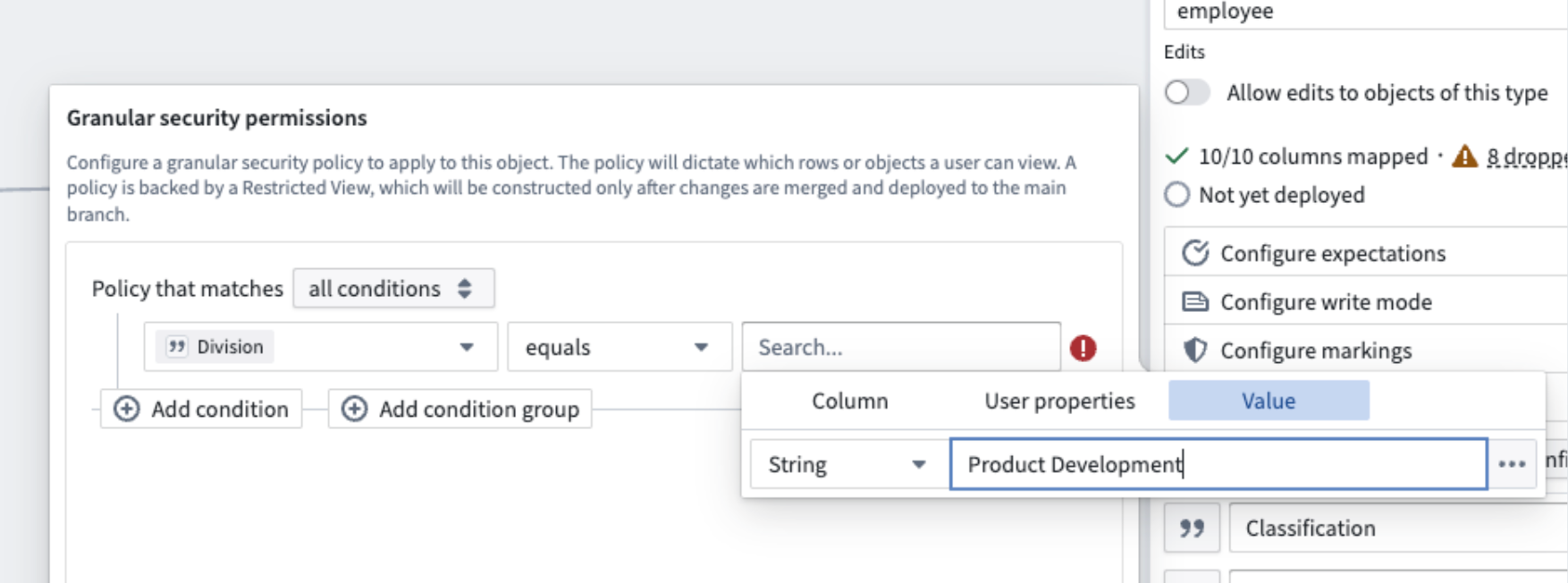
Configure your granular security policy to apply to a specific column, user property, or value condition.
Make sure to save changes and deploy on the main branch so that Restricted Views and their associated security policies take effect.
Share your thoughts with us
With this powerful feature, enhance your access control systems and ensure secure data handling across your projects. Let us know your thoughts through Palantir Support channels and our Developer Community using the pipeline-builder tag.
To further explore Restricted View policies and best practices, refer to our detailed documentation on Restricted View policies.
Workshop feature highlights from 2024
Date published: 2025-02-04
Over the past year, many new features and improvements have been added to Workshop to both increase the point-and-click expressiveness of the application builder toolkit and add powerful, new pro-code extensibility options for developers.
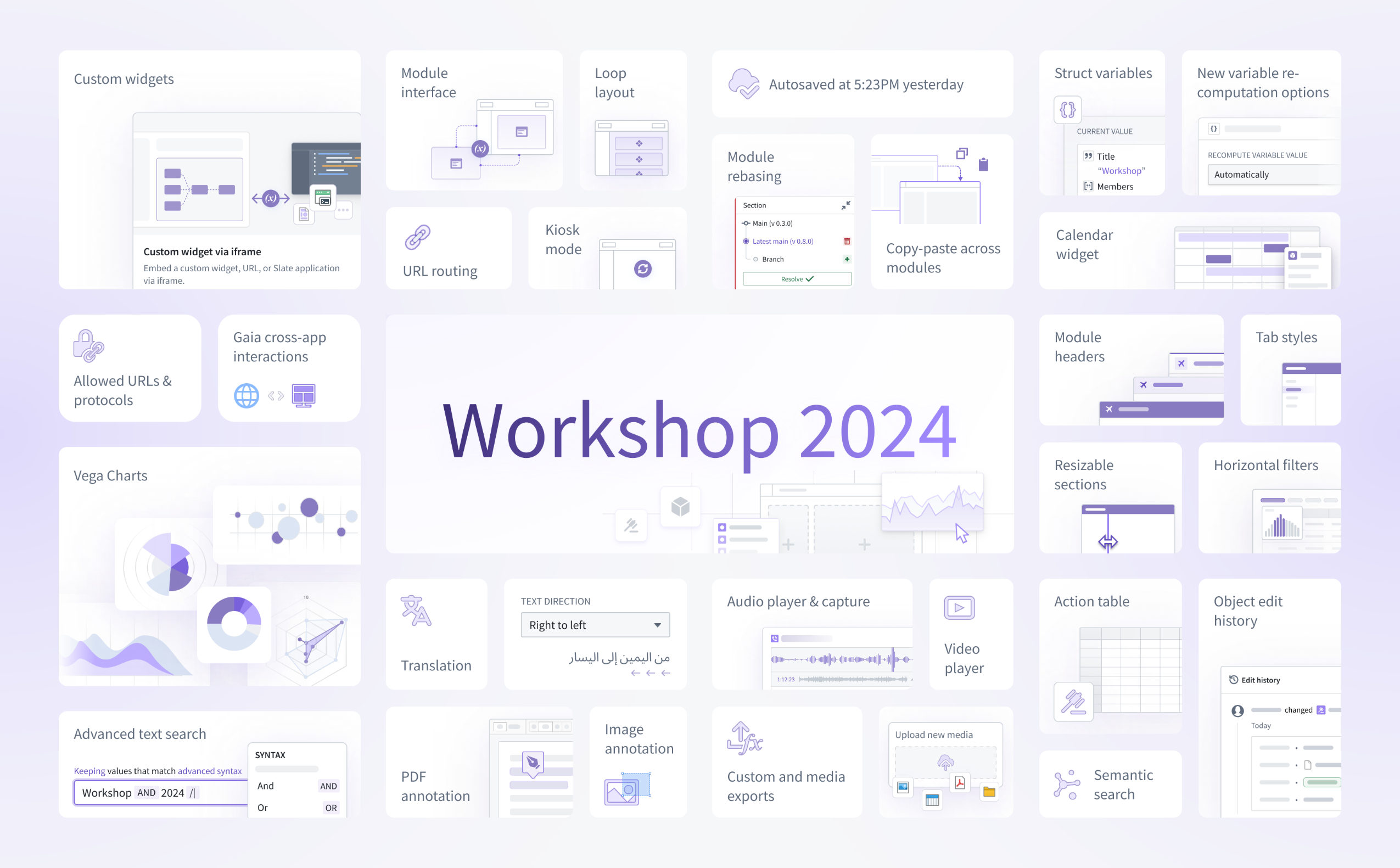
The list below does not cover every recent enhancement to Workshop, but is intended to provide a summary of notable highlights from 2024. For more information on any of these features, review the documentation linked inline below:
- Bidirectional iframe widgets allow developers to embed third-party, custom-built components into Workshop applications for the first time. These widgets can share variable state and trigger events with their parent Workshop application to integrate seamlessly with native Workshop features.
- Module interface enables builders to easily configure the input variables accepted of a given module and acts as the effective API for the module.
- URL routing allows builders to serialize variable state and module state into the URL. This enables easier link sharing between users and also helps a module maintain its state on a browser reload.
- Loop layout allows builders to create dynamic, reusable views by looping over an object set and displaying an instance of a custom embedded module per object.
- Kiosk mode enables secure, long-lived user sessions in Workshop. For example, allowlisted applications can be run in Kiosk mode for continuous display on a command center screen, or to enable a shared monitor to display an operational dashboard 24/7.
- Autosave preserves module edits automatically so builders can edit their applications without worrying about unexpectedly losing progress.
- Module rebasing helps builders merge Workshop application updates from main into the local changes they have made within a branch. This feature, alongside branching, unlocks simultaneous collaborative application building in Workshop.
- Copy-paste of components and widgets across modules greatly speeds the application building process by making Workshop configuration more reusable.
- Struct variables are a new composite variable type that can be returned from functions and used by builders to decrease network calls and boost the performance of their Workshop applications.
- New variable re-computation options provide builders more control over on when specific variables in their applications should recalculate; for instance, recalculation can occur automatically, when specifically triggered by an event, or only on initial load.
- The Calendar widget provides a way to visualize date- or timestamp-backed objects (such as work schedules or flight events) within an interactive calendar.
- Allowed URLs and protocols let administrators specify a list of external URLs and schemes to which users can safely navigate without triggering the display of an external link warning.
- Gaia cross-app interactionsenable pairing a Gaia map to a Workshop application to seamlessly share state and create powerful geospatial workflow.
- Vega charts allow builders to create fully customizable and interactive visualizations in Workshop using the open-source Vega ↗ and Vega-Lite ↗ grammars.
- Translations give builders the ability to localize Workshop applications into multiple languages, either manually or with the help of AIP Assist-powered translations for enabled enrollments.
- Right-to-left text lets builders adjust text directionality in their applications to accommodate multiple language orientations.
- The Audio player & capture widget enables audio-based workflows and supports the upload and playback of audio files.
- Module headers increase the visualization expressiveness possible in Workshop by providing additional customization, coloring, branding and general styling options for application headers. Both horizontal and vertical module headers are now supported.
- Tab styles offer improved out-of-the-box theming and styling options for the Tabs widget.
- Resizable sections allow users to freely resize parts of a Workshop application while in View mode in order to better customize a module to their needs.
- Horizontal filters within the Filter List widget offer a more compact layout option to one of Workshop’s most popular widgets.
- The Action table lets users create and modify multiple objects via a directly editable, Action-backed table. Uploading of structured data like CSV or XLSX files is also supported to enable faster data import and creation.
- Object edit history widget now supports displaying the edits history (changelog) for objects indexed into Object Storage v2.
- Advanced text search provides more advanced search operations within the Filter List widget, including new search syntax, wildcard operators, and the ability to chain multiple search operations together.
- PDF annotation enables more complex document tagging workflows by allowing users to create, display, and interact with text and area annotations.
- Image annotation powers image tagging workflows by allowing users to tag and capture visual areas of interest.
- Custom and media exports allow builders to configure bespoke, one-click exports that match their desired text output format, such as JSON or CSV. Additional export options for media are also now available.
- Upload new media allows users to upload media to objects as media set-backed properties via Actions.
- Semantic search workflow configuration has been simplified by allowing semantic search filters to be configurable directly within Workshop’s point-and-click Object Set Definition panel.
Exclude groups from access request forms
Date published: 2025-02-04
Project Owners can now exclude specific groups from access request forms. When a group is excluded for a Project, users will not be able to request to join the group.
By default, all groups with a role in a Project appear in the access request form. Excluding groups from access request forms prevents accidental membership requests to groups like administrator groups, while still allowing necessary access through designated Projects.
Excluding groups is a per-Project setting, offering flexibility. A group can be excluded from most Projects but included in specific ones. Users can request access to the group in those specific Projects. If approved, they will gain access to all Projects where the group has a role.
To exclude groups from the access request flow for a Project, navigate to the Access panel > Settings > Project access requests.
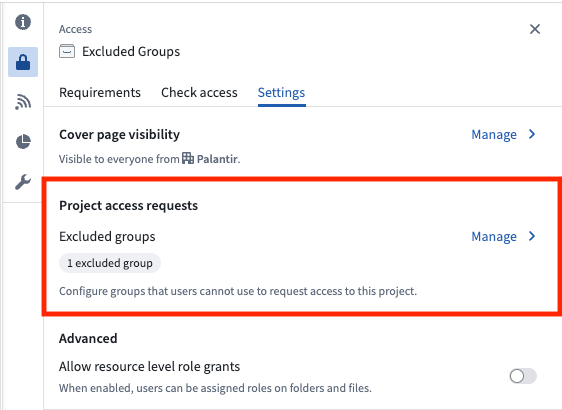
The access requests settings of a selected Project.
Project Owners can select Manage and then select the groups to exclude from the request flow. If you are not an Owner on the Project, you can select View to see which groups are excluded, but you will not be able to make any changes.
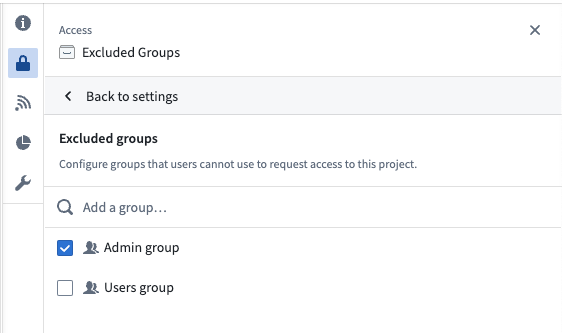
Search for and select groups to exclude from Project access requests.
Learn more about excluding groups from access request forms.
Kiosk mode enables long-lived, read-only display of Workshop applications
Date published: 2025-02-04
Kiosk mode is now generally available for Workshop applications. Kiosk mode offers builders the ability to launch secure, long-lived, restricted sessions for Workshop applications, allowing them to be safely displayed for extended periods of time. For example, allowlisted applications can be run in Kiosk mode for continuous display on a command center screen, or to enable a shared monitor to display an operational dashboard 24/7.
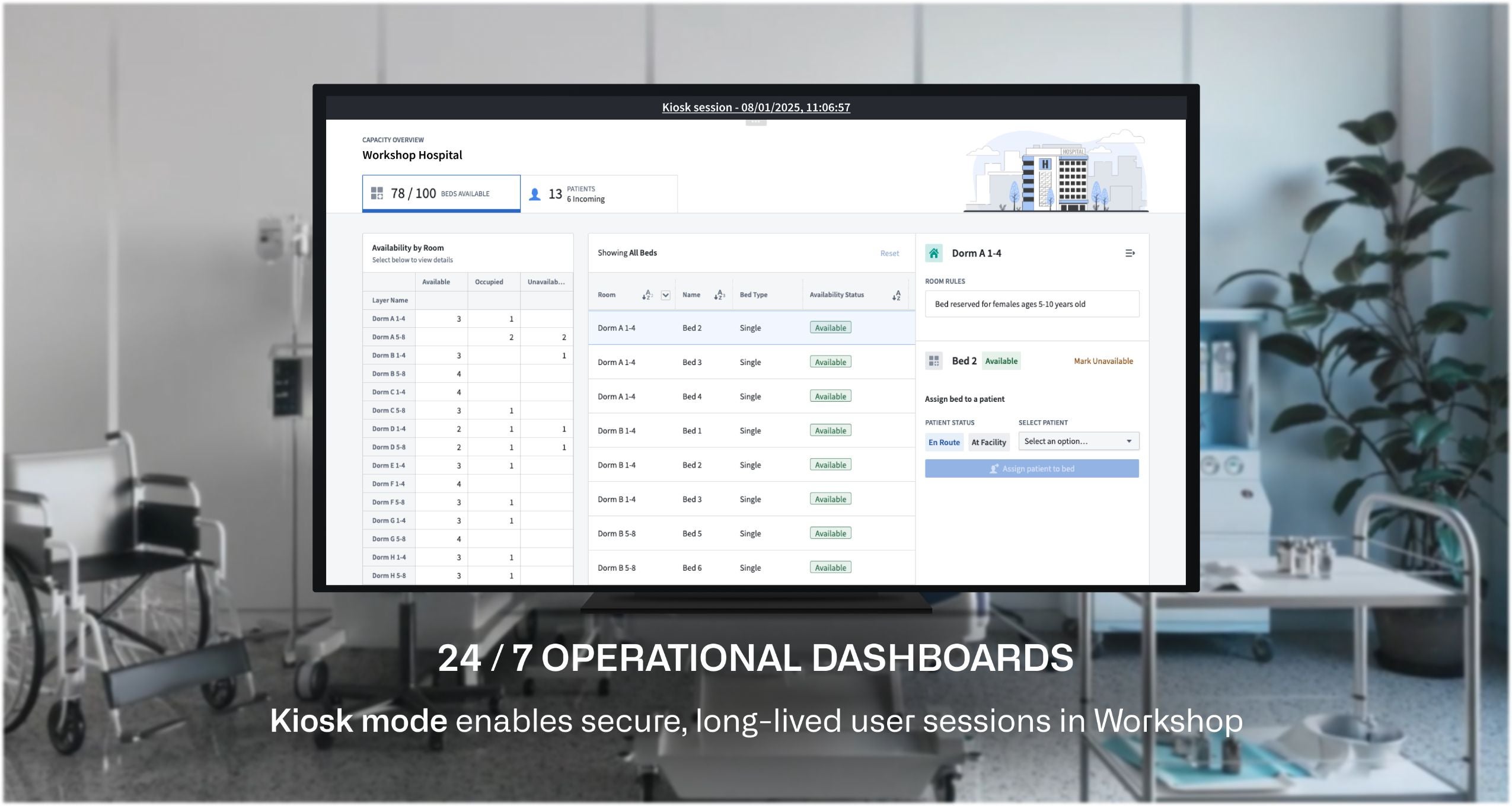
To ensure safe display of a module when a Workshop application is in Kiosk mode, the module's permissions will be scoped down to only include entities directly accessible within the module and to limit the content viewable within the active session.
Kiosk mode settings may be configured and managed on the Organization level within the Control Panel, allowing administrators to manage:
- Which modules may enable Kiosk mode
- Which group(s) of users may launch Kiosk mode sessions
- The list of all historical and currently active Kiosk mode sessions
To learn more about how to configure and enable Kiosk mode for your Workshop applications, details on how Kiosk mode permission scope is determined, and the restrictions and controls Kiosk mode offers, review our documentation.
中文翻译
公告
提醒: 请注册 Foundry 新闻通讯(Newsletter),即可直接在收件箱中接收平台新产品、功能和改进的摘要。有关如何订阅的更多信息,请参阅 Foundry 新闻通讯和产品反馈渠道公告。
欢迎在我们的开发者社区论坛 ↗分享您对这些公告的看法。
推出 Machinery:以综合视图构建和优化流程
发布日期:2025-02-27
现实世界中的事件,如业务流程、政府运营、医疗程序等,都可以被视为流程(process)。Machinery 可以帮助您理解和管理流程的各个方面,识别不良行为,并朝着期望的结果进行改进。在 Machinery 中创建流程,然后构建自定义应用程序以实时监控您的 AIP 工作流,将人工操作纳入循环,并迭代流程低效环节以提高自动化程度。
使用 Machinery 以综合视图从头开始实施、审查和优化流程。
Machinery 的常见工作流包括:
- 借助 AIP 和自动化解决流程低效问题
- 通过编排多个 AI 代理(agent)端到端管理 AIP 用例
- 从外部事件日志中挖掘正在进行的流程,以获取对现有流程的可见性
- 定义和监控性能指标与期望,以识别流程瓶颈
- 构建运营应用程序,通过实时人工干预监控 AIP 工作流
要使用 Machinery,注册管理员(enrollment administrator)必须先在控制面板(Control Panel)中启用它。
以综合视图编写流程
在 Palantir 平台中实施流程涉及许多独立资源,例如对象类型(object type)、操作(Action)和自动化(automation)。Machinery 现在为所有这些组件提供了综合视图,并允许您检查和控制所有相关细节。其独特的以状态为中心的视角和直观的图表使您能够绘制、定义和理解有序的操作流程。Machinery 还集成了值类型和提交条件,为您提供额外的合规性保证层。
无论您是想从头开始绘制流程还是挖掘正在进行的流程,Machinery 都会在设置过程中提供逐步指导。
通过操作自动化保持流程顺畅
在状态之间添加操作(Action),以帮助保持流程推进。通过直接在 Machinery 中设置属性过滤器来配置自动状态转换,或切换到具有预定义过滤器的链接对象集(linked object set)。
通过设置过滤器来配置状态转换,以符合您为流程定制的条件。
将 AIP Logic 无缝集成到您的流程中
创建由逻辑函数(Logic Function)支持的操作,并集成广泛而强大的 AIP 能力来驱动您的流程。此函数可以在 AIP Logic 应用程序中进一步配置。
通过集成 AIP Logic 来驱动流程,帮助在转换之间移动对象。
通过生成 Workshop 模块启动开发
为了在 Palantir 平台中运营您的流程,您可以通过单击快速启动一个 Workshop 模块("Machinery Express 应用程序")来开始应用程序开发。Express 应用程序作为一个动态试验场,您可以在其中进行初步分析,然后返回 Machinery 使用操作、自动化和 AIP 逻辑函数来优化、更新或改进您的流程。
无论您选择将 Machinery Express 作为即用型分析工具,还是作为构建自己应用程序的基础,它都能促进流程探索和优化之间的流畅交互。此外,Machinery Express 应用程序使您能够立即与运营用户共享此流程,为他们提供必要的上下文,以便实时有效地与系统交互。
生成 Machinery Express 应用程序,帮助您在 Workshop 中开始应用程序开发。
如果您更愿意从头开始构建新应用程序,或将 Machinery 添加到现有的 Workshop 模块中,您可以在 Workshop 中添加 Machinery 流程概览小部件(Machinery Process Overview Widget)。
我们期待您的反馈
随着我们继续开发 Machinery,我们希望了解您的体验并欢迎您的反馈。请通过 Palantir 支持渠道或我们的开发者社区 ↗分享您的想法,并使用 machinery ↗ 标签。
在 AIP Evals 中评估中间参数并将运行结果写入数据集
发布日期:2025-02-25
二月初,AIP Evals 发布了新功能,为用户提供了更大的灵活性,以评估复杂的 AIP Logic 函数,并将评估套件运行的结果整合到其工作流中。
创建中间参数以评估 AIP Logic 中的块输出
以前,只能使用 AIP Evals 评估逻辑函数的最终结果。然而,基于 LLM 的功能通常包含多个复杂操作;仅评估最终结果往往不足以确定提示词(prompt)的性能。现在,通过选择一个或多个 AIP Logic 块旁边的烧瓶图标,您可以设置一个中间参数(intermediate parameter)用于 AIP Evals 评估。与函数的最终输出类似,中间输出可用于设置自动评估器(automated evaluator),或仅用于查看结果。
选择 AIP Logic 块上的烧瓶图标会将输出暴露为中间参数。
将运行结果写入数据集以供进一步分析
根据所评估的函数和工作流,评估套件运行的结果可能需要在平台的其他部分呈现。例如,领域专家可能不具备足够的技术能力在 AIP Evals 中查看结果,而希望将套件运行的数据与专用 Workshop 应用程序中的其他信息一起呈现。借助我们新的运行结果数据集(run results dataset)功能,这成为可能。
当配置了运行结果数据集,并且评估套件以项目范围执行模式(Project-scoped execution mode)运行时,运行生成的所有信息将自动写入配置的数据集。通过此功能,我们旨在让 AIP Evals 为您提供最大的灵活性,以处理生成的数据。使用现有的 Foundry 工具,这些数据可用于更复杂的计算、写入对象并在 Workshop 中呈现,或在 Contour 中进行更深入的分析。
添加结果数据集后,评估套件运行结果将被写入数据集。
通过新的 Object Explorer 主页发现您的本体
发布日期:2025-02-25
我们很高兴地宣布,Object Explorer 有了新的主页,旨在增强本体(Ontology)发现,同时呈现相关资源。新的主页分为多个部分,允许用户一目了然地查看相关对象,并轻松呈现和组织对象类型。此更新提升了 Object Explorer 的用户体验,并使构建者能够更深入地了解其本体如何在平台中被利用。
新的 Object Explorer 主页,包含与您相关和发现您的本体部分。
新的主页分为三个部分:
-
与您相关: 显示用户的最近使用和收藏夹,包括对象类型、对象实例、对象类型组和已保存的探索。此部分位于搜索栏下方,以便快速导航到最常访问的资源。
-
发现您的本体: 呈现本体对象类型组。这些组由本体编辑者和所有者创建,用于将对象类型组织成类别或主题。用户还可以通过对象类型所使用的应用程序来呈现它们,或在一个表格中查看所有对象类型。引入了以下指标,以帮助用户导航本体并更好地了解哪些对象类型被最频繁使用:
-
活跃用户: 在过去 30 天内与对象类型交互过的用户数量。
-
应用程序: 指示对象类型被用于多少个 Workshop 应用程序。
-
已保存的探索和列表: 提供对已保存的探索和列表的访问,这些探索和列表由用户创建或与用户共享。
此主页更新是 Object Explorer 即将进行的众多改进中的第一个。我们致力于改进本体搜索和发现能力,并将继续提升 Object Explorer 的用户体验。
TypeScript OSDK 和平台 API 现已支持媒体
发布日期:2025-02-20
我们很高兴地宣布,TypeScript 本体 SDK 和平台 API 现在支持读取和上传媒体到本体。具有媒体引用(media reference)的对象类型和操作现在可以包含在您的本体 SDK 应用程序中,用于读取和写入媒体项。
要开始在 SDK 中使用媒体,请在开发者控制台(Developer Console)中创建一个新的 TypeScript 应用程序。请确保选择创建本体 SDK,并选择包含具有媒体引用的对象类型和操作类型的本体。
在开发者控制台中设置本体 SDK 应用程序时的资源步骤。所选本体包含一个 Media Object 类型。
本体 SDK 和平台 API 中的媒体支持处于测试版(beta)状态,在开发过程中可能会发生变化。要在 TypeScript SDK 中启用媒体支持,请从开发者控制台的左侧面板导航到 SDK 版本,然后选择右上角的 设置 以打开 包设置 页面。在此处,打开 TypeScript 测试版功能。这将启用开发者控制台中 TypeScript 包可用的任何测试版功能,包括媒体 API。
开发者控制台中的包设置页面,已启用TypeScript测试版功能。
TypeScript OSDK 中的媒体调用
TypeScript OSDK 中的媒体支持包括读取和上传媒体以及在本体操作中使用已上传媒体的调用。以下包含这些调用的示例。
读取媒体引用属性
通过调用媒体引用属性上的 fetchMetadata() 和 fetchContents() 来获取媒体引用属性的元数据和内容:
import { OsdkMediaObject } from "@my-media-osdk/sdk";
import { MediaMetadata, MediaReference } from "@osdk/api";
import { Osdk, Result } from "@osdk/client";

const result = await client(OsdkMediaObject).fetchOne("<primaryKey>");

// 获取媒体属性的元数据
const mediaMetadata = await result.mediaReference?.fetchMetadata();

// 获取媒体属性的内容
const response = await result.mediaReference?.fetchContents();

if (response.ok) {
    const data = await response.blob();
    ...
}
上传媒体到本体
要将媒体上传到本体,您必须首先使用如下所示的方法将其上传到对象类型的媒体属性。这将返回一个 MediaReference 对象,然后可以将其传递给接受媒体作为参数的操作:
import { OsdkMediaObject } from "@my-media-osdk/sdk";
import { __EXPERIMENTAL__NOT_SUPPORTED_YET__createMediaReference } from "@osdk/api/unstable";
import { Result, isOk } from "@osdk/client";
import { MediaReference } from "@osdk/api";

async function uploadMedia() {
    const file = await fetch("file.json");
    const data = await file.blob();

    // 将媒体上传到具有媒体属性的对象类型。这将返回一个媒体引用,可以传递给
    // 操作中的媒体参数。
    return await client(
        __EXPERIMENTAL__NOT_SUPPORTED_YET__createMediaReference,
    ).createMediaReference({
        data,
        fileName: "myFile",
        objectType: OsdkMediaObject,
        propertyType: "MediaPropertyApi",
    });
}

const mediaReference: MediaReference = await uploadMedia();
const actionResult = client(mediaUploadingAction).applyAction({ media_parameter: mediaReference });
在操作中使用已上传的媒体
将媒体上传到 Palantir 后,您可以使用返回的 MediaReference 传递给操作:
import { createMediaObject } from "@my-media-osdk/sdk";
import { MediaReference } from "@osdk/api";

const mediaReference: MediaReference = uploadMedia();
const result = await client(createMediaObject).applyAction(
    {
      "media_reference": mediaReference,
      "path": "value"
    },
    {
      $returnEdits: true,
    }
);
平台 API 中的媒体调用
查看我们的平台 API 参考文档,了解如何读取和上传媒体内容。
我们期待您的反馈
随着我们继续开发平台中的媒体支持,我们希望了解您的体验并欢迎您的反馈。请通过 Palantir 支持渠道或我们的开发者社区 ↗分享您的想法,并使用 ontology-sdk ↗ 标签。
模型适配器(model adapter)现已支持本体对象和对象集输入
发布日期:2025-02-20
我们很高兴地宣布,模型适配器现在支持本体对象和对象集输入。借助模型适配器中的本体对象输入,开发者可以在其模型适配器逻辑中利用 OSDK 与本体对象进行交互。这允许更快的迭代,并使平台中开发的模型与本体更紧密地结合。
您可以在模型适配器的 api() 类方法中定义具有对象和对象集输入的模型适配器。在开发者控制台或代码工作区中创建 ontology_sdk 包后,您可以将对象用作模型适配器中的输入:
from ontology_sdk.ontology.objects import Employee
from ontology_sdk.ontology.object_sets import EmployeeObjectSet

class ObjectsInModelApiAdapter(pm.ModelAdapter):
    ...

    @classmethod
    def api(cls):
        inputs = {
            "object_input": pm.Object(Employee),
            "object_set_input": pm.ObjectSet(EmployeeObjectSet)
        }
        outputs = {
            "param_out": pm.Parameter(type=str)
        }
        return inputs, outputs

    def predict(self, object_input, object_set_input):
        ....
要传入对象或对象集进行测试,您可以在直接模型部署运行时,从模型查询页面选择本体中的输入。您还可以从左侧面板发布一个带有本体输入的函数。
模型查询页面上的示例对象和对象集输入。
您可以通过模型的 predict 或 transform 方法,使用 FoundryClient() 通过 OSDK 或平台 SDK 查询函数、对象和 LLM。这允许进行基于 LLM 的专业编码工作流,您可以在其中与本体交互,并使用传统建模技术产生更准确的预测。
from ontology_sdk import FoundryClient

class ObjectsInModelApiAdapter(pm.ModelAdapter):
    ....

    def predict(self, employee_primary_key):
        client = FoundryClient()
        client_first_name = client.ontology.objects.Employee.get(employee_primary_key).first_name
        ...
AIP Assist 支持多线程聊天和聊天历史
发布日期:2025-02-20
在未来几周内,用户将能够在 AIP Assist 中创建、保存和参与多个并发聊天。已保存的聊天将保留七天,允许您重新访问主题并确保持续访问有价值的见解。多线程聊天允许您同时与不同的模式或代理进行交互,因此您可以在切换上下文时在聊天之间切换,并最大化 AIP Assist 产品的潜力。
要开始使用多线程聊天,请打开 AIP Assist 侧边栏并选择右上角的聊天图标。在此处,您可以在已保存的聊天之间切换,或选择 添加聊天 以创建新线程。您还可以删除不再有用的聊天,或选择刷新图标以重置当前聊天上下文。
AIP Assist 侧边栏,现在具有聊天线程选择器,并提供添加新聊天或删除现有聊天的选项。
AIP Assist 现在在保留相关上下文的同时跟踪多个对话,为您提供实现复杂结果和优化 AIP Assist 功能使用所需的支持。
注意:AIP 功能的可用性可能会发生变化,并且可能因客户而异。
控制面板中简化的空间设置管理
发布日期:2025-02-18
为了改善管理空间(space)的体验,我们已将空间管理工作流迁移到控制面板中的一组设置页面。从今天开始,您可以通过 所有设置 视图直接更新以下空间级别设置:
- Linter 配置: 轻松管理您的代码质量检查。
- 项目模板: 轻松访问和修改模板。
在控制面板的专用页面上访问 Linter 配置和项目模板设置。
此外,控制面板中的 空间 选项卡已重命名为 空间管理。
空间管理 现在是一个独立的部分,提供更直观的配置体验。
这些更新标志着持续改进空间配置工作的开始。为了将来更快地访问这些设置,您可以将它们收藏到您的 收藏设置 侧边栏部分。我们正在积极努力为空间引入更多控制和设置。
我们欢迎您对这些更改的反馈。请通过 Palantir 支持渠道和我们的开发者社区论坛 ↗与我们分享您的想法。
要了解有关这些更新及其如何有益于您的工作流的更多信息,请查阅空间文档。
在控制面板中创建新空间
发布日期:2025-02-18
注册管理员现在可以使用控制面板中的 空间管理 页面创建新空间。空间(以前称为命名空间)是项目(Project)的高级容器,具有跨组织(Organization)共享的本体和目的。大多数组织只需要一个空间来容纳所有项目。但是,可能需要多个空间来分离沙箱和生产环境,或创建一个由多个组织共享的空间。
控制面板中的空间管理页面。
管理员可以使用以下设置配置新空间:
访问要求: 空间及其内容受组织要求保护。用户必须满足至少一个组织的访问要求才能访问此空间。
删除策略: 删除策略定义了空间及其项目何时被删除。删除策略以最后退出语义(last-out semantic)构建,这意味着当用于删除策略的所有组织首先被删除时,该空间将被删除。
文件系统: 文件系统是空间中所有项目数据的存储位置。文件系统一旦设置便无法修改。
使用账户: 平台中资源的使用通过使用账户(usage account)进行跟踪。此设置决定空间中项目将使用的默认使用账户。使用账户可以在每个项目的基础上覆盖。
资源队列: 项目的计算资源从其资源队列(resource queue)中分配。此设置决定空间中所有项目使用的资源队列。
角色集: 项目只能使用其空间允许的角色集中的角色。默认情况下,这是 Project defaults 角色集,但可以替换为自定义角色集。如果使用自定义角色集,则在空间上授予的角色不会继承到项目。
如果您是注册管理员但无法创建新空间,可能是因为您的注册不适合或已达到配额限制。请联系 Palantir 支持以获取有关您注册的更多信息。
使用 Performance Profiler 诊断和排查 Workshop 应用程序性能问题
发布日期:2025-02-18
Workshop 的 Performance Profiler 现已正式发布(GA),使构建者能够捕获应用程序性能、诊断高加载时间的原因并识别优化机会。借助 Performance Profiler,构建者可以访问 Profiler 模式,以深入了解加载时间并定位性能瓶颈,从而使构建者能够实施有针对性的改进,创建更快、更高效的应用程序。
处于 Profiler 模式的 Workshop 应用程序。
在 Profiler 模式下,将记录并显示模块初始化期间小部件(widget)和变量(variable)的加载事件和开始时间。仅计算影响屏幕显示的小部件和变量,这意味着并非所有小部件和变量都会立即显示在 Profiler 模式中。这反映了用户在查看模式(View mode)下体验的行为和性能,从而允许更准确的性能分析。
构建者可以通过多种方式与 Profiler 模式中的模块进行交互,例如触发新的布局视图以提示加载新小部件和变量,或通过运行操作、函数或事件来触发小部件重新加载或变量重新计算。随着新小部件和变量加载和重新加载事件的发生,它们将被记录并在分析器中可供构建者查看。
Profiler 模式为构建者提供以下值:
- 总模块加载时间
- 小部件和变量加载或重新加载时的时间线视图
- 按小部件和变量划分的加载时间细分
这些指标为构建者提供了对应用程序行为的更深入理解,促进了数据驱动的应用程序开发,有助于改善最终用户体验。
要了解有关 Performance Profiler 的更多信息,请访问文档。
通过 Notepad 中对本体操作的支持同步对象属性编辑
发布日期:2025-02-13
Notepad 用户现在可以直接在 Notepad 文档中使用本体操作(Ontology Action)编辑对象属性,从而更容易使文档与本体更改保持同步。本体操作允许用户在对象卡片和对象属性小部件中使用预配置的内联编辑(inline edit)来编辑对象属性,从而无需在应用程序之间切换即可编辑和保存文本属性到本体。
对象属性小部件
要在 Notepad 对象属性小部件中进行本体编辑,对象属性必须配置了内联编辑。将鼠标悬停在属性上以显示菜单,该菜单允许编辑文本属性、使用操作修改对象以及在 Object Explorer 中打开对象。
一个对象属性小部件,带有编辑或批准摘要的选项。
对象卡片小部件
在对象卡片小部件中,将鼠标悬停在小部件上以显示右上角的操作菜单,该菜单允许对显示的对象提交操作。将鼠标悬停在配置了内联编辑的属性上以显示编辑选项。
一个对象卡片小部件,右上角带有操作菜单。
一个对象卡片小部件,显示内联摘要编辑。
在 Notepad 中利用本体操作来保持文档与持续的本体更新的一致性,确保对象属性更改的实时同步,并简化文档工作流。
了解有关 Notepad 中对象属性和对象卡片小部件的更多信息。
在 Palantir Learn 上发现新的 Foundry 和 AIP 培训内容
发布日期:2025-02-13
我们很高兴地宣布在 learn.palantir.com ↗ 上推出四门新课程,以及我们 2025 年培训路径 ↗中的内容更新。为了帮助您了解如何在 Palantir 上导航培训内容,请查阅我们的一页式 Palantir Learn 入门 ↗指南。
2025 年 1 月推出的新课程
- 深入探讨:Quiver 中的数据分析 ↗: 学习如何导航 Quiver 以分析、转换和可视化存储在对象中的数据。
- 深入探讨:Foundry 中的数据保护工具 ↗: 学习如何使用 Foundry 工具实施下载控制、自动化数据扫描和混淆数据。
- 速通:挖掘您的第一个业务流程 ↗: 使用 Foundry 的 Machinery 应用程序可视化业务流程、识别瓶颈并创建警报。
- 速通:您的第一个本体函数 ↗: 学习如何集成基于 TypeScript 的函数,通过 Workshop 应用程序从本体对象中提取数据并更新它们。
包含新示例、视频和合作伙伴开发内容的培训路径
我们最近使用最新的课程、用例示例、视频和合作伙伴开发的内容更新了 learn.palantir.com ↗ 上的培训路径 ↗。将这些基于角色的培训资源集合用作所有相关 Foundry 培训材料的一站式商店。
learn.palantir.com 上展示的 AI 工程师培训路径。
开始使用 Palantir Learn 指南
刚接触 Palantir 培训计划?使用此一页式指南 ↗熟悉我们的各种培训资源和推荐的学习计划。该指南可以下载为 PDF,以便在您的组织内轻松共享。
随着我们继续快速发展培训计划,请关注更多 Palantir 公告。如果您对培训内容、问题或新内容建议有任何疑问,请联系 training-feedback@palantir.com。
在 AIP Agent Studio 中启用基于函数上下文的自定义检索
发布日期:2025-02-13
注意: 自 2026 年 4 月 27 日那周起,AIP Agent Studio 已更名为 AIP Chatbot Studio。所有现有特性和功能保持不变。
AIP 代理(Agent)现在支持自定义检索函数(custom retrieval Function),这是一个专业编码功能,使构建者能够为每个查询配置自己的上下文检索逻辑。这在通过本体上下文或文档上下文提供的开箱即用检索方法不能满足特定用例的情况下非常理想。例如,如果用户想要对多个本体对象类型执行语义搜索,即使 AIP Agent Studio 当前不支持,用户也可以为其配置一个函数。
您现在可以使用基于函数的上下文在 AIP Agent Studio 中对每个查询执行自定义检索。
编写自定义检索函数
用户可以在代码仓库(Code Repositories)应用程序中使用 TypeScript 编写自定义检索函数。为此,请导航到 TypeScript 仓库并导入 AipAgentsContextRetrieval 函数接口。然后,编写一个满足该接口的函数,如下所示。请注意,该函数必须将 messages 作为唯一必需的输入,以满足契约。
@AipAgentsContextRetrieval()
public exampleRetrievalFunction(messages: MessageList): RetrievedContext {
    let combinedText: string[] = [];
    messages.forEach((message) => {        '
         ...
    })
    return {
        retrievedPrompt: "..."
    }
}
检索函数必须输出一个字符串,该字符串将由 AIP 代理粘贴到 LLM 系统提示词中,以回答用户查询。发布函数后,在 Agent Studio 中的 检索上下文 面板下选择 基于函数的上下文,以选择用于检索的函数。
您可以在检索上下文中选择上下文和用于检索的函数。
检索函数中的应用程序变量
自定义检索函数还可以将代理上的应用程序变量的值作为输入。要配置此功能,请向函数定义添加可选参数。目前,仅支持字符串和对象集应用程序变量,因此函数输入必须是这些类型之一。
@AipAgentsContextRetrieval()
public movieRetrievalFunction(messages: MessageList, movieTitle?: string, movieSet?: ObjectSet<Movie>): RetrievedContext {
    ...
}
对对象类型使用 API 名称。这可以在本体管理器(Ontology Manager)中找到。
然后,您可以设置代理上的应用程序变量与匹配其各自类型的函数输入之间的映射。
要创建应用程序变量,请导航到 Agent Studio 中的应用程序变量面板。
自定义引用
除了支持自定义检索函数外,AIP 代理现在还支持自定义引用(custom citation)。这意味着,如果 LLM 以指定格式返回引用,AIP 代理前端将显示引用气泡,使用户能够轻松验证和探索信息来源。借助基于函数的上下文,用户可以通过让函数返回一个字符串来利用此功能,该字符串提示 LLM 以给定格式编写引用。支持的引用格式如下:
- 本体对象引用 应以以下格式返回:
<citation><key>ri.phonograph2.object-set...</key></citation>
其中 <key></key> 标签封装了对象 RID。选择引用气泡将链接到该对象的 Object Explorer 视图。
* 文档(PDF)引用 应以以下格式返回:
<citation><mediaSetKey>ri.mio.main.media-set...</mediaSetKey><mediaItemKey>ri.mio.main.media-item...</mediaItemKey></citation>
选择引用气泡将打开一个对话框,显示文档的第一页。 * 外部 URL 引用 应以以下格式返回:
<citation><name>My Website</name><href>www.mywebsite.com</href></citation>
引用气泡将显示提供的名称(例如:My website),选择它将链接到提供的 URL(例如:www.mywebsite.com)。
在此示例中,函数接受一组表示为本体对象的文档块。然后,它对这些对象执行语义搜索,并返回最相关的五个,按照上述引用样式格式化。
AIP Agent Studio 的下一步是什么?
用户很快也将能够在 AIP Logic 中编写检索函数,AIP Logic 提供了一个可上手的界面,用于开发无代码的 LLM 驱动函数。在此期间要利用此功能,我们建议编写一个满足接口的 TypeScript 函数,并在底层调用 Logic 函数。
了解更多关于 AIP Agent Studio 中的检索上下文。
使用 TypeScript OSDK 模板启动开发
发布日期:2025-02-11
OSDK 模板(OSDK Templates)是一个实验性功能,旨在加速和启动开发,节省时间并减少设置复杂性。使用自定义的 TypeScript OSDK 模板作为预配置的起点,开发者可以快速开始构建具有内置 OSDK 包的项目。通过利用 OSDK 模板,您可以确保 TypeScript 项目之间的一致性,或从一开始就融入基本工具和最佳实践。
使用 TypeScript OSDK