Announcements(公告)
REMINDER: Sign up for the Foundry Newsletter to receive a summary of new products, features, and improvements across the platform directly to your inbox. For more information on how to subscribe, see the Foundry Newsletter and Product Feedback channels announcement.
Share your thoughts about these announcements in our Developer Community Forum ↗.
Foundry Branching available the week of May 12, 2025
Date published: 2025-04-29
Foundry Branching provides a unified experience to make changes across multiple applications on a single branch, test those changes end-to-end without disrupting production workflows, and merge those changes with a single click. Foundry Branching will be available in a beta state on all enrollments starting the week of May 12, 2025. You will need to enable Foundry Branching for use as it will be turned off by default.
Foundry Branching can be enabled in Control Panel by platform administrators and configured for a specific subset of users or groups. If your environment already supports Foundry Branching, there will be no change to you.
Consult the Foundry Branching documentation to learn more about this feature.
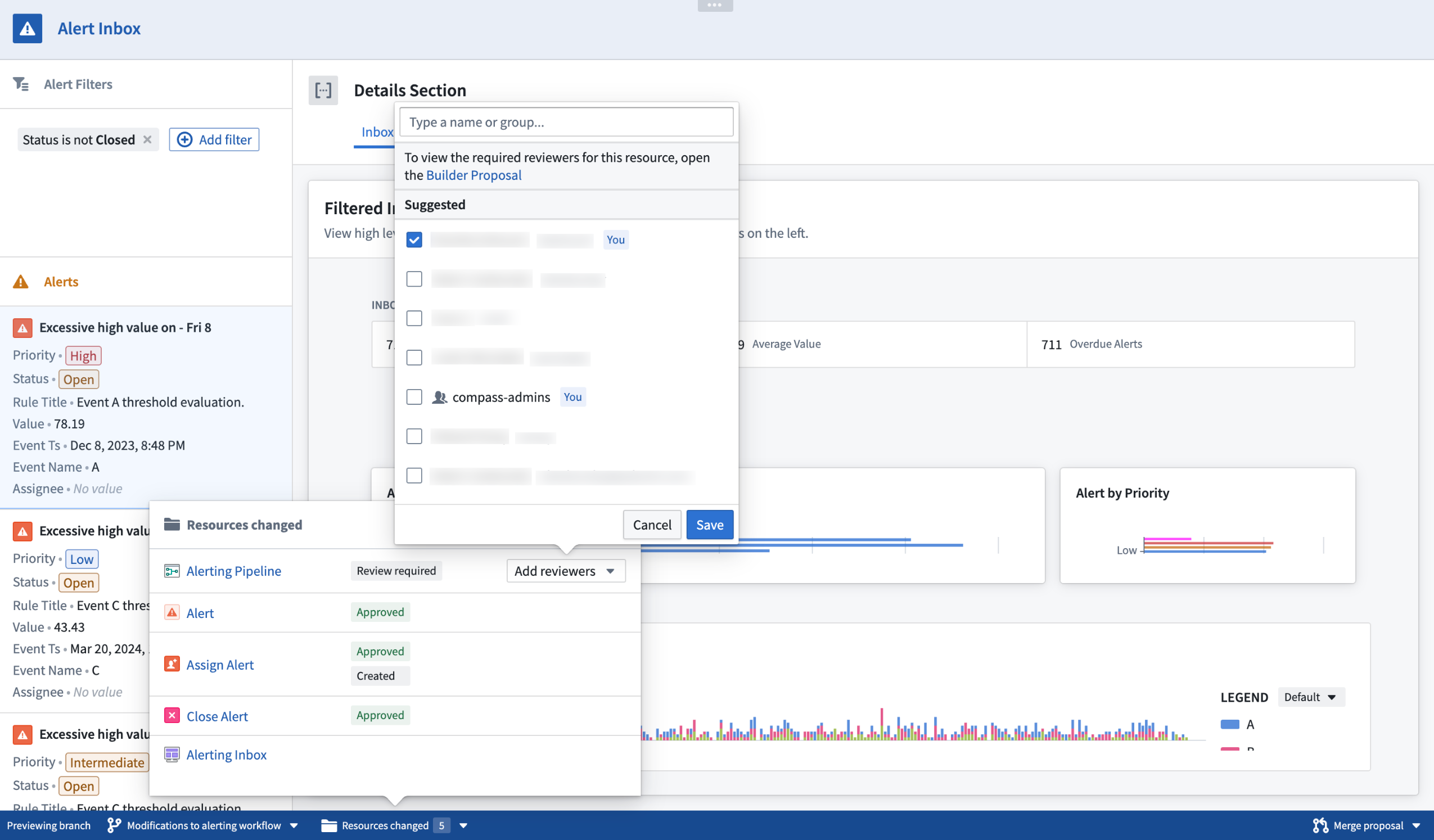
Assign reviewers to review change proposals by using the Add reviewers popover selector.
We recommend trying Foundry Branching with a restricted set of users first before opening it up for broader use.
Features of Foundry Branching
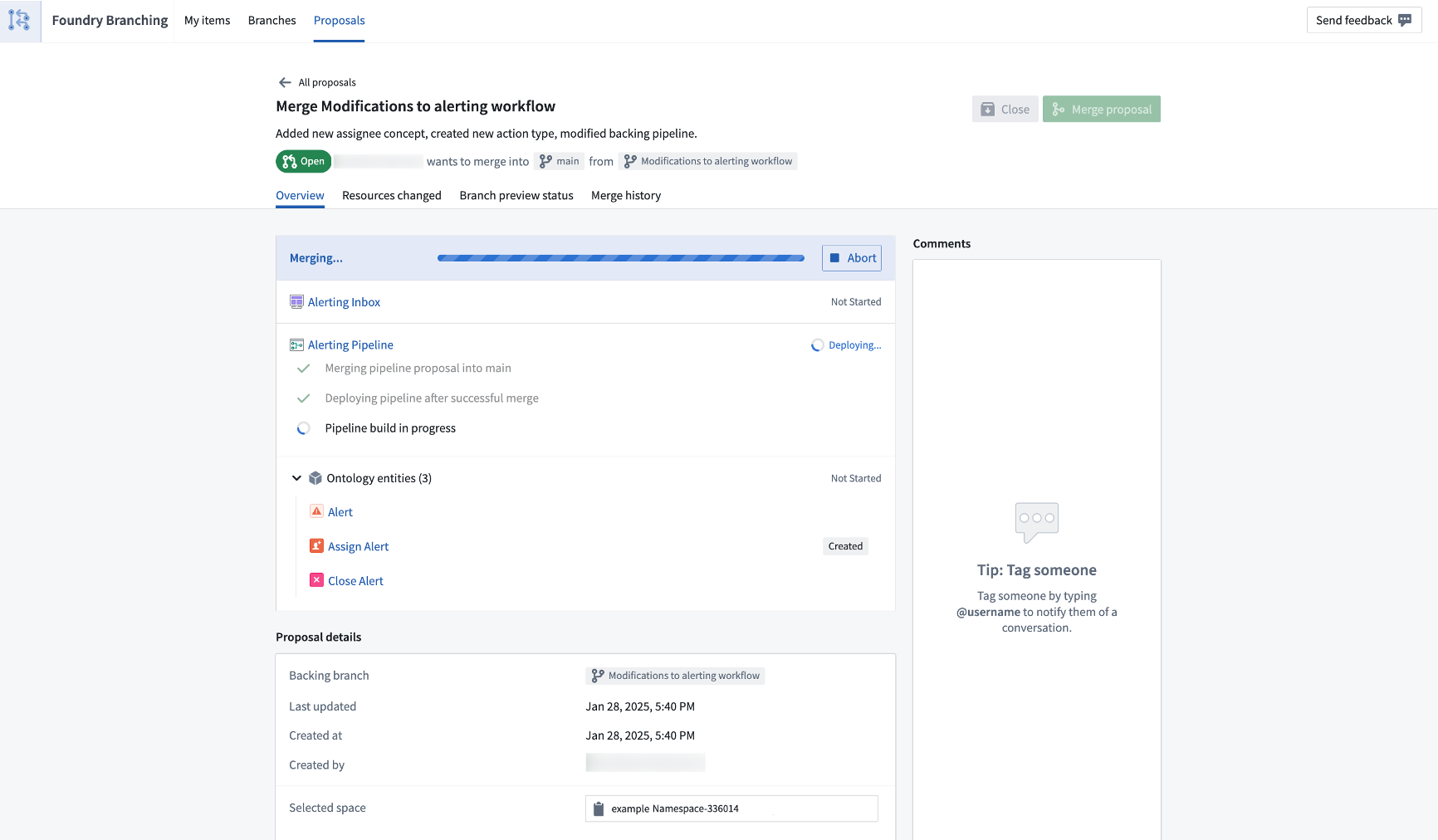
Review a branch easily in one view, encompassing the entire proposal. Then, merge when ready.
Experience a variety of developer benefits when using Foundry Branching:
- Run Actions on branches without writing back those edits to the
Mainbranch. - Branch creation and branch selector: Create a branch in transform code repositories, Pipeline Builder, Ontology Manager, or Workshop, and access the branch in all supported applications.
- Branch taskbar: When on a branch, a taskbar will appear at the bottom of your screen. This taskbar allows you to manage your entire workflows:
- View resources modified on the branch and debug errors.
- Create a proposal (equivalent to a pull request in GitHub) and assign reviewers. Reviewers can use the taskbar to manage their approvals.
- Merge your proposal.
- Manage your branches and proposals in the Foundry Branching Application. The Foundry Branching app also supports the same workflows as the taskbar.
Considerations
Foundry Branching is available in a beta state for a limited scope of features. Before using Foundry Branching, be sure to familiarize yourself with the supported integrations for each application.
The following functionalities will be released in the first half of 2025:
- Restricted views: Restricted views do not currently build on a branch. If your workflow includes restricted views, we recommend only using Foundry Branching for changes downstream of the Ontology.
- Edit-only workflows: Users can run Actions on branches, but it is not currently possible to load edits from the
Mainbranch onto a Foundry branch.
Aside from Workshop, applications that consume the Ontology cannot yet be modified on a branch. For instance, if your Workshop module contains non-Workshop elements such as Quiver dashboards, these dashboards will load information from the Main branch and will not be modifiable on a branch.
Your feedback matters
We want to understand how Foundry Branching improves your workflow and how we can focus our improvement efforts. Let us know your thoughts through Palantir Support channels and our Developer Community using the global-branching tag ↗.
Try the new Marketplace products sidebar in Workflow Lineage
Date published: 2025-04-29
The new Marketplace products sidebar in Workflow Lineage is a powerful tool designed to help with the management and inspection of your Marketplace products. With the sidebar, you can check that your products have the correct inputs and resources and that your nodes are organized into their expected packages.

Manage and inspect your Marketplace products from the new Marketplace products sidebar.
Benefit from transparency into resource packaging

Review your resource packaging with clear insight and color-coding visualization.
- Resource packaging transparency: The Marketplace products sidebar helps identify any discrepancies in your resources concerning the packages they belong to. For instance, if you notice that one of your functions is mistakenly highlighted as an input but should actually belong to a package since it is used in an action within that package, you can identify this mistake using the color legend and correct it accordingly.
- Package organization: Easily detect misplaced items, such as when resources are identified and colored under one package when they should be a part of a different package. This feature helps ensures that each component is correctly categorized.
- Input expectations: Stay informed about new inputs required for your packages. For example, if an object is used in a packaged Workshop application, the sidebar will notify you to include it in future packages.
- Package overlap detection: Use the color-coded graph to identify and resolve package overlaps.

Detect package overlap using color-coded graphs.
With the Marketplace products sidebar, managing your Marketplace products becomes easier and more efficient. Ensure your packages are complete, correctly structured, and ready for publication. Learn more about the Marketplace products sidebar.
Getting started with the sidebar
Navigate to Workflow Lineage and open the Marketplace products sidebar.
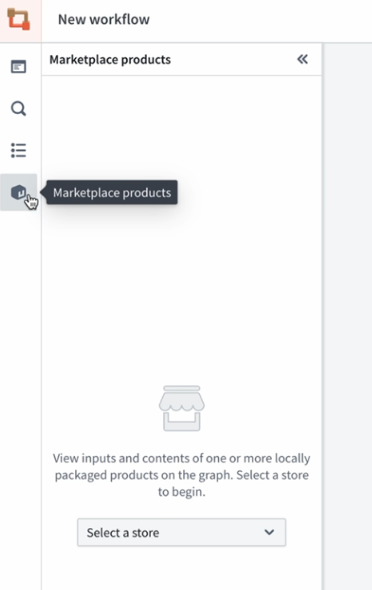
Locate the Marketplace products option in the sidebar.
Select your store, add your products, and then Add all nodes to graph. This will populate a color-coded Workflow Lineage graph, helping you visualize package structures and dependencies.
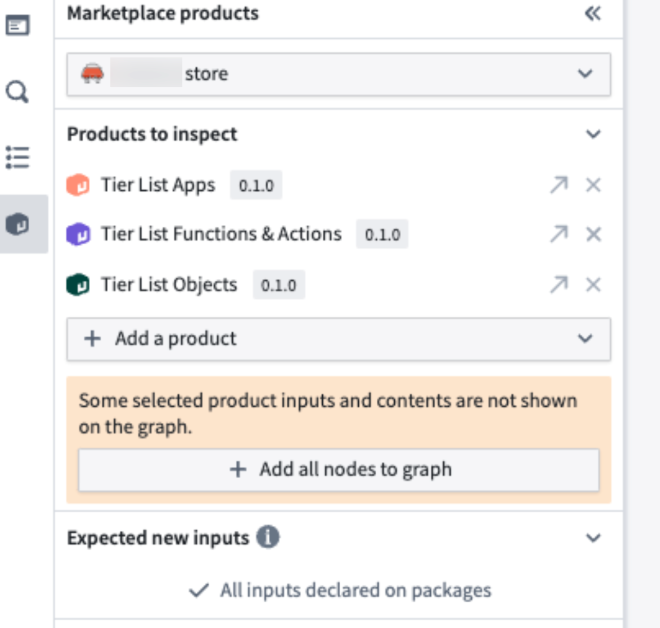
Review your products directly in the Marketplace products sidebar after choosing the store.
Your feedback matters
Your insights are crucial in helping us understand how we can improve Workflow Lineage. Share your feedback through Palantir Support channels and our Developer Community ↗.
Deploy OSDK applications with Marketplace
Date published: 2025-04-29
Developers building applications with the Ontology SDK (OSDK) need a streamlined way to package, deploy, and manage their applications across different Foundry environments. Until now, deploying OSDK applications required manual configuration steps for each environment, making the development-to-production workflow overly complex.
We are excited to announce that Developer Console now integrates with Marketplace to enable seamless packaging and deployment of OSDK applications. This integration allows developers to package their OSDK applications, including website assets, and deploy them across multiple stacks without any manual build steps.
The Developer Console to Marketplace integration provides packaging and deployment capabilities that include the following:
-
Developer Console resources: Data resources and resource access scopes
-
OAuth client specification: Type of the client, enabled grant types, and redirection URLs
-
Associated website: Deployed assets and content security policies
-
Automatic configuration: Critical environment-specific values like OAuth client IDs and Foundry URLs are automatically configured and replaced during installation
Key benefits of the integration
You can benefit from the new integration in the following ways:
-
Complete developer to test to production workflow: Develop locally or in your development environment, then package and deploy to test and production environments without manual configuration or build steps.
-
Distribute OSDK applications: Deploy the same application to multiple production enrollments with environment-specific configuration, handled automatically.
-
Simplified updates: Create new versions of your Marketplace products with the latest website assets and deploy them with a single click.
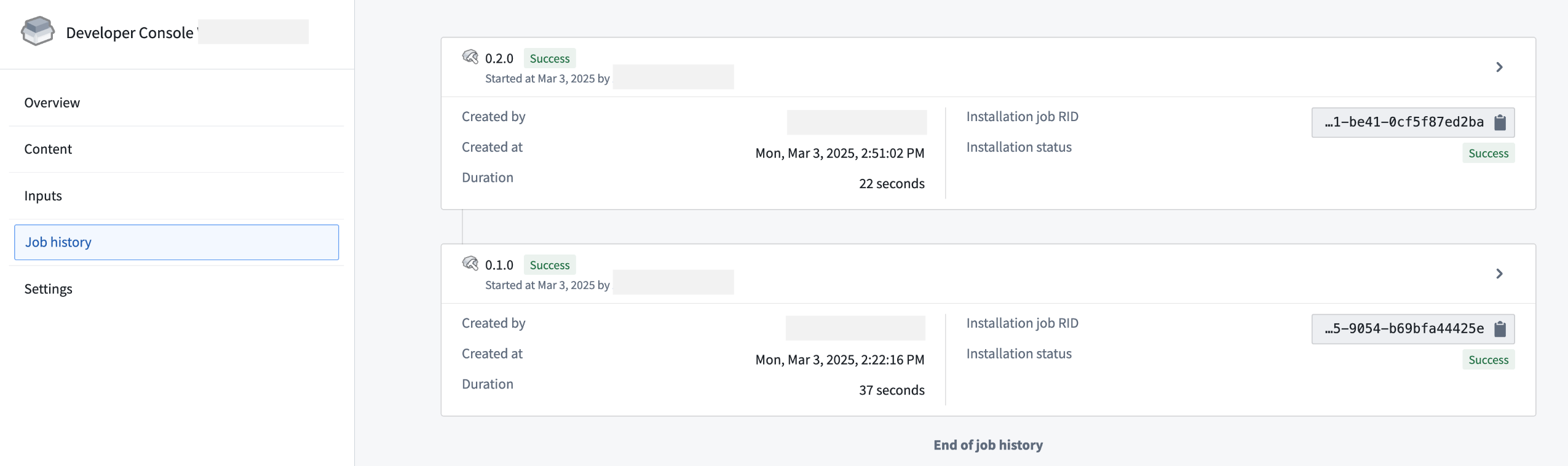
A packaged Developer Console product upgraded successfully.
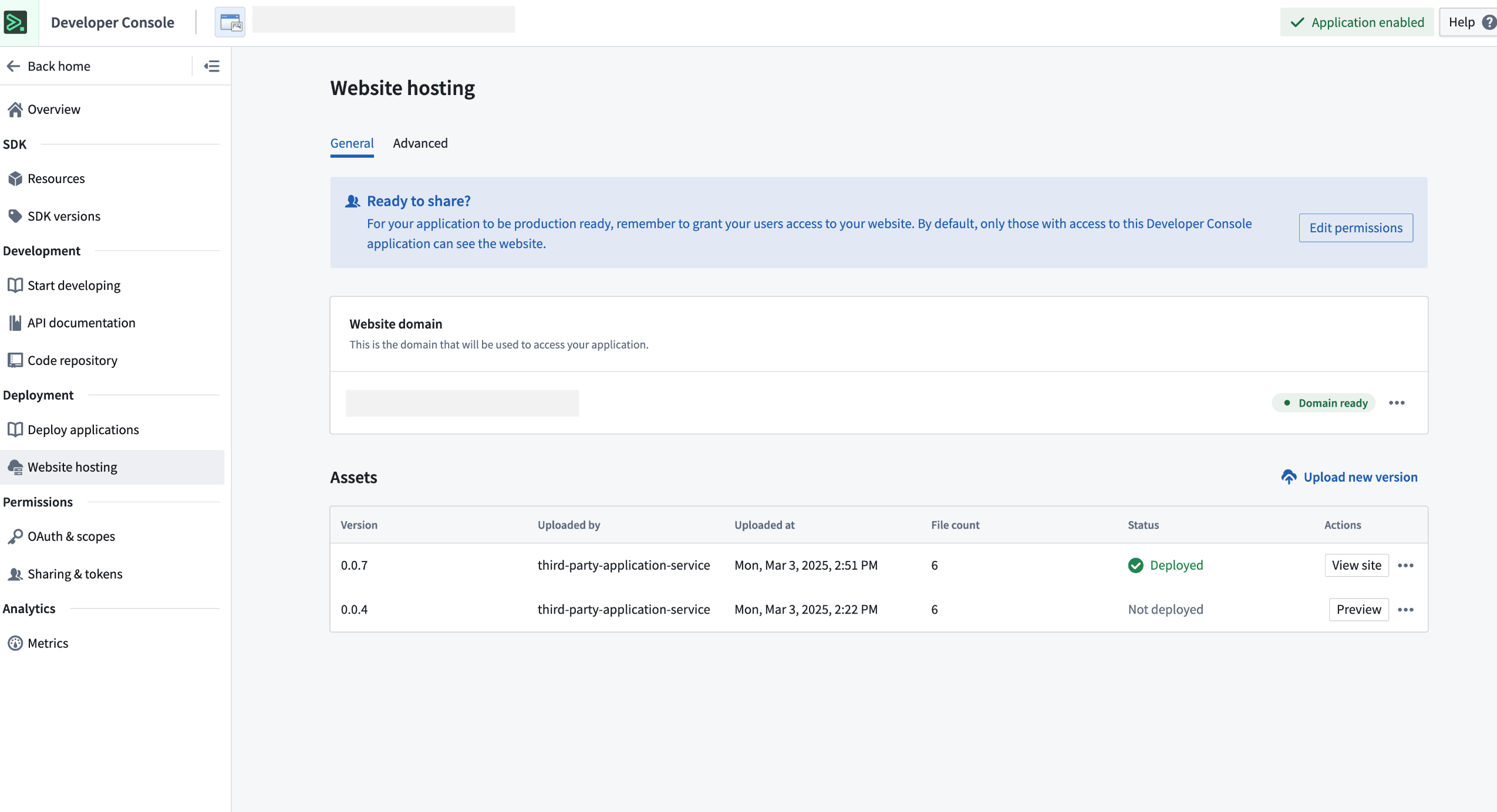
An upgraded Developer Console receiving the latest website assets.
Get started
To get started, follow the applicable case for your workflow below:
- Create new applications
- In-platform development: When bootstrapping a new application in a VS Code workspace, the application will be compatible with Marketplace deployment out of the box.
-
Local development: Use the
@osdk/create-appCLI v2.1.3 ↗ or later to bootstrap a new application locally. -
Update existing applications
-
To make an existing OSDK application deployable through Marketplace, follow the Marketplace installation guide that outlines the required configuration.
-
Package a Developer Console application
-
If you are packaging a Developer Console application for the first time, review our DevOps documentation and on how to create a new product.
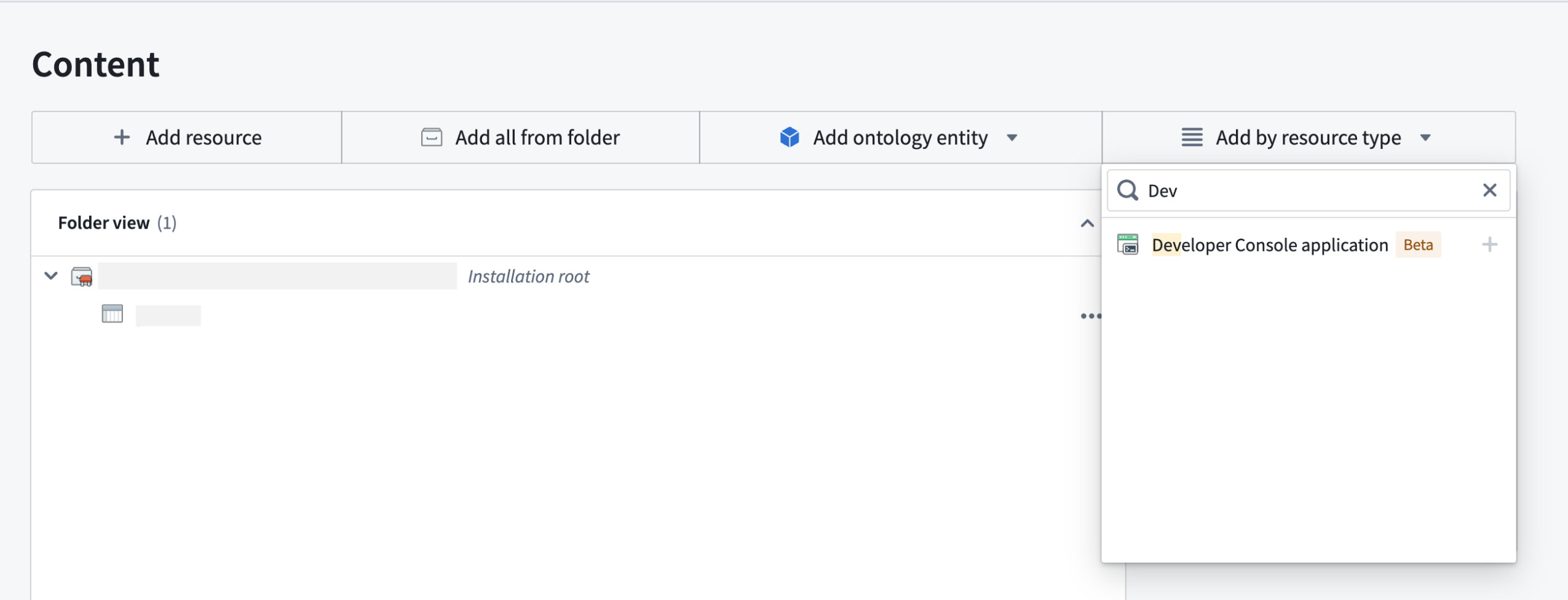
Choose Developer Console application under Add by resource type to package Developer Console applications.
Installing a packaged Developer Console application
In Marketplace, you can install the packaged application. If you packaged an application with website assets, you will be required to provide a website hosting domain during installation.

A website hosting domain parameter displayed during installation.
After the first installation, you will be prompted to either self-approve or ask an Information Security Officer to approve the requested website hosting domain.
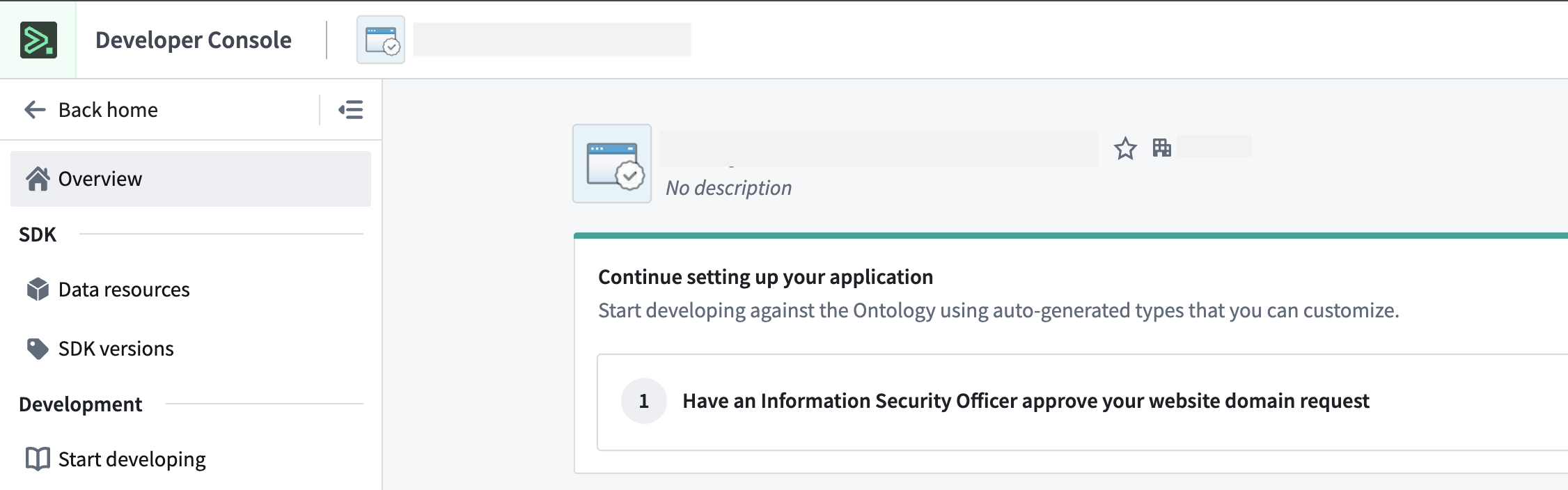
Post-installation guidance to approve a website domain request.
Once the domain is approved, the website is ready to use without any further configuration.
API name consistency between environments
When deploying OSDK applications across environments, it is important to understand how API names affect your application's functionality. The shipped website assets reference entities in your Ontology using their API names, which creates a dependency that requires attention during deployment. Consider the following important points before use:
- API name consistency: When deploying to a target environment, ensure that the entities in the target ontology have the same API names as in the source environment.
- Potential challenges: API names will change between environments if an entity with the same API name already exists in the target environment. This will cause your application to fail to reference the required entities.
We recognize that managing API name consistency is a significant challenge for cross-environment deployments. Our team is actively working on a solution that will automatically handle API name mapping between source and target environments.
Learn more
- Marketplace installation guide
- Developer Console website hosting documentation
- Marketplace release management
We want to hear from you
Your insights are crucial in helping us understand how we can improve OSDK application deployment. Share your feedback through Palantir Support channels and our Developer Community ↗ using the ontology-sdk tag ↗ or marketplace tag ↗.
Introducing mandatory control properties for securing data in objects
Date published: 2025-04-29
We are excited to announce that mandatory control properties are now generally available across all enrollments. This feature introduces first-class support for using markings, classifications, and organizations to enforce granular access control over Ontology data.
A mandatory control property is a marking or classification where a value on an object is used to restrict access to the other property values on that object within the same datasource. For more information on how mandatory control properties work, review the documentation.

Configuring a mandatory control property in the property sidebar in Ontology Manager.
Note that classification-based mandatory control properties are only configurable on enabled enrollments.
New control properties
- Constraints on mandatory control property values: Restricting the list of allowed markings on a property and setting a maximum classification that can be selected for this property on any object of this object type.

Selecting allowed markings for a mandatory control property.
- Marking exported datasets: Automatically mark exported datasets with the allowed markings or maximum classification set on the object type.
- New action type parameters: Actions now include markings and classification pickers as parameters directly on the action form.

A classification picker on the action form.
When to use mandatory control properties
Mandatory control properties are perfect for users managing highly sensitive data indexed in the ontology, where applying a single marking or classification level to the entire backing dataset may be too restrictive or too permissive for specific rows. With mandatory control properties, you can apply markings to individual objects within an object type or secure only a subset of properties on the object. This is achieved by organizing the properties that need to be secured together into a new datasource with their mandatory control property.
Share your feedback
We want to hear what you think about our updates to the platform. Send your feedback to our Palantir Support teams, or share in our Developer Community ↗.
Introducing incremental transforms preview in the Palantir extension for Visual Studio Code
Date published: 2025-04-29
We are excited to announce that you can now accurately preview incremental transforms directly in your code environment with the Palantir extension for Visual Studio Code. The preview feature uses the same incremental resolution logic used in builds, ensuring consistency and accuracy throughout your developer experience.
Along with preview availability, you can take advantage of the new element in the Preview panel that provides insights into the success or failure of your incremental transform builds.
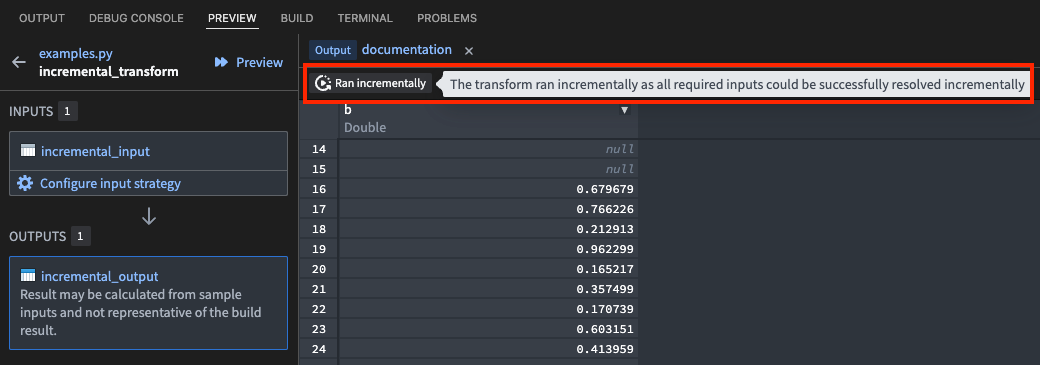
The new feature to preview incremental transforms using the Palantir extension for Visual Studio Code.
This feature mirrors the behavior you would experience when running a non-incremental build on your Python transform.
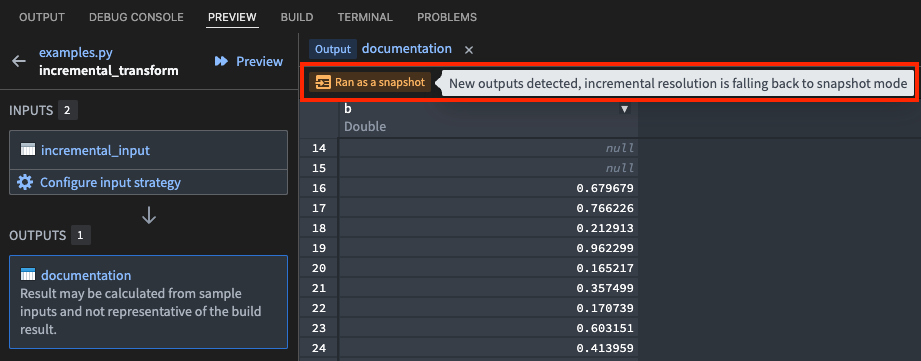
The preview feature in use while running a snapshot Python transform build.
Both Spark and lightweight transforms are supported in VS Code workspaces and local development environments, including file transforms and reading from outputs. The preview functionality supports all options and flags that are available during a build, including semantic versioning, retention, and more.
Your feedback matters
What want to know your thoughts about our work on the Palantir extension for Visual Studio Code. Share your feedback with Palantir Support, or contribute to our Developer Community ↗ using the vscode tag ↗.
Introducing AIP Agent Studio
Date published: 2025-04-22
Note: As of the week of April 27, 2026, AIP Agent Studio was renamed AIP Chatbot Studio. All existing features and functionalities remain unchanged.
We are excited to announce that AIP Agent Studio will be generally available the week of May 5. AIP Agent Studio is a powerful application designed for building interactive AI assistants called AIP Agents, which can be equipped with enterprise-specific information and tools to execute tasks. AIP Agents can be deployed internally on the Palantir platform and externally through the Ontology SDK and platform APIs.
Agents built in AIP Agent Studio are powered by large language models, the Ontology, documents, and custom tools. AIP Agents can be integrated into applications to facilitate dynamic, context-aware read and write workflows that enable you to automate tasks and reduce manual application interactions.
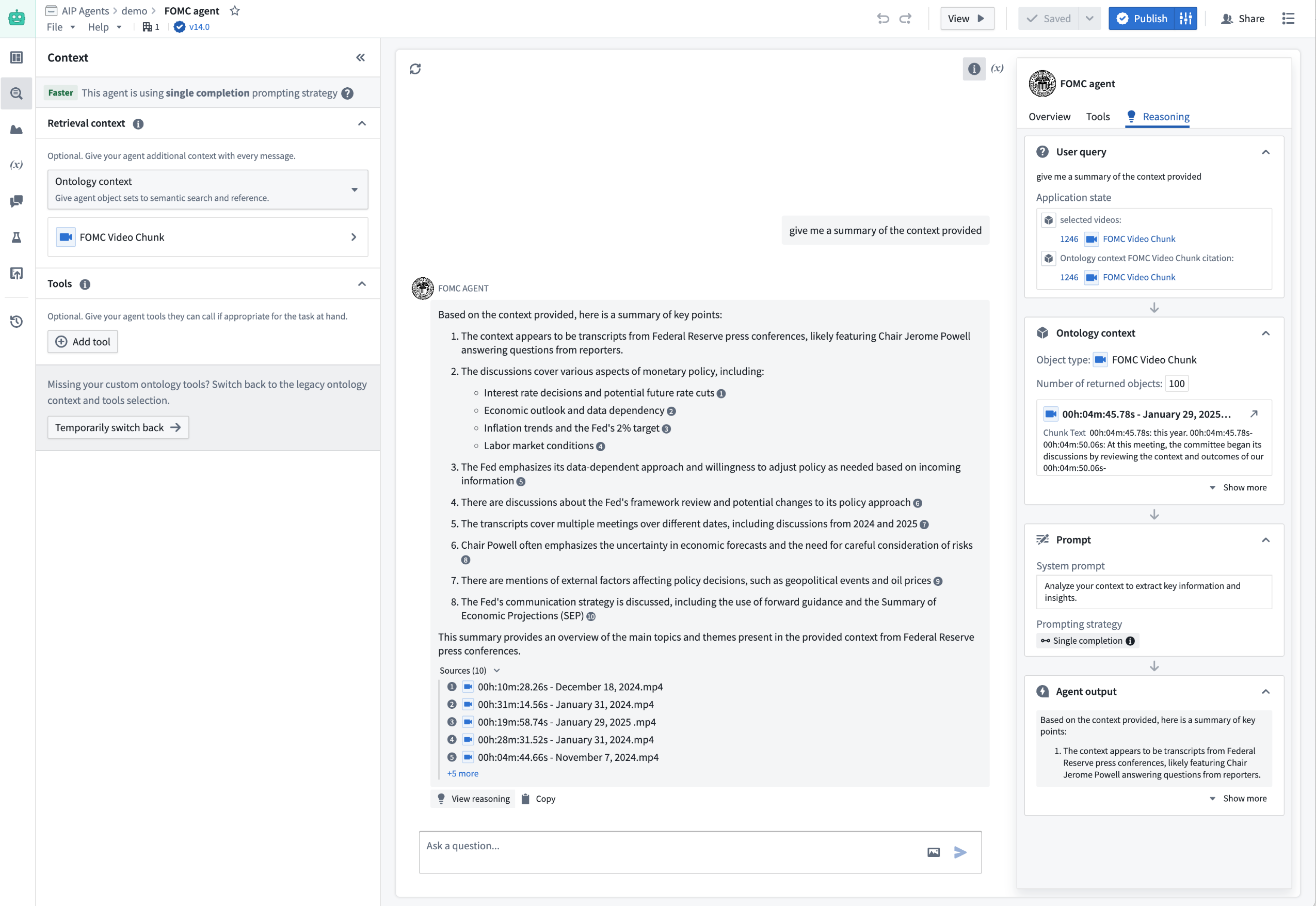
AIP Agent configuration in AIP Agent Studio.
Key features of AIP Agent Studio include the following:
- Enterprise-specific context: Build agents that use enterprise-specific information, ensuring they deliver relevant and accurate responses tailored to your organization's needs.
- Natural language interface: Interact with your agents using natural language, making it easier to operationalize workflows and automate tasks.
- Secure and controlled access: Built on the rigorous security model of the Palantir platform, AIP Agent Studio ensures that LLMs only have access to necessary information.
- Flexible deployment: Deploy AIP Agents internally on the Palantir platform or externally through the Ontology SDK and platform APIs, providing versatility in usage and integration.
To get started with AIP Agents and create increasingly complex, automated workflows, we recommend using the Agent tier framework.
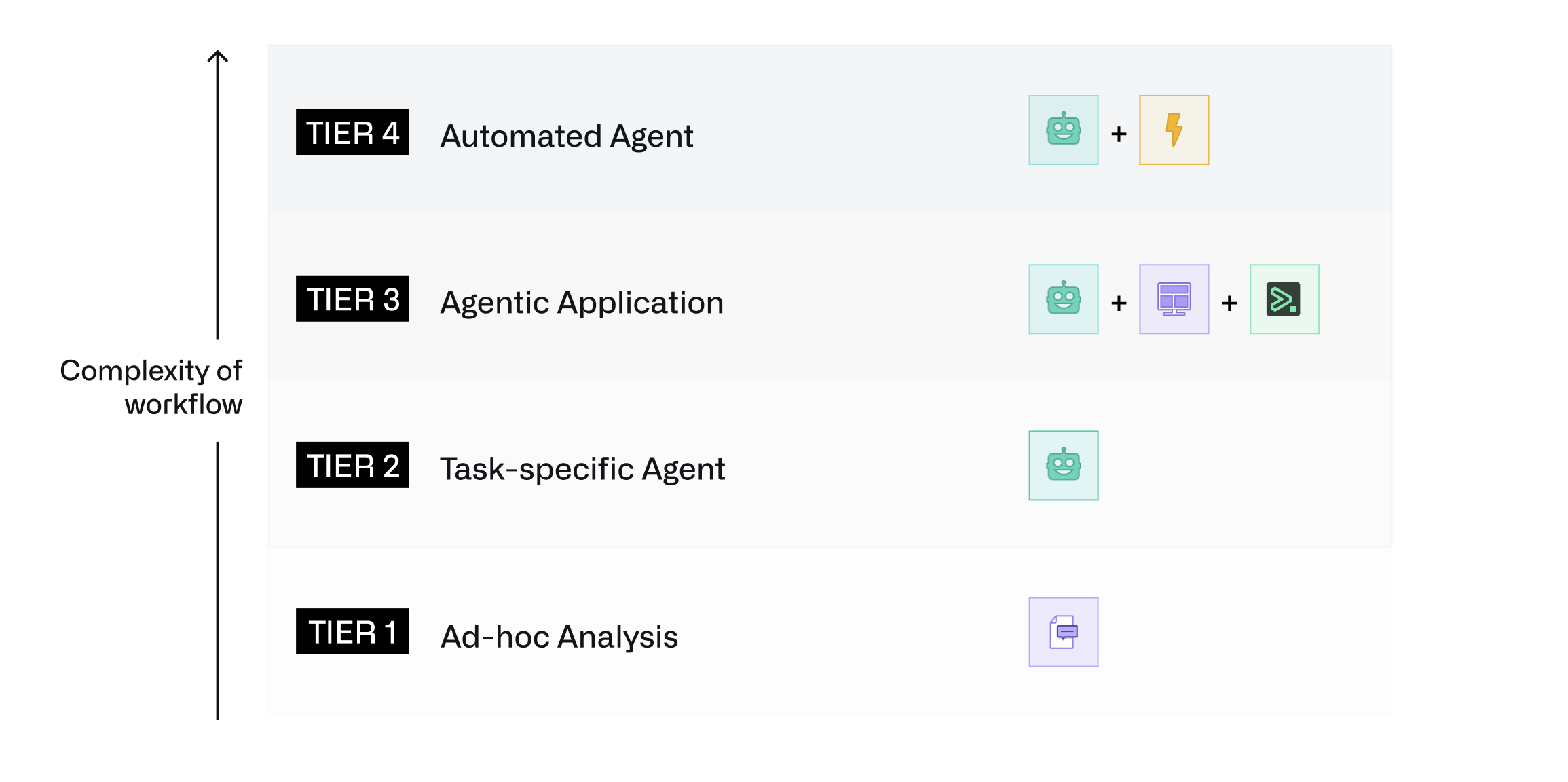
The agent tier framework, where every tier increases in complexity and automation.
-
Tier 1: Ad-hoc analysis: Use AIP Threads for ad-hoc document analysis and productivity improvements. Start by navigating to AIP Threads.
-
Tier 2: Task-specific agent: Create agents that can use Ontology, document, or custom function-backed context, allowing for more targeted and specific interactions. Start by upgrading your thread configuration to an AIP Agent or creating an AIP Agent in AIP Agent Studio.
-
Tier 3: Agentic application: Incorporate AIP Agents into Workshop or third-party applications that allow agents to read from and update application state. Start by adding application state to your agent and deploying it in Workshop using the AIP Agent Widget.
-
Tier 4: Automated agent: Automate and delegate tasks to your agent, enabling agents to handle complex workflows autonomously. Start by publishing your agent as a function and pulling it into automations.
Tell us what you think
As we continue to develop AIP Agent Studio, we want to hear about your experiences and welcome your feedback. Share your thoughts with Palantir Support channels or our Developer Community ↗ using the aip-agent-studio tag ↗.
Learn more about getting started with AIP Agent Studio and its core concepts.
Note: AIP feature availability is subject to change and may differ between customers.
Allow users to switch platform version from the Account menu
Date published: 2025-04-17
Platform administrators can now enable users to switch platform versions using the Account menu located in the workspace navigation sidebar. Once enabled by an administrator, users can use the platform switcher to select between three available platform versions:
- Stable: The current stable release
- Beta: The future stable release
- Prior: The previous stable release
Note that changing the platform version only affects features in the user interface; saved changes in the platform will persist, regardless of whether the current version renders it.
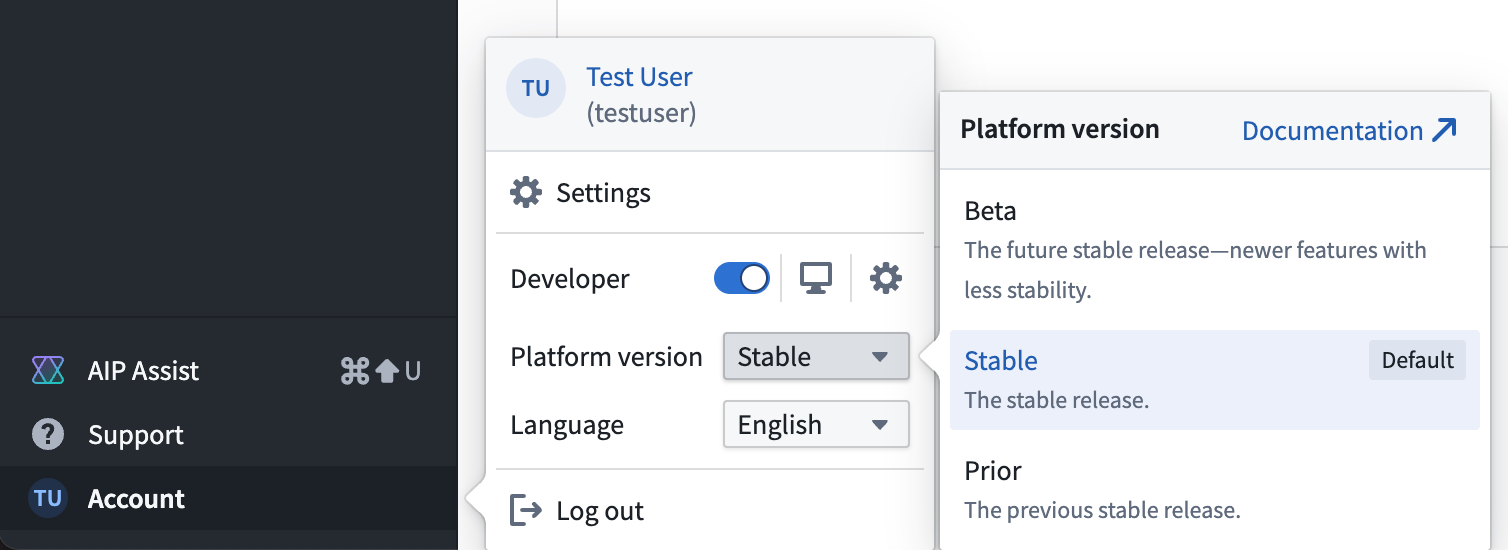
The platform version switcher is located in Account > Platform version dropdown menu.
To set up platform version switching, platform administrators can navigate to the Platform experience page in Control Panel. Here, administrators can also configure groups of users to view the Beta version by default.
Platform version switching is in the beta phase of development and is opt-in for everyone by default. Administrators can opt in to the feature as it is released.
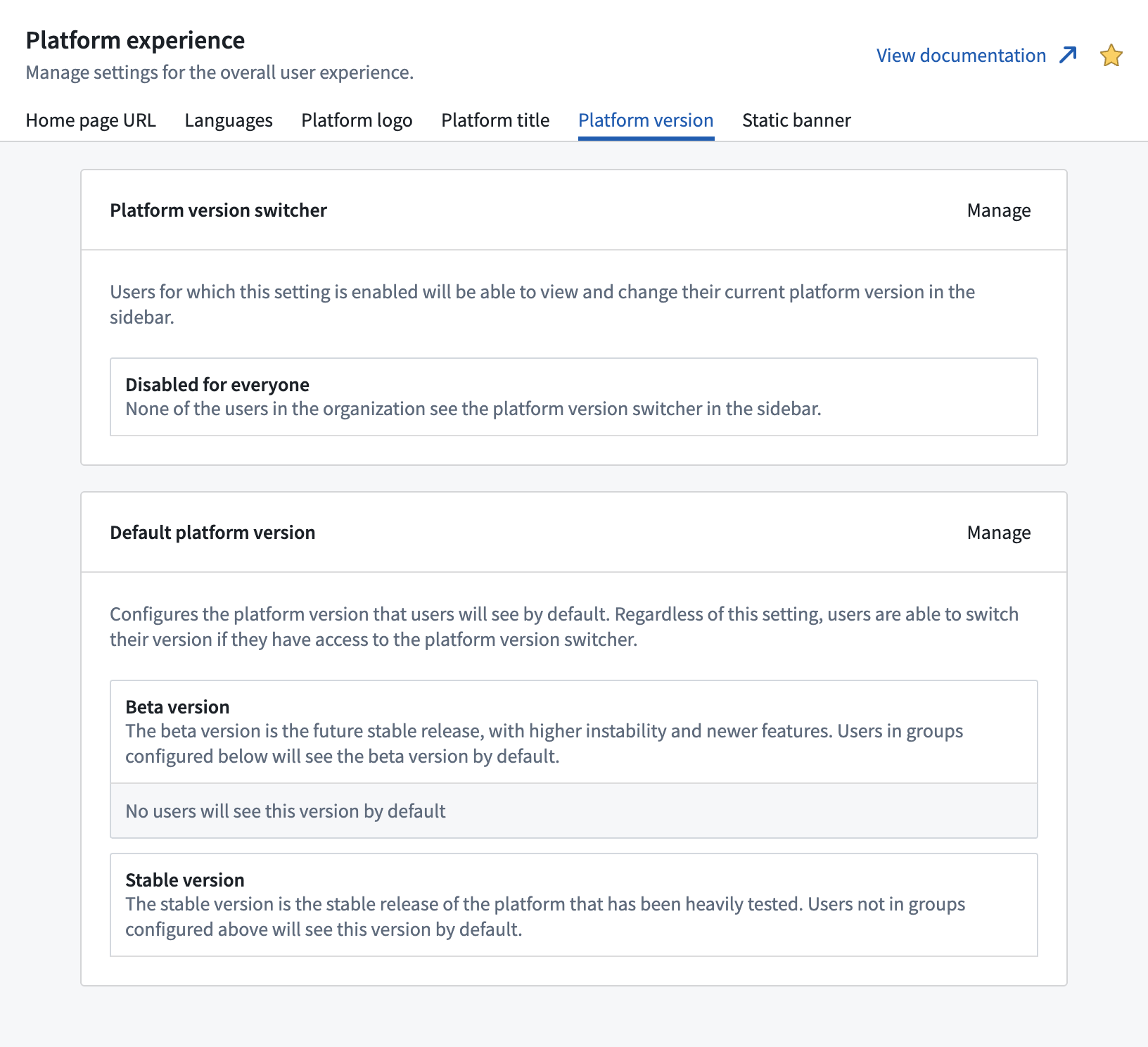
The Platform version configuration tab in Control Panel, located on the Platform experience page.
For more information on this feature, review the documentation on configuring the platform experience.
Share your feedback
We want to hear what you think about our updates to the platform. Send your feedback to our Palantir Support teams, or share in our Developer Community ↗.
Explore automation insights in Workflow Lineage
Date published: 2025-04-17
We are excited to introduce features to improve Automate insights in Workflow Lineage. These enhancements will make it much easier to debug what triggered your automation, what exact properties were used, and what dependencies these automations have.
You can now explore the following automation details:
- Property usages and dependencies: Review the Selection details sidebar to view property usages and dependencies. The Condition ontology dependencies section provides a detailed breakdown of the specific object properties the automation condition relies on. Hover over the number displayed on the right to view the exact property.

- Action and function triggers: Toggle on the purple lightning bolt icon located at the top left of the graph to discover which actions and functions trigger the automation.
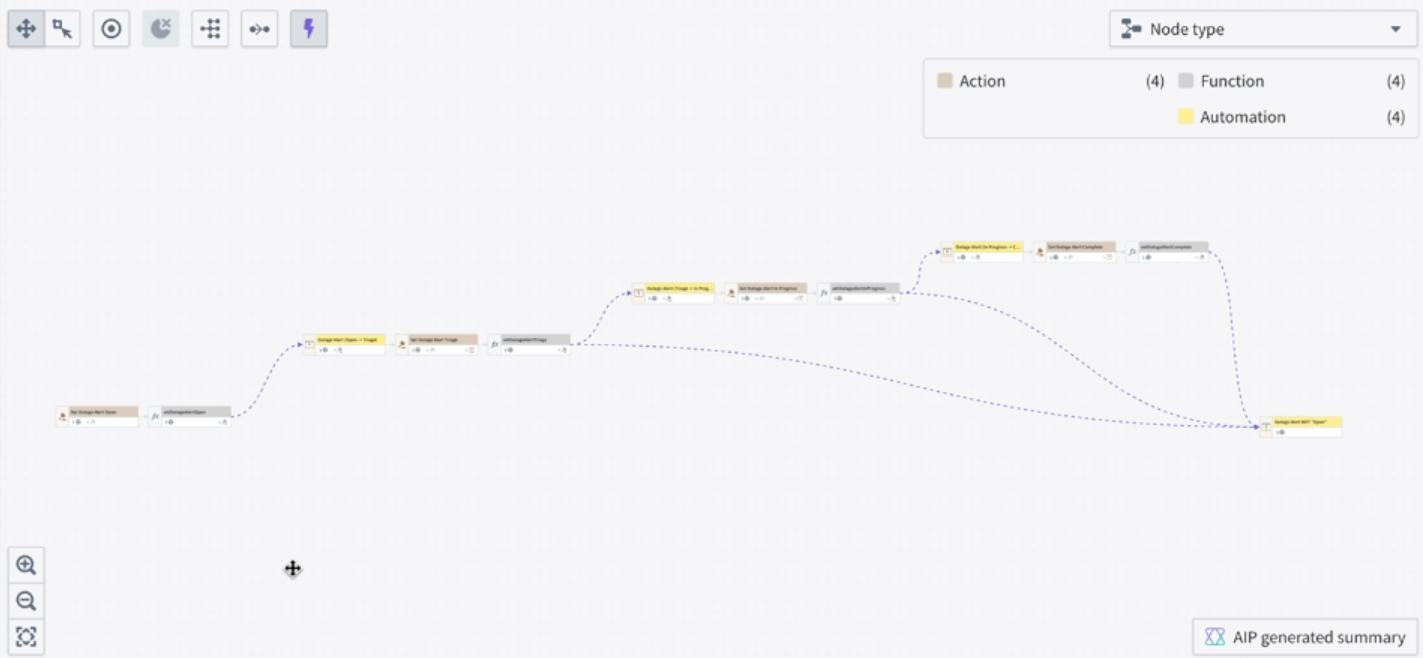
For automations that activate when a property reaches a specific value, Workflow Lineage identifies and links the actions or functions that modify the property to that value.

Learn more about how Workflow Lineage can help with automation insights and debugging.
Your feedback matters
Your insights are crucial in helping us understand how we can improve Workflow Lineage. Share your feedback through Palantir Support channels and our Developer Community ↗.
Foundry Branching now supports transforms code repositories
Date published: 2025-04-17
Starting the week of April 16, Foundry Branching supports transforms code repositories across all enrollments. Foundry Branching, in beta, provides a unified experience to make changes across multiple applications on a single branch, test those changes end-to-end without disrupting production workflows, and merge the changes with a single click. To enable this feature on your enrollment and participate in beta testing, contact Palantir Support. We recommend trying Foundry Branching with a restricted set of users first before broadening usage.
With the new support for transforms code repositories, Foundry Branching adds to its additional support for Pipeline Builder, the Ontology, and Workshop. Through Foundry Branching, you can now modify your data pipeline in Code Repositories, edit Ontology definitions, and build on those changes in your Workshop modules from one branch.
Note that support for TypeScript function repositories is currently under development.
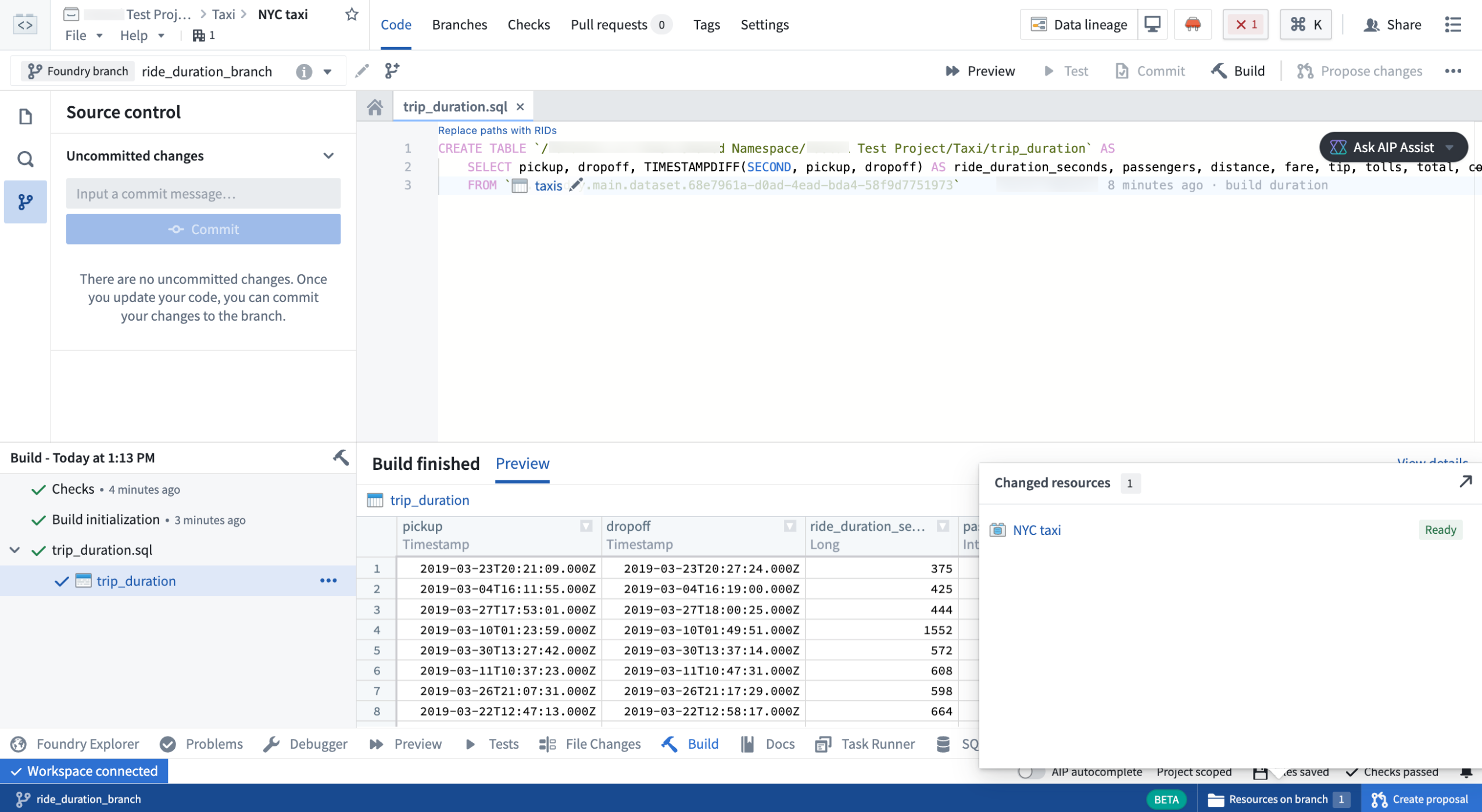
Modifying a code repository on a branch.
When merging a branch that contains code repository changes, the Foundry Branching merge dialog will show all datasets that are about to be built. If your proposal's datasets are reliant on other datasets that were not modified on your branch, an option to build all the necessary datasets during the merge process will appear.
The merge proposal dialog provides two options:
- Build all affected resources: All resources affected by changes on your branch will be built, so that data in upstream changes flow downstream as required.
- Build modified resources only: Only resources directly changed on this branch will be built. You may need to build resources manually if they depend on upstream changes to this branch.
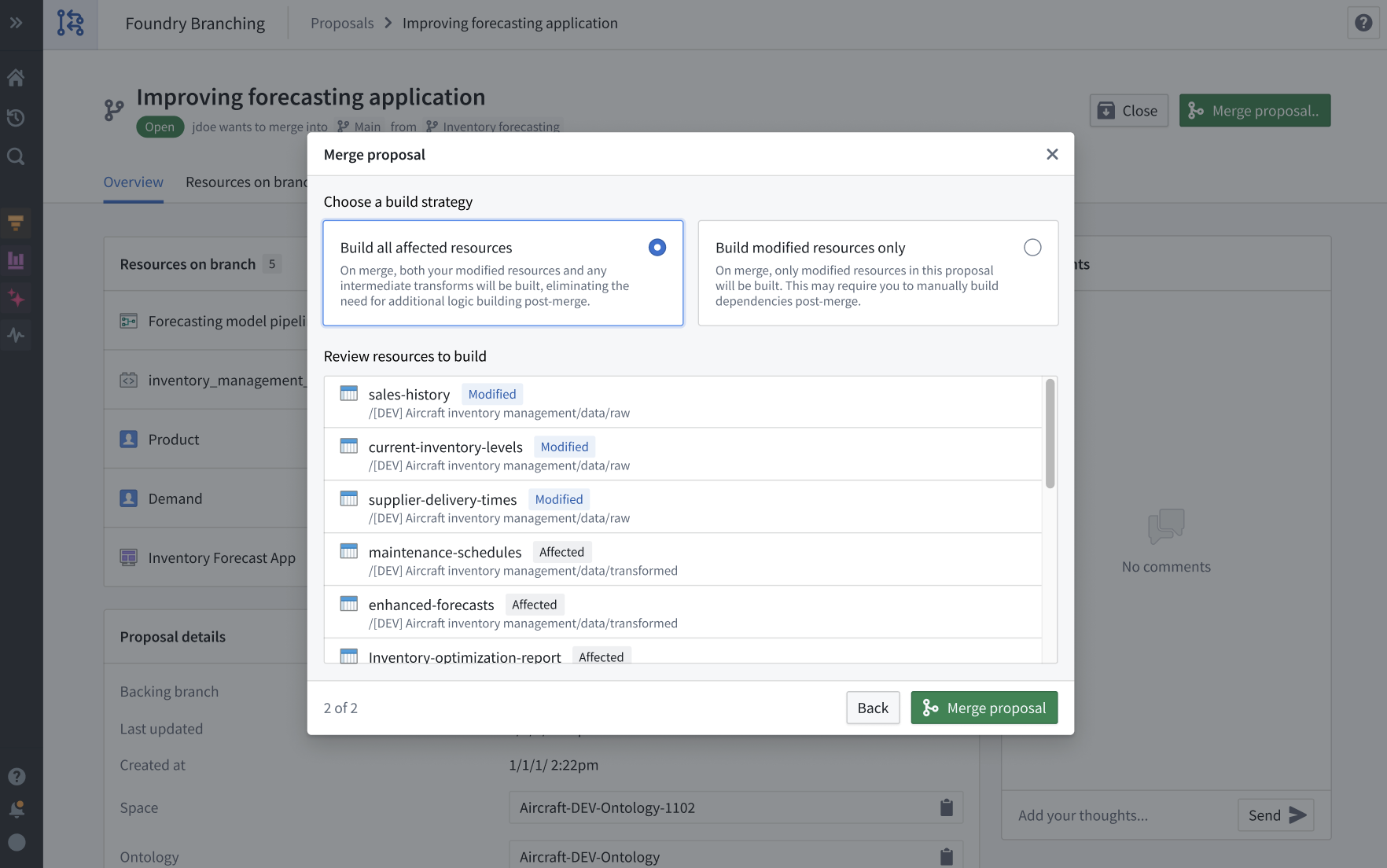
Building all affected resources in the merge dialog.
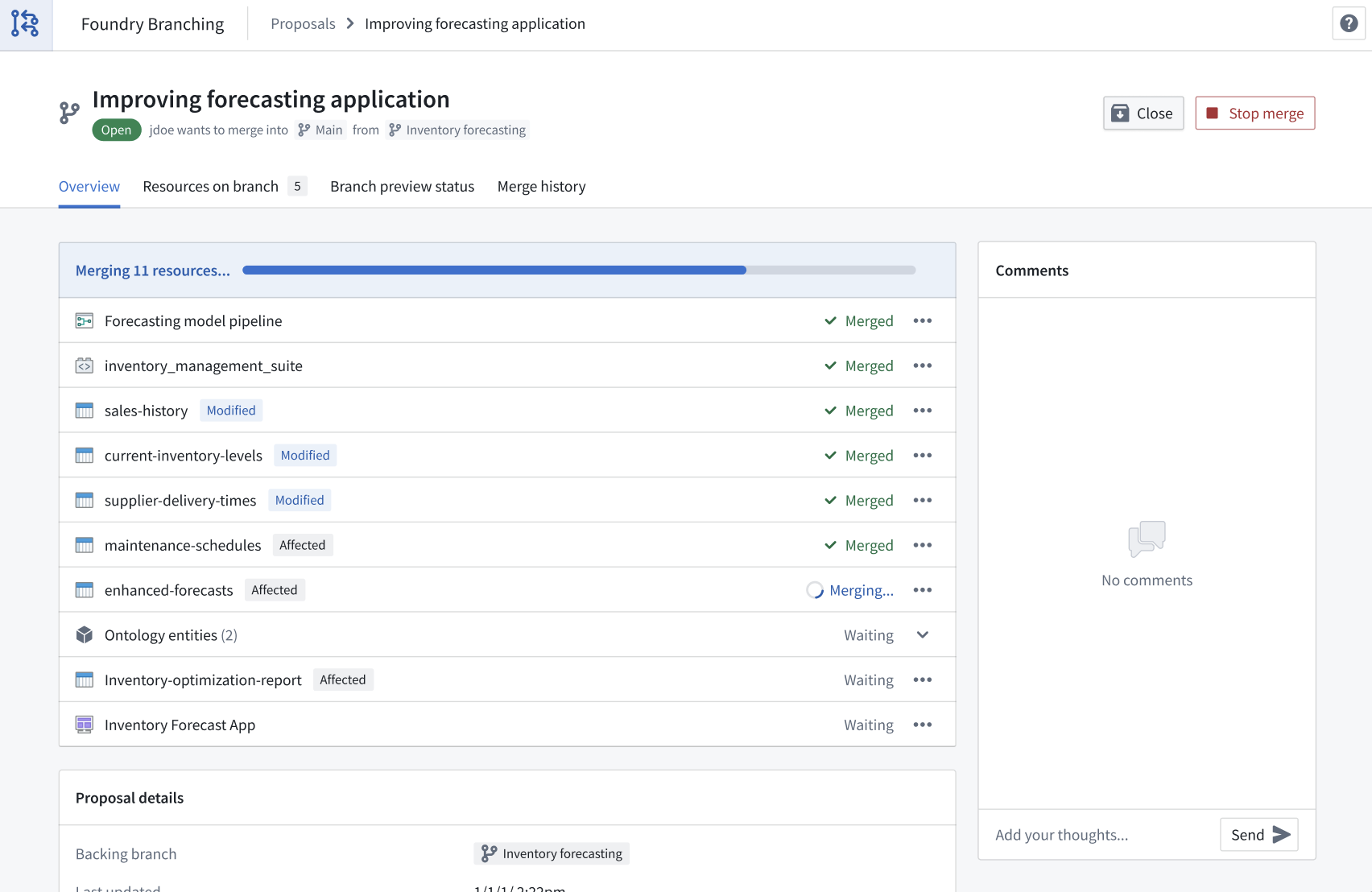
Building modified and affected datasets in the merge process.
For more information, review the Foundry Branching documentation.
Your feedback matters
We want to hear about your experiences with Foundry Branching and welcome your feedback. Share your thoughts with Palantir Support channels or on our Developer Community ↗ using the global-branching tag ↗.
Announcing Bring-Your-Own-Model in AIP
Date published: 2025-04-10
Bring-your-own-model (BYOM), also known as "registered models" in the Palantir platform, is a capability that provides first-class support for customers who want to connect their own LLMs or accounts to use in AIP with all Palantir developer products. These products include AIP Logic, Pipeline Builder, Agent Studio, Workshop, and more.
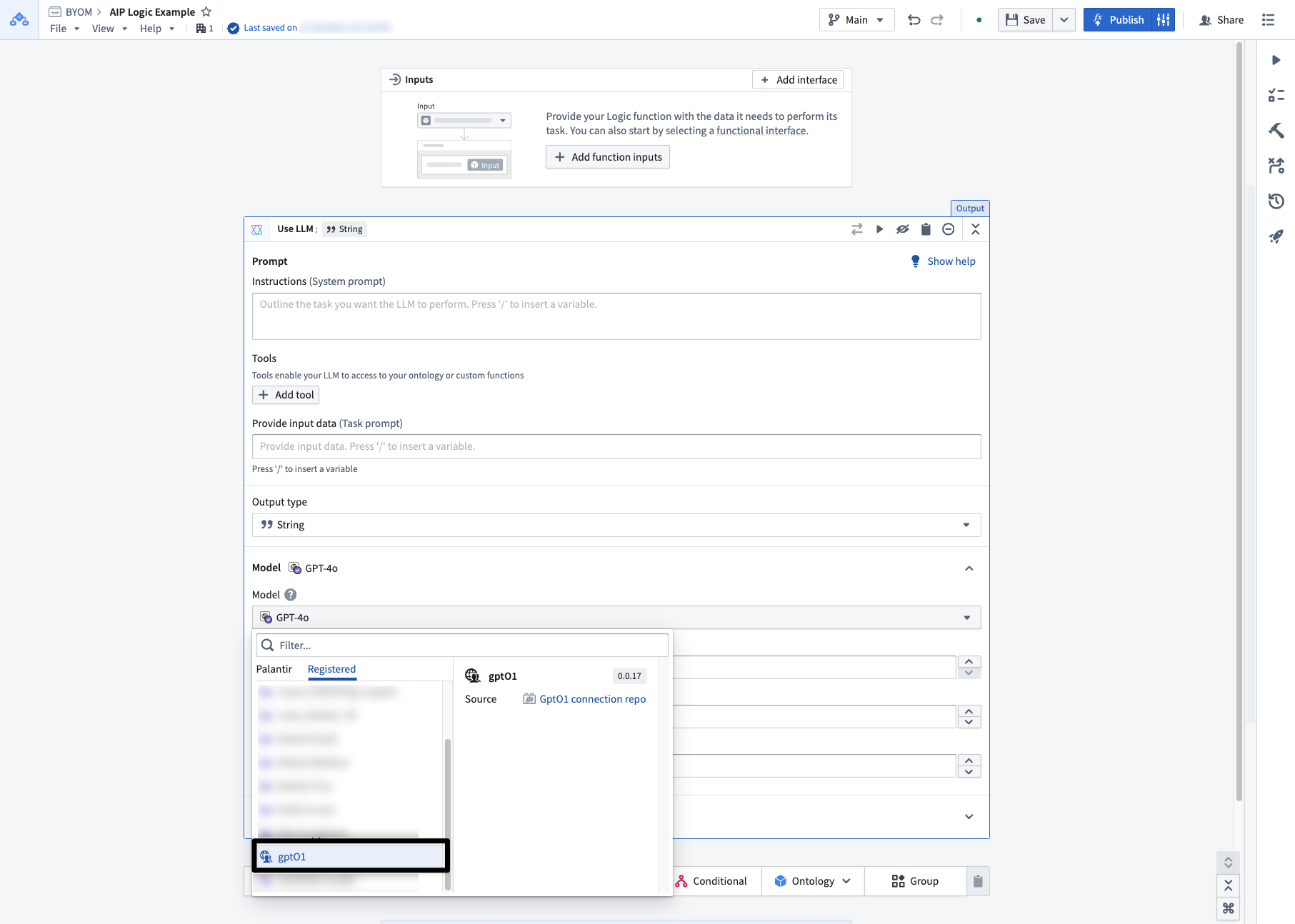
Once you have registered your LLM, you can select it from the model dropdown menu in AIP Logic.
When to use
Based on LLM support and viability, we generally recommend using Palantir-provided models from model providers (for example: OpenAI, Azure OpenAI, AWS Bedrock, xAI, GCP Vertex), or self-hosted open-source models by Palantir (such as Llama models).
However, you may prefer to bring your own models to AIP. We recommend using these registered models only when you cannot use Palantir-provided models for legal and compliance reasons, or when you have your own fine-tuned or otherwise unique LLM that you would like to leverage in AIP.
Learn more
To get started with registering your own model, review the following documentation:
- Bring your own model to AIP, including which AIP capabilities are currently supported.
- Register an LLM with BYOM and how to use a registered model in AIP Logic and Pipeline Builder.
Let us know how we are doing
As we continue to develop on registered models, we want to hear about your experiences and welcome your feedback. Share your thoughts with Palantir Support channels or our Developer Community ↗.
View LLM token and request usage with the new AIP usage views tool
Date published: 2025-04-10
Introducing the new AIP usage views tool in Resource Management, which provides visibility into LLM token and request usage of all Palantir-provided models for all projects and resources in your enrollment. With this new tool, administrators can gain full visibility in managing LLM capacity and handling rate limits.
You can access this tool in Resource Management by navigating to the AIP usage and limits page, then select the View usage tab.
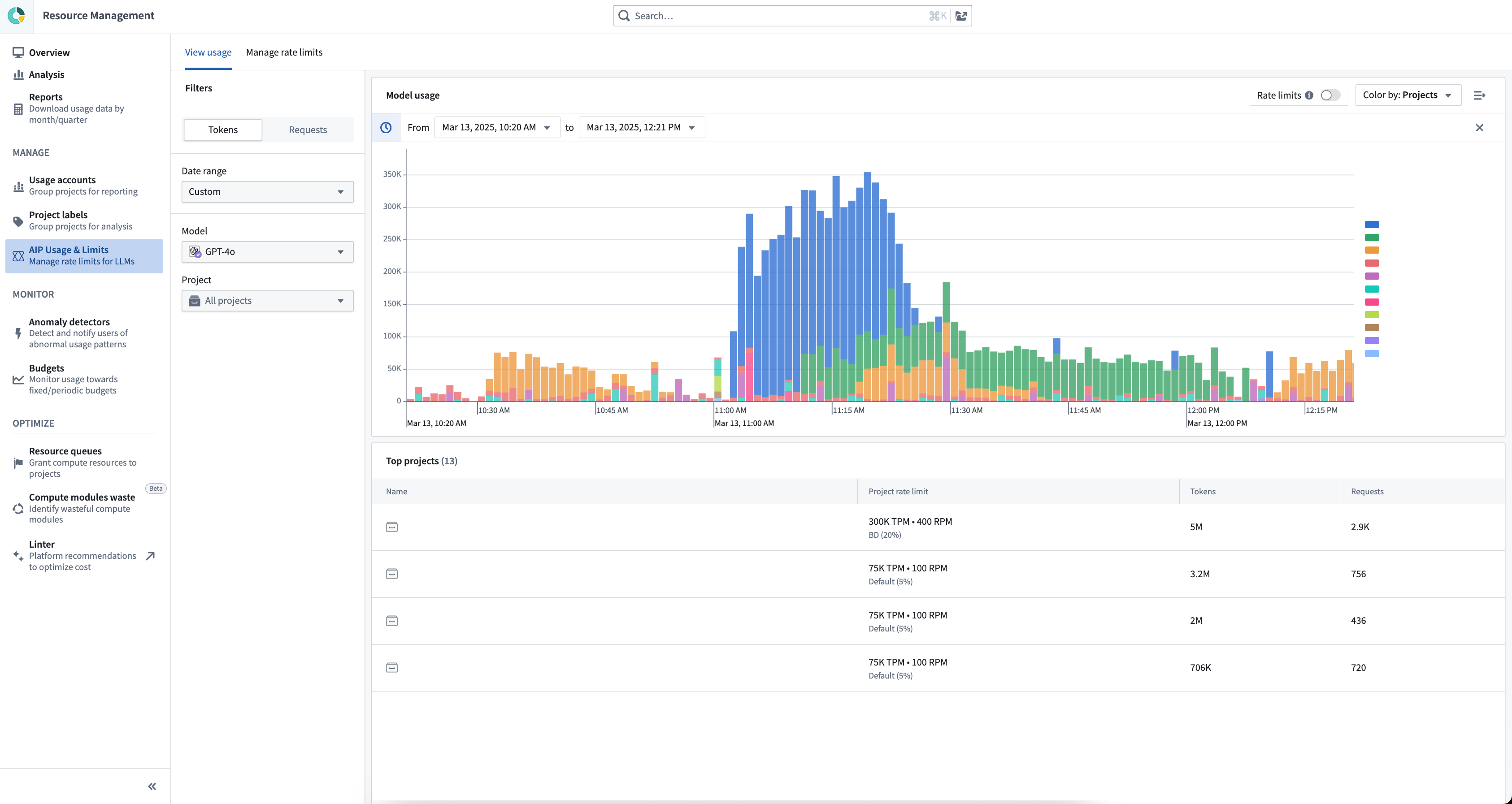
Unlock comprehensive insights with the new AIP usage views tool, created to enhance your understanding of LLM capacity and rate limits and help you identify opportunities for optimization across all your projects and resources.
This tool is primarily built to help with the capacity management and rate limits problem. A few key highlights include the following:
- Track token and request usage per minute, given that LLM capacity is managed at the token per minute (TPM) and request per minute (RPM) level.
- Drill down to a single model at a time, as capacity is managed for each model separately.
- View the enrollment usage overview and zoom in to project-level usage, given that LLM capacity has both an enrollment-level limit and a project-level limit for each project, as explained above.
- View the rate limits threshold; the toggle in the upper right visualizes when project or enrollment limits are hit by displaying a dashed line. The limits vary by model and by project. Two rate limit lines are displayed: the enrollment/project limit, and the “batch limit” which is capped to 80% of the total capacity for the specific project and for the entire enrollment. Read more about prioritizing interactive requests below.
- Filter down to a certain time range to view two weeks of data, down to the minute. Users can drill down to a specific time range either by using the date range filter on the left sidebar, or by using a drag-and-drop time range filter over the chart itself. When the time range is shorter than six hours, the chart will include segmentation to projects (at the enrollment level) or to resources (at the project level).
- View a usage overview in a table. Below the chart, the table includes the aggregate of tokens and requests per project (or per resource when filtered to a single project). The table is affected by all filters (time range, model, and project filter if applied).
Share your feedback
We want to hear what you think about these updates. Send your feedback to our Palantir Support teams, or share in our Developer Community ↗ using the language-model-service tag ↗.
Introducing the split transform in Pipeline Builder
Date published: 2025-04-09
The new split transform feature in Pipeline Builder allows you to partition your data input into two outputs, based on custom conditions. For example, you could use the split transform to divide a dataset of customer orders into subsets for further analysis.
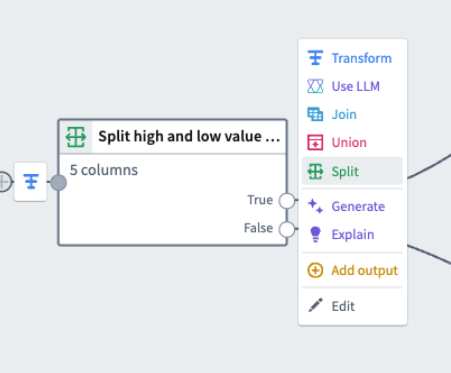
The new split transform feature is accessible from the right-click menu by selecting Split.
What is the split transform?
The split transform evaluates each row of your input data against a specified condition before directing the rows into two distinct outputs based on whether the row meets the condition. That is, whether the condition evaluates as True or False.
Rows where the condition is true will be sent to the first output (the True output), and rows where the condition is false will be sent to the second output (the False output).
This enables efficient categorization of your data and facilitates further processing tailored to each category. Additionally, this feature enhances the clarity of your pipeline, making it easier to understand at a glance.
Example use case
Imagine you have a dataset of customer orders and wish to categorize them into high-value and low-value orders. By defining the condition order_value > 1000, the split transform will direct orders exceeding $1000 to the True output, while all other orders will be channeled to the False output.
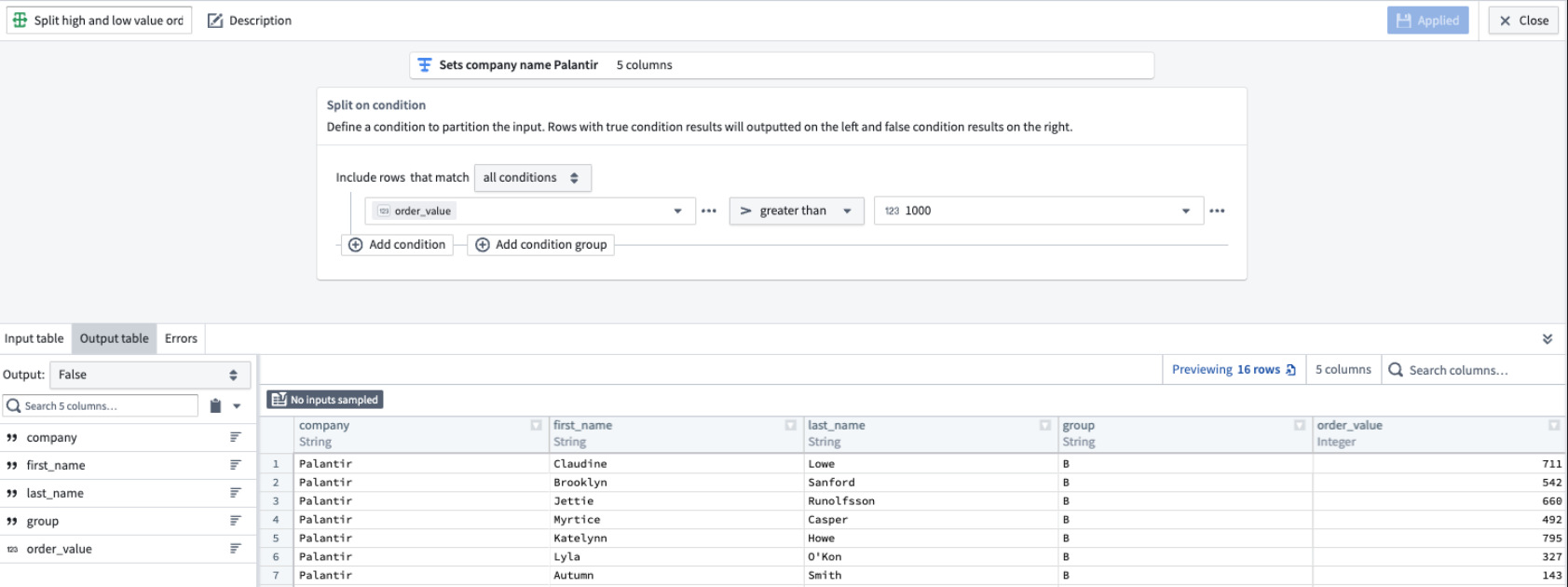
This notional example splits orders between the true and false output channels depending on whether the order value is over 1000.
This allows for targeted analysis and processing of high-value orders.
Learn more about the split transform and experience streamlined, condition-based data partitioning today.
Tell us what you think
As we continue to develop Pipeline Builder, we want to hear about your experiences and welcome your feedback. Share your thoughts with Palantir Support channels or our Developer Community ↗ and use the pipeline builder ↗ tag.
Introducing source-based Python transforms and functions in Code Repositories, and transforms in VS Code Workspaces
Date published: 2025-04-09
External Python transforms can now be created as source-based external transforms, supporting all the features of egress-based external transforms and more. Source-based external connections are now also supported for functions.
Key advantages of source-based external transforms include support for the following:
- An improved developer experience when working with external connections
- Connecting to systems not accessible from the Internet through agent proxies
- Rotating or updating credentials without requiring code changes
- Sharing connection configuration across multiple repositories
- Improved and simplified governance workflows
- Simplified governance for egress, exportable markings, and credentials
Configure a source
Configure a source to allow code-based connections by enabling exports to the source and code imports. Allowing exports provides the ability to egress to the source, while allowing code imports allows access to properties of the source, including secret values.
Navigate to Connection settings > Export Configuration, and toggle on Enable exports to this source. Then, navigate to the Code important configuration page and toggle on Allow this source to be imported into code repositories.
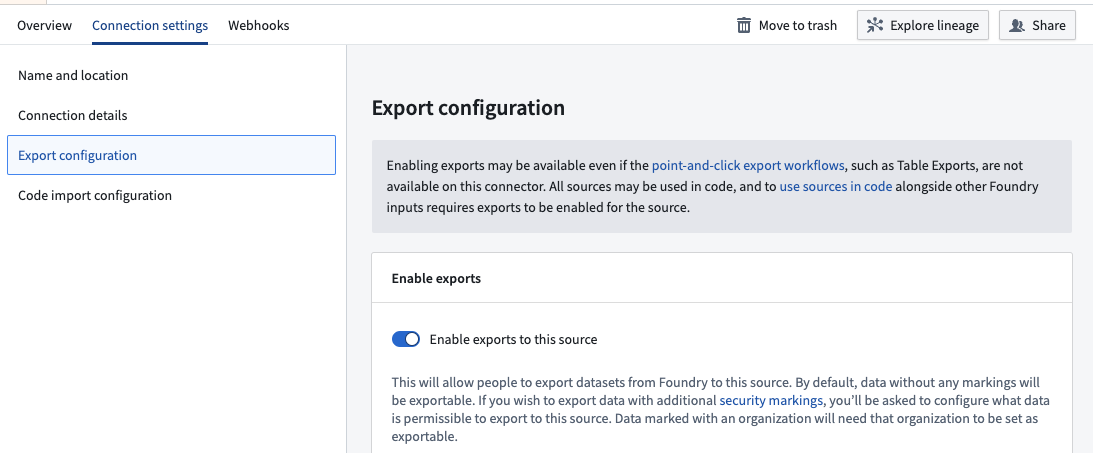
Toggle Enable exports to this source within the source connection settings.
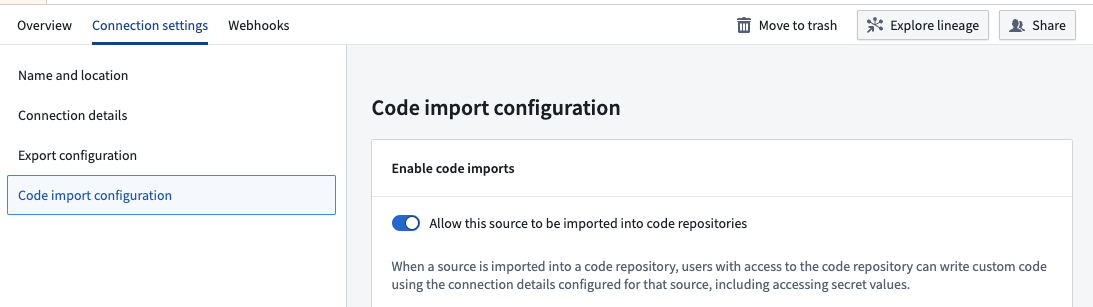
Toggle Allow this source to be imported into code repositories within the source connection settings.
External Python transforms
Source-based external transforms are the recommended way to create external transforms. Users should note that the egress-based approach will soon be considered in the legacy phase of development.
Start from the code repository or VS Code Workspace sidebar, and select the External systems tab. Follow the provided prompts to install the transforms-external-systems library, add the source to the repository, and view the example usage provided by the source.
Use VS Code Workspaces to get the most up-to-date development experience for source-based external transforms.
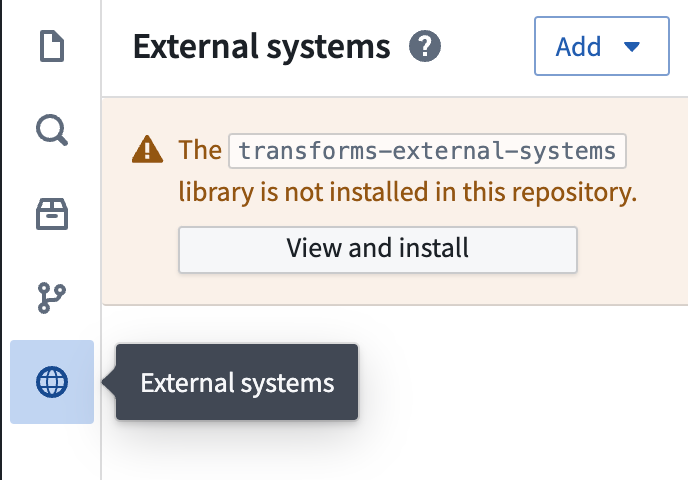
Select the External systems tab, import a source, and use the example provided by the source.
External functions
Start from the code repository sidebar and select the Resource imports tab. Add the source to the repository, and view the example usage provided by the source.
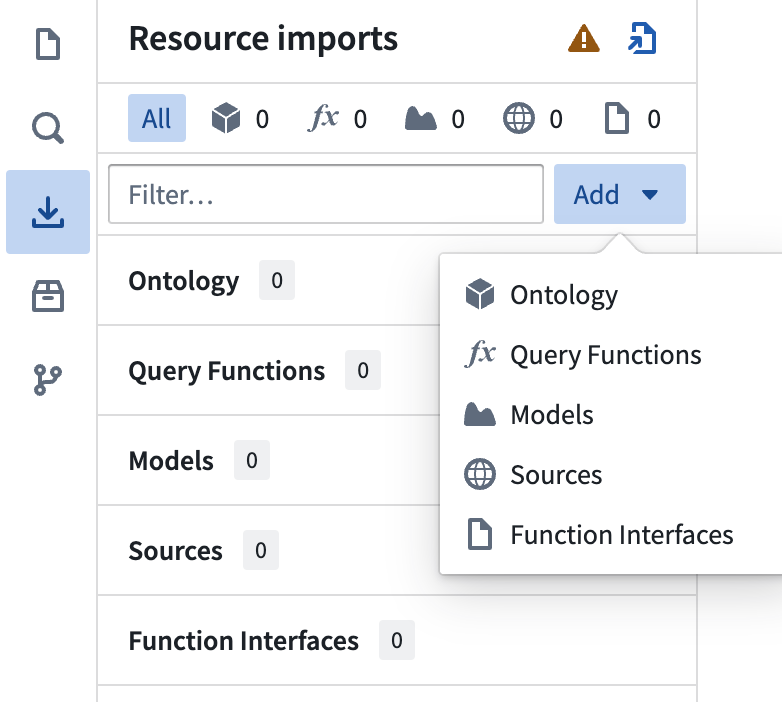
Create an external TypeScript function using the @ExternalSystems decorator.
Learn more
If you would like to learn more about the topics above, consider reviewing the following resources:
Your feedback matters
Your insights are crucial in helping us understand how we can improve data connections. Share your feedback through Palantir Support channels and our Developer Community ↗ using the data-connection tag ↗.
Introducing new PDF Viewer widget capabilities and configurations
Date published: 2025-04-03
We are excited to share that various new configuration options have been added to the PDF Viewer widget enabling new capabilities such as inline actions on existing annotations, automatic scrolling to annotation objects, events on new selections, and more:
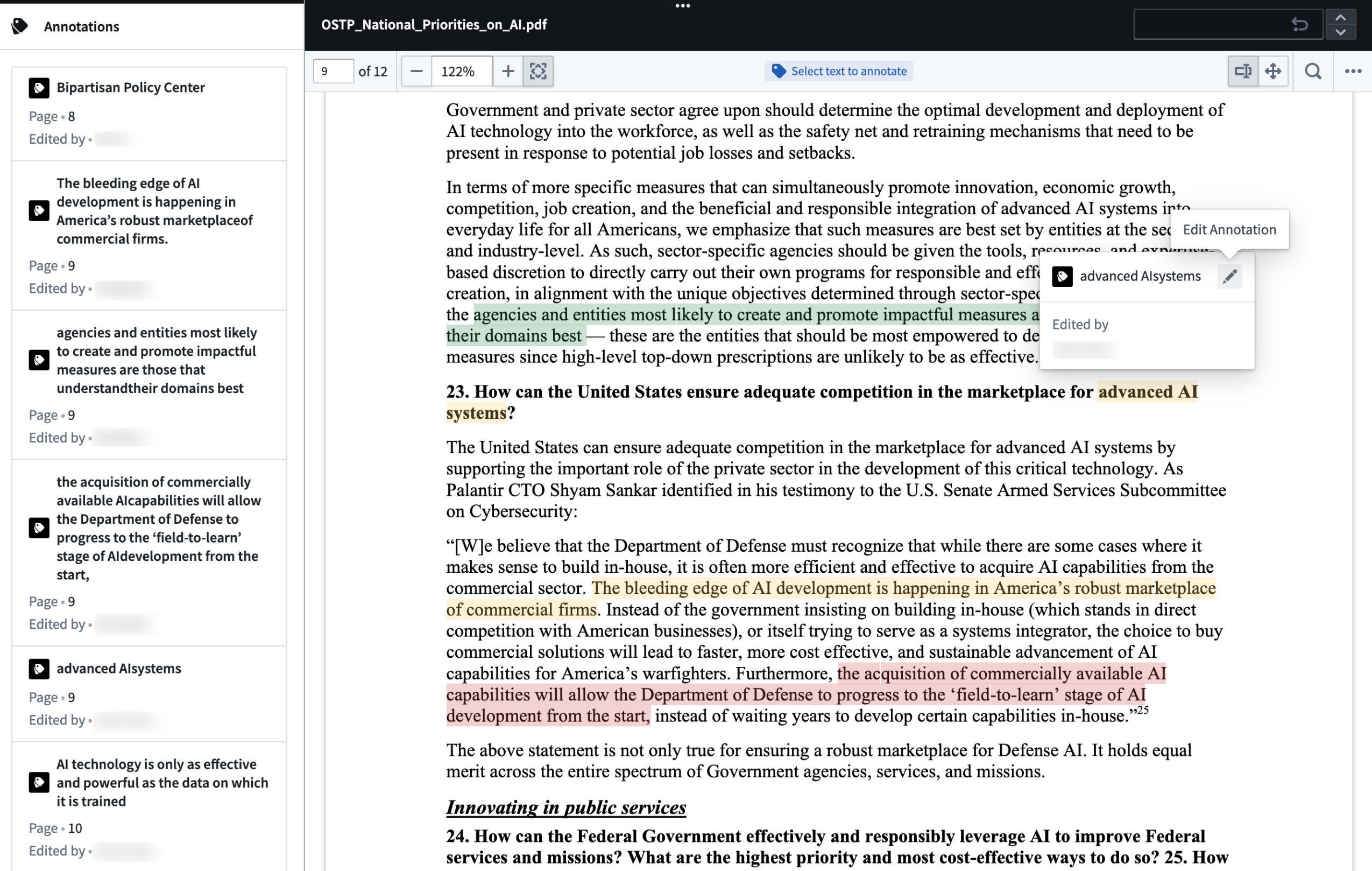
Inline Edit Annotation action on hover of an existing text annotation.
-
Inline actions on existing annotations: Builders may now configure inline actions on existing annotations. Actions may be configured to show up within the tooltip popover on hover of an annotation. The hovered object may be referenced and passed in as an action input parameter using the hovered object variable.
-
Automatic scrolling to annotations: Builders may now set an object set variable containing a single annotation object within the annotation object set for the widget to scroll to.
-
Events on new selections: Builders may now additionally configure events to be triggered on new text and/or area selections. Previously, only actions could be configured to trigger on new selections.
-
Active page number: A numeric variable may now be used to either capture the page number a user is currently on and/or to change the current page being displayed by the widget.
-
New Output variables for user selections: Two new output variables have been added to the PDF Viewer widget allowing builders to capture and use a user’s selections within the PDF. Output user selected coordinates captures a user’s selection coordinates on the PDF within a string variable as an output. Output user selected page number captures the page number the user has made a selection on within a numeric variable as an output.
Review PDF Viewer widget documentation to learn more about the new configuration options.
We want to hear from you
As we continue to develop Workshop, we want to hear about your experiences and welcome your feedback. Share your thoughts with Palantir Support channels or our Developer Community ↗ and use the workshop ↗ tag.
Redefining application variables in AIP agents
Date published: 2025-04-01
To better integrate the AIP Agent Widget with other widgets in your Workshop modules, we have significantly improved the application variable system for AIP agents. Application variables within AIP agents can be used as deterministic outputs from tools and ontology context. The AIP Agent Widget also offers additional variables that can be used to create new sessions from external widgets and automatically send messages using Workshop events.
Access mode configuration replaced with new application variable update tool
The configuration for access mode previously allowed you to determine whether the agent could update a variable or if the value was "read-only." Internally, this involved using a tool to update application state, which required the agent to specify the variable UUID for updates. However, this method was potentially unreliable, as the agent sometimes failed to apply updates before returning the final response. To address these issues, we replaced this access mode with the Update application variable tool, featuring enhanced prompting. When creating a variable, you will now need to manually add the variable with this tool to align with the read/write access configuration.
Existing agents do not need to be updated, as we performed a migration in the backend.
This Update application variable tool enhances transparency by clearly revealing the underlying processes and allows users greater flexibility in configuring the system. Additionally, it enables the language model to specify updates by variable name rather than by ID, resulting in improved performance. Consequently, the variable ID is no longer included in the prompt.

The update application variable option in the Add tool dropdown menu.
Introducing value visibility for variables
The LLM does not need to know about every variable; for example, a variable you use as input to function RAG, ontology context RAG, and so on may have no purpose in the compiled prompt. Before this update, each variable was automatically included in the prompt (comprising the name, current value, and description). You can now choose to remove the variable's visibility from the compiled system prompt. We recommend only including variable visibility when necessary, as reducing the amount of context provided to the LLM can decrease confusion and improve accuracy.

New option to hide the variable value from an agent.
Deterministic updates for variables
The Update application variable tool introduces an additional step in the thought process that is not always necessary. We observed that users often anticipate variable updates following the ontology context RAG, functions, and the object query tool. To accommodate this, we are introducing the capability to configure a variable as a "deterministic" output for each of these scenarios. When using the tool, ensure that the variable type matches the output type of the respective tool or context.
Usually, we strongly recommend prioritizing deterministic updates whenever feasible, rather than relying on the Update application variable tool. For the Object query tool, you can designate an output object set variable for each configured object type. With the Call function tool, you can map functions that have either string or object set outputs to a corresponding variable of the same type. Regarding ontology RAG, you can select an output object type variable that will update with the K most relevant objects after each response.

Select an object set output variable to update with the K most relevant objects after each response.
Deterministic input for object query tool
The Object query tool can also be provided with a initial variable rather than having the agent specify the starting object set. This can be done by mapping the input variable for each object type in the tool configuration. This is useful if you want the object query tool to start from a pre-filtered object set without any additional prompting.

Where desired, provide an initial variable instead of having the agent specify the starting object set.
Ontology context citation object set variable
Selecting an ontology context citation in the agent response will link out to object views in a new tab. To keep users within the same module, we added a citation variable to the ontology context configuration. When a citation is selected, this variable will update with a static object set containing just the citation object. This is useful for showing a preview of the object in another widget alongside the Agent widget, and more.

Select a citation variable in the ontology context configuration to update with a static object set containing just the citation object.
AIP Agent Widget configuration updates
The AIP Agent Widget has an updated configuration panel to improve integration within your Workshop module. The new text box variable refers to the text in the user text box. As the user enters text, the variable automatically updates to match the value in the text box. If the variable is changed from outside the AIP Agent Widget, a new message with the current value of the variable is sent.
Additionally, to connect the active session to a string Workshop variable, we introduced an active session identifier variable which is always up-to-date with the current sessionRid. If you change this variable from outside the AIP Agent Widget, either a new session will be automatically created or an existing session will be switched to if the change contains a sessionRid.
We also added a Boolean toggle to hide session history by default. If this toggle is true, regardless of the width of the widget, session history will automatically be collapsed when the module loads.
Share your feedback
We want to hear what you think about these updates. Send your feedback to our Palantir Support teams, or share in our Developer Community ↗ using the aip-agents tag ↗.
中文翻译
公告
提醒: 请注册 Foundry 新闻通讯(Foundry Newsletter),以便直接在收件箱中接收平台新产品、功能和改进的摘要。有关如何订阅的更多信息,请参阅 Foundry 新闻通讯和产品反馈渠道公告。
在我们的开发者社区论坛 ↗中分享您对这些公告的看法。
Foundry Branching 将于 2025 年 5 月 12 日当周上线
发布日期:2025-04-29
Foundry Branching 提供了一种统一体验,允许您在单个分支(branch)上跨多个应用程序进行更改,端到端测试这些更改而不会中断生产工作流,并一键合并这些更改。Foundry Branching 将于 2025 年 5 月 12 日当周在所有注册环境中以测试版(beta)状态提供。您需要启用 Foundry Branching 才能使用,因为它默认处于关闭状态。
平台管理员可以在控制面板(Control Panel)中启用 Foundry Branching,并针对特定的用户或用户组子集进行配置。如果您的环境已支持 Foundry Branching,则不会对您产生任何变化。
请查阅 Foundry Branching 文档以了解有关此功能的更多信息。
使用添加审阅者弹出选择器为变更提案分配审阅者。
我们建议先在一组受限用户中尝试 Foundry Branching,然后再将其开放给更广泛的用户使用。
Foundry Branching 的功能
在一个视图中轻松审阅整个提案的分支。然后,在准备就绪时进行合并。
使用 Foundry Branching 可体验多种开发者优势:
- 在分支上运行操作(Actions) ,而无需将这些编辑写回
Main分支。 - 分支创建和分支选择器: 在转换代码仓库(transform code repositories)、Pipeline Builder、Ontology Manager 或 Workshop 中创建分支,并在所有支持的应用程序中访问该分支。
- 分支任务栏: 当处于分支上时,屏幕底部会出现一个任务栏。此任务栏允许您管理整个工作流:
- 查看在分支上修改的资源并调试错误。
- 创建提案(相当于 GitHub 中的拉取请求)并分配审阅者。审阅者可以使用任务栏管理他们的审批。
- 合并您的提案。
- 在 Foundry Branching 应用程序中管理您的分支和提案。 Foundry Branching 应用程序也支持与任务栏相同的工作流。
注意事项
Foundry Branching 以测试版状态提供,功能范围有限。在使用 Foundry Branching 之前,请务必熟悉每个应用程序支持的集成。
以下功能将于 2025 年上半年发布:
- 受限视图(Restricted views): 受限视图目前无法在分支上构建。如果您的工作流包含受限视图,我们建议仅在 Ontology 下游的更改中使用 Foundry Branching。
- 仅编辑工作流: 用户可以在分支上运行操作,但目前无法将来自
Main分支的编辑加载到 Foundry 分支上。
除 Workshop 外,使用 Ontology 的应用程序尚无法在分支上进行修改。例如,如果您的 Workshop 模块包含非 Workshop 元素(如 Quiver 仪表板),这些仪表板将从 Main 分支加载信息,并且无法在分支上修改。
您的反馈很重要
我们希望了解 Foundry Branching 如何改善您的工作流,以及我们应该如何集中改进工作。请通过 Palantir 支持渠道和我们的开发者社区(使用 global-branching 标签 ↗)告诉我们您的想法。
在工作流谱系(Workflow Lineage)中试用新的 Marketplace 产品侧边栏
发布日期:2025-04-29
工作流谱系中的新 Marketplace 产品侧边栏是一个强大的工具,旨在帮助您管理和检查 Marketplace 产品。使用此侧边栏,您可以检查产品是否具有正确的输入和资源,以及节点是否组织到预期的包(package)中。
从新的 Marketplace 产品侧边栏管理和检查您的 Marketplace 产品。
受益于资源打包的透明度
通过清晰的洞察和颜色编码可视化来审阅您的资源打包。
- 资源打包透明度: Marketplace 产品侧边栏有助于识别资源与其所属包之间的任何差异。例如,如果您注意到某个函数被错误地高亮显示为输入,但实际上它应该属于某个包,因为它在该包内的操作中被使用,您可以使用颜色图例识别此错误并进行相应更正。
- 包组织: 轻松检测放错位置的项目,例如当资源被识别并着色为属于一个包,但实际上它们应该是另一个包的一部分时。此功能有助于确保每个组件都被正确分类。
- 输入预期: 及时了解包所需的新输入。例如,如果某个对象在打包的 Workshop 应用程序中使用,侧边栏将通知您将其包含在未来的包中。
- 包重叠检测: 使用颜色编码图来识别和解决包重叠。
使用颜色编码图检测包重叠。
借助 Marketplace 产品侧边栏,管理您的 Marketplace 产品变得更加轻松高效。确保您的包完整、结构正确并准备好发布。了解有关 Marketplace 产品侧边栏的更多信息。
开始使用侧边栏
导航到工作流谱系并打开 Marketplace 产品侧边栏。
在侧边栏中找到Marketplace 产品选项。
选择您的商店,添加您的产品,然后将所有节点添加到图表。这将填充一个颜色编码的工作流谱系图,帮助您可视化包结构和依赖关系。
选择商店后,直接在 Marketplace 产品侧边栏中审阅您的产品。
您的反馈很重要
您的见解对于帮助我们了解如何改进工作流谱系至关重要。请通过 Palantir 支持渠道和我们的开发者社区 ↗分享您的反馈。
使用 Marketplace 部署 OSDK 应用程序
发布日期:2025-04-29
使用 Ontology SDK(OSDK)构建应用程序的开发者需要一种简化的方式来跨不同的 Foundry 环境打包、部署和管理他们的应用程序。在此之前,部署 OSDK 应用程序需要为每个环境手动执行配置步骤,这使得从开发到生产的工作流过于复杂。
我们很高兴地宣布,开发者控制台(Developer Console)现在与 Marketplace 集成,支持无缝打包和部署 OSDK 应用程序。此集成允许开发者打包其 OSDK 应用程序(包括网站资产),并跨多个堆栈(stack)进行部署,无需任何手动构建步骤。
从开发者控制台到 Marketplace 的集成提供了包括以下内容的打包和部署功能:
- 开发者控制台资源: 数据资源和资源访问范围
- OAuth 客户端规范: 客户端类型、启用的授权类型和重定向 URL
- 关联网站: 已部署的资产和内容安全策略
- 自动配置: 关键的环境特定值(如 OAuth 客户端 ID 和 Foundry URL)会在安装期间自动配置和替换
集成的主要优势
您可以通过以下方式从新集成中受益:
- 完整的开发者到测试到生产工作流: 在本地或开发环境中开发,然后打包并部署到测试和生产环境,无需手动配置或构建步骤。
- 分发 OSDK 应用程序: 将同一应用程序部署到多个生产注册环境,并自动处理环境特定配置。
- 简化更新: 使用最新的网站资产创建 Marketplace 产品的新版本,并一键部署。
打包的开发者控制台产品升级成功。
升级后的开发者控制台接收最新的网站资产。
开始使用
要开始使用,请根据您的工作流选择以下适用情况:
- 创建新应用程序
- 平台内开发: 在 VS Code 工作区中引导新应用程序时,该应用程序将开箱即用地兼容 Marketplace 部署。
-
本地开发: 使用
@osdk/create-appCLI v2.1.3 ↗ 或更高版本在本地引导新应用程序。 -
更新现有应用程序
-
要使现有的 OSDK 应用程序可通过 Marketplace 部署,请遵循概述所需配置的 Marketplace 安装指南。
-
打包开发者控制台应用程序
-
如果您是首次打包开发者控制台应用程序,请查看我们的 DevOps 文档,了解如何创建新产品。
在按资源类型添加下选择开发者控制台应用程序以打包开发者控制台应用程序。
安装打包的开发者控制台应用程序
在 Marketplace 中,您可以安装打包的应用程序。如果您打包了带有网站资产的应用程序,则在安装期间需要提供网站托管域名。
安装期间显示的网站托管域名参数。
首次安装后,系统将提示您自行批准或要求信息安全官批准所请求的网站托管域名。
安装后指导批准网站域名请求。
一旦域名获得批准,网站即可使用,无需进一步配置。
环境间的 API 名称一致性
在跨环境部署 OSDK 应用程序时,了解 API 名称如何影响应用程序的功能非常重要。已发布的网站资产使用其 API 名称引用 Ontology 中的实体,这创建了一个在部署期间需要注意的依赖关系。在使用前请考虑以下重要事项:
- API 名称一致性: 部署到目标环境时,请确保目标 Ontology 中的实体与源环境中的实体具有相同的 API 名称。
- 潜在挑战: 如果目标环境中已存在具有相同 API 名称的实体,则 API 名称将在环境之间发生变化。这将导致您的应用程序无法引用所需的实体。
我们认识到管理 API 名称一致性是跨环境部署的一个重大挑战。我们的团队正在积极研究一种解决方案,该方案将自动处理源环境和目标环境之间的 API 名称映射。
了解更多
我们期待您的反馈
您的见解对于帮助我们了解如何改进 OSDK 应用程序部署至关重要。请通过 Palantir 支持渠道和我们的开发者社区 ↗(使用 ontology-sdk 标签 ↗ 或 marketplace 标签 ↗)分享您的反馈。
引入用于保护对象中数据的强制控制属性(Mandatory Control Properties)
发布日期:2025-04-29
我们很高兴地宣布,强制控制属性现在在所有注册环境中全面可用(GA)。此功能引入了对使用标记(markings)、分类(classifications)和组织(organizations)来对 Ontology 数据实施细粒度访问控制的一流支持。
强制控制属性是一种标记或分类,其中对象上的值用于限制对同一数据源中该对象上其他属性值的访问。有关强制控制属性如何工作的更多信息,请查看文档。
在 Ontology Manager 的属性侧边栏中配置强制控制属性。
请注意,基于分类的强制控制属性仅在已启用的注册环境中可配置。
新的控制属性
- 对强制控制属性值的约束: 限制属性上允许的标记列表,并设置可为该对象类型的任何对象上的此属性选择的最大分类。
为强制控制属性选择允许的标记。
- 标记导出的数据集: 自动使用对象类型上设置的允许标记或最大分类来标记导出的数据集。
- 新的操作类型参数: 操作现在直接在操作表单中包含标记和分类选择器作为参数。
操作表单上的分类选择器。
何时使用强制控制属性
强制控制属性非常适合管理索引到 Ontology 中的高度敏感数据的用户,在这些情况下,对整个底层数据集应用单个标记或分类级别可能对特定行过于严格或过于宽松。使用强制控制属性,您可以对对象类型内的单个对象应用标记,或者仅保护对象上的属性子集。这是通过将需要一起保护的属性组织到具有其强制控制属性的新数据源中来实现的。
分享您的反馈
我们想听听您对我们平台更新的看法。将您的反馈发送给我们的 Palantir 支持团队,或在我们的开发者社区 ↗中分享。
在 Visual Studio Code 的 Palantir 扩展中引入增量转换预览(Incremental Transforms Preview)
发布日期:2025-04-29
我们很高兴地宣布,您现在可以使用 Visual Studio Code 的 Palantir 扩展直接在代码环境中准确预览增量转换。此预览功能使用与构建中相同的增量解析逻辑,确保整个开发者体验的一致性和准确性。
除了预览可用性之外,您还可以利用预览面板中的新元素,该元素提供有关增量转换构建成功或失败的见解。
使用 Visual Studio Code 的 Palantir 扩展预览增量转换的新功能。
此功能反映了在 Python 转换上运行非增量构建时的行为。
在运行快照 Python 转换构建时使用的预览功能。
VS Code 工作区和本地开发环境均支持 Spark 和轻量级转换,包括文件转换和从输出读取。预览功能支持构建期间可用的所有选项和标志,包括语义版本控制、保留等。
您的反馈很重要
我们想知道您对 Visual Studio Code 的 Palantir 扩展工作的看法。与 Palantir 支持分享您的反馈,或使用 vscode 标签 ↗ 为我们的开发者社区 ↗做出贡献。
引入 AIP Agent Studio
发布日期:2025-04-22
注意: 自 2026 年 4 月 27 日当周起,AIP Agent Studio 已更名为 AIP Chatbot Studio。所有现有特性和功能保持不变。
我们很高兴地宣布,AIP Agent Studio 将于 5 月 5 日当周全面可用。AIP Agent Studio 是一个强大的应用程序,旨在构建称为 AIP Agent 的交互式 AI 助手,这些助手可以配备企业特定信息和工具来执行任务。AIP Agent 可以在 Palantir 平台内部署,也可以通过 Ontology SDK 和平台 API 在外部部署。
在 AIP Agent Studio 中构建的 Agent 由大型语言模型(LLM)、Ontology、文档和自定义工具提供支持。AIP Agent 可以集成到应用程序中,以促进动态、上下文感知的读写工作流,使您能够自动化任务并减少手动应用程序交互。
AIP Agent Studio 中的 AIP Agent 配置。
AIP Agent Studio 的主要功能包括:
- 企业特定上下文: 构建使用企业特定信息的 Agent,确保它们提供针对您组织需求的相关且准确的响应。
- 自然语言界面: 使用自然语言与您的 Agent 交互,使操作工作流和自动化任务更加容易。
- 安全且受控的访问: 基于 Palantir 平台严格的安全模型构建,AIP Agent Studio 确保 LLM 仅能访问必要的信息。
- 灵活的部署: 在 Palantir 平台内部署 AIP Agent,或通过 Ontology SDK 和平台 API 在外部部署,提供使用和集成的多功能性。
要开始使用 AIP Agent 并创建日益复杂的自动化工作流,我们建议使用 Agent 层级框架。
Agent 层级框架,每个层级都增加复杂性和自动化程度。
-
层级 1:临时分析: 使用 AIP Threads 进行临时文档分析和生产力改进。首先导航到 AIP Threads。
-
层级 2:特定任务 Agent: 创建可以使用 Ontology、文档或自定义函数支持的上下文的 Agent,允许更针对性和更具体的交互。首先将您的线程配置升级为 AIP Agent 或在 AIP Agent Studio 中创建 AIP Agent。
-
层级 3:Agent 应用程序: 将 AIP Agent 集成到 Workshop 或第三方应用程序中,允许 Agent 读取和更新应用程序状态。首先将应用程序状态添加到您的 Agent,并使用 AIP Agent 小部件将其部署在 Workshop 中。
-
层级 4:自动化 Agent: 将任务自动化并委派给您的 Agent,使 Agent 能够自主处理复杂的工作流。首先将您的 Agent 作为函数发布,并将其引入自动化。
告诉我们您的想法
在我们继续开发 AIP Agent Studio 的同时,我们想听听您的体验并欢迎您的反馈。通过 Palantir 支持渠道或我们的开发者社区 ↗(使用 aip-agent-studio 标签 ↗)分享您的想法。
了解有关 AIP Agent Studio 入门及其核心概念的更多信息。
注意:AIP 功能的可用性可能会发生变化,并且可能因客户而异。
允许用户从账户菜单切换平台版本
发布日期:2025-04-17
平台管理员现在可以允许用户使用位于工作区导航侧边栏中的账户菜单来切换平台版本。一旦管理员启用,用户可以使用平台切换器在三个可用的平台版本之间进行选择:
- 稳定版(Stable): 当前的稳定版本
- 测试版(Beta): 未来的稳定版本
- 先前版本(Prior): 上一个稳定版本
请注意,更改平台版本仅影响用户界面中的功能;平台中保存的更改将保持不变,无论当前版本是否呈现它。
平台版本切换器位于账户 > 平台版本下拉菜单中。
要设置平台版本切换,平台管理员可以导航到控制面板中的平台体验页面。在这里,管理员还可以配置用户组默认查看测试版。
平台版本切换处于测试版开发阶段,默认情况下每个人都可以选择加入。管理员可以在功能发布时选择加入。
位于平台体验页面上的控制面板中的平台版本配置选项卡。
有关此功能的更多信息,请查看关于配置平台体验的文档。
分享您的反馈
我们想听听您对我们平台更新的看法。将您的反馈发送给我们的 Palantir 支持团队,或在我们的开发者社区 ↗中分享。
在工作流谱系中探索自动化洞察
发布日期:2025-04-17
我们很高兴地推出改进工作流谱系中自动化洞察的功能。这些增强功能将使调试触发自动化的原因、使用了哪些确切属性以及这些自动化具有哪些依赖关系变得更加容易。
您现在可以探索以下自动化详细信息:
- 属性使用和依赖关系: 查看选择详细信息侧边栏以查看属性使用和依赖关系。条件 Ontology 依赖关系部分提供了自动化条件所依赖的特定对象属性的详细分解。将鼠标悬停在右侧显示的数字上以查看确切的属性。
- 操作和函数触发器: 打开图表左上角的紫色闪电图标,以发现哪些操作和函数触发了自动化。
对于在属性达到特定值时激活的自动化,工作流谱系会识别并将修改该属性的操作或函数链接到该值。
您的反馈很重要
您的见解对于帮助我们了解如何改进工作流谱系至关重要。请通过 Palantir 支持渠道和我们的开发者社区 ↗分享您的反馈。
Foundry Branching 现在支持转换代码仓库
发布日期:2025-04-17
从 4 月 16 日当周开始,Foundry Branching 支持所有注册环境中的转换代码仓库。处于测试版的 Foundry Branching 提供了一种统一体验,允许您在单个分支上跨多个应用程序进行更改,端到端测试这些更改而不会中断生产工作流,并一键合并更改。要在您的注册环境中启用此功能并参与测试,请联系 Palantir 支持。我们建议先在一组受限用户中尝试 Foundry Branching,然后再扩大使用范围。
通过新增对转换代码仓库的支持,Foundry Branching 增加了对 Pipeline Builder、Ontology 和 Workshop 的额外支持。通过 Foundry Branching,您现在可以在代码仓库中修改数据管道,编辑 Ontology 定义,并在 Workshop 模块中基于这些更改进行构建,所有这些都在一个分支上完成。
请注意,对 TypeScript 函数仓库的支持目前正在开发中。
在分支上修改代码仓库。
在合并包含代码仓库更改的分支时,Foundry Branching 合并对话框将显示所有即将构建的数据集。如果您的提案的数据集依赖于未在您的分支上修改的其他数据集,则会出现一个选项,用于在合并过程中构建所有必要的数据集。
合并提案对话框提供两个选项:
- 构建所有受影响的资源: 将构建受分支更改影响的所有资源,以便上游更改中的数据按需向下游流动。
- 仅构建修改的资源: 仅构建在此分支上直接更改的资源。如果它们依赖于对此分支的上游更改,您可能需要手动构建资源。
在合并对话框中构建所有受影响的资源。
在合并过程中构建修改和受影响的数据集。
有关更多信息,请查看 Foundry Branching 文档。
您的反馈很重要
我们想听听您对 Foundry Branching 的体验并欢迎您的反馈。通过 Palantir 支持渠道或我们的开发者社区 ↗(使用 global-branching 标签 ↗)分享您的想法。
宣布在 AIP 中引入自带模型(Bring-Your-Own-Model)
发布日期:2025-04-10
自带模型(BYOM),在 Palantir 平台中也称为"注册模型",是一种功能,为希望连接自己的 LLM 或账户以在所有 Palantir 开发者产品中使用 AIP 的客户提供一流支持。这些产品包括 AIP Logic、Pipeline Builder、Agent Studio、Workshop 等。
注册您的 LLM 后,您可以从 AIP Logic 中的模型下拉菜单中选择它。
何时使用
基于 LLM 支持和可行性,我们通常建议使用来自模型提供商(例如:OpenAI、Azure OpenAI、AWS Bedrock、xAI、GCP Vertex)的 Palantir 提供的模型,或由 Palantir 自行托管的开源模型(例如 Llama 模型)。
但是,您可能更愿意将自己的模型带到 AIP。我们建议仅在由于法律和合规原因无法使用 Palantir 提供的模型时,或者当您拥有自己的微调或其他独特的 LLM 并希望在 AIP 中利用时,才使用这些注册模型。
了解更多
要开始注册您自己的模型,请查看以下文档:
- 将您自己的模型带到 AIP,包括当前支持哪些 AIP 功能。
- 使用 BYOM 注册 LLM 以及如何在 AIP Logic 和 Pipeline Builder 中使用注册模型。
让我们知道我们的表现
在我们继续开发注册模型的同时,我们想听听您的体验并欢迎您的反馈。通过 Palantir 支持渠道或我们的开发者社区 ↗分享您的想法。
使用新的 AIP 使用量视图工具查看 LLM 令牌和请求使用量
发布日期:2025-04-10
在资源管理(Resource Management)中引入新的 AIP 使用量视图工具,该工具提供对您注册环境中所有项目和资源的所有 Palantir 提供模型的 LLM 令牌和请求使用量的可见性。借助此新工具,管理员可以在管理 LLM 容量和处理速率限制方面获得完全可见性。
您可以通过导航到 AIP 使用量和限制页面,然后选择查看使用量选项卡来访问资源管理中的此工具。
使用新的 AIP 使用量视图工具解锁全面洞察,该工具旨在增强您对 LLM 容量和速率限制的理解,并帮助您识别所有项目和资源的优化机会。
此工具主要旨在帮助解决容量管理和速率限制问题。几个关键亮点包括:
- 跟踪每分钟的令牌和请求使用量,因为 LLM 容量是在每分钟令牌数(TPM)和每分钟请求数(RPM)级别管理的。
- 一次向下钻取到单个模型,因为每个模型的容量是单独管理的。
- 查看注册使用量概览并放大到项目级使用量,因为 LLM 容量既有注册级别限制,也有每个项目的项目级别限制,如上所述。
- 查看速率限制阈值;右上角的切换开关通过显示虚线来可视化何时达到项目或注册限制。限制因模型和项目而异。显示两条速率限制线:注册/项目限制,以及"批次限制",该限制上限为特定项目和整个注册总容量的 80%。请阅读下文关于优先处理交互式请求的更多信息。
- 过滤到特定时间范围以查看两周的数据,精确到分钟。用户可以通过使用左侧边栏上的日期范围过滤器,或通过在图表本身上使用拖放时间范围过滤器,向下钻取到特定时间范围。当时间范围短于六小时时,图表将包括按项目(在注册级别)或按资源(在项目级别)的细分。
- 在表格中查看使用量概览。在图表下方,表格包含每个项目(或当过滤到单个项目时每个资源)的令牌和请求汇总。表格受所有过滤器(时间范围、模型和项目过滤器,如果应用)的影响。
了解 AIP 使用量视图以及如何基于它们采取行动,并探索用于 LLM 容量和成本管理的其他工具。
分享您的反馈
我们想听听您对这些更新的看法。将您的反馈发送给我们的 Palantir 支持团队,或在我们的开发者社区 ↗(使用 language-model-service 标签 ↗)中分享。
在 Pipeline Builder 中引入拆分转换(Split Transform)
发布日期:2025-04-09
Pipeline Builder 中新的拆分转换功能允许您根据自定义条件将数据输入分区为两个输出。例如,您可以使用拆分转换将客户订单数据集划分为子集以进行进一步分析。
新的拆分转换功能可通过右键单击菜单中的拆分选项访问。
什么是拆分转换?
拆分转换根据指定条件评估输入数据的每一行,然后根据该行是否满足条件将行定向到两个不同的输出。即,条件评估为真还是假。
条件为真的行将被发送到第一个输出(True 输出),条件为假的行将被发送到第二个输出(False 输出)。
这实现了对数据的高效分类,并促进针对每个类别量身定制的进一步处理。此外,此功能增强了管道的清晰度,使其一目了然。
示例用例
假设您有一个客户订单数据集,并希望将其分类为高价值订单和低价值订单。通过定义条件 order_value > 1000,拆分转换将把超过 1000 美元的订单定向到 True 输出,而所有其他订单将被引导到 False 输出。
*此示例性示例根据订单价值是否超过 1000