Announcements(公告)
REMINDER: Sign up for the Foundry Newsletter to receive a summary of new products, features, and improvements across the platform directly to your inbox. For more information on how to subscribe, see the Foundry Newsletter and Product Feedback channels announcement.
Share your thoughts about these announcements in our Developer Community Forum ↗.
Track project usage in Resource Management
Date published: 2025-05-29
A new Project usage page is now available in Resource Management, providing broader access for users to efficiently track compute and storage usage in their projects.
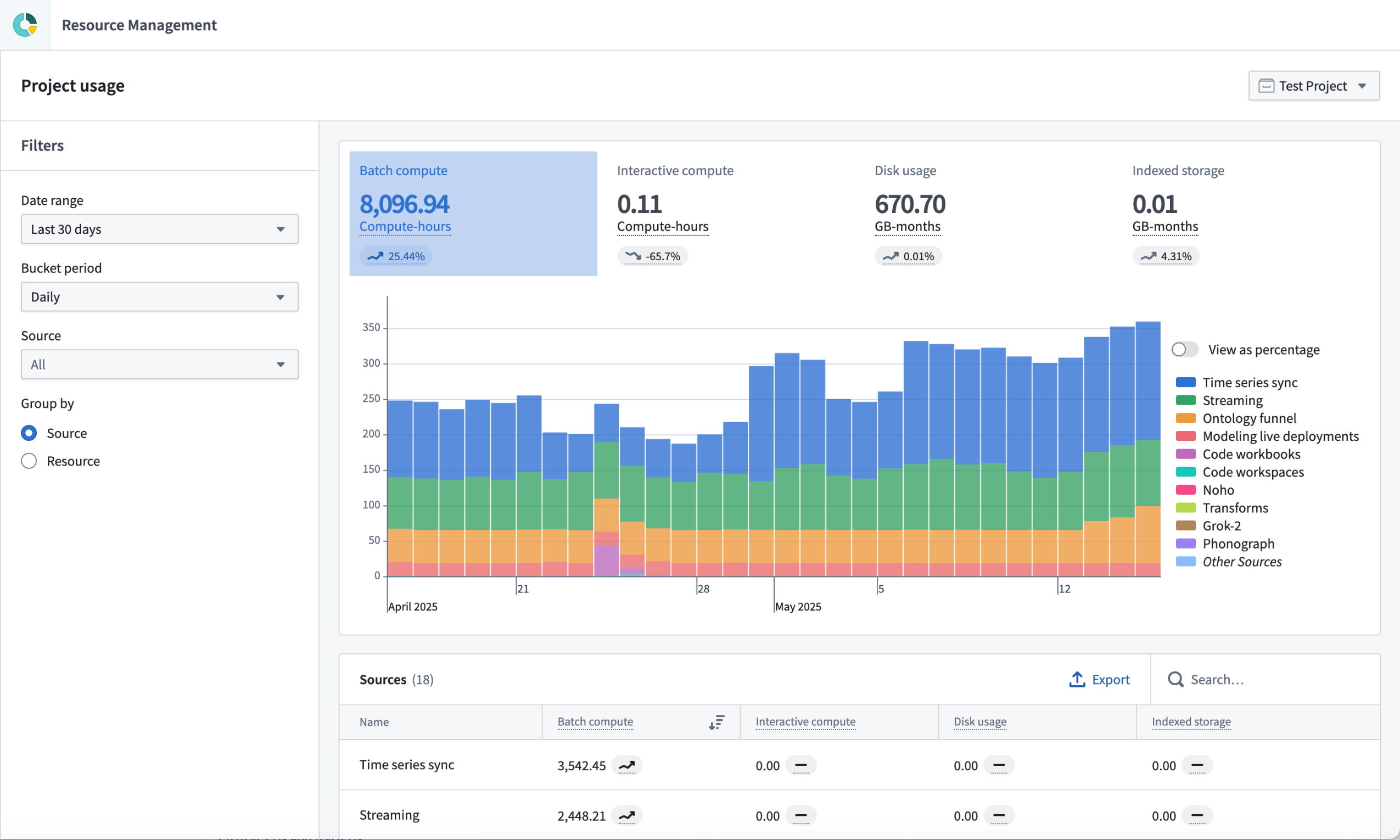
The new Project usage page, displaying the results of a sample project featuring several different source types.
This updated interface allows you to view graphs of compute and storage usage, along the dimensions configured for your enrollment. These graphs use color-coding to easily identify different sources of usage. Additionally, you can filter the displayed results by date range, bucket period (daily, weekly, or monthly), and by source type.
The project view page is similar to the Analysis tab in the full Resource Management view, but with some notable differences:
- Usage is displayed for a single project at a time.
- Users with the
Ownerrole on a project have access to the project usage page by default. - Cost and billing insights are not provided.
To navigate to the updated usage interface, select Project usage at the bottom of the project navigation panel.

The project navigation panel, with a link to view project usage.
Allocate dedicated LLM resources with AIP reserved capacity
Date published: 2025-05-27
AIP reserved capacity is now available, enabling the allocation of additional tokens per minute (TPM) and requests per minute (RPM) for production workflows. Reserved capacity is an LLM capacity management tool in the Resource Management application that helps secure critical workflows, ensuring they are not restricted by project rate or enrollment limits to provide increased uptime and reliability.
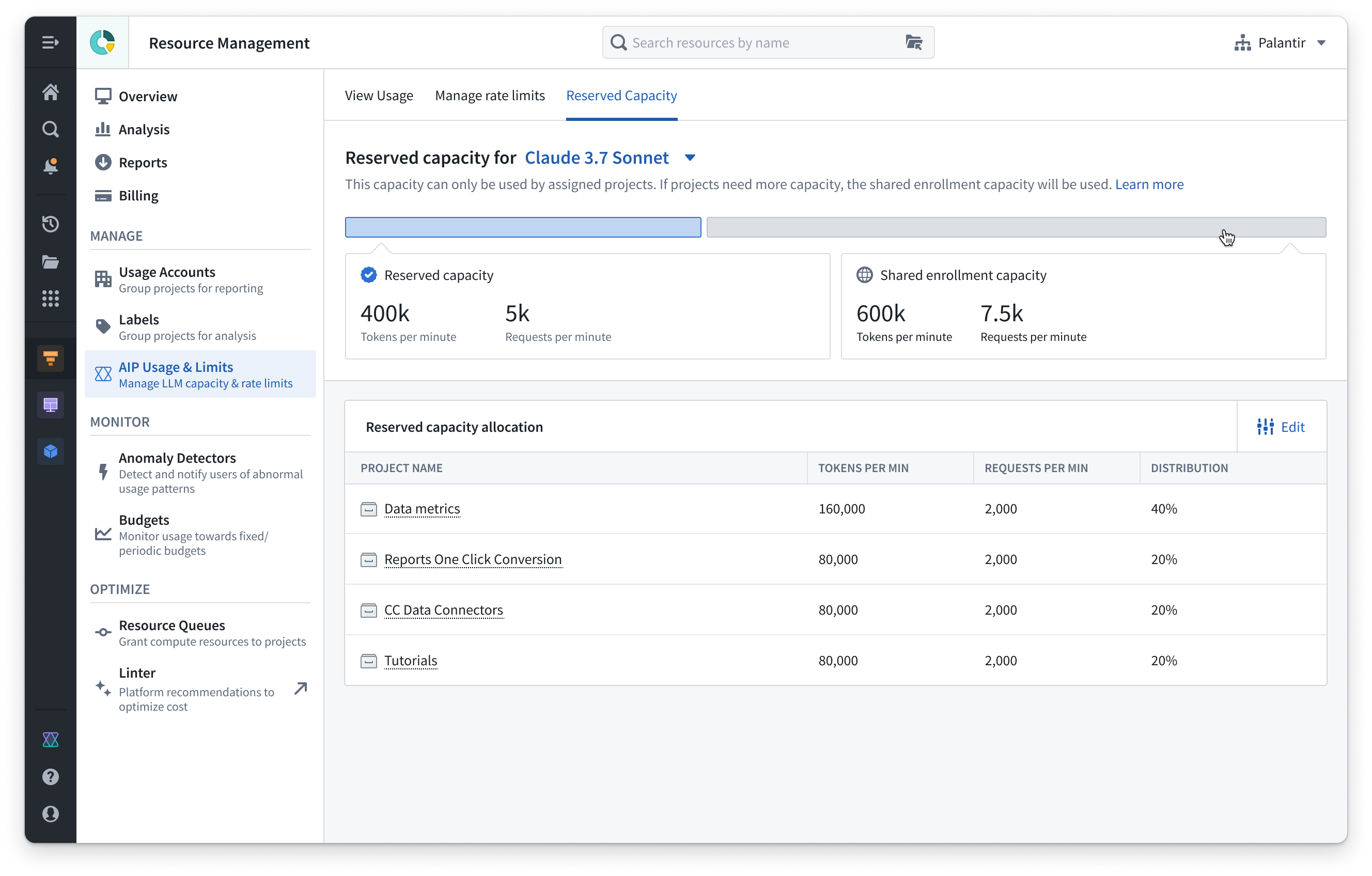
An example of allocated reserved capacity for a specific model, displaying a list of the projects that have access to additional capacity and the percentage distribution across projects.
Since reserved capacity allocates LLM resources in addition to existing enrollment limits, production workflows do not have to compete with other resources for the shared pool of LLM capacity, enabling uninterrupted operation.
Key features
- Reserved capacity is configured at the project level by allocating a specific amount of TPM and RPM to a designated project. This applies to a single model.
- Projects can be assigned a percentage of the total reserved capacity, allowing you to prioritize the most critical resources and customize LLM allocation to align with your organizational requirements.
- When reserved capacity is expended, projects and resources with allocated reserved capacity will automatically use existing shared project and enrollments limits, since reserved capacity is provided in addition to the existing enrollment capacity.
Contact your Palantir administrator to request reserved capacity allocation. Once allocated, users with resource management administrator permissions can allocate reserved capacity to specific projects.
Note that we cannot guarantee the availability of reserved capacity for all models at all times. This depends on the availability and offerings of model providers such as Azure, AWS, GCP, xAI, and others. We aim to offer reserved capacity on all industry leading flagship models.
Your feedback matters
We want to hear about your experiences with AIP Resource Management and welcome your feedback. Share your thoughts with Palantir Support channels or our Developer Community ↗ using the language-model-service ↗ and resource-management ↗ tags.
Learn more about reserved capacity.
Note: AIP feature availability is subject to change and may differ between customers.
Bulk update ontology roles in Workflow Lineage
Date published: 2025-05-22
Users can now easily and efficiently apply bulk updates to ontology roles permissions within Workflow Lineage, providing a seamless experience for workflow resource management without needing to switch to Ontology Manager. As users in Workflow Lineage understand, manage, and debug ontology workflows, they may find it necessary to update permissions on given ontology resources to unblock collaborators or add additional security to these workflows. The new bulk update feature allows these users to streamline their management and debugging processes by solving permissions issues directly within the workflow exploration view.
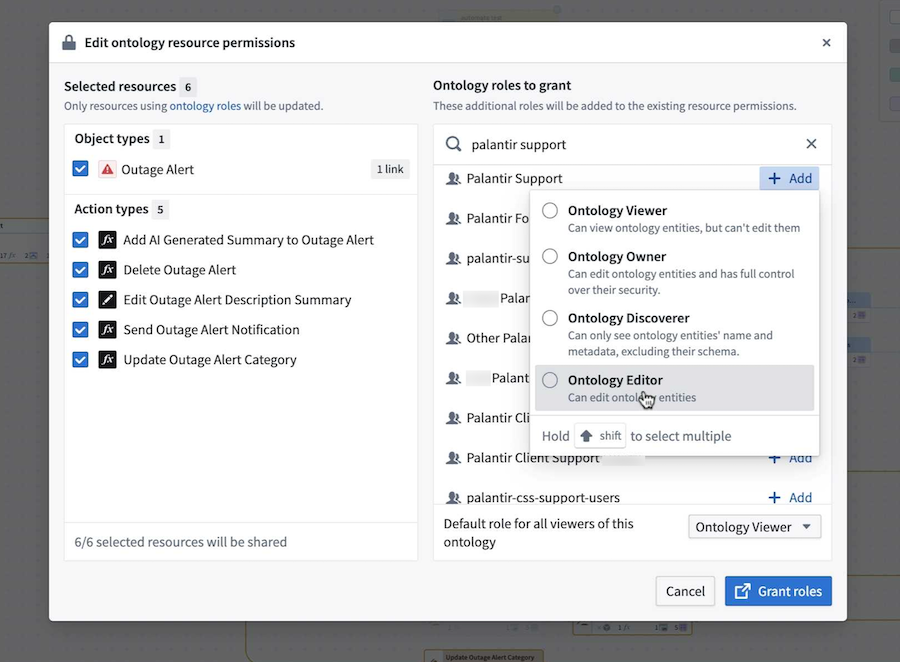
The Edit ontology resource permissions window in Workflow Lineage, where you can apply bulk updates to ontology roles.
To get started, navigate to the ontology resource you wish to modify in Workflow Lineage. Then, right-click on the resource and select Edit permissions from the context menu. This will open the Edit ontology resource permissions window, where you will see the selected resources displayed.

The context menu for an ontology resource, where you can choose to Edit permissions.
In the Ontology roles to grant section, search for the group you want to add and select the role to grant. The role will then appear next to the chosen group, indicating that it was successfully selected. You can also change the default role for all viewers of the ontology to either Ontology Viewer or Ontology Discoverer.

Use the search bar to find groups and grant ontology roles for a given resource.
Once you make your selections, confirm your choices by selecting Grant roles in the bottom right corner. A dialog will appear asking, "Are you sure you want to share these resources?". To proceed, select Yes, share. Note that this action is immediate and cannot be undone.
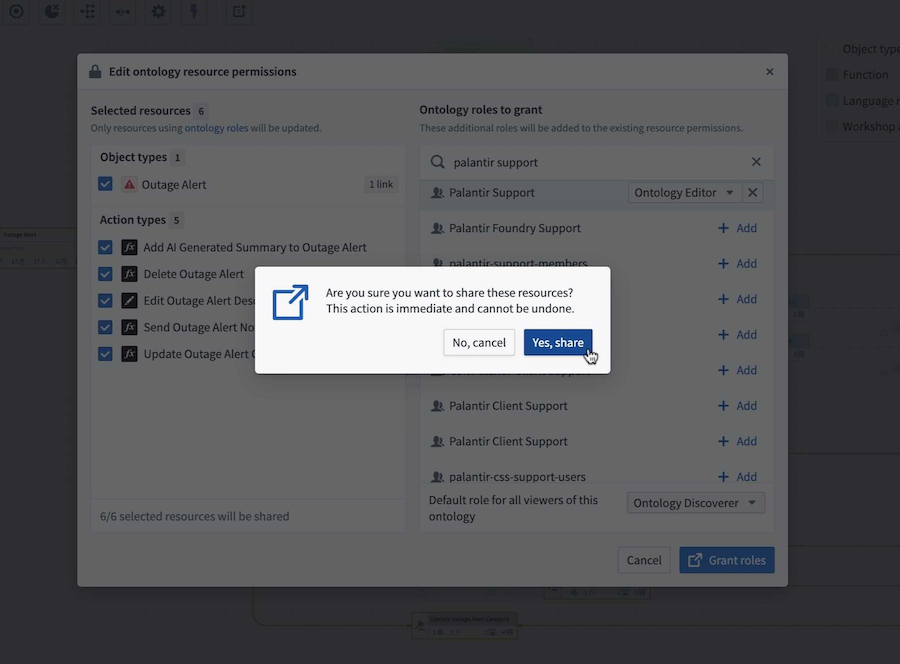
The confirmation prompt to verify your ontology role grant selections.
Learn more about managing and debugging your workflows with Workflow Lineage in our documentation.
We want to hear from you
Instead of navigating back to Ontology Manager to update your ontology resource permissions, try the bulk update feature in Workflow Lineage to simplify your management and debugging tasks for ontology-based workflows. Then, share your feedback with us through Palantir Support or our Developer Community ↗.
Media set transforms and outputs are now available in Pipeline Builder
Date published: 2025-05-22
Starting the week of May 26, a new range of expressions will be available for media sets in Pipeline Builder, allowing users to transform media and output media sets. Previously, media sets needed to be converted to datasets, and it was only possible to transform media with Python transforms. With these new dedicated expressions, users can convert images into documents and vice versa, manipulate images, split PDF files, and more, maximizing the potential of unstructured data in Pipeline Builder.
Get started
To get started with media set transforms, choose a media set node in your workspace and select Transform, then choose one of the new media expressions from the transforms page.

The list of media transforms available on a media set input in Pipeline Builder.
Preview works the same way it does for datasets, so you can preview expressions before applying them. You can then add your media set as a pipeline output. This can be configured in the sidebar on the right side.

Adding a new media set output in Pipeline Builder.
Leverage these new media set transforms to unlock new possibilities for harnessing unstructured data, and streamline the media transformation process in Pipeline Builder. Visit the documentation to learn more about media set transforms and media set outputs.
Your feedback matters
We want to hear about your experience and welcome your feedback as we develop more media set transforms in Pipeline Builder. Share your thoughts with Palantir Support channels or on our Developer Community ↗ using the pipeline-builder tag ↗.
Analyze data with charts in Pipeline Builder
Date published: 2025-05-20
You can now add another layer of data insight to your transform nodes with charts in Pipeline Builder. Designed to enhance your data analysis capabilities, charts help you to quickly analyze and test derived data without needing to leave the Pipeline Builder application. Currently, Pipeline Builder supports histogram and bar chart generation.
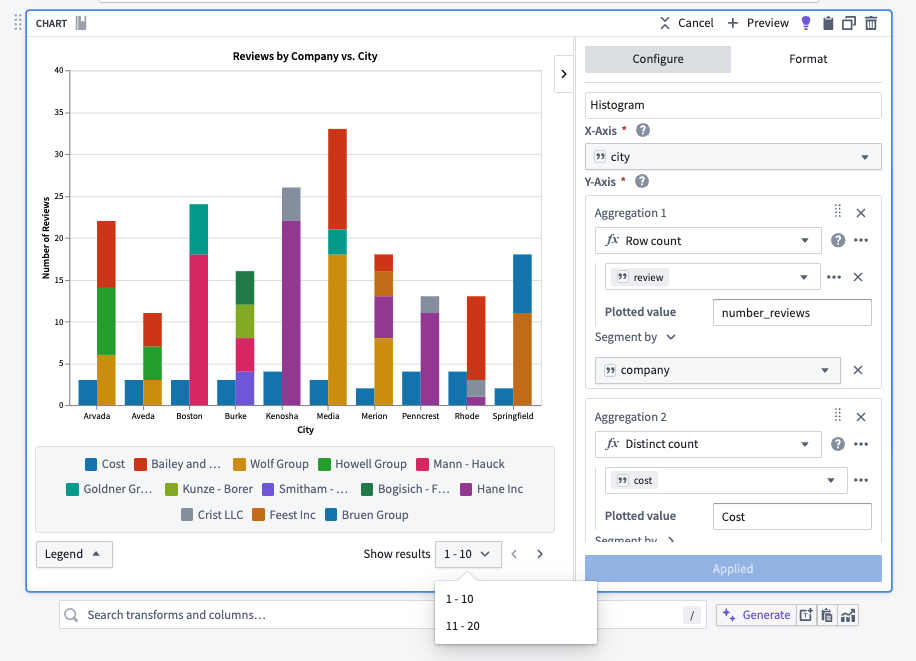
An example graph in Pipeline Builder, displaying data on company review counts by city.
Get started
You can add charts directly to transform node in a Pipeline Builder graph. To add a chart, double-click a transform node to open the path view. In the search bar, search for "chart" or "histogram". Alternatively, select Visualize to the right of the search bar.
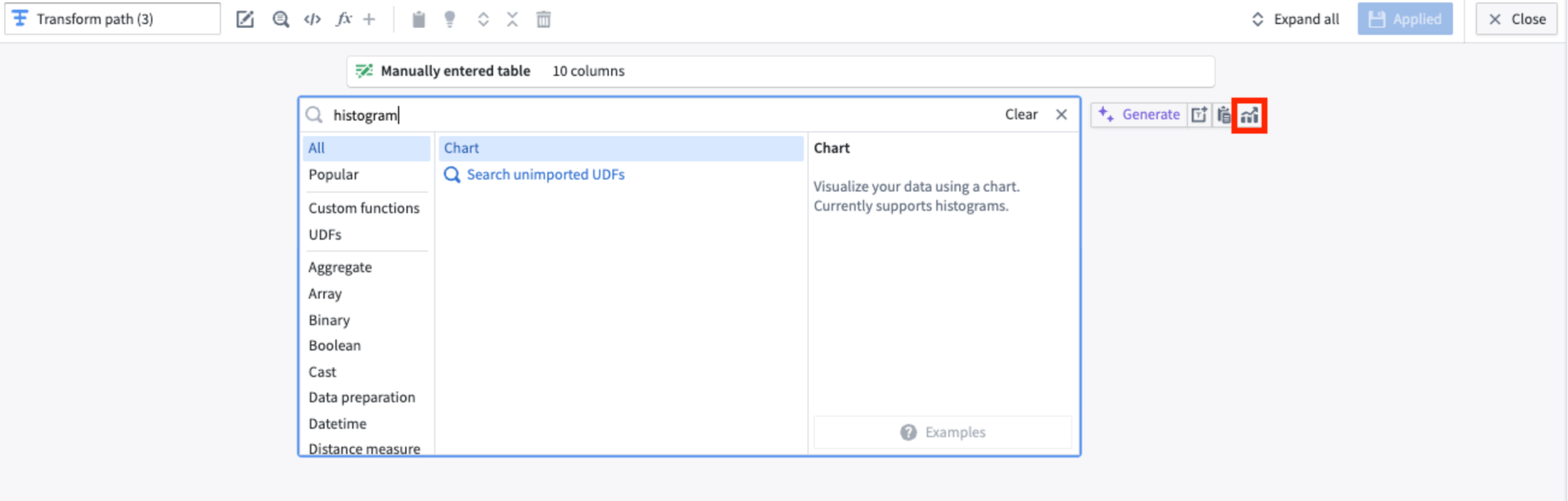
A transform path view, where you can generate a transform graph through search or by selecting Visualize (outlined in red).
Note that you can generate a chart through a transform node only. To create a chart after applying a join, union, or split, create a new transform node and double-click to open the path view.
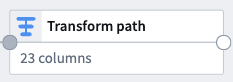
An example transform node.
Configure the chart
In the Configure tab of the chart creation panel, select values for the x-axis and y-axis. Then, choose from a variety of aggregations for the y-axis, including distinct count, max, min, median, mode, row count, sum, and more. You can also add multiple aggregations to a single graph by selecting Add item.

An example chart with two aggregations: row count and distinct count.
From the Format tab, you can change the title, x-axis label, and y-axis label.
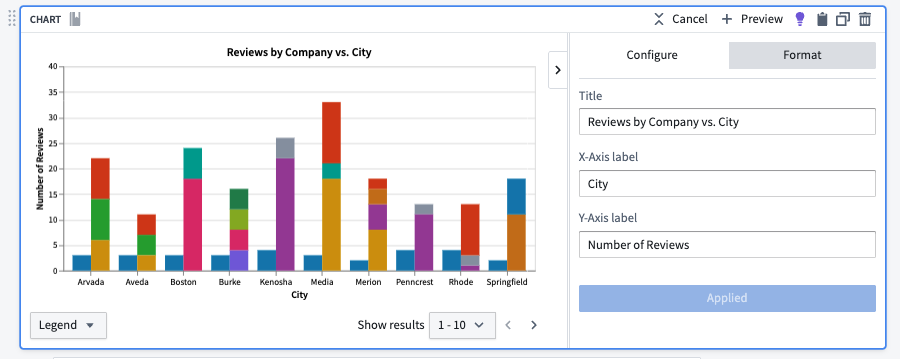
The Format tab for a Pipeline Builder chart, where you can edit the x- and y-axes labels and chart title.
View the chart
Once you complete the chart configuration, you can analyze and explore the visualization. Navigate through results using the left and right arrows or by selecting the result count from the Show results dropdown menu at the bottom right of the chart. To collapse or expand the color legend, select Legend at the bottom left of the chart.

Use the navigation arrows or the Show results dropdown menu to view all chart results.
Tell us what you think
We want to hear about how you use charts in Pipeline Builder to elevate your data analysis capabilities. Share your thoughts with Palantir Support, or let us know in our Developer Community ↗ forum using the pipeline-builder ↗ tag.
Python functions can now be run serverless
Date published: 2025-05-13
You can now run Python functions without any setup or user-managed resources using our high-performance serverless backend. All new Python functions will use the serverless backend unless specifically requested, and deployed Python functions can be switched to the serverless backend with no downtime.
Python functions can be used anywhere in the platform that Typescript functions are used, such as in ontology actions and Workshop. With this functionality, Python functions will execute similarly to Typescript functions, with no user-managed resources.
To get started on a new Python function, review the getting started walkthrough.
If you have existing deployed Python functions, you can migrate them to the serverless backend through Ontology Manager using the dropdown menu.
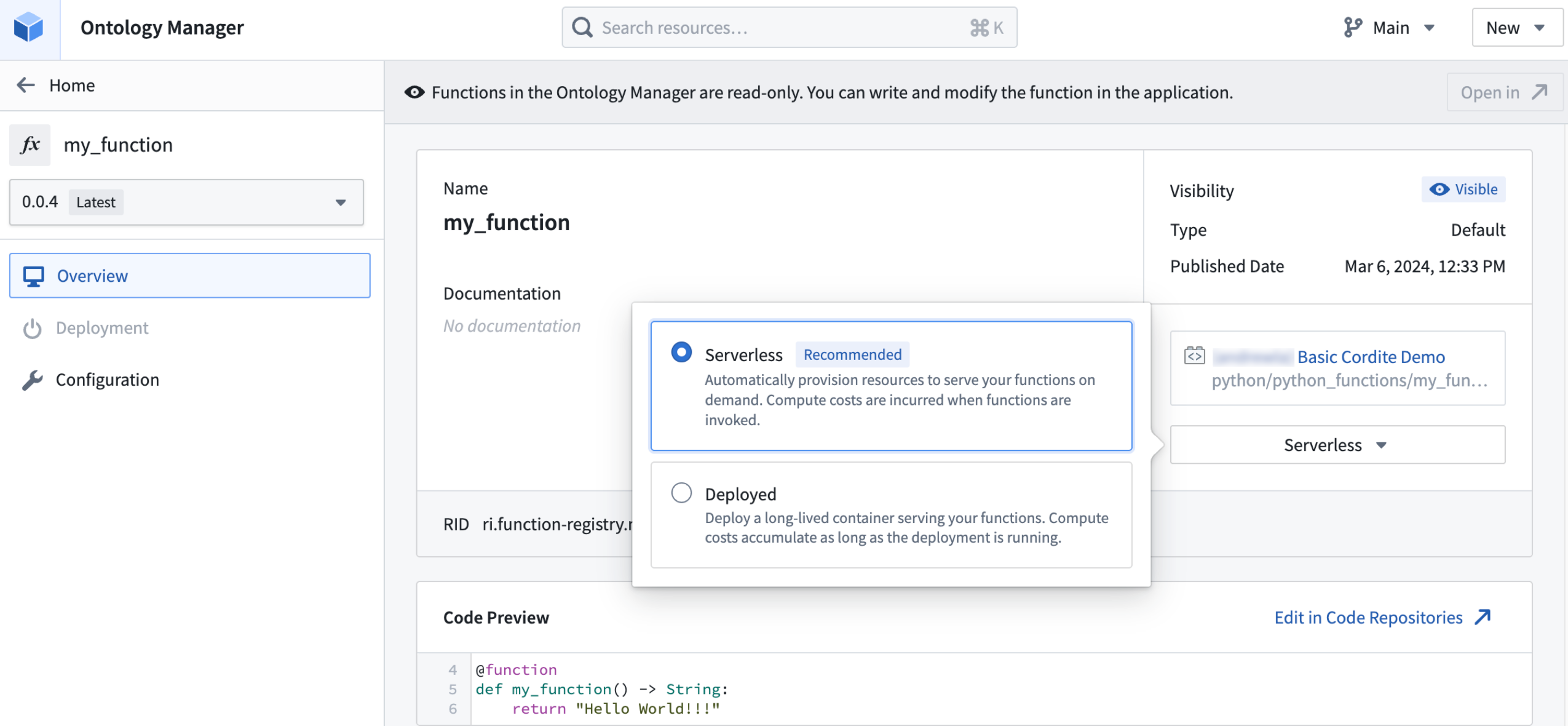
Existing functions using the deployed backend can be converted to serverless mode in Ontology Manager.
Define module-level color palettes for Workshop applications
Date published: 2025-05-13
Custom colors used within a Workshop application may now be defined and saved on the module level, allowing application builders to set a consistent palette and easily swap out colors used throughout their application. You can access a new Used colors panel from the module’s Settings panel which stores Saved colors defined by the builder and Unsaved colors used in the module.
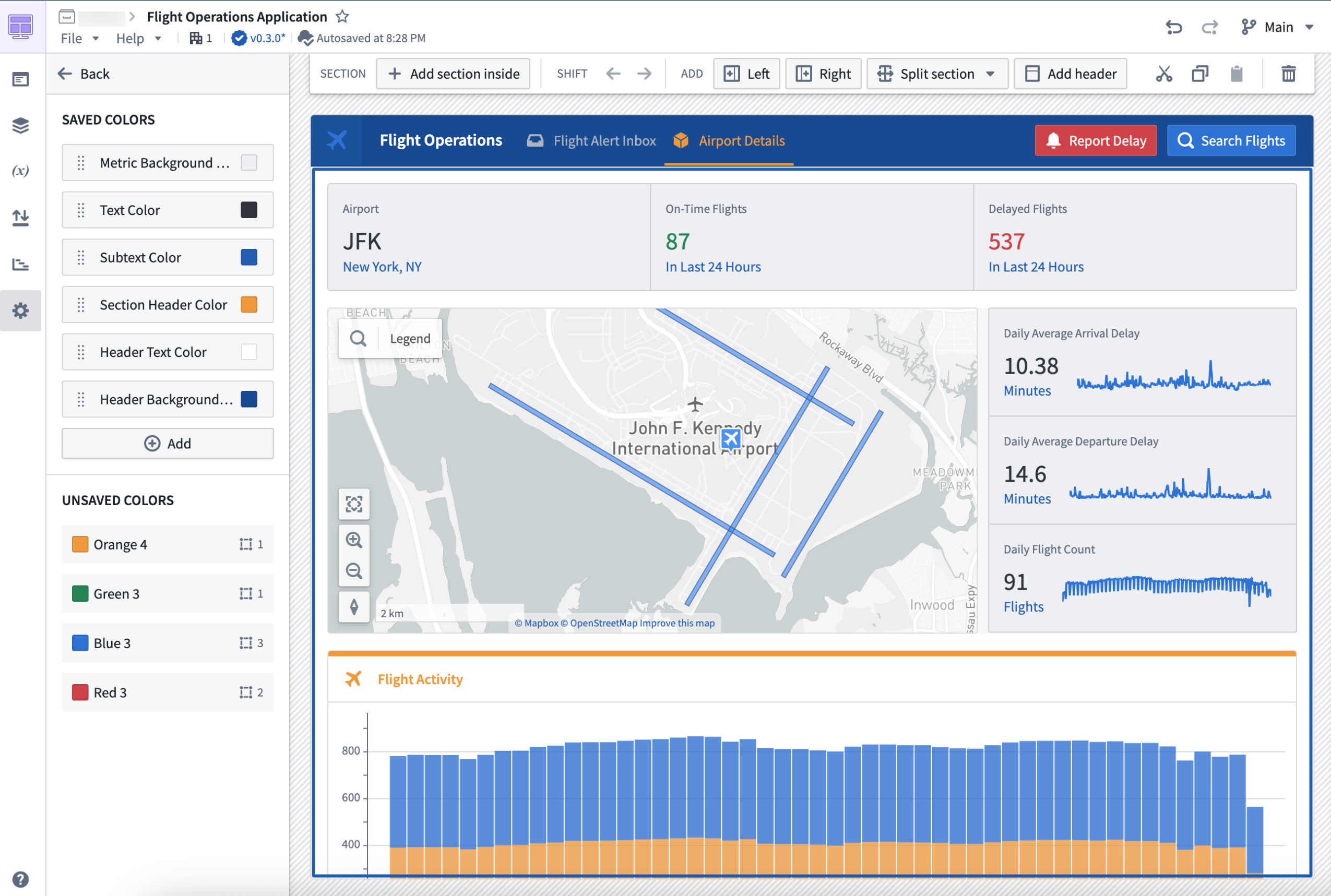
An example Workshop application, displaying saved and unsaved colors in the Settings panel.
- Saved colors are defined by the application builder on the module level. Builders may add colors to the Saved colors section that will allow these colors to be selectable when configuring custom colors in layouts and widgets. Builders may rename the saved colors they have defined, set separate colors to be used in light and dark modes for modules, and view color usage in layouts and widgets within the module. Saved colors may be easily edited by the builder and propagated to all layouts and widgets using the saved colors feature, allowing builders to quickly and easily update colors within their module.
- Unsaved colors represent custom colors not set in the Saved colors section used in layouts and widgets throughout the module. Builders may select to copy the hex code of unsaved colors to be easily used elsewhere and may also view the usage of these colors in layouts and widgets within the module.
To learn more about Workshop's used colors feature, review the product documentation.
GPT-4.1, GPT-4.1 mini, and GPT-4.1 nano are now available in AIP through Direct OpenAI API
Date published: 2025-05-13
OpenAI’s GPT-4.1, GPT-4.1 mini, and GPT-4.1 nano are now available for general use in AIP through Direct OpenAI API. GPT-4.1 is OpenAI’s flagship model for complex tasks and an improvement over GPT-4o for similar use cases, while the mini and nano models provide lower latency and costs. Comparisons between OpenAI’s models can be found in GPT-4.1’s release notes ↗. As with all new models, use-case specific evaluations are the best way to benchmark performance on your task.
GPT-4.1 models are available for enrollments that have accepted our AIP contract addendum and enabled Direct OpenAI usage in Control Panel. GPT-4.1 models are not currently available through Azure OpenAI or for geo-restricted enrollments yet. We will share an update when GPT-4.1 models through Azure are available in AIP. If your enrollment does not currently include these features, ask an enrollment administrator to review the AIP enablement settings and documentation.
GPT-4.1 models are available to use in all AIP features such as AIP Logic, Pipeline Builder, functions, transforms, and more.
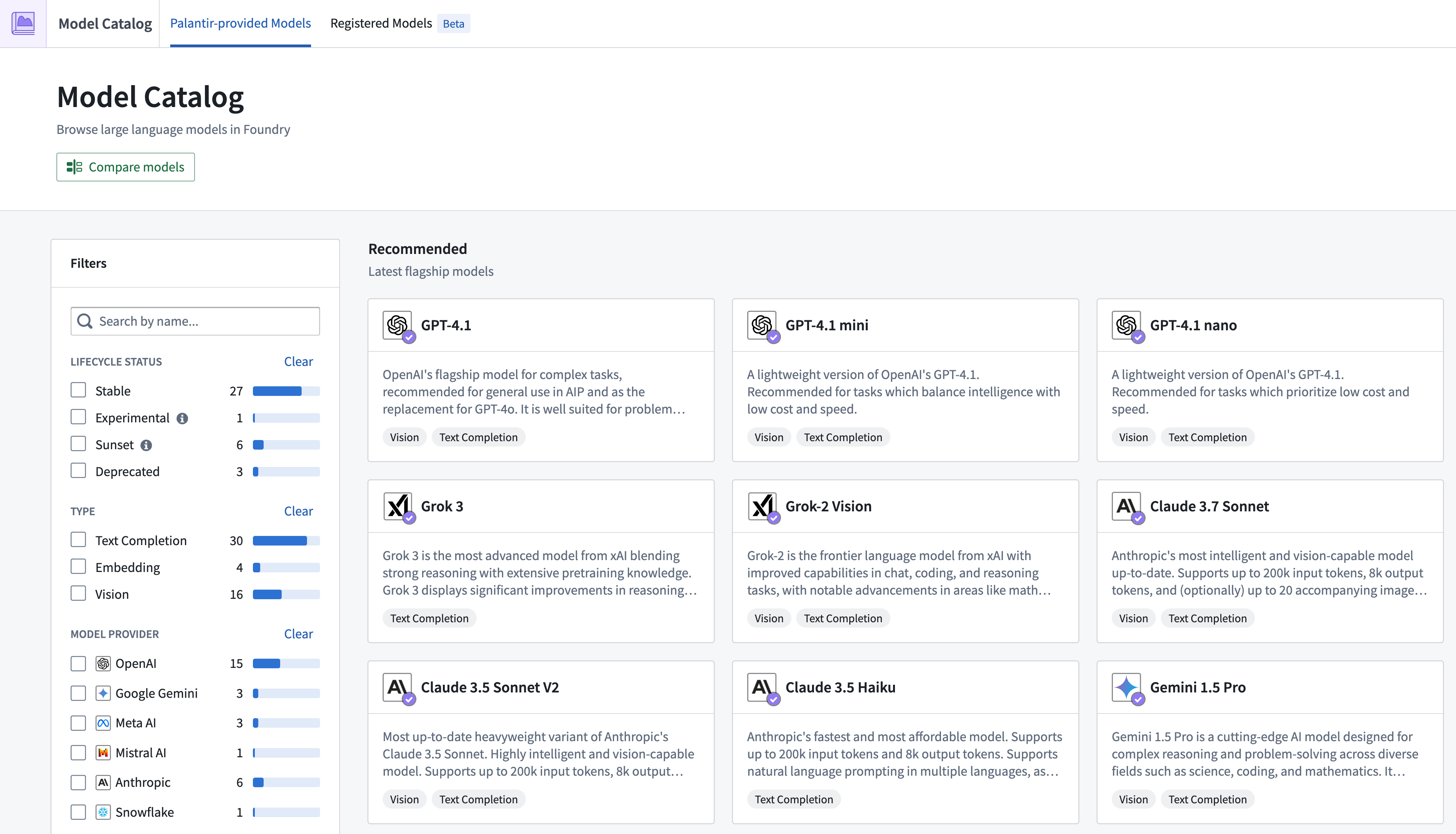
GPT-4.1, GPT-4.1 mini, and GPT-4.1 nano recommended in Model Catalog.
Text nodes now available in Pipeline Builder and Workflow Lineage
Date published: 2025-05-13
Text nodes is a new feature designed to help annotate and document your graphs in Pipeline Builder and Workflow Lineage. Text nodes allow you to add descriptions and explanations directly in your workspace, making it easier to highlight important information and provide context where needed.
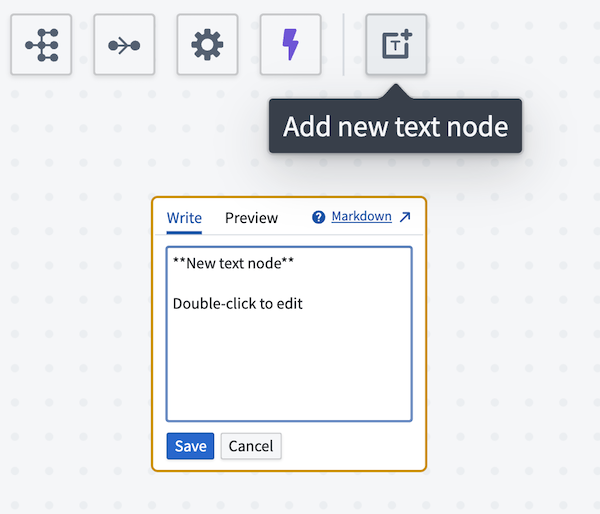
The Add new text node option, available in both Pipeline Builder and Workflow Lineage.
Key features
- Markdown support: Text nodes use Markdown, enabling you to format your text with ease.
- Customizable colors: Just like regular nodes, you can color text nodes to suit your graph's theme or emphasize sections.
- Independent layout: Text nodes are not affected by layout changes and remain independent of other nodes, providing flexibility in documentation placement.
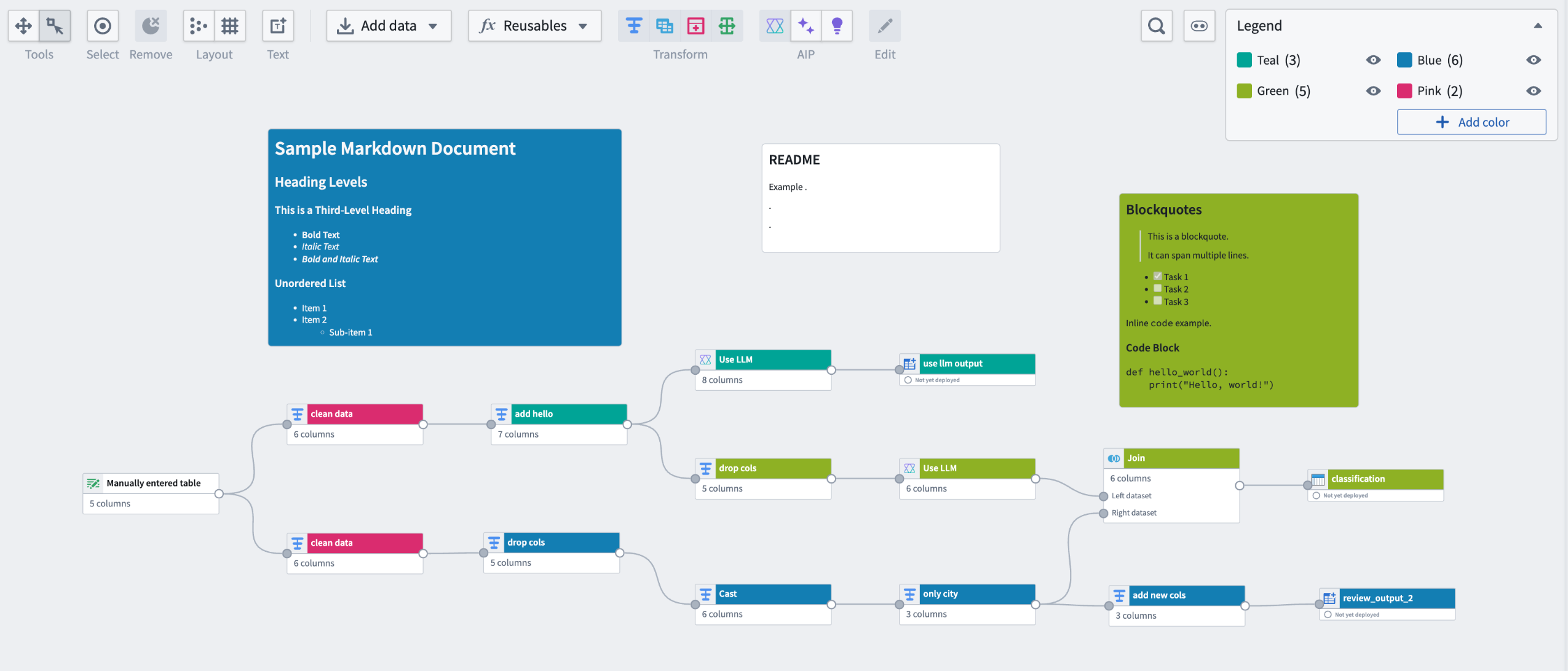
Examples of text nodes in a Pipeline Builder graph.
Get started with text nodes
To add a new text node, select the Add new text node option located in the upper left of your workspace in either Pipeline Builder or Workflow Lineage.

Adding a new text node in Workflow Lineage.
After adding a text node, you can edit text content by double-clicking the added node and entering Markdown content. You can adjust the size of the text node using the three lines in the bottom right corner. If your text exceeds the node's length, it will automatically become scrollable.
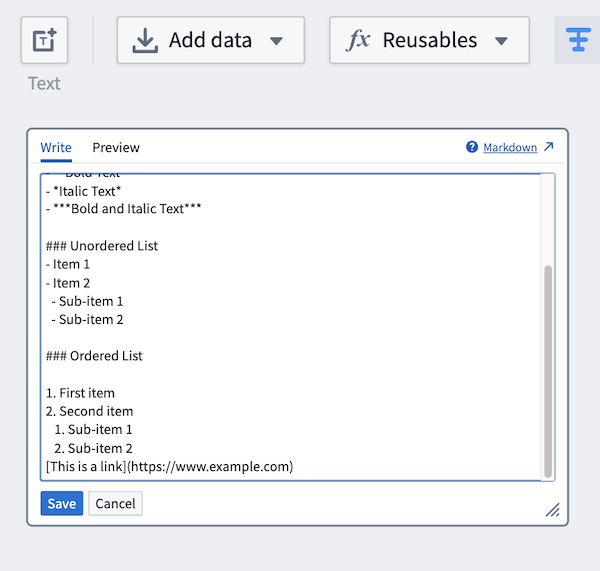
Sample Markdown content in a text node, with three lines in the bottom right corner used to resize the node.
After adding text content, you can color-code your text nodes by right-clicking a node and selecting Color nodes from the context menu. Choose from existing colors to match relevant nodes, or create new colors to highlight important information.
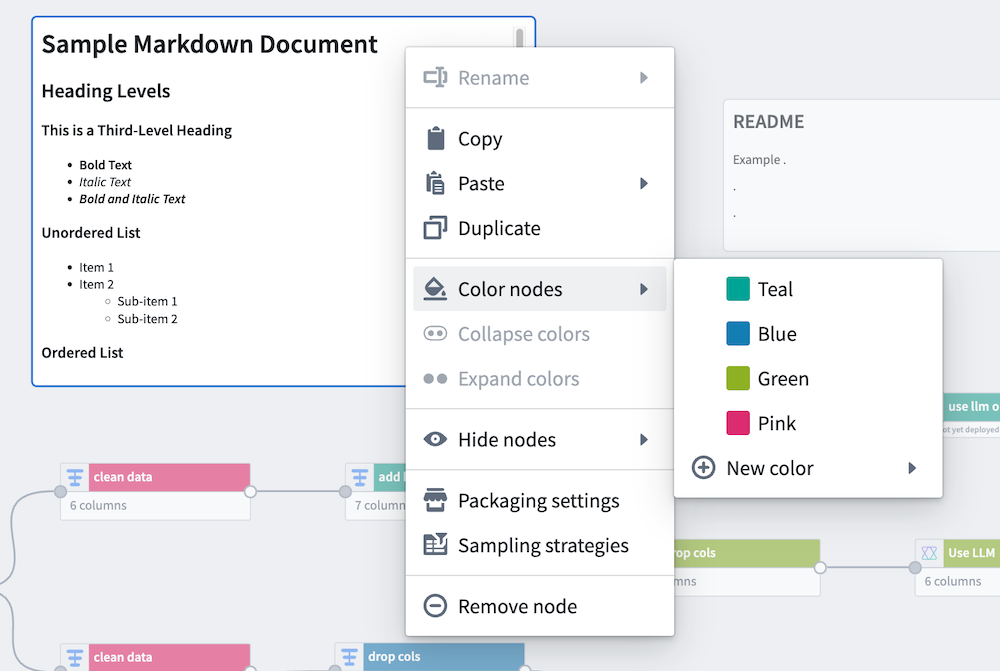
The option to add a new color in a Pipeline Builder text node.
Embed text nodes in your pipelines and workflows to give users a comprehensive understanding of graph sections and the ability to update relevant information as workflows evolve from a single, cohesive interface.
Share your thoughts
We want to hear what you think about our updates to Pipeline Builder and Workflow Lineage. Send your feedback to Palantir Support teams, or share it in our Developer Community ↗ using the [pipeline-builder ↗] tag.
Learn more about text nodes in Pipeline Builder and Workflow Lineage.
Compare output statistics for proposals in Pipeline Builder
Date published: 2025-05-13
Pipeline Builder now lets you view and compare output statistics on any node within a proposal to the corresponding node from the original branch.
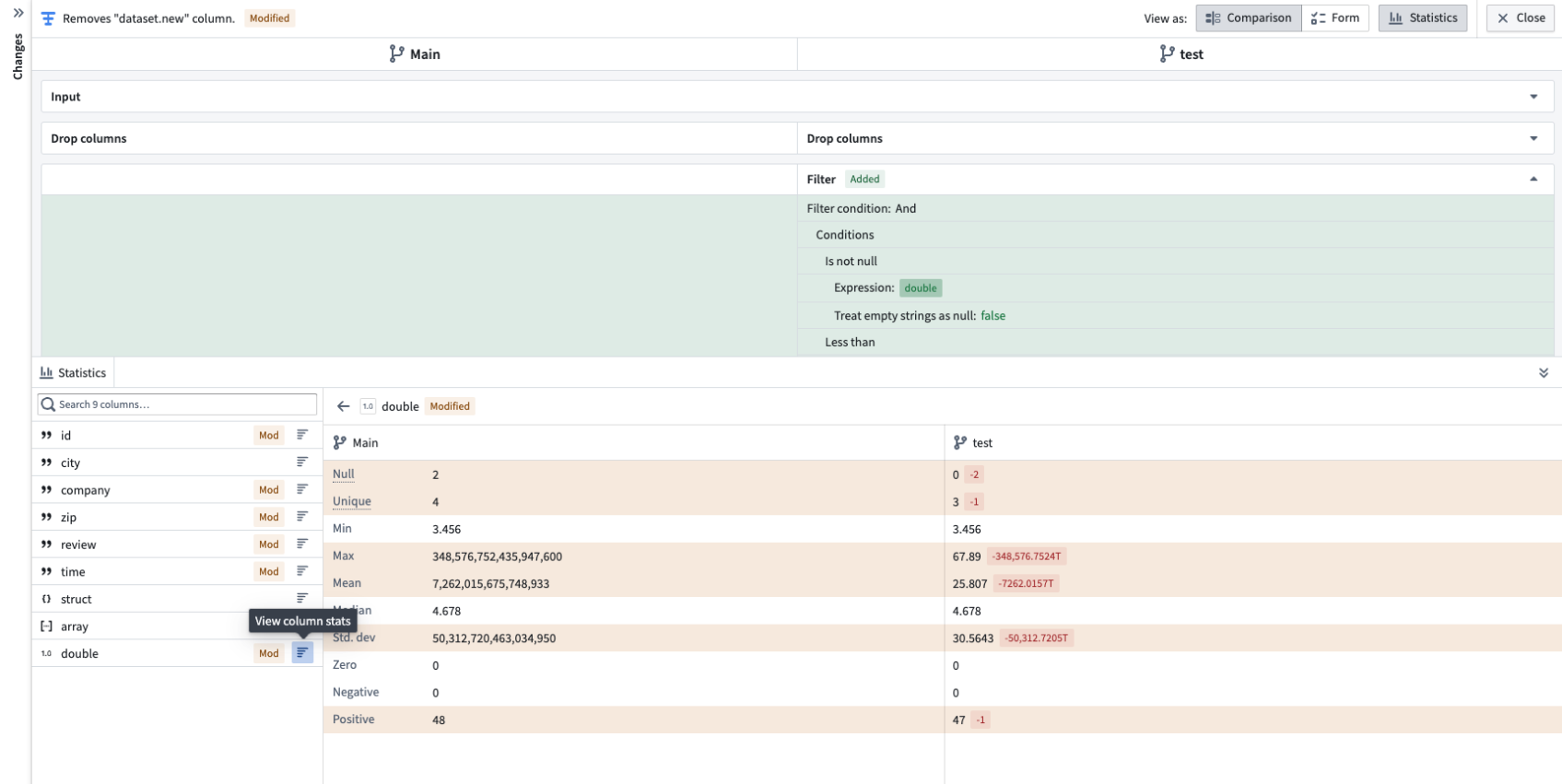
View and compare output statistics on any node for any column with the Comparison view in Pipeline Builder.
Benefit from the new Statistics panel and access a variety of metrics, including the following:
- General metrics: Number of null and unique values.
- String metrics: Minimum and maximum lengths, and count of strings needing trimming.
- Numeric metrics: Minimum, maximum, median, standard deviation, and count of negative and positive values.
You can also easily identify differences between the statistics of your branch and the main branch with color-coded metrics displayed to the right.
To access, start from the Proposals (or History) tab, and select Changes for the proposal.

Use the Changes option.
Double-click into the transform for which you want to see statistics, then select Statistics at the top right or use the tab on the bottom panel to access the statistics view.
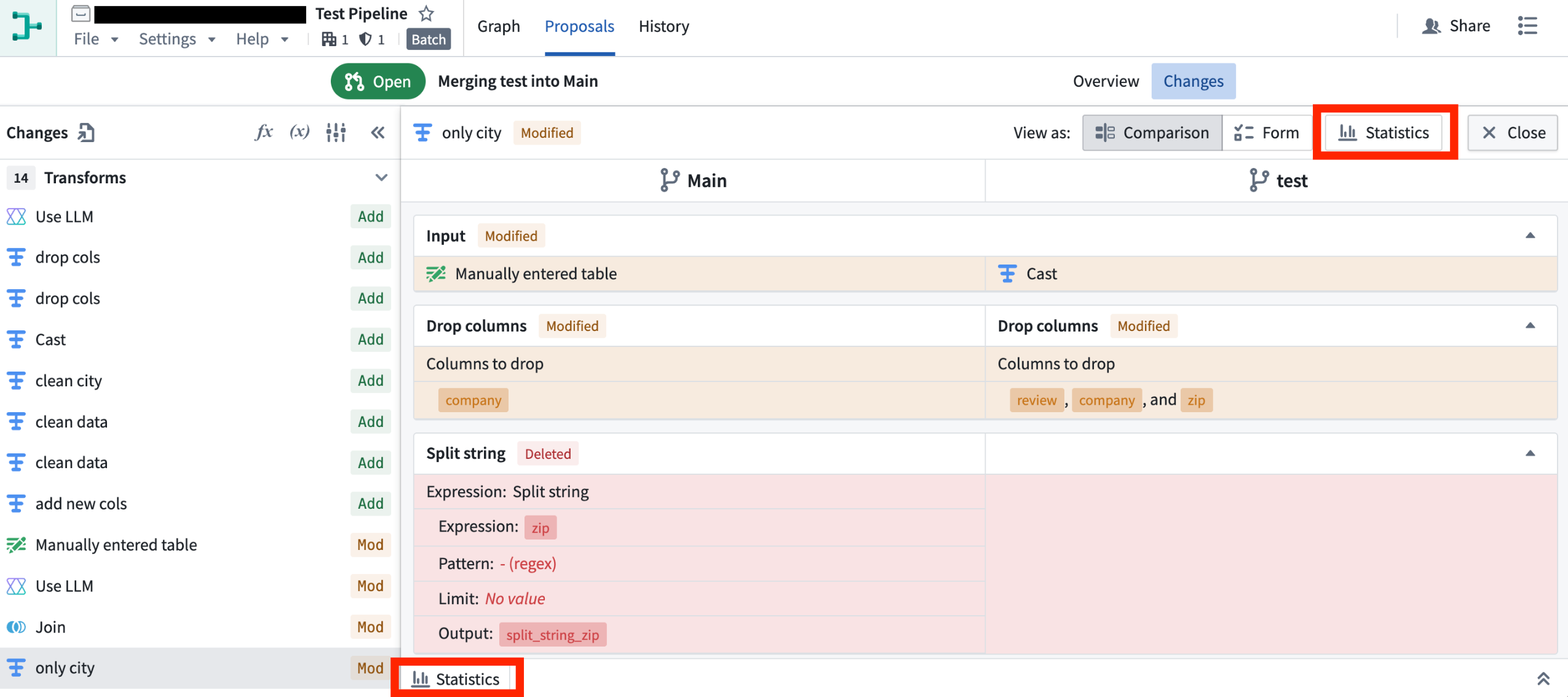
Use the Statistics view to explore and compare statistics for selected columns.
Learn more about these proposal statistics in the documentation.
Indefinite conversation retention in AIP Agent Studio and AIP Threads
Date published: 2025-05-06
Note: As of the week of April 27, 2026, AIP Agent Studio was renamed AIP Chatbot Studio. All existing features and functionalities remain unchanged.
Indefinite conversation retention is now supported in AIP Agent Studio and AIP Threads, allowing users to access conversation history and context past the previous limit of 24 hours. This feature is optional in AIP Agent Studio, and is on by default for most configurations in AIP Threads.
AIP Agent Studio
To opt in to indefinite conversation retention for an AIP Agent, select the Indefinite retention setting in the Conversation settings tab.

AIP Agent Studio conversation retention settings.
This configuration applies to a specific AIP Agent and version, and will apply to future versions unless disabled. Setting this configuration on one agent will not affect other agents. Previous versions of an agent that do not have this option enabled will not have indefinite conversation retention. This feature should be configured individually for all agents, and the changes must be saved for indefinite retention to take effect.
To differentiate conversations with 24-hour retention vs. indefinite retention, a banner will be displayed in AIP Agent Studio and Workshop for agents with finite retention.
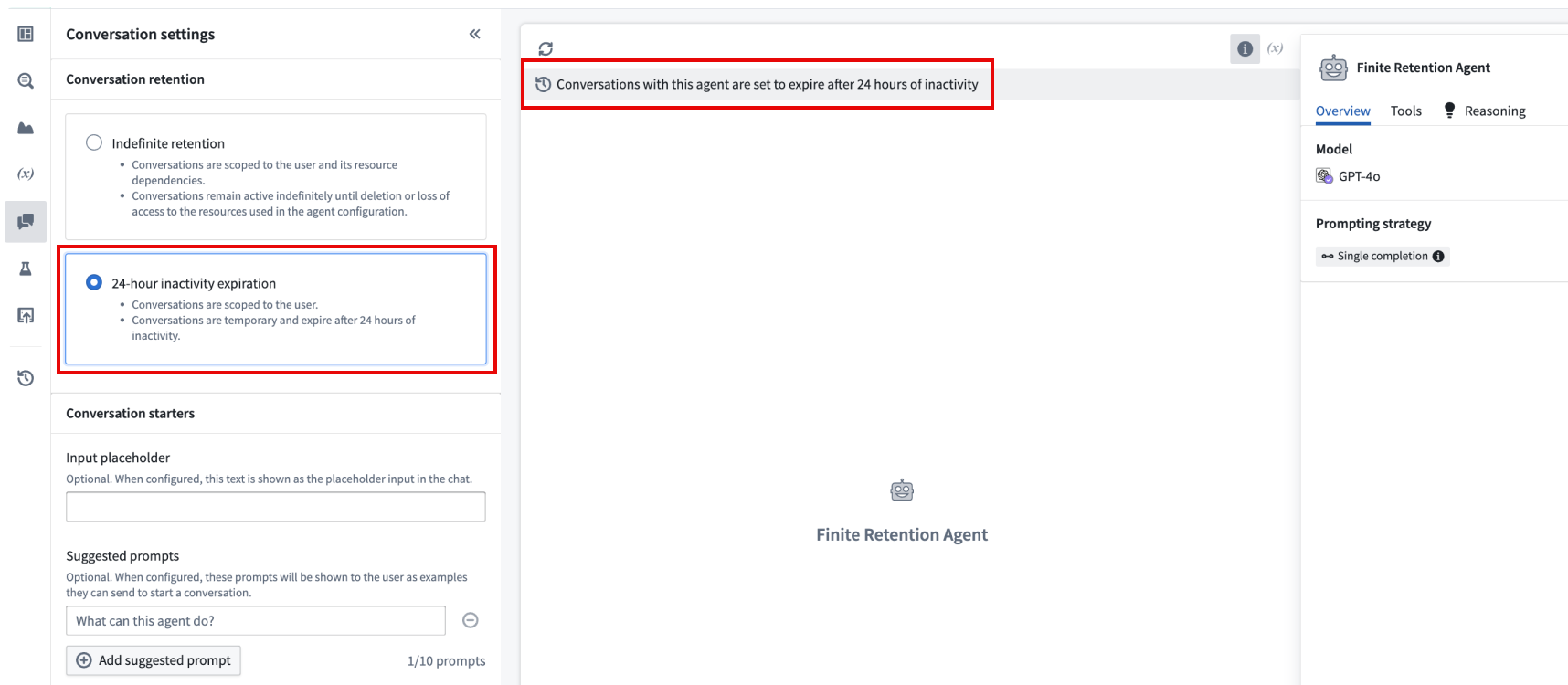
An AIP Agent configured with 24-hour retention In AIP Agent Studio.
Note that restricted view-backed object types are not supported with indefinite conversation retention. If you add a restricted view dependency to your agent, you will be unable to select the Indefinite retention option.
AIP Threads
In model mode, conversations will automatically opt into indefinite retention. In AIP Agent mode, conversations will assume the retention configuration of the AIP Agent.

AIP Threads conversations marked with indefinite and 24-hour retention.
Share your feedback
As we continue to develop AIP Agent Studio and AIP Threads, we want to hear about your experiences, and welcome your feedback. Share your thoughts with Palantir Support channels or our Developer Community ↗ using the aip-agent-studio ↗ and aip-threads ↗ tags.
For more information, review the AIP Agent Studio and AIP Threads documentation.
Introducing the new Workshop Map widget
Date published: 2025-05-06
Starting the week of May 5, the Workshop Map Application Template widget will become the Map widget, while the existing Map widget will be renamed to the Map [Legacy] widget. Going forward, the new Map widget is the recommended widget for geospatial workflows, providing better performance, new features, and more flexibility for large scale data.
Why did we make this change?
This change aims to clarify the recommended widget for geospatial workflows. We recommend that users consolidate map usage in Workshop to a single widget to minimize confusion for module builders, focus development efforts, and improve support timelines. There is considerable overlap between the two widgets, but the new Map widget focuses on large scale data and usability, so it is not intended to have exact feature parity with the Map [Legacy] widget. The Map [Legacy] widget will still be available, but is only recommended for mobile workflows and environments without WebGL. Module builders can opt to manually migrate to the new Map widget, but no action is required.
Advantages of the new Map widget
The new Map widget has the following advantages over the Map [Legacy] widget:
-
Support for large scale object sets in the order of millions of objects, compared to the 10 thousand object limit of the Map [Legacy] widget.
-
Tile-based rendering that enhances performance when handling complex geometries.
-
Dynamic layer visibility based on zoom levels.
-
A simple, more intuitive layer style configuration.
-
Removes the need to create external resources; the new Map widget can be fully configured in the Workshop widget editor.
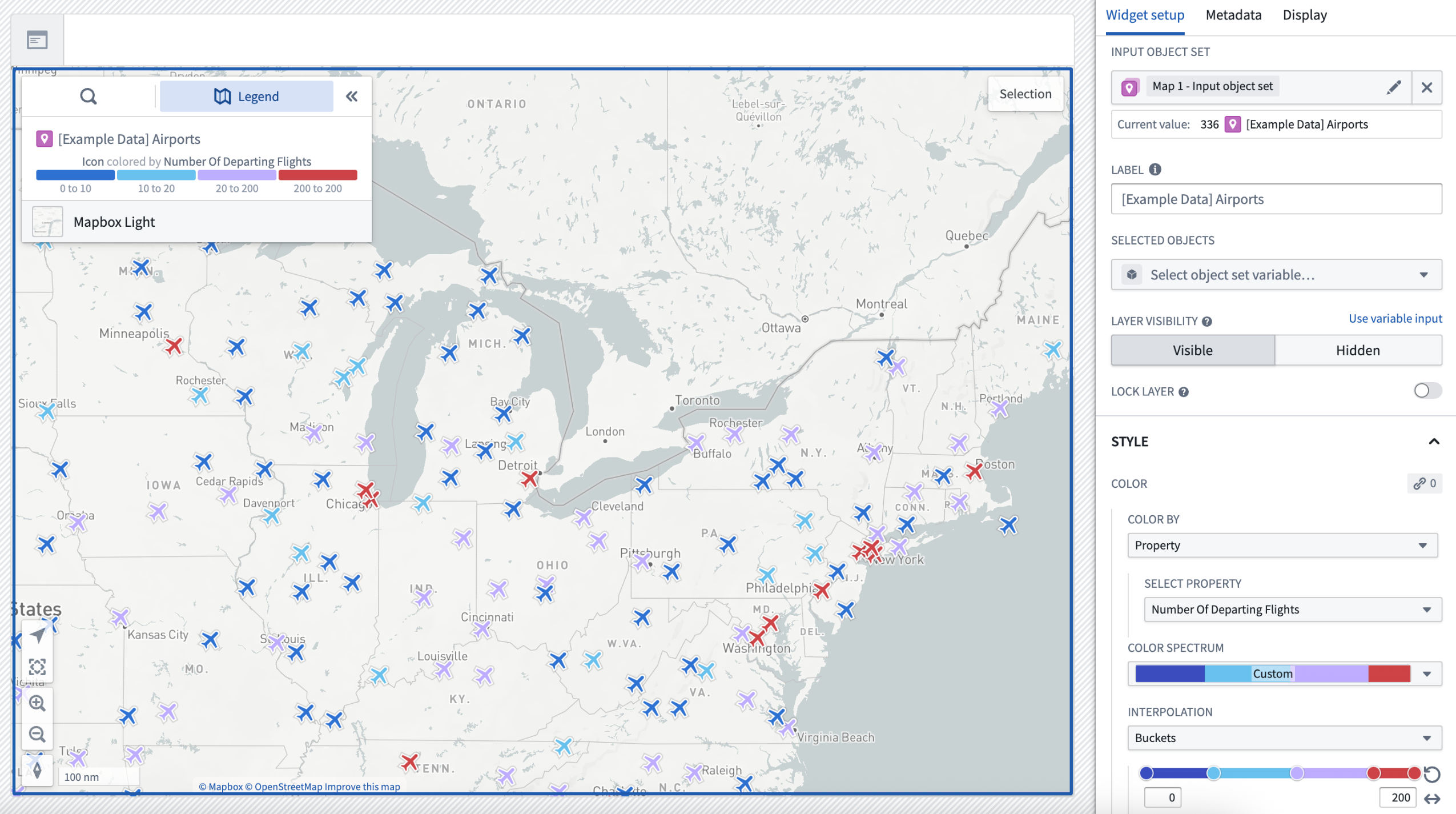
A sample map where layer styles are controlled by the widget configuration.
- Facilitates moving tracks and layer styling backed by time series properties, along with advanced timeline interactions.
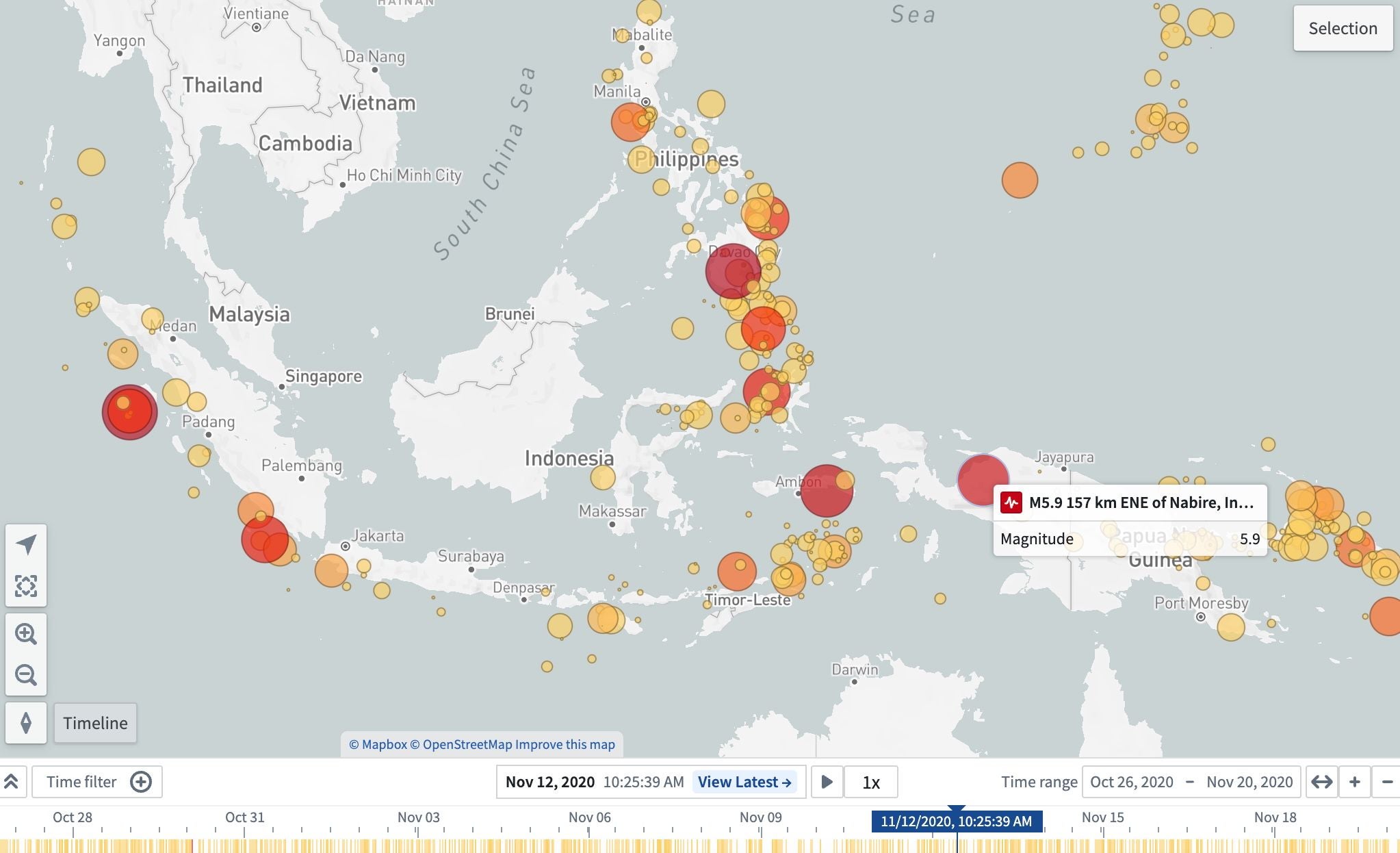
A sample map that explores the prevalence and magnitude of earthquakes using timeline and time-based layer styles.
Share your feedback
For more information on these changes, review the new Map widget documentation, how it differs from the Map [Legacy] widget, and Map application capabilities.
As we continue to develop Workshop and the Map widget, we want to hear about your experiences and welcome your feedback. Share your thoughts with Palantir Support channels or our Developer Community ↗ using the map tag ↗.
中文翻译
公告
提醒: 请注册 Foundry 新闻通讯(Foundry Newsletter),即可直接在收件箱中收到平台新产品、功能及改进的摘要。有关订阅方式的更多信息,请参阅 Foundry 新闻通讯与产品反馈渠道公告。
欢迎在我们的 开发者社区论坛 ↗ 分享您对这些公告的看法。
在资源管理中跟踪项目使用情况
发布日期:2025-05-29
资源管理(Resource Management)中现已推出全新的 项目使用情况 页面,为用户提供更广泛的访问权限,以便高效跟踪其项目中的计算和存储使用情况。
全新的 项目使用情况 页面,展示了一个包含多种源类型的示例项目结果。
这一更新后的界面允许您查看计算和存储使用情况的图表,并按照为您的注册(enrollment)配置的维度进行展示。这些图表使用颜色编码来轻松识别不同的使用来源。此外,您还可以按日期范围、时段周期(每日、每周或每月)以及源类型对显示结果进行筛选。
项目视图页面与完整资源管理视图中的 分析 选项卡类似,但存在一些显著差异:
- 每次仅显示单个项目的使用情况。
- 在项目中拥有
Owner角色的用户默认拥有项目使用情况页面的访问权限。 - 不提供成本和账单洞察。
要导航至更新后的使用情况界面,请选择项目导航面板底部的 项目使用情况。
项目导航面板,包含查看项目使用情况的链接。
通过 AIP 预留容量分配专用 LLM 资源
发布日期:2025-05-27
AIP 预留容量(reserved capacity)现已推出,支持为生产工作流分配额外的每分钟令牌数(TPM)和每分钟请求数(RPM)。预留容量是资源管理应用程序中的一项 LLM 容量管理工具,有助于保护关键工作流,确保其不受项目速率或注册限制的约束,从而提高正常运行时间和可靠性。
为特定模型分配的预留容量示例,显示有权访问额外容量的项目列表以及各项目之间的百分比分配。
由于预留容量在现有注册限制之外额外分配 LLM 资源,因此生产工作流无需与其他资源竞争共享的 LLM 容量池,从而实现不间断运行。
主要功能
- 预留容量在项目级别配置,通过向指定项目分配特定数量的 TPM 和 RPM 来实现。这适用于单个模型。
- 项目可以分配总预留容量的百分比,使您能够优先处理最关键的资源,并根据组织需求自定义 LLM 分配。
- 当预留容量用尽时,由于预留容量是在现有注册容量之外提供的,因此分配了预留容量的项目和资源将自动使用现有的共享项目和注册限制。
请联系您的 Palantir 管理员以请求预留容量分配。分配后,拥有 resource management administrator 权限的用户可以将预留容量分配给特定项目。
请注意,我们无法保证所有模型在任何时候都能使用预留容量。这取决于 Azure、AWS、GCP、xAI 等模型提供商的可用性和产品。我们致力于在所有行业领先的旗舰模型上提供预留容量。
您的反馈至关重要
我们期待了解您在使用 AIP 资源管理方面的经验,并欢迎您的反馈。请通过 Palantir 支持渠道或我们的 开发者社区 ↗(使用 language-model-service ↗ 和 resource-management ↗ 标签)分享您的想法。
注意:AIP 功能的可用性可能会发生变化,并且可能因客户而异。
在工作流沿袭中批量更新本体角色
发布日期:2025-05-22
用户现在可以轻松高效地在工作流沿袭(Workflow Lineage)中对本体角色权限进行批量更新,从而无需切换到本体管理器(Ontology Manager)即可实现无缝的工作流资源管理体验。当用户在工作流沿袭中理解、管理和调试本体工作流时,他们可能会发现需要更新给定本体资源的权限,以解除对协作者的阻碍或为这些工作流增加额外的安全性。新的批量更新功能允许这些用户直接在工作流探索视图中解决权限问题,从而简化其管理和调试流程。
工作流沿袭中的 编辑本体资源权限 窗口,您可以在其中对本体角色进行批量更新。
要开始操作,请导航至工作流沿袭中您想要修改的本体资源。然后,右键单击该资源并从上下文菜单中选择 编辑权限。这将打开 编辑本体资源权限 窗口,您将在此处看到所选资源。
本体资源的上下文菜单,您可以在其中选择 编辑权限。
在 要授予的本体角色 部分,搜索您要添加的组并选择要授予的角色。该角色将随后出现在所选组旁边,表示已成功选择。您还可以将本体的所有查看者的默认角色更改为 Ontology Viewer 或 Ontology Discoverer。
使用搜索栏查找组并为给定资源授予本体角色。
做出选择后,通过选择右下角的 授予角色 来确认您的选择。将出现一个对话框,询问 “您确定要共享这些资源吗?”。要继续,请选择 是的,共享。请注意,此操作是立即生效且无法撤销的。
确认提示,用于验证您的本体角色授予选择。
在我们的文档中了解有关使用工作流沿袭管理和调试工作流的更多信息。
我们期待您的反馈
无需返回本体管理器更新本体资源权限,请尝试使用工作流沿袭中的批量更新功能,以简化基于本体的工作流的管理和调试任务。然后,通过 Palantir 支持或我们的 开发者社区 ↗ 与我们分享您的反馈。
媒体集转换和输出现已在 Pipeline Builder 中可用
发布日期:2025-05-22
自 5 月 26 日起,Pipeline Builder 中将提供一系列新的媒体集(media set)表达式,允许用户转换媒体并输出媒体集。此前,媒体集需要转换为数据集,并且只能使用 Python 转换来转换媒体。借助这些新的专用表达式,用户可以转换图像为文档,反之亦然,操作图像,拆分 PDF 文件等,从而在 Pipeline Builder 中最大限度地发挥非结构化数据的潜力。
开始使用
要开始使用媒体集转换,请在工作区中选择一个媒体集节点,然后选择 转换,再从转换页面中选择一个新的媒体表达式。
Pipeline Builder 中媒体集输入上可用的媒体转换列表。
预览的工作方式与数据集相同,因此您可以在应用表达式之前进行预览。然后,您可以将媒体集添加为管道输出。这可以在右侧的侧边栏中进行配置。
在 Pipeline Builder 中添加新的媒体集输出。
利用这些新的媒体集转换,释放利用非结构化数据的新可能性,并简化 Pipeline Builder 中的媒体转换过程。请访问文档了解有关媒体集转换和媒体集输出的更多信息。
您的反馈至关重要
我们期待了解您的体验,并欢迎您在我们在 Pipeline Builder 中开发更多媒体集转换时提供反馈。请通过 Palantir 支持渠道或我们的 开发者社区 ↗(使用 pipeline-builder 标签 ↗)分享您的想法。
在 Pipeline Builder 中使用图表分析数据
发布日期:2025-05-20
您现在可以通过 Pipeline Builder 中的图表为您的转换节点增加一层数据洞察。旨在增强您的数据分析能力,图表可帮助您快速分析和测试派生数据,而无需离开 Pipeline Builder 应用程序。目前,Pipeline Builder 支持直方图和柱状图生成。
Pipeline Builder 中的示例图表,显示按城市划分的公司评论数量数据。
开始使用
您可以直接将图表添加到 Pipeline Builder 图中的转换节点。要添加图表,请双击转换节点以打开路径视图。在搜索栏中,搜索“chart”或“histogram”。或者,选择搜索栏右侧的 可视化。
转换路径视图,您可以通过搜索或选择 可视化(以红色标出)来生成转换图。
请注意,您只能通过转换节点生成图表。要在应用连接、合并或拆分后创建图表,请创建一个新的转换节点并双击以打开路径视图。
示例转换节点。
配置图表
在图表创建面板的 配置 选项卡中,为 x 轴和 y 轴选择值。然后,为 y 轴选择多种聚合方式,包括去重计数、最大值、最小值、中位数、众数、行数、总和等。您还可以通过选择 添加项 向单个图表添加多个聚合。
具有两个聚合(行数和去重计数)的示例图表。
在 格式 选项卡中,您可以更改标题、x 轴标签和 y 轴标签。
Pipeline Builder 图表的 格式 选项卡,您可以在其中编辑 x 轴和 y 轴标签以及图表标题。
查看图表
完成图表配置后,您可以分析和探索可视化效果。使用左右箭头或从图表右下角的 显示结果 下拉菜单中选择结果计数来浏览结果。要折叠或展开颜色图例,请选择图表左下角的 图例。
使用导航箭头或 显示结果 下拉菜单查看所有图表结果。
告诉我们您的想法
我们期待了解您如何使用 Pipeline Builder 中的图表来提升数据分析能力。请通过 Palantir 支持分享您的想法,或使用 pipeline-builder ↗ 标签在我们的 开发者社区 ↗ 论坛中告诉我们。
Python 函数现在可以无服务器方式运行
发布日期:2025-05-13
您现在可以使用我们高性能的无服务器后端运行 Python 函数,无需任何设置或用户管理的资源。除非特别要求,所有新的 Python 函数都将使用无服务器后端,并且已部署的 Python 函数可以切换到无服务器后端,且不会造成停机。
Python 函数可以在平台任何使用 Typescript 函数的地方使用,例如在本体操作和 Workshop 中。借助此功能,Python 函数的执行方式将与 Typescript 函数类似,无需用户管理资源。
要开始使用新的 Python 函数,请查看入门指南。
如果您有现有的已部署 Python 函数,可以通过本体管理器使用下拉菜单将它们迁移到无服务器后端。
使用已部署后端的现有函数可以在本体管理器中转换为无服务器模式。
为 Workshop 应用程序定义模块级调色板
发布日期:2025-05-13
在 Workshop 应用程序中使用的自定义颜色现在可以在模块级别定义和保存,从而允许应用程序构建者设置一致的调色板,并轻松替换应用程序中使用的颜色。您可以从模块的 设置 面板访问一个新的 已用颜色 面板,该面板存储构建者定义的 已保存颜色 和模块中使用的 未保存颜色。
示例 Workshop 应用程序,在 设置 面板中显示已保存和未保存的颜色。
- 已保存颜色 由应用程序构建者在模块级别定义。构建者可以向 已保存颜色 部分添加颜色,这些颜色在配置布局和小部件的自定义颜色时将是可选的。构建者可以重命名他们定义的已保存颜色,为模块的浅色和深色模式设置单独的颜色,并查看模块内布局和小部件中的颜色使用情况。构建者可以轻松编辑已保存的颜色,并将其传播到所有使用已保存颜色功能的布局和小部件,从而使构建者能够快速轻松地更新其模块中的颜色。
- 未保存颜色 表示未在 已保存颜色 部分中设置但在整个模块的布局和小部件中使用的自定义颜色。构建者可以选择复制未保存颜色的十六进制代码以便在其他地方轻松使用,也可以查看这些颜色在模块内布局和小部件中的使用情况。
要了解有关 Workshop 已用颜色功能的更多信息,请查看产品文档。
GPT-4.1、GPT-4.1 mini 和 GPT-4.1 nano 现可通过 Direct OpenAI API 在 AIP 中使用
发布日期:2025-05-13
OpenAI 的 GPT-4.1、GPT-4.1 mini 和 GPT-4.1 nano 现已在 AIP 中通过 Direct OpenAI API 全面可用。GPT-4.1 是 OpenAI 用于复杂任务的旗舰模型,在类似用例上比 GPT-4o 有所改进,而 mini 和 nano 模型则提供更低的延迟和成本。OpenAI 模型之间的比较可以在 GPT-4.1 的发布说明 ↗ 中找到。与所有新模型一样,针对特定用例的评估是衡量任务性能的最佳方式。
GPT-4.1 模型适用于已接受我们的 AIP 合同附录并在控制面板中启用 Direct OpenAI 使用的注册。GPT-4.1 模型目前尚不通过 Azure OpenAI 或针对地理限制的注册提供。当通过 Azure 的 GPT-4.1 模型在 AIP 中可用时,我们将分享更新。如果您的注册当前不包含这些功能,请让注册管理员查看 AIP 启用设置和文档。
GPT-4.1 模型可用于所有 AIP 功能,例如 AIP Logic、Pipeline Builder、函数、转换等。
模型目录中推荐的 GPT-4.1、GPT-4.1 mini 和 GPT-4.1 nano。
文本节点现已在 Pipeline Builder 和工作流沿袭中可用
发布日期:2025-05-13
文本节点(Text nodes)是一项新功能,旨在帮助您在 Pipeline Builder 和 工作流沿袭 中注释和记录您的图表。文本节点允许您直接在工作区中添加描述和解释,从而更容易突出显示重要信息并在需要时提供上下文。
- 添加新文本节点 选项,在 Pipeline Builder 和工作流沿袭中均可使用。*
主要功能
- Markdown 支持: 文本节点使用 Markdown,使您能够轻松格式化文本。
- 可自定义颜色: 与常规节点一样,您可以为文本节点着色以匹配图表的主题或强调某些部分。
- 独立布局: 文本节点不受布局更改的影响,并且独立于其他节点,从而在文档放置方面提供灵活性。
Pipeline Builder 图中的文本节点示例。
开始使用文本节点
要添加新的文本节点,请选择位于 Pipeline Builder 或工作流沿袭工作区左上角的 添加新文本节点 选项。
在工作流沿袭中添加新的文本节点。
添加文本节点后,您可以通过双击添加的节点并输入 Markdown 内容来编辑文本内容。您可以使用右下角的三条线调整文本节点的大小。如果您的文本超出节点的长度,它将自动变为可滚动。
文本节点中的示例 Markdown 内容,右下角有三条线用于调整节点大小。
添加文本内容后,您可以通过右键单击节点并从上下文菜单中选择 颜色节点 来为文本节点着色。从现有颜色中选择以匹配相关节点,或创建新颜色以突出显示重要信息。
在 Pipeline Builder 文本节点中添加新颜色的选项。
将文本节点嵌入到您的管道和工作流中,使用户能够全面了解图表的各个部分,并能够随着工作流的演变从单一、统一的界面更新相关信息。
分享您的想法
我们期待听到您对我们 Pipeline Builder 和工作流沿袭更新的看法。将您的反馈发送给 Palantir 支持团队,或使用 [pipeline-builder ↗] 标签在我们的 开发者社区 ↗ 中分享。
在 Pipeline Builder 和 工作流沿袭 中了解有关文本节点的更多信息。
在 Pipeline Builder 中比较提案的输出统计信息
发布日期:2025-05-13
Pipeline Builder 现在允许您查看并比较提案(proposal)中任何节点与原始分支中对应节点的输出统计信息。
使用 Pipeline Builder 中的 比较 视图,查看并比较任何节点上任何列的输出统计信息。
受益于新的 统计信息 面板,您可以访问各种指标,包括以下内容:
- 常规指标: 空值和唯一值的数量。
- 字符串指标: 最小和最大长度,以及需要修剪的字符串计数。
- 数值指标: 最小值、最大值、中位数、标准差,以及负值和正值的计数。
您还可以通过右侧显示的颜色编码指标,轻松识别分支与主分支统计信息之间的差异。
要访问,请从 提案(或 历史记录)选项卡开始,然后为提案选择 更改。
使用 更改 选项。
双击您想要查看统计信息的转换,然后选择右上角的 统计信息 或使用底部面板上的选项卡来访问统计信息视图。
使用 统计信息 视图来探索和比较所选列的统计信息。
AIP Agent Studio 和 AIP Threads 中的无限期对话保留
发布日期:2025-05-06
注意: 自 2026 年 4 月 27 日起,AIP Agent Studio 已更名为 AIP Chatbot Studio。所有现有特性和功能保持不变。
AIP Agent Studio 和 AIP Threads 现在支持无限期对话保留(indefinite conversation retention),允许用户访问超过之前 24 小时限制的对话历史和上下文。此功能在 AIP Agent Studio 中是可选的,并且在 AIP Threads 的大多数配置中默认开启。
AIP Agent Studio
要为 AIP Agent 选择无限期对话保留,请在 对话设置 选项卡中选择 无限期保留 设置。
AIP Agent Studio 对话保留设置。
此配置适用于特定的 AIP Agent 和版本,并且除非禁用,否则将应用于未来的版本。在一个 Agent 上设置此配置不会影响其他 Agent。未启用此选项的 Agent 的先前版本将不会具有无限期对话保留。此功能应为所有 Agent 单独配置,并且必须保存更改才能使无限期保留生效。
为了区分 24 小时保留和无限期保留的对话,对于具有有限保留期的 Agent,将在 AIP Agent Studio 和 Workshop 中显示一个横幅。
在 AIP Agent Studio 中配置了 24 小时保留的 AIP Agent。
请注意,基于受限视图的对象类型不支持无限期对话保留。如果您向 Agent 添加了受限视图依赖项,则将无法选择 无限期保留 选项。
AIP Threads
在模型模式下,对话将自动选择无限期保留。在 AIP Agent 模式下,对话将采用 AIP Agent 的保留配置。
标记为无限期和 24 小时保留的 AIP Threads 对话。
分享您的反馈
在我们继续开发 AIP Agent Studio 和 AIP Threads 的过程中,我们期待了解您的体验,并欢迎您的反馈。请通过 Palantir 支持渠道或我们的 开发者社区 ↗(使用 aip-agent-studio ↗ 和 aip-threads ↗ 标签)分享您的想法。
有关更多信息,请查看 AIP Agent Studio 和 AIP Threads 文档。
全新 Workshop 地图小部件介绍
发布日期:2025-05-06
自 5 月 5 日起,Workshop 地图应用程序模板小部件将更名为地图小部件(Map widget),而现有的地图小部件将重命名为地图 [旧版] 小部件(Map [Legacy] widget)。今后,新的地图小部件是地理空间工作流的推荐小部件,可为大规模数据提供更好的性能、新功能和更高的灵活性。
我们为何做出此更改?
此更改旨在澄清地理空间工作流的推荐小部件。我们建议用户将 Workshop 中的地图使用整合到单个小部件,以最大程度地减少模块构建者的困惑,集中开发工作,并改善支持时间线。两个小部件之间存在大量重叠,但新的地图小部件侧重于大规模数据和可用性,因此不打算与地图 [旧版] 小部件具有完全的功能对等。地图 [旧版] 小部件仍将可用,但仅推荐用于移动工作流和没有 WebGL 的环境。模块构建者可以选择手动迁移到新的地图小部件,但无需采取任何操作。
新地图小部件的优势
与地图 [旧版] 小部件相比,新的地图小部件具有以下优势:
-
支持数百万量级的大规模对象集,而地图 [旧版] 小部件的对象限制为 1 万个。
-
基于瓦片的渲染,在处理复杂几何图形时增强性能。
-
基于缩放级别的动态图层可见性。
-
简单、更直观的图层样式配置。
-
无需创建外部资源;新的地图小部件可以在 Workshop 小部件编辑器中完全配置。
示例地图,其中图层样式由小部件配置控制。
- 促进由时间序列属性支持的移动轨迹和图层样式,以及高级时间线交互。
示例地图,使用时间线和基于时间的图层样式探索地震的普遍性和震级。
分享您的反馈
有关这些更改的更多信息,请查看新地图小部件文档、它与地图 [旧版] 小部件的区别以及地图应用程序功能。
在我们继续开发 Workshop 和地图小部件的过程中,我们期待了解您的体验,并欢迎您的反馈。请通过 Palantir 支持渠道或我们的 开发者社区 ↗(使用 map 标签 ↗)分享您的想法。