Announcements(公告)
REMINDER: Sign up for the Foundry Newsletter to receive a summary of new products, features, and improvements across the platform directly to your inbox. For more information on how to subscribe, see the Foundry Newsletter and Product Feedback channels announcement.
Share your thoughts about these announcements in our Developer Community Forum ↗.
Ontology and AIP Observability: Monitoring is now enabled for functions and actions
Date published: 2025-10-24
Monitoring capabilities for functions and actions are now available, empowering you to proactively ensure the reliability of your critical workflows. Monitoring views can be used to track a wide range of resources across the platform and send notifications through multiple channels when alerts are triggered.
What's new?
Monitoring views now support two new monitor rule types for functions and actions:
- Duration p95 monitor: Get alerted when the 95th percentile (p95) of execution duration, calculated over a rolling window of recent data points, exceeds a configurable threshold.
- Failure count monitor: Receive alerts when the number of failures surpasses a configurable threshold within your set time window.
These new monitors can be customized to notify you through a variety of mechanisms so you are always aware when something unexpected occurs.
Why it matters
Running functions and actions in production requires trust that everything is operating as expected. Previously, teams had to rely on end users to report problems, often resulting in delays and potential missed issues. With these new monitoring capabilities, you can detect problems automatically, respond faster, and ensure your services are reliable before your users even notice.
Get started
To start monitoring your functions and actions, follow the steps below:
- Open the Data Health application.
- Navigate to the Monitoring views tab to search for or create a monitoring view.
- Select View details, then navigate to the Manage monitors tab.
- Select Add new alerts > Add monitoring rules.
- From the dropdown menu, choose Functions or Action types as as scope.
- In the dialog that appears, select the resources to monitor. Then choose Confirm selection in the bottom right corner.
- In the + Add monitoring rules dropdown menu, choose the Function duration 95 or Number of action failures in window rule.
- Review the summary and save.
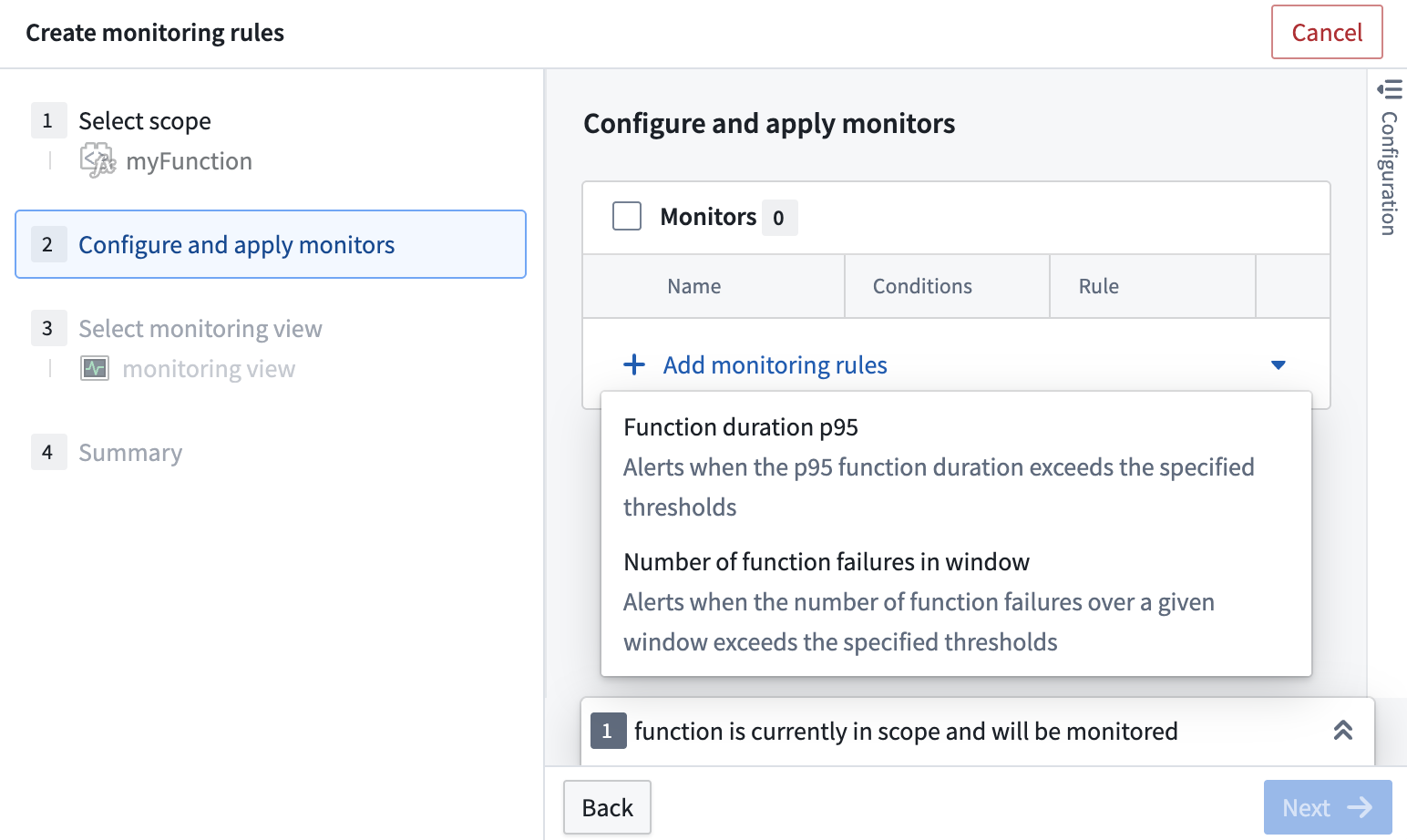
The monitoring rules dialog to configure a function monitor.
Share your feedback
Let us know what you think about our new monitoring capabilities for functions and actions. Contact our Palantir Support channels, or leave your feedback in our Developer Community ↗ using the data-health ↗ tag
Record workflows and automatically generate documentation with Flow Capture
Date published: 2025-10-23
Flow Capture, a new application that enables users to generate documentation from recorded Foundry workflows, will be available in beta the week of November 3. With Flow Capture, you can use LLMs to generate Markdown documentation using recorded or uploaded media as context. Flow Capture's tools include audio recording, on-click screen capture, built-in image editing tools, and prompt customization, allowing you to minimize the time spent creating documentation and efficiently increase documentation coverage.
Key features
Flow Capture tailors the documentation process to your needs with the following features:
- Record Foundry workflows with manually or automatically captured screenshots.
- Record and transcribe descriptive voice overs.
- Upload images or audio to provide additional context.
- Censor or edit images with built-in image editing tools.
- Structure generated documentation with provided templates, including general documentation, feature requests, and bug reports.
- Choose your preferred LLM model and customize prompts and context.
- Export generated documentation as a Walkthrough, Notepad document, ZIP file, or PDF.
Getting started
To get started with Flow Capture, navigate to the Flow Capture application and select + New Flow Capture. From here, you can choose a template and start recording the workflow you want to document. As you navigate your workflow, Flow Capture can take screenshots for every click in Foundry, or you can choose to manually capture screenshots with keyboard shortcuts.
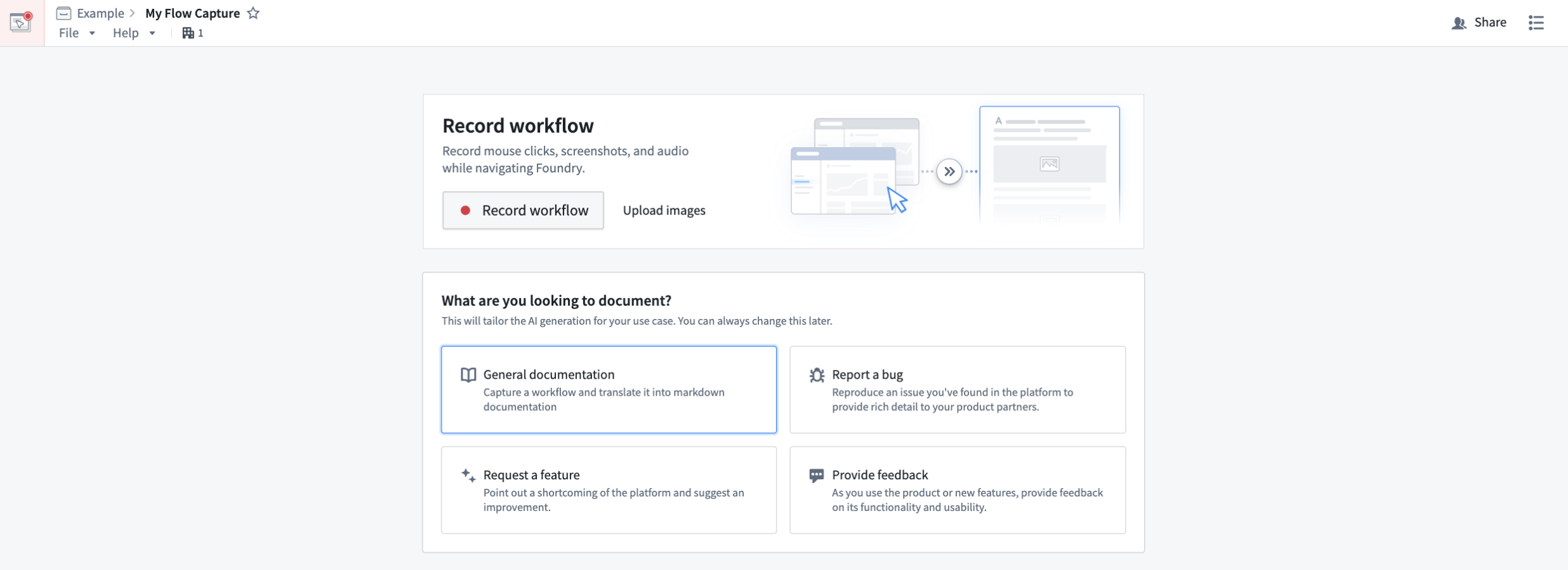
Template options in the Flow Capture application.
After recording your workflow, you can review and edit captured screenshots, choose which assets will be provided to the LLM as context, and create a prompt.
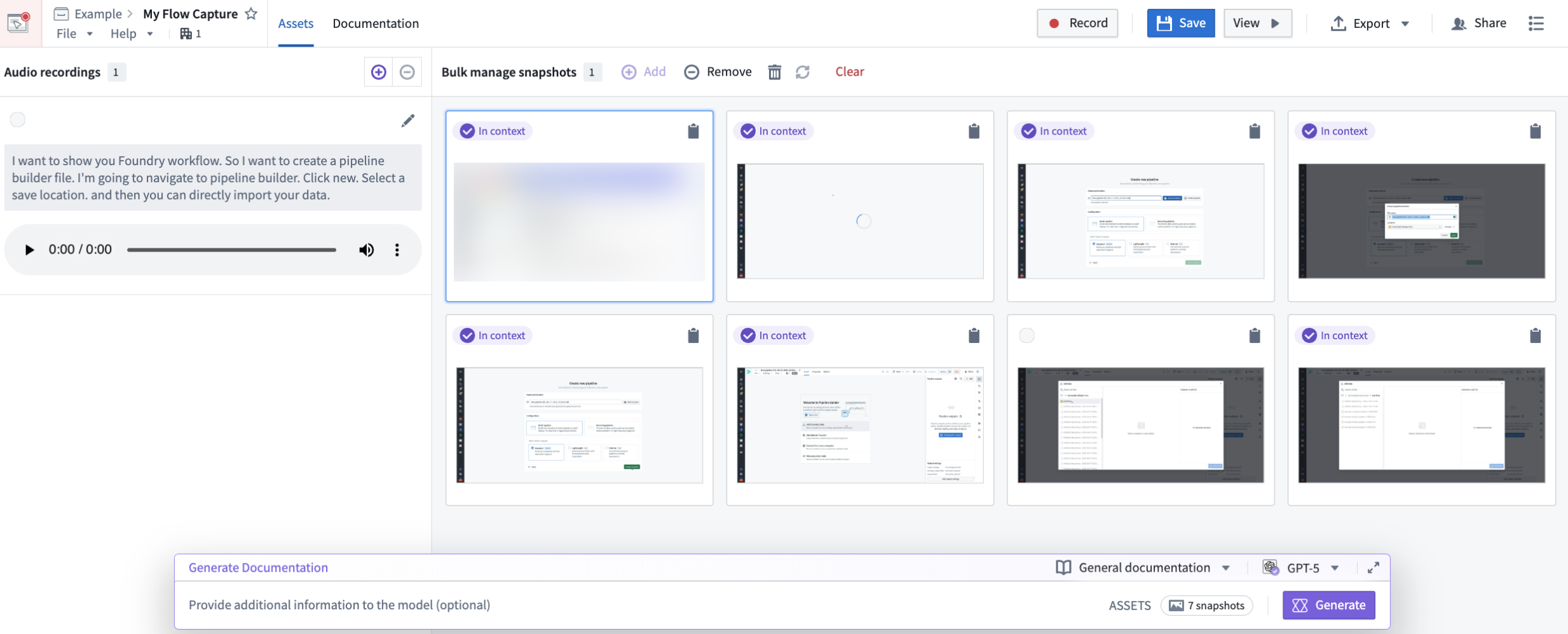
Edit mode in Flow Capture, displaying images added to context with a purple In context tag, and the prompt bar with model and template selectors at the bottom of the page.
You can then use LLM models to generate Markdown documentation based on the provided template, context, and prompt. Once your documentation is generated, you can manually edit or regenerate it with a different prompt if needed, and export it in various formats to facilitate integration with your training workflows.
Real-world impact
Flow Capture is transforming the way teams train and support users in Foundry by streamlining the process of creating, updating, and sharing resources. Flow Capture documentation can also be used as context for AI assistants, allowing you to support users without the time commitment of manual documentation and live support. Whether you are streamlining user onboarding or enriching AI support, Flow Capture can help you share deep, workflow-specific expertise across your organization.
Your feedback matters
As we continue to develop Flow Capture, we want to hear about your experiences and welcome your feedback. Share your thoughts with Palantir Support channels or our Developer Community ↗.
Learn more about Flow Capture.
Analyze restricted views in Jupyter® workspaces with a new restricted outputs mode
Date published: 2025-10-23
For the first time in the Palantir platform, you can now write and execute arbitrary code to analyze restricted views directly within your Jupyter® workspace, unlocking new possibilities for data exploration and advanced analytics on sensitive datasets. You can also publish interactive Dash and Streamlit dashboards based on restricted views that will display different data based on each user's distinct permissions.
How it works
Before today, Contour was the the only tool capable of interacting with restricted views in Foundry, the preferred format for applying differentiated, row-based access controls to sensitive data tabular data. Now, you can access, transform, and analyze them in Jupyter® workspaces with Python and publish custom dashboards with them.
Accessing a restricted view in a code workspace is similar to accessing a standard Foundry dataset. However, Code Workspaces requires you to enable restricted outputs mode, which prevents you from publishing datasets, models, telemetry logs, and other artifacts from the workspace. This ensures that you do not inadvertently take data from a restricted view and publish it in another form that bypasses the access controls.
When you publish an interactive application from a workspace, every user that accesses that application sees their own version of that application—application interfaces are not shared like a traditional website. As a result, the data that a user sees is based completely on their access controls.
Overall, this new feature aims to balance expressiveness and flexibility with security considerations to enable pro-code users to develop analytics and applications with even their most sensitive data.
Get started on using restricted views as inputs
Follow the documented instructions on using restricted views as inputs in a Jupyter® workspace. Select a restricted view to add to your workspace, install the necessary packages, and enable restricted outputs mode for your workspace. Toggling the restricted outputs mode requires a restart of your workspace and the setting persists until you toggle it off.
You may query restricted views in two ways: Either with the containers_sql Python library or a Jupyter® magic command, both of which use Spark SQL. Both options return data in the PyArrow format, which you can easily convert to a Pandas dataframe or another format for easy manipulation.
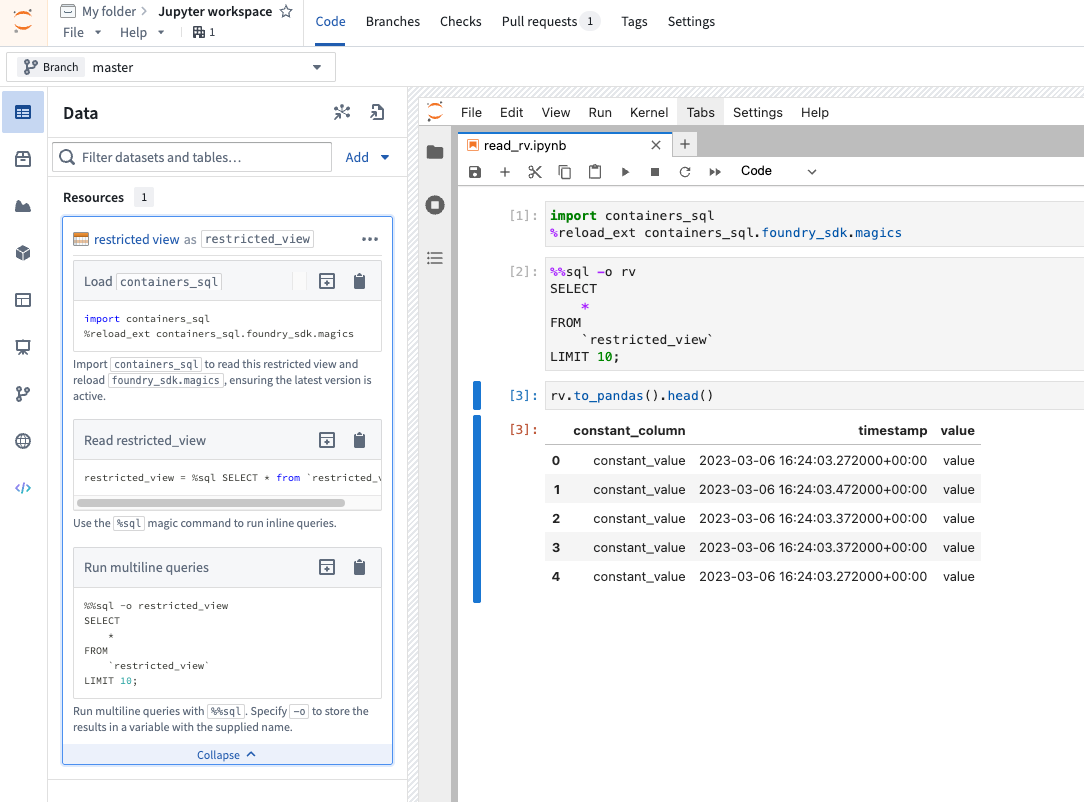
An overview of how to query a restricted view from a code workspace.
We want to hear from you
Share your feedback with us through Palantir Support or our Developer Community ↗ using the code-workspaces tag ↗.
--
Jupyter®, JupyterLab®, and the Jupyter® logos are trademarks or registered trademarks of NumFOCUS.
Enable side effects via actions on branches
Date published: 2025-10-23
Users now have more granular control on how side effects such as webhooks, notifications, and functions making external calls on actions behave on branches. For more information, review the side effects on branches documentation.
Webhooks
By default, if your action type has webhooks configured, the webhooks will not execute when the action is applied on a branch. In such cases, you will see a toast notification indicating this behavior.

Toast notification that shows that the webhook is not executed.
To override the default behavior, you can enable webhook executions on branches in the action type’s Security and submission criteria tab in Ontology Manager.
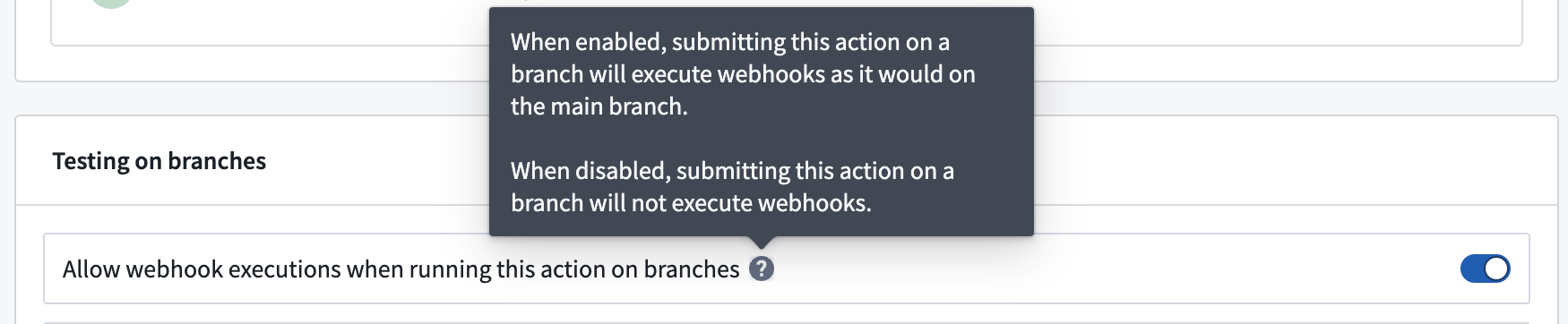
The toggle to allow webhook executions when running an action on a branch is available in the Security and submission criteria tab in Ontology Manager.
Functions with external calls
By default, if your action type is function-backed, and the function makes an external call, the action will fail entirely when executed on a branch. In such cases, you will see a failure toast notification, with an explanation of the behavior.
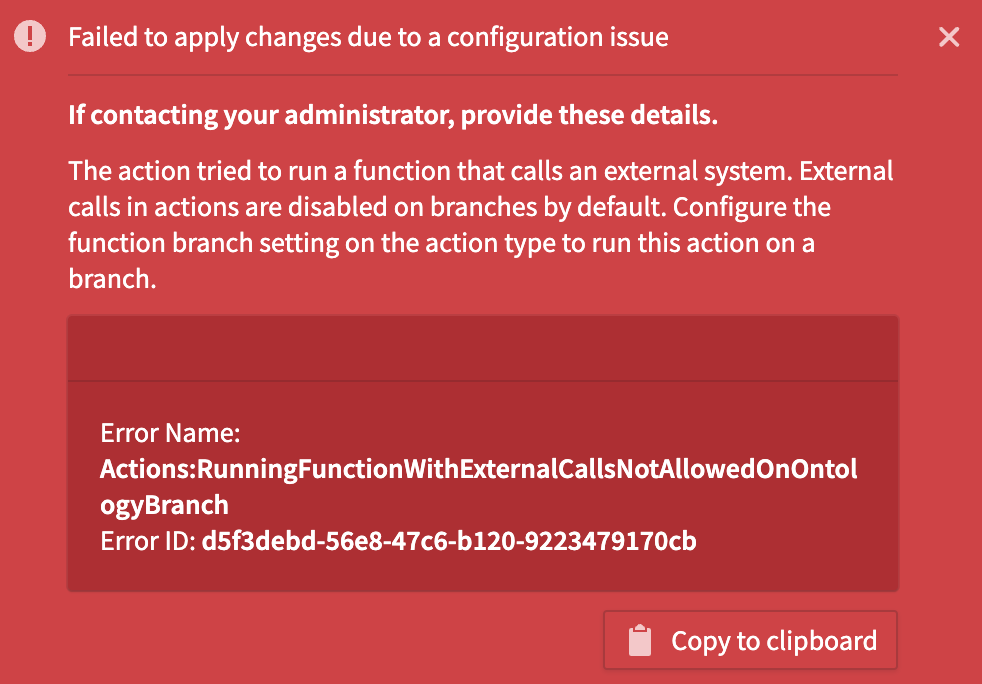
Failure toast for function-backed action executed on branch.
To override the default behavior, you can enable functions with external calls on branches in the Action type’s Security and submission criteria tab in Ontology Manager.
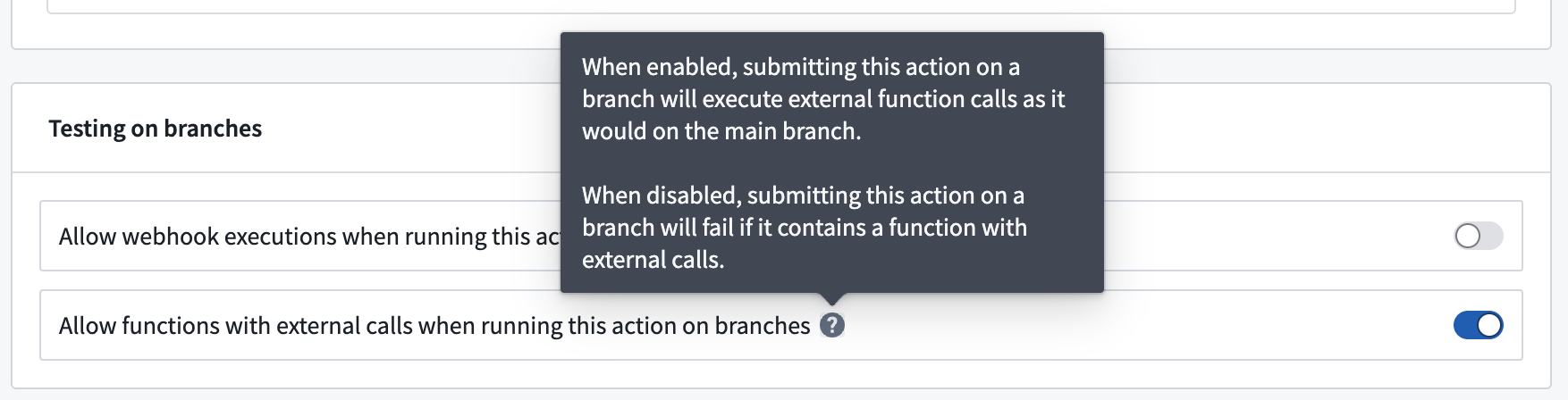
The toggle to allow functions with external calls when running an action on branches is available in the Security and submission criteria tab in Ontology Manager.
Notifications
By default, if your action type has notifications configured, the notifications will not be sent when the action is executed on a branch. In such cases, you will see a toast notification indicating this behavior.

Toast notification indicating the action is applied but notifications are not triggered.
To override the default behavior, you can enable notifications on branches in the Action type’s Security and submission criteria tab in Ontology Manager.
Additionally, you can specify the notification recipients when the action runs on a branch:
- Branch owner: Send all notifications to the branch owner.
- Default recipients: Notify the recipients configured on the original notifications.
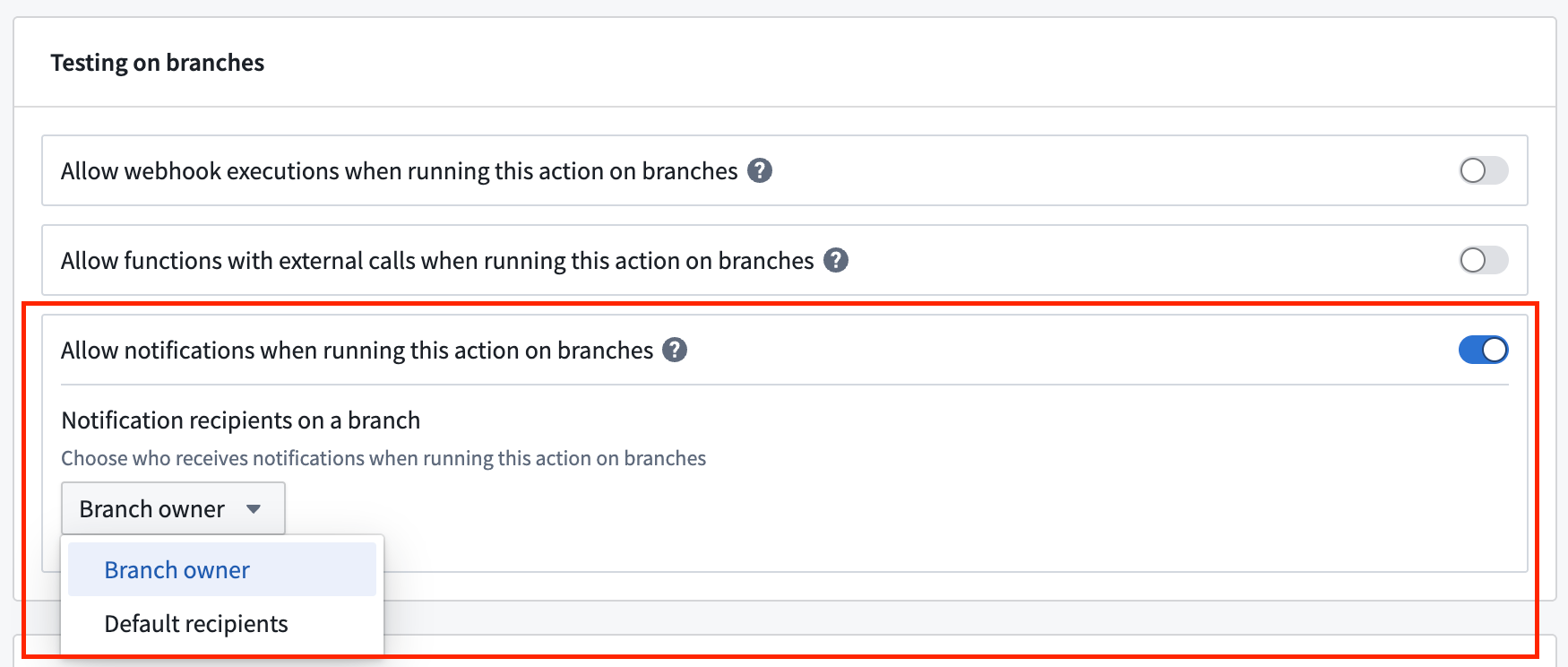
Configure the recipients on a branch when an action is run on a branch.
To understand the updates better, review the documentation.
We want to hear from you
As we continue to develop new features for Foundry Branching, we want to hear about your experiences and welcome your feedback. Share your thoughts with Palantir Support channels or our Developer Community ↗ and use the foundry-branching ↗ tag.
Vibe coding with Ontology SDK using Palantir MCP
Date published: 2025-10-23
Palantir MCP now offers a set of tools that enable you to work with the Ontology SDK directly from your IDE. This enhancement brings SDK management capabilities to your development environment, allowing you to add and remove resources, generate new versions, and install them without context switching. Additionally, we have upgraded the OSDK context tool to include the latest language capabilities, making your AI-assisted development workflow even more productive.
New tools in Palantir MCP
view-osdk-definition tool: Provide instant access to detailed information about your Ontology SDK definition, including SDK name and version, object types with their properties, link types with relationships, action types with parameters, and function definitions with input/output specifications. Use this tool when you need to understand the structure and content of the SDK in your application or get a comprehensive view of all available resources.
Try it out with a prompt like: "Can you describe the content of the Ontology SDK connected to this repo?"
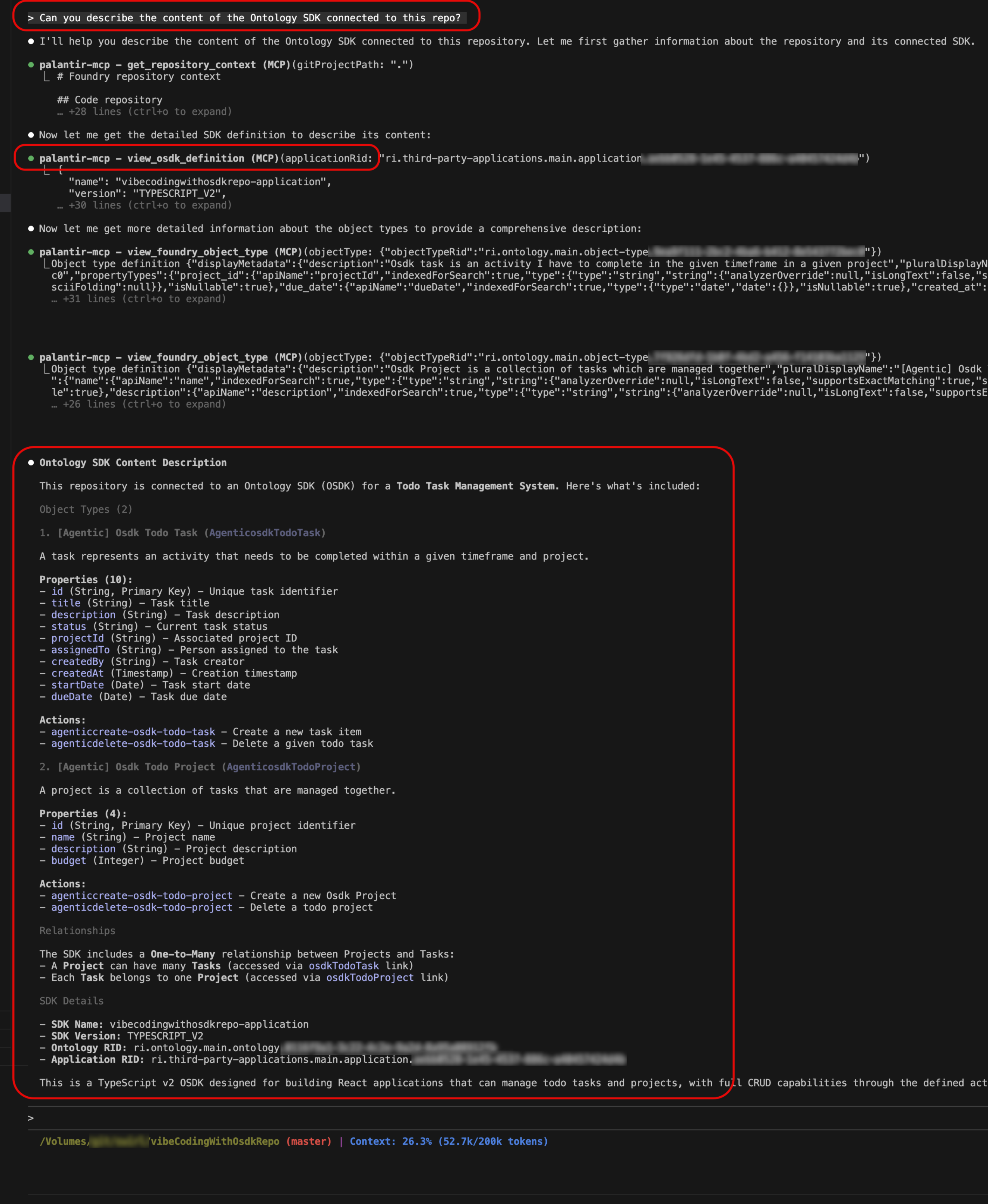
The view-osdk-definition tool displaying SDK structure with object types, properties, and relationships in the IDE.
generate-sdk-version tool: Streamline the process of creating new SDK versions. Whether you are adding new resources to your SDK, removing outdated ones, or updating existing definitions, this tool handles version generation directly from your development environment. Simply describe the changes you want to make, and the tool will generate a new version of your Ontology SDK automatically.
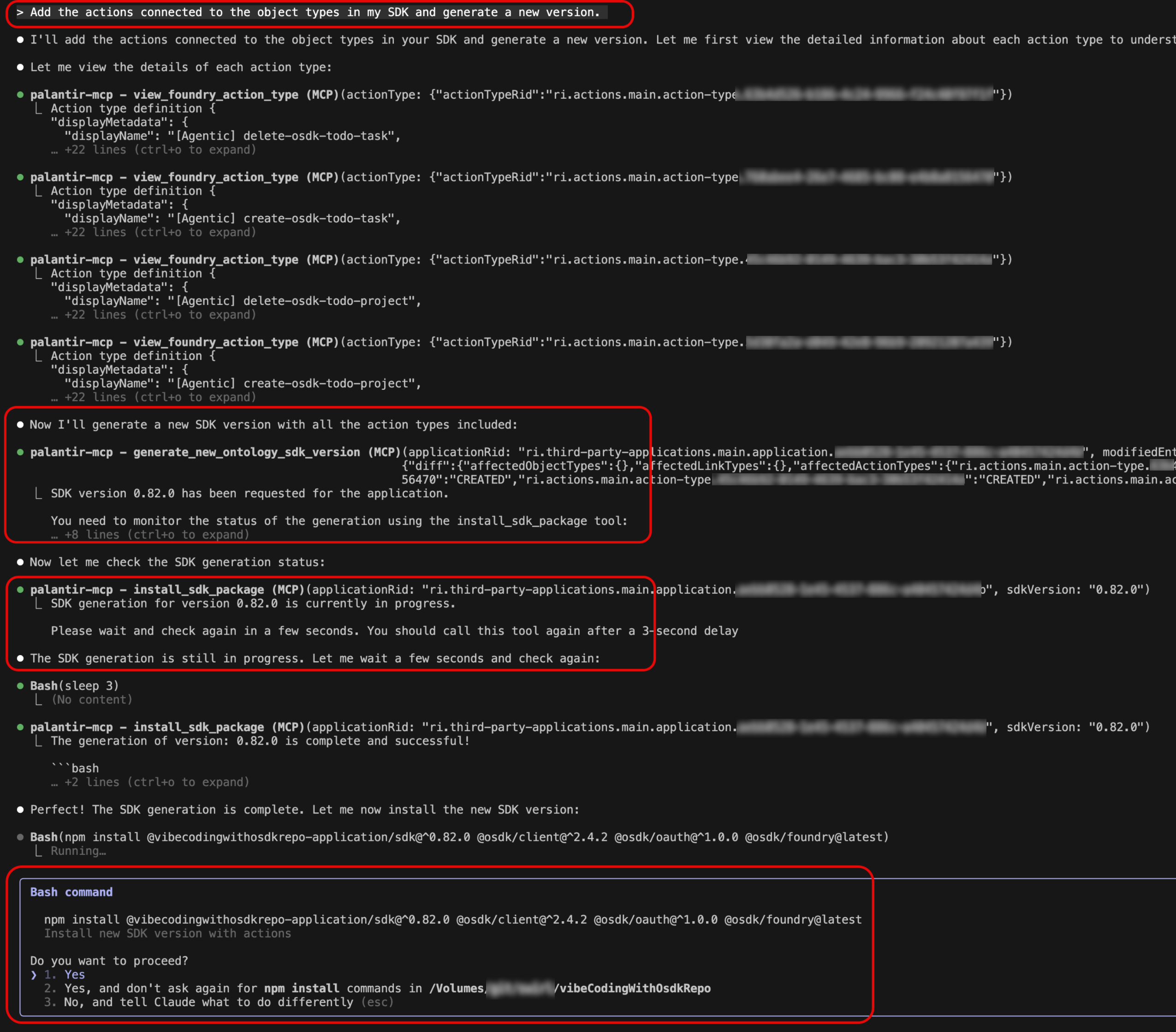
Try it out using a prompt: "Add the actions connected to the object types in my SDK and generate a new version."
Repository connection tool: Connect existing TypeScript repositories to Developer Console applications, making it easy to back your existing applications with Foundry Ontology. When you interact with a repository that is not currently connected to a Developer Console application, the tool intelligently detects this and suggests establishing the connection.
Try this out on any of your TypeScript repositories using the prompt: "Describe the Ontology SDK connected to this repo."
The tool will detect that the repository is not currently connected and will guide you through the connection process.
Enhanced OSDK context
Beyond the above new tools, we have upgraded the OSDK context capabilities within Palantir MCP. The context tool now supports the newest language features and capabilities, ensuring that AI-assisted coding suggestions are aware of the full scope of what is possible with your Ontology SDK.
You can now ask the agent to code OSDK queries using any of the features available in OSDK, including attachments, media sets, derived properties, and aggregations. This means more accurate code generation, better completions, and smarter suggestions that align with the latest SDK patterns and best practices.
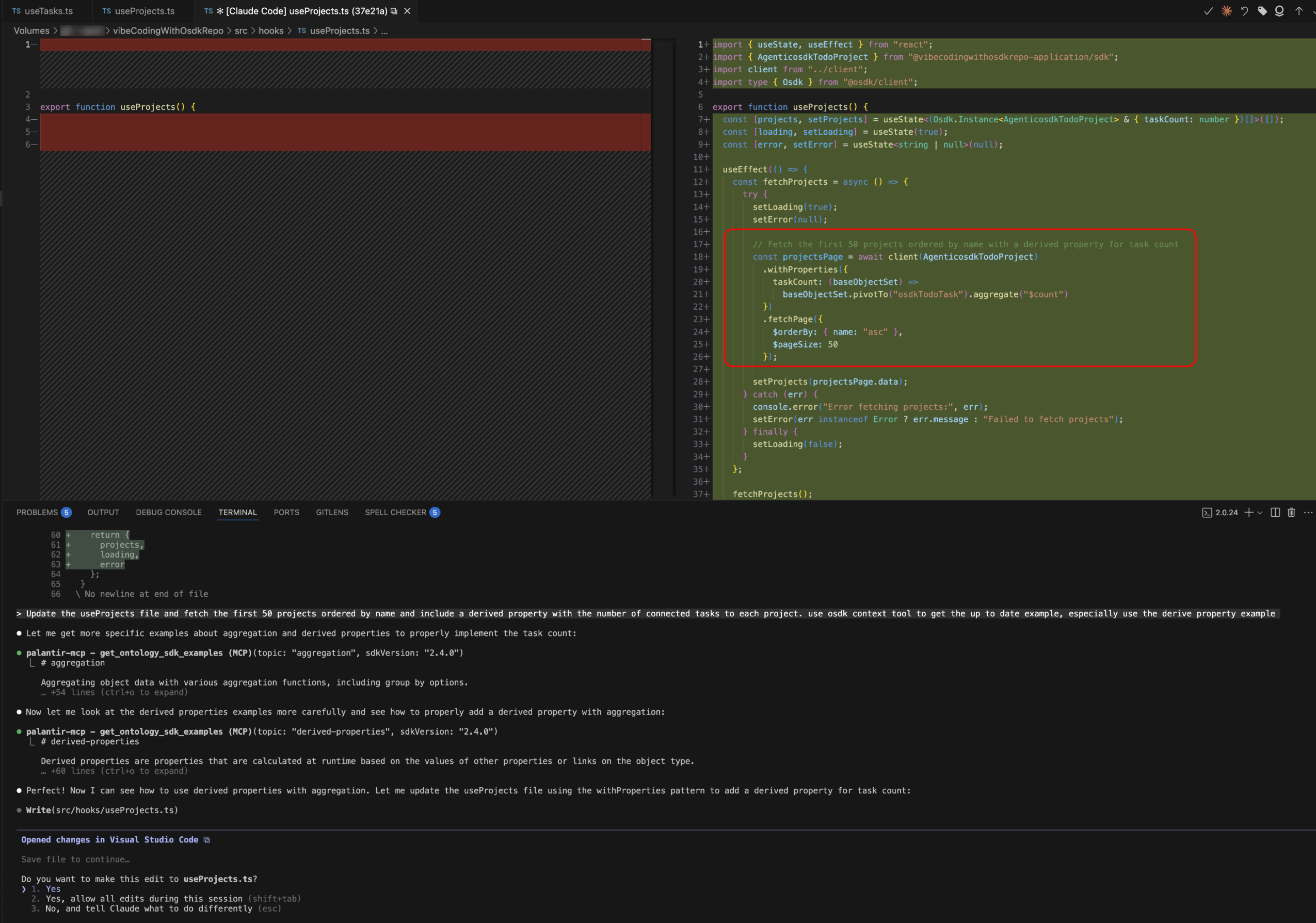
Try this out using the prompt: "Update the useProjects file and fetch the first 50 projects ordered by name and include a derived property with the number of connected tasks to each project."
This example prompt above works on the To Do application example and demonstrates how the enhanced context enables sophisticated query generation with advanced OSDK features.
Platform SDK code generation
Palantir MCP also supports Platform SDK code generation. The Foundry Platform SDK provides APIs that can be used in your OSDK repository to interact with a wide range of Foundry products. You can use this tool to list all the API endpoints available for a given product, making it easy to discover and integrate platform capabilities directly into your application.
These products include AIP Agents (interactive assistants built in AIP Agent Studio equipped with enterprise-specific information and tools), Media sets (representations of media data in Foundry), Ontologies (categorizations of data into real-world concepts with object types, properties, link types, and action types), Admin (managing users, groups, markings and organizations), Connectivity (managing external system connections and APIs), Datasets (representations of data in Foundry), Filesystem (managing filesystem resources, folders, and projects), Orchestration (managing Builds, Jobs and Schedules), SQL Queries (managing SQL queries executed in Foundry), and Streams (real-time operational data analysis and processing with second-level latency).
Getting started
These tools are available now through Palantir MCP in your IDE.
You can review the following documentation:
- Installation instructions
- Palantir MCP overview page and Ontology SDK guide for detailed usage examples
Claude Haiku 4.5 now available in AIP
Date published: 2025-10-21
Claude Haiku 4.5 is now available from Anthropic Direct, Amazon Bedrock, and Google Vertex AI for non-georestricted enrollments, all US enrollments, and all EU enrollments.
Model overview
Claude Haiku 4.5 is a hybrid reasoning model that balances performance with speed and cost. Comparisons between Claude Haiku 4.5 and other models in the Anthropic model family can be found in the Anthropic documentation ↗.
- Context Window: 200,000 tokens
- Modalities: Text and image input | Text output
- Capabilities: Extended thinking, Function calling
Getting started
To use these models:
- Confirm your enrollment administrator has enabled relevant model family or families
- Review token costs and pricing
- See the complete list of all the models available in AIP
Your feedback matters
We want to hear about your experiences using language models in the Palantir platform and welcome your feedback. Share your thoughts with Palantir Support channels or on our Developer Community ↗ using the language-model-service tag ↗.
New audio transcription capabilities in Workshop and Pipeline Builder
Date published: 2025-10-21
The Audio and Transcription Display widget is now available in Workshop for visualizing and interacting with audio files and transcription segments. Additionally, the Transcribe audio transform in Pipeline Builder now supports speaker diarization, enabling automatic speaker identification within audio files when using the More performant mode with Speaker recognition enabled.
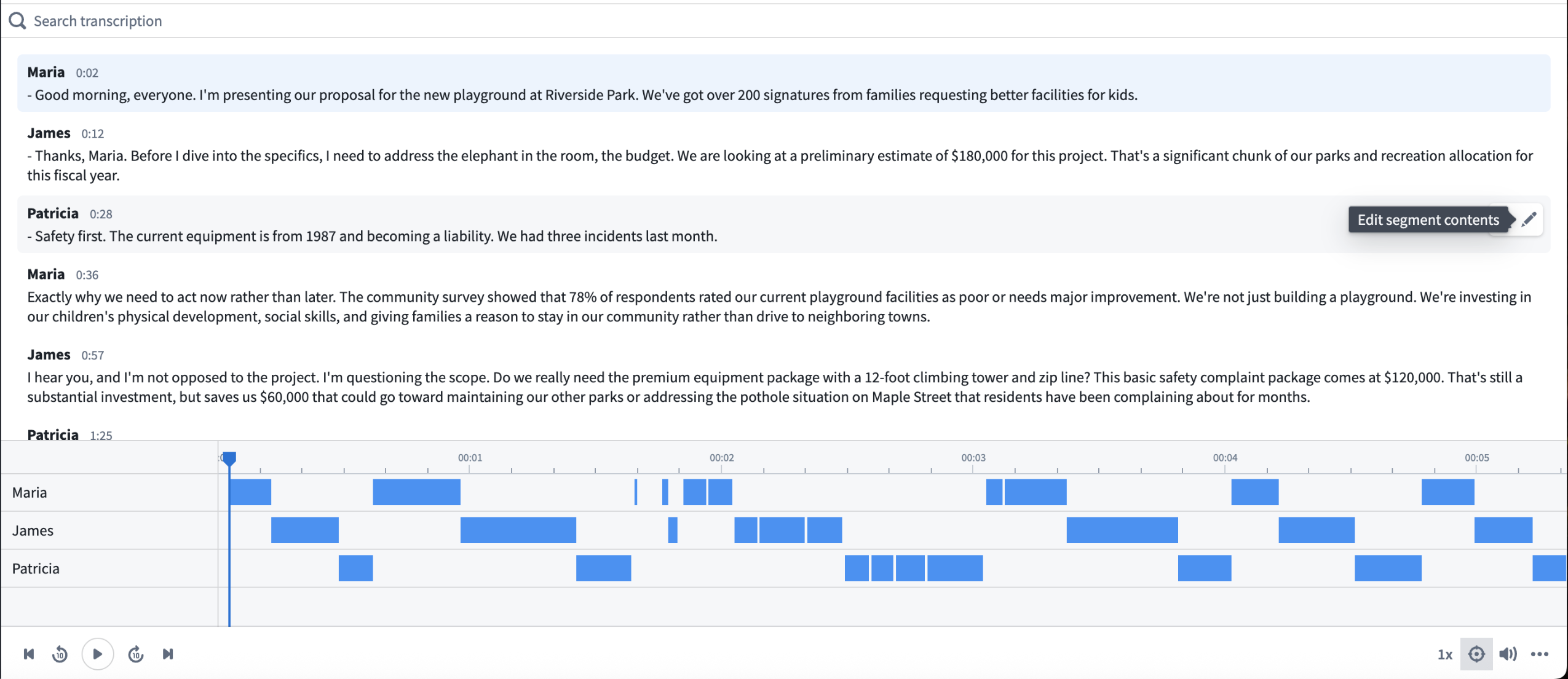
A sample configuration of the Audio and Transcription Display widget in Workshop.
Widget capabilities
The widget accepts an object set containing transcription segment objects with the following properties:
- Transcription contents (string)
- Beginning and end timestamps (milliseconds)
- Speaker ID (string, optional)
Features
- Synchronized playback: View audio waveform visualization with timestamp-aligned transcription scrolling.
- Speaker diarization display: Toggle between Player and Gantt chart visualization formats.
- Search: Access full-text search across transcription segments.
- Custom actions: Configure action types on segment objects (for example, edit speaker names, correct timestamps, and modify segment contents) that appear in a toolbar on segment hover. Use the Selected segment variable to reference the hovered segment in action parameters.
- Seek to timestamp: Optionally configure numeric variable input to programmatically seek audio to specific timestamps.
Pipeline Builder enhancement
The Transcribe audio transform now supports speaker diarization in More performant mode. Enable Speaker recognition to output speaker IDs for each transcription segment. The transform outputs segment details including:
- Segment ID
- Begin and end timestamps
- Transcription contents
- Speaker ID (when speaker recognition is enabled)
Use the Explode array and Extract struct fields transforms to process the segment array output for ontologization into segment objects compatible with the widget. For a step-by-step guide, review our documentation on creating an interactive audio transcription application.
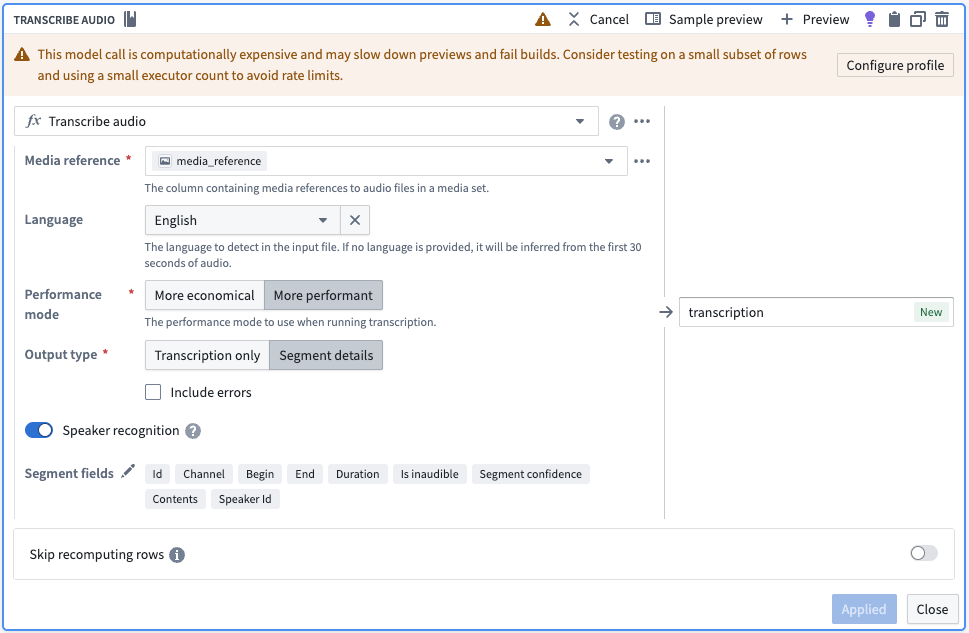
The Transcribe audio transform board in Pipeline Builder, with options selected to output diarization results with transcription.
Your feedback matters
We want to hear about your experience and welcome your feedback as we develop the media set experience for working with audio. Share your thoughts with Palantir Support channels or on our Developer Community ↗ using the media-sets tag ↗ .
Faster builds in Pipeline Builder with the warm pool compute profile
Date published: 2025-10-21
The warm pool compute profile option, now available on all enrollments, is a powerful new type of compute profile designed to speed up your builds in Pipeline Builder.
Warm pool leverages an auto-scaling pool of continuously running virtual machines, reducing job startup latency. With warm pool enabled, your jobs can start processing instantly without waiting for machines to spin up.
- Up to three jobs run concurrently on each virtual machine, sharing resources efficiently.
- Ideal for smaller builds: Ideal for workloads that complete within 30 minutes on an extra small profile.
You can enable warm pool by toggling on Warm pool in the compute profile dialog.
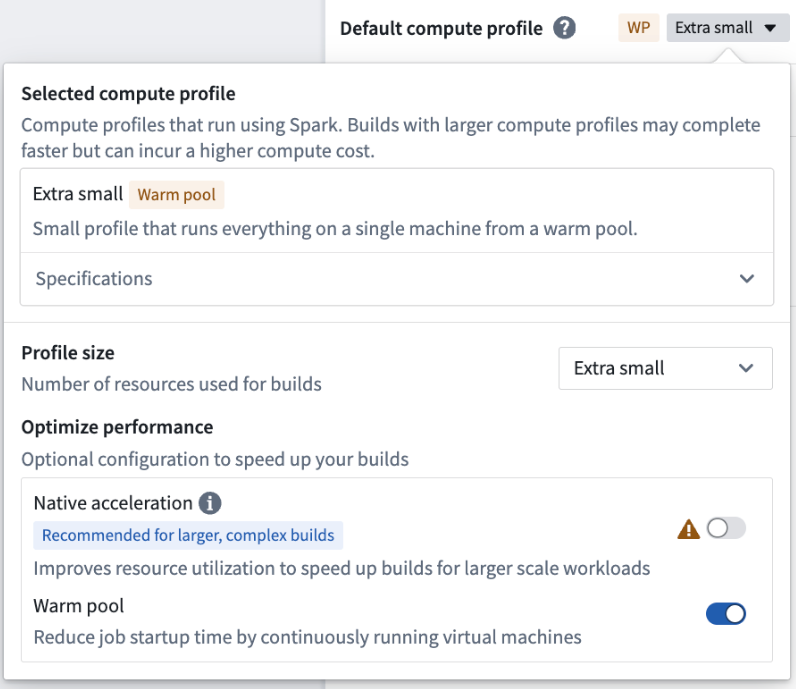
Example of the compute profile dialog with the Warm pool option enabled.
Warm pool is currently supported only for extra small profiles. Larger profiles are not yet supported.
Start using warm pool today and experience faster build times. See the warm pool documentation for more information.
Foundry Connector 2.0 for SAP Applications v2.35.0 (SP35) is now available
Date published: 2025-10-21
Version 2.35.0 (SP32) of the Foundry Connector 2.0 for SAP Applications add-on, used to connect Foundry to SAP systems, is now available for download from within the Palantir platform.
This new major version includes in particular:
- A new version of the Foundry SAP Cockpit providing more functionality to monitor and manage the Foundry SAP Connector. This is accessible via the
/n/palantir/cockpitv2transaction code. HINTkeyword support on SAP HANA databases to allow reading from a secondary database. UseSM30to maintain table/PALANTIR/CFG_05to enable this.- Improved
STXLlong text decompression.
Latest add-on is now available in Data Connection
On top of those improvements, the add-on itself and its release notes can now be downloaded directly from your SAP source configuration in Foundry in a dedicated Download packages section.
To access it, navigate to an existing SAP source, select Connection settings > Download packages. Download the file(s) corresponding to the NetWeaver version of the SAP system to which you are connecting.
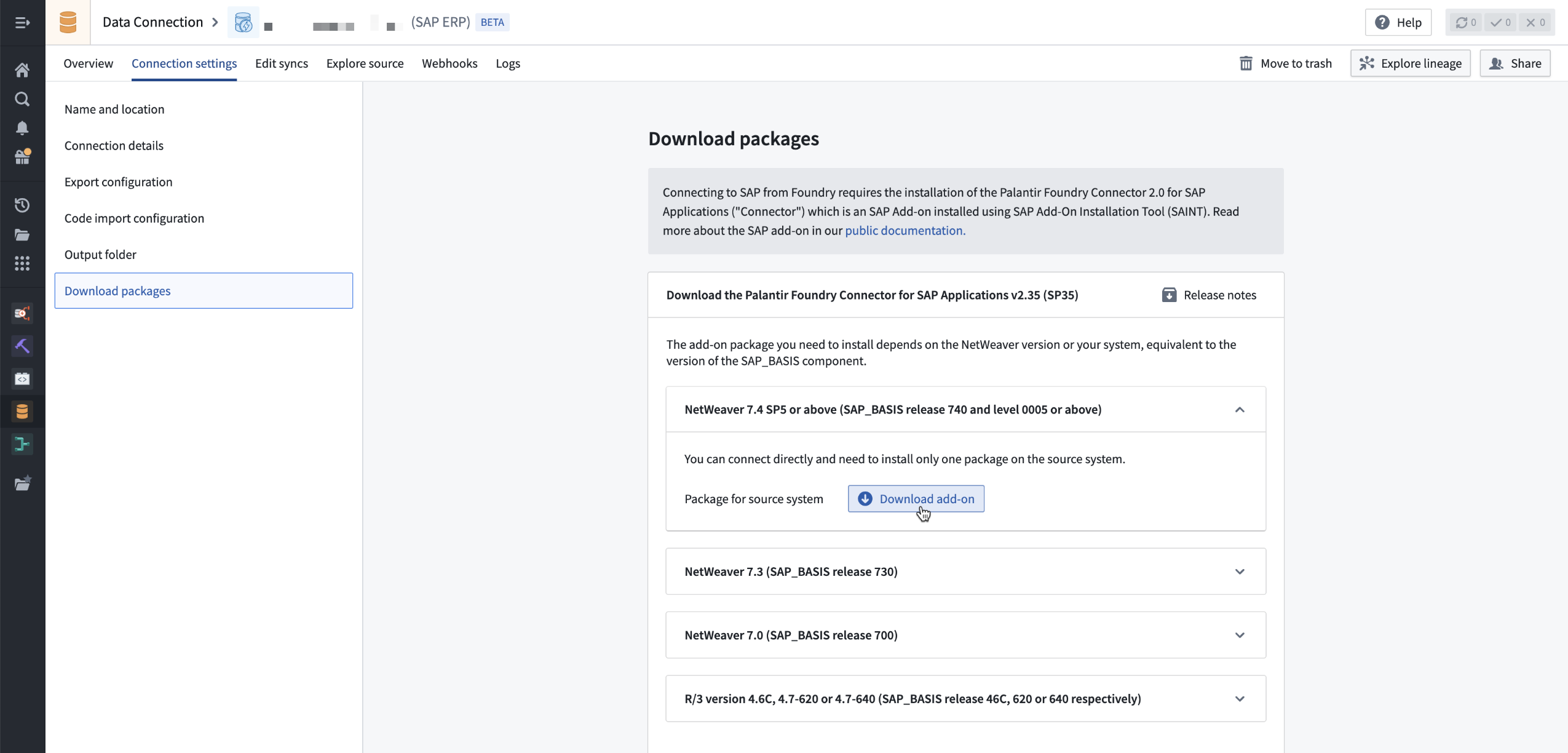
Navigate to an existing SAP source, select Connection settings > Download packages > Download add-on.
Foundry SAP sources connected to an SAP system that does not use the latest SAP add-on will now display a banner flagging that a new version is available.

Banner shown if the SAP system does not use the latest SAP add-on.
We want to hear from you
As we continue to develop support in our platform for connectivity, we want to hear about your experiences and welcome your feedback. Share your thoughts with Palantir Support channels or our Developer Community ↗ and use the data-connection ↗ tag.
Faster, more reliable VS Code previews for lightweight Python transforms
Date published: 2025-10-21
VS Code previews for lightweight Python transforms are now powered by a new, unified architecture, aligning builds and previews for a smoother and more consistent experience. This architectural change eliminates entire classes of schema-related errors and edge cases and delivers significantly faster preview performance.
Technical changes
- Unified execution engine: Previews now use the same code path as builds, eliminating schema drift and environment-specific bugs.
- Performance improvement: Preview execution is up to 10x faster, particularly for Foundry Views.
- Removed PySpark dependency: Code Repository previews no longer require PySpark initialization, reducing startup overhead and eliminating PySpark-specific errors in preview environments.
- Feature parity: New lightweight transform capabilities are now immediately available in previews without requiring separate preview implementation.
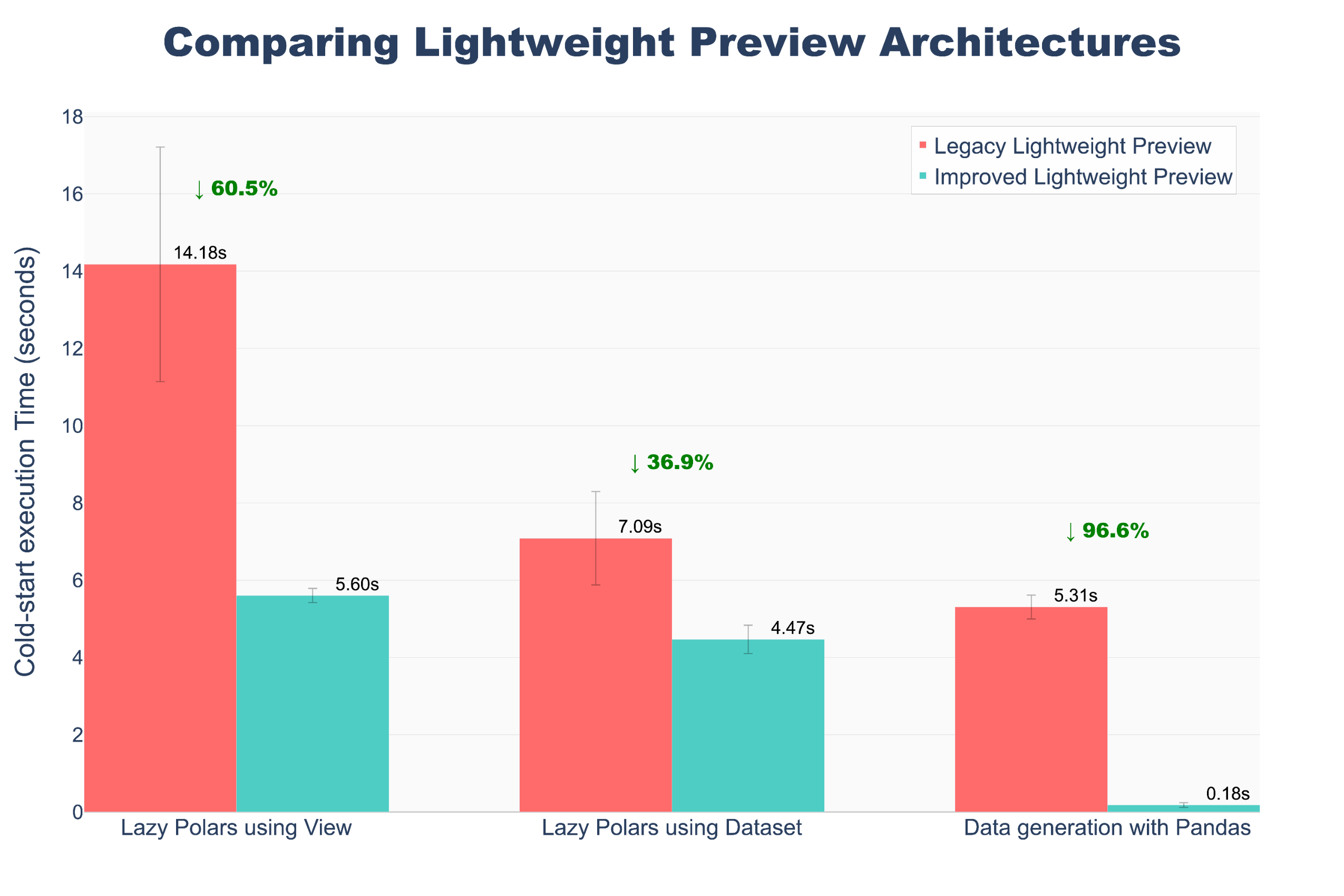
A chart comparing lightweight preview architecture, showing execution up to 10x faster in our updated model.
Learn more about VS Code transform previews in our documentation.
What this means
Schema inconsistencies between preview and build environments are eliminated. Edge cases that previously only manifested during builds (or only during previews) no longer occur. Preview results now accurately reflect build behavior.
Share your feedback
We want to hear about your experience using lightweight Python transforms. Let us know in our Palantir Support channels, or leave a post in our Developer Community ↗ using the transforms-python ↗ tag.
New Media Set Transformation API in Python transforms
Date published: 2025-10-16
A new media set transformation API is now available in Python transforms across all enrollments. This API enables users to perform both media and tabular transformations on media sets, with the ability to output both media sets and datasets. Previously, users needed to construct complex requests to interact with media set transformations. Now, the API provides comprehensive methods for all supported transformations across different media set schema types.
With this new API, users no longer need to write custom logic for tasks such as iterating over pages in document media sets or implementing parallel processing. Transformations can be applied to entire media sets or individual media items. Additionally, the API supports chaining transformations for media-to-media workflows. For example, you can slice a document media set and then convert the resulting pages to images in a single line.
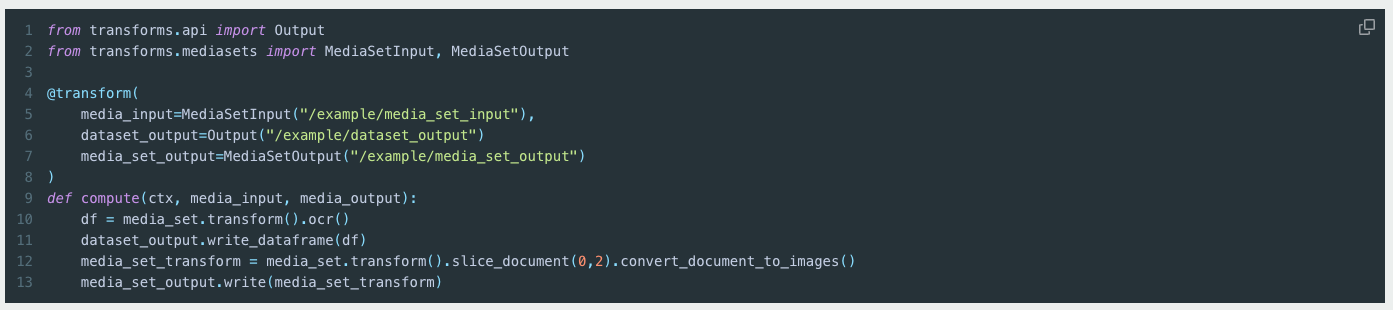
Code example using the new API.
Your feedback matters
We want to hear about your experience and welcome your feedback as we develop the media set experience in Python transforms. Share your thoughts with Palantir Support channels or on our Developer Community using the media-sets tag.
Remove inherited organization markings from inputs in Pipeline Builder
Date published: 2025-10-16
In Pipeline Builder, you can now remove inherited organizations from outputs, in addition to markings. Note that this removal will only apply to current organizations - future organization changes will not be automatically removed, and data access continues to rely on project-level organizations.
Remove inherited organizations
Previously, you could only remove inherited markings from outputs. Now, with the right permissions, you can also remove inherited organizations at an input level directly in Pipeline Builder. Note that data access continue to rely on project-level organizations and any future organization changes will not be automatically removed.
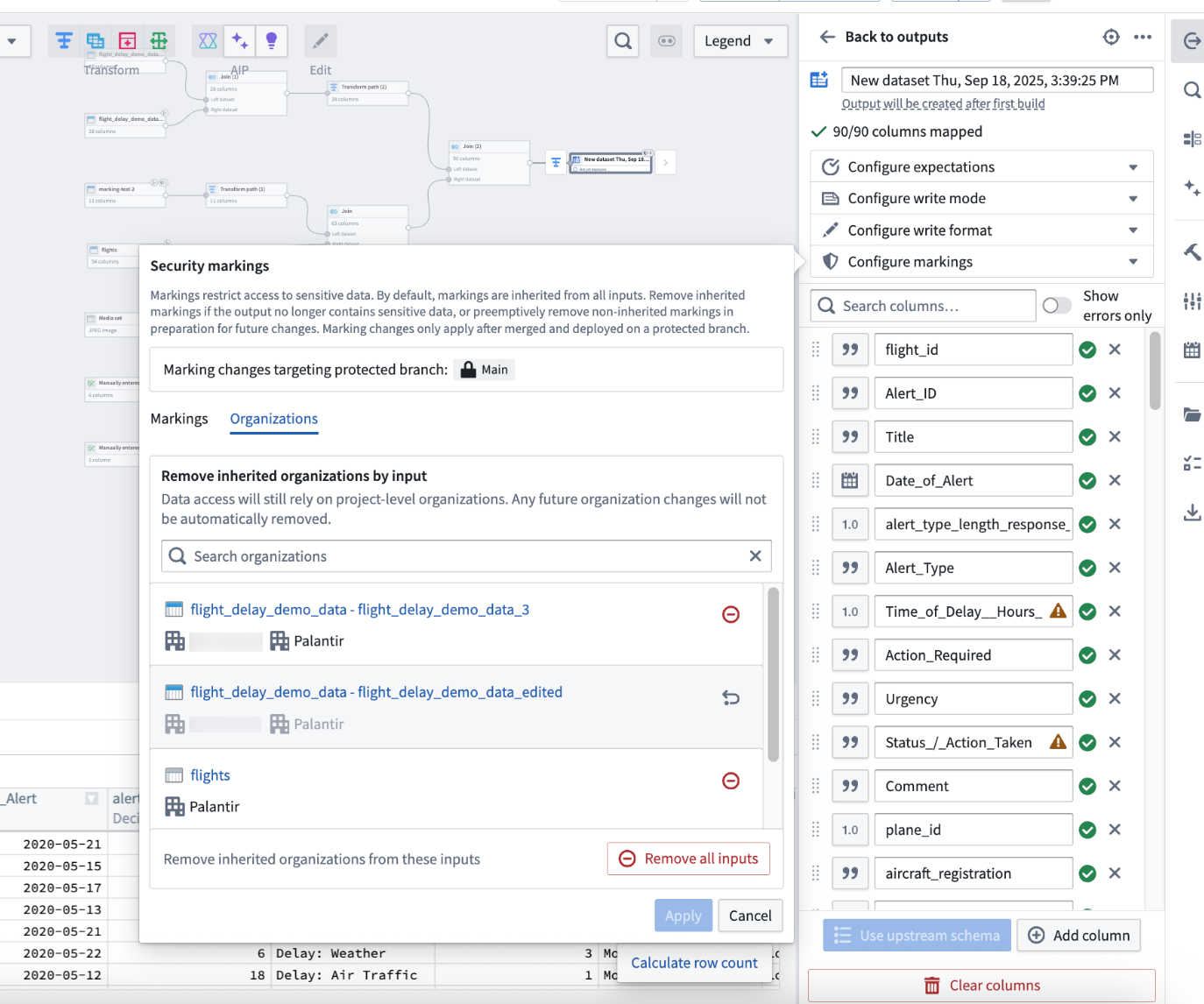
Use the Remove all inputs option or remove inputs one by one to remove inherited organizations from a set of inputs.
To do this, first protect your main branch, and make a branch off of that protected branch. Then, navigate to Pipeline outputs on the right side of your screen and select Edit on the output.
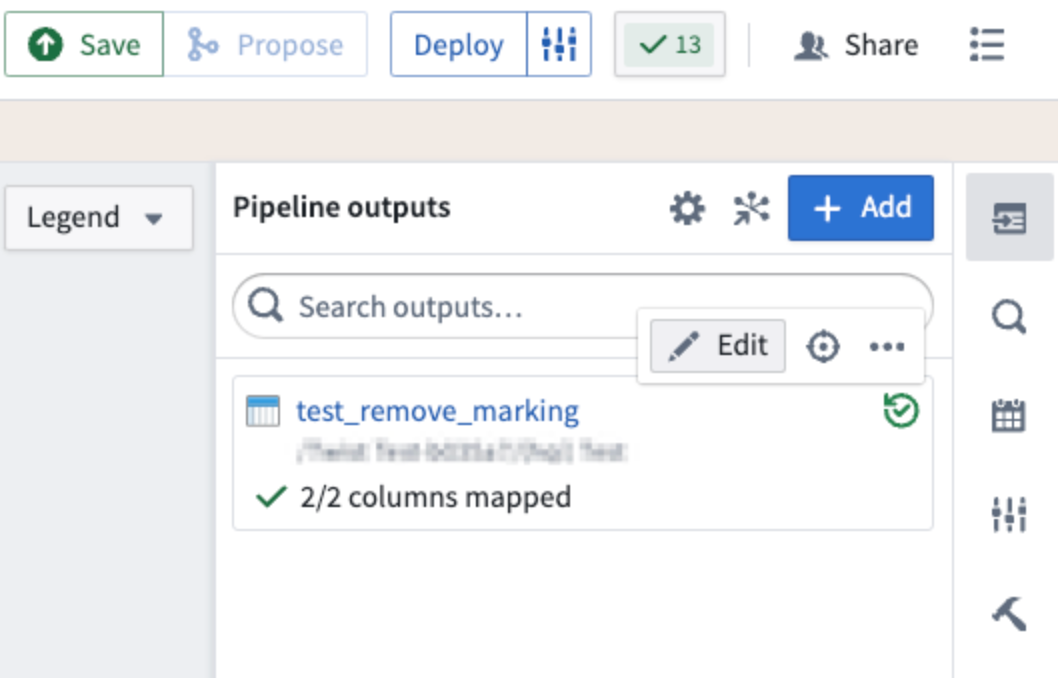
Select Edit on the output on which you would like to remove inherited markings and organizations.
After going to your output, select Configure Markings, and then navigate to the Organizations tab. On this tab, you can remove inherited organizations by using the Remove all inputs option, or you can remove them on an input level. This gives you greater flexibility and control over access requirements for your outputs, aligning with how you manage markings.
Example of an organization marking removal
To fully remove an organization marking, you must remove all inputs containing that organization. For example, if you wanted to remove the Testers organization in the screenshot below, you would need to remove both the first and second inputs (assuming none of the other inputs have Testers organization).
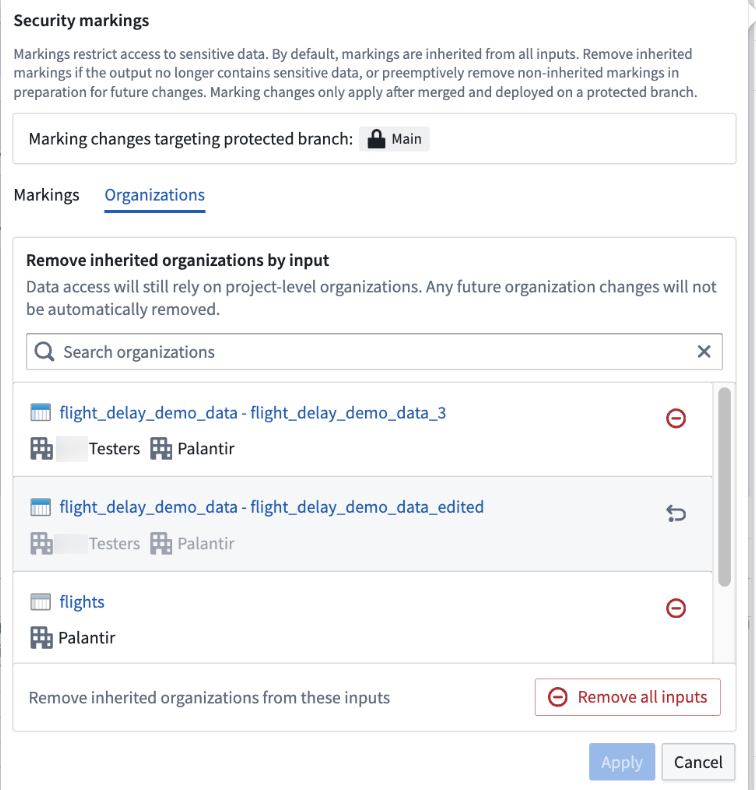
Remove an organization marking by deleting all inputs containing it. In this example, this means both inputs with the Testers organization).
Learn more about removing organization and markings in Pipeline Builder.
Your feedback matters
We want to hear about your experience with Pipeline Builder and welcome your feedback. Share your thoughts with Palantir Support channels, or on our Developer Community ↗ using the pipeline-builder tag ↗.
Ontology resources now support branch protection and project-level policies
Date published: 2025-10-16
The Ontology now supports fine-grained governance through main branch protection and project-level policies when using Foundry Branching. This capability is available for resources that have been migrated to project permissions, extending the same change control processes previously available only for Workshop modules.
What’s new
- Resource protection: Protect Ontology resources individually or in bulk from your file system. Protected resources require changes to be made through branches, ensuring greater oversight.
- Customizable approval policies: Define granular approval policies that apply to protected resources in a given project, specifying which users or groups must approve proposed changes before deployment.
Why it matters
This enhancement is part of an ongoing commitment to empower and expand the builder community, while still maintaining tight controls over change management. By extending these change control processes to ontology resources, project and resource owners benefit from more flexibility, security, and confidence when collaborating with others when using Foundry Branching.
To read more about about this feature, review documentation on protecting resources.
You may also review the previous Workshop announcement when this feature was first released for more information.
Claude 4.5 Sonnet now available in AIP
Date published: 2025-10-14
Claude 4.5 Sonnet is now available from Vertex, Bedrock, and Anthropic Direct for US and EU enrollments.
Model overview
Claude 4.5 Sonnet is a high-performance model that is currently regarded as Anthropic’s best model for complex agents and coding capabilities. Comparisons between Sonnet 4.5 and other models in the Anthropic family can be found in the Anthropic documentation ↗.
- Context Window: 200,000 tokens
- Modalities: Text and image input | Text output
- Capabilities: Extended thinking, Function calling
Getting started
To use these models:
- Confirm your enrollment administrator has enabled relevant model family or families
- Review token costs and pricing
- See the complete list of all the models available in AIP
Your feedback matters
We want to hear about your experiences using language models in the Palantir platform and welcome your feedback. Share your thoughts with Palantir Support channels or on our Developer Community ↗ using the language-model-service tag ↗.
No-code model training and deployment with Model Studio
Date published: 2025-10-14
Model Studio, a new workspace that allows users to train and deploy machine learning models, will be available in beta the week of October 13. Model Studio transforms the complex task of building production-grade models into a streamlined no-code process that makes advanced machine learning more accessible. Whether you are a data scientist looking to accelerate your workflow, or a business user eager to unlock insights from your data, Model Studio provides essential tools and a user-friendly interface that simplifies the journey from data to model.
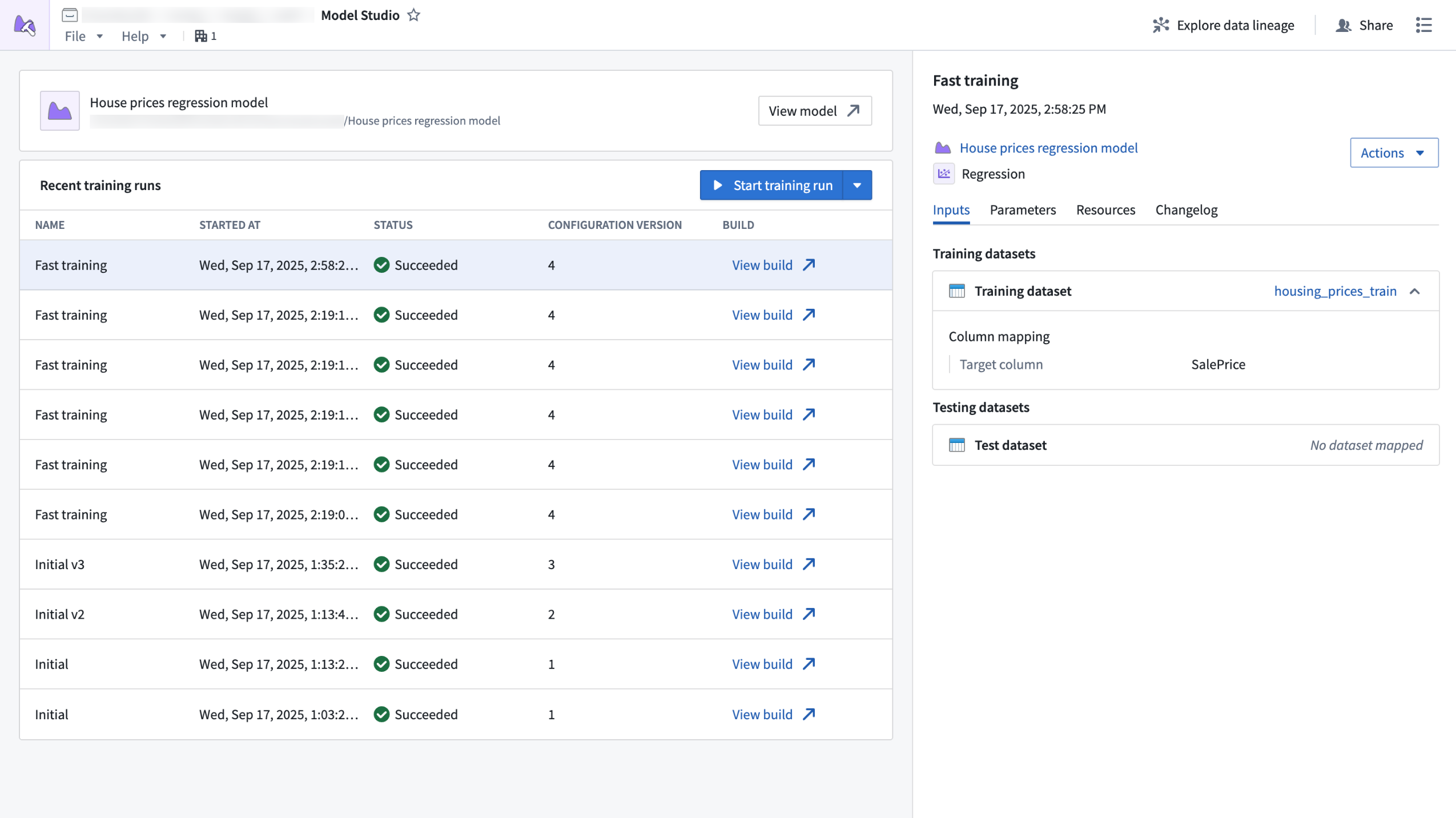
The Model Studio home page, displaying recent training runs and run details.
What is Model Studio?
Model Studio is a no-code model development tool that allows you to train models in tasks such as forecasting, classification, and regression. With Model Studio, you can maximize model performance for your use cases by training models with custom data while retaining customization and control over the training process with optional parameter configuration.
Building useful, production-ready models traditionally requires deep technical expertise and significant time investment, but Model Studio changes that by providing the following features:
- A streamlined point-and-click interface for configuring model training jobs; no coding required.
- Built-in production-grade model trainers tailored for common use cases such as time series forecasting, regression, and classification.
- Smart defaults and guided workflows that empower you get started quickly, even if you are new to machine learning.
- In-depth experiment tracking with integrated performance metrics that allow you to monitor and refine your models with confidence.
- Full data lineage and secure access controls built on top of the Palantir platform, ensuring transparency and security at every step.
Who should use Model Studio?
Model Studio is perfect for technical and non-technical users alike. Business users who want to leverage machine learning without coding and data scientists who want to accelerate prototyping and model deployment can both benefit from Model Studio's tools and simplified process. Additionally, organizations can benefit from Model Studio by lowering the barrier to AI adoption and empowering more teams to build and use models.
Getting started
To get started with Model Studio, navigate to the Model Studio application and create your own model studio. From there, you can take the following steps to get started with model training:
- Select the best model trainer for your use case (time series forecasting, classification, or regression).
- Choose your input datasets.
- Configure your model using intuitive options, or stick with the recommended defaults.
After configuring your model, you can launch a training run and review model performance in real time with clear metrics and experiment tracking.
What's next on the development roadmap?
As Model Studio continues to evolve, we are committed to enhancing the user experience. To do so, we will introduce features such as enhanced experiment logging for deeper training performance insights, and an expanded set of supported modeling tasks.
Tell us what you think
As we continue to develop Model Studio, we want to hear about your experiences and welcome your feedback. Share your thoughts with Palantir Support channels or our developer community ↗.
Learn more about Model Studio.
Optimize AI performance and cost with experiments in AIP Evals
Date published: 2025-10-09
Experiments are now available in AIP Evals, enabling users to test function parameters such as prompts and models to identify the values that deliver the highest quality outputs and the best balance between performance and cost. Previously, systematic testing of parameter values in AIP Evals was a time-consuming manual process that required individual runs for each parameter value. With experiments, users can automate testing and optimize AI solutions more efficiently.
What are experiments?
Experiments in AIP Evals allow you to launch a collection of parameterized evaluation runs to help optimize the performance and cost of your tested functions. You can define multiple parameter values at once, which AIP Evals will test in all possible combinations using grid search in separate evaluation suite runs. Afterwards, you can analyze experiment results to identify the parameter values with the best performance.
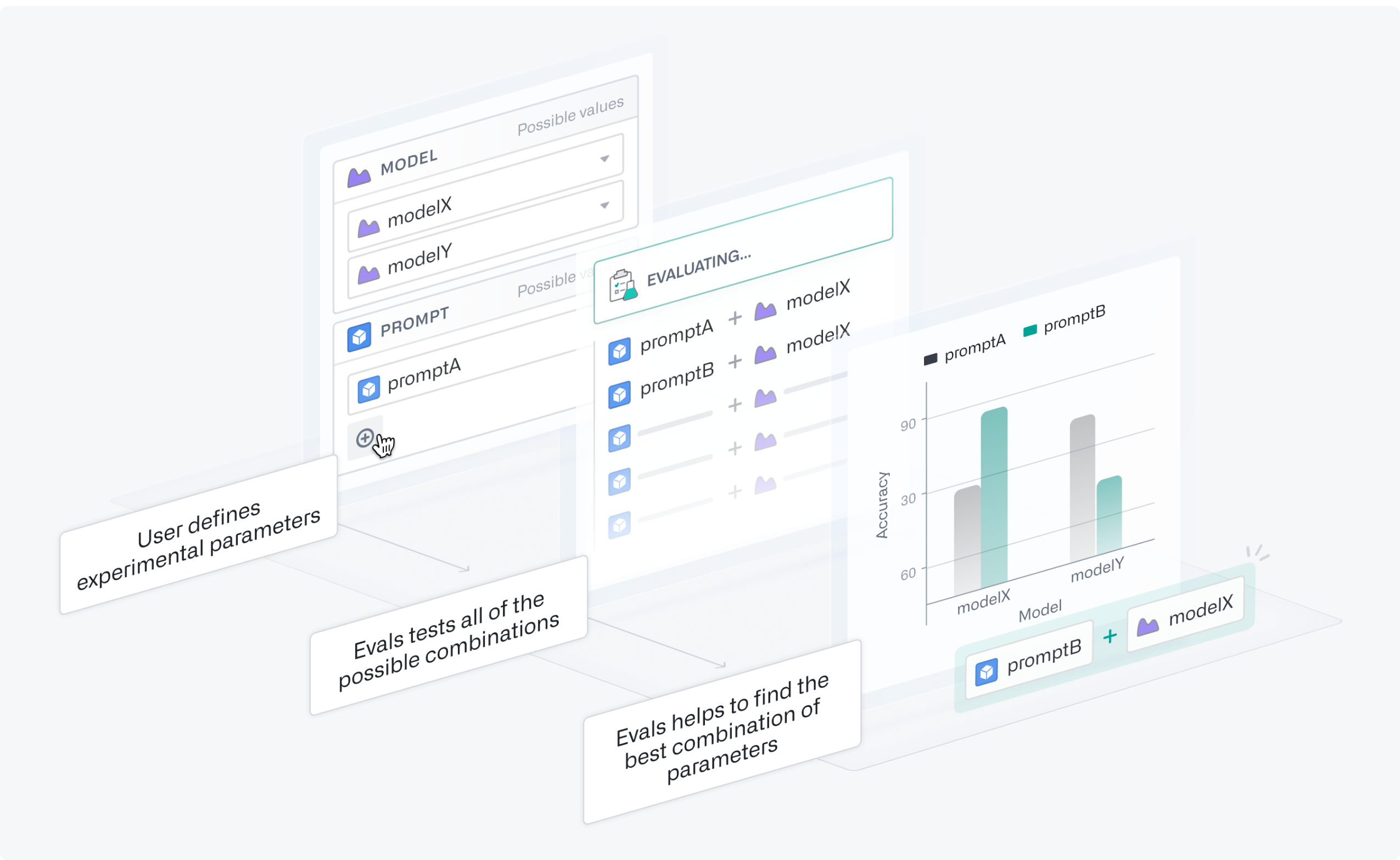
A step-by-step representation of the experiments process.
Leverage experiments
Experiments have been used to discover significant optimization opportunities, and can be used with AIP Logic functions, agents published as functions, and functions on objects.
Some example use cases include the following:
- Testing whether lightweight LLMs can deliver high consistency with prior production outputs at a fraction of the cost of flagship models.
- Identifying common tasks that can be implemented using regular models before defaulting to premium options.
- Improving prompt engineering by efficiently testing how changes such as adding context or few-shot examples, affect performance.
Getting started
To get started with experiments, refer to the documentation on preparing your function and setting up your experiment. You can parameterize parts of your function, define the experiment parameters you want to test with different values, and specify the value options you want to explore in the experiment.
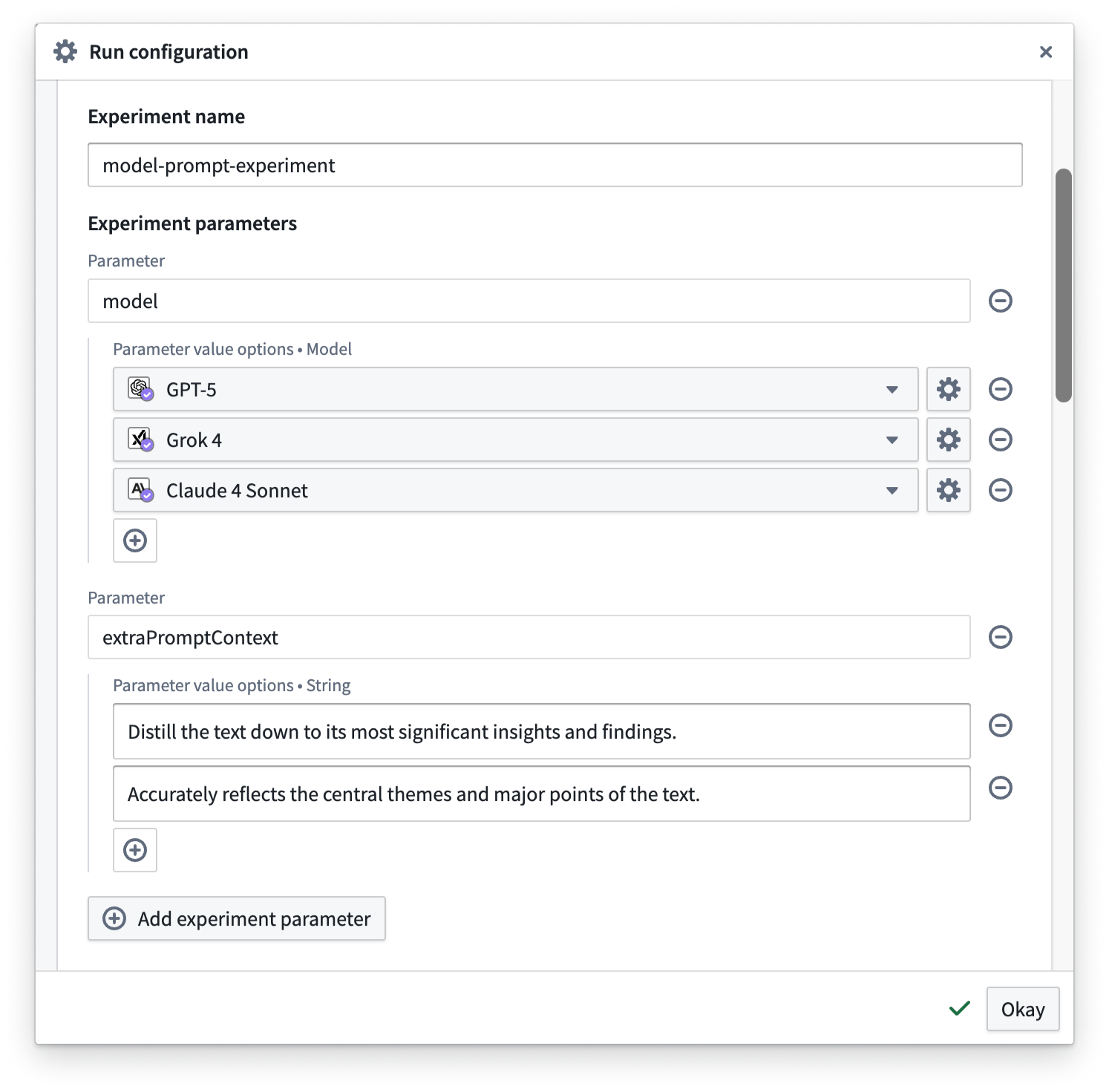
Defining experiment parameters in the Run configuration dialog.
When the evaluation runs have been completed, you can analyze the results in the Runs table, where you can group by parameter values to easily compare aggregate metrics and determine which option performed best. You can select up to four runs to compare, and drill down into test case results and logs.
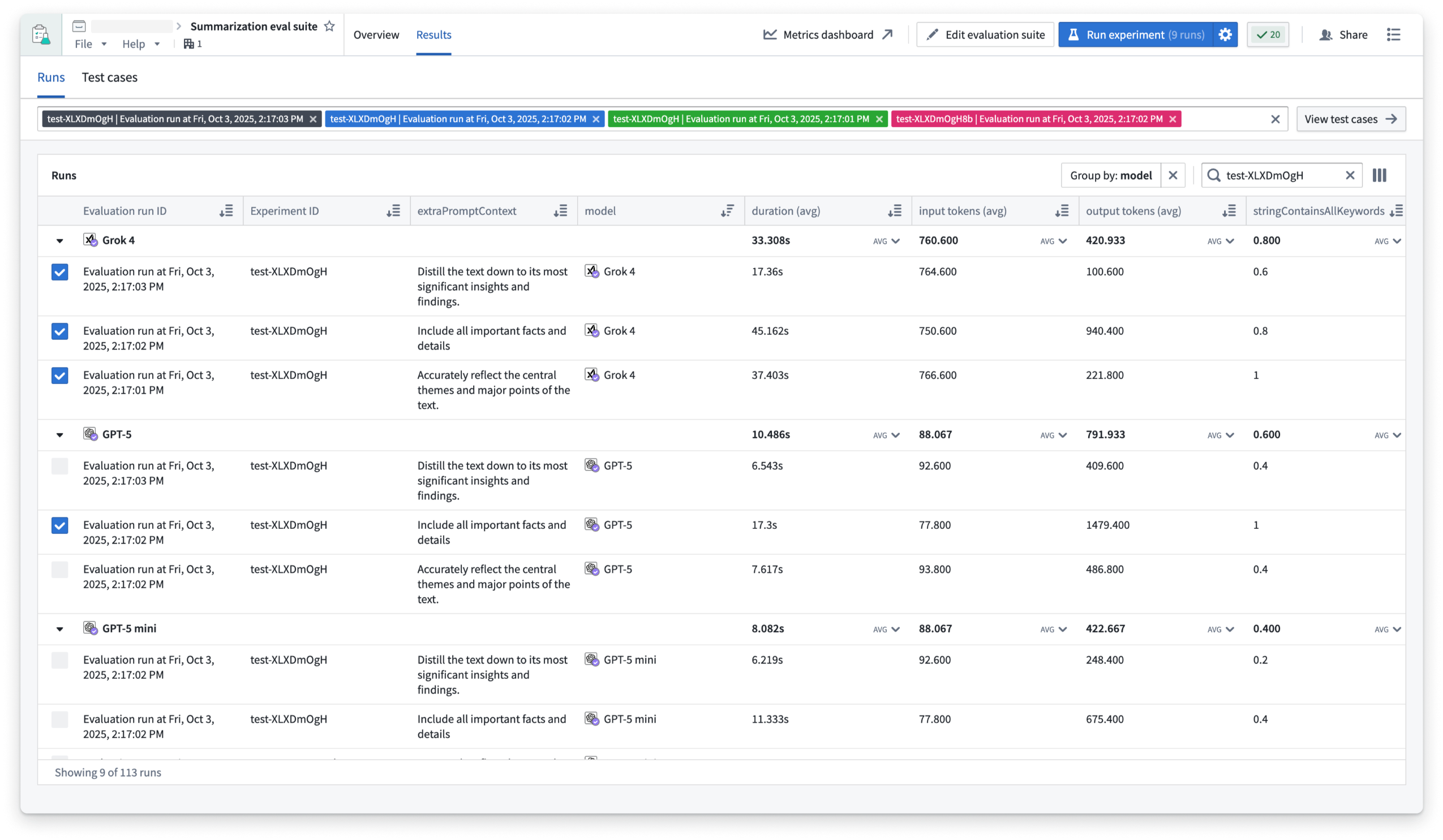
The Runs table in AIP Evals, filtered down to an experiment with evaluation runs grouped by model.
Through automating parameter testing and surfacing the best-performing configurations, experiments can help you refine your AI workflows and deliver higher quality results. Explore this feature to streamline your evaluation process and unlock new opportunities to optimize AI-driven initiatives.
Learn more about experiments in AIP Evals.
Your feedback matters
As we continue to develop new AIP Evals features and improvements, we want to hear about your experiences and welcome your feedback. Share your thoughts with Palantir Support channels or our Developer Community ↗ using the aip-evals tag ↗.
Extract and analyze document context with AIP Document Intelligence
Date published: 2025-10-08
AIP Document Intelligence is now available in beta, enabling you to extract and analyze content from document media sets in Foundry. As a beta product, functionality and appearance may change as we continue active development.
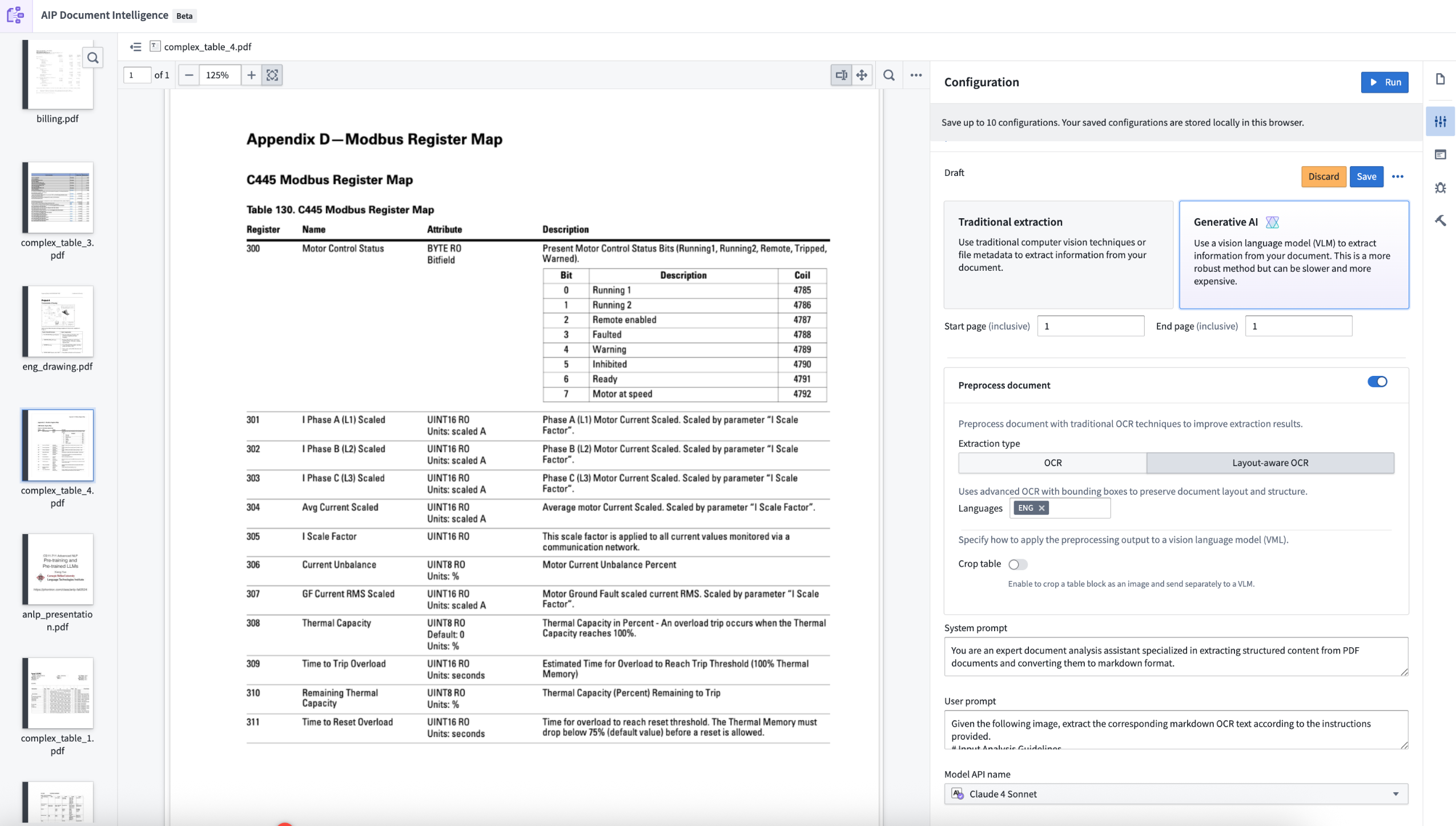
The AIP Document Intelligence application, displaying the configuration page for document extraction.
Why this matters
Document extraction is foundational to enterprise AI workflows. The quality of AI solutions depends heavily on extracting and preparing domain-specific data for LLMs. Our most critical customers consistently highlight document extraction as essential yet time-consuming; complex strategies leveraging VLMs (Vision Language Models), OCR (Optical Character Recognition), and layout extraction often require hours of developer time and workarounds for product limitations.
Key capabilities
AIP Document Intelligence streamlines this process. Users can now:
- Choose between traditional extraction methods (raw text, OCR, layout-aware OCR) and generative AI approaches
- Combine preprocessing techniques with VLMs for complex documents, giving models additional context for better accuracy
- Quickly execute state-of-the-art extraction strategies on sample enterprise documents
- View evaluations of quality, speed, and token cost across different approaches
- Deploy the optimal extraction strategy to a Python transform with a single click to process entire media sets
This beta release supports text and table extraction into Markdown format. Future releases will expand to entity extraction and complex engineering diagrams.
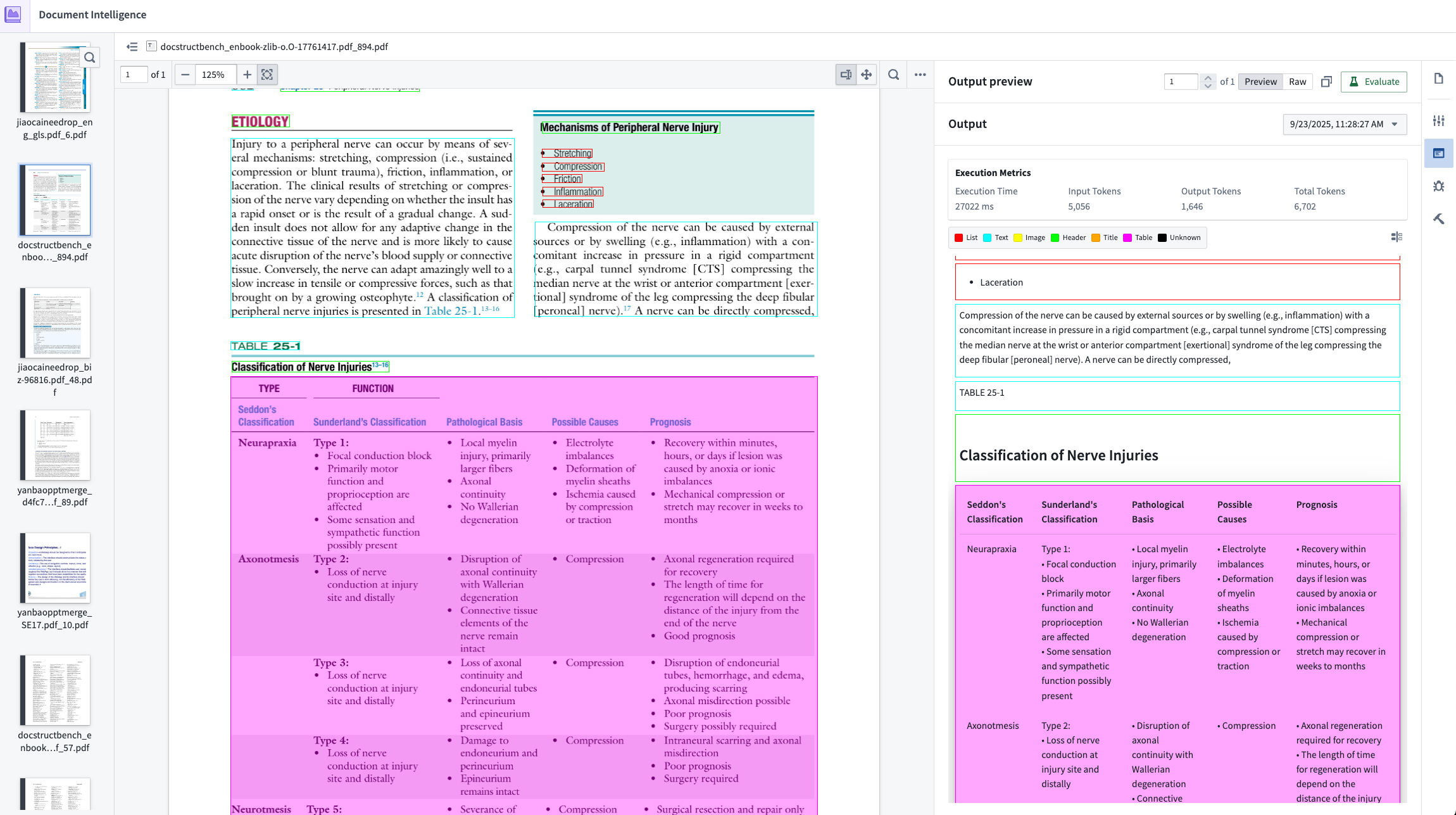
An example of an output preview against a raw PDF in AIP Document Intelligence.
Getting started
To enable AIP Document Intelligence on your enrollment, navigate to Application access in Control Panel.
We want to hear from you
With this beta release, we are eager to hear about your experience and feedback using extraction methods with AIP Document Intelligence. Share your feedback with our Support channels or in our Developer Community ↗ using the aip-document-intelligence tag ↗ .
Debug view for AIP Evals now available in AIP Logic and Agent Studio sidebars
Date published: 2025-10-07
AIP Evals now provides an integrated debug view directly within the Results dialog accessible from the AIP Logic and Agent Studio sidebars. This new view allows you to access debugging information without opening the separate metrics dashboard, making it easier to analyze evaluation results. The debug view allows you to:
-
Navigate between test case results and debug information in a single view
-
Use the native Logic debugger for tested functions and evaluation functions
-
Preview syntax-highlighted code for TypeScript and Python functions
-
Review evaluator inputs and pass/fail reasoning
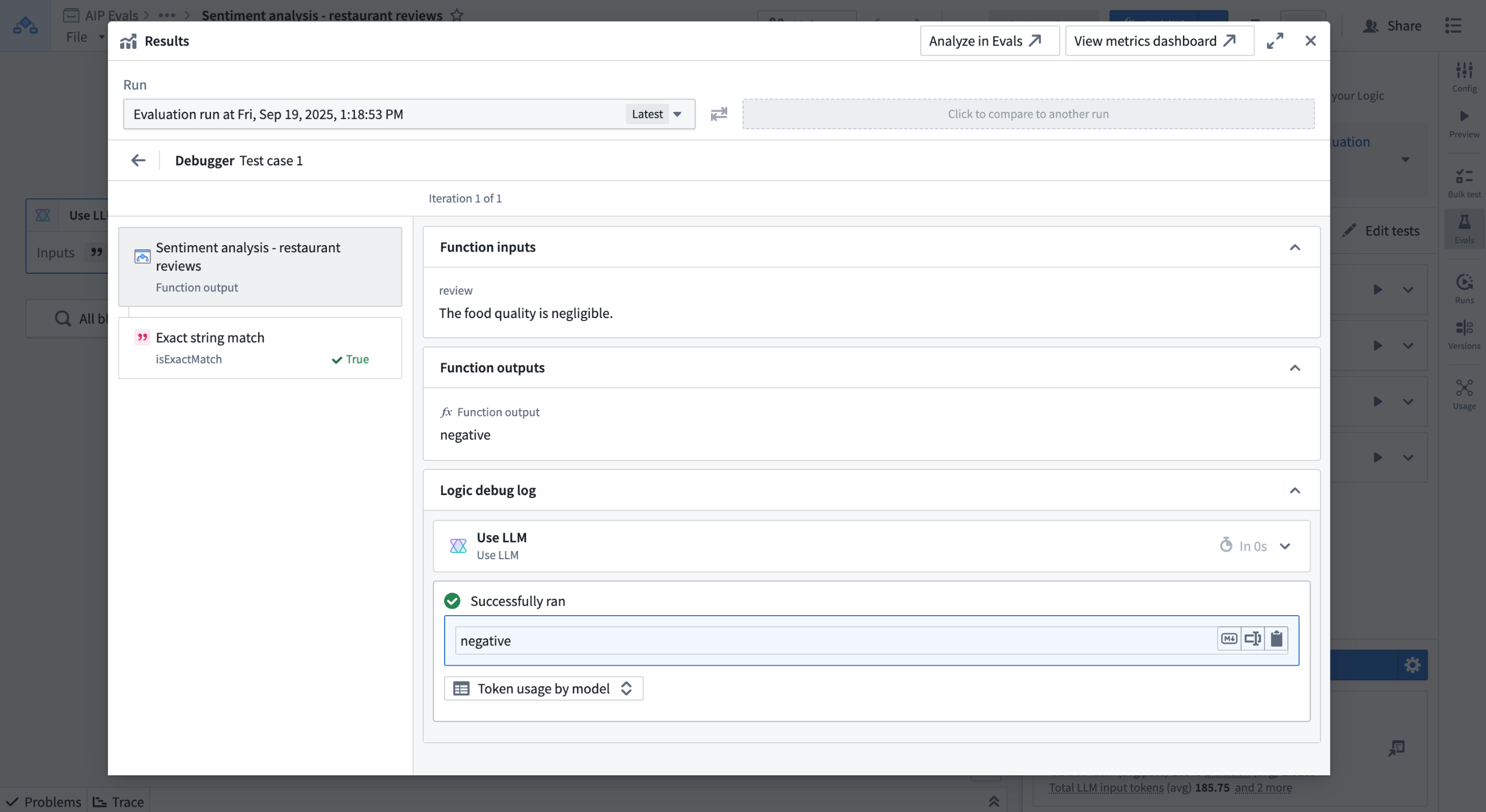
Debug view for a test case.
For more information, review the documentation.
What's next
The debug view will be integrated into the native AIP Evals application in a future release. As we continue to refine the design and user experience, you may notice incremental UI improvements over time.
Share your feedback
Let us know what you think about this feature by sharing your thoughts with Palantir Support channels, or on our Developer Community ↗ using the aip-evals tag ↗.
Grok 4 Fast Reasoning, Grok 4 Fast Non-Reasoning, and Grok Code Fast 1 (xAI) are now available in AIP
Date published: 2025-10-07
Three new Grok models from xAI are now available in AIP: Grok 4 Fast Reasoning, Grok 4 Fast Non-Reasoning, and Grok Code Fast 1. These models are available for enrollments with xAI enabled in the US and other supported regions. Enrollment administrators can enable these models for their teams.
Model overview
Grok 4 Fast Reasoning is best suited for complex reasoning tasks, advanced analysis, and decision-making. It delivers high-level performance for complex decision support, research, and operational planning at a fraction of the cost of Grok 4.
Grok 4 Fast Non-Reasoning is optimized for lightweight tasks such as summarization, extraction, and routine classification.
Grok Code Fast 1 is designed for high-speed code generation and debugging, making it ideal for software development, automation, and technical problem-solving.
Comparisons between these Grok models and guidance on their optimal use cases can be found in xAI’s documentation ↗. As with all new models, use-case-specific evaluations are the best way to benchmark performance on your task.
Getting started
To use these models:
-
Confirm your enrollment administrator has enabled the xAI model family.
-
Review Token costs and pricing.
-
See the complete list of all the models available in AIP.
Your feedback matters
We want to hear about your experiences using language models in the Palantir platform and welcome your feedback. Share your thoughts with Palantir Support channels or on our Developer Community ↗ using the language-model-service tag ↗.
Spreadsheets are now supported as a media set schema type
Date published: 2025-10-02
Spreadsheet media sets are now generally available, allowing you to upload, preview, and process spreadsheet (XLSX) files directly within Foundry's media sets and enabling powerful LLM-driven workflows with tabular data that was previously difficult to handle.
Organizations frequently need to archive and process data from various poorly defined sources like manufacturing quotes, progress reports, and status updates that come in spreadsheet format. Until now, media sets did not support previews for spreadsheets, and tools for converting spreadsheets to datasets were not suitable for the workflows.
What are spreadsheet media sets?
Spreadsheet media sets allow you to work with tabular data designed for human consumption that is difficult to automate using traditional programming methods. The primary format supported is XLSX (Excel) files.
Spreadsheet media sets are ideal for processing unstructured spreadsheets in scenarios such as:
- Files with significant formatting differences between versions
- Spreadsheets where the structure is not known ahead of time (including email attachments, ad-hoc reports, and third-party vendors)
- Storing and displaying source data alongside processed datasets
- Supporting LLM-driven extraction and analysis workflows
Spreadsheet media sets are also an excellent way to maintain your original source of truth for referencing from downstream transformations or ingestions.
Key capabilities
- Upload and preview: Upload XLSX files to media sets and view interactive previews that render spreadsheet content directly in Foundry. The preview provides a familiar tabular view of your data without requiring file downloads.
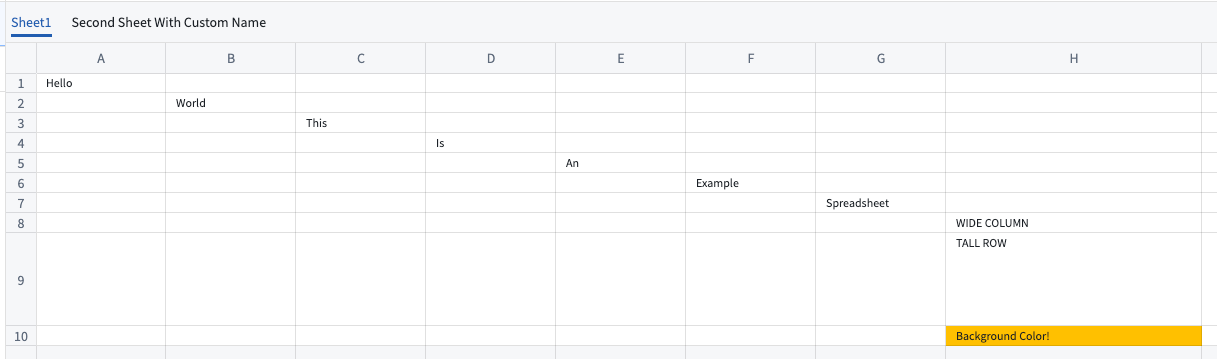
A preview of spreadsheet content uploaded to a media set.
- Text extraction for LLM processing: Extract spreadsheet content as JSON for use in LLM-powered workflows. This enables intelligent processing of tabular data that might have inconsistent formatting or meaningful layout structure such as merged cells.
- Workshop integration: Spreadsheet media sets are fully integrated with Workshop, allowing you to preview spreadsheets directly in your workflow, view and create annotations, and scroll through content seamlessly.
- Pipeline Builder support: Use Pipeline Builder expressions to extract and transform spreadsheet data within your pipelines, making it easy to incorporate spreadsheet processing into your workflows.
- Python transforms in Code Workspaces: Perform advanced transformations in Code Workspaces using the
transforms-mediapackage.
What's next?
In upcoming releases, we plan to enhance spreadsheet media sets with additional Workshop annotation features, enhanced formatting extraction, more options for text extraction, and improved support for edge cases and embedded data.
Your feedback matters
We want to hear about your experience with spreadsheet media sets and welcome your feedback. Share your thoughts with Palantir Support channels, or on our Developer Community ↗ using the media-sets tag ↗.
中文翻译
公告
提醒: 请注册 Foundry 新闻通讯(Foundry Newsletter),以便直接在收件箱中接收平台新产品、功能和改进的摘要。有关如何订阅的更多信息,请参阅 Foundry 新闻通讯和产品反馈渠道公告。
在我们的开发者社区论坛 ↗ 分享您对这些公告的看法。
Ontology 和 AIP 可观测性:函数和操作现支持监控
发布日期:2025-10-24
函数和操作的监控功能现已可用,使您能够主动确保关键工作流的可靠性。监控视图可用于跟踪平台上的各种资源,并在触发警报时通过多个渠道发送通知。
新增功能
监控视图现在支持两种新的函数和操作监控规则类型:
- 持续时间 p95 监控器: 当执行持续时间的第 95 百分位数(p95)(基于最近数据点的滚动窗口计算)超过可配置阈值时,接收警报。
- 失败次数监控器: 当在您设定的时间窗口内失败次数超过可配置阈值时,接收警报。
这些新的监控器可以自定义,通过多种机制通知您,以便您在发生意外情况时始终知晓。
重要性
在生产环境中运行函数和操作需要信任一切按预期运行。以前,团队必须依赖最终用户报告问题,这常常导致延迟并可能遗漏问题。借助这些新的监控功能,您可以自动检测问题,更快地响应,并确保在用户注意到之前您的服务是可靠的。
开始使用
要开始监控您的函数和操作,请按照以下步骤操作:
- 打开 Data Health 应用程序。
- 导航到 Monitoring views 选项卡,搜索或创建一个监控视图。
- 选择 View details,然后导航到 Manage monitors 选项卡。
- 选择 Add new alerts > Add monitoring rules。
- 从下拉菜单中,选择 Functions 或 Action types 作为范围。
- 在出现的对话框中,选择要监控的资源。然后点击右下角的 Confirm selection。
- 在 + Add monitoring rules 下拉菜单中,选择 Function duration 95 或 Number of action failures in window 规则。
- 查看摘要并保存。
用于配置函数监控器的监控规则对话框。
分享您的反馈
请告诉我们您对我们新的函数和操作监控功能的看法。请联系我们的 Palantir 支持渠道,或在我们的开发者社区 ↗ 中使用 data-health ↗ 标签留下您的反馈。
使用 Flow Capture 录制工作流并自动生成文档
发布日期:2025-10-23
Flow Capture 是一款新应用程序,使用户能够根据录制的 Foundry 工作流生成文档,将于 11 月 3 日那周提供测试版。使用 Flow Capture,您可以利用 LLM 根据录制或上传的媒体作为上下文生成 Markdown 文档。Flow Capture 的工具包括音频录制、点击屏幕捕获、内置图像编辑工具和提示自定义,使您能够最大限度地减少创建文档所花费的时间,并有效提高文档覆盖率。
主要功能
Flow Capture 通过以下功能根据您的需求定制文档流程:
- 使用手动或自动捕获的屏幕截图录制 Foundry 工作流。
- 录制和转录描述性画外音。
- 上传图像或音频以提供额外上下文。
- 使用内置图像编辑工具审查或编辑图像。
- 使用提供的模板(包括通用文档、功能请求和错误报告)构建生成的文档。
- 选择您偏好的 LLM 模型并自定义提示和上下文。
- 将生成的文档导出为 Walkthrough、Notepad 文档、ZIP 文件或 PDF。
开始使用
要开始使用 Flow Capture,请导航到 Flow Capture 应用程序并选择 + New Flow Capture。在这里,您可以选择一个模板并开始录制您想要记录的工作流。当您导航工作流时,Flow Capture 可以在 Foundry 中每次点击时截取屏幕截图,或者您可以选择使用键盘快捷键手动捕获屏幕截图。
Flow Capture 应用程序中的模板选项。
录制工作流后,您可以查看和编辑捕获的屏幕截图,选择将哪些资产作为上下文提供给 LLM,并创建提示。
Flow Capture 中的编辑模式,显示添加到上下文的图像,带有紫色的 In context 标签,以及页面底部的提示栏,包含模型和模板选择器。
然后,您可以使用 LLM 模型根据提供的模板、上下文和提示生成 Markdown 文档。生成文档后,您可以根据需要手动编辑或使用不同的提示重新生成,并以各种格式导出,以便与您的培训工作流集成。
实际影响
Flow Capture 通过简化创建、更新和共享资源的过程,正在改变团队在 Foundry 中培训和支持用户的方式。Flow Capture 文档也可以用作 AI 助手的上下文,使您无需投入大量时间进行手动文档和实时支持即可支持用户。无论您是简化用户入职流程还是丰富 AI 支持,Flow Capture 都可以帮助您在组织内分享深入、特定于工作流的专业知识。
您的反馈很重要
在我们继续开发 Flow Capture 的同时,我们想听听您的经验并欢迎您的反馈。请与 Palantir 支持渠道或我们的开发者社区 ↗ 分享您的想法。
在 Jupyter® 工作区中使用新的受限输出模式分析受限视图
发布日期:2025-10-23
在 Palantir 平台上,您现在可以首次在 Jupyter® 工作区中直接编写和执行任意代码来分析受限视图(restricted views),为敏感数据集的数据探索和高级分析解锁了新的可能性。您还可以发布基于受限视图的交互式 Dash 和 Streamlit 仪表板,这些仪表板将根据每个用户的不同权限显示不同的数据。
工作原理
在此之前,Contour 是唯一能够与 Foundry 中的受限视图交互的工具,受限视图是对敏感表格数据应用差异化、基于行的访问控制的首选格式。现在,您可以在 Jupyter® 工作区中使用 Python 访问、转换和分析它们,并使用它们发布自定义仪表板。
在代码工作区中访问受限视图类似于访问标准的 Foundry 数据集。但是,Code Workspaces 要求您启用受限输出模式,这会阻止您从工作区发布数据集、模型、遥测日志和其他工件。这确保您不会无意中从受限视图中获取数据并以绕过访问控制的另一种形式发布。
当您从工作区发布交互式应用程序时,访问该应用程序的每个用户都会看到他们自己版本的应用程序——应用程序界面不像传统网站那样共享。因此,用户看到的数据完全基于他们的访问控制。
总体而言,此新功能旨在平衡表现力和灵活性与安全考虑,使专业编码用户能够使用甚至是最敏感的数据开发分析和应用程序。
开始使用受限视图作为输入
按照文档说明在 Jupyter® 工作区中使用受限视图作为输入。选择一个受限视图添加到您的工作区,安装必要的包,并为您的工作区启用受限输出模式。切换受限输出模式需要重新启动您的工作区,并且该设置会一直保持,直到您将其关闭。
您可以通过两种方式查询受限视图:使用 containers_sql Python 库或 Jupyter® 魔法命令,两者都使用 Spark SQL。这两个选项都以 PyArrow 格式返回数据,您可以轻松地将其转换为 Pandas 数据框或其他格式以便于操作。
从代码工作区查询受限视图的概述。
我们期待您的反馈
通过 Palantir 支持或我们的开发者社区 ↗ 使用 code-workspaces 标签 ↗ 与我们分享您的反馈。
--
Jupyter®、JupyterLab® 和 Jupyter® 标志是 NumFOCUS 的商标或注册商标。
在分支上通过操作启用副作用
发布日期:2025-10-23
用户现在可以更精细地控制副作用(例如 webhook、通知以及进行外部调用的函数)在分支上的操作行为。有关更多信息,请查看分支上的副作用文档。
Webhook
默认情况下,如果您的操作类型配置了 webhook,则在分支上应用操作时,webhook 将不会执行。在这种情况下,您将看到一个 toast 通知指示此行为。
显示 webhook 未执行的 Toast 通知。
要覆盖默认行为,您可以在 Ontology Manager 的操作类型的 Security and submission criteria 选项卡中启用分支上的 webhook 执行。
在 Ontology Manager 的 Security and submission criteria 选项卡中,可以启用允许在分支上运行操作时执行 webhook 的开关。
具有外部调用的函数
默认情况下,如果您的操作类型由函数支持,并且该函数进行外部调用,则在分支上执行时操作将完全失败。在这种情况下,您将看到一个失败 toast 通知,并附有行为说明。
在分支上执行的函数支持操作的失败 Toast。
要覆盖默认行为,您可以在 Ontology Manager 的操作类型的 Security and submission criteria 选项卡中启用分支上具有外部调用的函数。
在 Ontology Manager 的 Security and submission criteria 选项卡中,可以启用允许在分支上运行操作时使用具有外部调用的函数的开关。
通知
默认情况下,如果您的操作类型配置了通知,则在分支上执行操作时,通知将不会被发送。在这种情况下,您将看到一个 toast 通知指示此行为。
Toast 通知指示操作已应用但未触发通知。
要覆盖默认行为,您可以在 Ontology Manager 的操作类型的 Security and submission criteria 选项卡中启用分支上的通知。
此外,您可以指定在分支上运行操作时的通知收件人:
- Branch owner: 将所有通知发送给分支所有者。
- Default recipients: 通知在原始通知上配置的收件人。
在分支上运行操作时配置分支上的收件人。
我们期待您的反馈
在我们继续为 Foundry Branching 开发新功能的同时,我们想听听您的经验并欢迎您的反馈。请与 Palantir 支持渠道或我们的开发者社区 ↗ 分享您的想法,并使用 foundry-branching ↗ 标签。
使用 Palantir MCP 通过 Ontology SDK 进行 Vibe Coding
发布日期:2025-10-23
Palantir MCP 现在提供一组工具,使您能够直接从 IDE 使用 Ontology SDK。此增强功能将 SDK 管理功能带到您的开发环境中,允许您添加和删除资源、生成新版本以及安装它们,而无需切换上下文。此外,我们升级了 OSDK 上下文工具,以包含最新的语言功能,使您的 AI 辅助开发工作流更加高效。
Palantir MCP 中的新工具
view-osdk-definition 工具: 即时访问有关 Ontology SDK 定义的详细信息,包括 SDK 名称和版本、具有属性的对象类型、具有关系的链接类型、具有参数的操作类型以及具有输入/输出规范的函数定义。当您需要了解应用程序中 SDK 的结构和内容或全面查看所有可用资源时,请使用此工具。
尝试使用如下提示:"Can you describe the content of the Ontology SDK connected to this repo?"
IDE 中显示对象类型、属性和关系的 SDK 结构的 view-osdk-definition 工具。
generate-sdk-version 工具: 简化创建新 SDK 版本的过程。无论您是向 SDK 添加新资源、删除过时的资源还是更新现有定义,此工具都可以直接从您的开发环境处理版本生成。只需描述您想要进行的更改,该工具将自动生成新版本的 Ontology SDK。
尝试使用提示:"Add the actions connected to the object types in my SDK and generate a new version。"
Repository connection 工具: 将现有的 TypeScript 仓库连接到 Developer Console 应用程序,使您能够轻松地将现有应用程序与 Foundry Ontology 结合。当您与当前未连接到 Developer Console 应用程序的仓库交互时,该工具会智能地检测到这一点并建议建立连接。
在您的任何 TypeScript 仓库上尝试使用提示:"Describe the Ontology SDK connected to this repo。"
该工具将检测到该仓库当前未连接,并将指导您完成连接过程。
增强的 OSDK 上下文
除了上述新工具之外,我们还升级了 Palantir MCP 中的 OSDK 上下文功能。上下文工具现在支持最新的语言特性和功能,确保 AI 辅助编码建议了解您的 Ontology SDK 所能实现的全部范围。
您现在可以要求代理使用 OSDK 中可用的任何功能来编写 OSDK 查询,包括附件、媒体集、派生属性和聚合。这意味着更准确的代码生成、更好的补全以及更智能的建议,这些建议与最新的 SDK 模式和最佳实践保持一致。
尝试使用提示:"Update the useProjects file and fetch the first 50 projects ordered by name and include a derived property with the number of connected tasks to each project。"
上面的示例提示适用于 To Do 应用程序示例,并演示了增强的上下文如何使用高级 OSDK 功能实现复杂的查询生成。
平台 SDK 代码生成
Palantir MCP 还支持平台 SDK 代码生成。Foundry 平台 SDK 提供了可在您的 OSDK 仓库中使用的 API,以与广泛的 Foundry 产品进行交互。您可以使用此工具列出给定产品的所有可用 API 端点,从而轻松发现平台功能并将其直接集成到您的应用程序中。
这些产品包括 AIP Agents(在 AIP Agent Studio 中构建的交互式助手,配备企业特定信息和工具)、Media sets(Foundry 中媒体数据的表示)、Ontologies(将数据分类为现实世界概念,包含对象类型、属性、链接类型和操作类型)、Admin(管理用户、组、标记和组织)、Connectivity(管理外部系统连接和 API)、Datasets(Foundry 中数据的表示)、Filesystem(管理文件系统资源、文件夹和项目)、Orchestration(管理构建、作业和计划)、SQL Queries(管理在 Foundry 中执行的 SQL 查询)以及 Streams(具有秒级延迟的实时操作数据分析和处理)。
开始使用
这些工具现在可以通过 IDE 中的 Palantir MCP 获得。
您可以查看以下文档:
Claude Haiku 4.5 现已在 AIP 中可用
发布日期:2025-10-21
Claude Haiku 4.5 现可通过 Anthropic Direct、Amazon Bedrock 和 Google Vertex AI 获得,适用于非地理限制注册、所有美国注册和所有欧盟注册。
模型概述
Claude Haiku 4.5 是一个混合推理模型,在性能、速度和成本之间取得了平衡。可以在 Anthropic 文档 ↗ 中找到 Claude Haiku 4.5 与 Anthropic 模型系列中其他模型的比较。
- 上下文窗口: 200,000 个 token
- 模态: 文本和图像输入 | 文本输出
- 能力: 扩展思考、函数调用
开始使用
要使用这些模型:
- 确认您的注册管理员已启用相关模型系列
- 查看 token 成本和定价
- 查看完整的 AIP 中所有可用模型列表
您的反馈很重要
我们想听听您在 Palantir 平台上使用语言模型的经验,并欢迎您的反馈。请与 Palantir 支持渠道或在我们的开发者社区 ↗ 中使用 language-model-service 标签 ↗ 分享您的想法。
Workshop 和 Pipeline Builder 中的新音频转录功能
发布日期:2025-10-21
Audio and Transcription Display 小部件 现已在 Workshop 中可用,用于可视化和交互音频文件和转录片段。此外,Pipeline Builder 中的 Transcribe audio 转换现在支持说话人分离(speaker diarization),在使用 More performant 模式并启用 Speaker recognition 时,能够在音频文件中自动识别说话人。
Workshop 中 Audio and Transcription Display 小部件的示例配置。
小部件功能
该小部件接受包含具有以下属性的转录片段对象的对象集:
- 转录内容(字符串)
- 开始和结束时间戳(毫秒)
- 说话人 ID(字符串,可选)
功能
- 同步播放: 查看音频波形可视化,并带有时间戳对齐的转录滚动。
- 说话人分离显示: 在 Player 和 Gantt 图表可视化格式之间切换。
- 搜索: 跨转录片段进行全文搜索。
- 自定义操作: 在片段对象上配置操作类型(例如,编辑说话人名称、更正时间戳和修改片段内容),这些操作会在悬停片段时显示在工具栏中。使用 Selected segment 变量在操作参数中引用悬停的片段。
- Seek to timestamp: 可选地配置数值变量输入,以编程方式将音频定位到特定时间戳。
Pipeline Builder 增强功能
Transcribe audio 转换现在在 More performant 模式下支持说话人分离。启用 Speaker recognition 以输出每个转录片段的说话人 ID。该转换输出片段详细信息,包括:
- 片段 ID
- 开始和结束时间戳
- 转录内容
- 说话人 ID(当启用说话人识别时)
使用 Explode array 和 Extract struct fields 转换来处理片段数组输出,以便本体化(ontologization)为与小部件兼容的片段对象。有关分步指南,请查看我们关于创建交互式音频转录应用程序的文档。
Pipeline Builder 中的 Transcribe audio 转换板,选择了输出带有转录的分离结果的选项。
您的反馈很重要
在我们开发用于处理音频的媒体集体验时,我们想听听您的经验并欢迎您的反馈。请与 Palantir 支持渠道或在我们的开发者社区 ↗ 中使用 media-sets 标签 ↗ 分享您的想法。
使用预热池计算配置文件在 Pipeline Builder 中实现更快的构建
发布日期:2025-10-21
预热池计算配置文件选项现已在所有注册中可用,这是一种强大的新型计算配置文件,旨在加速您在 Pipeline Builder 中的构建。
Warm pool 利用一个自动扩展的持续运行虚拟机池,减少了作业启动延迟。启用预热池后,您的作业可以立即开始处理,无需等待机器启动。
- 最多三个作业 在每个虚拟机上并发运行,高效共享资源。
- 适用于较小的构建: 非常适合在超小配置文件上 30 分钟内完成的工作负载。
您可以通过在计算配置文件对话框中切换 Warm pool 来启用它。
启用了 Warm pool 选项的计算配置文件对话框示例。
预热池目前仅支持超小配置文件。尚不支持更大的配置文件。
立即开始使用预热池,体验更快的构建时间。有关更多信息,请参阅预热池文档。
Foundry Connector 2.0 for SAP Applications v2.35.0 (SP35) 现已可用
发布日期:2025-10-21
用于将 Foundry 连接到 SAP 系统的 Foundry Connector 2.0 for SAP Applications 附加组件版本 2.35.0 (SP32) 现已可从 Palantir 平台内下载。
此新主要版本特别包括:
- 新版本的 Foundry SAP Cockpit,提供更多功能来监控和管理 Foundry SAP Connector。可通过
/n/palantir/cockpitv2事务代码访问。 - SAP HANA 数据库上的
HINT关键字支持,允许从辅助数据库读取。使用SM30维护表/PALANTIR/CFG_05以启用此功能。 - 改进的
STXL长文本解压缩。
最新附加组件现已在 Data Connection 中可用
除了这些改进之外,附加组件本身及其发行说明现在可以直接从 Foundry 中的 SAP 源配置的专用 Download packages 部分下载。
要访问它,请导航到现有的 SAP 源,选择 Connection settings > Download packages。下载与您要连接的 SAP 系统的 NetWeaver 版本相对应的文件。
导航到现有的 SAP 源,选择 Connection settings > Download packages > Download add-on。
连接到未使用最新 SAP 附加组件的 SAP 系统的 Foundry SAP 源现在将显示一个横幅,提示有新版本可用。
如果 SAP 系统未使用最新的 SAP 附加组件,则显示横幅。
我们期待您的反馈
在我们继续开发平台连接支持的同时,我们想听听您的经验并欢迎您的反馈。请与 Palantir 支持渠道或我们的开发者社区 ↗ 分享您的想法,并使用 data-connection ↗ 标签。
为轻量级 Python 转换提供更快、更可靠的 VS Code 预览
发布日期:2025-10-21
轻量级 Python 转换的 VS Code 预览现在由新的统一架构提供支持,使构建和预览保持一致,以获得更流畅、更一致的体验。此架构更改消除了整个类别的模式相关错误和边缘情况,并显着提高了预览性能。
技术变更
- 统一执行引擎: 预览现在使用与构建相同的代码路径,消除了模式漂移和环境特定的错误。
- 性能改进: 预览执行速度最高提升 10 倍,特别是对于 Foundry Views。
- 移除了 PySpark 依赖: Code Repository 预览不再需要 PySpark 初始化,减少了启动开销并消除了预览环境中的 PySpark 特定错误。
- 功能对等: 新的轻量级转换功能现在立即可在预览中使用,无需单独的预览实现。
比较轻量级预览架构的图表,显示在我们的更新模型中执行速度最高提升 10 倍。
在我们的文档中了解有关 VS Code 转换预览的更多信息。
这意味着什么
预览和构建环境之间的模式不一致已被消除。以前仅在构建期间(或仅在预览期间)出现的边缘情况不再发生。预览结果现在准确反映构建行为。
分享您的反馈
我们想听听您使用轻量级 Python 转换的经验。请在我们的 Palantir 支持渠道中告知我们,或在我们的开发者社区 ↗ 中使用 transforms-python ↗ 标签 发表帖子。
Python 转换中的新 Media Set Transformation API
发布日期:2025-10-16
一个新的媒体集转换 API 现在可在所有注册的 Python 转换中使用。此 API 使用户能够对媒体集执行媒体和表格转换,并能够输出媒体集和数据集。以前,用户需要构建复杂的请求来与媒体集转换交互。现在,该 API 为不同媒体集模式类型的所有支持的转换提供了全面的方法。
使用此新 API,用户不再需要为诸如在文档媒体集中迭代页面或实现并行处理等任务编写自定义逻辑。转换可以应用于整个媒体集或单个媒体项。此外,该 API 支持媒体到媒体工作流的链式转换。例如,您可以切片文档媒体集,然后在一行中将生成的页面转换为图像。
使用新 API 的代码示例。
查看完整的 API 参考和每种媒体模式可用的转换列表,并附有示例。
您的反馈很重要
在我们开发 Python 转换中的媒体集体验时,我们想听听您的经验并欢迎您的反馈。请与 Palantir 支持渠道或在我们的开发者社区 中使用 media-sets 标签 分享您的想法。
在 Pipeline Builder 中从输入中移除继承的组织标记
发布日期:2025-10-16
在 Pipeline Builder 中,您现在可以从输出中移除继承的组织,以及标记。请注意,此移除仅适用于当前组织——未来的组织更改不会自动移除,数据访问继续依赖于项目级组织。
移除继承的组织
以前,您只能从输出中移除继承的标记。现在,拥有适当权限后,您还可以直接在 Pipeline Builder 中的输入级别移除继承的组织。请注意,数据访问继续依赖于项目级组织,并且任何未来的组织更改都不会自动移除。
使用 Remove all inputs 选项或逐个移除输入,以从一组输入中移除继承的组织。
为此,首先保护您的主分支,并从该受保护分支创建一个分支。然后,导航到屏幕右侧的 Pipeline outputs,并在输出上选择 Edit。
在您想要移除继承标记和组织的输出上选择 Edit。
转到您的输出后,选择 Configure Markings,然后导航到 Organizations 选项卡。在此选项卡上,您可以通过使用 Remove all inputs 选项来移除继承的组织,或者可以在输入级别移除它们。这为您提供了更大的灵活性和对输出访问要求的控制,与您管理标记的方式保持一致。
组织标记移除示例
要完全移除组织标记,您必须移除包含该组织的所有输入。例如,如果您想移除下面屏幕截图中的 Testers 组织,您需要移除第一个和第二个输入(假设其他输入都没有 Testers 组织)。
通过删除包含该组织的所有输入来移除组织标记。在此示例中,这意味着两个具有 Testers 组织的输入。
了解有关在 Pipeline Builder 中移除组织和标记的更多信息。
您的反馈很重要
我们想听听您使用 Pipeline Builder 的经验并欢迎您的反馈。请与 Palantir 支持渠道或在我们的开发者社区 ↗ 中使用 pipeline-builder 标签 ↗ 分享您的想法。
Ontology 资源现在支持分支保护和项目级策略
发布日期:2025-10-16
Ontology 现在在使用 Foundry Branching 时,通过主分支保护和项目级策略支持细粒度治理。此功能适用于已迁移到项目权限的资源,将以前仅适用于 Workshop 模块的相同变更控制流程扩展到这些资源。
新增功能
- 资源保护: 从您的文件系统中单独或批量保护 Ontology 资源。受保护的资源需要通过分支进行更改,确保更大的监督。
- 可定制的审批策略: 定义适用于给定项目中受保护资源的细粒度审批策略,指定哪些用户或组必须在部署前批准提议的更改。
重要性
此增强功能是持续致力于赋能和扩展构建者社区,同时仍然保持对变更管理的严格控制的一部分。通过将这些变更控制流程扩展到 ontology 资源,项目