Announcements(公告)
REMINDER: Sign up for the Foundry Newsletter to receive a summary of new products, features, and improvements across the platform directly to your inbox. For more information on how to subscribe, see the Foundry Newsletter and Product Feedback channels announcement.
Share your thoughts about these announcements in our Developer Community Forum ↗.
Claude Sonnet 4.6 now available for UK enrollments
Date published: 2026-02-26
Claude Sonnet 4.6 is now available from AWS Bedrock on UK georestricted enrollments.
Model overview
Anthropic's newest model, Claude Sonnet 4.6, delivers significant improvements over Sonnet 4.5 across coding, agentic workflows, visual reasoning, and tool use. It operates more efficiently than Opus models with faster performance and lower costs, making it ideal for a wide range of use cases. For more information, review Anthropic's model documentation ↗.
- Context window: 200,000 tokens
- Modalities: Text, image
- Capabilities: Extended thinking, function calling, adaptive thinking
Getting started
To use this model:
- Confirm that your enrollment administrator has enabled the relevant model family or families.
- Review token costs and pricing.
- See the complete list of all available models in AIP.
Your feedback matters
We want to hear about your experiences using language models in the Palantir platform and welcome your feedback. Share your thoughts with Palantir Support channels or on our Developer Community ↗ using the language-model-service tag ↗.
Compass-managed permissions for Developer Console applications
Date published: 2026-02-26
Developer Console applications now use Compass-managed user permissions, giving you a more consistent and scalable way to manage access to your applications. This change will begin rolling out to enrollments the week starting February 23 and aligns Developer Console with the same permission model used across Foundry. Support for CBAC enrollments is in active development and expected to roll out at the end of March.
Prior to this change, Developer Console users were automatically set as the Owner of the applications they created and had to manually share each application with other users and groups from the Sharing & tokens section of their application. This legacy model requires per-application permission management.
What's new?
Developer Console applications will now behave like any other project resource:
- Inherited permissions: Applications inherit roles, organizations, and markings from the project they reside in and no longer need to be shared manually upon creation.
- Standard Compass operations: You can move, share, and trash applications using the same workflows available for other Foundry resources.
- Marketplace alignment: New applications installed through Marketplace are created in the location you provide during installation.
For more information on these changes, review the Developer Console documentation.
How to create a Compass-managed application
If this feature has been made available for your enrollment, all new Developer Console applications will be created with Compass-managed permissions by default. You will be prompted to select a location for your application during creation:
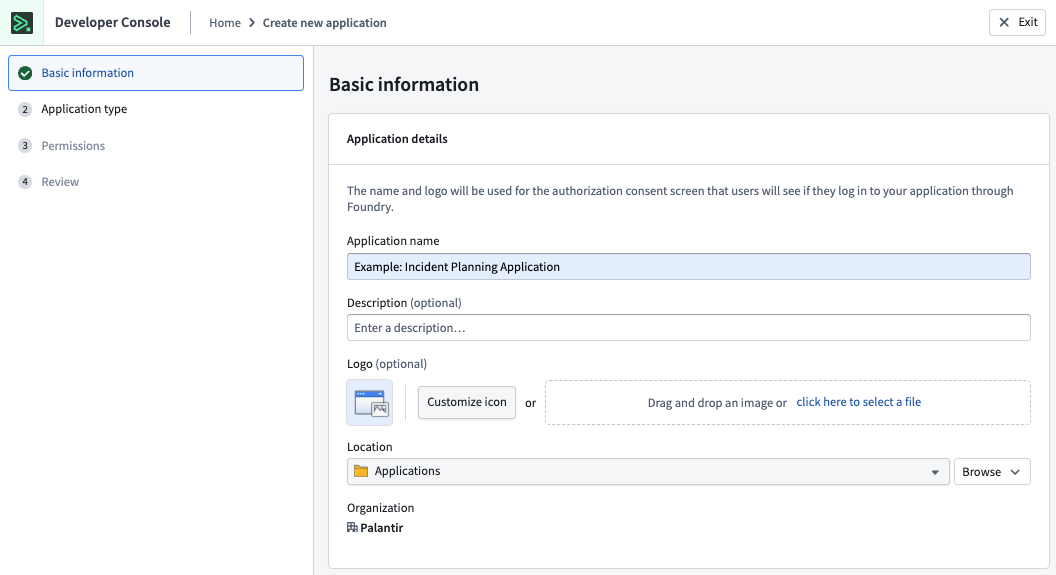
The first step of the creation wizard prompts you to select a location for your Developer Console application.
How to migrate existing applications
To migrate existing applications to Compass-managed permissions, follow our step-by-step guide.
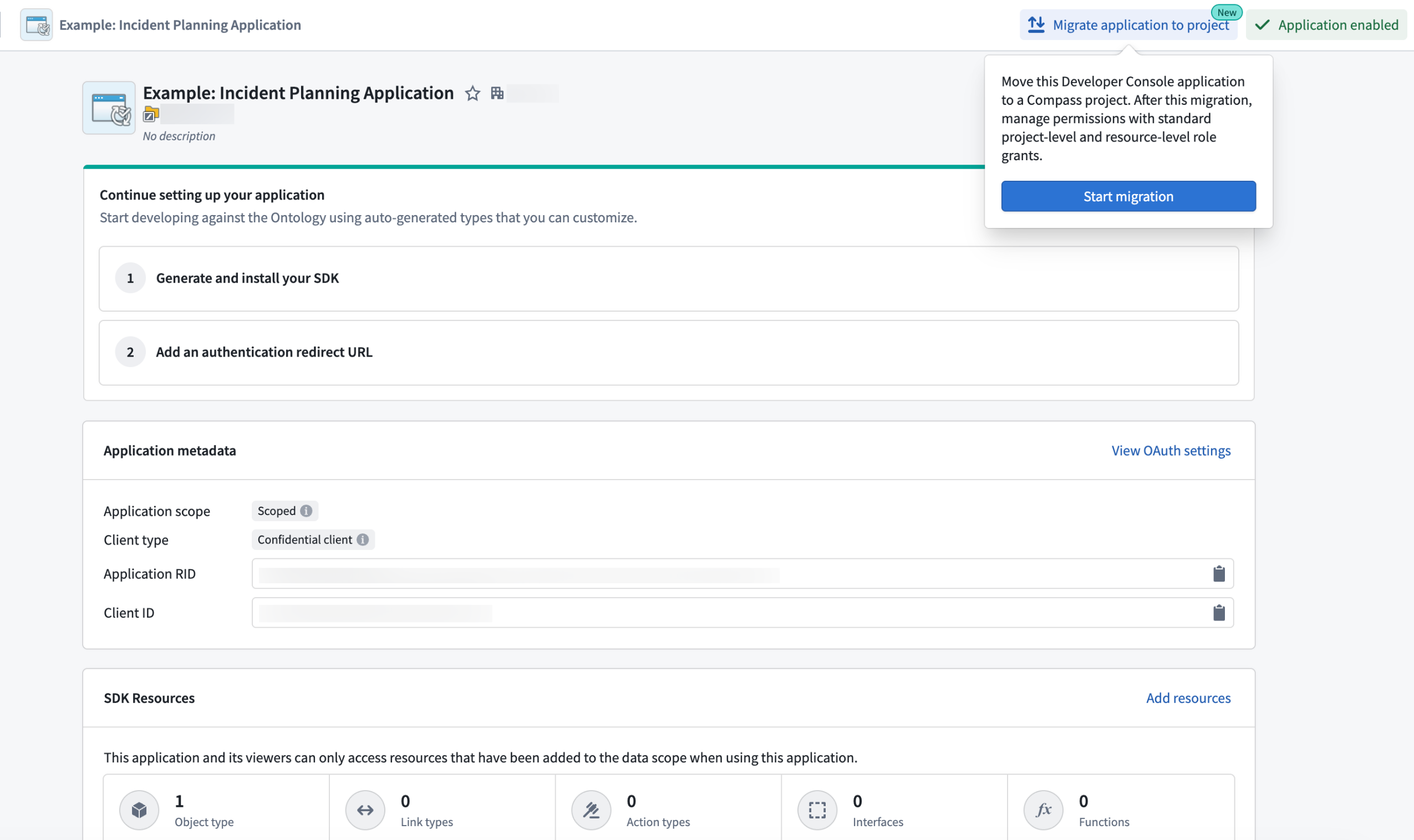
The migration callout for legacy Developer Console applications.
Your feedback matters
We want to hear about your experiences using Developer Console and welcome your feedback. Share your thoughts through Palantir Support channels or on our Developer Community ↗.
New files landing page and the ability to promote files
Date published: 2026-02-26
Starting the week of February 23, a redesigned Files landing page, along with the introduction of a Promoted status, will be available across all enrollments. These changes are designed to help users find relevant content as the volume of resources on the platform increases.
The redesigned files landing page provides a centralized view of all files a user has access to, making it easier to browse and discover relevant content. At the top of the page, quick-filter cards highlight Portfolios, Projects, and Promoted items, explaining each resource type and offering one-click filtering. A unified search function offers the ability to search across all files, and the filter side-panel lets users refine results by resource type, status, portfolio, project, and tag.
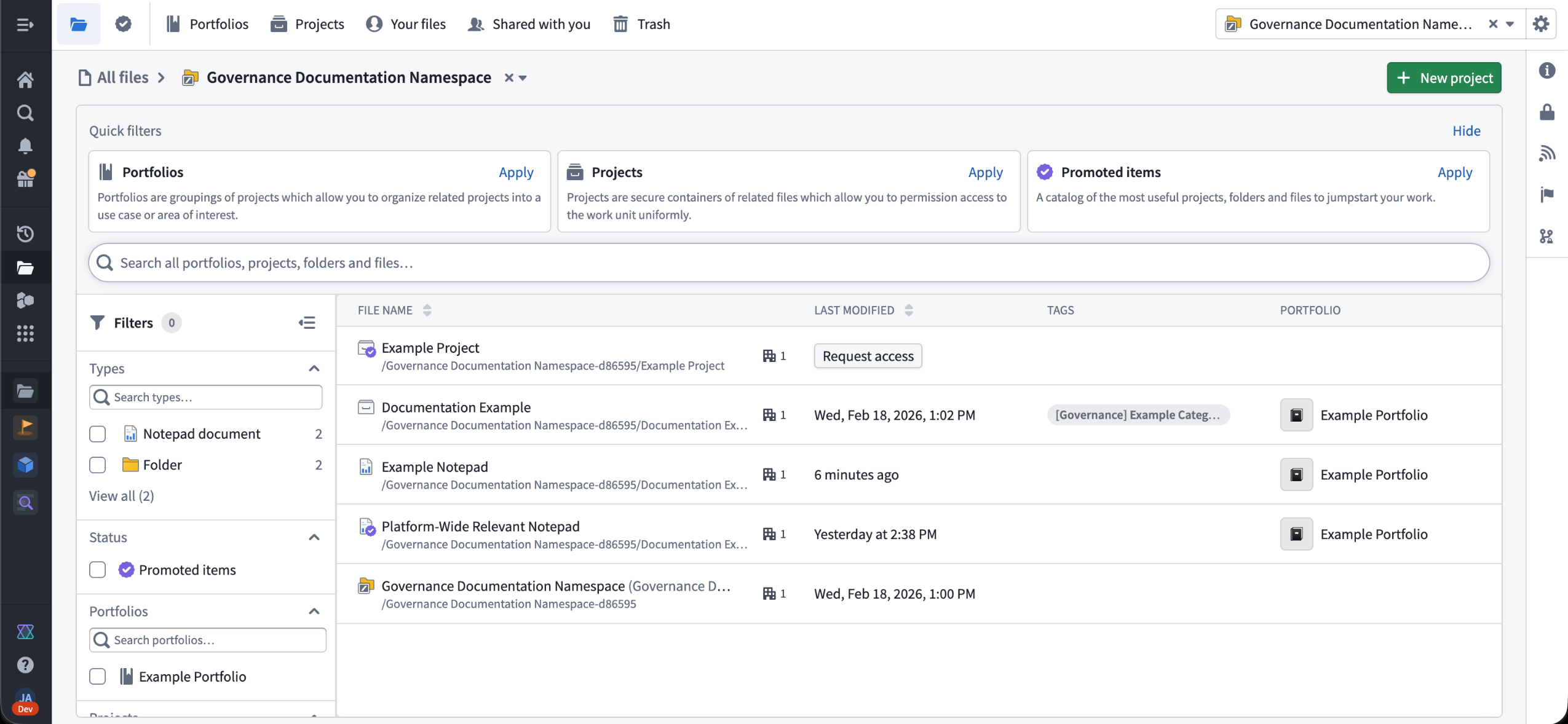
The new landing pages for files, accessible through the navigation bar on the left.
Additionally, all resources can now be marked as Promoted, giving them a visibility boost across the platform. Promoted resources will display a purple badge, rank higher in search results, and be featured prominently in resource pickers and landing pages. This is useful for broadly relevant resources, such as onboarding documentation, canonical datasets, or frequently referenced reports that should be highlighted to users.
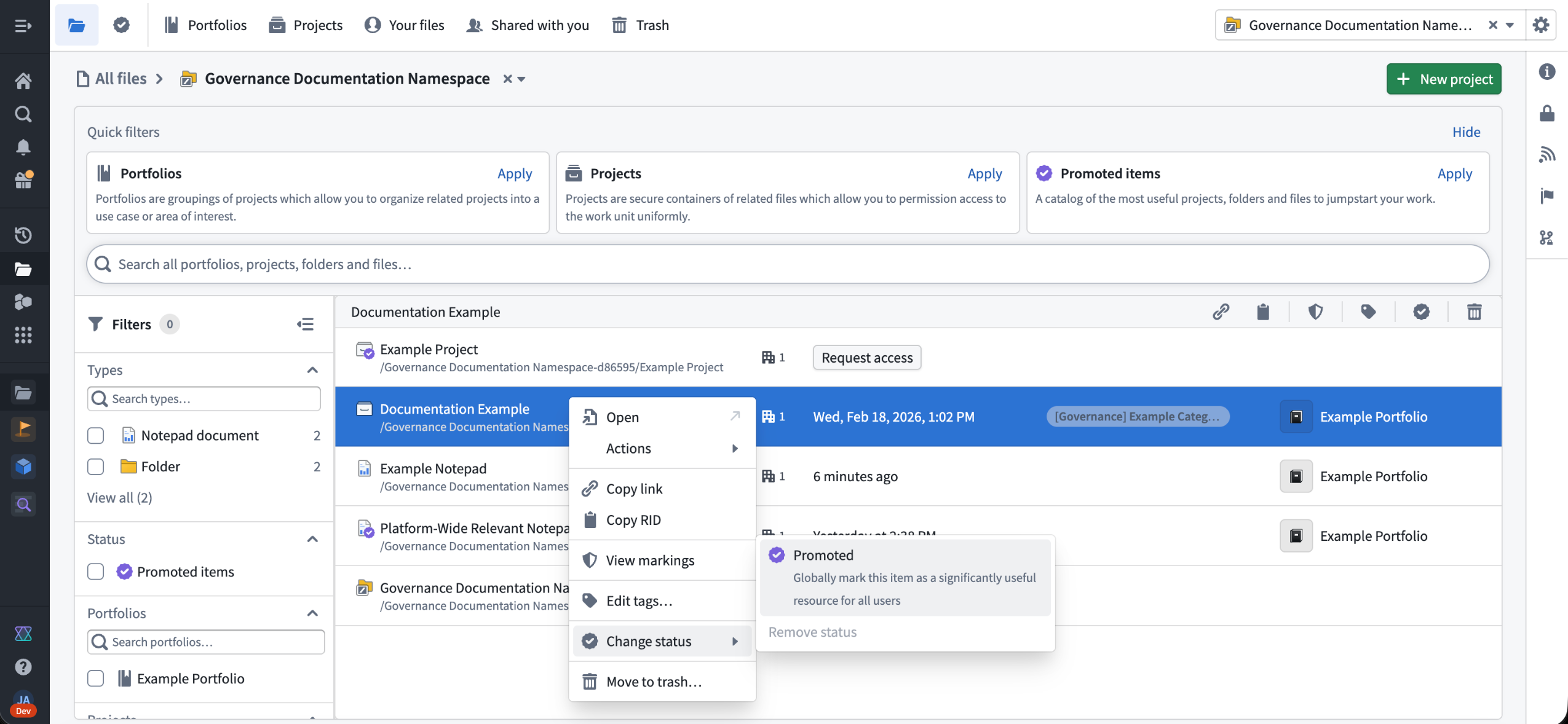
Promoting a resource in the files homepage.
To promote a resource, right-click it and select Change status > Promoted.
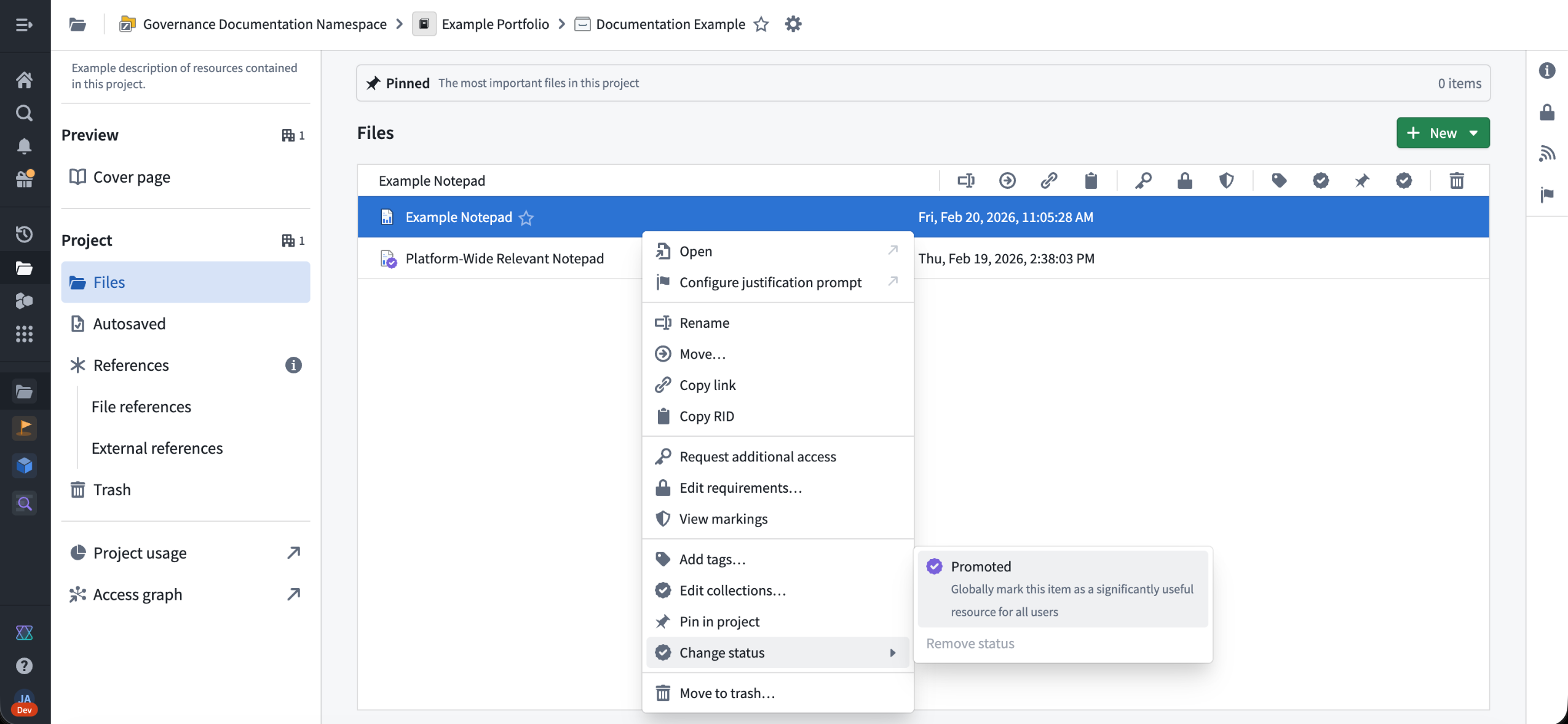
Promoting a resource through a project view.
By default, users with the Editor role on a resource can promote it, but platform administrators can restrict this action on a per-space basis in Control Panel with the Resource Curator space role. If this role is restricted, users will need to be an Editor on the resource and the Resource Curator role to mark it as promoted.
Learn more about Compass and the promoted resource status.
Custom background colors for Workshop sections and pages
Date published: 2026-02-26
Workshop sections and pages now support custom background colors, giving application builders better control over the visual design of their modules. In addition to the existing preset shades, you can now apply any hex color or Blueprint color to section and page backgrounds. Saved colors defined at the module level are also available as section and page background options, making it straightforward to maintain a consistent color palette across an application.
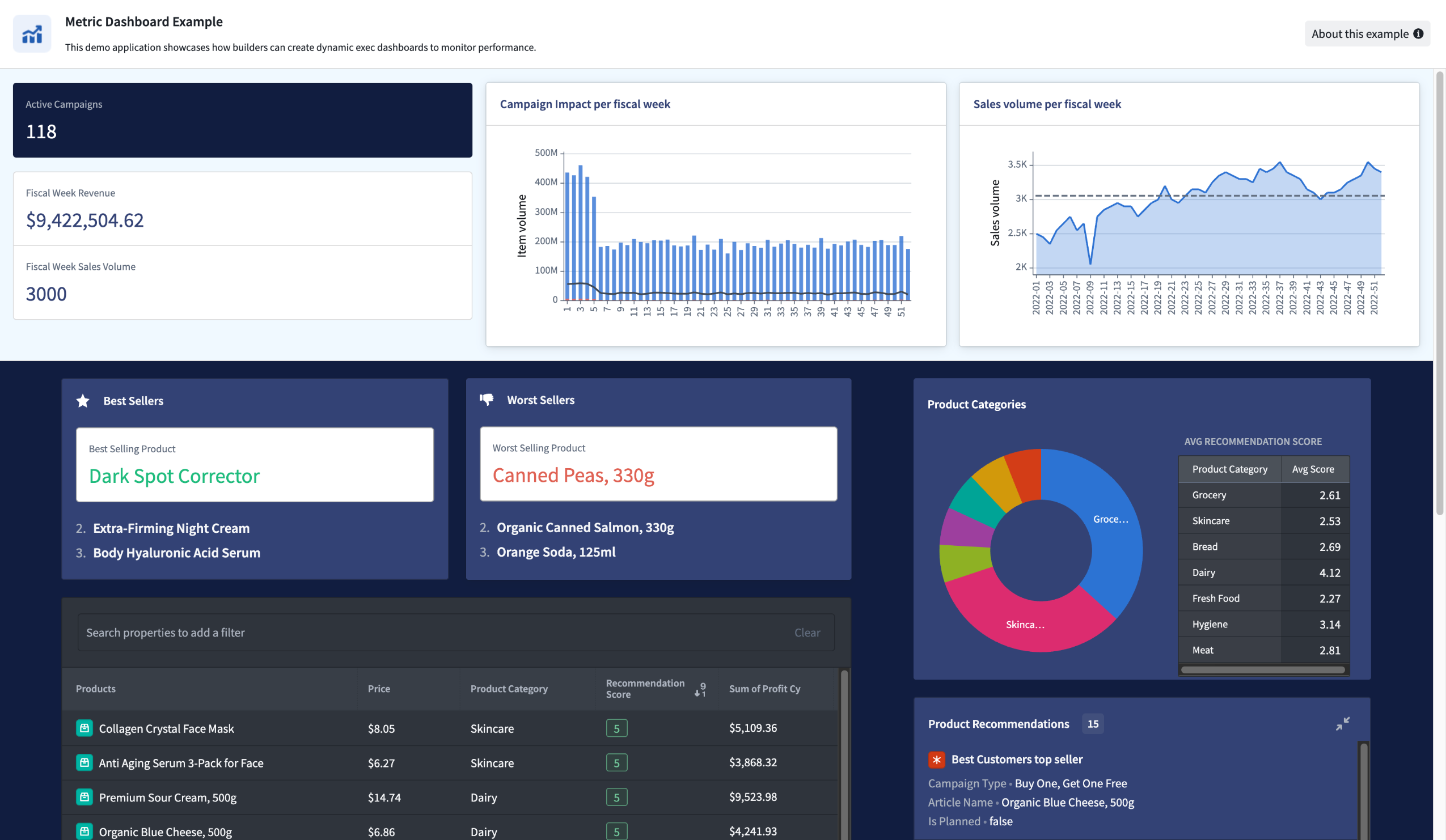
A Workshop application page showing custom background colors.
What's included
- Custom hex colors for sections and pages: Set any color as the background for a section or page using a hex code, or select from Blueprint color shortcuts to quickly apply a standard color value.
- Saved color support: Use saved colors as section and page backgrounds. Editing a saved color automatically updates all sections and pages that reference it.
- Automatic theme adaptation: When a custom background color is applied, widgets within the section automatically switch between light and dark mode based on the brightness of the background color, ensuring text and controls remain legible.
- Consistent behavior across layouts: Custom background colors work with section padding, section headers, and split sections. When splitting a section that has a custom background color, both resulting sections inherit the original color.
How to use custom background colors
To set a custom background color, select a section or page in edit mode, open the Style configuration, and choose a color from the background color options. Select the custom color tile to open the color picker, where you can enter a hex code or choose from Blueprint color shortcuts.
Learn more about background colors and other style formatting options in Workshop.
Let us know what you think
We want to hear about your experiences using Workshop in the Palantir platform and welcome your feedback. Share your thoughts through Palantir Support channels or on our Developer Community ↗ using the workshop tag ↗.
Log search available in Workflow Lineage
Date published: 2026-02-25
The new Search logs tab in Workflow Lineage allows you to search across all service logs produced by a selected source executor over the past seven days. A source executor is the first executable resource in the call chain and can be a function, action, automation, AIP logic, or AIP agent.
Unlike the per-execution service logs view, which shows logs for a single run, log search aggregates logs from every execution originating from a given resource. This makes it easier to investigate recurring errors, track down intermittent issues, or find specific log messages across multiple runs.
To get started, select any executable resource node in Workflow Lineage and open the Search logs tab in the bottom panel.
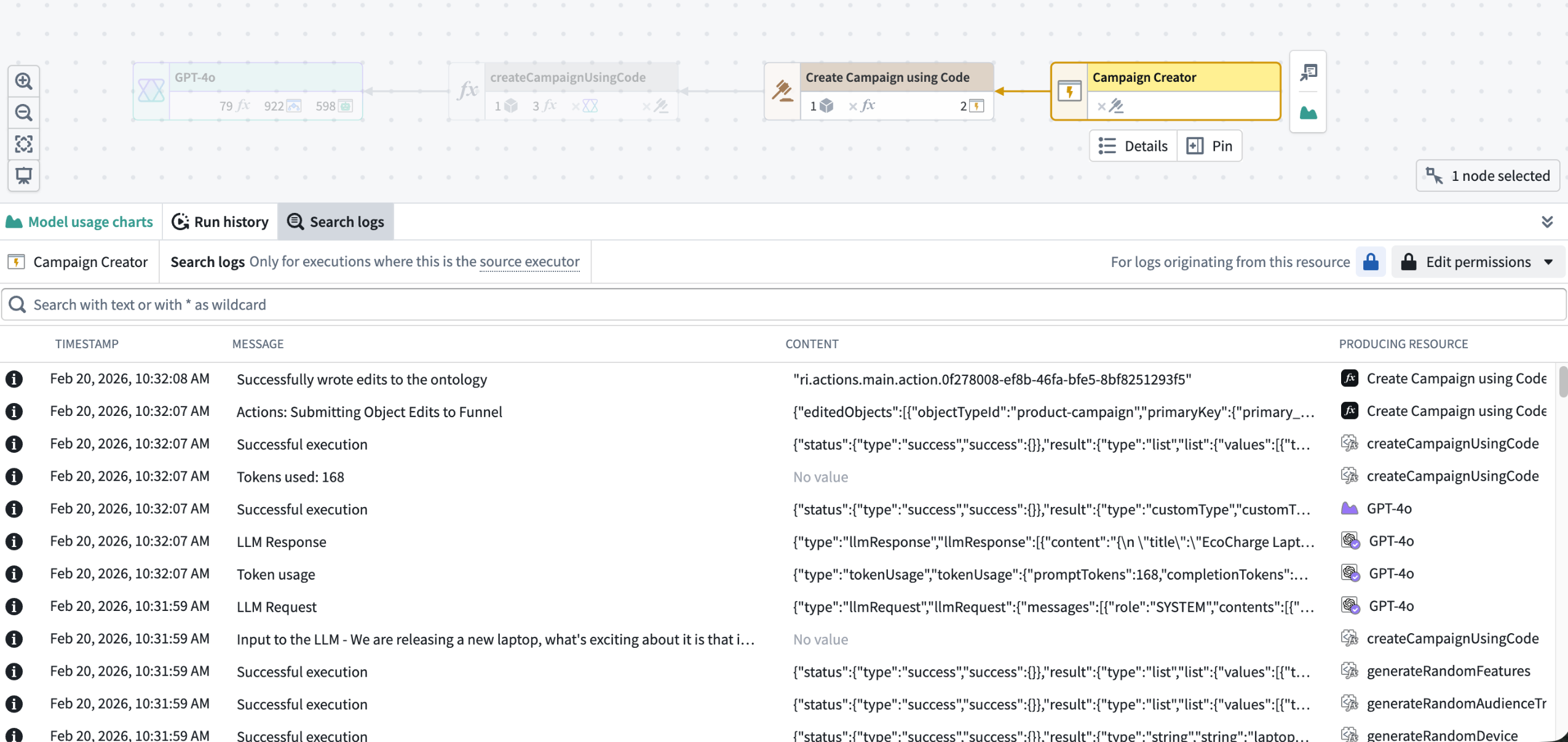
Log search in Workflow Lineage
The search bar accepts case-sensitive text queries and supports * as a wildcard character to match any sequence of characters. Results are displayed in a table sorted by most recent, with matching text highlighted in the Message and Content columns. Select any cell to open a detail dialog with full JSON formatting and in-dialog text search.
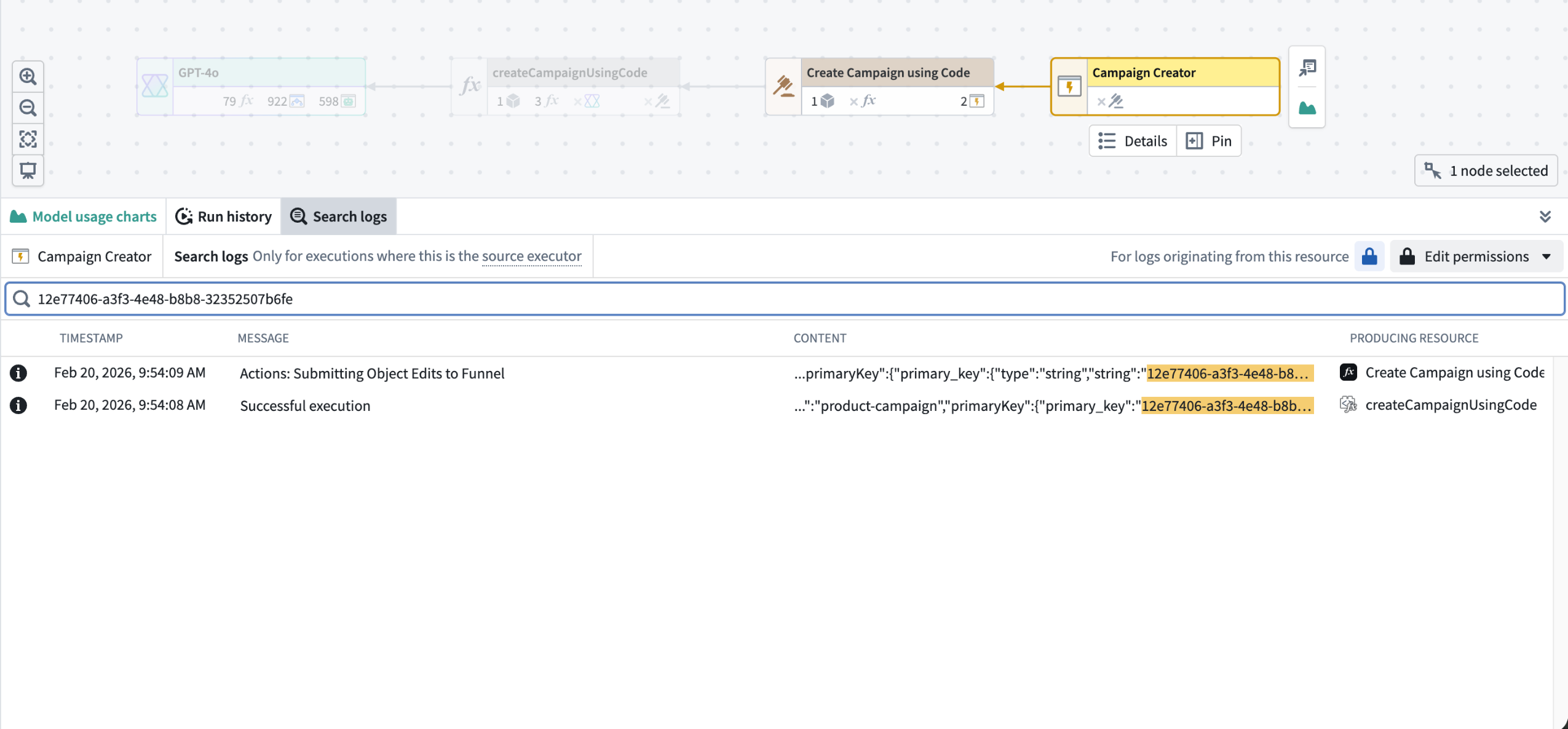
Results of sample log search
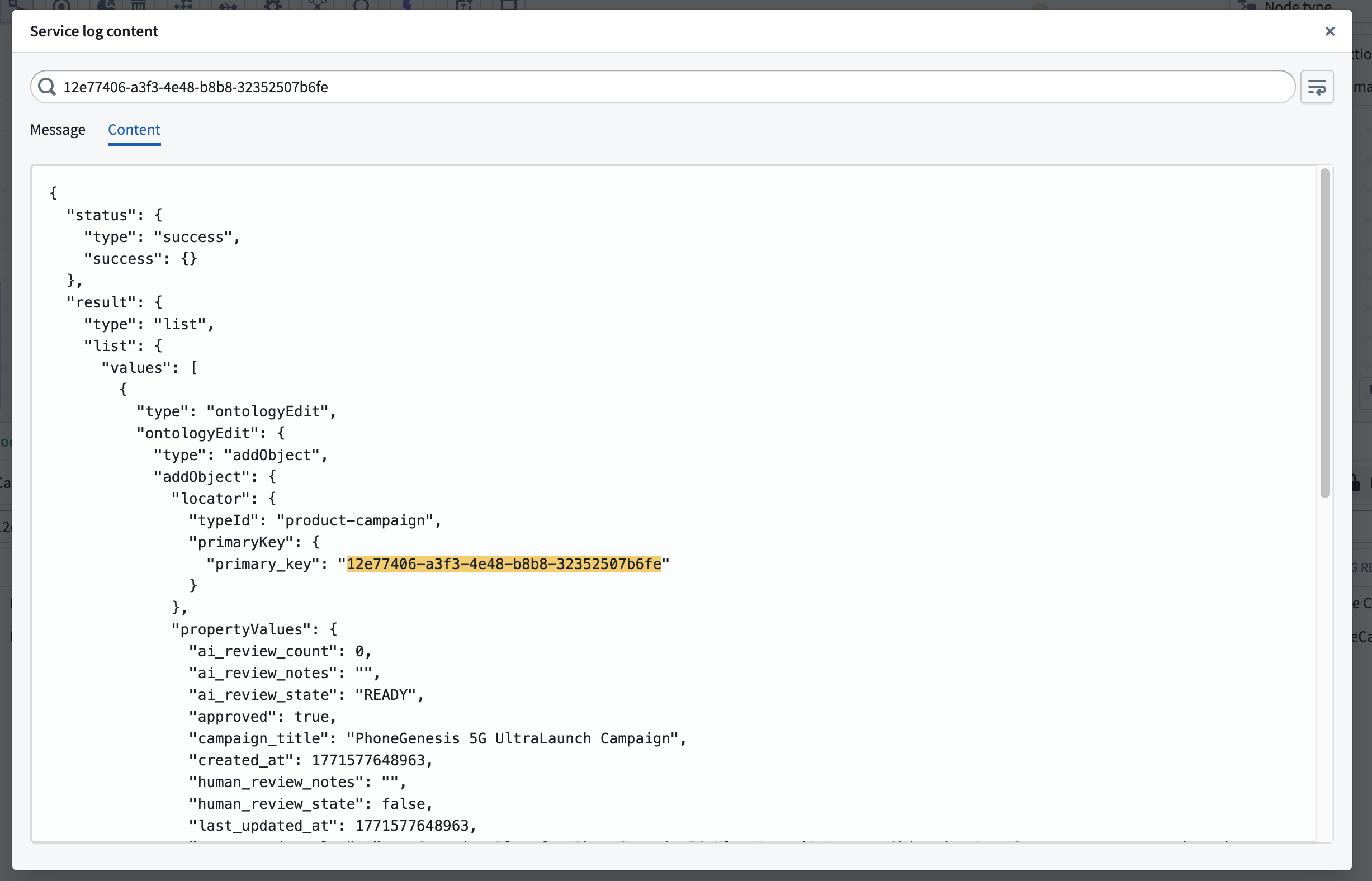
Detailed view of sample log search
Log search requires edit permission on the resource. If log access has been enabled for the source executor's project, you can search across all executions; otherwise, only your own executions from the past 24 hours are searchable.
For full details, see the log search and log permissions documentation.
Your feedback matters
We want to hear about your experiences using Workflow Lineage and welcome your feedback. Share your thoughts with Palantir Support channels or on our Developer Community ↗ using the workflow-lineage tag ↗.
Gemini 3.1 Pro now available via VertexAI
Date published: 2026-02-24
Gemini 3.1 Pro model is now available from VertexAI on commercial, non-georestricted enrollments.
Model overview
Gemini 3.1 Pro ↗ is Google’s newest and most advanced model for complex tasks. It is particularly well-suited for applications that require agentic performance, advanced coding, long context and/or multimodal understanding, and/or algorithmic development.
- Context window: 1,000,000 tokens
- Knowledge cutoff: January 2025
- Modalities: Text, image
- Capabilities: Function calling, structured output
Note that Gemini 3.1 Pro is still in preview status from Google Cloud Platform. Within AIP, Gemini 3.1 Pro has all of the characteristics and behavior of a generally-available AIP model.
Getting started
To use these models:
- Confirm that your enrollment administrator has enabled the relevant model family.
- Review token costs and pricing.
- See the complete list of all models available in AIP.
Your feedback matters
We want to hear about your experiences using language models in the Palantir platform and welcome your feedback. Share your thoughts with Palantir Support channels or on our Developer Community ↗ using the language-model-service tag ↗.
Claude Sonnet 4.6 now available from Anthropic, AWS Bedrock, and Google Vertex
Date published: 2026-02-24
Claude Sonnet 4.6 is now available from Anthropic, AWS Bedrock, and Google Vertex on non-georestricted enrollments. For US and EU georestricted enrollments, this model is available from AWS Bedrock and Google Vertex.
Model overview
Anthropic's newest model, Claude Sonnet 4.6, delivers significant improvements over Sonnet 4.5 across coding, agentic workflows, visual reasoning, and tool use. It operates more efficiently than Opus models with faster performance and lower costs, making it ideal for a wide range of use cases. This model is now available on US and EU non-georestricted enrollments with Direct Anthropic, AWS Bedrock, or Google VertexAI enabled. For more information, review Anthropic's model documentation ↗.
- Context window: 200,000 tokens
- Modalities: Text, image
- Capabilities: Extended thinking, function calling, adaptive thinking
Getting started
To use this model:
- Confirm that your enrollment administrator has enabled the relevant model family or families.
- Review token costs and pricing.
- See the complete list of all available models in AIP.
Your feedback matters
We want to hear about your experiences using language models in the Palantir platform and welcome your feedback. Share your thoughts with Palantir Support channels or on our Developer Community ↗ using the language-model-service tag ↗.
Automatically obfuscate sensitive data in Sensitive Data Scanner using Cipher
Date published: 2026-02-24
Sensitive Data Scanner (SDS) is a data governance tool that detects potentially sensitive data in Foundry, such as phone numbers, Social Security Numbers, or user-defined patterns, and automatically performs a Match Action whenever a match is detected. SDS now supports a new Match Action type, Obfuscate Data, allowing you to automatically encrypt or hash matched sensitive data using Cipher. This addition joins the existing Match Action types, Apply Markings and Create Issues, giving data governance users more direct control over how sensitive data is handled when a match is detected.
Set up an Obfuscate Data Match Action
To use this Match Action, you will need a Cipher Channel and a Cipher License. The Cipher Channel determines the cryptographic algorithm SDS will use to obfuscate matched data. The following algorithms are supported:
- Deterministic encryption (AES SIV)
- Probabilistic encryption (AES GCM SIV)
- Hashing (SHA512 and SHA256)
A Cipher License grants the permissions needed to interact with a Cipher Channel. SDS specifically requires an Admin License, as cryptographic key access is needed to perform the obfuscation. If you do not already have a Cipher Channel or Cipher License, you can create these in Cipher.
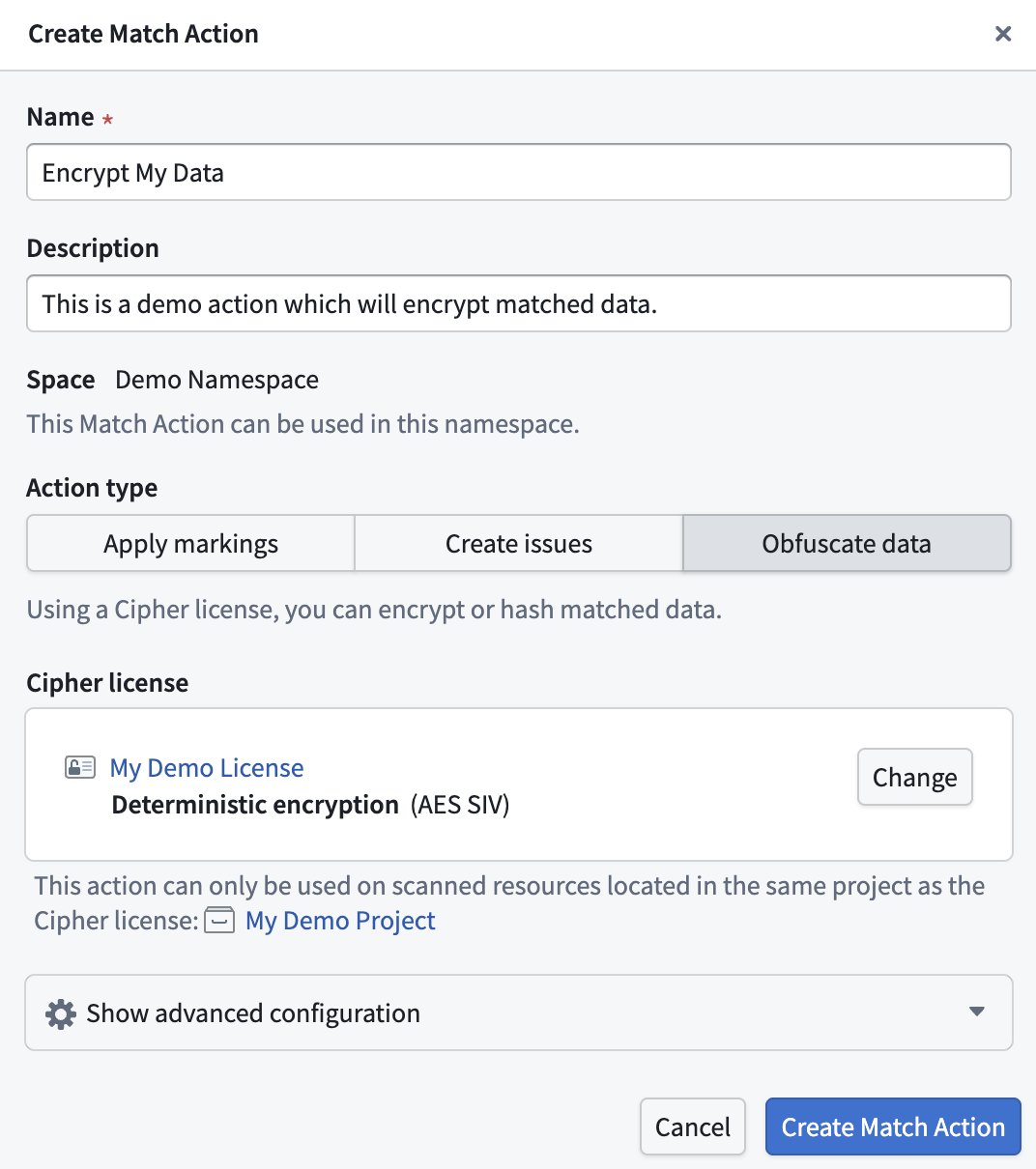
The Create Match Action dialog for creating a new Obfuscate Data Match Action.
Obfuscation modes
By default, SDS will obfuscate the entire column when a match is found. You can customize this behavior by expanding Show advanced configuration in the Create Match Action dialog to select from four obfuscation modes:
- Entire column (default): Obfuscates the entire column if a match is found.
- Entire row: Obfuscates the entire row if a match is found.
- Matched cell only: Obfuscates only the cells in which a match is found.
- Matched segments only: Obfuscates only the text segments that match the match condition.
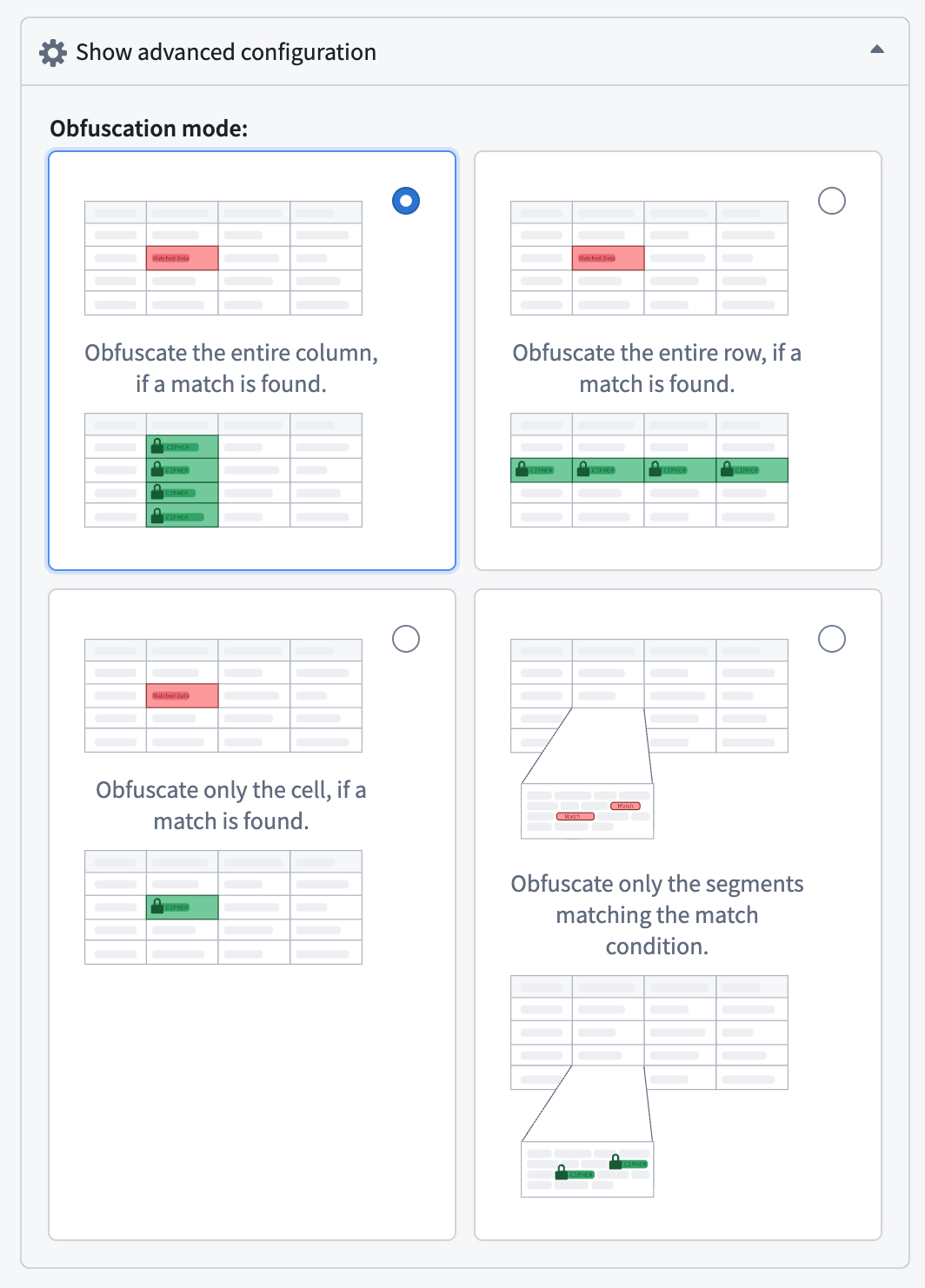
The four available obfuscation mode options in the setup dialog.
For each scanned resource, SDS will create an obfuscated output dataset. These output datasets are linked directly in the SDS scan results interface.
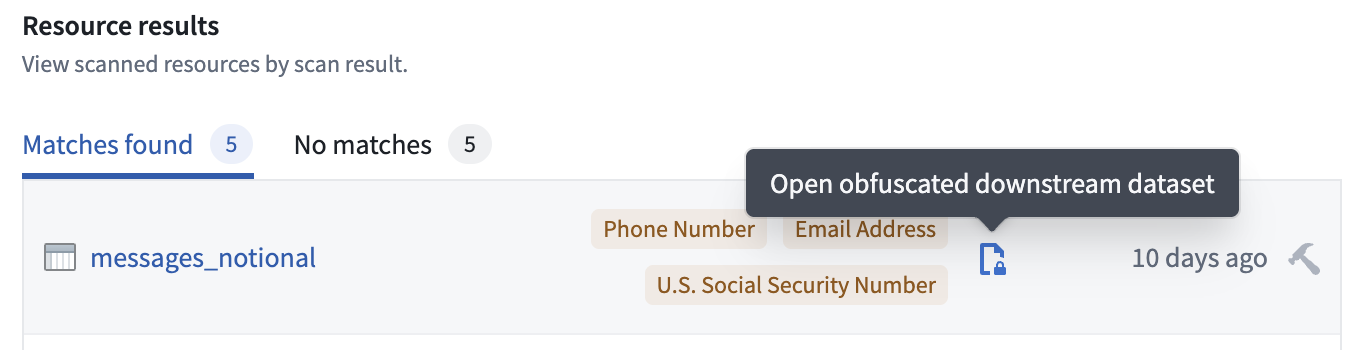
The SDS scan results, displaying the link to the obfuscated output data set.
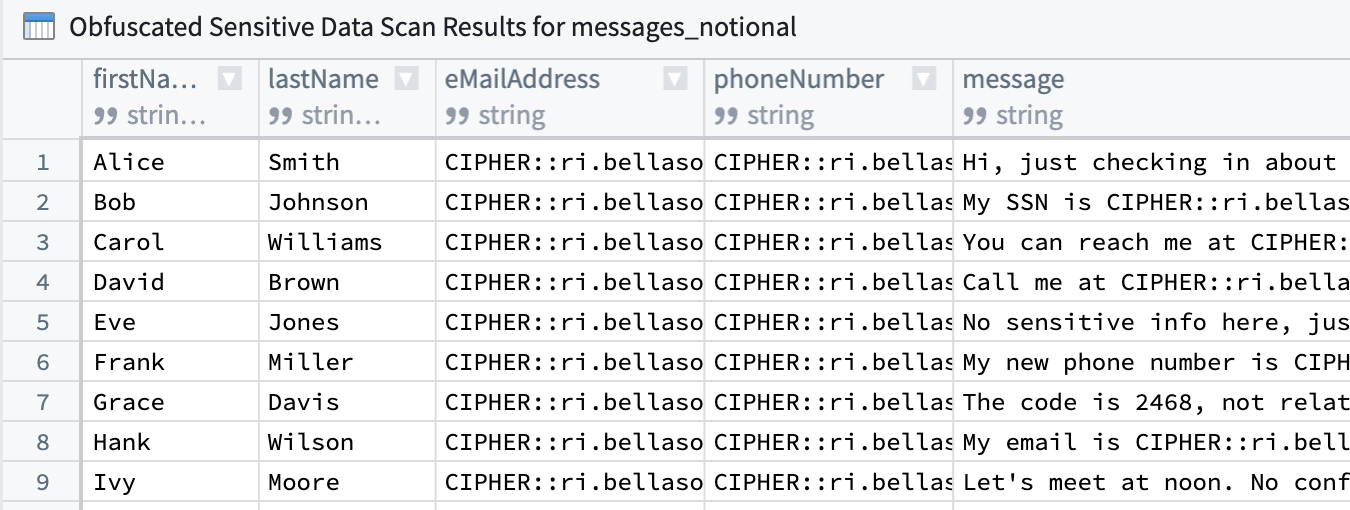
An example obfuscated output dataset, encrypting detected email addresses and phone numbers.
For more information, review the Match Actions documentation for Sensitive Data Scanner.
Share your thoughts
We want to hear about your experiences using Match Actions with Sensitive Data Scanner. Share your feedback with Palantir Support channels or on our Developer Community ↗ using the sensitive-data-scanner tag ↗.
Core Object Views are now generally available
Date published: 2026-02-19
When you create and configure an object type in your Ontology, Foundry automatically creates a core Object View to provide a standardized representation of all its objects, ensuring other users have a holistic understanding of its schema and links without requiring additional configuration. Core Object Views provide a consistent, complete display of object data after object type creation, and they are now generally available across Foundry enrollments.
Why does Foundry configure core Object Views after you create an object type?
Providing a default Object View that displays an object's prominent and standard properties saves Ontology builders time while ensuring other users gain maximum value from their interaction with the automatically created core representation. With Foundry handling the core Object View's creation, builders gain back time to create their own workflow-specific custom Object Views configured for a wider range of use cases, as needed. Learn more about building custom Object Views using Foundry Branching.
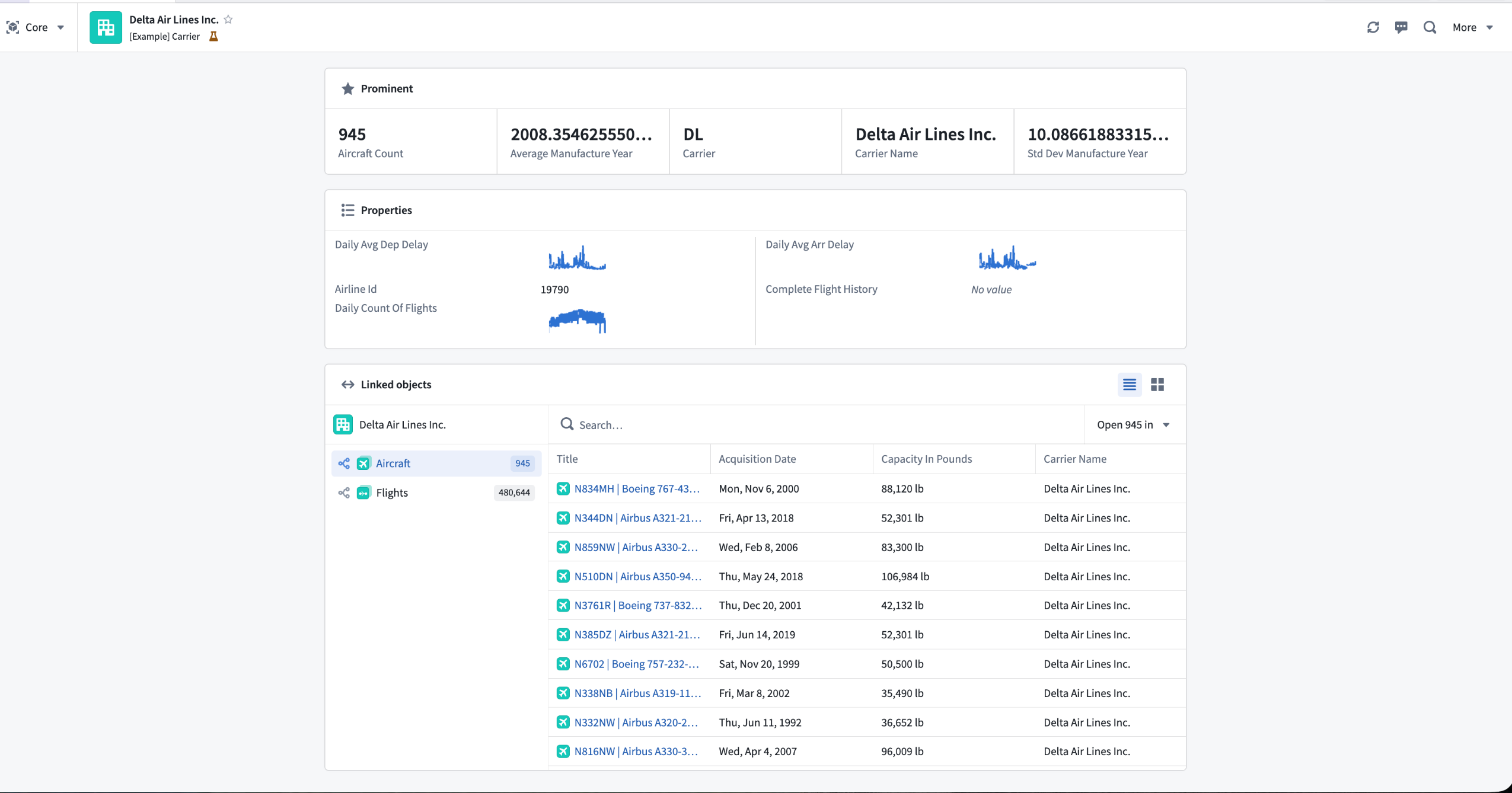
A core Object View displays prominent and standard object properties as well as linked objects.
View prominent properties in base type-specific components
Foundry surfaces prominent properties at the top of the core Object View to provide immediate context about an object's most important information.
Properties marked as prominent receive enhanced visual treatment based on their type:
- Media reference properties render in a dedicated media viewer.
- Time series properties display as interactive Quiver charts showing temporal data patterns.
- Geospatial properties automatically render on a Foundry map.
All other prominent properties are displayed using a larger, card-style format elevated above a table displaying the remaining standard properties.
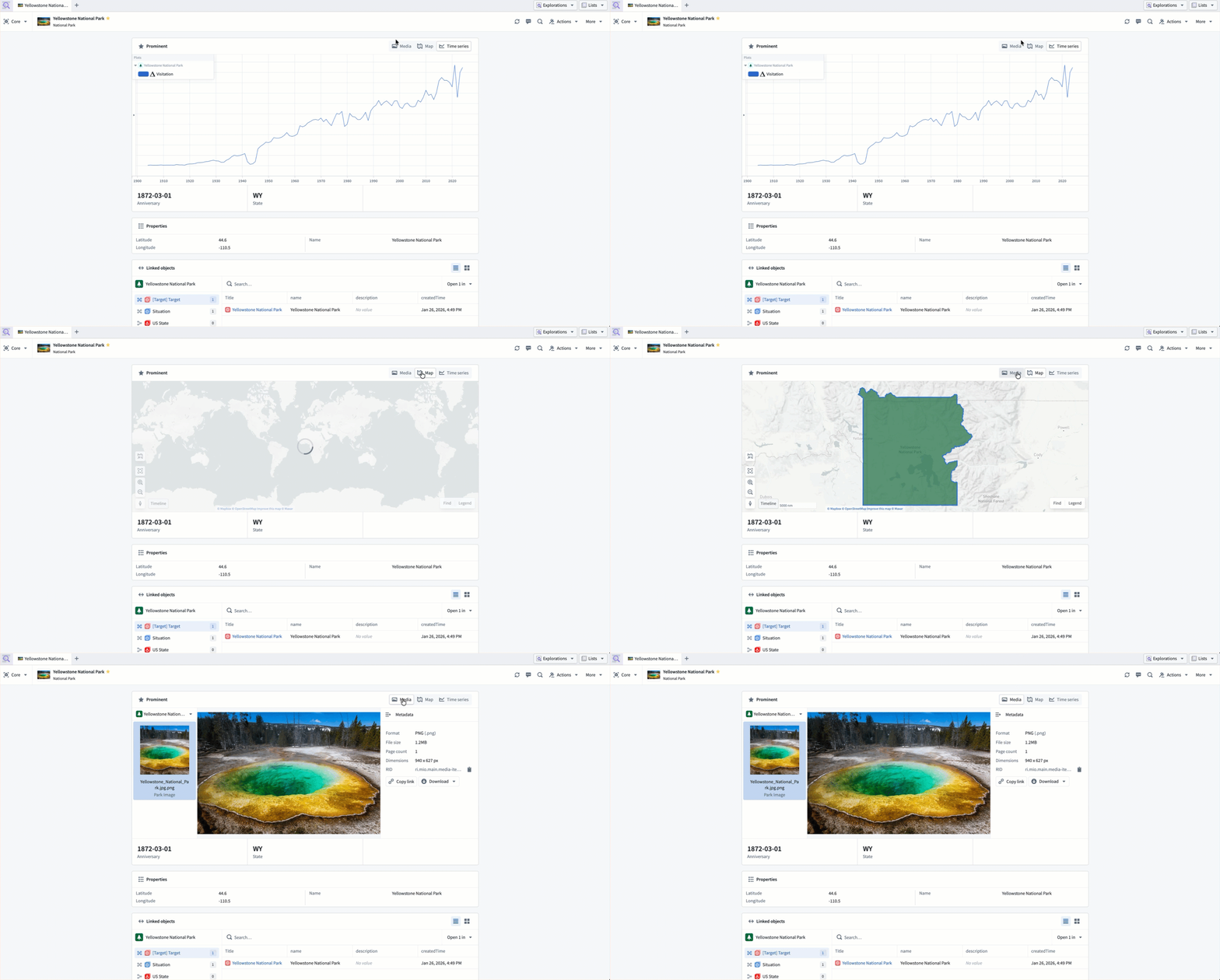
A core Object View displays prominent properties using different components derived from their base type.
View linked object types
The Linked objects component enables you to traverse between related objects directly within the core Object View. You can view linked objects grouped by link type, preview properties inline, and open linked objects in the side panel for further exploration.
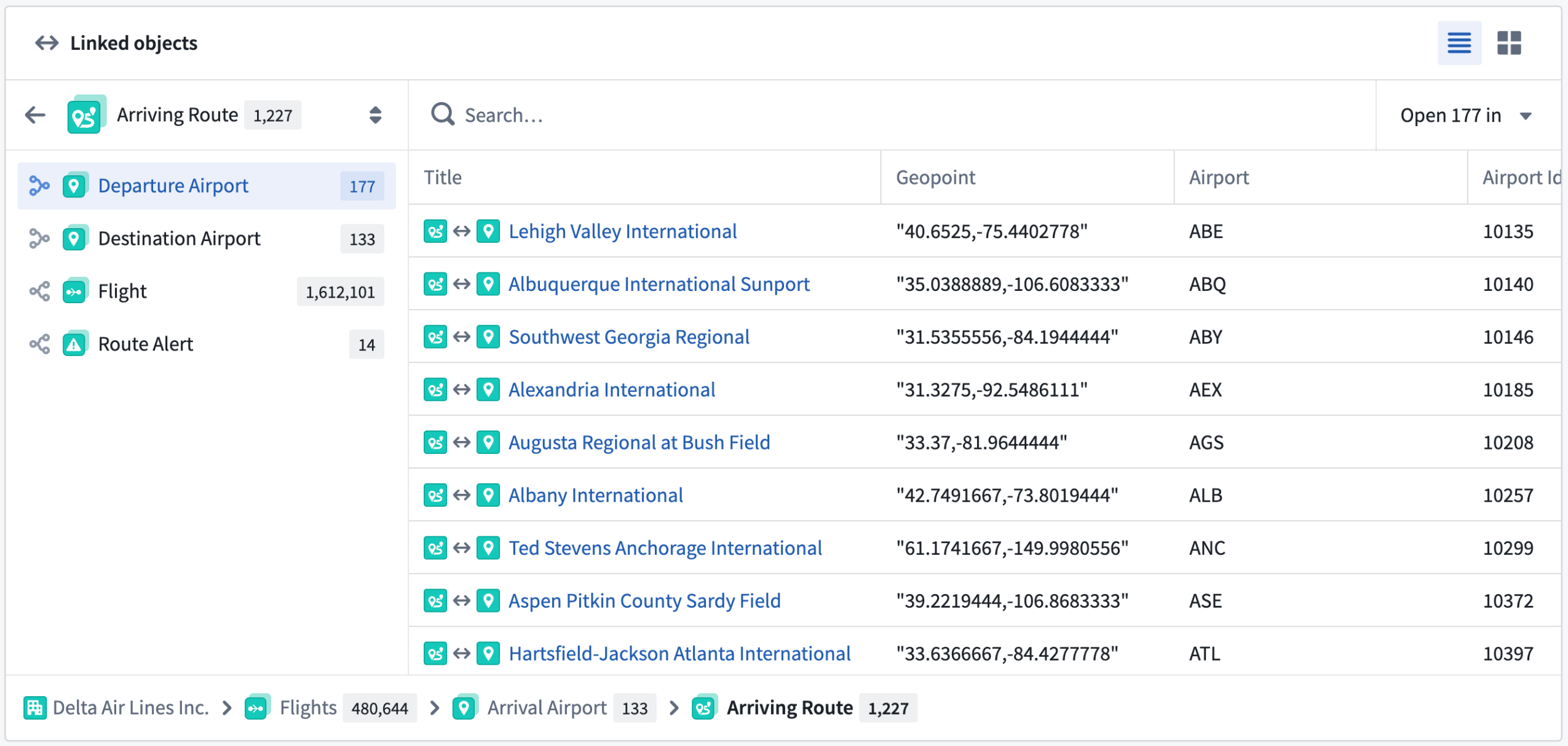
The Linked objects component displays related objects grouped by their link type.
Core Object Views exist alongside custom Object Views built in Workshop. While core Object Views display by default when no custom Object View is configured, they remain accessible even after you or another user build a custom Object View. You can toggle between core and custom Object Views at any time based on your specific workflow needs.
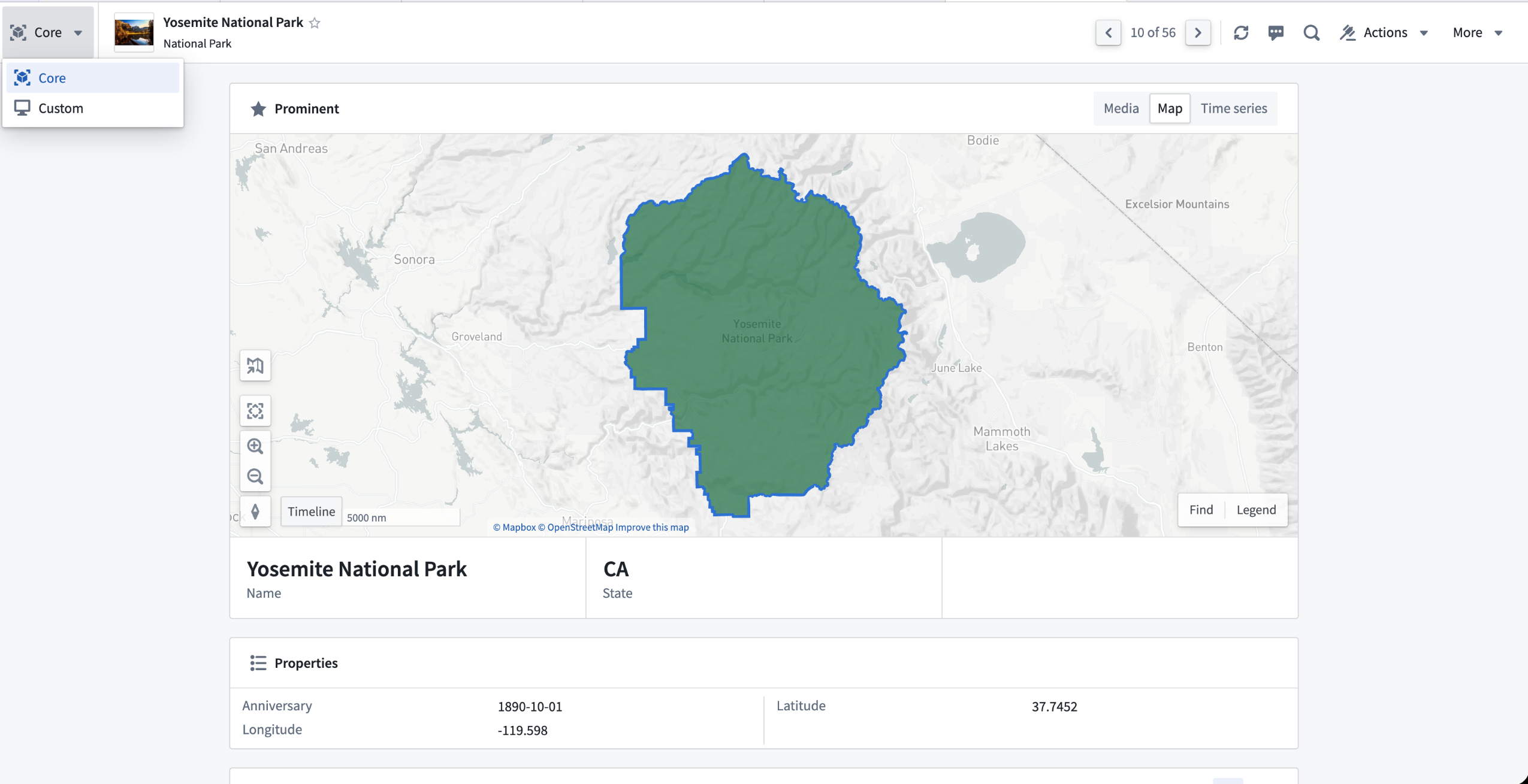
You can switch between core and custom Object Views using the view toggle.
You can view a core Object View in both full and panel object form factors.
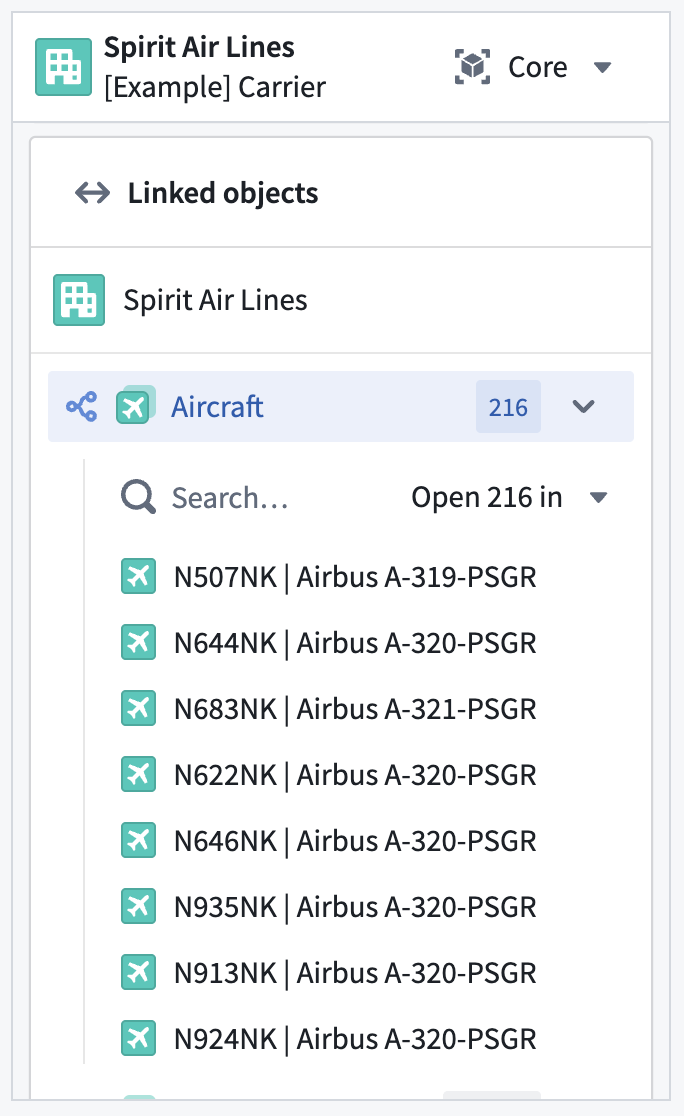
The Linked objects component is available in the panel form factor of an Object View.
Learn more about how to use core and configure custom Object Views in Foundry.
Markdown editing mode now available in the text input widget
Date published: 2026-02-19
You can now configure the text input widget in Workshop with Markdown formatting. Specifically, you can:
- Format text using a toolbar: Apply bold, italic, code, and other formatting without needing to know Markdown syntax.
- Toggle between rich text and raw Markdown: Switch between a formatted rich text view and a raw Markdown view to edit the underlying syntax directly.
- Enter placeholder text: Configure placeholder text that appears when the editor is empty, guiding users on what to enter.
The output string variable stores content as a Markdown string, which can be consumed by other widgets such as the Markdown widget for formatted display.
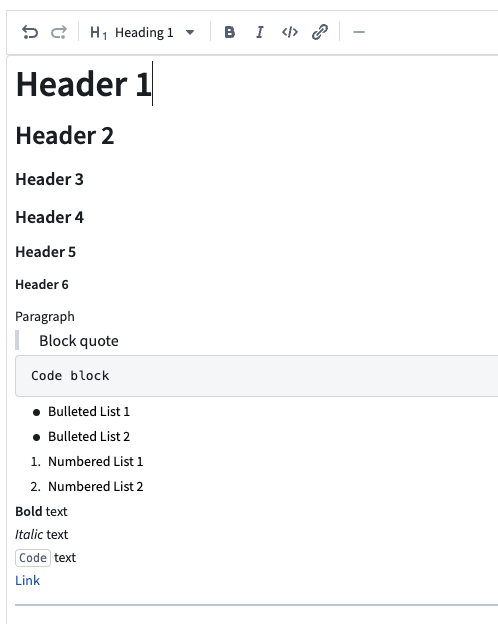
Text input widget in rich text mode showing the formatting toolbar and formatted text.
To try out this new mode, add a text input widget to your module and set the Format option to Markdown in the configuration panel.
Learn more about the text input widget.
Let us know what you think
We want to hear about your experiences using Workshop in the Palantir platform and welcome your feedback. Share your thoughts with Palantir Support channels or on our Developer Community ↗ using the workshop tag ↗.
Monitoring views now support project scopes for ontology resources
Date published: 2026-02-17
As of the week of Feburary 16, Monitoring views now support project scopes for ontology resources, allowing you to dynamically monitor ontology resources across one or multiple projects. Resources are monitored automatically when added to a project and stop being monitored when removed—no manual configuration required.
Supported resource types include object types, many-to-many links, actions, and functions.
Note that to use project scope with ontology resources, you must first migrate your ontology to project-based permissions.
To get started, navigate to the Manage monitors tab in your monitoring view, select Add new alerts -> Add monitoring rules to pick an ontology resource type and select the project scopes you want to monitor.
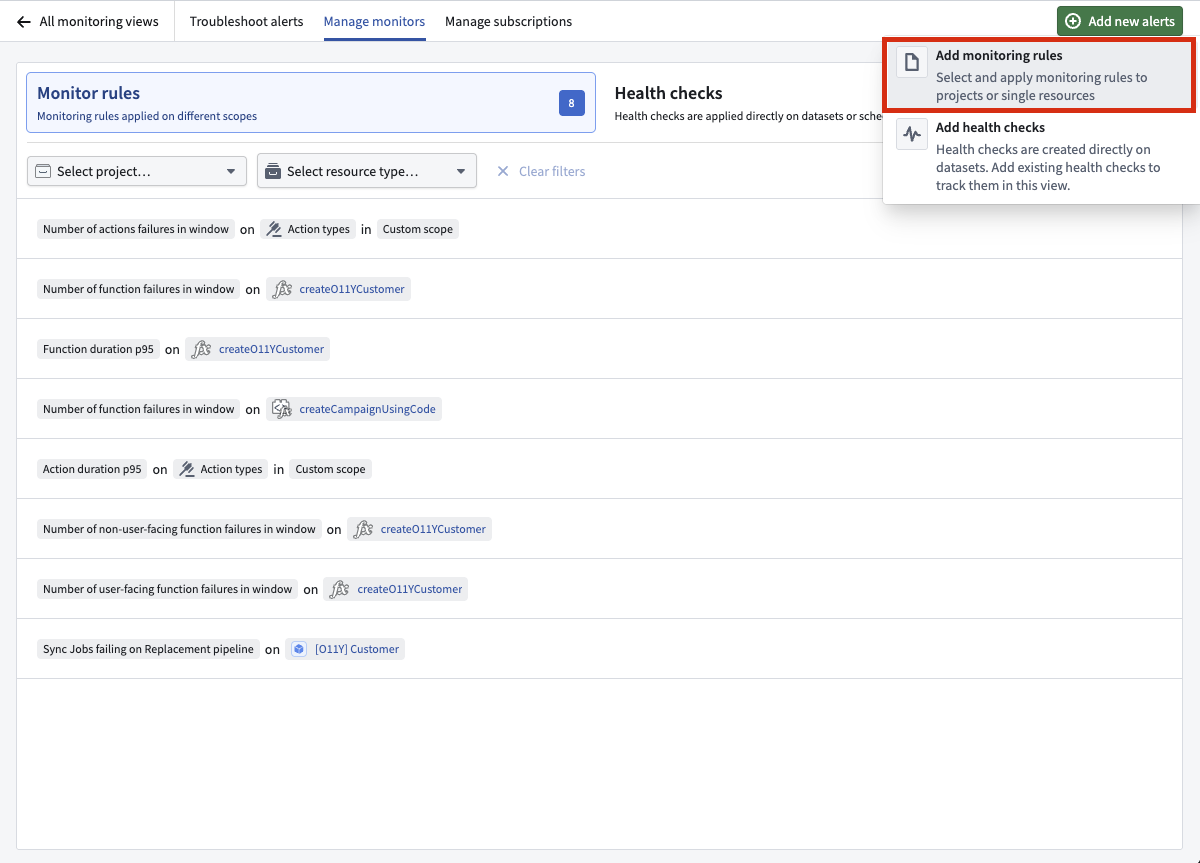
Select Add new alerts -> Add monitoring rules to get started.
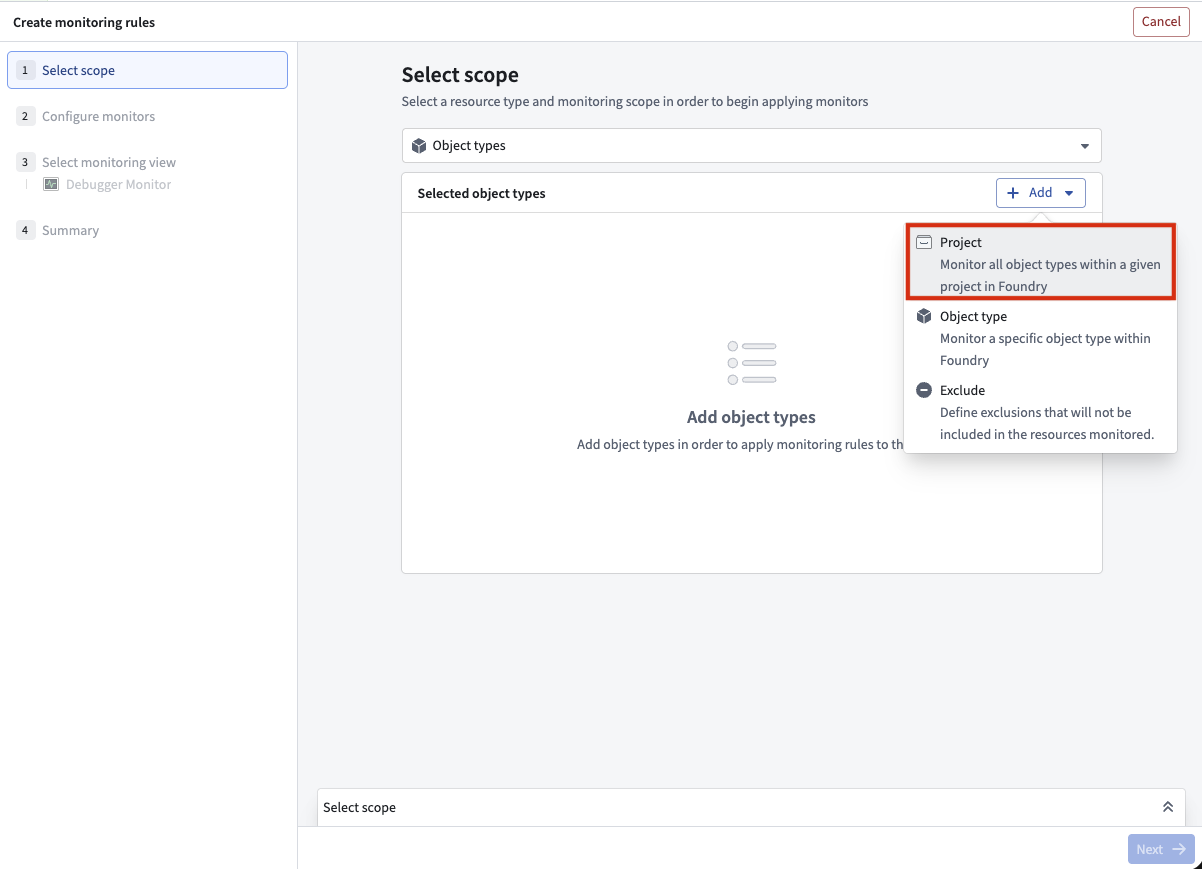
You can now use project scopes for ontology resources.
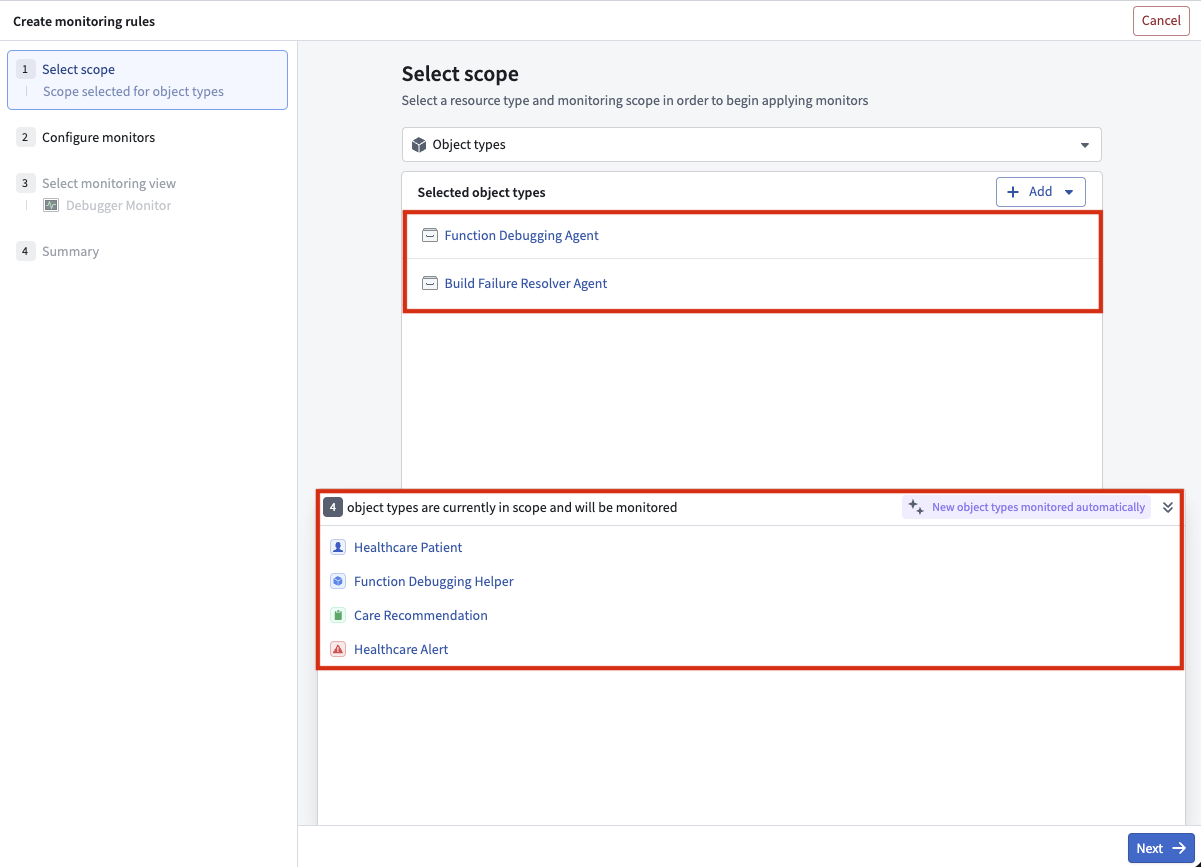
Four object types are in the scope of the two selected projects and will be monitored.
Share your thoughts
We welcome your feedback about Data Health in our Palantir Support channels, and on our Developer Community ↗ using the data-health tag ↗.
Claude Opus 4.6 available from Anthropic, AWS Bedrock, and Google Vertex
Date published: 2026-02-12
Claude Opus 4.6 is now available from Anthropic, AWS Bedrock, and Google Vertex on non-georestricted enrollments. For US and EU non-georestricted enrollments, the model is available from AWS Bedrock and Google Vertex.
Model overview
Anthropic’s latest flagship model, Claude Opus 4.6, sets a new standard for advanced LLMs across coding, agentic workflows, and knowledge work. Opus 4.6 builds on its predecessor with stronger coding skills, deeper planning, longer agent autonomy, and improved code review and debugging. It operates more reliably in large codebases and can sustain complex, multi-step tasks with minimal intervention. For more information, review Anthropic's model documentation ↗.
- Context window: 200,000 tokens
- Modalities: Text, image
- Capabilities: Extended thinking, function calling
Getting started
To use these models:
- Confirm that your enrollment administrator has enabled the relevant model family or families.
- Review token costs and pricing.
- See the complete list of all available models in AIP.
Your feedback matters
We want to hear about your experiences using language models in the Palantir platform and welcome your feedback. Share your thoughts with Palantir Support channels or on our Developer Community ↗ using the language-model-service tag ↗.
Model Studio, our no-code model training tool, is now generally available
Date published: 2026-02-12
Model Studio, a new workspace that allows users to train and deploy machine learning models, will be generally available and ready for use in all environments the week of February 9. This follows a successful public beta period that started in October 2025.
Model Studio transforms the complex task of building production-grade models into a streamlined no-code process that makes advanced machine learning more accessible. Whether you are a data scientist looking to accelerate your workflow, or a business user eager to unlock insights from your data, Model Studio provides essential tools and a user-friendly interface that simplifies the journey from data to model.
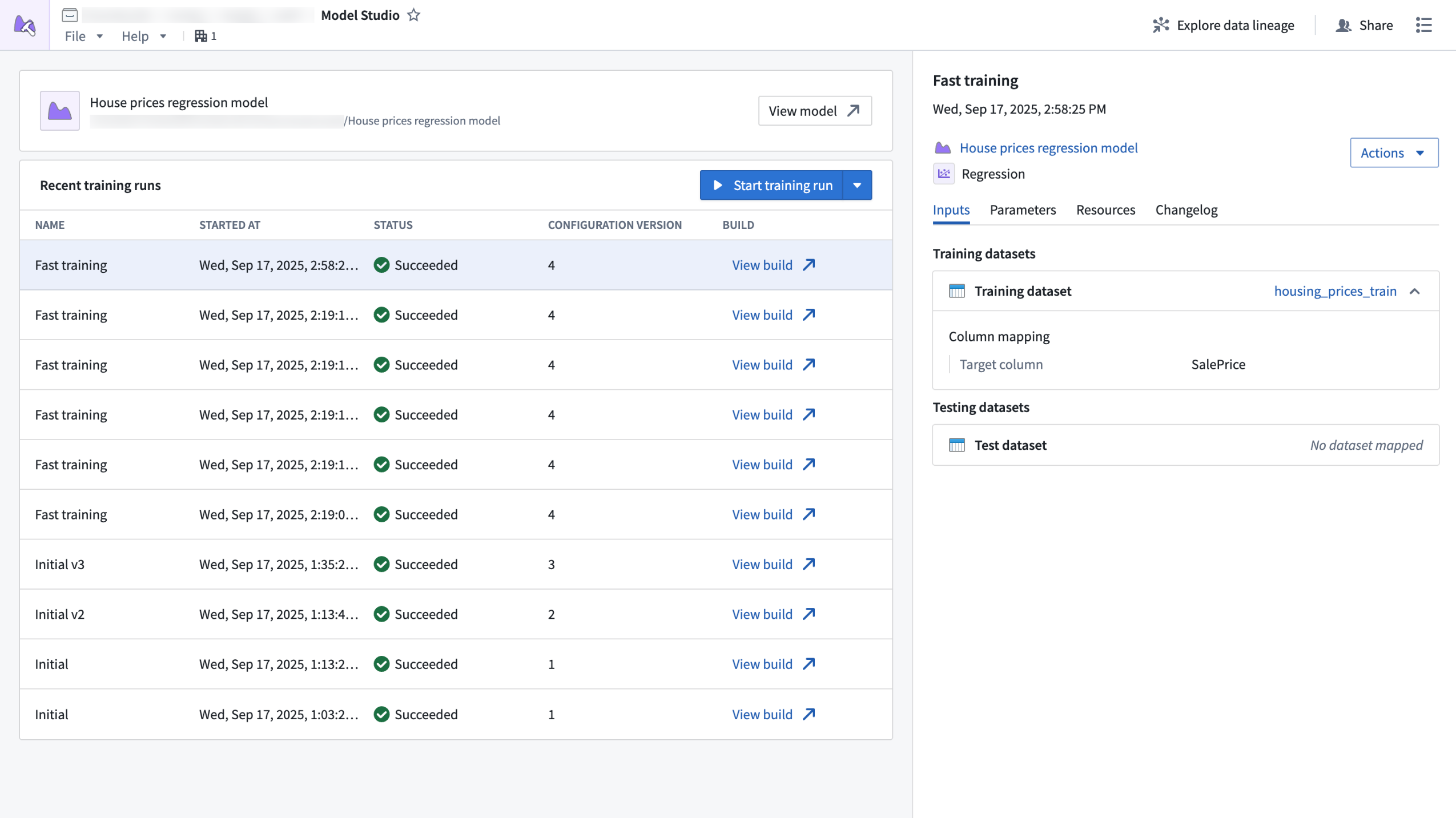
The Model Studio application home page, displaying recent training runs and run details.
What is Model Studio?
Model Studio is a no-code model development tool that allows you to train models in tasks such as forecasting, classification, and regression. With Model Studio, you can maximize model performance for your use cases by training models with custom data while retaining customization and control over the training process with optional parameter configuration.
Building useful, production-ready models traditionally requires deep technical expertise and significant time investment, but Model Studio changes that by providing the following features:
- A streamlined point-and-click interface for configuring model training jobs; no coding required.
- Built-in production-grade model trainers tailored for common use cases such as time series forecasting, regression, and classification.
- Smart defaults and guided workflows that empower you to get started quickly, even if you are new to machine learning.
- In-depth experiment tracking with integrated performance metrics that allow you to monitor and refine your models with confidence.
- Full data lineage and secure access controls built on top of the Palantir platform, ensuring transparency and security at every step.
Who should use Model Studio?
Model Studio is perfect for technical and non-technical users alike. Business users who want to leverage machine learning without coding and data scientists who want to accelerate prototyping and model deployment can both benefit from Model Studio's tools and simplified process. Additionally, organizations can benefit from Model Studio by lowering the barrier to AI adoption and empowering more teams to build and use models.
Getting started
To get started with model training, open the Model Studio application and follow these steps:
- Select the best model trainer for your use case (time series forecasting, classification, or regression).
- Choose your input datasets.
- Configure your model using intuitive options, or stick with the recommended defaults.
After configuring your model, you can launch a training run and review model performance in real time with clear metrics and experiment tracking.
What's next on the development roadmap?
As Model Studio continues to evolve, we are committed to enhancing the user experience. To do so, we will introduce features such as:
- Enhanced experiment logging for deeper training performance insights, including AI-readable content.
- An expanded set of supported modeling tasks.
- Full marketplace support for models built in Model Studio.
- Direct support for time series inputs on top of datasets.
Learn more about Model Studio.
Tell us what you think
As we continue to develop Model Studio, we want to hear about your experiences and welcome your feedback. Share your thoughts through Palantir Support channels or our developer community ↗.
Create unscoped Developer Console applications
Date published: 2026-02-10
Developer Console applications can now be unscoped, giving you full access to Developer Console features that were previously unavailable with standalone OAuth clients, including:
- OSDK usage
- Documentation (OSDK, Platform APIs, development)
- Marketplace integration
- Website hosting
- Metrics
Previously, the only unscoped option was building standalone OAuth clients, and using them meant sacrificing these features entirely. As a result of this improvement, we have deprecated standalone OAuth clients.
How to make your application unscoped
All Developer Console applications are created scoped by default. To make an application unscoped, follow these steps:
- Navigate to the OAuth & scopes tab in your Developer Console application's sidebar
- Under the Application scope section, select Unscoped.
- Confirm your action.
- Select Switch to unscoped.
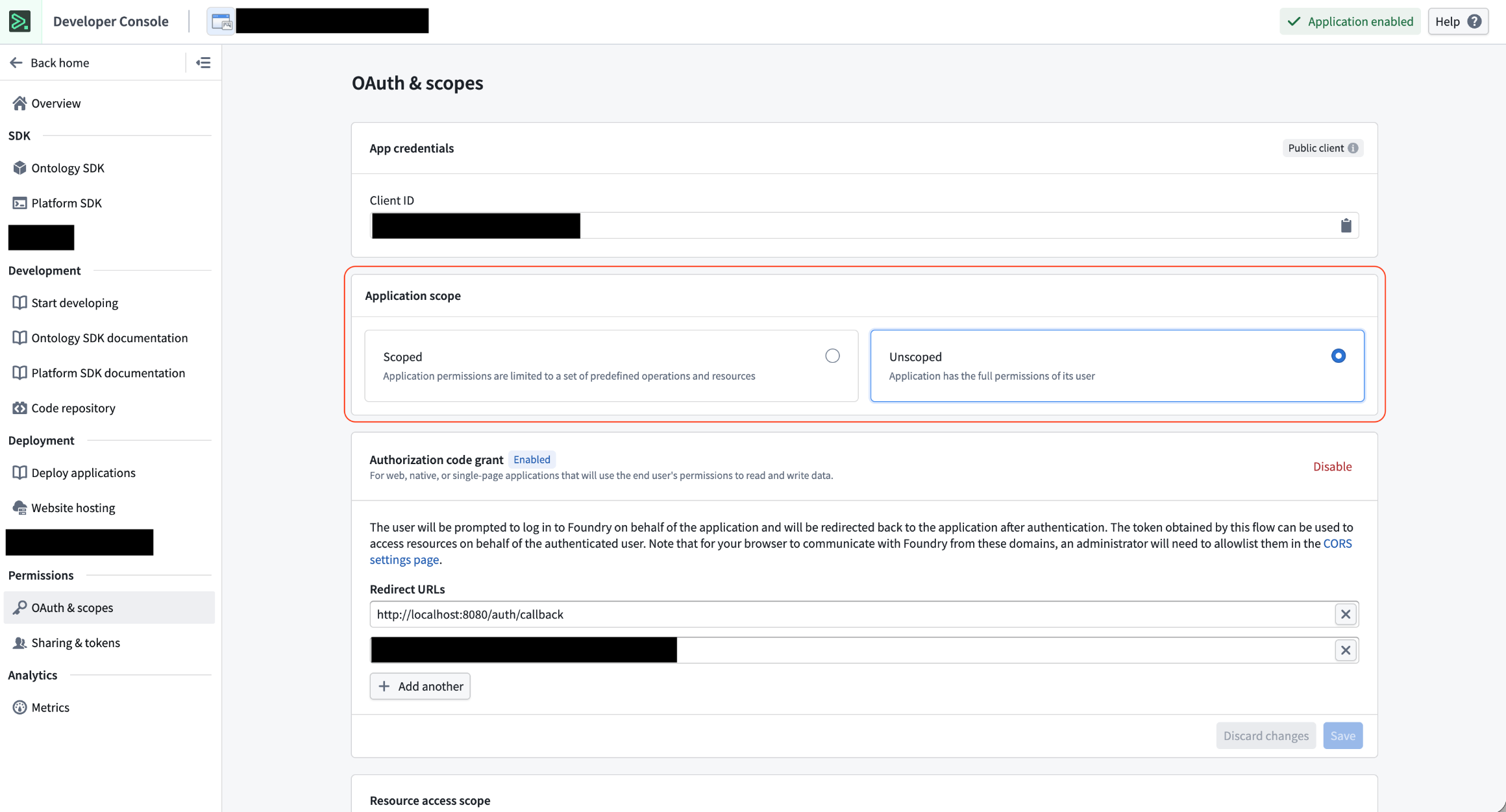
Application scope section in Developer Console.
You can change your application’s scope between scoped and unscoped at any time.
Review the documentation in Developer Console.
Client restrictions
Client enablement project access restrictions are not compatible with Developer Console applications, whether scoped or unscoped. Instead, leave project access and marking restrictions in Control Panel > Third party applications as unrestricted and manage client restrictions directly through Developer Console.
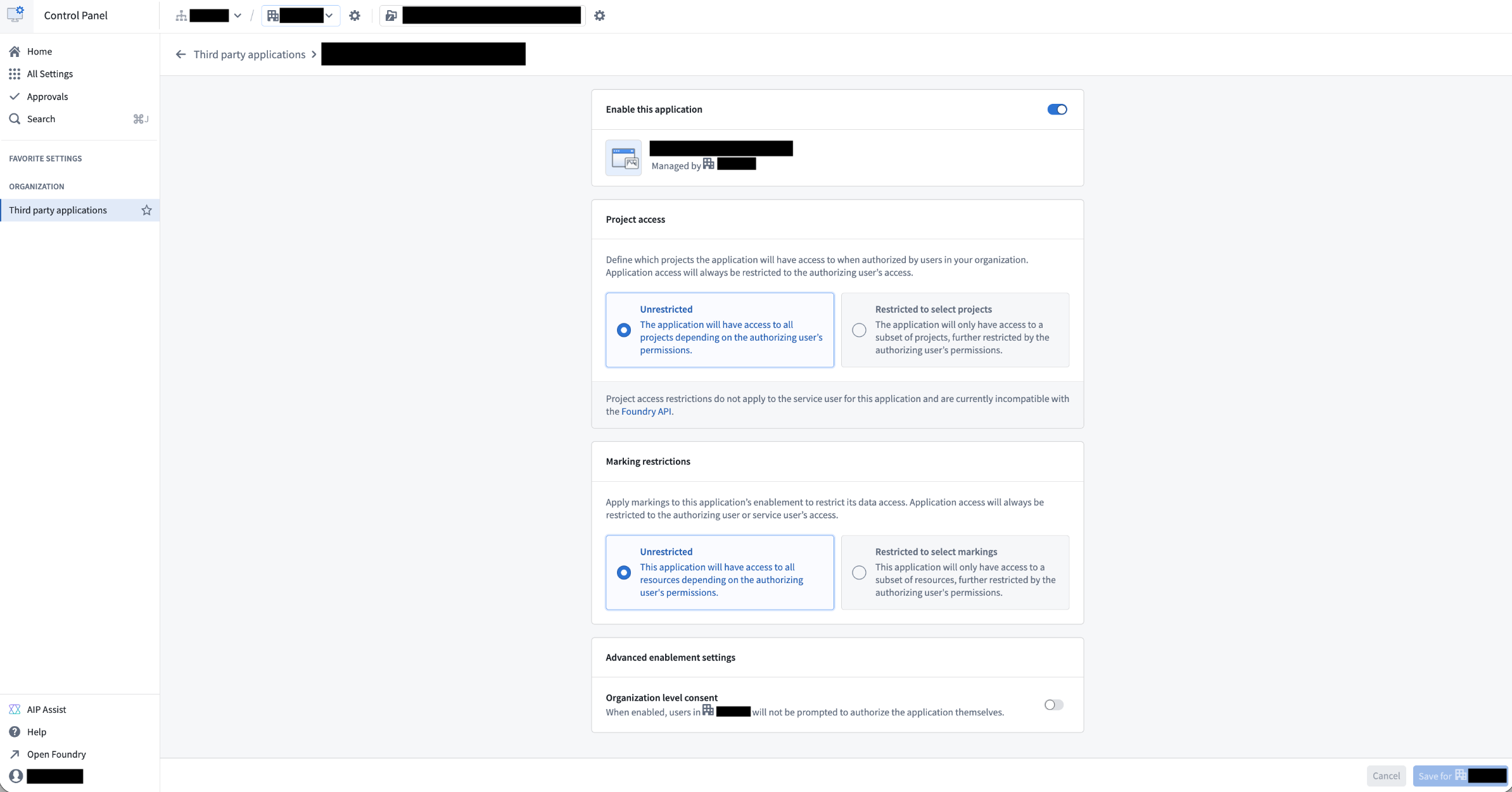
Avoid adding any client restrictions within Control Panel. Set Project access and Marking restrictions to unrestricted.
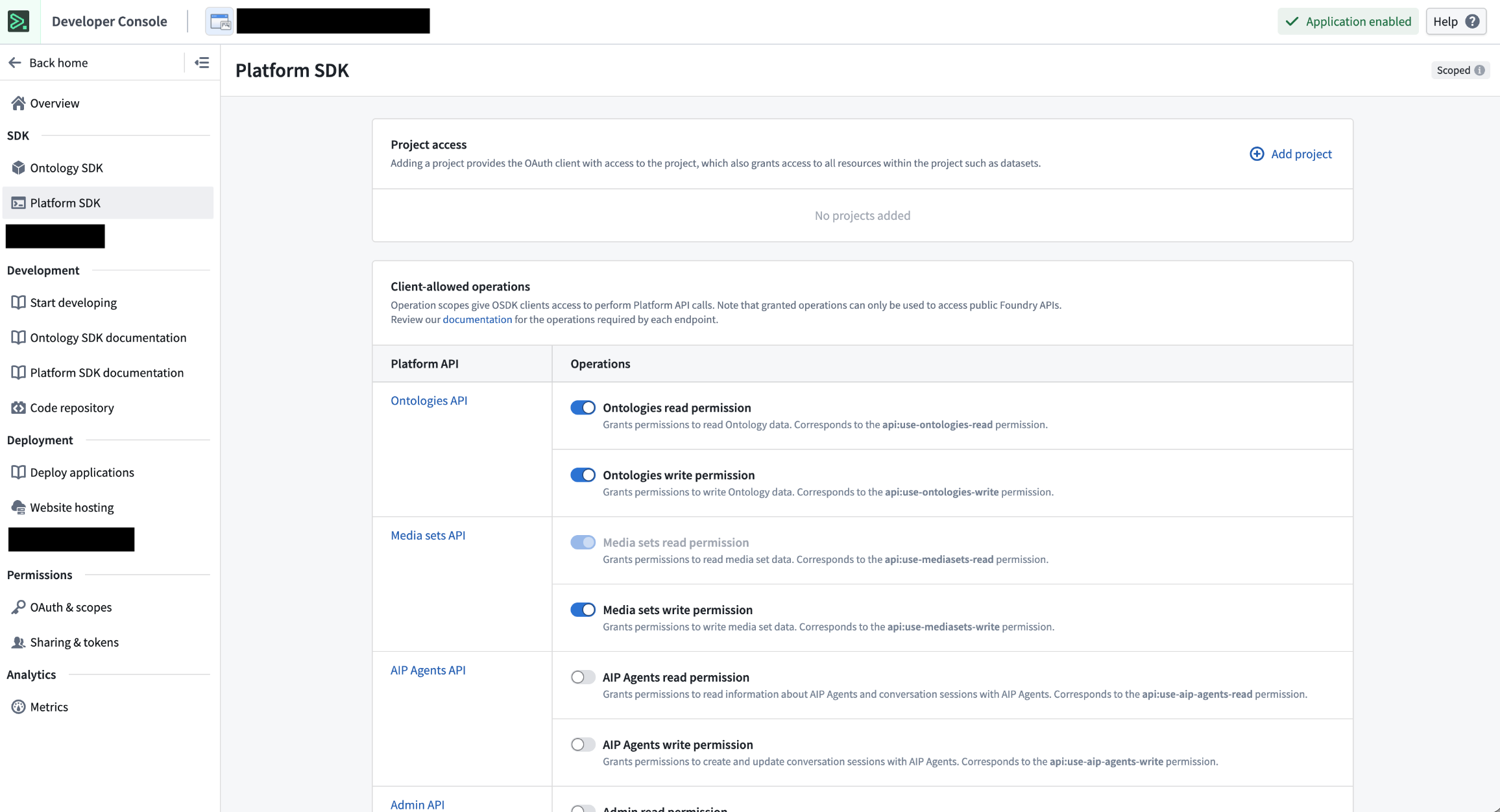
Add project and API restrictions to your client within Developer Console > Platform SDK.
Support for marking restrictions in Developer Console is coming soon.
Your feedback matters
We want to hear about your experiences using Developer Console and welcome your feedback. Share your thoughts through Palantir Support channels or on our Developer Community ↗.
Presentation mode in Workflow Lineage
Date published: 2026-02-10
Presentation mode is now available in Workflow Lineage for all enrollments. Use the presentation mode for Workflow Lineage to create and organize visual frames of your workflow graph, making it easier to present your work. To get started, select the project screen icon in the bottom of the graph.
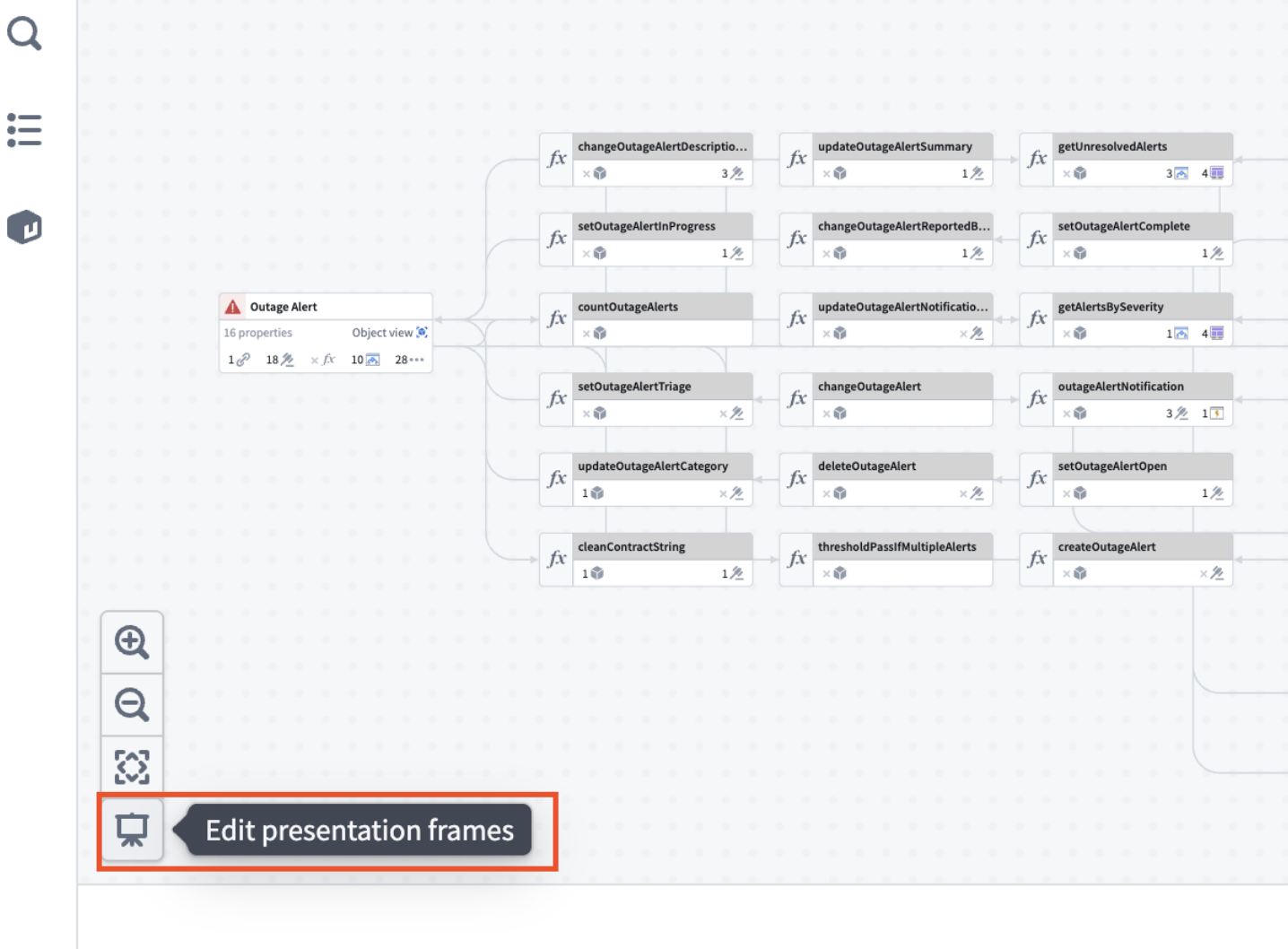
The edit presentation frames entry point in Workflow Lineage.
Once you edit the presentation mode, you can capture frames. You can do this by saving snapshots of your graph’s current state including node arrangement, layout, colors, and zoom level.
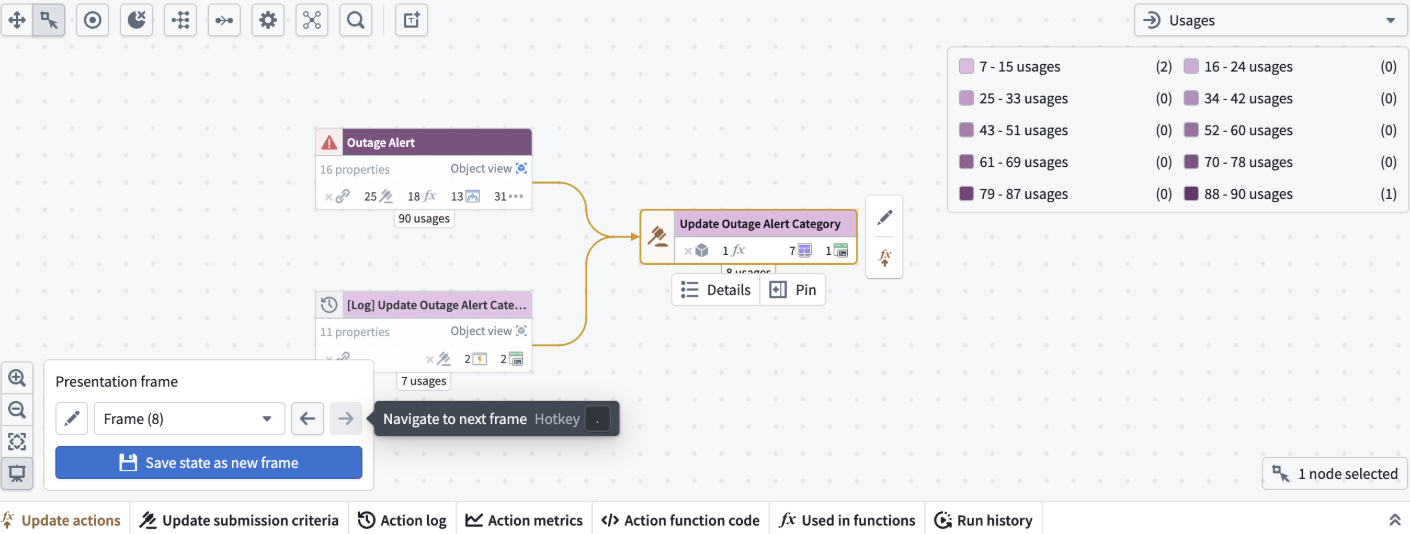
An example of a presentation frame in Workflow Lineage.
Manage existing frames in the bottom window. You can easily rename, reorder, or delete frames as needed.
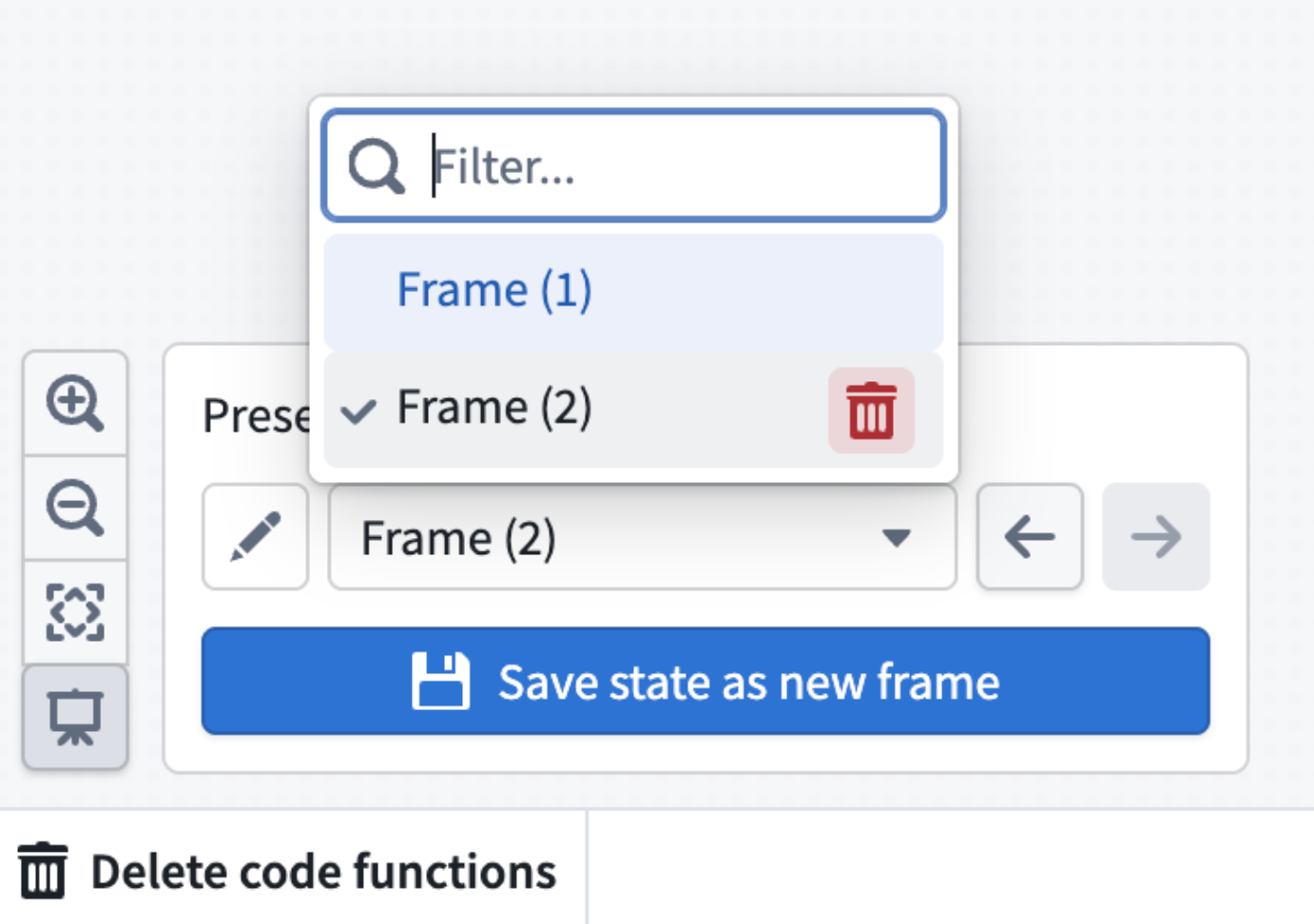
Screenshot of where to delete a presentation frame.
You can also hide frames you do not want to delete but do not want to show in your presentations.
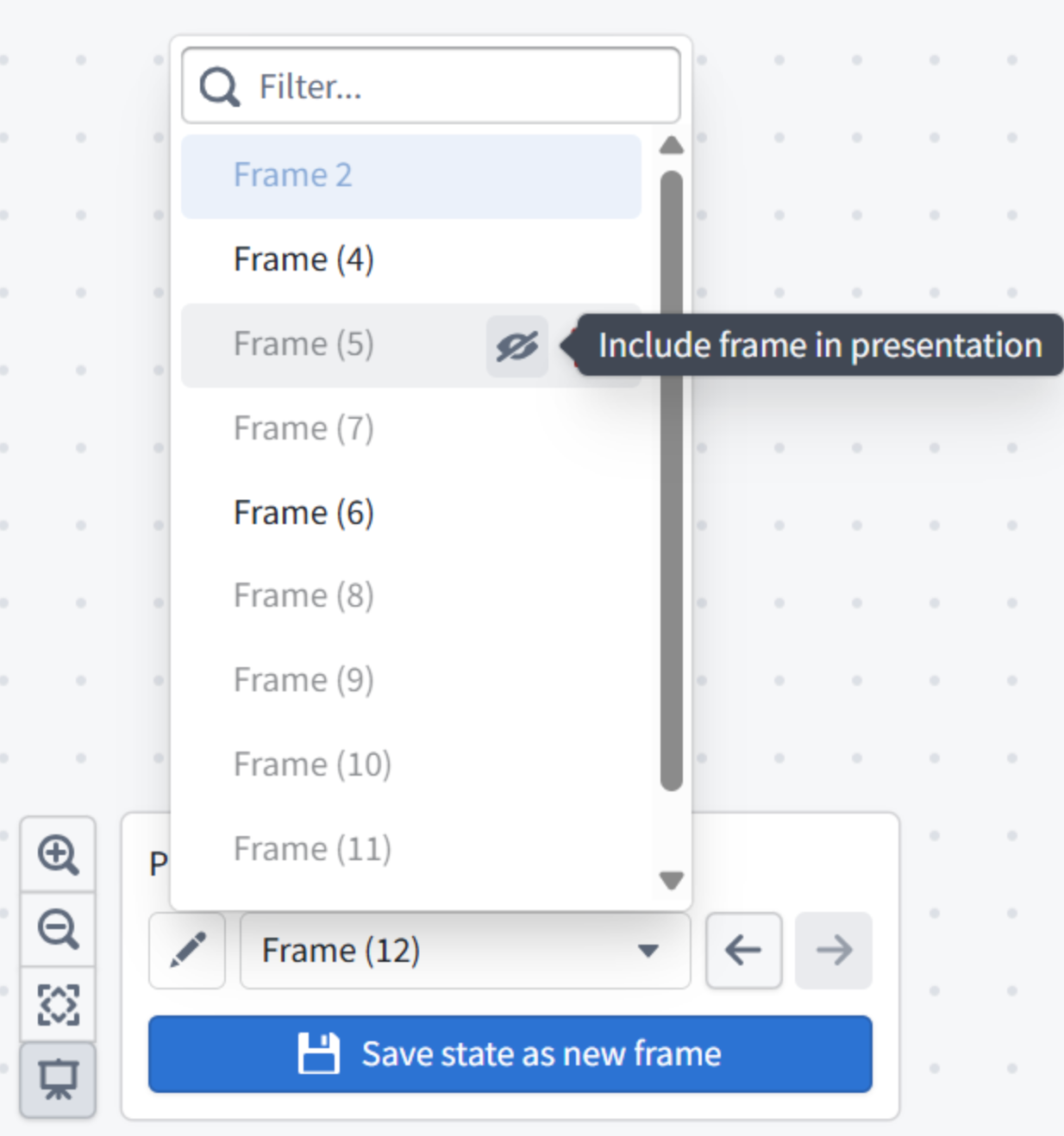
Example of hiding presentation frames.
Use the , and . hotkeys to move back and forth through your presentation.
You must save your graph before using presentation mode. We recommend adding text nodes to each frame to guide your audience step by step with custom descriptions.
Try it out and make your workflow presentations more dynamic and engaging. Learn more about presentation mode.
Claude Sonnet 4.5, Claude Haiku 4.5 now available in Japan region
Date published: 2026-02-05
Claude Sonnet 4.5 and Claude Haiku 4.5 models are now available from AWS Bedrock on Japan georestricted enrollments.
Model overviews
Claude Sonnet 4.5 ↗ is Anthropic's latest medium weight model with strong performance in coding, math, reasoning, and tool calling, all at a reasonable cost and speed.
- Context window: 200k tokens
- Knowledge cutoff: January 2025
- Modalities: Text, image
- Capabilities: Tool calling, vision, coding
Claude Haiku 4.5 ↗ is Anthropic's most powerful small model, ideal for real-time, lightweight tasks where speed, cost, and performance are critical.
- Context window: 200k tokens
- Knowledge cutoff: February 2025
- Modalities: Text, image
- Capabilities: Tool calling, vision, coding
Getting started
To use these models:
- Confirm that your enrollment administrator has enabled the relevant model family.
- Review token costs and pricing.
- See the complete list of all models available in AIP.
Your feedback matters
We want to hear about your experiences using language models in the Palantir platform and welcome your feedback. Share your thoughts in Palantir Support channels or on our Developer Community ↗ using the language-model-service ↗ tag.
Deploy containers with compute modules
Date published: 2026-02-05
Compute modules are now generally available in Foundry. With compute modules, you can run containers that scale dynamically based on load, bringing your existing code, in any language, into Foundry without rewriting it.
What you can build
Compute modules enable several key workflows in Foundry:
Custom functions and APIs: Create functions that can be called from Workshop, Slate, Ontology SDK applications, and other Foundry environments. Host custom or open-source models from platforms like Hugging Face and query them directly from your applications.
Data pipelines: Connect to external data sources and ingest data into Foundry streams, datasets, or media sets in real time. Use your own transformation logic to process data before writing it to outputs.
Legacy code integration: Bring business-critical code written in any language into Foundry without translation. Use this code to back pipelines, Workshop modules, AIP Logic functions, or custom Ontology SDK applications.
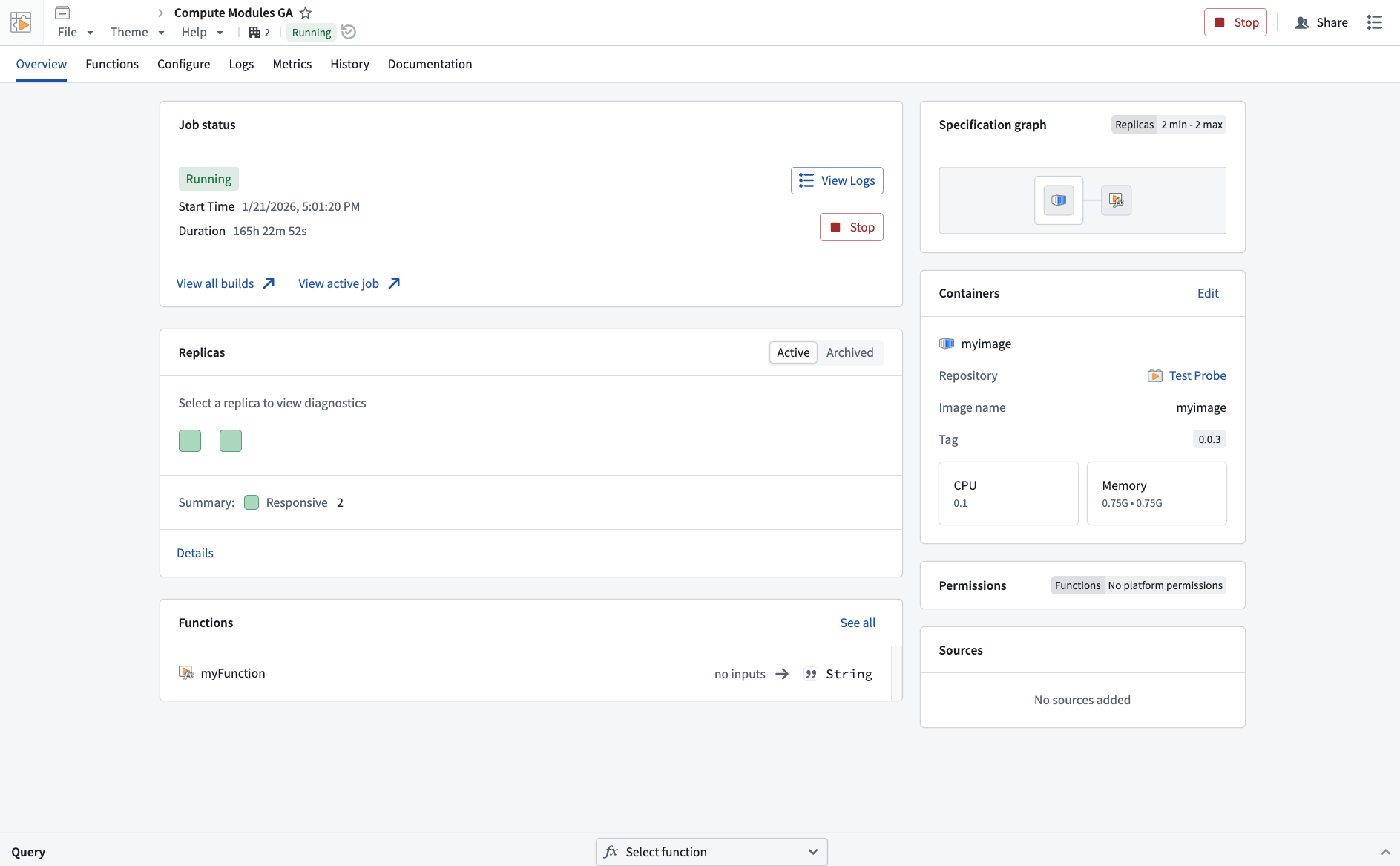
An example of a compute module overview in Foundry, with information about the job status, functions, and container metadeta.
Why it matters
Compute modules solve the challenge of integrating existing code into Foundry. Instead of rewriting your logic in a Foundry-supported language, containerize it and deploy it directly. The platform handles scaling, authentication, and connections to other Foundry resources automatically.
Key features include:
- Dynamic horizontal scaling based on current and predicted load
- Zero-downtime updates when deploying new container versions
- Native connections to Foundry datasets, Ontology resources, and APIs
- External connections using REST, WebSockets, SSE, or other protocols
- Marketplace compatibility for sharing modules across organizations
Get started
Review the compute modules documentation to build your first function or pipeline.
Deploy document extraction workflows with AIP Document Intelligence
Date published: 2026-02-03
AIP Document Intelligence will be generally available on February 4, 2026 and is enabled by default for all AIP enrollments. AIP Document Intelligence is a low-code application for configuring and deploying document extraction workflows. Users can upload sample documents, experiment with different extraction strategies, and evaluate results based on quality, speed, and cost—all before deploying at scale. AIP Document Intelligence then generates Python transforms that can process entire document collections using the selected strategy, converting PDFs and images into structured Markdown with preserved tables and formatting.
Learn more about AIP Document Intelligence.
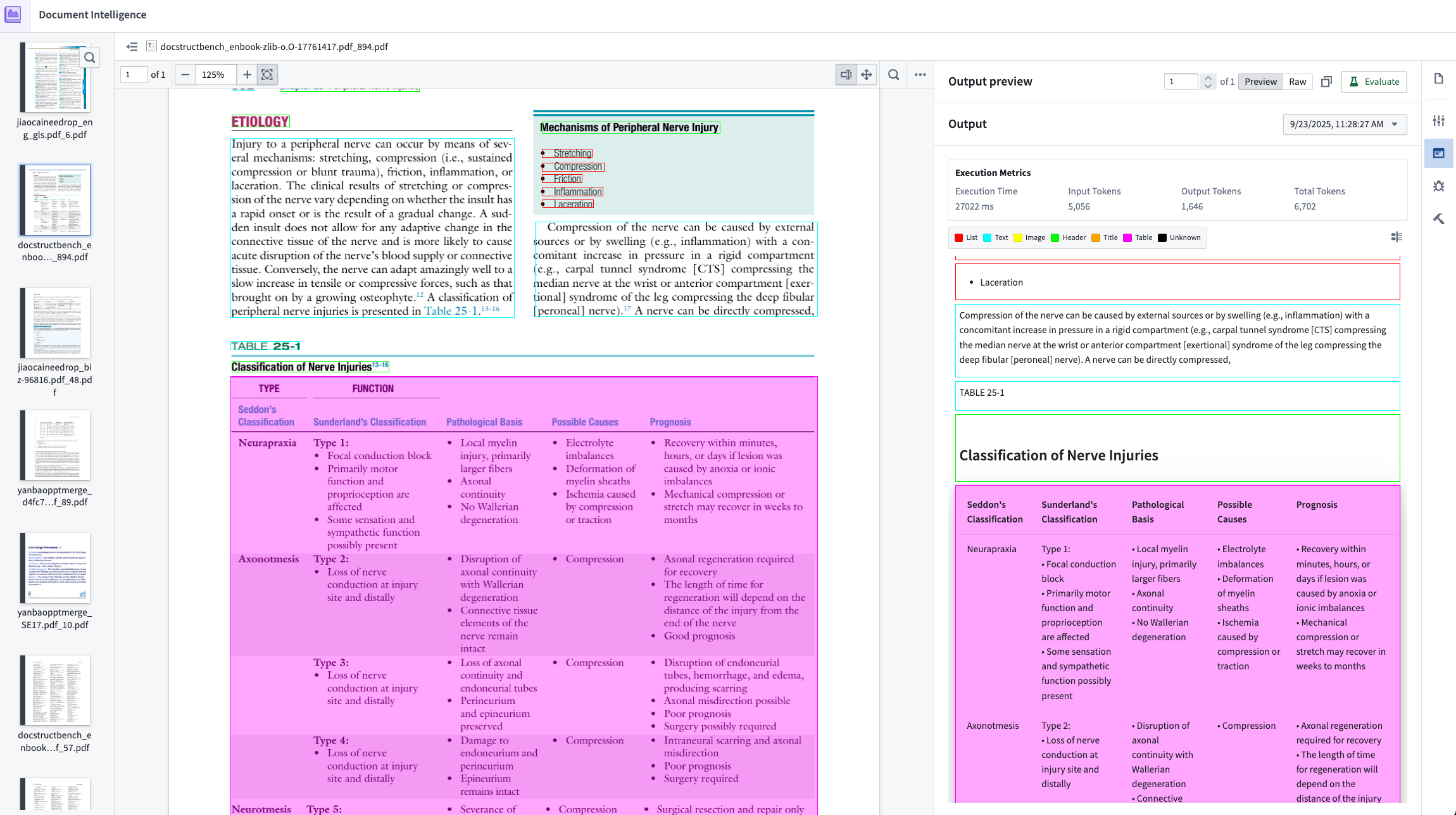
Result of Layout-aware OCR + Vision LLM extraction with metrics on cost, speed, and token usage.
Compare extraction strategies
AIP Document Intelligence provides multiple extraction approaches, from traditional OCR to vision-language models. You can test each method on your specific documents and view side-by-side comparisons of extraction quality, processing time, and compute costs. This experimentation phase helps teams select the right approach for their use case without writing custom code.
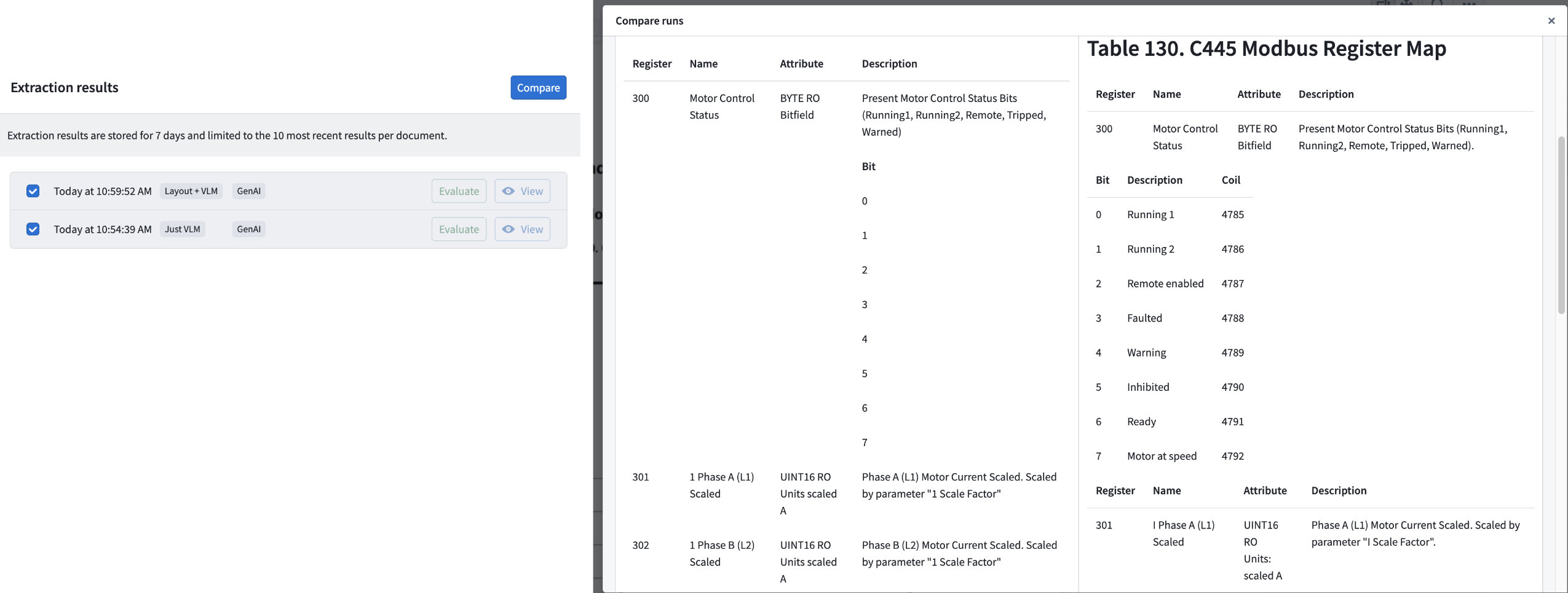
Comparison of Vision LLM Extraction vs. Layout-aware OCR + Vision LLM Extraction shows drastic improvement in complex table extraction quality.
Deploy extraction pipelines in one click
Once a strategy is configured, AIP Document Intelligence generates production-ready Python transforms that process documents at scale. The latest deployment uses lightweight transforms rather than Spark, significantly improving processing speed. Workflows that previously took days extracting data from document collections can now complete the same work in hours. Refer to the documentation for more detailed instruction on how to deploy and customize your Python transforms.
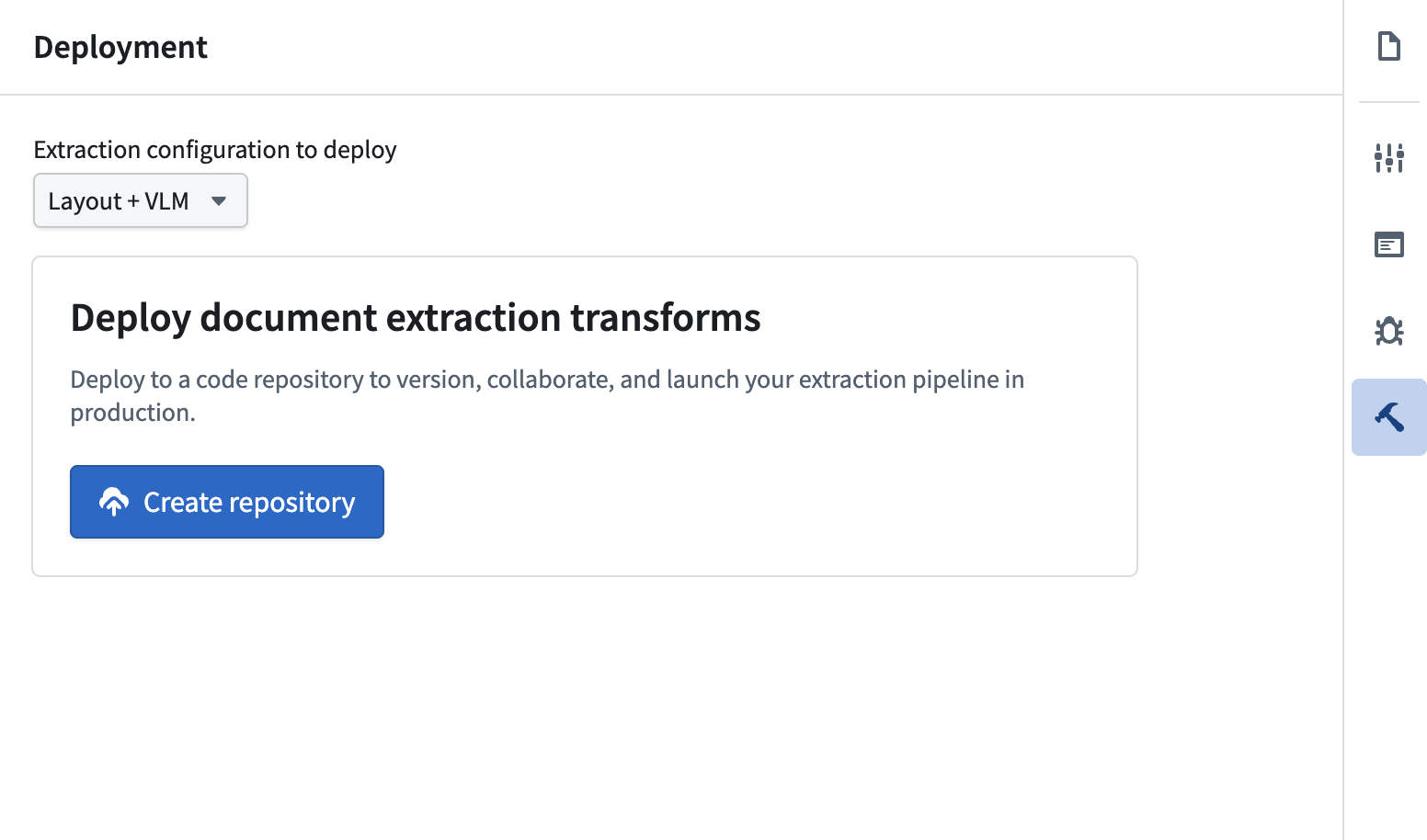
Choose a validated extraction strategy and deploy to a Python transforms to batch process documents.
Maintain quality across diverse document types
Enterprise documents vary widely in structure, formatting, and content density. AIP Document Intelligence handles this diversity through configurable extraction strategies that can adapt to multi-column layouts, embedded tables, and mixed-language content. Users working with maintenance manuals, regulatory filings, invoices have successfully extracted structured data while preserving critical formatting and relationships.
When to use AIP Document Intelligence
AIP Document Intelligence is designed for workflows where document content needs to be extracted and structured for downstream AI applications. This includes:
- Populating vector databases for retrieval-augmented generation (RAG) systems
- Extracting tabular data from reports, invoices, or forms for analysis
- Converting legacy documentation into searchable, structured formats
- Preparing training data for domain-specific language models
For workflows that require extracting specific entities (like part numbers, dates, or named entities) rather than full document content, upcoming entity extraction capabilities will provide more targeted functionality.
What's next on the development roadmap?
- Entity extraction from documents: The team is developing capabilities to extract structured entities, such as equipment identifiers, monetary values, dates, and custom domain concepts, directly from documents. This will enable direct population of Ontology objects from unstructured sources.
- Broader use of AIP Document Intelligence: Allow extraction configurations to be called directly from AIP Logic and Ontology functions to expand Document Intelligence beyond Python transforms to broader workflow automation scenarios.
Your feedback matters
We want to hear about your experiences using AIP Document Intelligence and welcome your feedback. Share your thoughts with Palantir Support channels or on our Developer Community ↗ using the aip-document-intelligence tag ↗.
GPT-5.2 Codex now available in AIP
Date published: 2026-02-03
GPT-5.2 Codex is now available directly from OpenAI for non-georestricted enrollments.
Model overviews
GPT-5.2 Codex ↗ is a coding optimized version of the GPT-5.2 model from OpenAI, with improvements in agentic coding capabilities, context compaction, and stronger performance on large code changes like refactors and migrations.
- Context window: 400,000 tokens
- Knowledge cutoff: August 2025
- Modalities: Text, image
- Capabilities: Responses API, structured outputs, function calling
Getting started
To use these models:
- Confirm that your enrollment administrator has enabled the relevant model family.
- Review token costs and pricing.
- See the complete list of all models available in AIP.
Your feedback matters
We want to hear about your experiences using language models in the Palantir platform and welcome your feedback. Share your thoughts with Palantir Support channels or on our Developer Community ↗ using the language-model-service ↗ tag.
Multi-ontology support in Workflow Lineage
Date published: 2026-02-03
Workflow Lineage just became a lot more robust - you can now visualize resources across multiple ontologies in one unified graph. Instantly identify cross-ontology relationships, spot external resources at a glance, and switch between ontologies without leaving your workflow view.
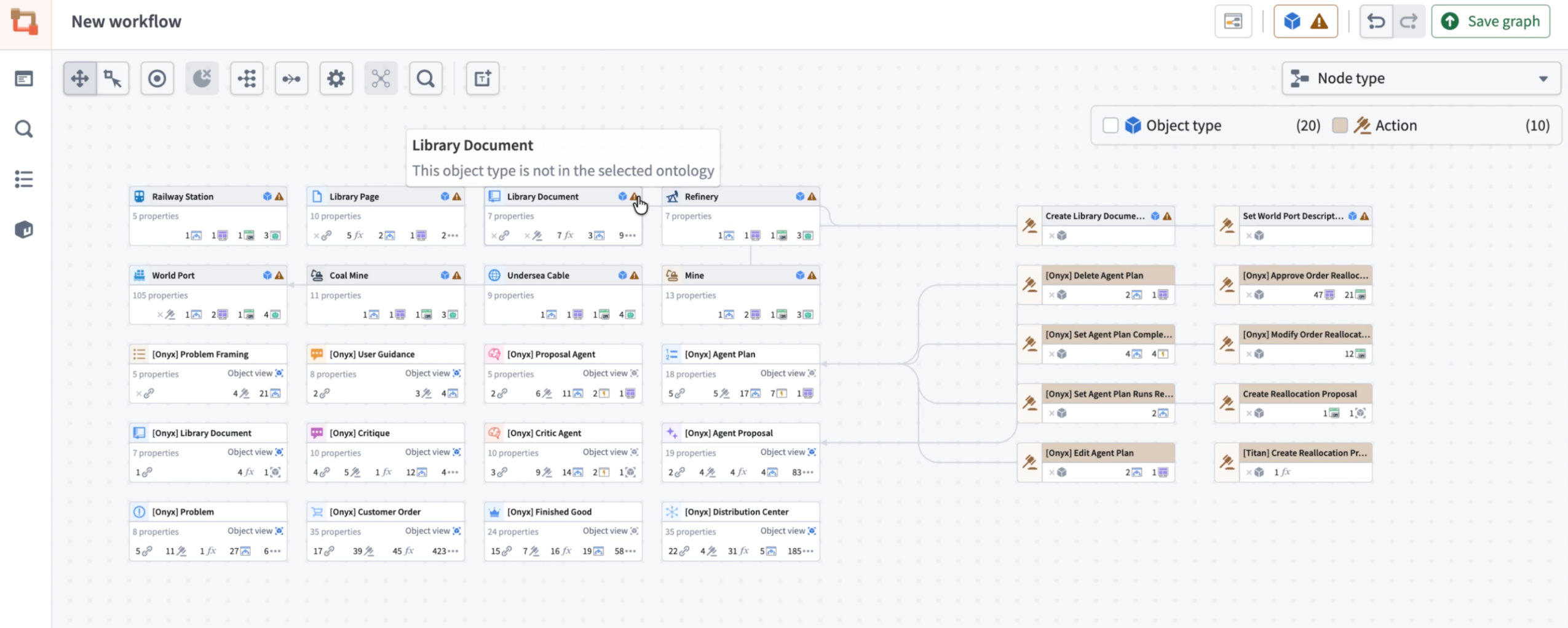
The Workflow Lineage graph now displays resources across multiple ontologies, with visual indicators highlighting nodes from outside the selected ontology.
What's new?
- Unified visualization: The Workflow Lineage graph now displays all resource nodes across different ontologies in a single view.
- Cross-ontology awareness: Object, interface and action nodes from other ontologies appear grayed out with a warning icon, so you can instantly identify their origin.
- Smart warnings: When multiple ontologies are present, a warning icon appears next to the ontology icon at the upper right side of the graph, keeping you informed at a glance.
- Ontology switching: View all ontologies present in your graph and easily switch between them using the ontology icon.
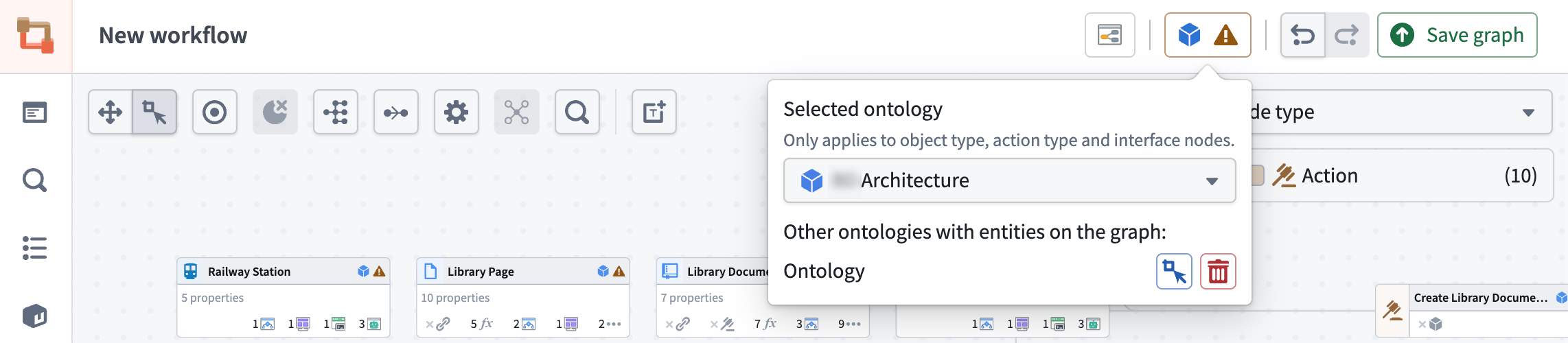
Easily switch between ontologies using the ontology (blue cube) icon to view and navigate all ontologies present in your graph.
For action-type nodes from outside the selected ontology, functionality is limited. For example, bulk updates are only possible for function-backed actions within your currently selected ontology.
Share your thoughts
We welcome your feedback about Workflow Lineage in our Palantir Support channels, and on our Developer Community ↗ using the workflow-lineage tag ↗.
中文翻译
公告
提醒: 订阅 Foundry 新闻通讯(Newsletter),即可直接在收件箱中收到关于新功能、产品改进等平台动态的摘要。有关如何订阅的更多信息,请参阅 Foundry 新闻通讯与产品反馈渠道现已开放注册(正式发布)。
欢迎在我们的 开发者社区论坛 ↗ 分享您对这些公告的看法。
Claude Sonnet 4.6 现已在英国区域可用
发布日期:2026-02-26
Claude Sonnet 4.6 现已在英国地理限制注册(UK georestricted enrollments)中通过 AWS Bedrock 提供。
模型概述
Anthropic 的最新模型 Claude Sonnet 4.6 在编码、智能体工作流(agentic workflows)、视觉推理和工具使用方面相比 Sonnet 4.5 有显著改进。其运行效率高于 Opus 模型,性能更快且成本更低,使其成为广泛用例的理想选择。更多信息,请查阅 Anthropic 的模型文档 ↗。
- 上下文窗口(Context window): 200,000 个令牌(tokens)
- 模态(Modalities): 文本、图像
- 能力(Capabilities): 扩展思考(Extended thinking)、函数调用(Function calling)、自适应思考(Adaptive thinking)
开始使用
要使用此模型:
- 确认您的注册管理员已启用相关模型系列。
- 查看 令牌成本与定价。
- 查看 AIP 中所有可用模型的完整 列表。
您的反馈很重要
我们期待听到您在 Palantir 平台中使用语言模型的经验,并欢迎您的反馈。请通过 Palantir 支持渠道或使用 language-model-service 标签 ↗ 在我们的 开发者社区 ↗ 上分享您的想法。
Developer Console 应用程序的 Compass 管理权限
发布日期:2026-02-26
Developer Console 应用程序现在使用 Compass 管理的用户权限(Compass-managed user permissions),为您提供更一致、可扩展的方式来管理对应用程序的访问。此更改将于 2 月 23 日那周开始向各注册(enrollments)推出,并使 Developer Console 与 Foundry 中使用的相同权限模型保持一致。对 CBAC 注册的支持正在积极开发中,预计将于 3 月底推出。
在此更改之前,Developer Console 用户会自动被设为他们所创建应用程序的 Owner(所有者),并且必须从应用程序的 共享与令牌(Sharing & tokens) 部分手动与每个用户和组共享每个应用程序。这种旧模型需要按应用程序进行权限管理。
有什么新变化?
Developer Console 应用程序现在将像任何其他项目资源一样运行:
- 继承权限(Inherited permissions):应用程序继承其所在项目的角色、组织和标记(markings),创建时不再需要手动共享。
- 标准 Compass 操作(Standard Compass operations):您可以使用与其他 Foundry 资源相同的工作流来移动、共享和删除应用程序。
- 市场对齐(Marketplace alignment):通过 Marketplace 安装的新应用程序将在安装期间您提供的位置创建。
有关这些更改的更多信息,请 查阅 Developer Console 文档。
如何创建 Compass 管理的应用程序
如果此功能已对您的注册可用,则所有新的 Developer Console 应用程序默认将使用 Compass 管理的权限创建。在创建过程中,系统会提示您为应用程序选择一个位置:
创建向导的第一步提示您为 Developer Console 应用程序选择一个位置。
如何迁移现有应用程序
要将现有应用程序迁移到 Compass 管理的权限,请遵循我们的 分步指南。
旧版 Developer Console 应用程序的迁移提示。
您的反馈很重要
我们期待听到您使用 Developer Console 的经验,并欢迎您的反馈。请通过 Palantir 支持渠道或我们的 开发者社区 ↗ 分享您的想法。
新的文件登陆页面与提升文件功能
发布日期:2026-02-26
从 2 月 23 日那周开始,重新设计的 文件(Files) 登陆页面以及 已提升(Promoted) 状态将在所有注册中可用。这些更改旨在帮助用户在平台资源量增加时找到相关内容。
重新设计的文件登陆页面提供了用户有权访问的所有文件的集中视图,使浏览和发现相关内容更加容易。页面顶部的快速筛选卡片突出显示 投资组合(Portfolios)、项目(Projects) 和 已提升项(Promoted items),解释每种资源类型并提供一键筛选。统一搜索功能提供跨所有文件的搜索能力,筛选侧面板允许用户按资源类型、状态、投资组合、项目和标签来细化结果。
通过左侧导航栏访问的文件新登陆页面。
此外,所有资源现在都可以标记为 已提升(Promoted),从而在整个平台上获得更高的可见性。已提升的资源将显示紫色徽章,在搜索结果中排名更高,并在资源选择器和登陆页面中突出显示。这对于广泛相关的资源非常有用,例如入门文档、规范数据集或经常被引用的报告,这些资源应向用户突出显示。
在文件主页中提升资源。
要提升资源,请右键单击它并选择 更改状态(Change status) > 已提升(Promoted)。
通过项目视图提升资源。
默认情况下,对资源具有 Editor(编辑者)角色的用户可以提升它,但平台管理员可以在控制面板(Control Panel)中使用 Resource Curator(资源策展人)空间角色按空间限制此操作。如果此角色受到限制,用户需要是资源的 Editor(编辑者)并拥有 Resource Curator(资源策展人)角色才能将其标记为已提升。
Workshop 部分和页面的自定义背景颜色
发布日期:2026-02-26
Workshop 部分(sections)和页面(pages)现在支持自定义背景颜色,使应用程序构建者能够更好地控制其模块的视觉设计。除了现有的预设色调外,您现在可以将任何十六进制颜色(hex color)或 Blueprint 颜色应用于部分和页面背景。在模块级别定义的已保存颜色也可用作部分和页面背景选项,从而可以轻松地在整个应用程序中保持一致的颜色调色板。
显示自定义背景颜色的 Workshop 应用程序页面。
包含内容
- 部分和页面的自定义十六进制颜色:使用十六进制代码为部分或页面设置任何颜色作为背景,或从 Blueprint 颜色快捷方式中选择以快速应用标准颜色值。
- 已保存颜色支持:使用 已保存颜色 作为部分和页面背景。编辑已保存颜色会自动更新所有引用它的部分和页面。
- 自动主题适配:当应用自定义背景颜色时,部分内的小部件会根据背景颜色的亮度自动在浅色和深色模式之间切换,确保文本和控件保持清晰可读。
- 跨布局的一致行为:自定义背景颜色适用于部分内边距、部分标题和拆分部分。当拆分具有自定义背景颜色的部分时,生成的两个部分都会继承原始颜色。
如何使用自定义背景颜色
要设置自定义背景颜色,请在编辑模式下选择一个部分或页面,打开 样式(Style) 配置,然后从背景颜色选项中选择一种颜色。选择自定义颜色块以打开颜色选择器,您可以在其中输入十六进制代码或从 Blueprint 颜色快捷方式中选择。
了解有关 Workshop 中背景颜色和其他样式格式选项的更多信息。
告诉我们您的想法
我们期待听到您在 Palantir 平台中使用 Workshop 的经验,并欢迎您的反馈。请通过 Palantir 支持渠道或使用 workshop 标签 ↗ 在我们的 开发者社区 ↗ 上分享您的想法。
工作流沿袭中现提供日志搜索功能
发布日期:2026-02-25
工作流沿袭(Workflow Lineage)中新增的 搜索日志(Search logs) 选项卡允许您搜索所选源执行器(source executor)在过去七天内产生的所有服务日志。源执行器是调用链中的第一个可执行资源,可以是函数、操作、自动化、AIP 逻辑或 AIP 代理。
与显示单次运行的按执行服务日志视图不同,日志搜索聚合了源自给定资源的每次执行的所有日志。这使得调查重复错误、追踪偶发问题或跨多次运行查找特定日志消息变得更加容易。
要开始使用,请在工作流沿袭中选择任何可执行资源节点,然后打开底部面板中的 搜索日志(Search logs) 选项卡。
工作流沿袭中的日志搜索
搜索栏接受区分大小写的文本查询,并支持使用 * 作为通配符来匹配任何字符序列。结果按最新时间排序显示在表格中,匹配的文本在 消息(Message) 和 内容(Content) 列中高亮显示。选择任何单元格以打开详细对话框,其中包含完整的 JSON 格式和对话框内文本搜索。
示例日志搜索结果
示例日志搜索的详细视图
日志搜索需要对资源具有 编辑(edit) 权限。如果已为源执行器的项目启用了日志访问,您可以搜索所有执行;否则,只能搜索过去 24 小时内您自己的执行。
您的反馈很重要
我们期待听到您使用工作流沿袭的经验,并欢迎您的反馈。请通过 Palantir 支持渠道或使用 workflow-lineage 标签 ↗ 在我们的 开发者社区 ↗ 上分享您的想法。
Gemini 3.1 Pro 现可通过 VertexAI 使用
发布日期:2026-02-24
Gemini 3.1 Pro 模型现已在商业、非地理限制注册(non-georestricted enrollments)中通过 VertexAI 提供。
模型概述
Gemini 3.1 Pro ↗ 是 Google 用于复杂任务的最新、最先进的模型。它特别适用于需要智能体性能(agentic performance)、高级编码、长上下文和/或多模态理解以及算法开发的应用。
- 上下文窗口(Context window): 1,000,000 个令牌(tokens)
- 知识截止日期(Knowledge cutoff): 2025 年 1 月
- 模态(Modalities): 文本、图像
- 能力(Capabilities): 函数调用(Function calling)、结构化输出(Structured output)
请注意,Gemini 3.1 Pro 在 Google Cloud Platform 上仍处于预览状态。在 AIP 中,Gemini 3.1 Pro 具有正式发布(GA) AIP 模型的所有特性和行为。
开始使用
要使用这些模型:
- 确认您的注册管理员已启用相关模型系列。
- 查看 令牌成本与定价。
- 查看 AIP 中所有可用模型的完整 列表。
您的反馈很重要
我们期待听到您在 Palantir 平台中使用语言模型的经验,并欢迎您的反馈。请通过 Palantir 支持渠道或使用 language-model-service 标签 ↗ 在我们的 开发者社区 ↗ 上分享您的想法。
Claude Sonnet 4.6 现可通过 Anthropic、AWS Bedrock 和 Google Vertex 使用
发布日期:2026-02-24
Claude Sonnet 4.6 现已在非地理限制注册(non-georestricted enrollments)中通过 Anthropic、AWS Bedrock 和 Google Vertex 提供。对于美国和欧盟的地理限制注册(georestricted enrollments),此模型可通过 AWS Bedrock 和 Google Vertex 使用。
模型概述
Anthropic 的最新模型 Claude Sonnet 4.6 在编码、智能体工作流(agentic workflows)、视觉推理和工具使用方面相比 Sonnet 4.5 有显著改进。其运行效率高于 Opus 模型,性能更快且成本更低,使其成为广泛用例的理想选择。此模型现已在启用了 Direct Anthropic、AWS Bedrock 或 Google VertexAI 的美国和非欧盟地理限制注册中可用。更多信息,请查阅 Anthropic 的模型文档 ↗。
- 上下文窗口(Context window): 200,000 个令牌(tokens)
- 模态(Modalities): 文本、图像
- 能力(Capabilities): 扩展思考(Extended thinking)、函数调用(Function calling)、自适应思考(Adaptive thinking)
开始使用
要使用此模型:
- 确认您的注册管理员已启用相关模型系列。
- 查看 令牌成本与定价。
- 查看 AIP 中所有可用模型的完整 列表。
您的反馈很重要
我们期待听到您在 Palantir 平台中使用语言模型的经验,并欢迎您的反馈。请通过 Palantir 支持渠道或使用 language-model-service 标签 ↗ 在我们的 开发者社区 ↗ 上分享您的想法。
使用 Cipher 在敏感数据扫描器中自动混淆敏感数据
发布日期:2026-02-24
敏感数据扫描器(Sensitive Data Scanner, SDS) 是一种数据治理工具,用于检测 Foundry 中潜在的敏感数据,例如电话号码、社会安全号码或用户定义的模式,并在检测到匹配时自动执行匹配操作(Match Action)。SDS 现在支持一种新的匹配操作类型,混淆数据(Obfuscate Data),允许您使用 Cipher 自动加密或哈希匹配的敏感数据。此新增功能加入了现有的匹配操作类型,应用标记(Apply Markings) 和 创建问题(Create Issues),使数据治理用户能够更直接地控制在检测到匹配时如何处理敏感数据。
设置混淆数据匹配操作
要使用此匹配操作,您需要一个 Cipher 通道(Channel) 和一个 Cipher 许可证(License)。Cipher 通道决定了 SDS 将用于混淆匹配数据的加密算法。支持以下算法:
- 确定性加密(Deterministic encryption) (AES SIV)
- 概率加密(Probabilistic encryption) (AES GCM SIV)
- 哈希(Hashing) (SHA512 和 SHA256)
Cipher 许可证授予与 Cipher 通道交互所需的权限。SDS 特别需要管理员许可证(Admin License),因为执行混淆需要访问加密密钥。如果您还没有 Cipher 通道或 Cipher 许可证,您可以在 Cipher 中创建它们。
用于创建新的混淆数据匹配操作的 创建匹配操作(Create Match Action) 对话框。
混淆模式
默认情况下,SDS 会在找到匹配项时混淆整个列。您可以通过在 创建匹配操作(Create Match Action) 对话框中展开 显示高级配置(Show advanced configuration) 来从四种混淆模式中进行选择,从而自定义此行为:
- 整个列(Entire column)(默认):如果找到匹配项,则混淆整个列。
- 整个行(Entire row):如果找到匹配项,则混淆整个行。
- 仅匹配单元格(Matched cell only):仅混淆找到匹配项的单元格。
- 仅匹配片段(Matched segments only):仅混淆与匹配条件匹配的文本片段。
设置对话框中的四种可用混淆模式选项。
对于每个扫描的资源,SDS 将创建一个混淆后的输出数据集。这些输出数据集直接链接在 SDS 扫描结果界面中。
SDS 扫描结果,显示指向混淆输出数据集的链接。
一个示例混淆输出数据集,加密了检测到的电子邮件地址和电话号码。
有关更多信息,请查阅敏感数据扫描器的 匹配操作文档。
分享您的想法
我们期待听到您使用敏感数据扫描器匹配操作的经验。请通过 Palantir 支持渠道或使用 sensitive-data-scanner 标签 ↗ 在我们的 开发者社区 ↗ 上分享您的反馈。
核心对象视图现已正式发布
发布日期:2026-02-19
当您在本体论(Ontology)中创建和配置对象类型时,Foundry 会自动创建一个核心 对象视图(Object View),以提供其所有对象的标准化表示,确保其他用户无需额外配置即可全面了解其模式和链接。核心对象视图在对象类型创建后提供一致、完整的对象数据显示,它们现在已在所有 Foundry 注册中正式发布(GA)。
为什么 Foundry 在您创建对象类型后会配置核心对象视图?
提供一个显示对象突出和标准属性的默认对象视图,可以为本体论构建者节省时间,同时确保其他用户从与自动创建的核心表示的交互中获得最大价值。由于 Foundry 处理核心对象视图的创建,构建者可以腾出时间来创建自己的工作流特定的 自定义对象视图,根据需要为更广泛的用例进行配置。了解有关使用 Foundry 分支(Branching)构建自定义对象视图的更多信息。
核心对象视图显示突出和标准的对象属性以及链接对象。
在基类型特定组件中查看突出属性
Foundry 在核心对象视图的顶部展示 突出属性(prominent properties),以提供关于对象最重要信息的即时上下文。
标记为突出的属性会根据其类型获得增强的视觉处理:
- 媒体引用属性(Media reference properties) 在专用媒体查看器中呈现。
- 时间序列属性(Time series properties) 显示为交互式 Quiver 图表,展示时间数据模式。
- 地理空间属性(Geospatial properties) 自动在 Foundry 地图 上呈现。
所有其他突出属性使用更大的卡片式格式显示,位于显示其余标准属性的表格之上。
核心对象视图使用从其基类型派生的不同组件显示突出属性。
查看链接的对象类型
链接对象(Linked objects) 组件使您能够直接在核心对象视图内在相关对象之间导航。您可以查看按链接类型分组的链接对象,内联预览属性,并在侧面板中打开链接对象以进行进一步探索。
链接对象(Linked objects) 组件显示按链接类型分组的相关对象。
核心对象视图与在 Workshop 中构建的 自定义对象视图 并存。当未配置自定义对象视图时,默认显示核心对象视图,但即使在您或其他用户构建了自定义对象视图后,它们仍然可以访问。您可以根据特定的工作流需求随时在核心和自定义对象视图之间切换。
您可以使用视图切换器在核心和自定义对象视图之间切换。
您可以在 完整和面板对象形态(form factors) 中查看核心对象视图。
链接对象(Linked objects) 组件在对象视图的面板形态中可用。
了解有关如何在 Foundry 中 使用核心 和 配置自定义 对象视图的更多信息。
文本输入小部件现提供 Markdown 编辑模式
发布日期:2026-02-19
您现在可以为 Workshop 中的文本输入小部件(text input widget)配置 Markdown 格式。具体来说,您可以:
- 使用工具栏格式化文本: 应用粗体、斜体、代码和其他格式,无需了解 Markdown 语法。
- 在富文本和原始 Markdown 之间切换: 在格式化的富文本视图和原始 Markdown 视图之间切换,以直接编辑底层语法。
- 输入占位符文本: 配置编辑器为空时显示的占位符文本,指导用户输入内容。
输出字符串变量将内容存储为 Markdown 字符串,可供其他小部件(如 Markdown 小部件)使用以进行格式化显示。
处于富文本模式的文本输入小部件,显示格式化工具栏和格式化文本。
要试用此新模式,请将文本输入小部件添加到您的模块,并在配置面板中将 格式(Format) 选项设置为 Markdown。
告诉我们您的想法
我们期待听到您在 Palantir 平台中使用 Workshop 的经验,并欢迎您的反馈。请通过 Palantir 支持渠道或使用 workshop 标签 ↗ 在我们的 开发者社区 ↗ 上分享您的想法。
监控视图现支持本体论资源的项目范围
发布日期:2026-02-17
自 2 月 16 日那周起,监控视图(Monitoring views) 现支持本体论资源(ontology resources)的项目范围(project scopes),允许您动态监控一个或多个项目中的本体论资源。资源在添加到项目时自动被监控,移除时停止监控——无需手动配置。
支持的资源类型包括对象类型(object types)、多对多链接(many-to-many links)、操作(actions)和函数(functions)。
请注意,要将项目范围与本体系资源一起使用,您必须首先 将您的本体论迁移到基于项目的权限。
要开始使用,请导航到监控视图中的 管理监控器(Manage monitors) 选项卡,选择 添加新警报(Add new alerts) -> 添加监控规则(Add monitoring rules) 以选择本体论资源类型并选择要监控的项目范围。
选择添加新警报 -> 添加监控规则以开始。
您现在可以为本体系资源使用项目范围。
四个对象类型位于两个选定项目的范围内,并将被监控。
分享您的想法
我们欢迎您通过 Palantir 支持渠道以及使用 data-health 标签 ↗ 在我们的 开发者社区 ↗ 上提供关于数据健康(Data Health)的反馈。
Claude Opus 4.6 可通过 Anthropic、AWS Bedrock 和 Google Vertex 使用
发布日期:2026-02-12
Claude Opus 4.6 现已在非地理限制注册(non-georestricted enrollments)中通过 Anthropic、AWS Bedrock 和 Google Vertex 提供。对于美国和欧盟的非地理限制注册,该模型可通过 AWS Bedrock 和 Google Vertex 使用。
模型概述
Anthropic 最新的旗舰模型 Claude Opus 4.6 在编码、智能体工作流(agentic workflows)和知识工作方面为高级 LLM 设定了新标准。Opus 4.6 在其前身的基础上进行了改进,具有更强的编码技能、更深入的规划、更长的代理自主性以及改进的代码审查和调试。它在大型代码库中运行更可靠,并且可以以最少的干预维持复杂的多步骤任务。更多信息,请查阅 Anthropic 的模型文档 ↗。
- 上下文窗口(Context window): 200,000 个令牌(tokens)
- 模态(Modalities): 文本、图像
- 能力(Capabilities): 扩展思考(Extended thinking)、函数调用(Function calling)
开始使用
要使用这些模型:
- 确认您的注册管理员已启用相关模型系列。
- 查看 令牌成本与定价。
- 查看 AIP 中所有可用模型的完整 列表。
您的反馈很重要
我们期待听到您在 Palantir 平台中使用语言模型的经验,并欢迎您的反馈。请通过 Palantir 支持渠道或使用 language-model-service 标签 ↗ 在我们的 开发者社区 ↗ 上分享您的想法。
Model Studio,我们的无代码模型训练工具,现已正式发布
发布日期:2026-02-12
Model Studio,一个允许用户训练和部署机器学习模型的新工作区,将于 2 月 9 日那周在所有环境中正式发布(GA)并准备使用。这是在 2025 年 10 月开始的成功公开测试版之后进行的。
Model Studio 将构建生产级模型的复杂任务转变为简化的无代码流程,使高级机器学习更易于访问。无论您是希望加速工作流的数据科学家,还是渴望从数据中解锁洞察的业务用户,Model Studio 都提供了基本工具和用户友好的界面,简化了从数据到模型的旅程。
Model Studio 应用程序主页,显示最近的训练运行和运行详情。
什么是 Model Studio?
Model Studio 是一个无代码模型开发工具,允许您在预测、分类和回归等任务中训练模型。使用 Model Studio,您可以通过使用自定义数据训练模型来最大化用例的模型性能,同时通过可选的参数配置保留对训练过程的定制和控制。
构建有用、生产就绪的模型传统上需要深厚的技术专长和大量的时间投入,但 Model Studio 通过提供以下功能改变了这一点:
- 简化的点击式界面,用于配置模型训练作业;无需编码。
- 内置的生产级模型训练器,针对常见用例量身定制,如时间序列预测、回归和分类。
- 智能默认值和引导式工作流,使您能够快速入门,即使您是机器学习新手。
- 深入的实验跟踪,带有集成的性能指标,使您能够自信地监控和优化模型。
- 完整的数据沿袭和安全访问控制,构建在 Palantir 平台之上,确保每一步的透明度和安全性。
谁应该使用 Model Studio?
Model Studio 非常适合技术用户和非技术用户。希望利用机器学习而无需编码的业务用户,以及希望加速原型设计和模型部署的数据科学家,都可以从 Model Studio 的工具和简化流程中受益。此外,组织可以通过降低 AI 采用的门槛并赋能更多团队构建和使用模型,从而从 Model Studio 中受益。
开始使用
要开始模型训练,请打开 Model Studio 应用程序并按照以下步骤操作:
- 为您的用例选择最佳的模型训练器(时间序列预测、分类或回归)。
- 选择您的输入数据集。
- 使用直观的选项配置您的模型,或坚持使用推荐的默认值。
配置模型后,您可以启动训练运行,并通过清晰的指标和实验跟踪实时查看模型性能。
开发路线图上的下一步是什么?
随着 Model Studio 的不断发展,我们致力于增强用户体验。为此,我们将引入以下功能:
- 增强的实验日志记录,以获得更深入的训练性能洞察,包括 AI 可读内容。
- 扩展的支持建模任务集。
- 对在 Model Studio 中构建的模型的完整市场支持。
- 对数据集之上的时间序列输入的直接支持。
告诉我们您的想法
在我们继续开发 Model Studio 的过程中,我们期待听到您的经验并欢迎您的反馈。请通过 Palantir 支持渠道或我们的 开发者社区 ↗ 分享您的想法。
创建无范围的 Developer Console 应用程序
发布日期:2026-02-10
Developer Console 应用程序现在可以是无范围的(unscoped),使您可以完全访问以前使用独立 OAuth 客户端无法使用的 Developer Console 功能,包括:
- OSDK 使用
- 文档(OSDK、平台 API、开发)
- 市场集成
- 网站托管
- 指标
以前,唯一的无范围选项是构建独立的 OAuth 客户端,使用它们意味着完全牺牲这些功能。作为此改进的结果,我们已弃用独立的 OAuth 客户端。
如何使您的应用程序无范围
所有 Developer Console 应用程序默认创建为有范围的(scoped)。要使应用程序无范围,请遵循以下步骤:
- 导航到 Developer Console 应用程序侧边栏中的 OAuth 与范围(OAuth & scopes) 选项卡
- 在 应用程序范围(Application scope) 部分下,选择 无范围(Unscoped)。
- 确认您的操作。
- 选择 切换到无范围(Switch to unscoped)。
![Developer Console 中的应用程序范围部分。](/docs/resources/foundry/announcements/release-notes