Troubleshooting reference(故障排除参考)
:::callout{theme="neutral"} The Agent Manager is referred to as a "bootvisor" on the server where it is installed. :::
This page contains information on how to configure agent logs, describes several common issues with agent configuration, and provides debugging guidance.
The steps described must be taken after SSHing into the host where the agent has been installed.
Before exploring additional troubleshooting topics, we recommend first checking./var/diagnostic/launch.yml to confirm the agent successfully connected to Foundry. If the connection was unsuccessful, follow the instructions described in the field enhancedMessage.
Common issues with agent configuration
- Connect to data sources using the insecure TLSv1.0 and TLSv1.1 protocols
- Configure agent logs
- What happens to cached files when the host where the agent is installed crashes?
Common issues with agent configuration
Agent and Agent Manager shows "offline" status but returns "running" on the agent host
- The first step is to check that Foundry is reachable from the host where the agent is installed. To do this, run
curl -s https://<your domain name>/magritte-coordinator/api/ping > /dev/null && echo pass || echo failfrom the host where the agent is installed. - If everything is working, you should see
passas output. In which case you should:- Determine if a proxy is required to reach Foundry and if so, check whether the agent has been configured to use it (instructions on how to configure an agent to use a proxy can be found on the proxy configuration page). You can verify whether a proxy is being used by running
echo $http_proxyon the command line of a Unix-based machine. - If you don't think a proxy is required or you have already configured one, contact your Palantir representative.
- Determine if a proxy is required to reach Foundry and if so, check whether the agent has been configured to use it (instructions on how to configure an agent to use a proxy can be found on the proxy configuration page). You can verify whether a proxy is being used by running
- If Foundry is unreachable from the host, you might see an error such as:
curl: (6) Could not resolve host: .... In this instance, it is likely there is something blocking the connection (e.g. a firewall or a proxy), and you should contact your Palantir representative.
Agent manager shows "offline" status
- Check the contents of the
<agent-manager-install-location>/var/log/startup.logfile. -
If you see the following error:
Caused by: java.net.BindException: {} Address already in use, it means there is a process already running on the port to which the Agent Manager is trying to bind.- To resolve this, you should first ascertain to which port the Agent Manager is trying to bind. This can be done by checking the contents of the
<agent-manager-directory>/var/conf/install.ymlfile and looking for aportparameter (e.g.port: 1234- here 1234 is the port). Note if there is no port parameter defined, the Agent Manager will use the default port 7032. - Once you know the port to which the Agent Manager is trying to bind, you should identify the process that is already running on it. This can be achieved by running the following command:
ps aux | grep $(lsof -i:<PORT> |awk 'NR>1 {print $2}' |sort -n |uniq)where<PORT>is the port to which the Agent Manager is trying to bind. - If the response returned by the above command contains:
com.palantir.magritte.bootvisor.BootvisorApplicationit means another Agent Manager is already running. - In this case you should determine if this is intentional; if so, you will need to change the port in the configuration to de-conflict the two Agent Managers by following the steps below. Otherwise, you'll need to determine which specific Agent Manager install you want to use on this host, stop any others that are running, and start up only the one you intend to use going forward.
- To resolve this, you should first ascertain to which port the Agent Manager is trying to bind. This can be done by checking the contents of the
-
To fix the
BindExceptionerror, you will need to find a new port for the Agent Manager, that isn't currently being used.- Port numbers should be between 1025 and 65536 (port numbers 0 to 1024 are reserved for privileged services and designated as well-known ports).
- You can check if a process is already running on a port by executing the following command:
lsof -i :<PORT>where<PORT>is the chosen port number.
-
Once you have found an available port, you will need to add (or update) the
portparameter in the configuration stored at<agent-manager-directory>/var/conf/install.yml -
Below is an example Agent Manager configuration snippet with the port set to
7032:... port: 7032 auto-start-agent: true -
Once you have saved the above configuration, restart the Agent Manager by running
<agent-manager-root>/service/bin/init.sh stop && <agent-manager-root>/service/bin/init.sh start.
Bootstrapper shows "never reported" status
-
Check the contents of the
<agent-manager-directory>/var/data/processes/<latest-bootstrapper-directory>/var/log/startup.logfile. -
If you see the following error:
Caused by: java.net.BindException: {} Address already in use, it means there is a process already running on the port to which the Bootstrapper is trying to bind.- In order to resolve this, you should first ascertain to which port the Bootstrapper is trying to bind. This can be done by navigating to the agent overview page within the Data Connection application. From there, you will need to select the "advanced" configuration button and finally click the "Bootstrapper" tab. The port to which the Bootstrapper will try to bind is defined under the
portparameter (for example,port: 1234- here 1234 is the port). Note the default port for the Bootstrapper is 7002. - Once you know the port to which the Bootstrapper is trying to bind, you should identify the process that is already running on it. This can be achieved by running the following command:
ps aux | grep $(lsof -i:$PORT |awk 'NR>1 {print $2}' |sort -n |uniq)where$PORTis the port to which the Bootstrapper is trying to bind. - If the response returned by the above command contains
com.palantir.magritte.bootstrapper.MagritteBootstrapperApplicationit means another Bootstrapper is already running. - In this case, you should determine if this is intentional; if so, you will need to change the port in the configuration to de-conflict the two Bootstrappers by following the steps below. Otherwise, you'll need to determine which specific Bootstrapper install you want to use on this host, stop any others that are running, and start up only the one you intend to use going forward.
- In order to resolve this, you should first ascertain to which port the Bootstrapper is trying to bind. This can be done by navigating to the agent overview page within the Data Connection application. From there, you will need to select the "advanced" configuration button and finally click the "Bootstrapper" tab. The port to which the Bootstrapper will try to bind is defined under the
-
To fix the
BindExceptionerror, you will need to find a new port for the Bootstrapper, that isn't currently being used.- Port numbers should be between 1025 and 65536 (port numbers 0 to 1024 are reserved for privileged services and designated as well-known ports).
- You can check if a process is already running on a port by executing the following command:
lsof -i :<PORT>where<PORT>is the chosen port number.
-
Once you have found an available port, you will need to set the
portparameter in the Bootstrapper's configuration. This can be done by navigating to the agent overview page in the Data Connection application. From there select the advanced configuration button and finally navigate to the "Bootstrapper" tab. -
Below is an example Bootstrapper configuration snippet with the port set to
7002:server: adminConnectors: ... port: 7002 #This is the port value -
Once you have updated the configuration, you will need to save your changes and restart the agent for them to take effect.
Agent shows "online" but is not responding to restarts
More often than not, this is caused by another "ghost" instance of the agent running that you need to find and shut down.
To find and terminate old processes, follow the steps below:
- Stop the Agent Manager by running:
<agent-manager-install-location>/service/bin/init.sh stop. - Delete the
<agent-manager-install-location>/var/data/processes/index.jsonfile. - Run
for folder in $(ls -d <agent-manager-root>/var/data/processes/*/); do $folder/service/bin/init.sh stop; doneto shut down the old processes. - Return to Data Connection and check the agent is no longer reporting (takes 2-3 minutes).
- Start the Agent Manager (
<agent-manager-install-location>/service/bin/init.sh start).
:::callout{theme="neutral"} Manually starting agents on the host where they are installed (as opposed to through Data Connection) can lead to the creation of "ghost" processes. :::
Agent status shows "Unhealthy"
Often when the agent process shows as "unhealthy" it is because it has crashed or been shut down by either the operating system or another piece of software such as an antivirus.
There are multiple reasons why the operating system might have shut down the process, but the most common one is because the operating system does not have enough memory to run it, which is referred to as being OOM (Out Of Memory) killed.
To check if any of the agent or Explorer subprocesses were OOM killed by the operating system, you can run the following command: grep "exited with return code 137" -r <agent-manager-directory> --include=*.log. This will search all the log files within the Agent Manager directory for entries containing 'exited with return code 137' (return code 137 signifies a process was OOM killed).
The following is an example output produced by the above command and shows the agent subprocess is being OOM killed.: ./var/data/processes/bootstrapper~<>/var/log/magritte-bootstrapper.log:ERROR [timestamp] com.palantir.magritte.bootstrapper.ProcessMonitor: magritte-agent exited with return code 137. If you see an output similar to this, you should follow the steps below on tuning heap sizes.
You can also check the operating system logs for OOM kill entries by running the following command: dmesg -T | egrep -i 'killed process. This command will search the kernel ring buffer for 'killed process' log entries, which indicates a process was OOM killed.
Actual log entries of OOM killed processes will look like the following:
[timestamp] Out of memory: Killed process 9423 (java) total-vm:2928192kB, anon-rss:108604kB, file-rss:0kB, shmem-rss:0kB, UID:0 pgtables:1232kB oom_score_adj:0- The above log line shows the process killed had a PID 9423 (note: your log messages may vary depending on Linux distribution and system configuration).
- In this scenario, you should try to verify whether the process being killed is related to your agent. The easiest way to do this is by aligning time stamps, i.e., if an entry's timestamp ties in with the time your agent became unhealthy it is likely the two are correlated. Note any entries that don't contain
(java)can be ignored as they are not related to your agent.
Tuning heap sizes
Before you change any heap allocations, you should first:
- Calculate how much memory the host has available.
- To see how much memory the host has available, you can run
free -h. On a 6 GB system, the output might look something like this:
                total        used        free      shared  buff/cache   available
Mem:          5.8Gi       961Mi       2.8Gi       9.0Mi       2.1Gi       4.6Gi
Swap:         1.0Gi          0B       1.0Gi
In the output produced by the free command, the available column shows how much memory can be used for starting new applications. To determine how much memory can be allocated to the agent, we recommend that you stop the agent and run free -h while the system is under normal to high load. The available value will tell you the maximum amount of memory you can devote to all agent processes combined. We recommend that you leave a buffer of approximately 2 - 4GB, if possible, to account for other processes on the system needing more memory, as well as off-heap memory usage by the agent processes. Note that not all versions of free show the available column, so you may need to check the documentation for the version on your system to find the equivalent information.
Determine how much memory is assigned to each of the following subprocesses: Agent Manager, Bootstrapper, agent, and Explorer.
In order to find out how much memory is assigned to the agent and Explorer subprocesses, you should navigate to the agent configuration page within Data Connection, choose the advanced configuration button, and select the "Bootstrapper" tab. From there you will see each of the subprocesses have their own configuration block; within each block you should see a jvmHeapSize parameter which defines how much memory is allocated to the associated processes.
By default, the Bootstrapper subprocess is assigned 512mb of memory. This can be confirmed by first navigating to the <agent-manager-directory>/var/data/processes/ directory; from there you will need to run ls -lrt to find the most recently created bootstrapper~<uuid> directory. Once in the most recently created bootstrapper~<uuid> directory, you can inspect the contents of the ./var/conf/launcher-custom.yml file. Here, the Xmx value is the amount of memory assigned to the Bootstrapper.
By default, the Agent Manager subprocess is also assigned 512mb of memory. This can be confirmed by inspecting the contents of the file <agent-manager-directory>/var/conf/launcher-custom.yml. Here, the Xmx value is the amount of memory assigned to the Agent Manager.
:::callout{theme="neutral"}
Agents installed on Windows machines do not use the launcher-custom.yml files and thus, by default, Java will allocate both the Agent Manager and Bootstrapper processes 25% of the total memory available to the system. To fix this you will need to set the Agent Manager and Bootstrapper heap sizes manually, which can be done by following the steps below:
- Make sure you have killed all the agent processes, namely: (Agent Manager, Bootstrapper, agent, and Explorer).
- Set JAVA_HOME:
setx -m JAVA_HOME "{BOOTVISOR_INSTALL_DIR}\jdk\{JDK_VERSION}-win_x64\" - Set the Agent Manager heap size:
setx -m MAGRITTE_BOOTVISOR_WIN_OPTS "-Xmx512M -Xms512M" - Set the Bootstrapper heap size:
setx -m MAGRITTE_BOOTSTRAPPER_OPTS "-Xmx512M -Xms512M" - Close the command prompt and open a fresh one. This is required for the settings above to take effect.
- Start the Agent Manager:
.\service\bin\magritte-bootvisor-win:::
Once you have determined how much memory the host has available and how much memory is assigned to each of the above subprocesses, you should then decide whether to: decrease the amount of memory allocated to the above processes or increase the amount of memory available to the host.
Whether or not you can safely decrease the amount of memory used by the agent processes will depend on your agent settings (for example, the maximum number of concurrent syncs and file upload parallelism), the types of data being synced, and the typical load on the agent. Decreasing the heap size makes it less likely that the OS will kill the process but more likely that the java process will run out of heap space. You may need to test different values to find what works. Contact your Palantir representative if you need assistance tuning this value.
To decrease the amount of memory allocated to one (or multiple) of the subprocesses, do the following:
- Decide on how much memory should be allocated to each of the aforementioned subprocesses.
- Note: We do not recommend reducing the heap sizes below the defaults which are listed below.
- Next, navigate to the agent within Data Connection, choose the advanced configuration button, and select the Bootstrapper tab.
- Here, you can set the
jvmHeapSizeparameter for each of the individual subprocesses. - Below is an example Bootstrapper configuration snippet with the agent jvmHeapSize set to 3gb:
agent: .... jvmHeapSize: 3g #This is jvm heap size value - Once you have updated the configuration, you will need to save your changes and restart the agent for them to take effect.
Default heap allocations
By default an agent requires ~3gb of memory, allocated as follows:
- 1gb for the agent subprocess
- 1gb for the Explorer subprocess
- 512mb for the Bootstrapper subprocess
- 512mb for the agent Manager subprocess
Java processes also use some amount of off-heap memory; thus, we recommend you ensure there is at least ≥ 4gb left free for them.
Unable to download agent package
There are two main causes of failed agent downloads: network connections and expired links.
If you can connect to Foundry but are getting an invalid tar.gz file or an error message on the download, you may have an expired or invalidated link.
- Expired links: Download links expire after ten minutes.
- Invalidated links: Download links are protected with a one-time download secret. Pasting agent download links in applications such as Microsoft Teams can invalidate the link because those applications will attempt to scan the link to see if it can be previewed; this scan invalidates the one-time download secret. If you have an invalid link, try regenerating the link in the UI and retyping the two secret words instead of copying the whole link.
If you encounter a disconnected unexpectedly error during the agent package download, try forcing curl to use HTTP 1.0 by adding the --http1.0 flag to your download command. This can resolve protocol negotiation issues that may occur in certain network environments.
Unable to administer an agent
A user must be an editor of a Project to create an agent in that Project, but must be an owner of the Project to administer the agents within that Project. That means that a user may create an agent and then be unable to generate download links or perform other administrative tasks on the agent. For more on agent permissions, review the guidance in our permissions reference documentation.
Unable to create an agent due to PERMISSION_DENIED error
If you receive a PERMISSION_DENIED error when attempting to create an agent, verify the following:
- Organization-level role: You must have the
Organization administrator,Data flows administrator, or a custom role with theCreate agentworkflow assigned to you. Organization roles are managed on the Organization permissions page in Control Panel. - Project-level role: You must be an
EditororOwnerof the project in which you want to save the newly created agent.
If you only have Editor permissions on an existing project but lack the required organization-level role, try creating the agent in a different project where you have the appropriate permissions, or request the necessary role from your administrator.
For more details on agent permissions, review the guidance in our permissions reference documentation.
Agent configuration reference
Connect to data sources using the insecure TLSv1.0 and TLSv1.1 protocols
TLSv.1.0 and TLSv1.1 are not supported by Palantir as they are outdated and insecure protocols. Amazon Corretto builds of the OpenJDK used by Data Connection agents explicitly disable TLSv1.0 and TLSv1.1 by default under the jdk.tls.disabledAlgorithms security property in the java.security file.
Attempts to connect to a data sources system exclusively supporting TLSv1.0 and TLSv1.1 will fail with various errors including Error: The server selected protocol version TLS10 is not accepted by client preferences.
:::callout{theme="danger"} We actively discourage the usage of deprecated versions of TLS. Palantir is not responsible for security risks associated with its usage. :::
If there is a critical need to temporarily support TLSv1.0 and TLSv1.1, perform the following steps:
- From the agent overview page, navigate to Agent settings and select Advanced in the Manage Configuration section. Then, select the
Bootstrappertab. - Add
tlsProtocolsentries to both theagentandexplorerconfiguration blocks followed by the protocols you want to enable. Be sure to also include TLSv1.2 so any sources using it will not break. For example:
agent:
    tlsProtocols:
      - TLSv1
      - TLSv1.1
      - TLSv1.2
...
explorer:
    tlsProtocols:
      - TLSv1
      - TLSv1.1
      - TLSv1.2
...
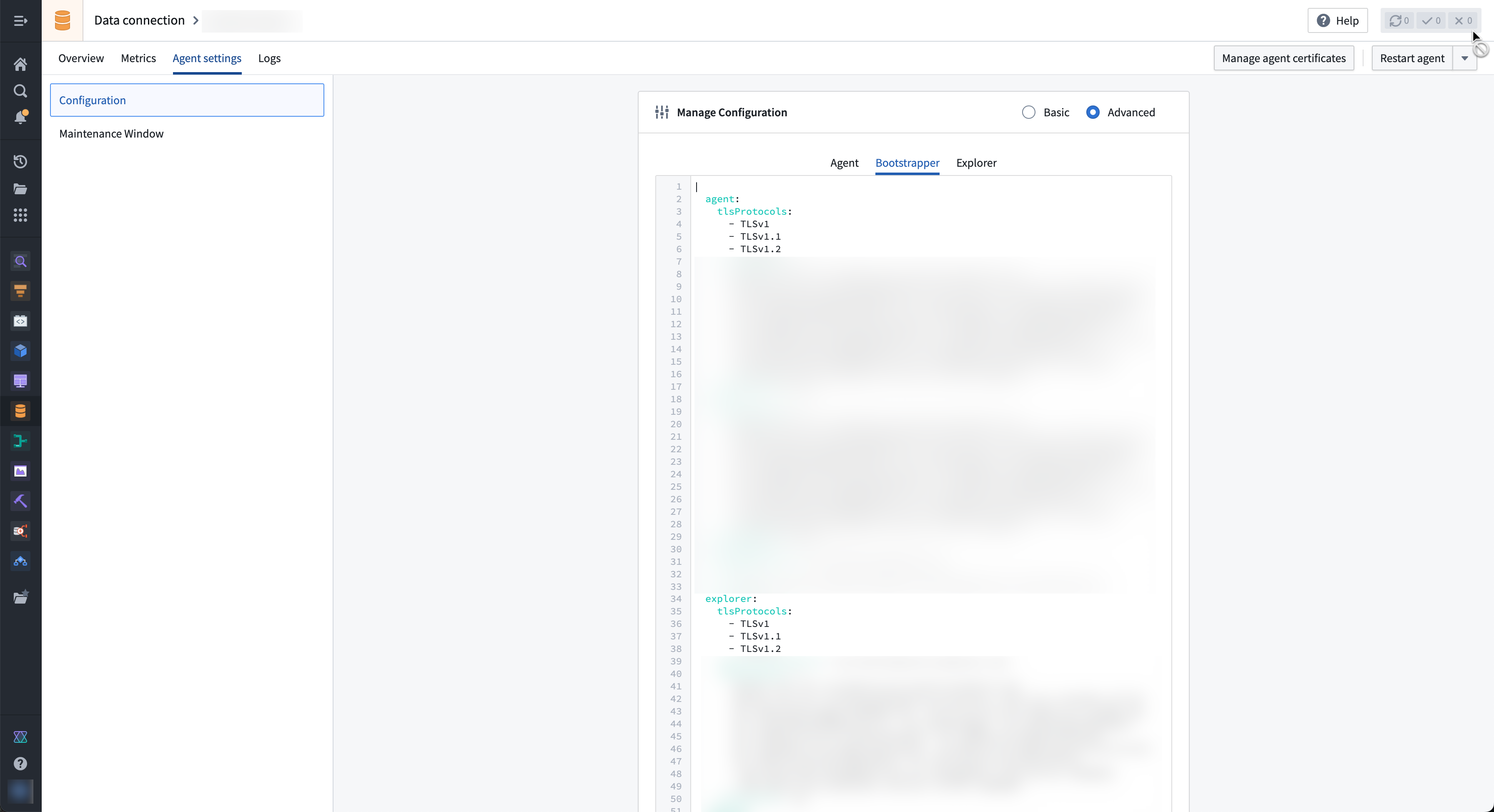
- Select Restart agent.
With this configuration, the agent will continue to allow TLSv1.0 and TLSv1.1 across agent upgrades and restarts. Once the datasource has moved to new TLS versions, revert all changes made to the advanced agent configuration.
Configure agent logs
To adjust the log storage settings for an agent on its host machine, follow the steps below:
- In Data Connection, navigate to the Agents page. Select the name of the agent you want to configure.
- In the Configuration panel, select Advanced.
- The configuration options for logging can be found under the Logging block. Here, you can configure limits on when to start discarding logs, if and how to archive logs, and other settings.
- Note that the configuration should consider the allocated agent host machine resources, your preference of log level granularity, and your preference of log retention. For more information and guidance, consult the Dropwizard configuration reference ↗.
- Restart the agent in Foundry by selecting Restart Agent in the upper-right corner of the screen.
Your new configuration should now be in effect.
How long has my agent been down (unavailable)?
There are a number of reasons your agent could be unavailable; for instance, the agent may be restarting or the underlying hardware running the agent could be offline or restarting.
There are two ways to determine when the agent first became unavailable:
- After selecting your agent in the Data Connection UI, you can see a visual representation of metrics related to uptime and availability in the
Metricstab. - In the Overview section of the Data Connection UI, you can see the status of your agent, as well as the date and time the agent's status was last reported.
What happens to cached files when the host where the agent is installed crashes?
The files will remain on disk until the Bootvisor cleans up old process folders (30 days or 10 old folders triggers a clean up). These files are encrypted and the keys to decrypt them only existed in the memory of processes that died.
中文翻译
故障排除参考
:::callout{theme="neutral"} 代理管理器(Agent Manager)在安装它的服务器上被称为"引导管理器(bootvisor)"。 :::
本页面包含如何配置代理日志的信息,描述了代理配置的常见问题,并提供了调试指导。
所述步骤必须在通过SSH登录到已安装代理的主机后执行。
在探索其他故障排除主题之前,我们建议首先检查./var/diagnostic/launch.yml以确认代理已成功连接到Foundry。如果连接不成功,请按照enhancedMessage字段中描述的说明进行操作。
代理配置的常见问题
代理和代理管理器显示"离线"状态,但在代理主机上返回"运行中"
- 第一步是检查从安装代理的主机是否可以访问Foundry。为此,请在安装代理的主机上运行
curl -s https://<your domain name>/magritte-coordinator/api/ping > /dev/null && echo pass || echo fail。 - 如果一切正常,您应该看到输出为
pass。在这种情况下,您应该:- 确定是否需要代理才能访问Foundry,如果需要,请检查代理是否已配置为使用该代理(关于如何配置代理使用代理的说明可在代理配置页面上找到)。您可以通过在基于Unix的机器的命令行上运行
echo $http_proxy来验证是否正在使用代理。 - 如果您认为不需要代理或已配置了代理,请联系您的Palantir代表。
- 确定是否需要代理才能访问Foundry,如果需要,请检查代理是否已配置为使用该代理(关于如何配置代理使用代理的说明可在代理配置页面上找到)。您可以通过在基于Unix的机器的命令行上运行
- 如果从主机无法访问Foundry,您可能会看到类似以下的错误:
curl: (6) Could not resolve host: ...。在这种情况下,很可能有某些因素阻止了连接(例如防火墙或代理),您应该联系您的Palantir代表。
代理管理器显示"离线"状态
- 检查
<agent-manager-install-location>/var/log/startup.log文件的内容。 -
如果您看到以下错误:
Caused by: java.net.BindException: {} Address already in use,这意味着代理管理器(Agent Manager)尝试绑定的端口上已有进程在运行。- 要解决此问题,您首先应确定代理管理器尝试绑定到哪个端口。这可以通过检查
<agent-manager-directory>/var/conf/install.yml文件的内容并查找port参数来完成(例如port: 1234- 这里的1234就是端口号)。请注意,如果没有定义端口参数,代理管理器将使用默认端口7032。 - 一旦知道代理管理器尝试绑定的端口,您应识别已在该端口上运行的进程。这可以通过运行以下命令实现:
ps aux | grep $(lsof -i:<PORT> |awk 'NR>1 {print $2}' |sort -n |uniq),其中<PORT>是代理管理器尝试绑定的端口。 - 如果上述命令返回的响应包含:
com.palantir.magritte.bootvisor.BootvisorApplication,则表示另一个代理管理器已在运行。 - 在这种情况下,您应确定这是否是有意为之;如果是,您需要按照以下步骤更改配置中的端口以解决两个代理管理器之间的冲突。否则,您需要确定要在此主机上使用哪个特定的代理管理器安装,停止其他正在运行的代理管理器,并仅启动您打算使用的那个。
- 要解决此问题,您首先应确定代理管理器尝试绑定到哪个端口。这可以通过检查
-
要修复
BindException错误,您需要为代理管理器找到一个当前未被使用的新端口。- 端口号应在1025到65536之间(端口号0到1024保留给特权服务,并指定为知名端口)。
- 您可以通过执行以下命令检查端口上是否已有进程在运行:
lsof -i :<PORT>,其中<PORT>是选择的端口号。
-
找到可用端口后,您需要在存储在
<agent-manager-directory>/var/conf/install.yml的配置中添加(或更新)port参数。 -
以下是一个代理管理器配置片段示例,端口设置为
7032:... port: 7032 auto-start-agent: true -
保存上述配置后,通过运行
<agent-manager-root>/service/bin/init.sh stop && <agent-manager-root>/service/bin/init.sh start重启代理管理器。
引导程序显示"从未报告"状态
-
检查
<agent-manager-directory>/var/data/processes/<latest-bootstrapper-directory>/var/log/startup.log文件的内容。 -
如果您看到以下错误:
Caused by: java.net.BindException: {} Address already in use,这意味着引导程序(Bootstrapper)尝试绑定的端口上已有进程在运行。- 要解决此问题,您首先应确定引导程序尝试绑定到哪个端口。这可以通过导航到Data Connection应用程序中的代理概览页面来完成。从那里,您需要选择"高级"配置按钮,最后点击"引导程序"选项卡。引导程序尝试绑定的端口在
port参数下定义(例如port: 1234- 这里的1234就是端口号)。请注意,引导程序的默认端口是7002。 - 一旦知道引导程序尝试绑定的端口,您应识别已在该端口上运行的进程。这可以通过运行以下命令实现:
ps aux | grep $(lsof -i:$PORT |awk 'NR>1 {print $2}' |sort -n |uniq),其中$PORT是引导程序尝试绑定的端口。 - 如果上述命令返回的响应包含
com.palantir.magritte.bootstrapper.MagritteBootstrapperApplication,则表示另一个引导程序已在运行。 - 在这种情况下,您应确定这是否是有意为之;如果是,您需要按照以下步骤更改配置中的端口以解决两个引导程序之间的冲突。否则,您需要确定要在此主机上使用哪个特定的引导程序安装,停止其他正在运行的引导程序,并仅启动您打算使用的那个。
- 要解决此问题,您首先应确定引导程序尝试绑定到哪个端口。这可以通过导航到Data Connection应用程序中的代理概览页面来完成。从那里,您需要选择"高级"配置按钮,最后点击"引导程序"选项卡。引导程序尝试绑定的端口在
-
要修复
BindException错误,您需要为引导程序找到一个当前未被使用的新端口。- 端口号应在1025到65536之间(端口号0到1024保留给特权服务,并指定为知名端口)。
- 您可以通过执行以下命令检查端口上是否已有进程在运行:
lsof -i :<PORT>,其中<PORT>是选择的端口号。
-
找到可用端口后,您需要在引导程序的配置中设置
port参数。这可以通过导航到Data Connection应用程序中的代理概览页面来完成。从那里选择高级配置按钮,最后导航到"引导程序"选项卡。 -
以下是一个引导程序配置片段示例,端口设置为
7002:server: adminConnectors: ... port: 7002 #这是端口值 -
更新配置后,您需要保存更改并重启代理以使更改生效。
代理显示"在线"但未响应重启
通常情况下,这是由于另一个"幽灵(ghost)"代理实例正在运行,您需要找到并关闭它。
要查找并终止旧进程,请按照以下步骤操作:
- 通过运行以下命令停止代理管理器:
<agent-manager-install-location>/service/bin/init.sh stop。 - 删除
<agent-manager-install-location>/var/data/processes/index.json文件。 - 运行
for folder in $(ls -d <agent-manager-root>/var/data/processes/*/); do $folder/service/bin/init.sh stop; done来关闭旧进程。 - 返回Data Connection并检查代理是否不再报告(需要2-3分钟)。
- 启动代理管理器(
<agent-manager-install-location>/service/bin/init.sh start)。
:::callout{theme="neutral"} 在安装代理的主机上手动启动代理(而不是通过Data Connection)可能导致创建"幽灵"进程。 :::
代理状态显示"不健康"
当代理进程显示为"不健康"时,通常是因为它已崩溃或被操作系统或其他软件(如防病毒软件)关闭。
操作系统可能关闭进程的原因有多种,但最常见的原因是操作系统没有足够的内存来运行它,这被称为OOM(内存不足)终止。
要检查是否有任何代理或Explorer子进程被操作系统OOM终止,您可以运行以下命令:grep "exited with return code 137" -r <agent-manager-directory> --include=*.log。这将在代理管理器目录内的所有日志文件中搜索包含'exited with return code 137'的条目(返回码137表示进程被OOM终止)。
以下是上述命令产生的示例输出,显示代理子进程被OOM终止:./var/data/processes/bootstrapper~<>/var/log/magritte-bootstrapper.log:ERROR [timestamp] com.palantir.magritte.bootstrapper.ProcessMonitor: magritte-agent exited with return code 137。如果您看到类似的输出,应按照以下关于调整堆大小的步骤进行操作。
您还可以通过运行以下命令检查操作系统日志中的OOM终止条目:dmesg -T | egrep -i 'killed process。此命令将在内核环形缓冲区中搜索'killed process'日志条目,这表示进程被OOM终止。
OOM终止进程的实际日志条目将如下所示:
[timestamp] Out of memory: Killed process 9423 (java) total-vm:2928192kB, anon-rss:108604kB, file-rss:0kB, shmem-rss:0kB, UID:0 pgtables:1232kB oom_score_adj:0- 上述日志行显示被终止的进程PID为9423(注意:您的日志消息可能因Linux发行版和系统配置而异)。
- 在这种情况下,您应尝试验证被终止的进程是否与您的代理相关。最简单的方法是对齐时间戳,即如果某个条目的时间戳与您的代理变为不健康的时间相符,则两者很可能相关。请注意,任何不包含
(java)的条目都可以忽略,因为它们与您的代理无关。
调整堆大小
在更改任何堆分配之前,您应首先:
- 计算主机有多少可用内存。
- 要查看主机有多少可用内存,可以运行
free -h。在6 GB系统上,输出可能如下所示:
                total        used        free      shared  buff/cache   available
Mem:          5.8Gi       961Mi       2.8Gi       9.0Mi       2.1Gi       4.6Gi
Swap:         1.0Gi          0B       1.0Gi
在free命令产生的输出中,available列显示可用于启动新应用程序的内存量。要确定可以分配给代理多少内存,我们建议您停止代理,并在系统处于正常到高负载时运行free -h。可用值将告诉您可以为所有代理进程总共分配的最大内存量。我们建议您尽可能保留大约2-4GB的缓冲空间,以应对系统上其他进程需要更多内存的情况,以及代理进程使用的堆外内存。请注意,并非所有版本的free都显示available列,因此您可能需要检查系统上版本的文档以找到等效信息。
确定以下每个子进程分配了多少内存:代理管理器、引导程序、代理和Explorer。
要了解分配给代理和Explorer子进程的内存量,您应导航到Data Connection中的代理配置页面,选择高级配置按钮,然后选择"引导程序"选项卡。从那里您将看到每个子进程都有自己的配置块;在每个块中,您应看到一个jvmHeapSize参数,该参数定义了分配给相关进程的内存量。
默认情况下,引导程序子进程分配了512mb的内存。这可以通过首先导航到<agent-manager-directory>/var/data/processes/目录来确认;从那里您需要运行ls -lrt来查找最近创建的bootstrapper~<uuid>目录。进入最近创建的bootstrapper~<uuid>目录后,您可以检查./var/conf/launcher-custom.yml文件的内容。在这里,Xmx值是分配给引导程序的内存量。
默认情况下,代理管理器子进程也分配了512mb的内存。这可以通过检查<agent-manager-directory>/var/conf/launcher-custom.yml文件的内容来确认。在这里,Xmx值是分配给代理管理器的内存量。
:::callout{theme="neutral"}
安装在Windows机器上的代理不使用launcher-custom.yml文件,因此默认情况下,Java将为代理管理器和引导程序进程分配系统总可用内存的25%。要解决此问题,您需要手动设置代理管理器和引导程序的堆大小,可以按照以下步骤操作:
- 确保您已终止所有代理进程,即:(代理管理器、引导程序、代理和Explorer)。
- 设置JAVA_HOME:
setx -m JAVA_HOME "{BOOTVISOR_INSTALL_DIR}\jdk\{JDK_VERSION}-win_x64\" - 设置代理管理器堆大小:
setx -m MAGRITTE_BOOTVISOR_WIN_OPTS "-Xmx512M -Xms512M" - 设置引导程序堆大小:
setx -m MAGRITTE_BOOTSTRAPPER_OPTS "-Xmx512M -Xms512M" - 关闭命令提示符并打开一个新的。这是使上述设置生效所必需的。
- 启动代理管理器:
.\service\bin\magritte-bootvisor-win:::
一旦确定了主机有多少可用内存以及上述每个子进程分配了多少内存,您应决定是:减少分配给上述进程的内存量,还是增加主机的可用内存量。
您是否可以安全地减少代理进程使用的内存量取决于您的代理设置(例如,最大并发同步数和文件上传并行度)、正在同步的数据类型以及代理的典型负载。减少堆大小会降低操作系统终止进程的可能性,但会增加Java进程耗尽堆空间的可能性。您可能需要测试不同的值以找到有效的配置。如果您需要帮助调整此值,请联系您的Palantir代表。
要减少分配给一个(或多个)子进程的内存量,请执行以下操作:
- 决定应为上述每个子进程分配多少内存。
- 注意:我们不建议将堆大小减少到低于下面列出的默认值。
- 接下来,导航到Data Connection中的代理,选择高级配置按钮,然后选择引导程序选项卡。
- 在这里,您可以为每个单独的子进程设置
jvmHeapSize参数。 - 以下是一个引导程序配置片段示例,其中代理的jvmHeapSize设置为3gb:
agent: .... jvmHeapSize: 3g #这是JVM堆大小值 - 更新配置后,您需要保存更改并重启代理以使更改生效。
默认堆分配
默认情况下,代理需要约3gb的内存,分配如下:
- 代理子进程1gb
- Explorer子进程1gb
- 引导程序子进程512mb
- 代理管理器子进程512mb
Java进程也会使用一定量的堆外内存;因此,我们建议您确保至少留有≥4gb的空闲内存供它们使用。
无法下载代理包
代理下载失败主要有两个原因:网络连接问题和链接过期。
如果您可以连接到Foundry但收到无效的tar.gz文件或下载时出现错误消息,则可能是链接已过期或失效。
- 过期链接: 下载链接在十分钟后过期。
- 失效链接: 下载链接受一次性下载密钥保护。在Microsoft Teams等应用程序中粘贴代理下载链接可能会使链接失效,因为这些应用程序会尝试扫描链接以查看是否可以预览;此扫描会使一次性下载密钥失效。如果您有无效链接,请尝试在UI中重新生成链接,并重新输入两个密钥词,而不是复制整个链接。
如果在代理包下载过程中遇到disconnected unexpectedly错误,请尝试通过在下载命令中添加--http1.0标志来强制curl使用HTTP 1.0。这可以解决某些网络环境中可能发生的协议协商问题。
无法管理代理
用户必须是项目的编辑者(Editor)才能在该项目中创建代理,但必须是项目的所有者(Owner)才能管理该项目中的代理。这意味着用户可能创建了代理,但无法生成下载链接或对代理执行其他管理任务。有关代理权限的更多信息,请查看我们的权限参考文档中的指导。
由于PERMISSION_DENIED错误无法创建代理
如果在尝试创建代理时收到PERMISSION_DENIED错误,请验证以下内容:
- 组织级角色: 您必须拥有
组织管理员(Organization administrator)、数据流管理员(Data flows administrator)或分配了创建代理(Create agent)工作流的自定义角色。组织角色在控制面板的组织权限页面上管理。 - 项目级角色: 您必须是您想要保存新创建代理的项目的
编辑者(Editor)或所有者(Owner)。
如果您在现有项目上只有编辑者(Editor)权限但缺少所需的组织级角色,请尝试在您具有适当权限的其他项目中创建代理,或向管理员请求所需的角色。
有关代理权限的更多详细信息,请查看我们的权限参考文档中的指导。
代理配置参考
使用不安全的TLSv1.0和TLSv1.1协议连接数据源
Palantir不支持TLSv1.0和TLSv1.1,因为它们是过时且不安全的协议。Data Connection代理使用的Amazon Corretto构建的OpenJDK在java.security文件中的jdk.tls.disabledAlgorithms安全属性下默认明确禁用了TLSv1.0和TLSv1.1。
尝试连接到仅支持TLSv1.0和TLSv1.1的数据源系统将失败,并出现各种错误,包括Error: The server selected protocol version TLS10 is not accepted by client preferences。
:::callout{theme="danger"} 我们强烈不鼓励使用已弃用的TLS版本。Palantir不对与其使用相关的安全风险负责。 :::
如果迫切需要临时支持TLSv1.0和TLSv1.1,请执行以下步骤:
- 从代理概览页面,导航到代理设置并在管理配置部分选择高级。然后,选择
引导程序选项卡。 - 在
agent和explorer配置块中添加tlsProtocols条目,后跟您要启用的协议。请确保同时包含TLSv1.2,以便使用它的任何源不会中断。例如:
agent:
    tlsProtocols:
      - TLSv1
      - TLSv1.1
      - TLSv1.2
...
explorer:
    tlsProtocols:
      - TLSv1
      - TLSv1.1
      - TLSv1.2
...
- 选择重启代理。
使用此配置,代理将在代理升级和重启过程中继续允许TLSv1.0和TLSv1.1。一旦数据源迁移到新的TLS版本,请恢复对高级代理配置所做的所有更改。
配置代理日志
要调整主机上代理的日志存储设置,请按照以下步骤操作:
- 在Data Connection中,导航到代理页面。选择您要配置的代理名称。
- 在配置面板中,选择高级。
- 日志记录的配置选项可以在日志记录块下找到。在这里,您可以配置何时开始丢弃日志的限制、是否以及如何归档日志以及其他设置。
- 请注意,配置应考虑分配的代理主机资源、您对日志级别粒度的偏好以及您对日志保留的偏好。有关更多信息和指导,请查阅Dropwizard配置参考 ↗。
- 通过选择屏幕右上角的重启代理在Foundry中重启代理。
您的新配置现在应已生效。
我的代理已宕机(不可用)多长时间?
您的代理可能不可用的原因有很多;例如,代理可能正在重启,或者运行代理的底层硬件可能离线或正在重启。
有两种方法可以确定代理首次变为不可用的时间:
- 在Data Connection UI中选择您的代理后,您可以在
指标(Metrics)选项卡中看到与正常运行时间和可用性相关的指标的直观表示。 - 在Data Connection UI的概览部分,您可以看到代理的状态以及代理状态最后报告的日期和时间。
当安装代理的主机崩溃时,缓存文件会发生什么?
文件将保留在磁盘上,直到引导管理器(Bootvisor)清理旧的进程文件夹(30天或10个旧文件夹会触发清理)。这些文件是加密的,解密它们的密钥仅存在于已终止进程的内存中。