Exports(导出(Exports))
Data Connection supports exporting datasets and streams from Foundry to external systems. This can be useful for a variety of purposes:
- Data cleaned and transformed in Foundry using data pipelines can be synced to systems such as data warehouses or data lakes. This pattern is described in greater detail in "How Palantir Foundry Fuels Your Data Platform" ↗.
- Inference results from machine learning models created using batch deployments can be exported to other systems to enable operationalizing ML projects across the organization.
- Operational data captured from end users in the Ontology can be written to other systems for analysis outside of Foundry.
:::callout{theme="warning"}
Data Connection exports are not yet supported for all source types. Review the individual source pages listed in the source type overview documentation to check availability. Each source page will list either file export, streaming export, table export, or legacy export task support if export capabilities are available. For example, the Amazon S3 source type supports file exports while the BigQuery source requires export tasks.
Some sources that do not yet support the file, streaming, or table export capability may support legacy export task configuration. Export tasks are no longer recommended for source types that implement the updated export capability.
:::
:::callout{theme="warning" title="Updated export behavior"}
Prior to June 2025, exports have been marked as failed if there are no new files or rows to be exported during a build. From June 2025 onward, exports with no new files or rows to be exported will be marked as success. This change may impact workflows that depend on the original failure behavior; users will need to adjust affected workflows accordingly.
:::
Export types
The behavior of exports will depend on the type of data the destination system can accept.
| Export type | Summary |
|---|---|
| File export | Used for exporting to systems without a schema. Raw files from a dataset are copied on a schedule and written to the target system. |
| Streaming export | Used for exporting continuously to a system that supports event streaming. Records from a Foundry stream are pushed to the target system continously. |
| Table export | Used for exporting to systems with a schema. Rows of a dataset are inserted on a schedule to the target system according to the selected export mode. |
File exports
An example of a system supporting file exports is S3.
File exports write files from the selected Foundry dataset to the configured destination. By default, only files that were modified since the last successfully exported transaction on the upstream dataset will be written. This means that if a file was not updated in a given transaction, it will not be re-exported on the next scheduled or manual run of any downstream exports.
If the entire dataset must be re-exported, set up a new export on the same source or ensure your upstream transformation overwrites all files that must be exported.
By default, if a file already exists in the destination, export jobs will overwrite that file with the exported data. This behavior may vary by source type. To avoid accidentally overwriting data stored in the destination system, we recommend creating a dedicated sub-folder in which to land exported data from Foundry.
Streaming exports
Exports to streaming destinations will stream records to the destination as long as the export job is running in Foundry. If the job is stopped and restarted, it will resume streaming records from where it left off.
The following source types support streaming exports:
- Amazon Kinesis
- Amazon SQS
- Google Pub/Sub
- Kafka
- PostgreSQL
- Solace
Streaming export replay behavior
When configuring an export to a streaming destination, you must specify the desired behavior for when the stream is replayed in Foundry. Normally, streams are replayed after making breaking changes to the processing logic. In this case, previously processed records must be re-processed using the new logic in one of the following ways:
-
Export replayed records: Re-export all records when the stream is replayed. Note that any previously exported records will be exported again, and the external system must be configured to handle duplicates.
-
Do not export replayed records: Pause exports until the replayed offset matches the most recent offset in the export job. Because offsets are not guaranteed to match across replayed streams, this option often results in some number of dropped records that will never be exported.
Table exports
:::callout{theme="neutral"}
As of June 2024, table exports are generally available but may not be available for all source types. When available, table exports are recommended over export tasks. To check if a source type supports table exports, visit the new source page in Data Connection and look for the Table exports tag, or visit the documentation page for the relevant source type.
:::
Table exports allow exports to systems that contain tabular data with a known schema, where the external target schema matches the schema of a Foundry dataset you wish to export. Table exports will execute the system-specific INSERT statements or equivalent API calls to write rows into the target table according to the selected table export mode as described below.
Table export modes
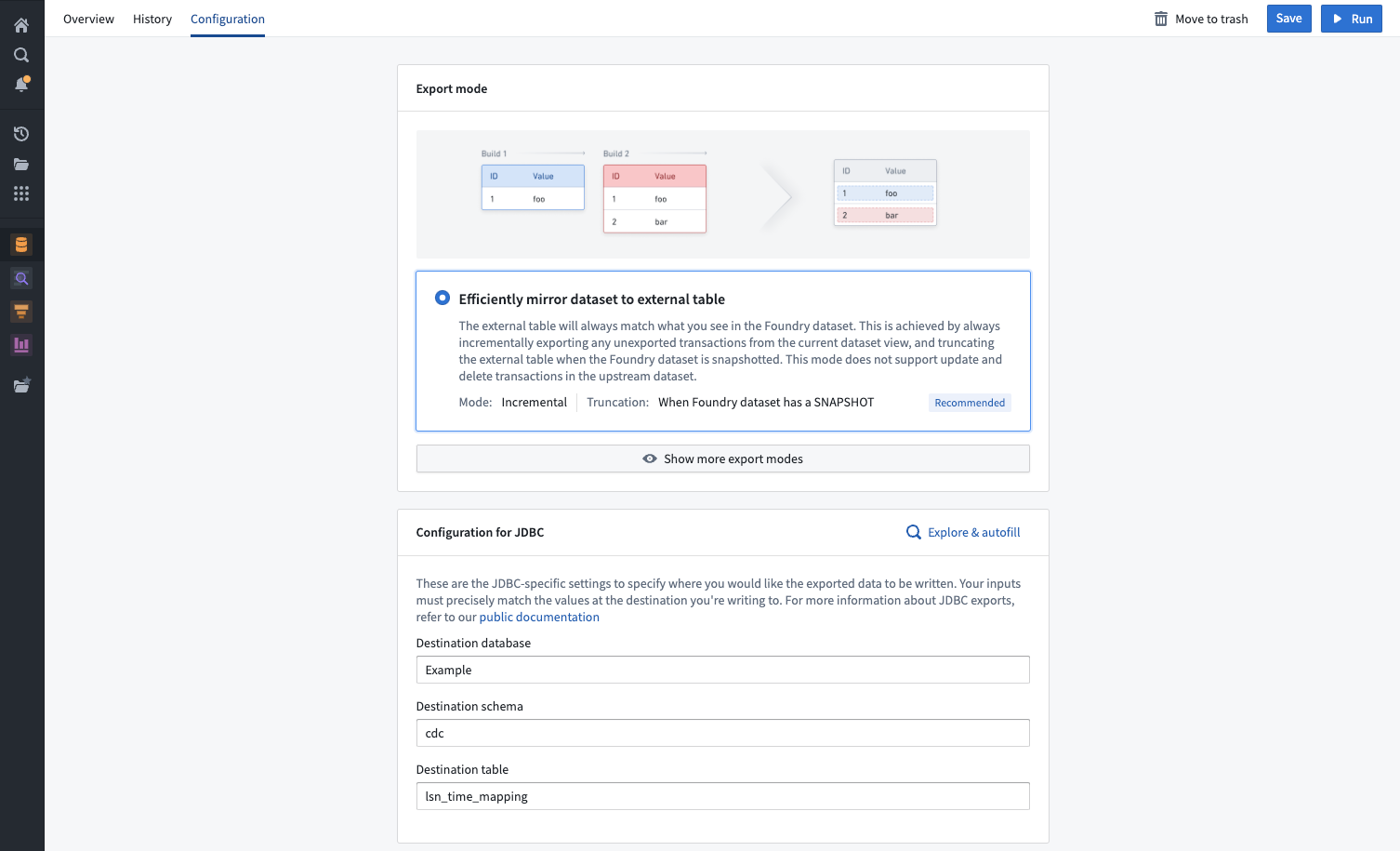
The selected export mode specifies how data will be exported during a table export. The following export modes are available for all table exports and are also explained on the export setup page in Data Connection.
| Table export mode | Description |
|---|---|
| Efficiently mirror dataset to external table (recommended) | The external table will always match what you see in the Foundry dataset. This is achieved by always incrementally exporting any unexported transactions from the current dataset view and truncating the external table when there is a SNAPSHOT transaction on the Foundry dataset being exported. This mode does not support UPDATE and DELETE transactions in the dataset being exported. |
| Full dataset without truncation | Always export a snapshot of the entire view of the Foundry dataset, without truncating the external table first. Note: This option will almost always result in duplicates in the external table. This option can be useful when external systems consume and remove rows after each run or if you want to re-export already exported rows. |
| Full dataset with truncation | This option will truncate (drop) the target table, and then export a snapshot of the full current dataset view. This will result in the external table always mirroring the Foundry dataset but is less efficient than the incremental option to "efficiently mirror to external table".This option may be useful if edits to the external table happened between exports and you wish to always overwrite them. |
| Export incrementally | Exports only unexported transactions from the current view without truncating the target table. This mode does not support UPDATE and DELETE transactions in the dataset being exported. This option mirrors the dataset with APPEND transactions only to avoid exporting the same data again. This mode may produce duplicate records in the target table if the upstream dataset has a SNAPSHOT transaction. |
| Export incrementally with truncation | This option truncates (drops) the target table, then exports only transactions from the current view that have not previously been exported. This mode is useful when treating the target table like a message queue (for example, when another task picks up rows from the table and writes them elsewhere). Note: This mode does not support UPDATE and DELETE transactions in the upstream dataset. |
Export incrementally and fail if not APPEND |
Exports only unexported transactions from the current view, failing if there is a SNAPSHOT, UPDATE, or DELETE transaction (after the first run). This option mirrors the Foundry dataset as long as it only contains APPEND transactions. It protects against potentially re-exporting all data in case there is a snapshot in the Foundry dataset and guarantees there will never be duplicate data exported to the target table. |
Export modes are not available for legacy export tasks.
Special considerations for table exports
- The dataset you export from Foundry must have a 1:1 match with the external source, including exact column names (case-sensitive) and data types. For example, exporting
COLUMN_ABCof typeLONGto a destination whereCOLUMN_ABCis of typeSTRINGwill fail at runtime. - When setting up a table export, ensure that
DATABASE,SCHEMA, andTABLEfields are filled out if required by your source. Missing any of these fields will cause the export to fail at runtime. Similarly, including unnecessary fields can also result in failure. For highest reliability, use explore source and autofill to select the destination in your source. - When using an agent worker with table exports, the agent must be running on a Linux host. Windows agents are not supported for running table exports.
- The underlying files for a dataset being exported to a tabular destination must be in Parquet format. CSV and other file types that support a schema will fail to export.
- The destination table must already exist in the source system; it will not be automatically created by Foundry.
- When using an export mode that does truncation, the credentials entered in the Foundry source configuration must have permissions to truncate the table in the external system.
Array,Map, andStructtypes are not supported for exports. If the dataset you are exporting contains a column with typeArray,Map, orStruct, the export will fail.
SQL dialects in table exports
Table exports are currently supported for custom JDBC source types. Though Foundry provides dedicated connectors for specific systems such as Oracle, the table exports source capability will not appear as an option unless the connection is established via the custom JDBC connection.
When performing table exports to a custom JDBC source for which you've provided your own driver JAR file, you must confirm that Palantir's INSERT statement syntax for exporting data is compatible with the SQL dialect that your system will accept.
Below, you can find examples of the INSERT statements used by Palantir for exports to custom JDBC sources. These statements cannot currently be customized. If your system does not accept the statements used when running exports, you can fall back on code-based connectivity options to write to your system.
You must also ensure that the types used in your database are compatible with the supported types listed below.
Supported JDBC types
Supported JDBC source types include:
DECIMALBIGINTBINARYBOOLEANSMALLINTDATEDOUBLEFLOATINTEGERVARCHARTIMESTAMP
Unsupported JDBC types
Unsupported JDBC source types include:
ARRAYMAPSTRUCT- Other types not listed as supported above (such as less-common types like
GEOGRAPHY)
If your dataset contains columns of unsupported types (such as ARRAY, MAP, or STRUCT), the export will fail.
INSERT statement examples
The examples below provide more information about the syntax used by table exports. If your source system does not support INSERT statements in this format, the INSERT statements will fail at runtime.
Assume that a target_table exists within our source system, with the same schema as the corresponding dataset in Foundry. Both the names and datatypes of the columns must match between the external source and Foundry. Below is a mock example of a dataset in Foundry:
| column1 | column2 | column3 |
|---|---|---|
| value1 | value2 | value3 |
| value4 | value5 | value6 |
| value7 | value8 | value9 |
The INSERT statement for a single row follows the general format below:
INSERT INTO target_table (column1, column2, column3) VALUES ('value1', 'value2', 'value3');
Depending on source type, an insert statement will be applied against one or multiple rows of data. For example, Snowflake supports batch inserts and thus permits multiple rows to be written at once.
INSERT INTO target_table (column1, column2, column3) VALUES ('value1', 'value2', 'value3'), ('value4', 'value5', 'value6'), ('value7', 'value8', 'value9');
By contrast, a source like Apache Hive has limited support for batch inserts and will undergo an export via three subsequent insert statements.
INSERT INTO target_table (column1, column2, column3) VALUES ('value1', 'value2', 'value3');
INSERT INTO target_table (column1, column2, column3) VALUES ('value4', 'value5', 'value6');
INSERT INTO target_table (column1, column2, column3) VALUES ('value7', 'value8', 'value9');
TRUNCATE TABLE statement example
Export options like Full dataset with truncation will first truncate the target table at the external source, then run an insert statement. The actual code to accomplish this would look like the example below:
TRUNCATE TABLE table_name;
INSERT INTO target_table (column1, column2, column3) VALUES ('value1', 'value2', 'value3');
If a more specific dialect is needed, we recommend one of Foundry's code-based connectivity options such as external transforms.
Multi-threaded table exports
Some source types support multi-threaded table exports, which can improve export performance. When using multi-threaded exports, Foundry creates a temporary staging table in the destination system to maintain atomicity. Data is written to this staging table in parallel, then copied to the final destination table when the export completes. The staging table is automatically deleted after the export finishes.
When using multi-threaded exports, credentials must have CREATE, READ, UPDATE, and DELETE permissions on tables in the destination system.
Prepare data for export
In general, exports do not support any data transformations executed as part of the export job. This means that the dataset or stream you select to export should already be in your desired format, including filters, renamed or repartitioned files, and any other transformations of the data.
Pipeline Builder and Code Repositories are Foundry's tools for building data transformation pipelines; both applications should provide the complete tooling you need to prepare your data for export, including job scalability, monitoring, version-control, and the flexibility to write arbitrary logic as necessary.
Controlling output file structure
Foundry datasets containing structured data store their underlying files under a spark/ directory by default. If you need files to land in a specific directory structure when exported - for example, organized by date partition - you can use a Python transform to write the dataset with the desired layout before exporting.
The following Python transform uses the filesystem API to copy files directly to a date-based path:
from transforms.api import transform, Input, Output
import datetime
import shutil

@transform(
    output_dataset=Output("/path/to/output/dataset"),
    input_dataset=Input("/path/to/input/dataset"),
)
def compute(input_dataset, output_dataset):
    dt = datetime.date.today().strftime("%Y%m%d")
    for file_status in input_dataset.filesystem().ls():
        relative_path = file_status.path[len("spark/"):] if file_status.path.startswith("spark/") else file_status.path
        with input_dataset.filesystem().open(file_status.path, "rb") as in_f:
            with output_dataset.filesystem().open(f"data_dt={dt}/{relative_path}", "wb") as out_f:
                shutil.copyfileobj(in_f, out_f)
With this transform, the exported dataset will contain files at paths such as data_dt=20240101/part-00000-xxx.parquet instead of spark/part-00000-xxx.parquet. Configure the file export to use this transformed dataset as the dataset to export. After the first build, select Apply schema on the dataset to make it viewable as tabular data in Foundry.
:::callout{theme="neutral"} It is possible to allow Base64 decoding of stream records when exporting to Kafka. For more information on Kafka exports, review the full Kafka connector documentation. :::
Set up an export
Enable exports for source
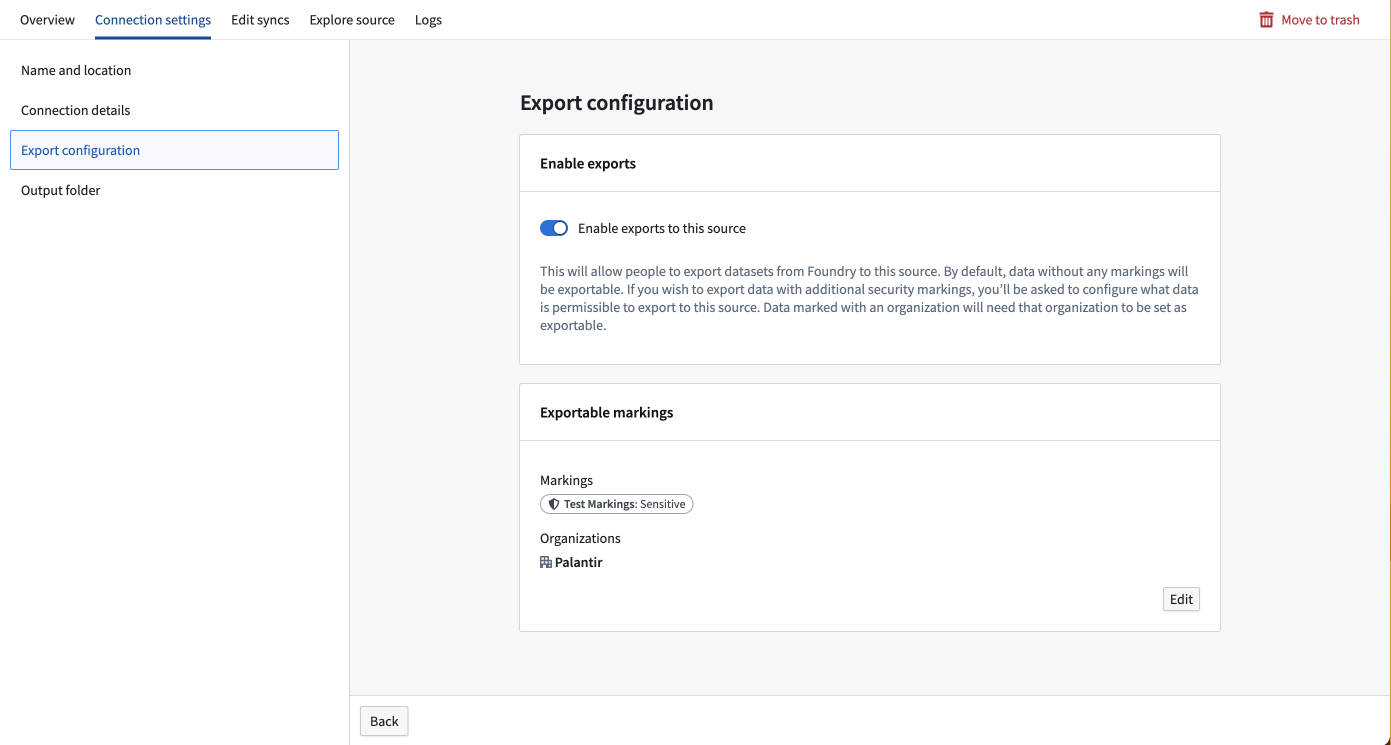
To export data, you must enable exports in the Connection settings section of the source to which you are exporting. Source types that support exports will show an Export configuration tab to the left of the screen. A Foundry user with the Information Security Officer role should navigate to this tab and toggle on the option to Enable exports to this source.
The Information Security Officer is a default role in Foundry; users can be granted the Information Security Officer role in Control Panel under Enrollment permissions.
After enabling exports, you must provide the set of markings that may be exported to this source. If markings and organizations are not added in the export configuration, data with those markings or organizations will fail to export to this source. To add an exportable marking, a user must be both an Information Security Officer and have unmarking permission on the markings or organizations they wish to allow to be exported to this source.
As an example, you may have a dataset with a Sensitive marking in the Palantir organization. To export this dataset, you must add both the Sensitive marking and the Palantir organization to the set of Exportable markings for this source.
Exportable markings also control which resource metadata can appear in Slack notifications from monitoring views.
:::callout{theme="warning"}
The credentials entered in the Data Connection source configuration must have write access on the table in the external system. For example, S3 requires the "s3:PutObject" permission. Other file exports may require specific permissions to create directories if the target path does not already exist. Table exports may require additional permissions when using an export mode that does truncation.
Review the individual source pages listed in the source type overview documentation for source-specific considerations. :::
Create a new export
To create an export, first navigate to the Overview page of the source to which you want to export.
If this is the first export you are setting up for the given source, you will see an empty table and a button to create an export.

Select Create export, then select the dataset or stream to export and any source-specific export configuration options. These options will vary by source connector and are explained on the corresponding source type pages in our documentation. If multiple branches exist on the exported dataset, only data on the master branch will be exported.
The example below shows the export configuration interface for the S3 connector:
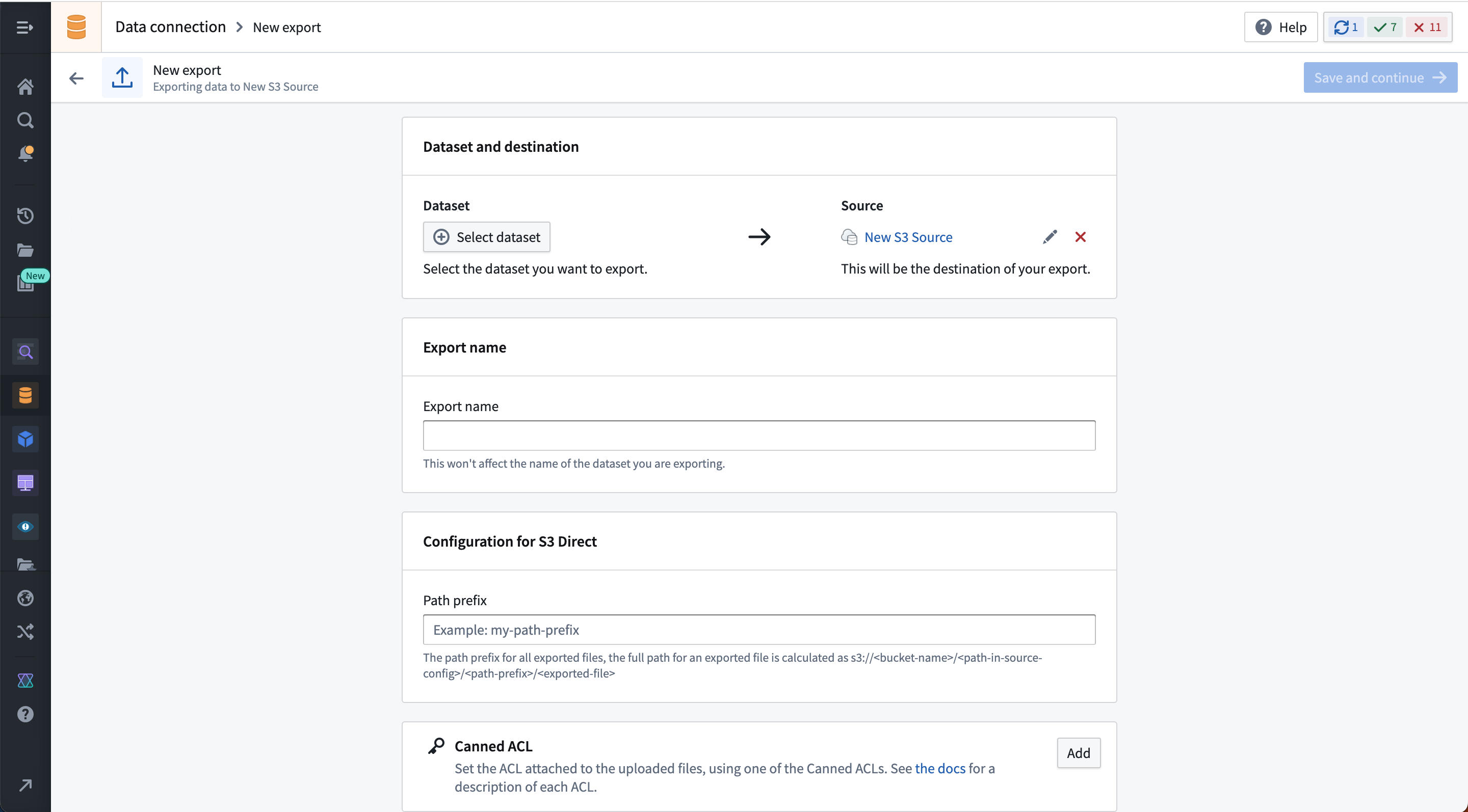
After saving the export, you will land on the export management page where you can do the following:
- Manually run the export.
- Set a schedule for the export.
- View export history.
- Modify configuration options.
:::callout{theme="warning"} Streaming exports use a start/stop button instead of a run button. If a schedule is configured on a streaming export, it will behave similarly to schedules on other streams; if the stream is stopped when the schedule triggers, it will be automatically restarted. If the stream is not stopped when the schedule triggers, it will continue to run. :::
:::callout{theme="warning"} Some source export options may not be editable after initial setup. If immutable options must be changed, you must delete and re-create the export. :::
Scheduling exports
Exports should be scheduled to run regularly, exporting recent data to the external destination. Streaming exports do not need to be scheduled since they should simply be started or stopped.
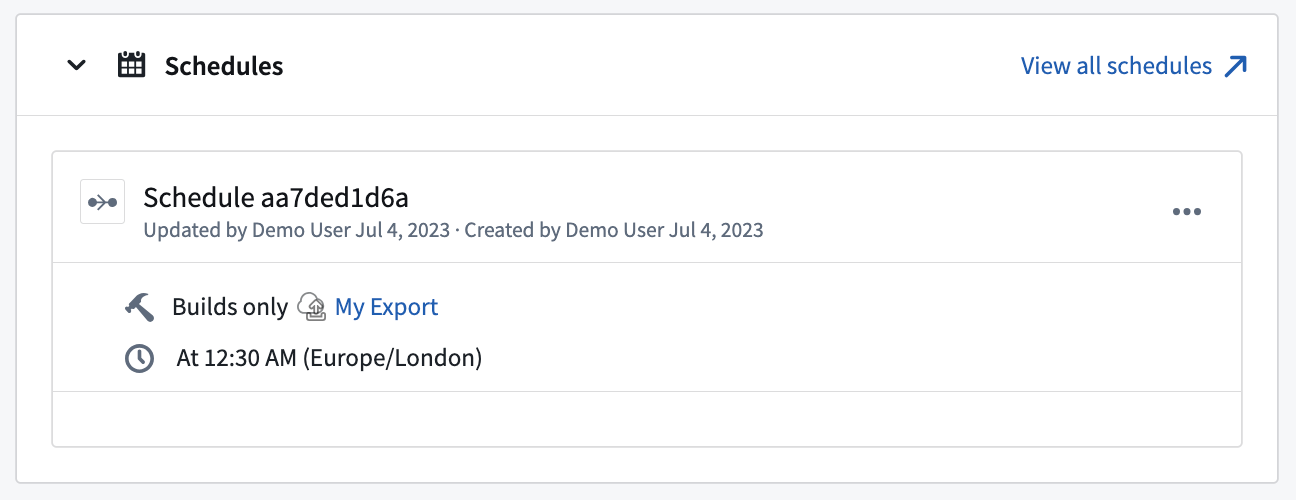
To schedule an export, navigate to the Overview page for the export. Then, select Add schedule to open the export in Data Lineage. From there, select Create new schedule to the right of your screen and configure as you would for any other job. Learn more about available scheduling options.
View any schedules that trigger a specific export on the Overview page for that export, as shown below:
Export history
Similar to syncs, exports run as jobs using the Foundry build system. The History view of an export shows the history of the jobs associated with it. Each job may be opened and viewed in the Builds application by selecting View build report to the upper right of the Job details section.
For streaming exports, the export history will also display if the streaming export job is currently running or stopped.
Exports vs. export tasks
Table exports are intended to fully replace the now sunsetted export tasks that will eventually be deprecated according to the published product lifecycle. While much of the functionality offered by export tasks is available in the new export options, there are some differences in the features and configurations.
Migrating from export tasks to table exports
Migrations from export tasks to new export options must be performed manually. Configure your export using the options documented below; once the new export process is working as expected, manually delete the export task that was previously used.
If a feature available in export tasks has no equivalent option in new exports, the recommended migration is to switch to using external transforms. External transforms provide a flexible alternative for executing custom logic that interacts with an external system, and are intended to be used when the UI configuration options for source capabilities do not cover the required functionality.
Feature comparison between exports and export tasks
| Export task option | Supported in new exports? | Details |
|---|---|---|
parallelize: <boolean> |
Depends on the source type | This may be relevant on a per-source basis, and support for it will be documented in source-specific export settings if available |
preSql: <sql statements> |
Not supported | If this is needed for your use case, use external transforms. |
stagingSql: <sql statements> |
Not supported | If this is needed for your use case, use external transforms. |
afterSql: <sql statements> |
Not supported | If this is needed for your use case, use external transforms. |
manualTransactionManagement: <boolean> |
Not supported | If this is needed for your use case, use external transforms. |
transactionIsolation: READ_COMMITTED |
Not configurable | This may be available as a source configuration option, and it will be applied when performing exports. Check source-specific documentation to see if this configuration option is available. |
datasetRid: <dataset rid> |
Supported | The dataset or stream you wish to export |
branchId: <branch-id> |
Not configurable | Data is always exported from the master branch. |
table: database: mydb # Optional schema: public # Optional table: mytable |
Supported | These options are specific to table exports on the JDBC source. |
writeDirectly: <boolean> |
Not configurable | New exports always use the option equivalent to writeDirectly: true. |
copyMode: <insert\|directCopy> |
Not configurable | New exports always use the option equivalent to copyMode: insert. |
batchSize: <integer> |
Depends on the source type | Batch size is supported for exports on the JDBC source but may not be supported for other source types. |
writeMode: <ErrorIfExists\|Append\|Overwrite\|AppendIfPossible>incrementalType: <snapshot\|incremental> |
Supported | Together, these options are similar to the table export modes documented above. Not all combinations are valid for export tasks, and the combinations have been normalized ↗ into the six modes offered for table exports. |
exporterThreads: <integer> |
Not supported | If you need granular control over exporter threads, use external transforms. |
quoteIdentifiers: <boolean> |
Not supported | This option is only relevant when creating tables in the target system, which is not supported in new exports. The table must exist before an export can be configured. |
exportTransactionIsolation: READ_UNCOMMITTED |
Not configurable | As with transactionIsolation: READ_COMMITTED, the transaction isolation will be taken from the source configuration if available and configured. |
中文翻译
导出(Exports)
Data Connection 支持将数据集(datasets)和流(streams)从 Foundry 导出到外部系统。这对于多种用途非常有用:
- 使用数据管道(Data Pipelines)在 Foundry 中清洗和转换后的数据可以同步到数据仓库或数据湖等系统。这种模式在"Palantir Foundry 如何为您的数据平台提供动力" ↗中有更详细的描述。
- 使用批量部署(batch deployments)创建的机器学习模型的推理结果可以导出到其他系统,以便在整个组织中实现 ML 项目的运营化。
- 从本体论(Ontology)中的最终用户捕获的操作数据可以写入其他系统,以便在 Foundry 之外进行分析。
:::callout{theme="warning"}
Data Connection 导出功能尚未支持所有源类型。请查看源类型概述(source type overview)文档中列出的各个源页面,以检查可用性。如果导出功能可用,每个源页面将列出支持文件导出(file export)、流式导出(streaming export)、表导出(table export)或传统导出任务(legacy export task)。例如,Amazon S3源类型支持文件导出(file exports),而BigQuery源则需要导出任务。
某些尚不支持文件、流式或表导出功能的源可能支持传统导出任务配置(legacy export task configuration)。对于实现了更新导出功能的源类型,不再推荐使用导出任务。
:::
:::callout{theme="warning" title="更新后的导出行为"}
在 2025 年 6 月之前,如果在构建过程中没有要导出的新文件或行,导出会被标记为 failed。从 2025 年 6 月起,没有要导出的新文件或行的导出将被标记为 success。此更改可能会影响依赖于原始失败行为的工作流;用户需要相应地调整受影响的工作流。
:::
导出类型(Export types)
导出的行为取决于目标系统可以接受的数据类型。
| 导出类型 | 摘要 |
|---|---|
| 文件导出(File export) | 用于导出到没有模式(schema)的系统。数据集中的原始文件按计划复制并写入目标系统。 |
| 流式导出(Streaming export) | 用于持续导出到支持事件流(event streaming)的系统。Foundry 流中的记录持续推送到目标系统。 |
| 表导出(Table export) | 用于导出到具有模式(schema)的系统。数据集的行根据选定的导出模式(export mode)按计划插入到目标系统。 |
文件导出(File exports)
支持文件导出的系统示例是 S3。
文件导出将选定的 Foundry 数据集中的文件写入配置的目标位置。默认情况下,仅写入自上游数据集上次成功导出事务以来修改过的文件。这意味着,如果某个文件在给定事务中未更新,则在下一次计划或手动运行任何下游导出时,它不会被重新导出。
如果必须重新导出整个数据集,请在同一个源上设置一个新的导出,或者确保您的上游转换覆盖所有必须导出的文件。
默认情况下,如果目标位置已存在文件,导出作业将用导出的数据覆盖该文件。此行为可能因源类型而异。为避免意外覆盖存储在目标系统中的数据,我们建议创建一个专用的子文件夹来存放从 Foundry 导出的数据。
流式导出(Streaming exports)
只要导出作业在 Foundry 中运行,导出到流式目标就会将记录流式传输到目标。如果作业停止并重新启动,它将从中断处恢复流式传输记录。
以下源类型支持流式导出:
- Amazon Kinesis
- Amazon SQS
- Google Pub/Sub
- Kafka
- PostgreSQL
- Solace
流式导出重放行为(Streaming export replay behavior)
配置导出到流式目标时,您必须指定在 Foundry 中重放流时的期望行为。通常,在对处理逻辑进行破坏性更改后,流会被重放(replayed)。在这种情况下,必须使用新逻辑以以下方式之一重新处理先前已处理的记录:
-
导出重放的记录(Export replayed records): 当流被重放时,重新导出所有记录。请注意,任何先前导出的记录都将再次导出,并且必须配置外部系统以处理重复项。
-
不导出重放的记录(Do not export replayed records): 暂停导出,直到重放的偏移量(offset)与导出作业中的最新偏移量匹配。由于偏移量不能保证在重放的流之间匹配,此选项通常会导致一些记录被丢弃,这些记录将永远不会被导出。
表导出(Table exports)
:::callout{theme="neutral"}
截至 2024 年 6 月,表导出已普遍可用,但可能并非适用于所有源类型。当可用时,建议使用表导出而非导出任务(export tasks)。要检查源类型是否支持表导出,请访问 Data Connection 中的新源页面并查找 Table exports 标签,或访问相关源类型的文档页面。
:::
表导出允许导出到包含具有已知模式的表格数据的系统,其中外部目标模式与您希望导出的 Foundry 数据集的模式匹配。表导出将执行特定于系统的 INSERT 语句或等效的 API 调用,以根据下面描述的表导出模式将行写入目标表。
表导出模式(Table export modes)
选定的导出模式(export mode)指定了在表导出期间如何导出数据。以下导出模式适用于所有表导出,并在 Data Connection 的导出设置页面上也有说明。
| 表导出模式 | 描述 |
|---|---|
| 高效地将数据集镜像到外部表(推荐) | 外部表将始终与您在 Foundry 数据集中看到的内容匹配。 这是通过始终增量导出当前数据集视图中任何未导出的事务,并在被导出的 Foundry 数据集上存在 SNAPSHOT 事务时截断外部表来实现的。 此模式不支持在被导出的数据集中使用 UPDATE 和 DELETE 事务。 |
| 完整数据集不截断 | 始终导出 Foundry 数据集完整视图的快照,而不先截断外部表。 注意:此选项几乎总是会导致外部表中出现重复项。当外部系统在每次运行后消费并移除行时,或者如果您想重新导出已导出的行时,此选项可能很有用。 |
| 完整数据集并截断 | 此选项将截断(删除)目标表,然后导出完整当前数据集视图的快照。 这将导致外部表始终镜像 Foundry 数据集,但效率低于增量选项"高效地将数据集镜像到外部表"。如果在导出之间对外部表进行了编辑,并且您希望始终覆盖它们,则此选项可能很有用。 |
| 增量导出 | 仅 从当前视图导出未导出的事务,而不截断目标表。 此模式不支持在被导出的数据集中使用 UPDATE 和 DELETE 事务。此选项仅使用 APPEND 事务镜像数据集,以避免再次导出相同的数据。如果上游数据集有 SNAPSHOT 事务,此模式可能会在目标表中产生重复记录。 |
| 增量导出并截断 | 此选项截断(删除)目标表,然后仅从当前视图中导出先前未导出的那些事务。 当将目标表视为消息队列时(例如,当另一个任务从表中拾取行并将其写入其他地方时),此模式很有用。 注意:此模式不支持上游数据集中的 UPDATE 和 DELETE 事务。 |
增量导出,如果不是 APPEND 则失败 |
仅从当前视图导出未导出的事务,如果存在 SNAPSHOT、UPDATE 或 DELETE 事务(在首次运行之后),则失败。 只要 Foundry 数据集仅包含 APPEND 事务,此选项就会镜像该数据集。它可以防止在 Foundry 数据集中存在快照时可能重新导出所有数据,并保证永远不会将重复数据导出到目标表。 |
导出模式不适用于传统导出任务。
表导出的特殊注意事项(Special considerations for table exports)
- 您从 Foundry 导出的数据集必须与外部源具有 1:1 的匹配,包括精确的列名(区分大小写)和数据类型。例如,将类型为
LONG的COLUMN_ABC导出到COLUMN_ABC类型为STRING的目标将在运行时失败。 - 设置表导出时,如果您的源需要,请确保填写
DATABASE、SCHEMA和TABLE字段。缺少这些字段中的任何一个都会导致导出在运行时失败。同样,包含不必要的字段也可能导致失败。为了获得最高可靠性,请使用浏览源(explore source)和自动填充(autofill)来选择源中的目标。 - 在表导出中使用代理工作器(agent worker)时,代理必须在 Linux 主机上运行。不支持在 Windows 代理上运行表导出。
- 导出到表格目标的底层数据集文件必须是 Parquet 格式。CSV 和其他支持模式的文件夹型将无法导出。
- 目标表必须已存在于源系统中;Foundry 不会自动创建它。
- 当使用执行截断的导出模式时,在 Foundry 源配置中输入的凭据必须具有在外部系统中截断表的权限。
- 导出不支持
Array、Map和Struct类型。如果您要导出的数据集包含类型为Array、Map或Struct的列,则导出将失败。
表导出中的 SQL 方言(SQL dialects in table exports)
表导出目前支持自定义 JDBC 源类型。尽管 Foundry 为特定系统(如 Oracle)提供了专用连接器,但除非通过自定义 JDBC 连接(custom JDBC connection)建立连接,否则表导出源功能不会显示为选项。
当对您提供了自己的驱动程序 JAR 文件的自定义 JDBC 源执行表导出时,您必须确认 Palantir 用于导出数据的 INSERT 语句语法与您的系统将接受的 SQL 方言兼容。
下面,您可以找到 Palantir 用于导出到自定义 JDBC 源(custom JDBC sources)的 INSERT 语句示例。这些语句目前无法自定义。如果您的系统不接受运行导出时使用的语句,您可以回退到基于代码的连接选项来写入您的系统。
您还必须确保数据库中使用的类型与下面列出的受支持类型兼容。
受支持的 JDBC 类型(Supported JDBC types)
受支持的 JDBC 源类型包括:
DECIMALBIGINTBINARYBOOLEANSMALLINTDATEDOUBLEFLOATINTEGERVARCHARTIMESTAMP
不受支持的 JDBC 类型(Unsupported JDBC types)
不受支持的 JDBC 源类型包括:
ARRAYMAPSTRUCT- 其他未在上面列为受支持的类型(例如不太常见的类型,如
GEOGRAPHY)
如果您的数据集包含不受支持类型的列(例如 ARRAY、MAP 或 STRUCT),则导出将失败。
INSERT 语句示例(INSERT statement examples)
下面的示例提供了有关表导出所用语法的更多信息。如果您的源系统不支持此格式的 INSERT 语句,则 INSERT 语句将在运行时失败。
假设 target_table 存在于我们的源系统中,其模式与 Foundry 中相应的数据集相同。外部源和 Foundry 之间的列名和数据类型必须匹配。以下是 Foundry 中数据集的模拟示例:
| column1 | column2 | column3 |
|---|---|---|
| value1 | value2 | value3 |
| value4 | value5 | value6 |
| value7 | value8 | value9 |
单行的 INSERT 语句遵循以下一般格式:
INSERT INTO target_table (column1, column2, column3) VALUES ('value1', 'value2', 'value3');
根据源类型,insert 语句将应用于一行或多行数据。例如,Snowflake 支持 batch inserts,因此允许一次写入多行。
INSERT INTO target_table (column1, column2, column3) VALUES ('value1', 'value2', 'value3'), ('value4', 'value5', 'value6'), ('value7', 'value8', 'value9');
相比之下,像 Apache Hive 这样的源对 batch inserts 的支持有限,并将通过三个后续的 insert 语句进行导出。
INSERT INTO target_table (column1, column2, column3) VALUES ('value1', 'value2', 'value3');
INSERT INTO target_table (column1, column2, column3) VALUES ('value4', 'value5', 'value6');
INSERT INTO target_table (column1, column2, column3) VALUES ('value7', 'value8', 'value9');
TRUNCATE TABLE 语句示例(TRUNCATE TABLE statement example)
像 Full dataset with truncation 这样的导出选项将首先在外部源处截断目标表,然后运行 insert 语句。实现此目的的实际代码类似于下面的示例:
TRUNCATE TABLE table_name;
INSERT INTO target_table (column1, column2, column3) VALUES ('value1', 'value2', 'value3');
如果需要更具体的方言,我们建议使用 Foundry 的基于代码的连接选项(code-based connectivity options)之一,例如外部转换(external transforms)。
多线程表导出(Multi-threaded table exports)
某些源类型支持多线程表导出,这可以提高导出性能。使用多线程导出时,Foundry 会在目标系统中创建一个临时暂存表(staging table)以保持原子性。数据并行写入此暂存表,然后在导出完成时复制到最终目标表。导出完成后,暂存表会自动删除。
使用多线程导出时,凭据必须具有对目标系统中表的 CREATE、READ、UPDATE 和 DELETE 权限。
准备导出数据(Prepare data for export)
通常,导出不支持作为导出作业一部分执行的任何数据转换。这意味着您选择导出的数据集或流应该已经是您想要的格式,包括过滤器、重命名或重新分区的文件,以及数据的任何其他转换。
管道构建器(Pipeline Builder)和代码仓库(Code Repositories)是 Foundry 用于构建数据转换管道的工具;这两个应用程序应提供准备导出数据所需的完整工具,包括作业可扩展性、监控、版本控制以及根据需要编写任意逻辑的灵活性。
控制输出文件结构(Controlling output file structure)
包含结构化数据的 Foundry 数据集默认将其底层文件存储在 spark/ 目录下。如果您需要在导出时将文件放置到特定的目录结构中——例如,按日期分区组织——您可以在导出之前使用 Python 转换(Python transform)以所需的布局写入数据集。
以下 Python 转换使用文件系统 API(filesystem API)将文件直接复制到基于日期的路径:
from transforms.api import transform, Input, Output
import datetime
import shutil

@transform(
    output_dataset=Output("/path/to/output/dataset"),
    input_dataset=Input("/path/to/input/dataset"),
)
def compute(input_dataset, output_dataset):
    dt = datetime.date.today().strftime("%Y%m%d")
    for file_status in input_dataset.filesystem().ls():
        relative_path = file_status.path[len("spark/"):] if file_status.path.startswith("spark/") else file_status.path
        with input_dataset.filesystem().open(file_status.path, "rb") as in_f:
            with output_dataset.filesystem().open(f"data_dt={dt}/{relative_path}", "wb") as out_f:
                shutil.copyfileobj(in_f, out_f)
使用此转换,导出的数据集将包含路径如 data_dt=20240101/part-00000-xxx.parquet 的文件,而不是 spark/part-00000-xxx.parquet。配置文件导出以使用此转换后的数据集作为要导出的数据集。在首次构建后,在数据集上选择 Apply schema 以使其在 Foundry 中作为表格数据查看。
:::callout{theme="neutral"} 导出到 Kafka 时,可以允许对流记录进行 Base64 解码。有关 Kafka 导出的更多信息,请查看完整的 Kafka 连接器文档(Kafka connector documentation)。 :::
设置导出(Set up an export)
为源启用导出(Enable exports for source)
要导出数据,您必须在要导出到的源的 Connection settings 部分中启用导出。支持导出的源类型将在屏幕左侧显示一个 Export configuration 选项卡。具有 Information Security Officer 角色的 Foundry 用户应导航到此选项卡并打开 Enable exports to this source 选项。
Information Security Officer 是 Foundry 中的默认角色;可以在控制面板(Control Panel)中的 Enrollment permissions 下授予用户 Information Security Officer 角色。
启用导出后,您必须提供可以导出到此源的标记(markings)集合。如果导出配置中未添加标记和组织,则带有这些标记或组织的数据将无法导出到此源。要添加可导出的标记,用户必须同时是 Information Security Officer,并且对他们希望允许导出到此源的标记或组织具有取消标记权限(unmarking permission)。
例如,您可能有一个在 Palantir 组织中带有 Sensitive 标记的数据集。要导出此数据集,您必须将 Sensitive 标记和 Palantir 组织都添加到此源的 Exportable markings 集合中。
可导出的标记还控制哪些资源元数据可以出现在来自监控视图的 Slack 通知(Slack notifications from monitoring views)中。
:::callout{theme="warning"}
在 Data Connection 源配置中输入的凭据必须具有对外部系统中表的写入访问权限。例如,S3 需要 "s3:PutObject" 权限。如果目标路径尚不存在,其他文件导出(file exports)可能需要特定权限来创建目录。表导出(table exports)在使用执行截断的导出模式时可能需要额外的权限。
请查看源类型概述(source type overview)文档中列出的各个源页面,以了解特定于源的注意事项。 :::
创建新导出(Create a new export)
要创建导出,首先导航到您要导出到的源的 Overview 页面。
如果这是您为给定源设置的第一个导出,您将看到一个空表和一个创建导出的按钮。
选择 Create export,然后选择要导出的数据集或流以及任何特定于源的导出配置选项。这些选项因源连接器而异,并在我们文档中相应的源类型(source type)页面上有说明。如果导出的数据集上存在多个分支,则只会导出主分支(master branch)上的数据。
下面的示例显示了 S3 连接器的导出配置界面:
保存导出后,您将进入导出管理页面,您可以在其中执行以下操作:
- 手动运行导出。
- 为导出设置计划。
- 查看导出历史记录。
- 修改配置选项。
:::callout{theme="warning"} 流式导出使用开始/停止(start/stop)按钮而不是运行(run)按钮。如果在流式导出上配置了计划,其行为将类似于其他流上的计划;如果计划触发时流已停止,它将自动重新启动。如果计划触发时流未停止,它将继续运行。 :::
:::callout{theme="warning"} 某些源导出选项在初始设置后可能无法编辑。如果必须更改不可变的选项,您必须删除并重新创建导出。 :::
调度导出(Scheduling exports)
导出应定期调度运行,将最新数据导出到外部目标。流式导出不需要调度,因为它们应该简单地启动或停止。
要调度导出,请导航到导出的 Overview 页面。然后,选择 Add schedule 以在数据沿袭(Data Lineage)中打开导出。在那里,选择屏幕右侧的 Create new schedule,并像配置任何其他作业一样进行配置。了解更多关于可用调度选项(available scheduling options)的信息。
在导出的 Overview 页面上查看触发特定导出的任何计划,如下所示:
导出历史(Export history)
与同步(syncs)类似,导出作为作业使用 Foundry 构建系统(build system)运行。导出的 History 视图显示了与其关联的作业的历史记录。每个作业都可以通过选择 Job details 部分右上角的 View build report 在 Builds 应用程序中打开和查看。
对于流式导出,导出历史记录还将显示流式导出作业当前是正在运行还是已停止。
导出与导出任务(Exports vs. export tasks)
表导出旨在完全取代现已停用的导出任务(export tasks),这些任务将根据已发布的产品生命周期(product lifecycle)最终被弃用。虽然导出任务提供的许多功能在新的导出选项中可用,但在功能和配置上存在一些差异。
从导出任务迁移到表导出(Migrating from export tasks to table exports)
从导出任务到新导出选项的迁移必须手动执行。使用下面记录的选项配置您的导出;一旦新的导出过程按预期工作,手动删除以前使用的导出任务。
如果导出任务中的某个功能在新导出中没有等效选项,建议的迁移是切换到使用外部转换(external transforms)。外部转换为执行与外部系统交互的自定义逻辑提供了灵活的替代方案,并且旨在在源功能的 UI 配置选项未涵盖所需功能时使用。
导出与导出任务的功能比较(Feature comparison between exports and export tasks)
| 导出任务选项 | 新导出中是否支持? | 详情 |
|---|---|---|
parallelize: <boolean> |
取决于源类型 | 这可能与每个源相关,如果可用,其支持将在特定于源的导出设置中记录 |
preSql: <sql statements> |
不支持 | 如果您的用例需要此功能,请使用外部转换(external transforms)。 |
stagingSql: <sql statements> |
不支持 | 如果您的用例需要此功能,请使用外部转换(external transforms)。 |
afterSql: <sql statements> |
不支持 | 如果您的用例需要此功能,请使用外部转换(external transforms)。 |
manualTransactionManagement: <boolean> |
不支持 | 如果您的用例需要此功能,请使用外部转换(external transforms)。 |
transactionIsolation: READ_COMMITTED |
不可配置 | 这可能作为源配置选项可用,并且在执行导出时将应用它。检查特定于源的文档以查看此配置选项是否可用。 |
datasetRid: <dataset rid> |
支持 | 您希望导出的数据集或流 |
branchId: <branch-id> |
不可配置 | 数据始终从 master 分支导出。 |
table: database: mydb # Optional schema: public # Optional table: mytable |
支持 | 这些选项特定于JDBC 源上的表导出(table exports)。 |
writeDirectly: <boolean> |
不可配置 | 新导出始终使用等效于 writeDirectly: true 的选项。 |
copyMode: <insert\|directCopy> |
不可配置 | 新导出始终使用等效于 copyMode: insert 的选项。 |
batchSize: <integer> |
取决于源类型 | 批量大小在JDBC 源上支持导出,但可能不支持其他源类型。 |
writeMode: <ErrorIfExists\|Append\|Overwrite\|AppendIfPossible>incrementalType: <snapshot\|incremental> |
支持 | 这些选项一起类似于上面记录的表导出模式(table export modes)。并非所有组合对导出任务都有效,并且这些组合已被规范化(normalized) ↗为表导出提供的六种模式。 |
exporterThreads: <integer> |
不支持 | 如果您需要对导出器线程进行精细控制,请使用外部转换(external transforms)。 |
quoteIdentifiers: <boolean> |
不支持 | 此选项仅在目标系统中创建表时相关,新导出不支持此操作。在配置导出之前,表必须存在。 |
exportTransactionIsolation: READ_UNCOMMITTED |
不可配置 | 与 transactionIsolation: READ_COMMITTED 一样,如果可用并已配置,事务隔离将从源配置中获取。 |