Export tasks (legacy)(导出任务(旧版))
:::callout{theme="warning"} We generally do not recommend using export tasks to write data back to external sources. However, export tasks may be available and supported for some source types based on your Foundry enrollment.
The following export task documentation is intended for users of export tasks who have not yet transitioned to our recommended export workflow. :::
Overview
Export tasks allow you to export data from Foundry to various external data sources. The configuration for an export task consists of two parts:
- Source: Defines how the agent connects to the data source. Should be configured the same way as for dataset syncs.
- Task configuration: Defines the type of export, input datasets, and parameters for the export.
An export task is triggered when a job is started on the task output dataset.
Known export task limitations
- Export tasks are not integrated with markings and export controls. Data exported via export tasks do not require unmarking permission on the exported dataset or stream.
- Export tasks are not optimized for performance. Exporting large quantities of data may result in long-running jobs or jobs that fail to complete.
- Export tasks do not have a user interface for configuration and instead must be configured using YAML to provide the required configuration options. Not all export task options are documented for self-service use; in some cases, export tasks can only be configured through support from Palantir.
- Export tasks only work on agent-worker sources.
Getting started
To configure an export task:
- Configure a source in Data Connection to connect to the target system where you are exporting.
- In the Foundry file system, navigate to the folder containing the source. Right-click on the resource and select Create Data Connection Task.
- In the Task Editor UI:
- Keep the source named
inputSource - Add an input dataset named
inputDataset - Create or choose an output dataset named
outputDataset - Configure the YAML for your specific export type
:::callout{theme="warning"}
The input source must be named inputSource and the output dataset must be named outputDataset. Failure to use these specific names may result in task errors.
:::
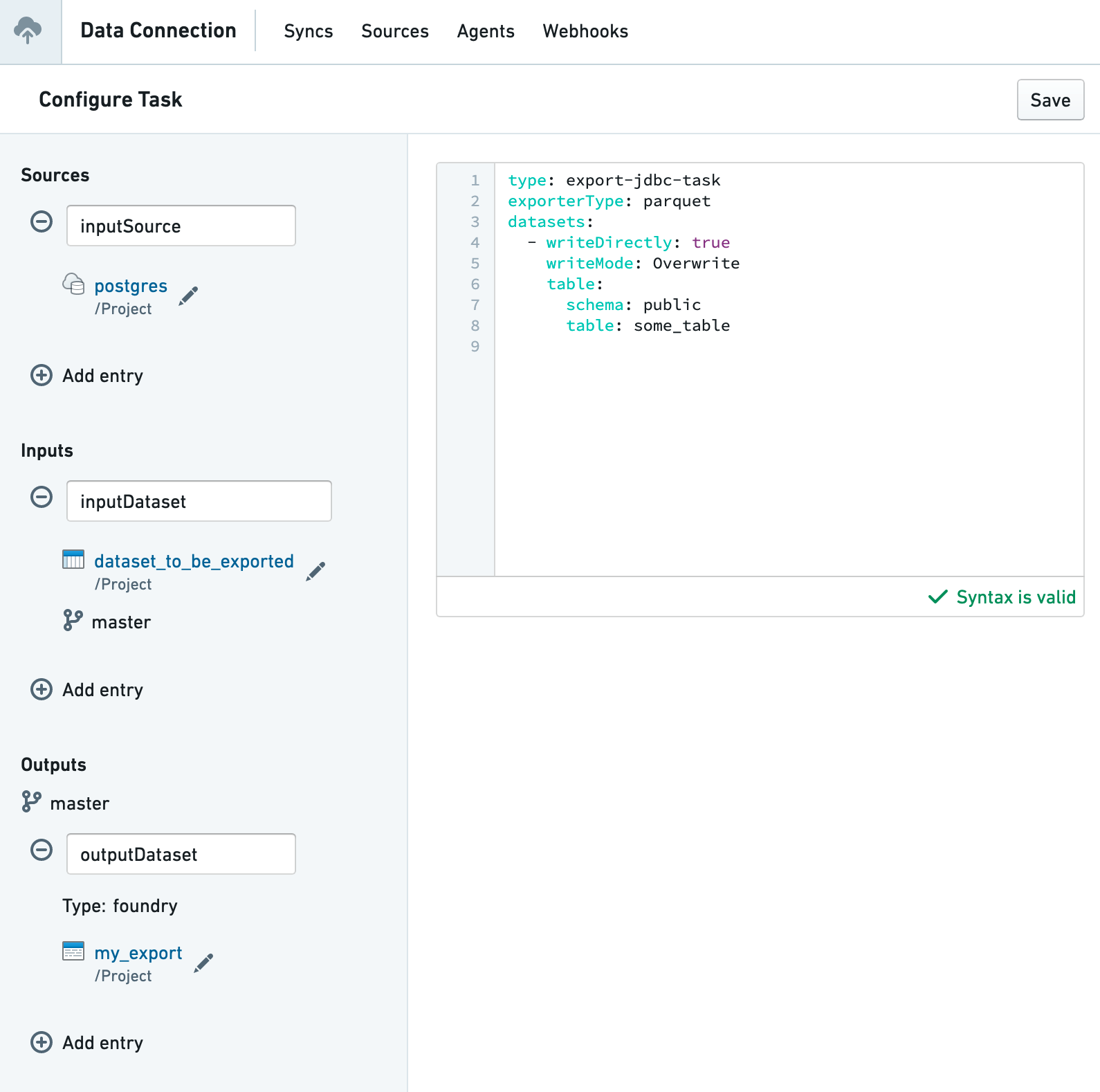
Supported export types
Data Connection export tasks support writing to a wide range of common enterprise systems:
- Amazon S3
- OneLake and Azure Blob Filesystem (ABFS)
- HDFS
- JDBC-compatible systems, including:
- Relational databases
- Data warehouses
- Teradata
- Snowflake
- Vertica
- File systems, including network file systems mounted on the intermediary agent
- SFTP
Common configuration options
Incremental exports
All export types support the incrementalType parameter, which controls how data is exported over time. For JDBC exports, this parameter is specified per dataset rather than globally.
When set to snapshot (the default value), the export task exports all files visible in the current view of the input dataset. This means every export will include the complete dataset, regardless of what was previously exported.
When set to incremental, the export behavior changes to optimize for efficiency. The first export behaves like a snapshot, exporting all available data. On subsequent exports, only new transactions added since the last export will be included, provided the initial exported transaction is still present in the dataset. If the initial transaction is no longer available (for example, due to a dataset rebuild), the system automatically falls back to a full snapshot export.
Example for file-based exports:
incrementalType: incremental
Path rewriting
File-based exports support the rewritePaths configuration option for customizing file names and paths during export. This field accepts a map of regular expressions and substitution templates:
rewritePaths:
  "^spark/(.*)": "$1"  # Removes the spark/ prefix
The substitution templates support several dynamic replacement patterns:
- regex capture groups such as
$1,$2, and so on to reference matched portions of the original path. - timestamp patterns like
${dt:yyyy-MM-dd}, which use Java's DateTimeFormatter syntax to insert the current date and time. - Foundry transaction ID using
${transaction} - Foundry dataset ID using
${dataset}
中文翻译
导出任务(旧版)
:::callout{theme="warning"} 我们通常不建议使用导出任务将数据写回外部数据源。不过,根据您的 Foundry 注册版本,某些数据源类型可能支持并使用导出任务。
以下导出任务文档适用于尚未迁移至我们推荐的导出工作流的导出任务用户。 :::
概述
导出任务允许您将数据从 Foundry 导出到各种外部数据源。导出任务的配置包含两个部分:
- 数据源(Source): 定义代理如何连接到数据源。配置方式应与数据集同步保持一致。
- 任务配置(Task configuration): 定义导出类型、输入数据集以及导出参数。
当在任务输出数据集上启动作业时,导出任务将被触发。
已知的导出任务限制
- 导出任务未与标记和导出控制集成。通过导出任务导出的数据无需对导出的数据集或流进行取消标记权限。
- 导出任务未针对性能进行优化。导出大量数据可能导致作业运行时间过长或作业无法完成。
- 导出任务没有用于配置的用户界面,必须使用 YAML 提供所需的配置选项。并非所有导出任务选项都有自助服务文档;在某些情况下,导出任务只能通过 Palantir 支持进行配置。
- 导出任务仅适用于代理-工作节点数据源(agent-worker sources)。
快速入门
配置导出任务的步骤如下:
- 在 Data Connection 中配置一个数据源,用于连接到您要导出的目标系统。
- 在 Foundry 文件系统中,导航到包含该数据源的文件夹。右键点击该资源,选择创建 Data Connection 任务(Create Data Connection Task)。
- 在任务编辑器界面中:
- 将数据源命名为
inputSource - 添加一个名为
inputDataset的输入数据集 - 创建或选择一个名为
outputDataset的输出数据集 - 根据您的具体导出类型配置 YAML
:::callout{theme="warning"}
输入数据源必须命名为 inputSource,输出数据集必须命名为 outputDataset。未使用这些特定名称可能导致任务错误。
:::
支持的导出类型
Data Connection 导出任务支持写入多种常见的企业系统:
- Amazon S3
- OneLake 和 Azure Blob 文件系统(ABFS)
- HDFS
- JDBC 兼容系统,包括:
- 关系型数据库
- 数据仓库
- Teradata
- Snowflake
- Vertica
- 文件系统,包括挂载在中间代理上的网络文件系统
- SFTP
通用配置选项
增量导出
所有导出类型都支持 incrementalType 参数,该参数控制数据随时间推移的导出方式。对于 JDBC 导出,此参数按数据集指定,而非全局设置。
当设置为 snapshot(默认值)时,导出任务会导出输入数据集当前视图中可见的所有文件。这意味着每次导出都将包含完整的数据集,无论之前导出过什么内容。
当设置为 incremental 时,导出行为会发生变化以优化效率。首次导出行为类似于快照,导出所有可用数据。在后续导出中,只要初始导出的事务仍然存在于数据集中,则仅包含自上次导出以来新增的事务。如果初始事务不再可用(例如,由于数据集重建),系统会自动回退到完整快照导出。
基于文件的导出示例:
incrementalType: incremental
路径重写
基于文件的导出支持 rewritePaths 配置选项,用于在导出过程中自定义文件名和路径。此字段接受正则表达式和替换模板的映射:
rewritePaths:
  "^spark/(.*)": "$1"  # 移除 spark/ 前缀
替换模板支持多种动态替换模式:
- 正则捕获组,如
$1、$2等,用于引用原始路径中匹配的部分。 - 时间戳模式,如
${dt:yyyy-MM-dd},使用 Java 的 DateTimeFormatter 语法插入当前日期和时间。 - Foundry 事务 ID,使用
${transaction} - Foundry 数据集 ID,使用
${dataset}