Email listeners(电子邮件监听器(Email listeners))
:::callout{theme="neutral" title="Beta"} Email listeners are in the beta phase of development and may not be available on your enrollment. Functionality may change during active development. Contact Palantir Support to request access to email listeners. :::
Email listeners receive inbound emails at dedicated, Foundry-managed email addresses. Incoming emails are validated, parsed, and forwarded to the platform for processing.
Unlike HTTPS and WebSocket listeners that receive connections from external systems over the network, email listeners receive standard email sent to a Foundry-managed address.
Configure a listener
Navigate to Data Connection > Listeners to set up an email listener.
For information on securely configuring email listeners and incoming messages, refer to the email listener security documentation.
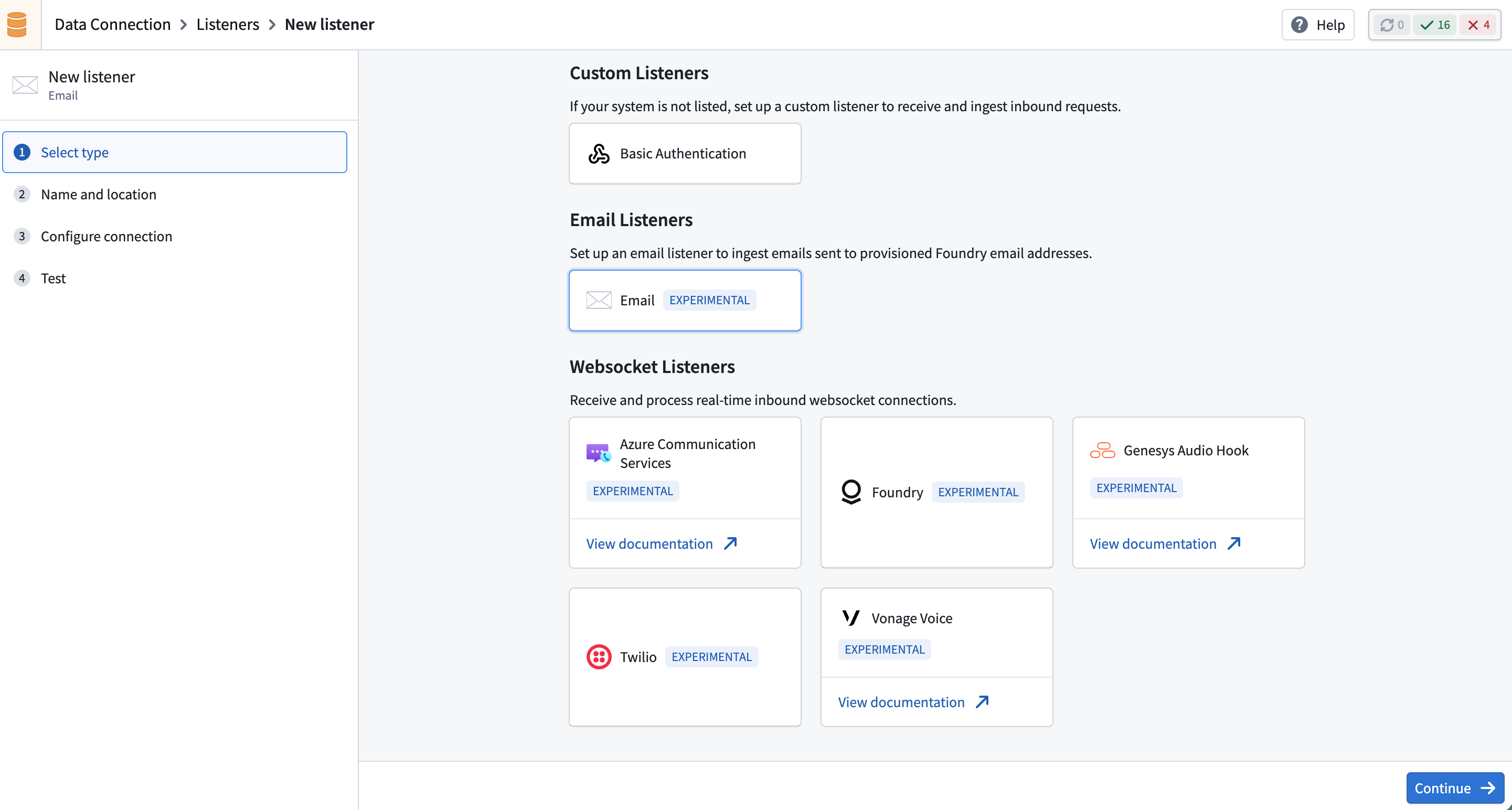
1. Create a new listener
Select Create new listener and choose the email listener type.
2. Configure connection
Configure a unique email address for the listener.
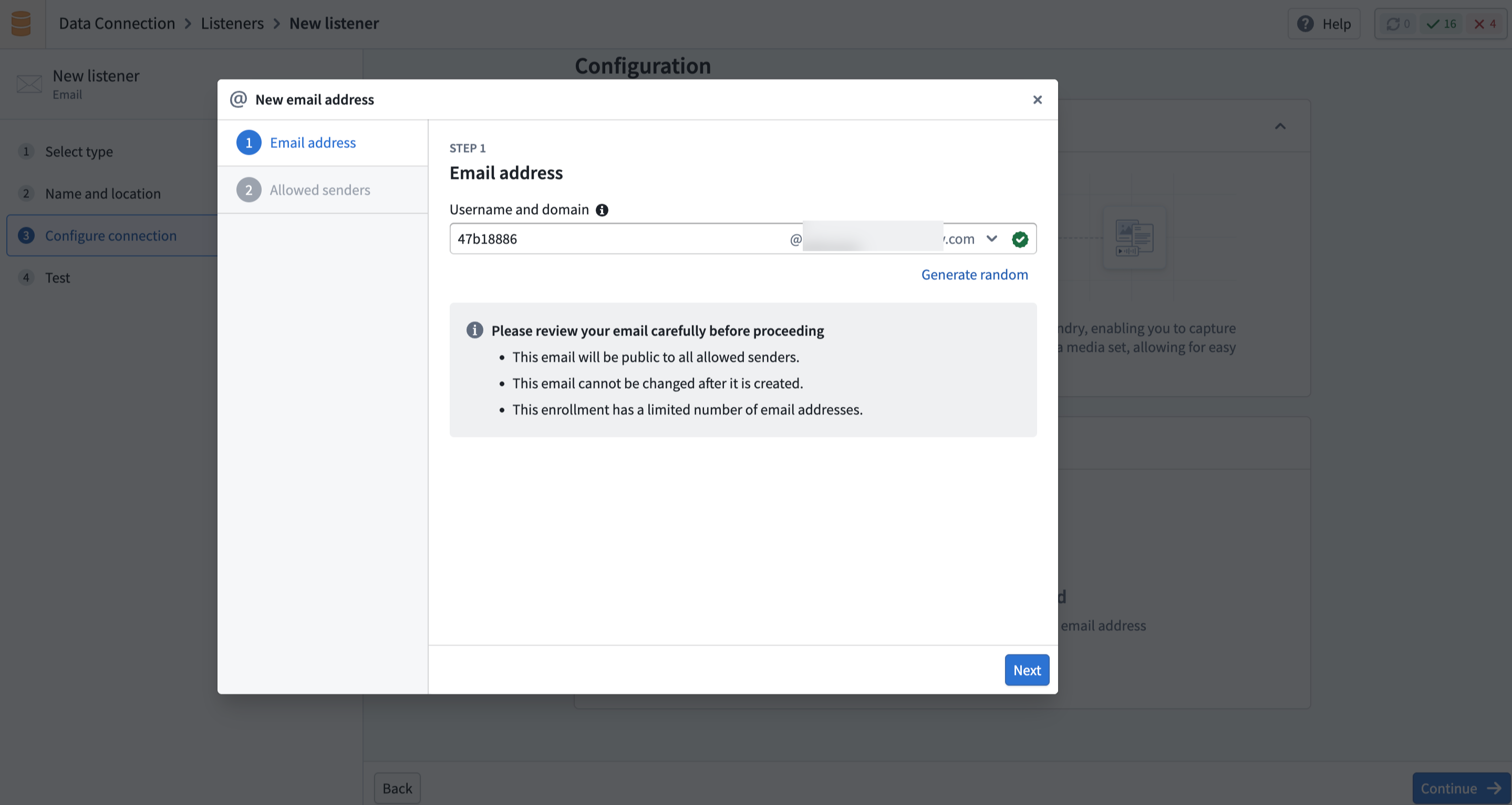
Then, configure the sender allowlist to control which senders can deliver email to the listener. You can allow specific email addresses or entire domains.
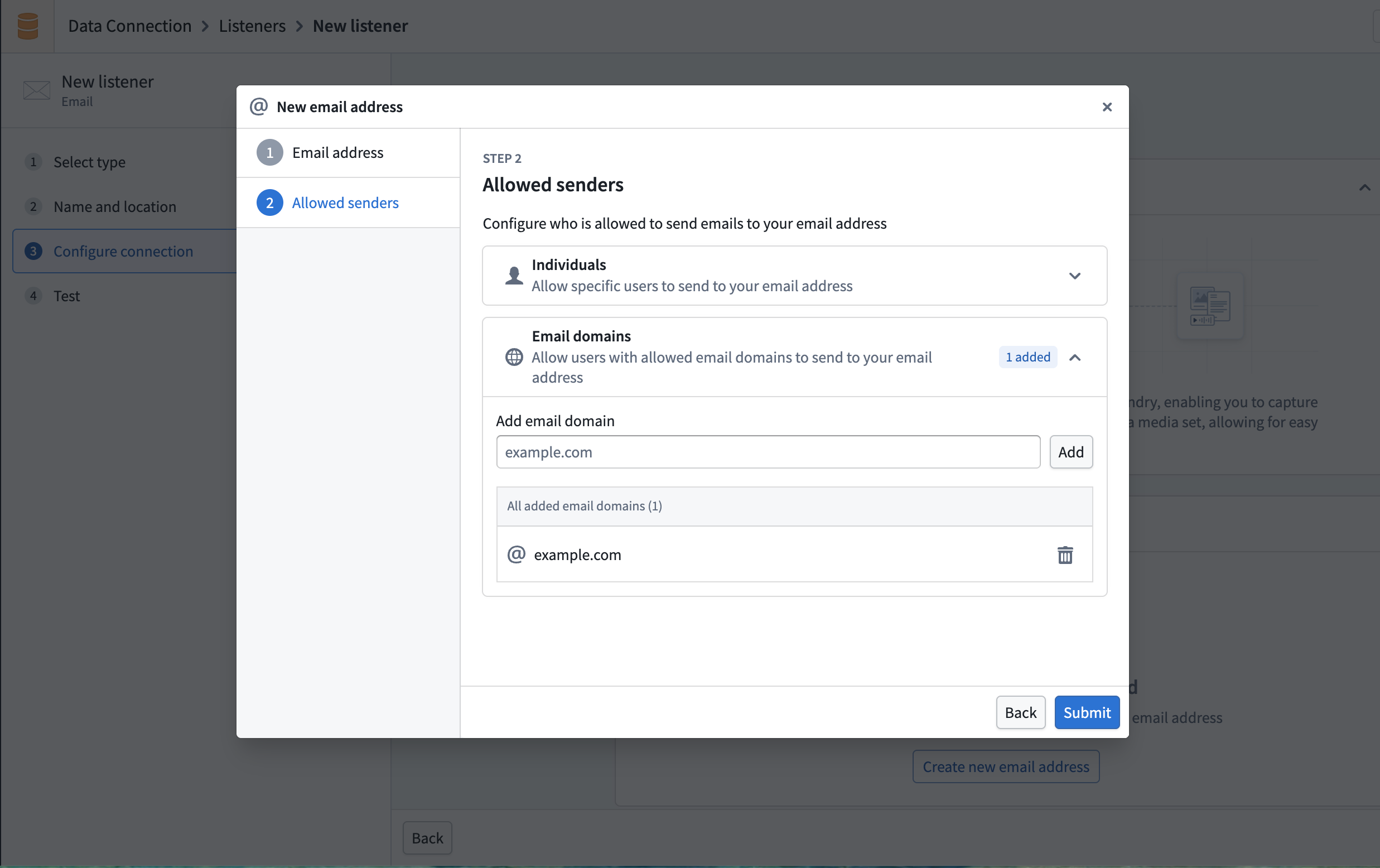
:::callout{theme="warning" title="Security"} By default, email listeners do not accept email from any sender. You must explicitly configure which senders are permitted. :::
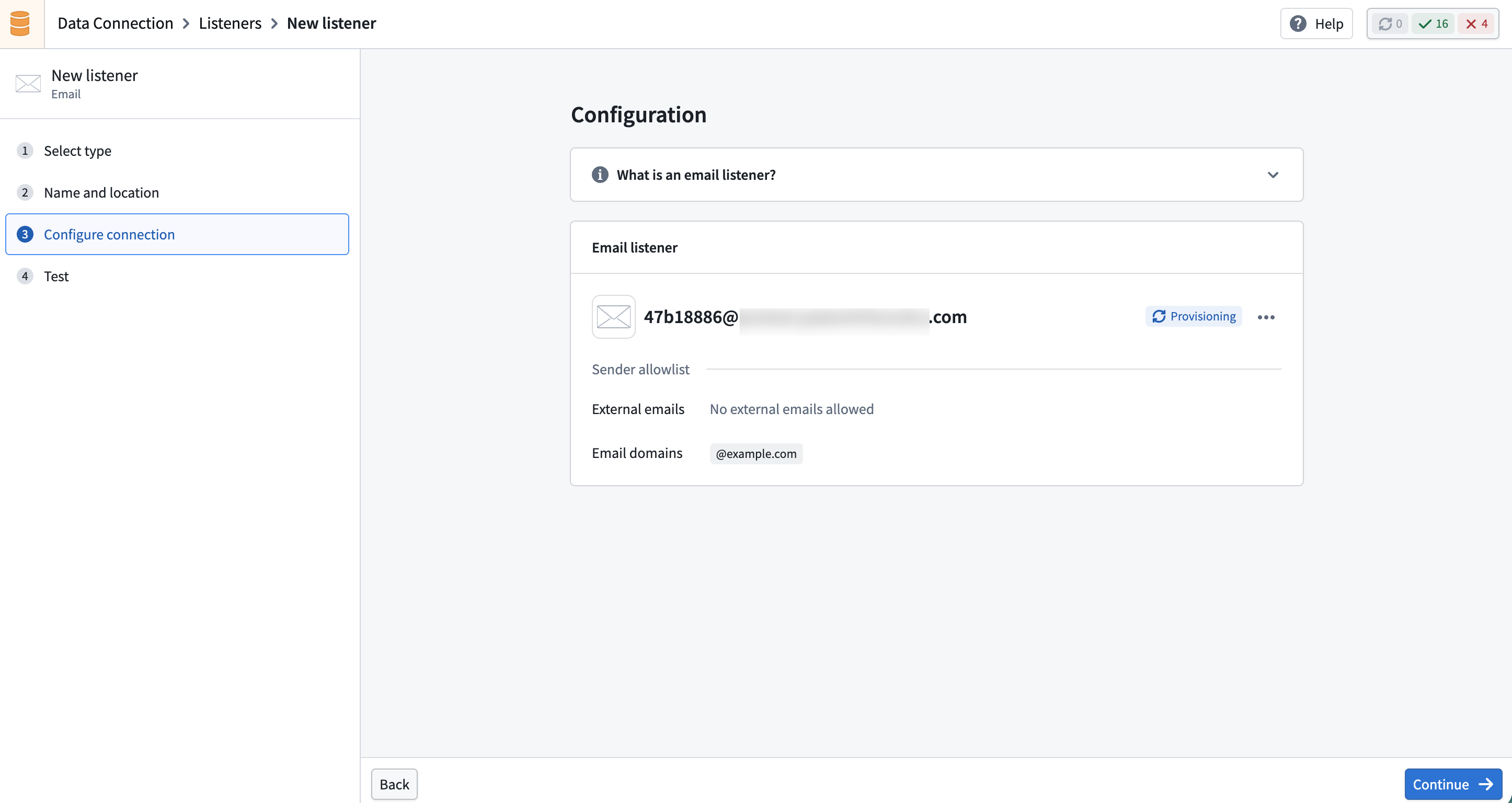
After creation, the listener enters a Provisioning state and requires approval before it can begin receiving emails.
3. Activate the listener
Once the email address is approved and configured, activate the listener to begin receiving emails. Activated listeners process incoming emails and forward their content to a media set.
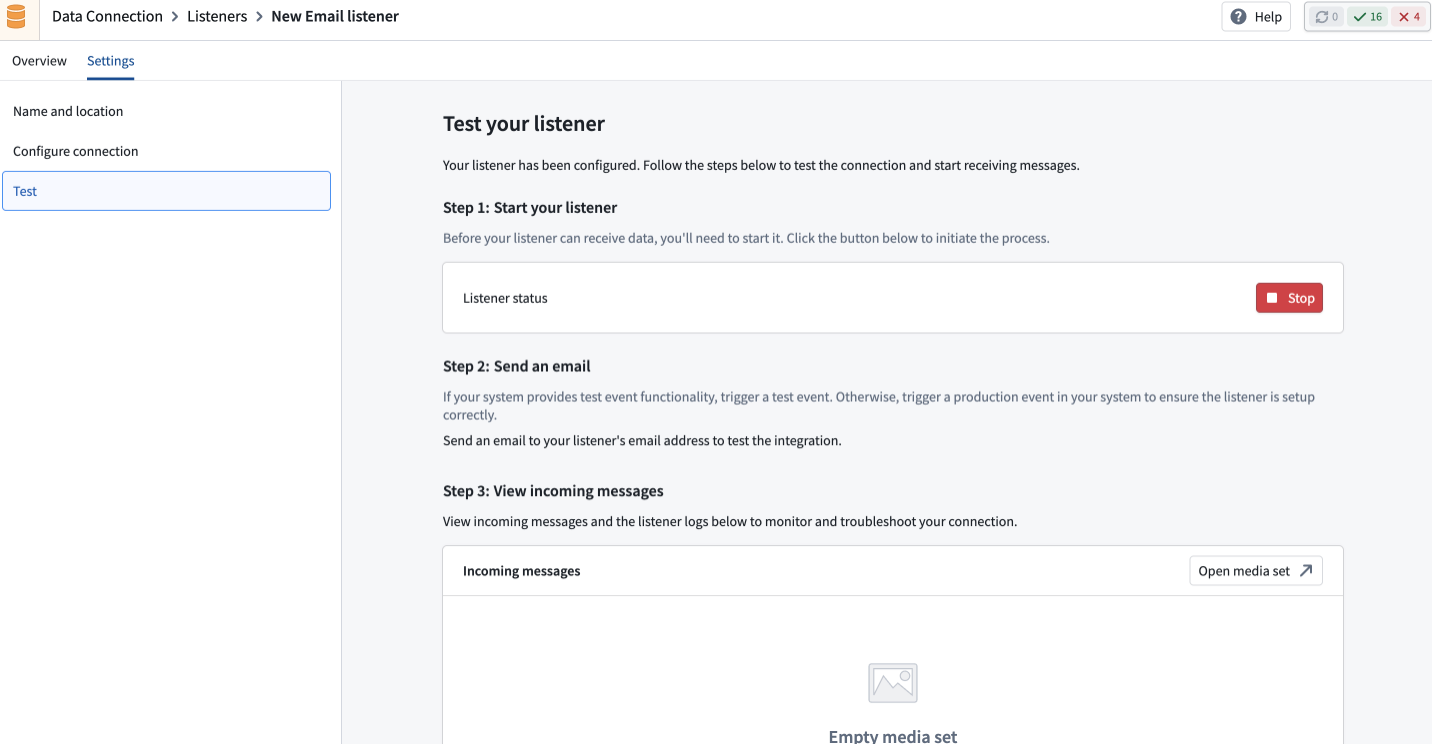
4. Test the listener
Send a test email to the listener address to verify that it is receiving and processing messages correctly.
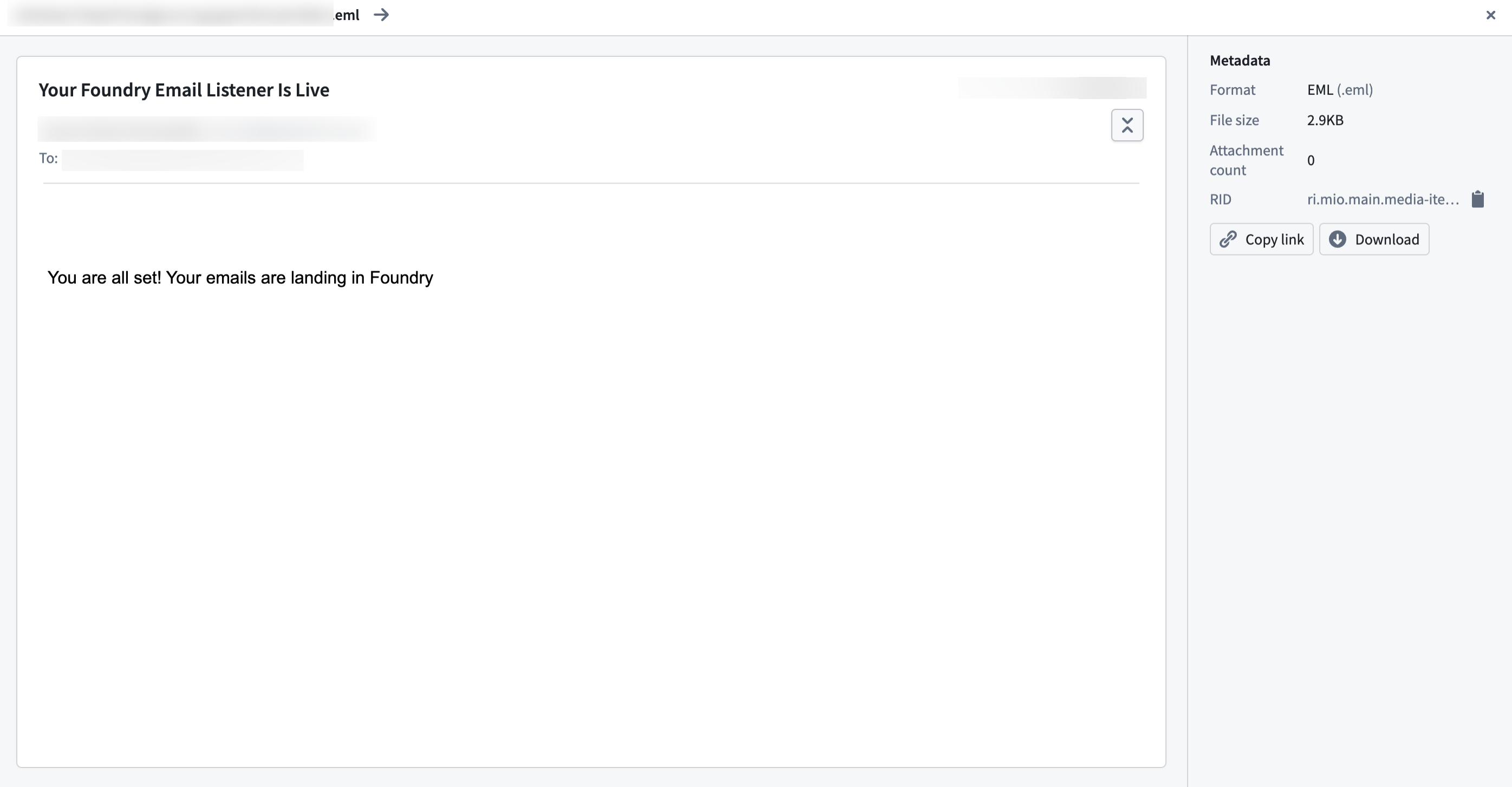
Listener states
Email listeners follow a lifecycle with the following states.
| State | Description |
|---|---|
| Provisioning | The listener is being set up and is not yet processing emails. |
| Active | The listener is receiving and processing inbound emails. |
| Inactive | The listener is paused and can be reactivated. |
| Rejected | The approval request was denied. The listener can only be deleted. |
You can deactivate an active listener at any time to temporarily stop processing emails, and reactivate it when needed.
Limitations
- Individual email messages are limited to 40 MB in size, including attachments.
- Certain executable and script attachment types are blocked for security purposes (for example,
.exe,.bat, and.jsfiles). - Each enrollment is limited to a maximum of 10 email listeners. Contact Palantir Support if you require more.
中文翻译
电子邮件监听器(Email listeners)
:::callout{theme="neutral" title="测试版(Beta)"} 电子邮件监听器目前处于测试版开发阶段,可能未在你的环境中开放使用。功能在活跃开发期间可能会发生变化。如需申请使用电子邮件监听器,请联系 Palantir 技术支持。 :::
电子邮件监听器(Email listeners)通过专用的、由 Foundry 管理的电子邮件地址接收入站邮件。收到的邮件会经过验证、解析,然后转发至平台进行处理。
与通过网络安全连接外部系统的 HTTPS 和 WebSocket 监听器不同,电子邮件监听器接收的是发送至 Foundry 管理地址的标准电子邮件。
配置监听器
导航至 数据连接(Data Connection) > 监听器(Listeners) 以设置电子邮件监听器。
关于安全配置电子邮件监听器及入站消息的详细信息,请参阅电子邮件监听器安全文档。
1. 创建新监听器
选择 创建新监听器(Create new listener),然后选择电子邮件监听器类型。
2. 配置连接
为监听器配置一个唯一的电子邮件地址。
然后,配置发件人白名单(Sender allowlist)以控制哪些发件人可以向该监听器发送邮件。你可以允许特定的电子邮件地址或整个域名。
:::callout{theme="warning" title="安全性(Security)"} 默认情况下,电子邮件监听器不接受来自任何发件人的邮件。你必须明确配置允许哪些发件人。 :::
创建完成后,监听器进入 预配中(Provisioning) 状态,需要经过审批才能开始接收邮件。
3. 激活监听器
电子邮件地址通过审批并配置完成后,激活监听器即可开始接收邮件。已激活的监听器会处理入站邮件并将其内容转发至媒体集(Media set)。
4. 测试监听器
向监听器地址发送一封测试邮件,以验证其是否正确接收和处理消息。
监听器状态(Listener states)
电子邮件监听器遵循以下状态的生命周期。
| 状态 | 描述 |
|---|---|
| 预配中(Provisioning) | 监听器正在设置中,尚未开始处理邮件。 |
| 活跃(Active) | 监听器正在接收和处理入站邮件。 |
| 非活跃(Inactive) | 监听器已暂停,可重新激活。 |
| 已拒绝(Rejected) | 审批请求被拒绝。监听器只能被删除。 |
你可以随时停用活跃的监听器以暂时停止处理邮件,并在需要时重新激活。
限制(Limitations)
- 单封电子邮件(包括附件)的大小限制为 40 MB。
- 出于安全考虑,某些可执行文件和脚本附件类型会被阻止(例如
.exe、.bat和.js文件)。 - 每个环境最多可创建 10 个电子邮件监听器。如需更多数量,请联系 Palantir 技术支持。