Set up a Google Cloud Pub/Sub listener(设置 Google Cloud Pub/Sub 监听器)
This guide shows step-by-step how to configure a listener for Google Pub/Sub to get a real-time feed of events from a Pub/Sub topic to a Foundry streaming dataset.
Google Pub/Sub can be used in conjunction with various Google Cloud services to route events to Foundry. For example, it can be used for streaming emails from a Gmail account. Review guidance provided by Google for streaming from Gmail ↗.
Learn more about Google Pub/Sub. ↗
Prerequisites
Prior to configuration, ensure:
-
Your enrollment's ingress policy has been appropriately configured to accept Google Pub/Sub requests. You can either allow-list the IPs of your Google Cloud region ↗, or the countries. Learn how to Configure ingress. Note that the provider may alter the IPs anytime after the listener has been implemented and you would need to update ingress appropriately.
-
You have access to Pub/Sub in the Google Cloud Console.
Instructions
-
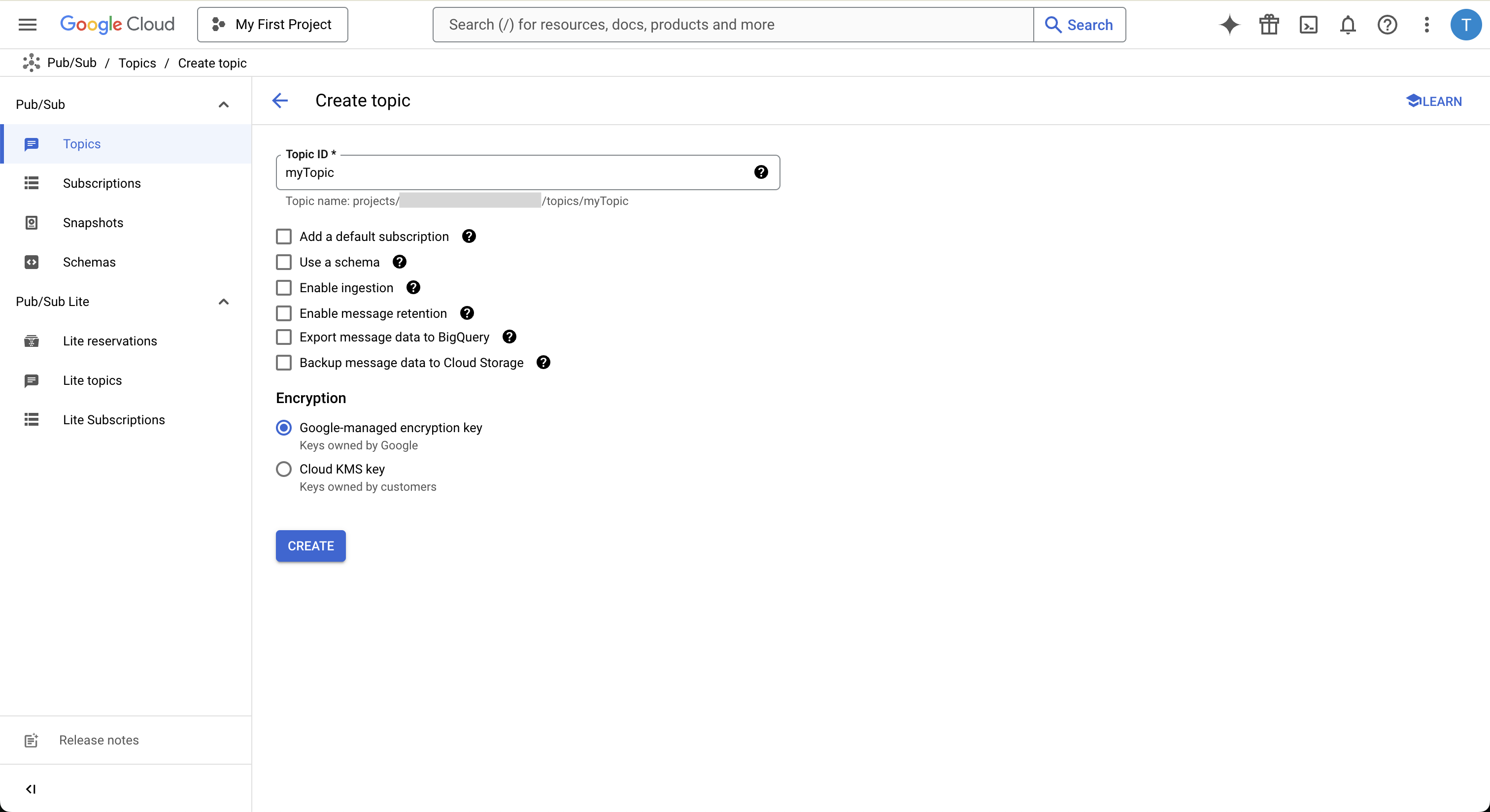
Create a Pub/Sub topic if you do not already have one. This is the stream of events that will be pushed to your Foundry Listener.
-
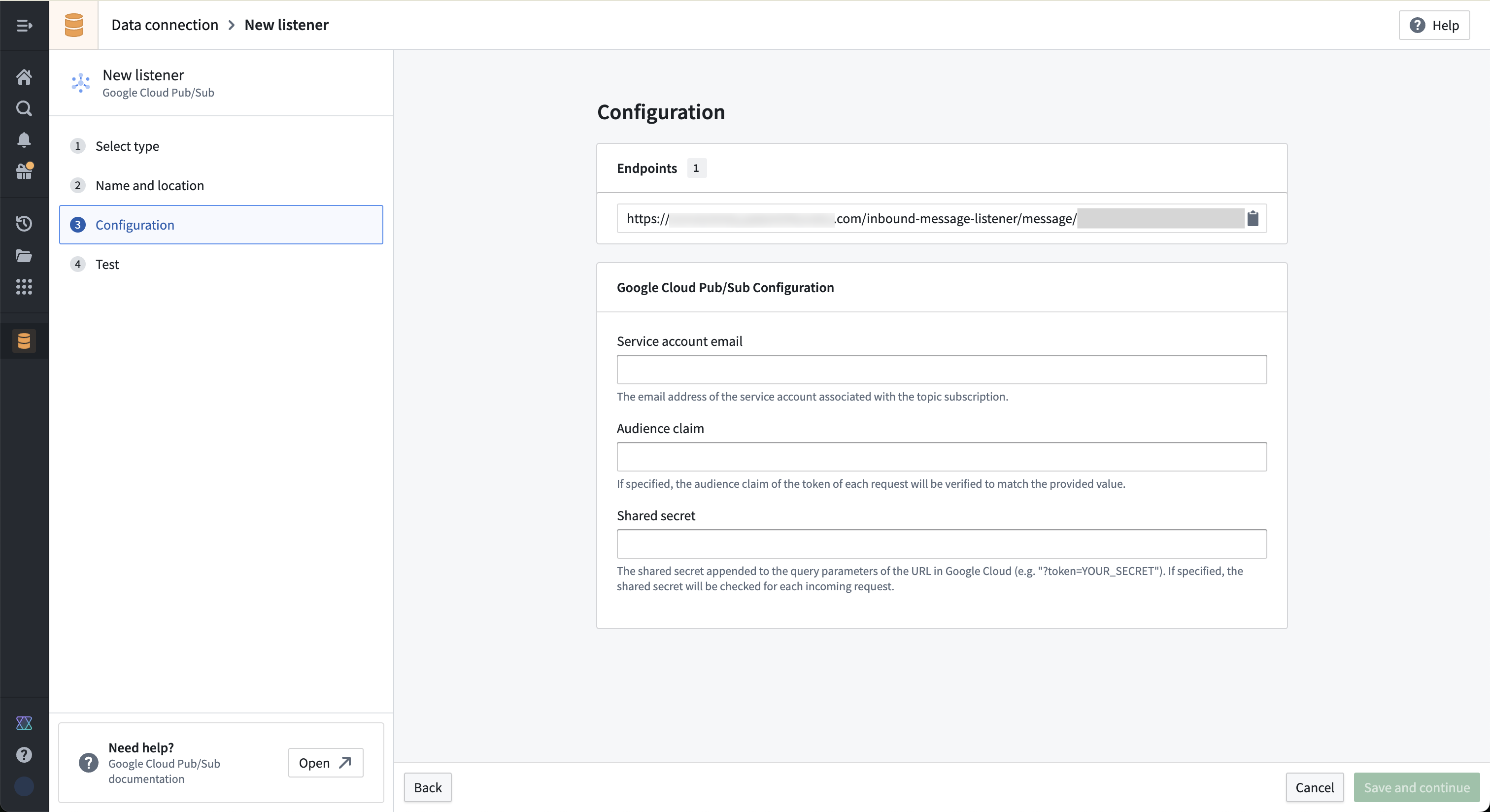
Navigate to the Listeners tab in Data Connection. Create a Foundry Pub/Sub listener by selecting Google Cloud Pub/Sub from the listener type menu. This step will not finish setting up the listener, but is required to generate the listener URL which is then used in step 3.
-
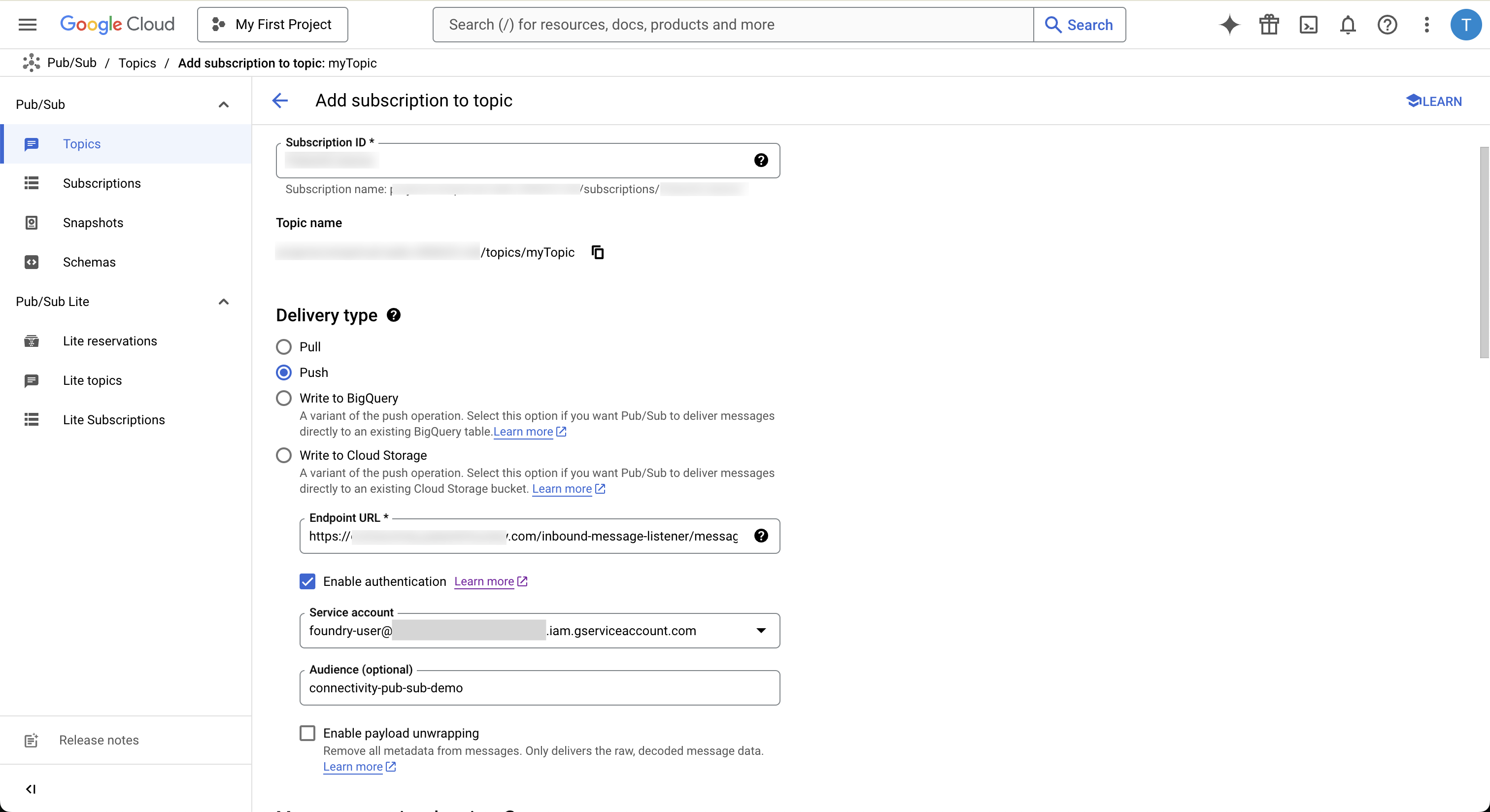
Create a subscription for your Google Pub/Sub topic from step 1.
a. Select Push as the subscription type.
b. Copy the URL generated from step 2 into the URL field for your push subscription.
c. Tick the box to enable Authentication. Review Pub/Sub authentication information on external documentation. ↗
- Select a service account to use for authentication.
- To use a shared secret, enter your shared secret into the URL field as a query parameter after the listener endpoint URL. Example:
?token=<YOUR_TOKEN>
d. Save your subscription.
-
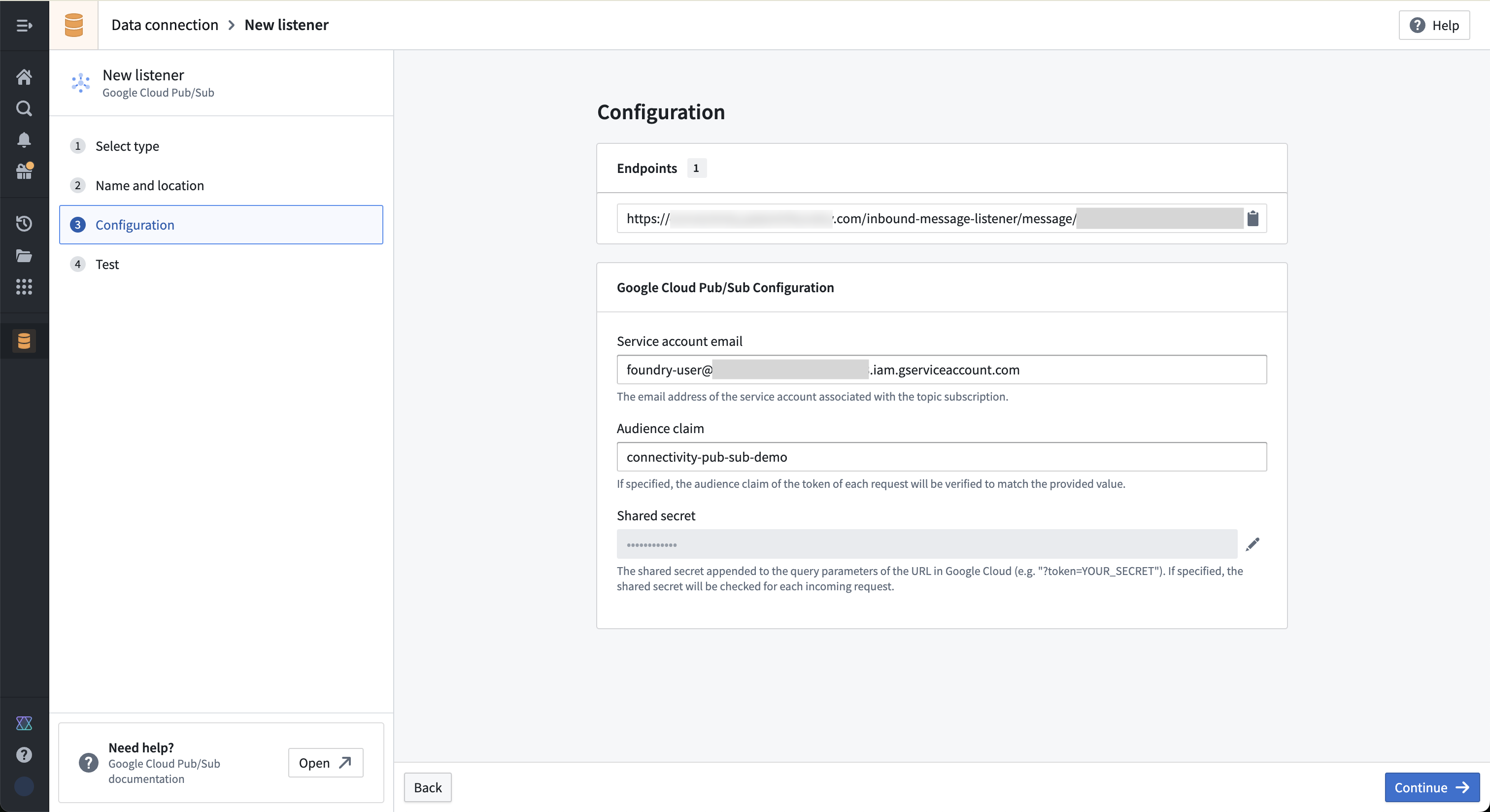
Copy the service account email address, optional audience claim, and optional shared secret into the listener configuration as shown below then Continue.
-
Administrator approval is now required from the Information Security Officer. Review the toggle description.
-
Select Start on the listener Test page to turn on your listener and start accepting events.
-
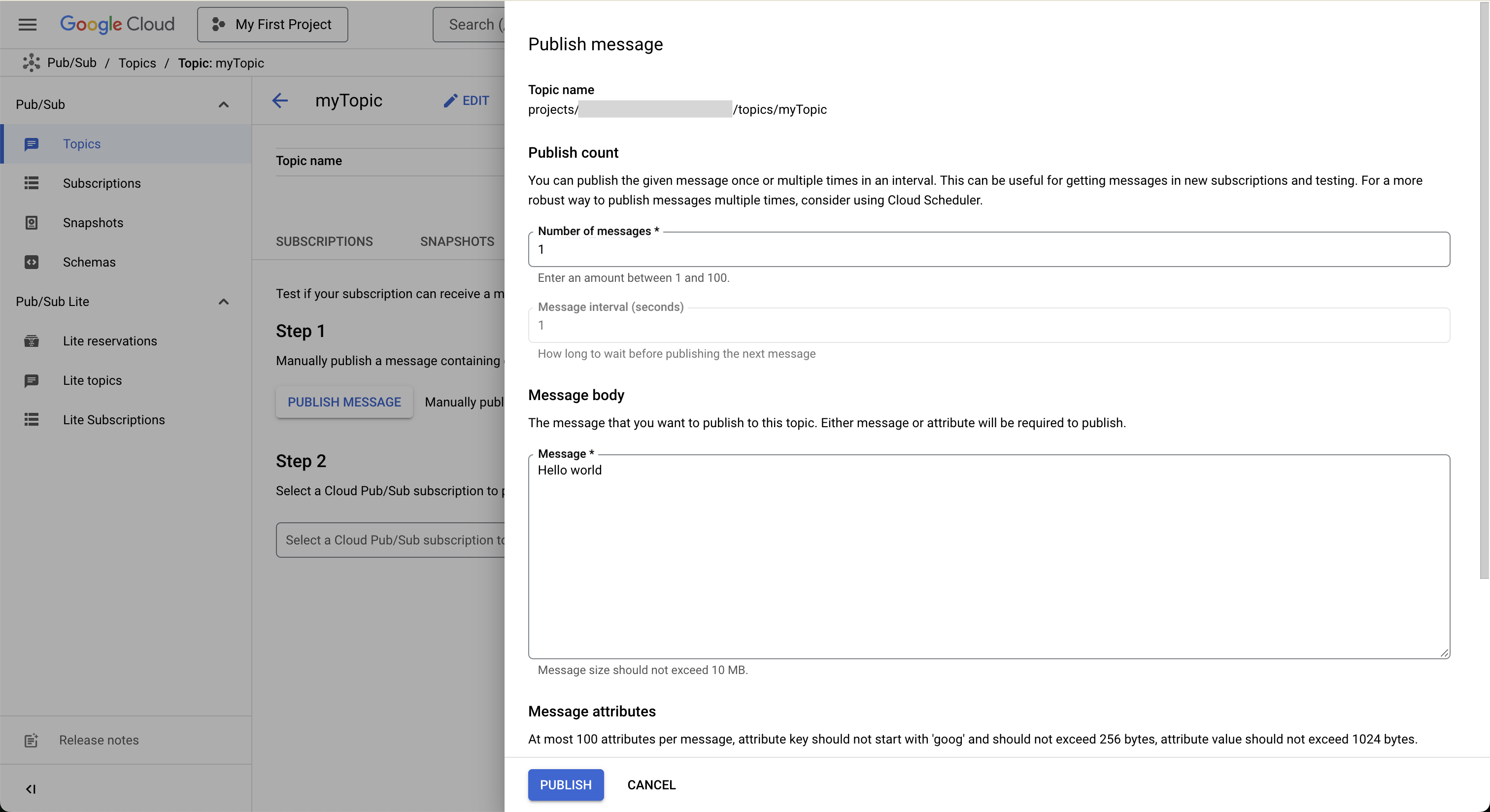
Send a test message to your topic, and see it appear in the listener test interface.
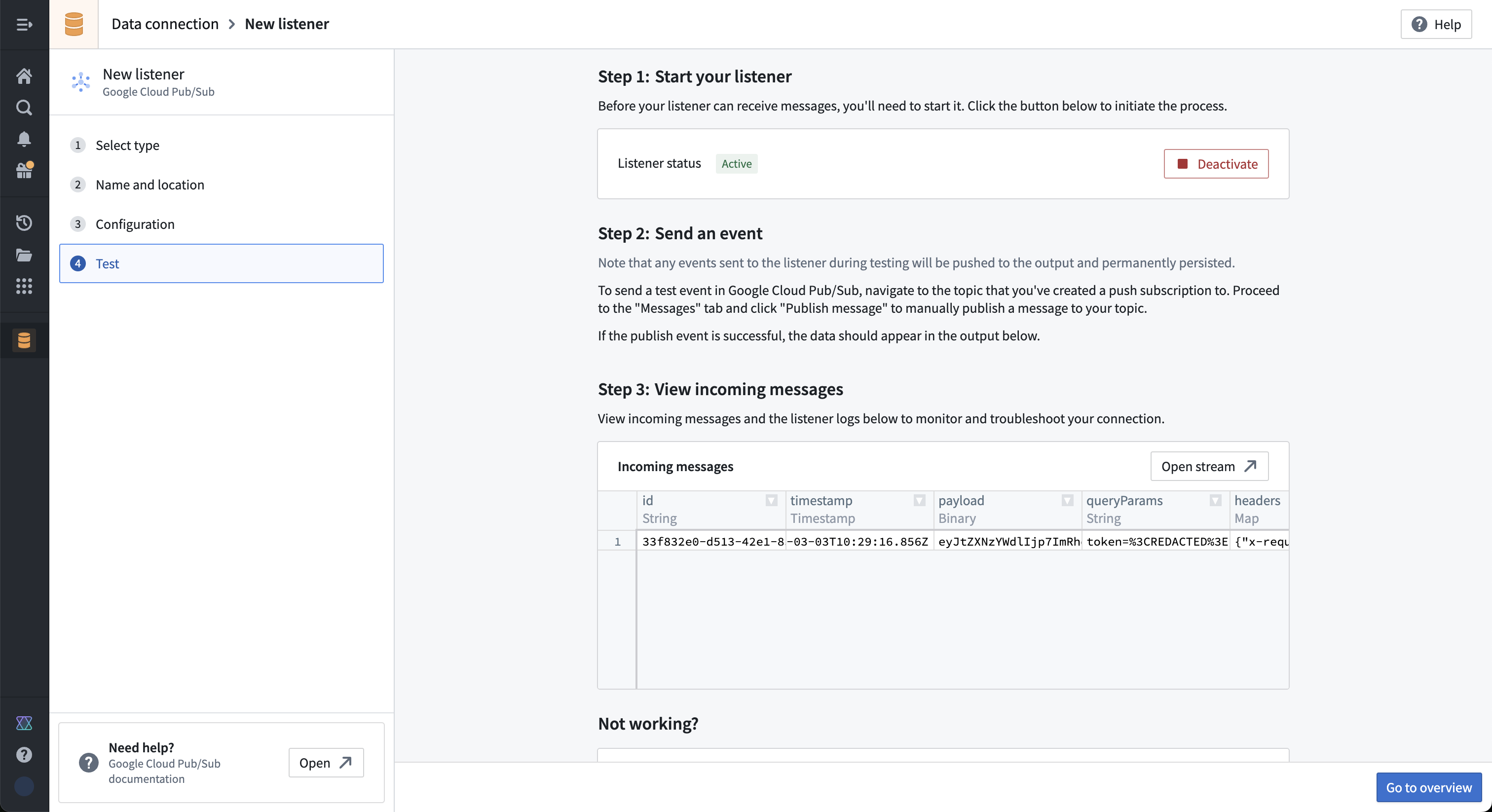
:::callout{theme="neutral"} The payload arrives base64 encoded. You can decode it in a streaming pipeline using the base64 decode transformation board in order to get a string representation of the message. :::
All screenshots of Google Cloud Pub/Sub™ are provided for reference purposes only and are the property of Google LLC.
中文翻译
设置 Google Cloud Pub/Sub 监听器
本指南将逐步说明如何为 Google Pub/Sub 配置监听器,以便将 Pub/Sub 主题中的事件实时推送到 Foundry 流式数据集。
Google Pub/Sub 可与多种 Google Cloud 服务结合使用,将事件路由到 Foundry。例如,它可用于从 Gmail 账户流式传输电子邮件。查看 Google 提供的 Gmail 流式传输指南 ↗。
前提条件
在配置之前,请确保:
-
您的注册入站策略已适当配置为接受 Google Pub/Sub 请求。您可以将 Google Cloud 区域的 IP ↗ 或国家/地区加入白名单。了解如何配置入站策略。 请注意,提供商可能在监听器实施后随时更改 IP,您需要相应地更新入站策略。
-
您拥有 Google Cloud Console 中 Pub/Sub 的访问权限。
操作说明
-
如果尚未创建 Pub/Sub 主题,请创建一个。这是将推送到 Foundry 监听器的事件流。
-
导航至 Data Connection 中的 监听器 选项卡。通过从监听器类型菜单中选择 Google Cloud Pub/Sub 来创建一个 Foundry Pub/Sub 监听器。此步骤不会完成监听器的设置,但需要生成监听器 URL,该 URL 将在步骤 3 中使用。
-
为步骤 1 中的 Google Pub/Sub 主题创建订阅。
a. 选择 推送 作为订阅类型。
b. 将步骤 2 生成的 URL 复制到推送订阅的 URL 字段中。
c. 勾选启用 身份验证 的复选框。查看外部文档中的 Pub/Sub 身份验证信息。↗
- 选择一个用于身份验证的服务账号。
- 要使用共享密钥,请在监听器端点 URL 之后将共享密钥作为查询参数输入到 URL 字段中。示例:
?token=<YOUR_TOKEN>
d. 保存您的订阅。
-
将 服务账号电子邮件地址、可选的 受众声明 和可选的 共享密钥 复制到监听器配置中,如下所示,然后点击 继续。
-
现在需要信息安全官的管理员批准。查看切换开关的描述。
-
在监听器 测试 页面上选择 启动,以开启监听器并开始接受事件。
-
向您的主题发送一条测试消息,并查看它出现在监听器测试界面中。
:::callout{theme="neutral"} 有效载荷以 base64 编码形式到达。您可以在流式管道中使用 base64 解码转换板对其进行解码,以获取消息的字符串表示形式。 :::
所有 Google Cloud Pub/Sub™ 截图仅供参考,其所有权归 Google LLC 所有。