Set up a Slack listener(设置 Slack 监听器)
This guide shows step-by-step how to configure a listener for Slack, to get a real-time feed of events from Slack to a Foundry streaming dataset.
Prerequisites
Prior to configuration, ensure:
-
Your enrollment's ingress policy has been appropriately configured for the AWS region or country where your Slack instance is hosted. Learn how to Configure ingress.
-
You must have your own instance of Slack with administrator access.
Instructions
-
Create a new Slack app for your integration. Refer to external documentation. ↗

-
Note down the signing secret value for your app from the Basic Information section. You will need this to set up your listener successfully.

-
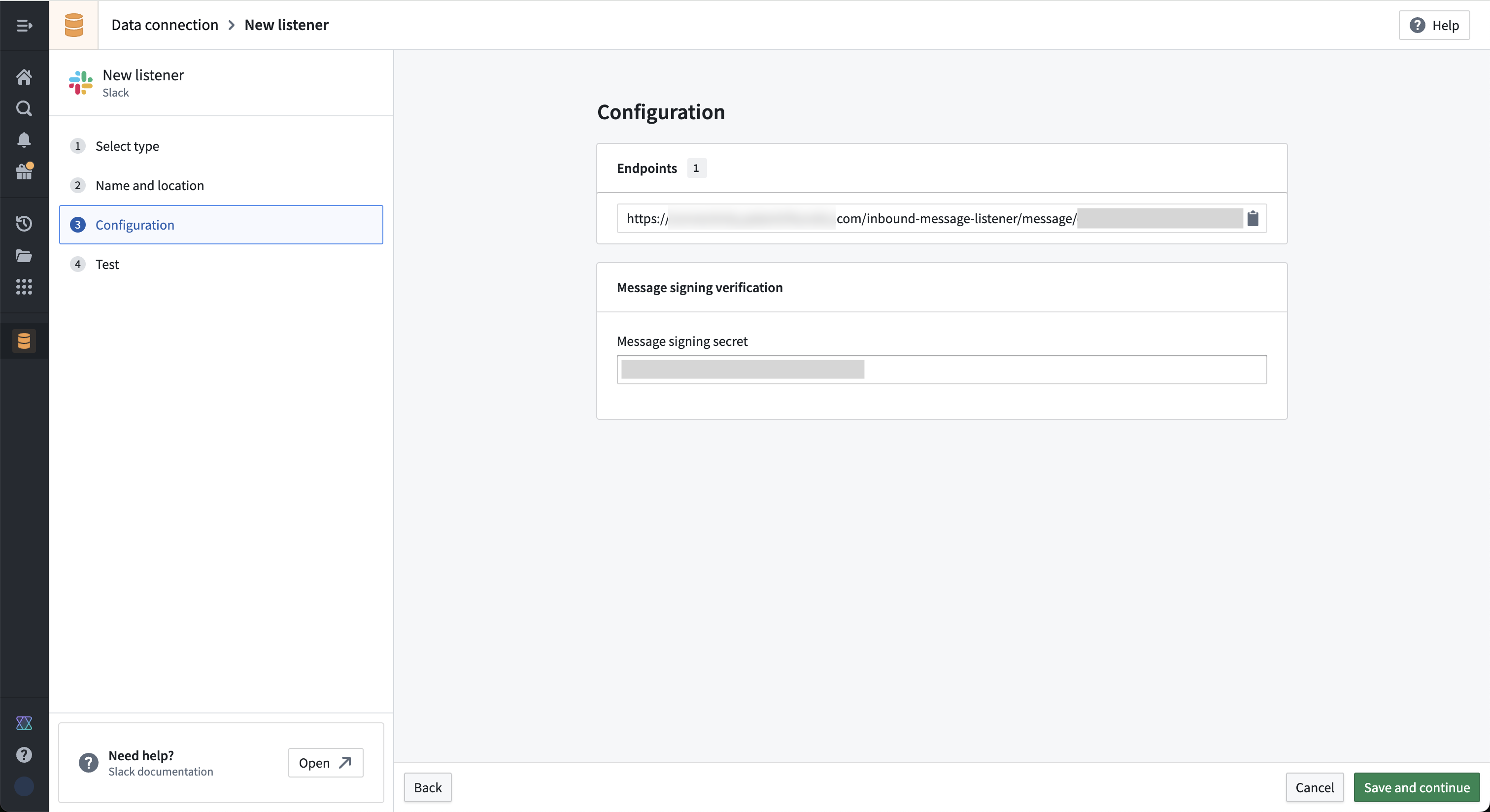
Create a Slack listener from the Data Connection application in Foundry.
a. In the field for Message Signing Secret, enter the Signing Secret value from the previous step.
b. Take note of the URL displayed in the Endpoints field on this page.
c. Select save and continue.
-
Administrator approval is now required from the Information Security Officer. Review the toggle description.
-
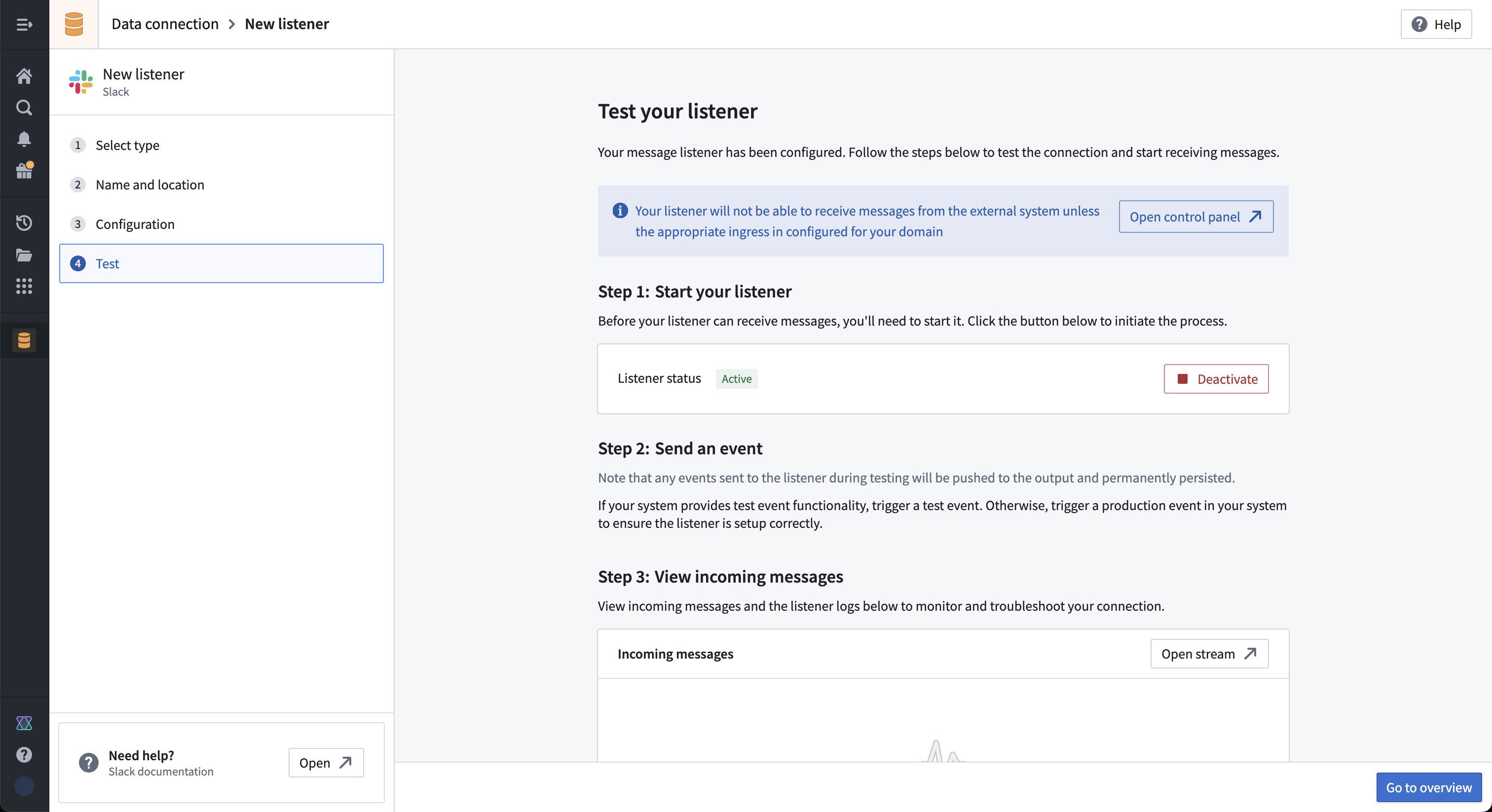
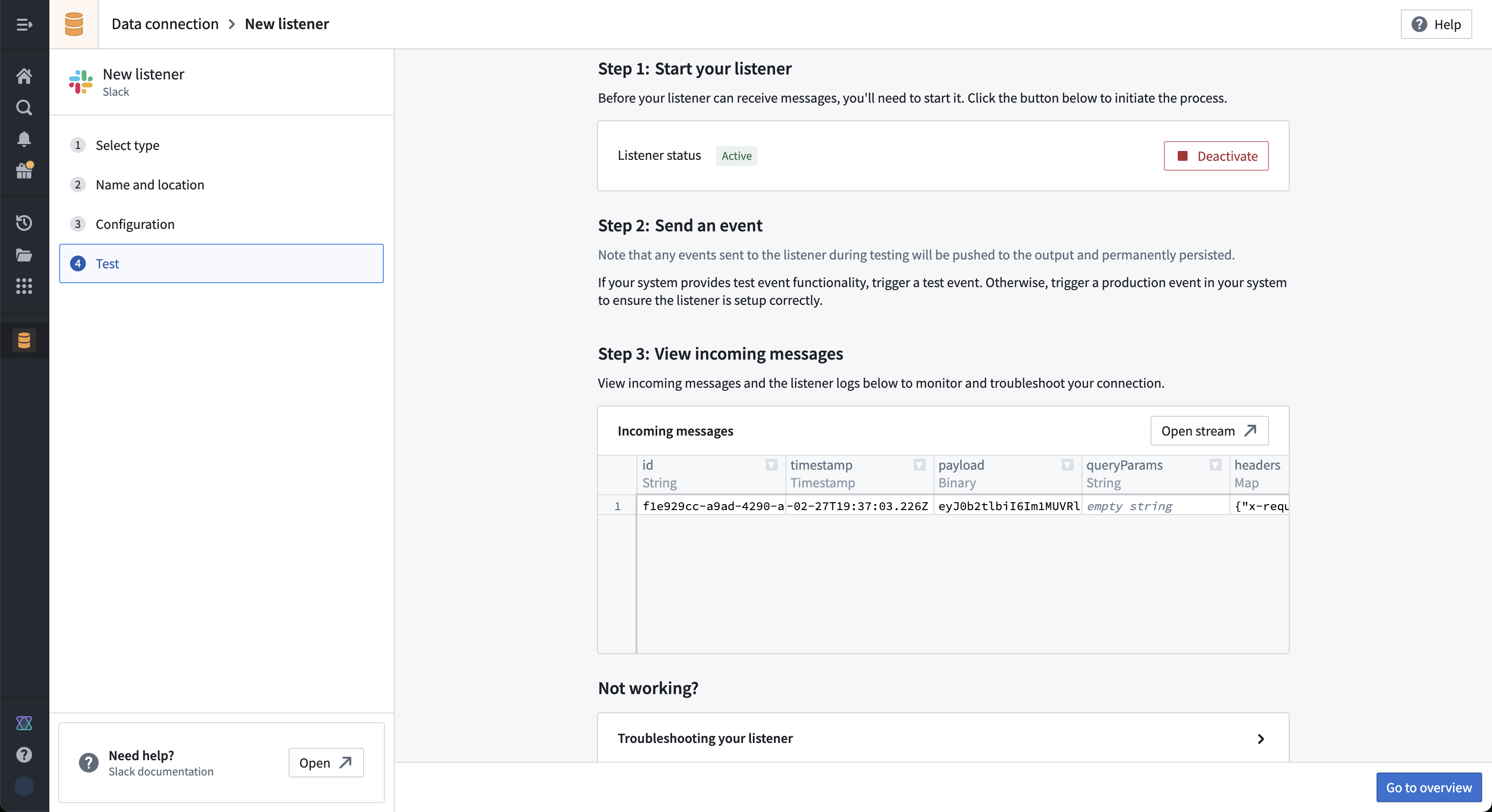
On the Test page for the listener, select Start to make sure your listener is enabled. You must do this before proceeding, since the next step will fail if the listener is not activated.
-
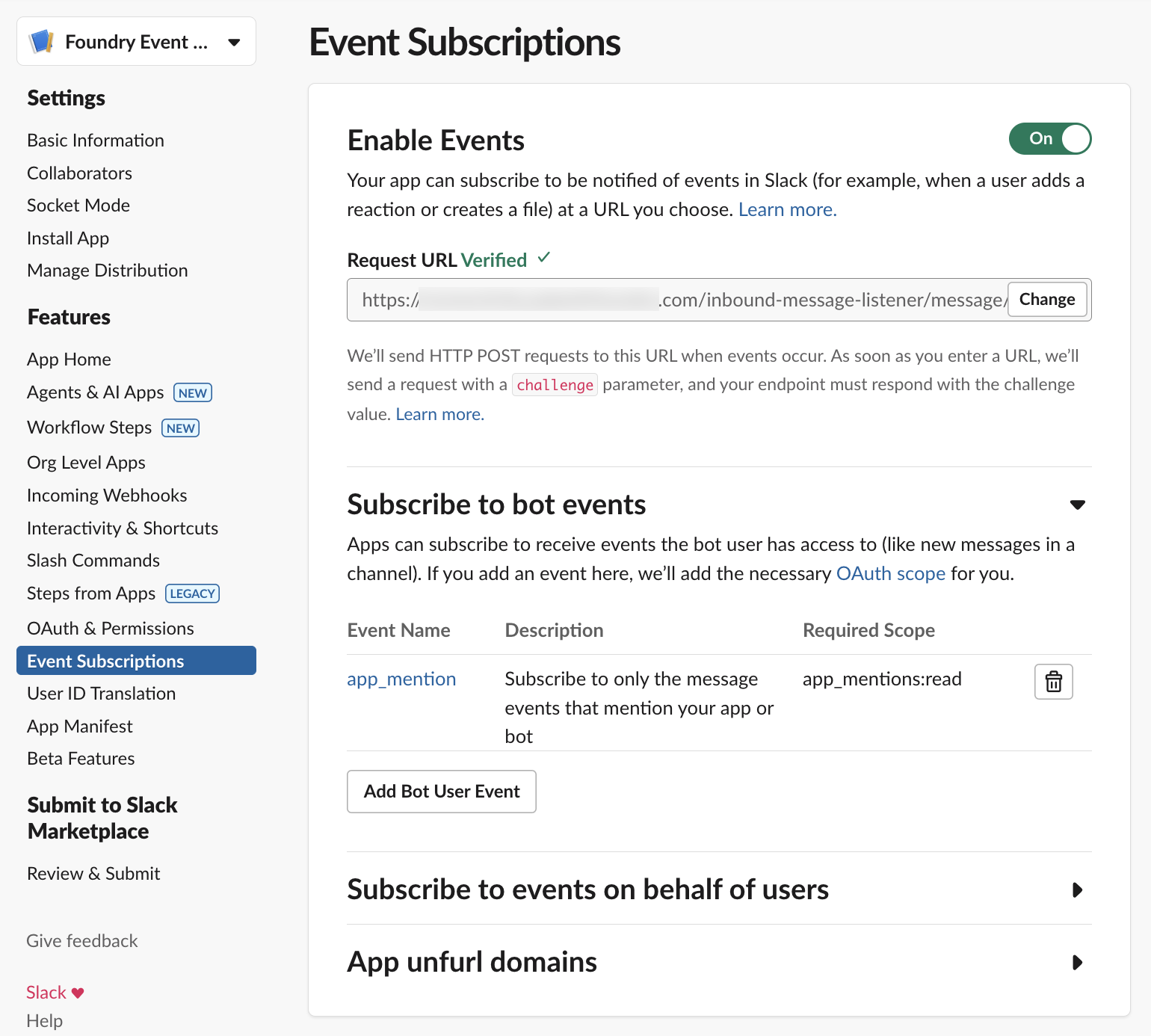
Once your listener status shows as active, you are ready to copy the listener URL into Slack to set up the push event subscription. a. Open Slack, and navigate to Event subscriptions.
b. Toggle to turn on event subscriptions, and then enter the listener URL from step 3 into the Request URL field.
c. Slack will verify that the listener is correctly set up, and you will see a “Verified” message above your URL as shown below.
d. You then need to add the events and associated scopes so that Slack will push events to your listener. As a simple example, you can add the app_mention event, which requires the app_mentions:read scope. This will send an event when the bot is explicitly mentioned.
-
Remember to install your application into your Slack workspace. You should do this after specifying the desired events, since the application must be installed whenever the scopes are changed.

-
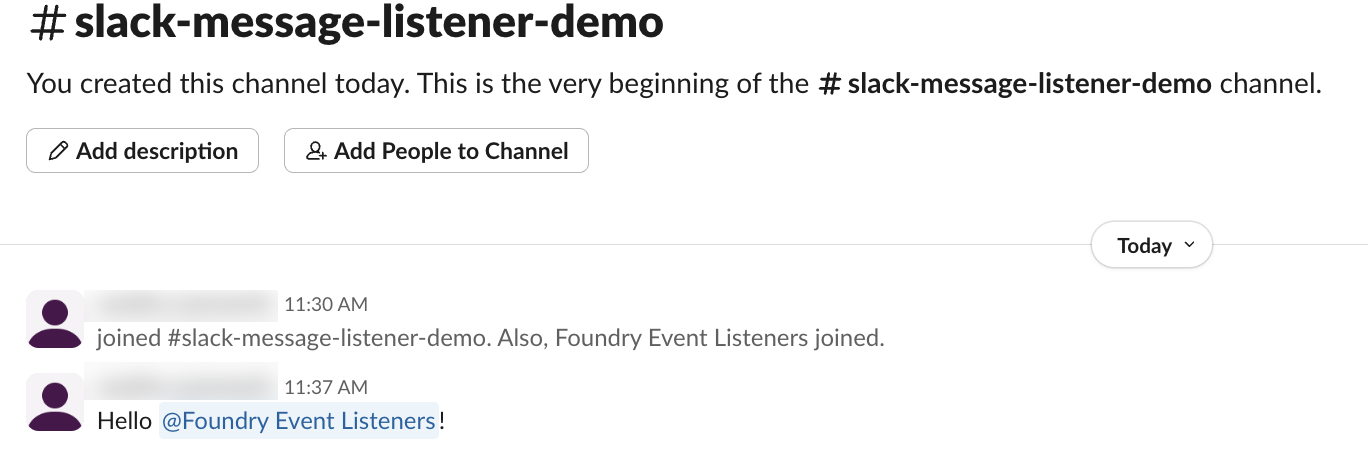
Send a test message, and watch it appear in the listener's output stream.
All screenshots of Slack® are provided for reference purposes only and are the property of Slack Technologies, LLC.
中文翻译
设置 Slack 监听器
本指南将逐步介绍如何为 Slack 配置监听器,以便将 Slack 中的事件实时推送到 Foundry 流式数据集。
前提条件
在配置之前,请确保:
-
您的组织已根据 Slack 实例所在的 AWS 区域或国家/地区,适当配置了入站策略。 了解如何配置入站策略。
-
您拥有自己的 Slack 实例,并具有管理员访问权限。
操作步骤
-
为您的集成创建一个新的 Slack 应用。 请参考外部文档。 ↗
-
从 基本信息 部分记下您应用的 签名密钥 值。您需要此值才能成功设置监听器。
-
从 Foundry 的数据连接应用程序创建一个 Slack 监听器。
a. 在 消息签名密钥 字段中,输入上一步中的 签名密钥 值。
b. 记下此页面 端点 字段中显示的 URL。
c. 选择 保存并继续。
-
现在需要信息安全官的管理员批准。请查看切换开关的描述。
-
在监听器的 测试 页面上,选择 启动 以确保您的监听器已启用。您必须先执行此操作,因为如果监听器未激活,下一步将失败。
-
一旦监听器状态显示为“活跃”,您就可以将监听器 URL 复制到 Slack 中,以设置推送事件订阅。 a. 打开 Slack,导航到 事件订阅。
b. 打开事件订阅开关,然后将步骤 3 中的监听器 URL 输入到 请求 URL 字段中。
c. Slack 将验证监听器是否正确设置,您将在 URL 上方看到一条“已验证”消息,如下所示。
d. 然后,您需要添加事件及相关的范围,以便 Slack 将事件推送到您的监听器。作为一个简单示例,您可以添加 app_mention 事件,该事件需要 app_mentions:read 范围。当机器人被明确提及时,这将发送一个事件。
-
记得将您的应用安装到 Slack 工作区中。您应在指定所需事件后执行此操作,因为每当范围发生变化时,都必须重新安装应用。
-
发送一条测试消息,并观察它出现在监听器的输出流中。
所有 Slack® 截图仅供参考,其版权归 Slack Technologies, LLC 所有。