Listener subdomains(监听器子域名)
HTTPS and WebSocket listeners can be mounted to dedicated subdomains allowing for granular ingress control, comprehensive governance workflows, and isolation of less secure endpoints from the environment's primary enrollment domains. All requests to the mounted listeners will then be required to be made over that subdomain.
Listeners can only be mounted to a single subdomain, but a subdomain may be shared by many mounted listeners.
:::callout{theme="neutral" title="Listener subdomains availability"} Subdomains for listeners are not available self-service in every Foundry enrollment. For use in FedRAMP and on-prem enrollments, contact Palantir Support. :::
Creating a listener subdomain
Before mounting a listener to a subdomain, you need to create the subdomain in Control Panel.
Navigate to Control Panel > Domains & certificates, find the domain that you would like to create a new subdomain for, and select Request a listener subdomain. Once requested, the new subdomain will need to be approved by a user with the Information Security Officer role for the enrollment.
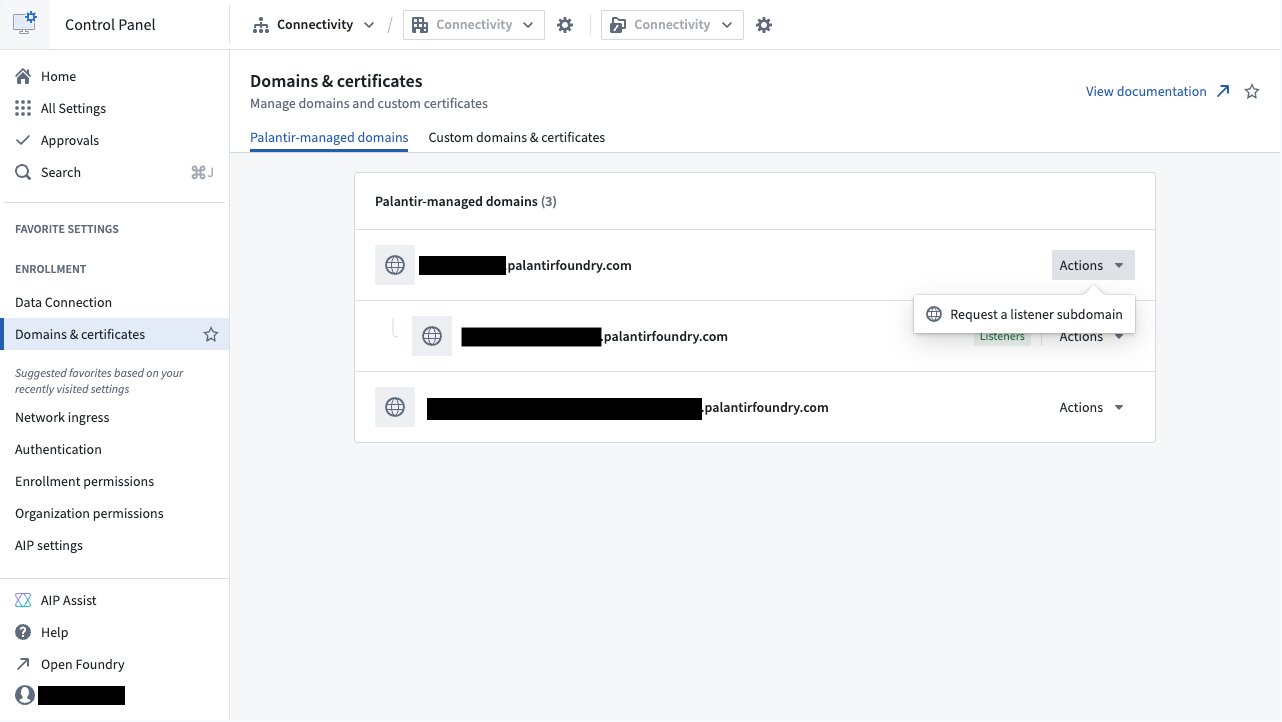
There is a limit of three listener subdomains per enrollment. Contact Palantir support if more are needed.
Ingress allowlisting
Listener subdomains can be configured in one of two modes: custom ingress or inherited ingress.
Custom ingress
A subdomain with custom ingress will have a separate ingress configuration from its parent domain. For example, your enrollment may allow ingress from only your corporate IP addresses. However, listener subdomains can be configured to allow ingress from entire countries or specific IP ranges that you otherwise do not want to allow to access the rest of your enrollment.
Configuring appropriately sized ingress allowlists for specific use cases enables you to reduce risk, particularly in instances where listeners are using nonstandard authentication or authorization protocols.
Some example scenarios of ingress configurations for listener subdomains might include:
- Adding country-wide ingress in the regions that the external system is hosted in when they do not publish any specific list of IP addresses, or if their published list changes frequently.
- Configuring a small IP range (smaller than the primary enrollment ingress allow list) to allow requests to a listener with only basic authorization or header secret verification available.
Once the subdomain is created, you can manage ingress in Control Panel > Network ingress. Learn more about ingress configuration.
Inherited ingress
In some situations, the ingress allowlist configured for the primary domain is sufficient for usage with listeners. In these cases, you can create subdomains to inherit the ingress allowlist configuration from the parent domain. Any changes to the ingress configuration of the parent domain will be reflected automatically by the subdomain.
Once created, the subdomain cannot be reconfigured with custom ingress.
Using a listener subdomain
- Navigate to the Listeners tab in Data Connection and select a listener.
- In the Configure connection step of the listener settings wizard, select a listener subdomain.
- After requesting a subdomain for your listener, an Approvals request will be created, which an administrator will need to approve before the listener becomes accessible.
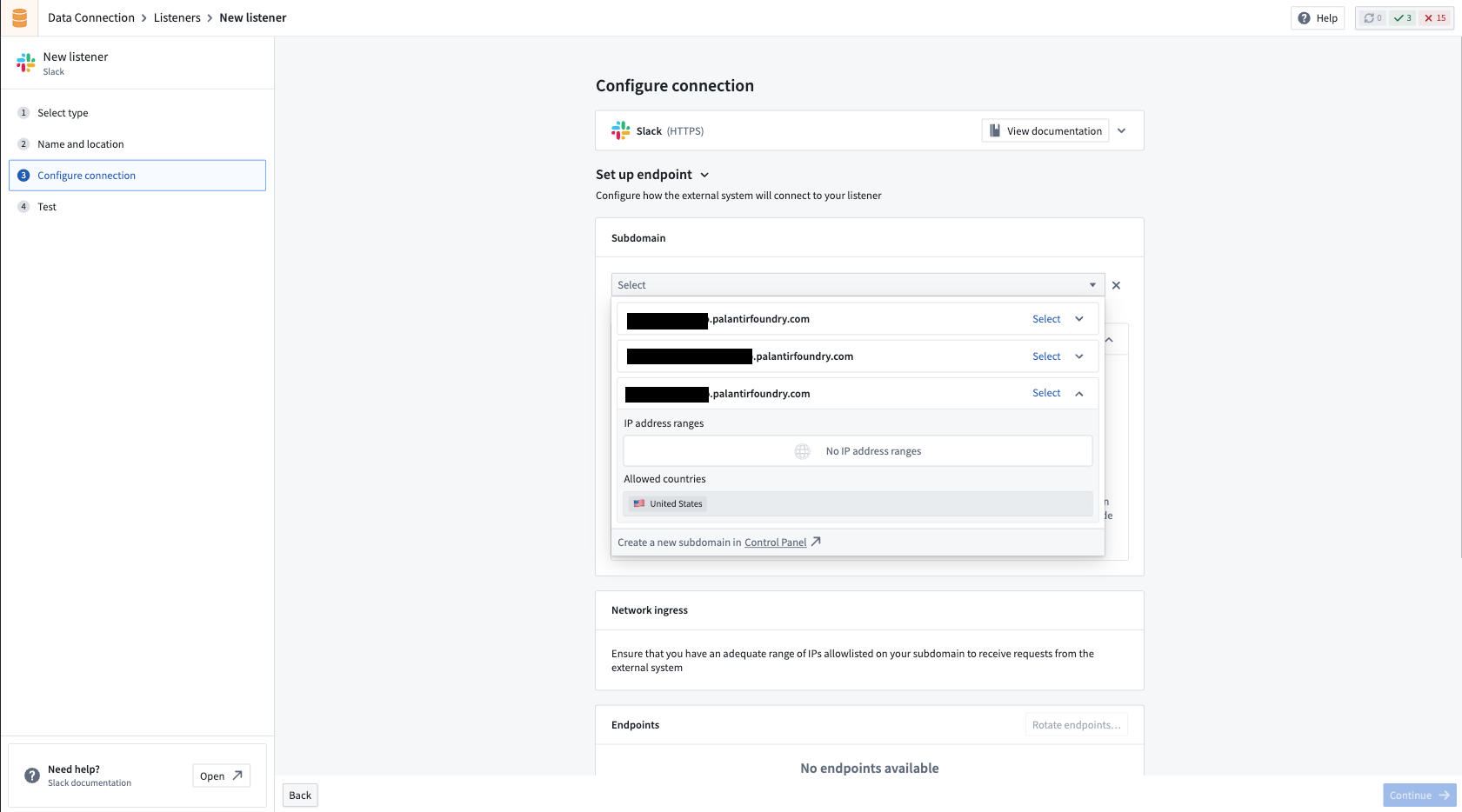
When the mount is approved, the listener will be able to process requests over the given endpoints (after the listener is started, if it is not already running).
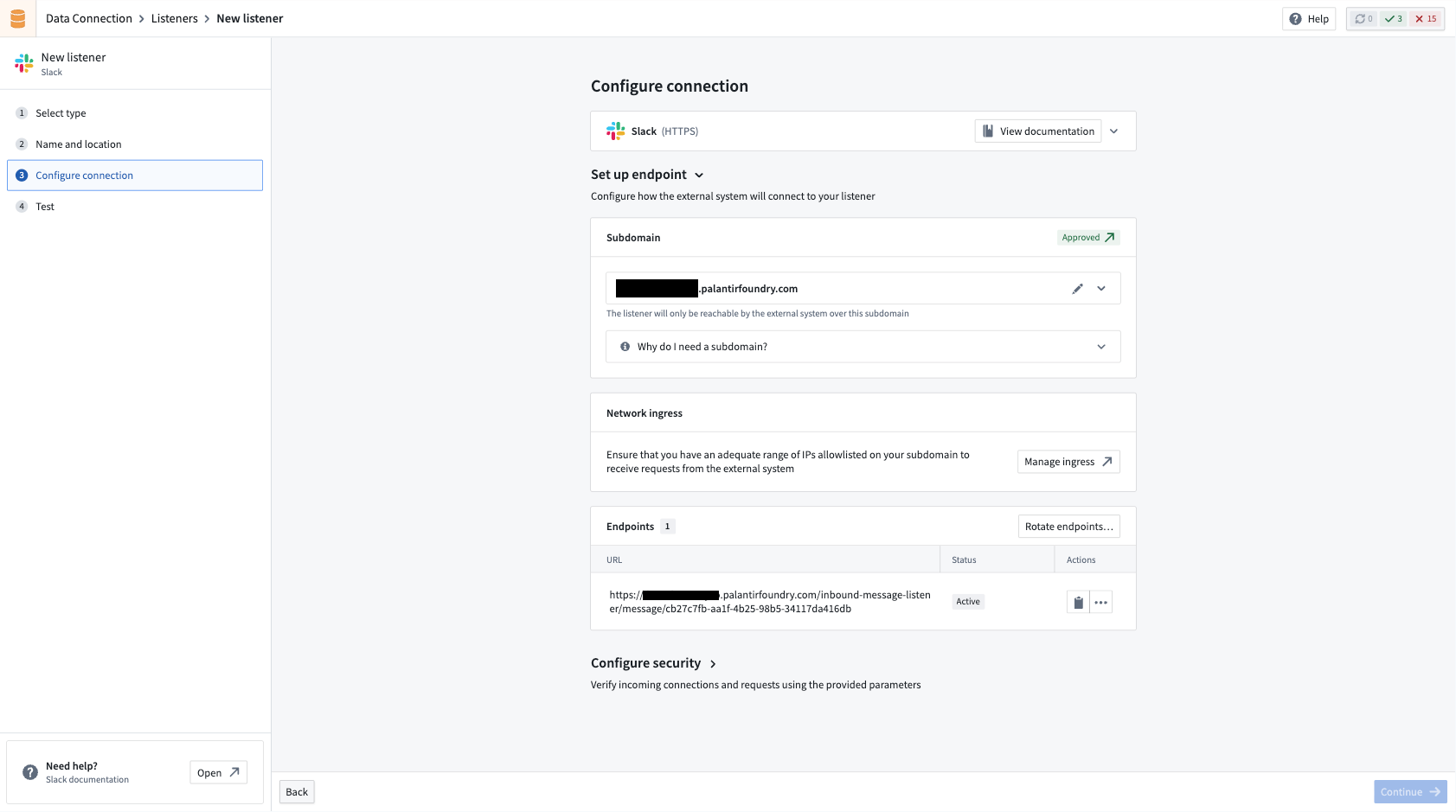
Changing the subdomain for a listener
If you need to change the subdomain that a listener is using, you can select a new one from the Configure connection step. This is a destructive action that will cause downtime if the listener is being actively used.
The listener will immediately stop processing requests over the old subdomain, and will not be able to process any further requests until the new subdomain mount is approved. At that point, any usages of the old endpoints will need to be swapped over to the endpoints with the new subdomain.
Migration to subdomains
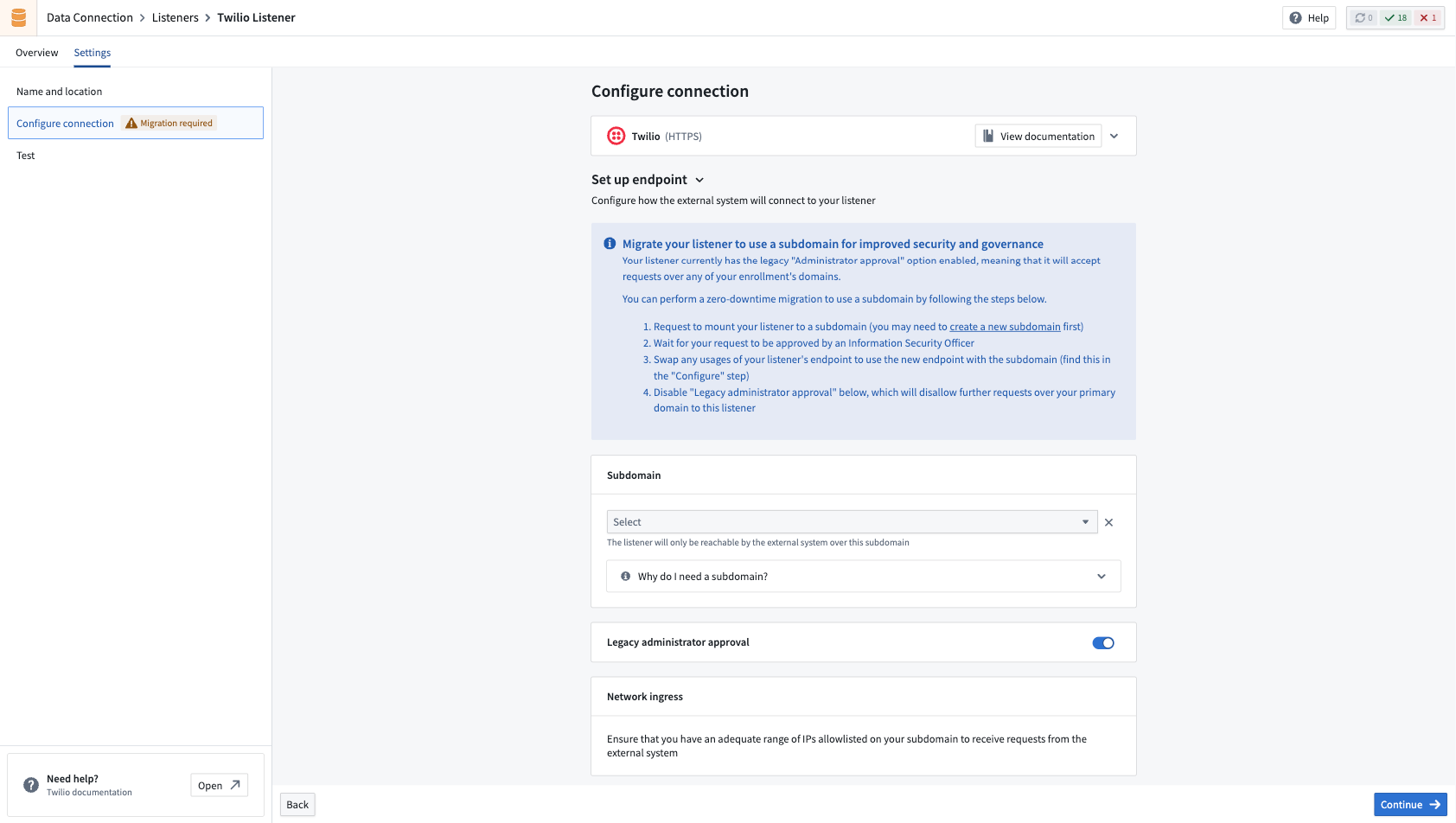
For listeners created before subdomains were available in an enrollment, a zero-downtime migration path is available. After creating a new listener subdomain, navigate to the Configure connection step of the listener settings wizard and follow the provided instructions.
Endpoint rotation
If the listener's endpoint is compromised, it can be migrated to a new endpoint with zero downtime.
The steps to migrate endpoint usage are as follows:
- Generate a new endpoint, and add an expiration date for the old endpoint. You should now have two usable endpoints.
- Replace any usage of your old endpoint with the new endpoint.
- Delete the old endpoint.
To support this process, listeners provide an endpoint rotation mechanism. To rotate your endpoint, navigate to the Configuration tab of your listener's settings and locate the Rotate endpoints option. Note that you can only have a maximum of two endpoints at a time, and a maximum of one active endpoint. An active endpoint is an endpoint without a set expiration date.
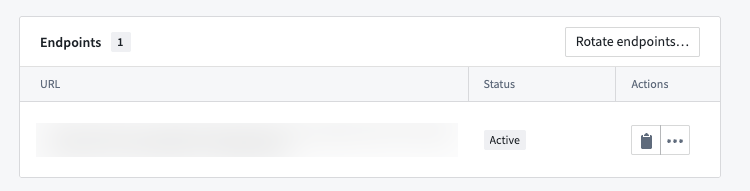
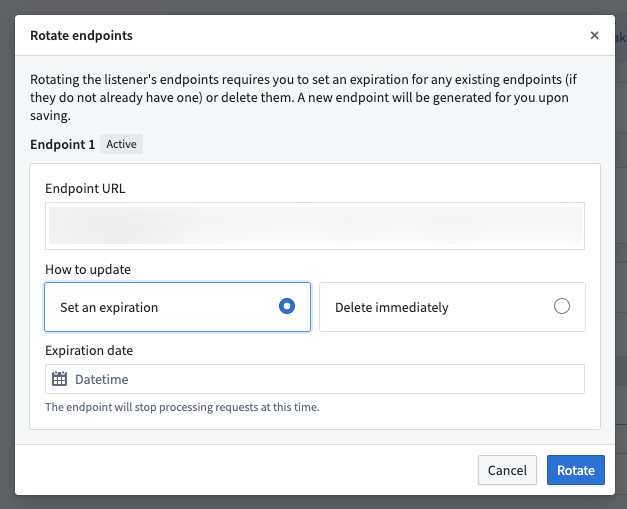
When rotating your endpoint, you can choose to set an expiration date for the endpoint for zero-downtime rotations, or to delete it immediately. When an endpoint expires, it will no longer be able to process events.
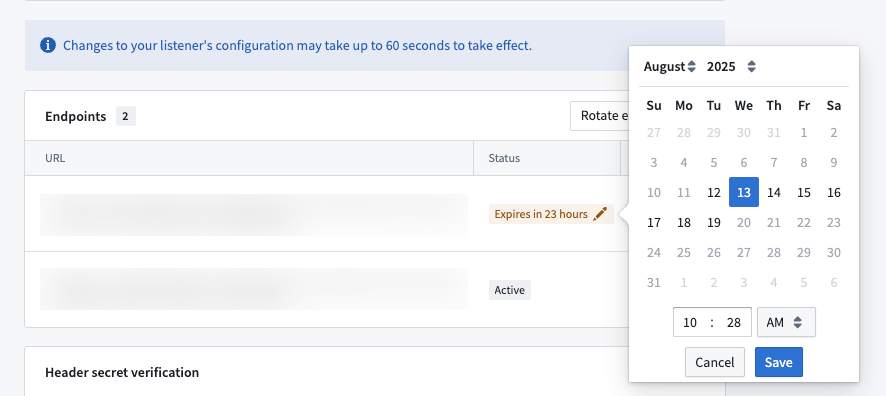
After setting an expiration for an endpoint, you can extend the expiration if more time is needed to migrate your usage over to the new endpoint.
Once an endpoint is expired, you can no longer modify the expiration date. You must delete the expired endpoint and generate a new one by performing another endpoint rotation.
All product names, logos, and brands mentioned are trademarks of their respective owners. All company, product, and service names used in this document are for identification purposes only.
中文翻译
监听器子域名
HTTPS和WebSocket监听器可以挂载到专用子域名上,从而实现精细化的入站流量控制、全面的治理工作流,并将安全性较低的端点与环境的主注册域名隔离开来。所有对已挂载监听器的请求都必须通过该子域名进行。
每个监听器只能挂载到一个子域名,但一个子域名可以被多个已挂载的监听器共享。
:::callout{theme="neutral" title="监听器子域名可用性"} 并非所有Foundry注册环境都支持自助服务方式使用监听器子域名。如需在FedRAMP和本地部署环境中使用,请联系Palantir支持团队。 :::
创建监听器子域名
在将监听器挂载到子域名之前,您需要在控制面板中创建该子域名。
导航至控制面板 > 域名与证书,找到您要创建新子域名的域名,然后选择申请监听器子域名。申请后,新子域名需要由具有信息安全官角色的用户批准才能生效。
每个注册环境最多可创建三个监听器子域名。如需更多,请联系Palantir支持团队。
入站流量白名单
监听器子域名可配置为两种模式之一:自定义入站流量或继承入站流量。
自定义入站流量
采用自定义入站流量的子域名将拥有与其父域名独立的入站流量配置。例如,您的注册环境可能仅允许来自公司IP地址的入站流量。但监听器子域名可以配置为允许来自整个国家或特定IP范围的入站流量,而这些流量您原本不希望访问注册环境的其他部分。
为特定用例配置适当规模的入站流量白名单有助于降低风险,尤其是在监听器使用非标准身份验证或授权协议的情况下。
监听器子域名入站流量配置的一些示例场景包括:
- 当外部系统未发布任何特定IP地址列表,或其发布的列表频繁变更时,添加该外部系统所在区域的全国范围入站流量。
- 配置一个较小的IP范围(小于主注册环境入站流量白名单),以允许仅具备基本授权或标头密钥验证的请求访问监听器。
子域名创建完成后,您可以在控制面板 > 网络入站流量中管理入站流量。了解更多关于入站流量配置的信息。
继承入站流量
在某些情况下,为主域名配置的入站流量白名单足以满足监听器的使用需求。此时,您可以创建子域名来继承父域名的入站流量白名单配置。父域名入站流量配置的任何更改都将自动反映到子域名上。
子域名一旦创建,便无法重新配置为自定义入站流量模式。
使用监听器子域名
- 导航至数据连接的监听器选项卡,选择一个监听器。
- 在监听器设置向导的配置连接步骤中,选择一个监听器子域名。
- 为监听器申请子域名后,将创建一个审批请求,需要管理员批准后,监听器才能被访问。
挂载获批后,监听器将能够通过指定端点处理请求(如果监听器尚未运行,则需先启动)。
更改监听器的子域名
如果需要更改监听器正在使用的子域名,您可以从配置连接步骤中选择新的子域名。这是一个破坏性操作,如果监听器正在被积极使用,将导致服务中断。
监听器将立即停止通过旧子域名处理请求,并且在新的子域名挂载获批之前无法处理任何请求。届时,所有使用旧端点的场景都需要切换至使用新子域名的端点。
迁移至子域名
对于在注册环境中子域名功能可用之前创建的监听器,提供了零停机迁移路径。创建新的监听器子域名后,导航至监听器设置向导的配置连接步骤,并按照提供的说明操作。
端点轮换
如果监听器的端点遭到泄露,可以在零停机的情况下将其迁移至新端点。
迁移端点使用的步骤如下:
- 生成一个新端点,并为旧端点设置过期日期。此时您应拥有两个可用的端点。
- 将所有使用旧端点的场景替换为新端点。
- 删除旧端点。
为支持此流程,监听器提供了端点轮换机制。要轮换端点,请导航至监听器设置的配置选项卡,找到轮换端点选项。请注意,您一次最多只能拥有两个端点,且最多只能有一个活跃端点。活跃端点是指未设置过期日期的端点。
轮换端点时,您可以选择为端点设置过期日期以实现零停机轮换,或立即将其删除。端点过期后,将无法再处理事件。
为端点设置过期日期后,如果需要更多时间将使用场景迁移至新端点,您可以延长过期日期。
端点一旦过期,您将无法再修改过期日期。您必须删除已过期的端点,并通过执行另一次端点轮换生成新端点。
本文档中提及的所有产品名称、标识和品牌均为其各自所有者的商标。本文档中使用的所有公司、产品和服务名称仅用于标识目的。