Media set syncs(媒体集同步(Media set syncs))
This page discusses how to set up a media set source and sync into Foundry via Data Connection.
The following source types support media syncs:
A growing list of sources support media syncs. However, if your desired file-based source is not yet supported, you can ingest your files within a dataset and convert them into media sets via Python transforms. For example, to ingest files from SharePoint Online into a media set, you can use the SharePoint Online connector to sync files into a Foundry dataset, then create a Python transform that reads those files and writes them into a media set.
Set up a media set source and sync
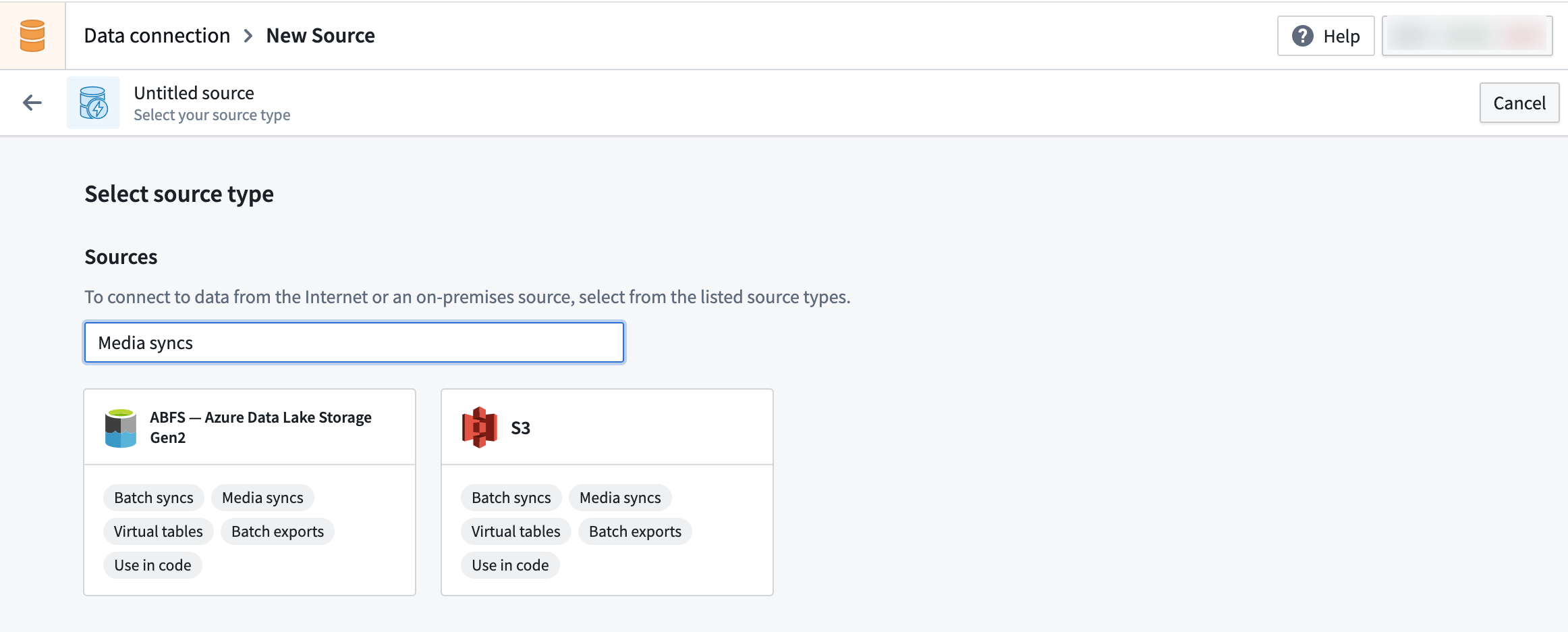
- Find a supported source by navigating to the Source page via + New Source. Then, search for Media Sync to find all supported sources.
-
Ensure you have permissions to import any necessary network policies and then set up supported source using the appropriate instructions below:
-
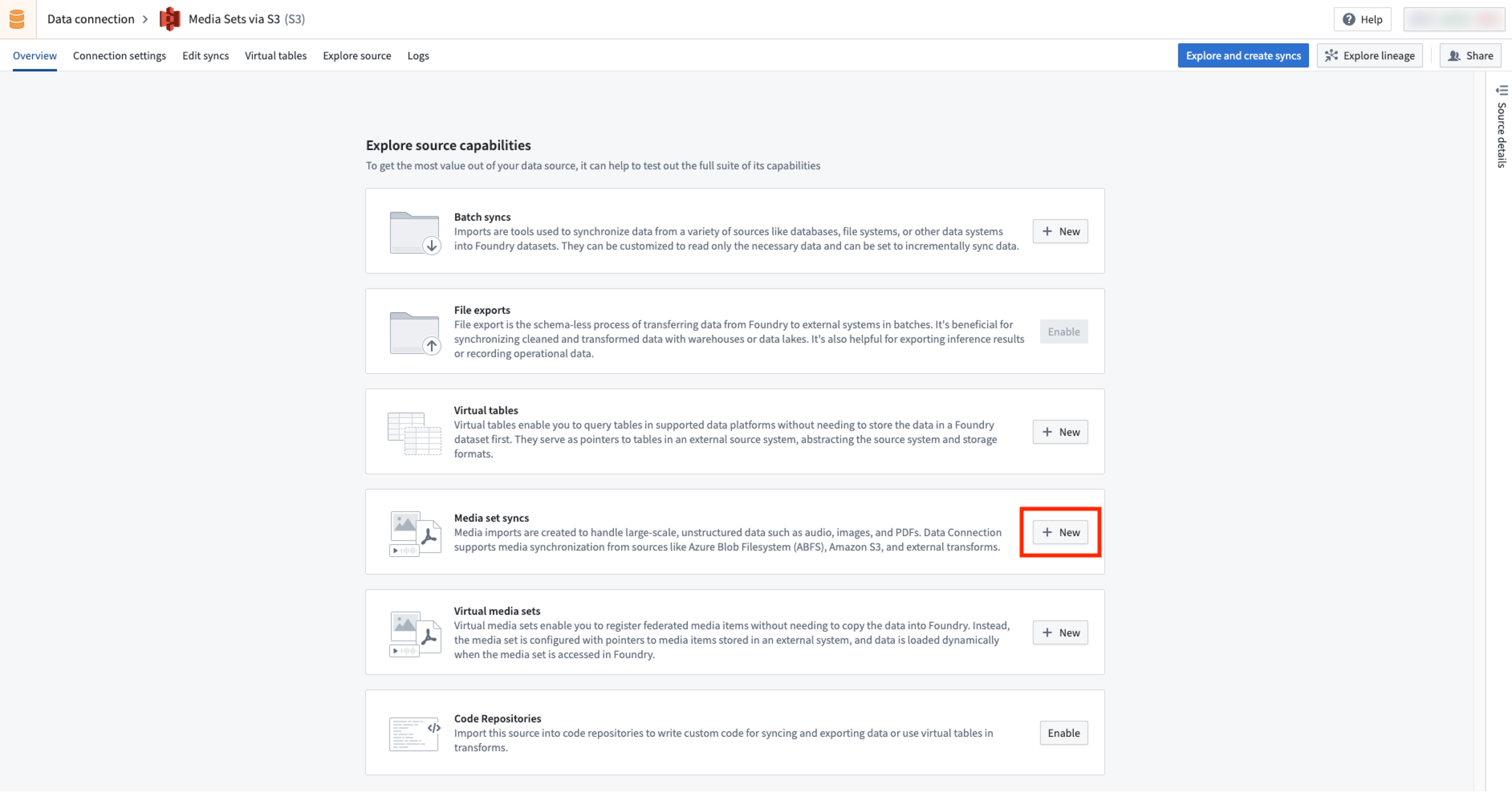
In the Overview page of the source, find the Media set syncs section to create a media set sync.
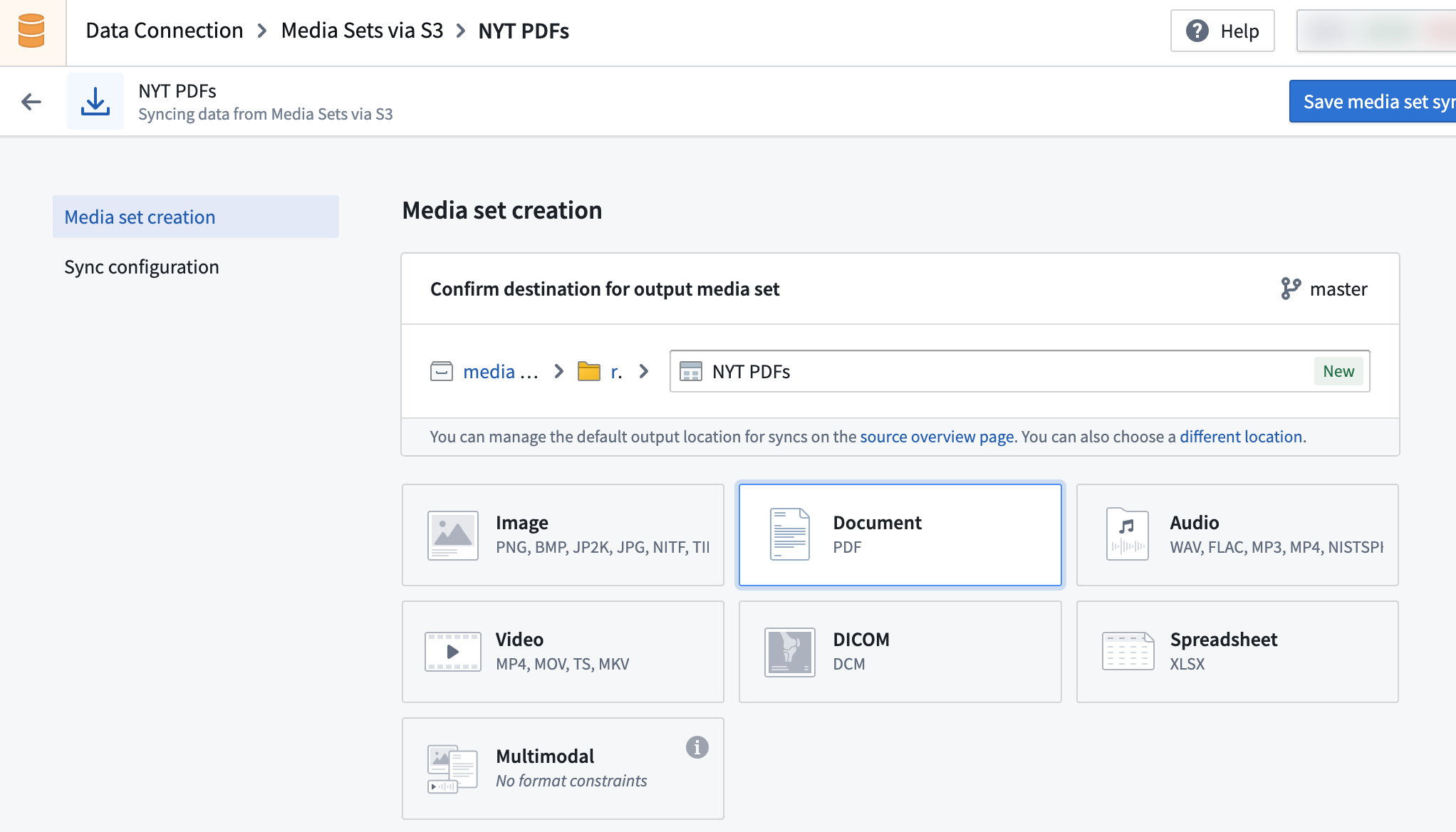
- Set up the media set sync by selecting the desired media file types. See supported media set schemas.
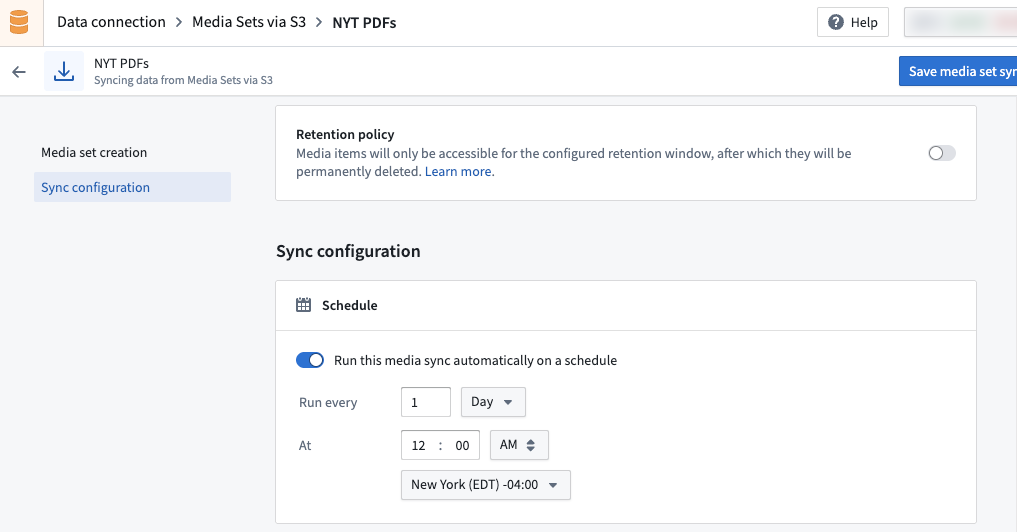
- Create the desired build schedule for your media sync ingest. You can edit the schedule after the initial configuration.
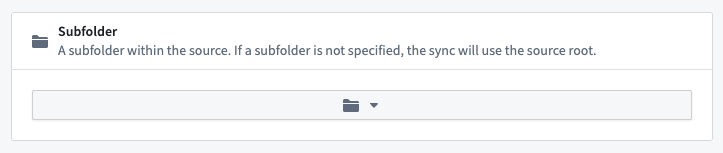
- Select the relevant subfolder within your source. If your media files are at the root path, there is no need to add a subfolder configuration.
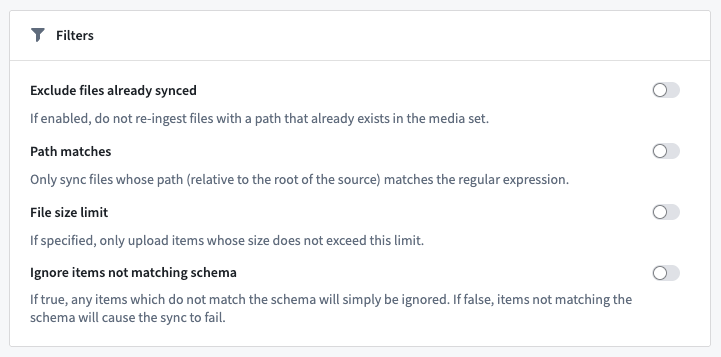
- Set up your sync filters. Available sync filters include Exclude files already synced, Path matches, File size limit, and Ignore items not matching schema.
-
Choose Save media set sync when you have selected your initial configuration.
-
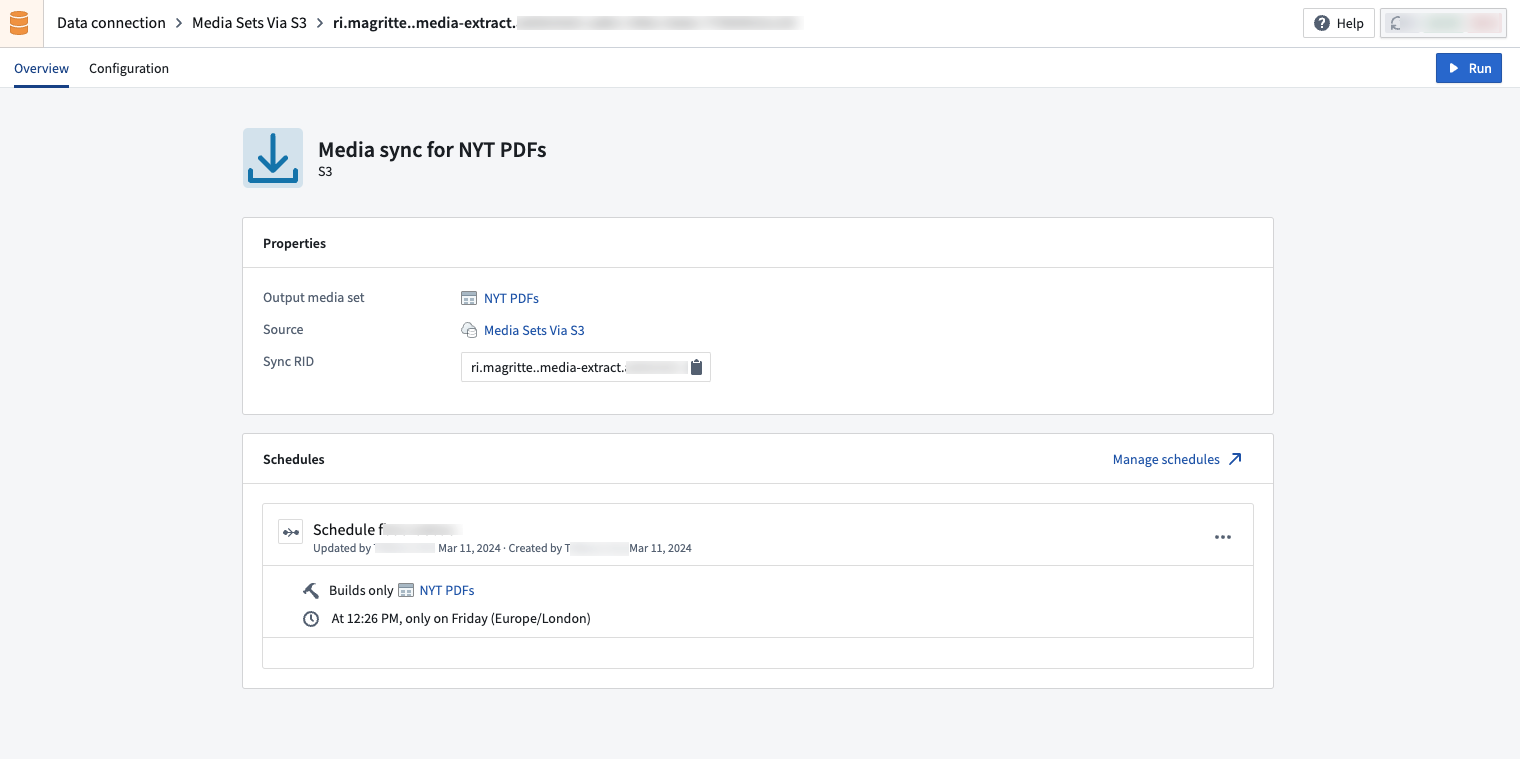
Select Run to trigger your first sync and view your media sync.
Once you have set up your media set sync, learn how to leverage your media set with transforms in Pipeline Builder.
中文翻译
媒体集同步(Media set syncs)
本文介绍如何通过数据连接(Data Connection)设置媒体集源(media set source)并将其同步到 Foundry。
以下源类型支持媒体同步(media syncs):
越来越多的源支持媒体同步。但是,如果您所需的基于文件的源尚未得到支持,您可以将文件摄取到数据集中,然后通过 Python 转换(Python transforms) 将其转换为媒体集。例如,要将 SharePoint Online 中的文件摄取到媒体集中,您可以使用 SharePoint Online 连接器(SharePoint Online connector) 将文件同步到 Foundry 数据集,然后创建一个 Python 转换来读取这些文件并将其写入媒体集。
设置媒体集源和同步
- 通过 + 新建源(+ New Source) 导航到 源(Source) 页面,找到支持的源。然后,搜索 媒体同步(Media Sync) 以查找所有支持的源。
-
确保您拥有导入任何必要网络策略的权限,然后按照以下相应说明设置支持的源:
-
在源的 概览(Overview) 页面中,找到 媒体集同步(Media set syncs) 部分以创建媒体集同步。
- 通过选择所需的媒体文件类型来设置媒体集同步。请参阅 支持的媒体集模式(supported media set schemas)。
- 为媒体同步摄取创建所需的构建计划。您可以在初始配置后编辑该计划。
- 在源中选择相关的子文件夹。如果您的媒体文件位于根路径,则无需添加子文件夹配置。
- 设置同步过滤器。可用的同步过滤器包括 排除已同步的文件(Exclude files already synced)、路径匹配(Path matches)、文件大小限制(File size limit) 和 忽略不匹配模式的项目(Ignore items not matching schema)。
-
完成初始配置后,选择 保存媒体集同步(Save media set sync)。
-
选择 运行(Run) 以触发首次同步并查看您的媒体同步。
设置好媒体集同步后,了解如何通过 Pipeline Builder 中的转换(transforms in Pipeline Builder) 来利用您的媒体集。