Set up an agent(设置代理(Agent))
An agent is a downloadable program installed within your organizational network and managed from Foundry's Data Connection interface. Agents have the ability to connect to different data sources within your organizational network. They are used to enable agent-proxy egress policies to provide network connectivity to privately-hosted sources, and to enable agent worker connections to read data from those sources and securely ingest to Foundry with a restricted access token.
This guide walks you through the steps required to create an agent. First, complete the following:
- After logging in to Palantir, navigate to Data Connection using the left sidebar.
- Select the Agents tab.
- Select New agent in the upper right corner.
If you do not see the option to create a new agent, you may not have the required role to do so. Learn more about managing the agent creation workflow in Control Panel.
Once you have the agent running and you want to connect a source to Foundry, you must obtain credentials for the source system that the agent can use to securely read data. Depending on your organization’s network setup, you may also need to configure network settings to allow the agent to reach the source system.
Review the sections below to start setting up your agent:
Setup
Create agent host
For the agent program to successfully run, it must be hosted in a suitable environment (ideally, an environment using Linux as an operating system).
The most commonly used hosting method for Foundry agents is provisioning a Linux virtual machine (VM) in a cloud environment. For example, you could provision a Linux VM in AWS, Azure, or GCP, but you could also host the agent on a Linux server belonging to your organization. Note that while it is possible to host Foundry agents on Windows, this is not recommended by Palantir and should only be used if it is not possible to host in a Linux environment.
:::callout{theme="neutral"} The host you use for the agent should be used exclusively for running a single Foundry agent, not colocated with any other services or processes. Running multiple Foundry agents on the same machine is not supported. :::
Once you have a suitable location to host your agent, the next step is to ensure the host will meet the necessary hardware and OS requirements for a Foundry agent to work. These requirements include the following:
- 64-bit Linux or other Linux operating system (recommended RHEL 8 or later, Ubuntu 22.04 or later, or equivalent)
-
Agents run on their own JDK that is compiled for Linux/x86-64. If necessary (for example, when running on AWS Graviton or another ARM-based CPU), it is possible to run an agent on a separate JDK by modifying the value of
javaHomeinservice/bin/launcher-static.yml.:::callout{theme="neutral"} We generally do not recommend running agents on a separate JDK, and support for this may not be available in the future. :::
-
4 CPU cores
-
16 GB RAM
-
500GB free disk space mounted at /opt (preferably SSD)
The recommended limits are as follows:
- Core file size: Hard and soft limit of 0
- Open files: Hard and soft limit of 262144
- Running processes: Hard and soft limit of 65536
- Stack size: Hard and soft limit of 32768 (KB)
- Max locked memory: Hard and soft limit of "unlimited"

Configure agent network access
An agent only makes outbound connections to Foundry. To successfully establish network access, you must allow the following:
After allowing egress and ingress, validate that your host can communicate with the Foundry Virtual Private Cloud (VPC), by executing the following command on the agent host:
curl -s https://<your domain name>/magritte-coordinator/api/ping > /dev/null && echo pass || echo fail
If everything is working as expected, you should see pass as an output; fail indicates an incomplete test of connectivity to the Foundry VPC.
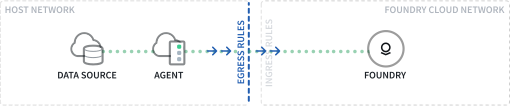
Egress on the agent host
The agent requires network egress to reach the Foundry VPC, which is accessed through the Internet. If your network does not allow egress by default, this may require a specific configuration to allow the outbound connection from your agent (and/or its host) to your Foundry instance, such as opening a firewall or configuring a proxy for egress.
You can copy Foundry's domain name and port from the Server Setup tab in the agent setup workflow in Data Connection to appropriately configure egress network access.
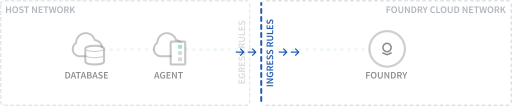
Ingress in Foundry
Foundry must allow inbound traffic from your server's IP. You can manage ingress rules from the Network ingress page in Control Panel. Your Foundry domain will not be accessible from outside of your approved ingress rules.
Secure an agent host with firewall
We strongly recommend configuring a firewall on the agent host to monitor and restrict network traffic to only destinations that are strictly necessary. Be sure to still allow the agent host to talk to Foundry. The available firewall and monitoring options depend on the operating system you use to run your agent, as well as your organization's security best practices.
Set up automatic restarts
If you do not have automatic restarts set up, you will have outages whenever the agent crashes or the agent host restarts.
To set up automatic restarts for an agent manager if it crashes, run the command ${AGENT_MANAGER_DIR}/service/bin/auto_restart.sh from the agent manager's service directory on the VM or machine terminal as a user with permission to create cron jobs.
If you need to halt the automatic restarts (when upgrading the agent manager, for example), you can do so by running ${AGENT_MANAGER_DIR}/service/bin/auto_restart.sh clear.
Save agent resource in a Project
Next, you must give your new agent a name and choose a Project in which to save it. In Foundry, an agent is considered a resource that is saved into a Project to allow for highly configurable permissions.
We recommend creating a new Project in which to store your agent.
Permissions in Foundry are an extensive topic. If you want to learn more, you can refer to these resources:
- Recommendations for managing agent permissions
- Guidance on how permissions should be set up end-to-end for data pipeline
- A full reference of how agent permissions interact with Projects and roles
Download and install the agent
Once you have your hardware provisioned for your agent, the next step is to download the agent software from Foundry and install it on the host. Follow the steps outlined in the in-platform guide on your host to download the package, extract it, and start the agent.
If you need to configure a proxy, more details are available in the proxy configuration documentation.
After the agent has started successfully, follow the steps to configure automatic upgrades to ensure that your agent remains updated.
Next steps
Now that you have created, installed, and started your agent, navigate to the agent page in Data Connection where you can configure and monitor the agent permissions, health, and connectivity.
After your agent is set up, you can move on to setting up a source to connect your agent with your organization's data sources.
中文翻译
设置代理(Agent)
代理(Agent) 是一个可下载的程序,安装在您的组织网络内,并通过 Foundry 的 Data Connection 界面进行管理。代理能够连接到您组织网络内的不同数据源。它们用于启用 代理-代理出口策略(agent-proxy egress policies),以提供与私有托管源的网络连接,并启用 代理工作器连接(agent worker connections),以便从这些源读取数据,并使用受限访问令牌安全地摄取到 Foundry。
本指南将引导您完成创建代理所需的步骤。首先,请完成以下操作:
- 登录 Palantir 后,使用左侧侧边栏(sidebar)导航到 Data Connection。
- 选择 Agents 选项卡。
- 选择右上角的 New agent。
如果您没有看到创建新代理的选项,则可能不具备执行此操作所需的角色。在 Control Panel 中了解有关管理代理创建工作流的更多信息。
一旦代理运行起来,并且您想要将源连接到 Foundry,您必须获取源系统的凭据,以便代理可以使用这些凭据安全地读取数据。根据您组织的网络设置,您可能还需要配置网络设置,以允许代理访问源系统。
请查看以下部分,开始设置您的代理:
设置(Setup)
创建代理主机(Create agent host)
为了使代理程序成功运行,它必须托管在合适的环境中(理想情况下,是使用 Linux 作为操作系统的环境)。
Foundry 代理最常用的托管方法是在云环境中配置 Linux 虚拟机(VM)。例如,您可以在 AWS、Azure 或 GCP 中配置 Linux 虚拟机,但您也可以将代理托管在属于您组织的 Linux 服务器上。请注意,虽然可以将 Foundry 代理托管在 Windows 上,但 Palantir 不建议这样做,并且仅当无法在 Linux 环境中托管时才应使用。
:::callout{theme="neutral"} 用于代理的主机应专门用于运行单个 Foundry 代理,不得与任何其他服务或进程共存。 不支持在同一台机器上运行多个 Foundry 代理。 :::
一旦您有了合适的位置来托管您的代理,下一步是确保主机满足 Foundry 代理正常工作所需的硬件和操作系统要求。这些要求包括:
- 64位 Linux 或其他 Linux 操作系统(推荐 RHEL 8 或更高版本、Ubuntu 22.04 或更高版本,或同等系统)
-
代理运行在专为 Linux/x86-64 编译的自己的 JDK 上。如有必要(例如,在 AWS Graviton 或其他基于 ARM 的 CPU 上运行时),可以通过修改
service/bin/launcher-static.yml中的javaHome值,在单独的 JDK 上运行代理。:::callout{theme="neutral"} 我们通常不建议在单独的 JDK 上运行代理,并且未来可能不支持此功能。 :::
-
4 个 CPU 核心
-
16 GB 内存
-
挂载在 /opt 的 500GB 可用磁盘空间(最好是 SSD)
建议的限制如下:
- 核心文件大小(core file size): 硬限制和软限制均为 0
- 打开文件(open files): 硬限制和软限制均为 262144
- 运行进程(running processes): 硬限制和软限制均为 65536
- 栈大小(stack size): 硬限制和软限制均为 32768 (KB)
- 最大锁定内存(max locked memory): 硬限制和软限制均为 "unlimited"
配置代理网络访问(Configure agent network access)
代理仅向 Foundry 发起出站连接。要成功建立网络访问,您必须允许以下内容:
在允许出口和入口后,通过在代理主机上执行以下命令,验证您的主机是否可以与 Foundry 虚拟私有云(VPC)通信:
curl -s https://<your domain name>/magritte-coordinator/api/ping > /dev/null && echo pass || echo fail
如果一切按预期工作,您应该会看到输出 pass;fail 表示与 Foundry VPC 的连接测试未完成。
代理主机上的出口(Egress on the agent host)
代理需要网络出口才能到达 Foundry VPC,该 VPC 通过互联网访问。如果您的网络默认不允许出口,则可能需要特定配置来允许从您的代理(和/或其主机)到您的 Foundry 实例的出站连接,例如打开防火墙或配置代理(proxy)用于出口。
您可以从 Data Connection 中代理设置工作流的 Server Setup 选项卡复制 Foundry 的域名和端口,以适当配置出口网络访问。
Foundry 中的入口(Ingress in Foundry)
Foundry 必须允许来自您服务器 IP 的入站流量。您可以从 Control Panel 中的 Network ingress 页面管理入口规则。您的 Foundry 域将无法从您批准的入口规则之外访问。
使用防火墙保护代理主机(Secure an agent host with firewall)
我们强烈建议在代理主机上配置防火墙,以监控和限制网络流量仅流向严格必要的目标。请务必仍然允许代理主机与 Foundry 通信。可用的防火墙和监控选项取决于您用于运行代理的操作系统,以及您组织的安全最佳实践。
设置自动重启(Set up automatic restarts)
如果您没有设置自动重启,那么每当代理崩溃或代理主机重启时,您都会遇到服务中断。
要为代理管理器设置崩溃时的自动重启,请在虚拟机或机器终端上,以具有创建 cron 作业权限的用户身份,从代理管理器的服务目录运行命令 ${AGENT_MANAGER_DIR}/service/bin/auto_restart.sh。
如果您需要停止自动重启(例如,在升级代理管理器时),可以通过运行 ${AGENT_MANAGER_DIR}/service/bin/auto_restart.sh clear 来实现。
在项目中保存代理资源(Save agent resource in a Project)
接下来,您必须为新的代理命名,并选择一个用于保存它的 Project。在 Foundry 中,代理被视为一种资源(resource),它被保存到 Project 中以实现高度可配置的权限。
我们建议创建一个新的 Project 来存储您的代理。
Foundry 中的权限是一个广泛的话题。如果您想了解更多信息,可以参考以下资源:
下载并安装代理(Download and install the agent)
一旦您为代理配置好了硬件,下一步是从 Foundry 下载代理软件并将其安装在主机上。按照主机上平台内指南中概述的步骤下载软件包、解压并启动代理。
如果您需要配置代理,更多详细信息请参阅代理配置文档(proxy configuration documentation)。
代理成功启动后,请按照步骤配置自动升级(configure automatic upgrades),以确保您的代理保持更新。
后续步骤(Next steps)
现在您已经创建、安装并启动了代理,请导航到 Data Connection 中的代理页面,您可以在其中配置和监控代理权限、健康状况和连接性(configure and monitor the agent permissions, health, and connectivity)。
代理设置完成后,您可以继续设置源(setting up a source),将您的代理与组织的数据源连接起来。