Set up a source(设置数据源)
A Foundry source represents a connection between Foundry and an external system. Some example Foundry source types include a Postgres database, an S3 bucket, a filesystem on a Linux server, an SAP instance, or a REST API over the Internet.
At a high level, below are the steps required to connect a source to Foundry. Note that Step 1 through Step 3 may require you to change or validate configurations within your existing architecture:
- Ensure there is a valid network connection between the source and Foundry.
- Provision valid credentials for Foundry to authenticate against the source.
- For legacy agent worker sources only: ensure the agent has the appropriate drivers to access the external system.
- Finally, create the source in Data Connection.
Once you have this source connection established, you can configure syncs to bring specific sets of data into Foundry. Syncs can be entirely configured through the Data Connection UI, so the source setup is the final task that may require configurations to be updated in your organization's environment before you can access your data within Foundry.
Configure network access
To connect Foundry to an external system, first validate network paths:
- External systems hosted in the same network as and accepting inbound connections from Foundry requires a single valid network connection from Foundry to the external system. For cloud-hosted instances of Foundry, this is typically the case for cloud-based systems or SaaS services.
- External systems hosted in a separate network from Foundry must use an agent with two valid network paths: (1) from the agent host to the external system and (2) from the agent host to Foundry. For cloud-hosted instances of Foundry, a separate network usually means an on-premise network.
(Optional) Set up an agent and configure agent connectivity
You will need to set up an agent if the external system you are connecting to is hosted on a separate network from Foundry's network.
With Foundry worker and agent proxy policies, the agent is used as a networking proxy only and compute runs in Foundry. Legacy agent worker sources use the agent for both networking and compute; see Foundry worker vs. agent worker.
Ensure there is a connection between an agent set up within your network and the external system. The agent acts as a single point of validated entry to Foundry from your network and will handle the process of reading and sending data on to the Foundry instance. For each new system, you will only need to confirm there is a valid connection between the agent and the new system.
:::callout{theme="neutral"} You will not need to establish direct network egress from the external system to Foundry, as traffic only flows from the agent to Foundry and from the agent to the external system. Learn more about the architecture of data connection. :::
The steps required to establish this connection will vary depending on your organizational network settings. Regardless of your specific setup, the goal is for the agent to have the ability to connect to the external system. This could involve the configuration of egress settings on the agent host, ingress settings on the external system, firewall rules across the network, proxy settings on the agent, adding source system certificates to the agent truststore, and so on.
If you need to configure proxy settings for the agent to reach the external system, you can do this through Data Connection.
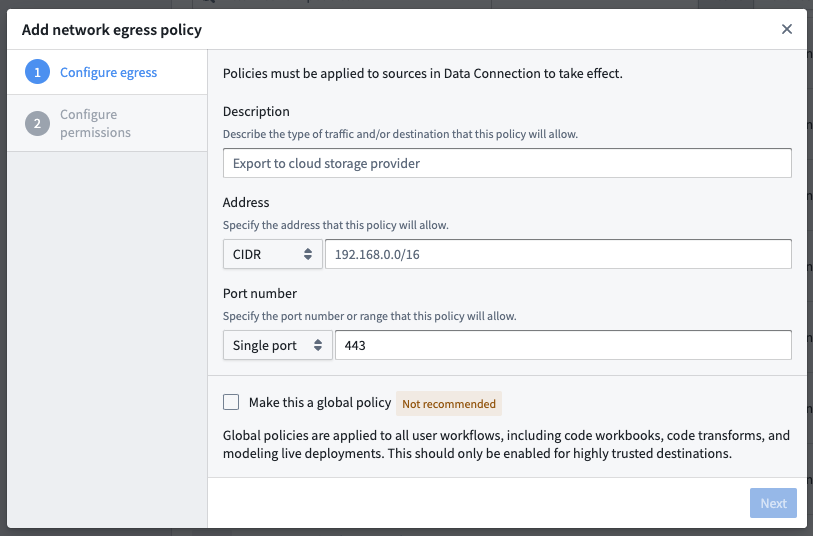
Configure a network policy
:::callout{theme="warning"}
You must have the Information security officer role on your enrollment to configure network egress. If you do not have permissions to configure egress, contact your Palantir administrator to request access.
You can find the Information security officer role in the Enrollment permissions section of Control Panel. A user must have the Enrollment administrator role to view this section.
:::
Foundry worker sources additionally require network egress policies to route the traffic.
To configure a network policy, navigate to the Network egress section in Control Panel. Pick a direct connection policy if the external system you are connecting to is hosted in the same network than Foundry. Pick an agent proxy egress policy if the source you are connecting to is in a separate network from Foundry.
If you are unable to view the Network egress section, contact your Palantir administrator to set up the network policy.
Provision credentials
For most cases, Foundry will require authorized credentials (such as a username and password) to access external systems. We recommend using a dedicated service account with credentials scoped specifically for the required access in Foundry.
Provision a service account for the source following any internal guidelines and processes that your organization has for establishing service accounts. Note the credentials before proceeding to the next step.
Create the source in Data Connection
Once the above steps are done, you can proceed with creating the source in Data Connection:
- After logging in, navigate to Data Connection using the sidebar.
- Select the Sources tab.
- Select New source in the top-right.
- Select the source type corresponding to your data source.
- Select Continue in the bottom right. The source is configured to run on a Foundry worker. For existing agent worker sources, see the agent worker configuration reference.
Save the source in a Project
Next, name your source and choose a Project to place it in. We generally recommend creating a new Project for each source, as this provides the most natural way to permission datasets derived from this source.
You can read more about source permission best practices or consult the full guidance for how to structure data pipelines end-to-end in Foundry.
Select Create source and continue in the bottom-right.
Choose your network policy [Foundry worker]
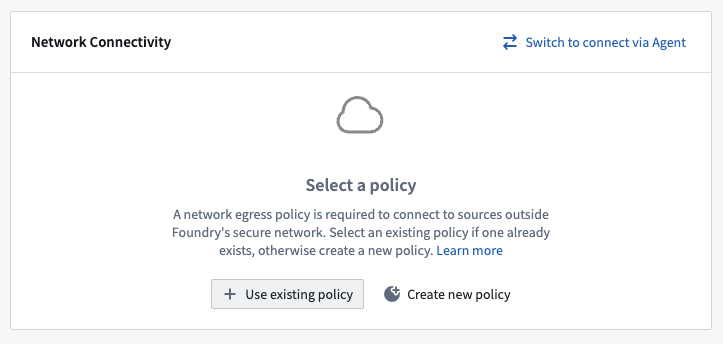
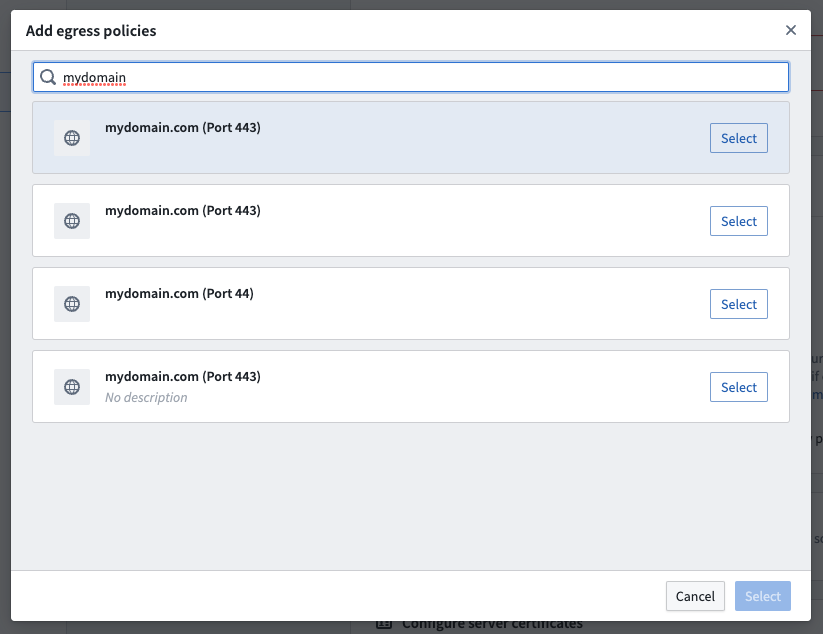
On the next setup page, select the network policy you configured earlier by choosing Use existing policy and searching for the policy name.
Configure source
Add details about how to connect to your source. These will depend on the source type you are using and typically consist of basic credentials such as connection URLs, cloud provider regions, and so on.
(Optional) Add JDBC drivers
JDBC sources may require you to uplod JDBC drivers, then specifying which Java class from the driver should be used.
(Optional) Add certificates
External systems might require certificates to ensure the connection can be trusted. This would occur for the following:
- Systems using TLS with self-signed certificates, for which you will need to add server certificates.
- Systems using mTLS which require the Foundry client to prove its identity with a client certificate.
To understand whether to add server or client certificates, see Server and client certificates.
For Foundry worker connections, add certificates on to the source itself using the following steps:
- Expand the Certificates card to view the certificates selected on the source.
- Select Add certificate (or Create new certificate first if you have not configured the certificate).
- Select the client certificates and server certificate bundles to attach to the source.
Review the egress certificate configuration documentation for more information.
:::callout{theme="neutral"} Select Configure server certificates (legacy) or Configure client certificates and private key (legacy) at the bottom of the Connection details page under More options to configure sources you have created with legacy certificates. :::
:::callout{theme="warning"} Learn how to configure certificates on an agent when using agent worker connections.. :::
Add credentials
Add the credentials you provisioned previously to allow the source to connect to your data.
Save and continue
Select Save in the bottom-right to complete setting up your source. Once your source is fully set up, you can proceed to set up a sync to bring data into Foundry.
Troubleshooting
To confirm the connection has been established, select Preview in the right panel of the source page.
If the source does not work as expected, see Troubleshooting for the available debugging tools — including the source terminal and network egress logs — and guidance on connectivity and certificate issues. For sync-specific problems, see the syncs troubleshooting reference; if you are using an agent worker, see the agents troubleshooting reference.
中文翻译
设置数据源
Foundry 数据源(Source)代表 Foundry 与外部系统之间的连接。一些 Foundry 数据源类型的示例包括 Postgres 数据库、S3 存储桶、Linux 服务器上的文件系统、SAP 实例或互联网上的 REST API。
从宏观角度来看,以下是将数据源连接到 Foundry 所需的步骤。请注意,步骤 1 到步骤 3 可能需要您在现有架构中更改或验证配置:
- 确保数据源与 Foundry 之间存在有效的网络连接。
- 为 Foundry 提供有效凭证,以便其向数据源进行身份验证。
- 仅适用于旧版 代理工作节点(agent worker) 数据源:确保代理具有访问外部系统的相应驱动程序。
- 最后,在数据连接(Data Connection)中创建数据源。
一旦建立了此数据源连接,您就可以配置同步(Syncs)以将特定数据集导入 Foundry。同步可以完全通过数据连接(Data Connection)用户界面进行配置,因此数据源设置是在您可以在 Foundry 中访问数据之前,可能需要在组织环境中更新配置的最后一项任务。
配置网络访问
要将 Foundry 连接到外部系统,首先需要验证网络路径:
- 与 Foundry 位于同一网络并接受来自 Foundry 的入站连接的外部系统,需要从 Foundry 到该外部系统有一条有效的网络连接。对于云托管的 Foundry 实例,这通常是基于云的系统或 SaaS 服务的情况。
- 与 Foundry 位于不同网络的外部系统必须使用代理(Agent),并需要两条有效的网络路径:(1) 从代理主机到外部系统,(2) 从代理主机到 Foundry。对于云托管的 Foundry 实例,不同的网络通常指本地部署网络。
(可选)设置代理并配置代理连接
如果您要连接的外部系统与 Foundry 网络位于不同的网络上,则需要设置代理(Agent)。
使用 Foundry 工作节点(Foundry worker)和代理代理策略(agent proxy policies),代理仅用作网络代理,计算在 Foundry 中运行。旧版代理工作节点数据源(agent worker sources) 同时使用代理进行网络和计算;请参阅 Foundry 工作节点与代理工作节点(Foundry worker vs. agent worker)。
确保您网络中设置的代理与外部系统之间存在连接。代理充当从您的网络到 Foundry 的单一验证入口点,并将处理读取数据并将其发送到 Foundry 实例的过程。对于每个新系统,您只需确认代理与新系统之间存在有效连接即可。
:::callout{theme="neutral"} 您无需建立从外部系统到 Foundry 的直接网络出站连接,因为流量仅从代理流向 Foundry,以及从代理流向外部系统。了解更多关于数据连接架构的信息。 :::
建立此连接所需的步骤将根据您的组织网络设置而有所不同。无论您的具体设置如何,目标都是让代理能够连接到外部系统。这可能涉及配置代理主机上的出站设置、外部系统上的入站设置、跨网络的防火墙规则、代理上的代理设置、将源系统证书(Certificates)添加到代理信任库等等。
如果您需要为代理配置代理设置以使其能够访问外部系统,可以通过数据连接(Data Connection)来完成。
配置网络策略
:::callout{theme="warning"}
您必须在您的注册(Enrollment)中拥有信息安全官(Information security officer)角色才能配置网络出站。如果您没有配置出站的权限,请联系您的 Palantir 管理员请求访问权限。
您可以在控制面板(Control Panel)的注册权限(Enrollment permissions)部分找到信息安全官(Information security officer)角色。用户必须拥有注册管理员(Enrollment administrator)角色才能查看此部分。
:::
Foundry 工作节点(Foundry worker) 数据源还需要网络出站策略来路由流量。
要配置网络策略,请导航至控制面板(Control Panel)中的网络出站(Network egress)部分。如果您要连接的外部系统与 Foundry 位于同一网络,请选择直接连接策略(direct connection policy)。如果您要连接的数据源与 Foundry 位于不同网络,请选择代理代理出站策略(agent proxy egress policy)。
如果您无法查看网络出站(Network egress)部分,请联系您的 Palantir 管理员以设置网络策略。
配置凭证
在大多数情况下,Foundry 需要授权凭证(例如用户名和密码)才能访问外部系统。我们建议使用专用服务账户,其凭证范围专门针对 Foundry 中所需的访问权限。
按照您组织为建立服务账户而制定的任何内部指南和流程,为数据源配置一个服务账户。在继续下一步之前,请记下凭证。
在数据连接中创建数据源
完成上述步骤后,您可以继续在数据连接(Data Connection)中创建数据源:
- 登录后,使用侧边栏(Sidebar)导航至数据连接(Data Connection)。
- 选择数据源(Sources)选项卡。
- 选择右上角的新建数据源(New source)。
- 选择与您的数据源对应的数据源类型(Source type)。
- 选择右下角的继续(Continue)。数据源配置为在 Foundry 工作节点(Foundry worker)上运行。对于现有的代理工作节点(agent worker) 数据源,请参阅代理工作节点配置参考(agent worker configuration reference)。
将数据源保存在项目中
接下来,为您的数据源命名,并选择一个项目(Project)来放置它。我们通常建议为每个数据源创建一个新项目,因为这为对此数据源派生的数据集进行权限管理提供了最自然的方式。
您可以阅读更多关于数据源权限最佳实践(source permission best practices)的信息,或查阅关于如何在 Foundry 中端到端构建数据管道的完整指南(full guidance for how to structure data pipelines end-to-end in Foundry)。
选择右下角的创建数据源并继续(Create source and continue)。
选择您的网络策略 [Foundry 工作节点]
在下一个设置页面上,通过选择使用现有策略(Use existing policy)并搜索策略名称,来选择您之前配置的网络策略。
配置数据源
添加有关如何连接到数据源的详细信息。这些信息取决于您使用的数据源类型(Source type),通常包括基本凭证,如连接 URL、云提供商区域等。
(可选)添加 JDBC 驱动程序
JDBC 数据源可能需要您上传 JDBC 驱动程序(JDBC drivers),然后指定应使用驱动程序中的哪个 Java 类。
(可选)添加证书
外部系统可能需要证书来确保连接的可信度。这会在以下情况下发生:
- 使用带有自签名证书的 TLS 的系统,您需要添加服务器证书(server certificates)。
- 使用 mTLS 的系统,要求 Foundry 客户端通过客户端证书(client certificate)证明其身份。
要了解是添加服务器证书还是客户端证书,请参阅服务器和客户端证书(Server and client certificates)。
对于 Foundry 工作节点连接,请使用以下步骤将证书添加到数据源本身:
- 展开证书(Certificates)卡片以查看数据源上选择的证书。
- 选择添加证书(Add certificate)(如果您尚未配置证书,则先选择创建新证书(Create new certificate))。
- 选择要附加到数据源的客户端证书和服务器证书包。
有关更多信息,请查阅出站证书配置文档(egress certificate configuration documentation)。
:::callout{theme="neutral"} 在连接详情(Connection details)页面底部的更多选项(More options)下,选择配置服务器证书(旧版)(Configure server certificates (legacy))或配置客户端证书和私钥(旧版)(Configure client certificates and private key (legacy)),以配置您使用旧版证书创建的数据源。 :::
:::callout{theme="warning"} 了解如何在使用代理工作节点连接时在代理上配置证书(configure certificates on an agent when using agent worker connections)。 :::
添加凭证
添加您之前配置的凭证,以允许数据源连接到您的数据。
保存并继续
选择右下角的保存(Save)以完成数据源的设置。一旦您的数据源完全设置好,您可以继续设置同步(Sync)以将数据导入 Foundry。
故障排除
要确认连接已建立,请选择数据源页面右侧面板中的预览(Preview)。
如果数据源未按预期工作,请参阅故障排除(Troubleshooting)以了解可用的调试工具——包括数据源终端(source terminal)和网络出站日志(network egress logs)——以及关于连接和证书问题的指导。对于同步特定问题,请参阅同步故障排除参考(syncs troubleshooting reference);如果您使用的是代理工作节点,请参阅代理故障排除参考(agents troubleshooting reference)。