Source exploration(源数据探索(Source exploration))
When setting up syncs from a source, you may want to explore the source and the data it contains to preview syncs before they bring data into Foundry. Depending on the source type, Data Connection allows you to preview data from a sync via the Explore page.
To access the Explore page, follow the steps below:
- Navigate to the Sources page and click on the name of the source you want to configure.
- Select the Explore link from the Explore and Create Syncs component of the Sync page.
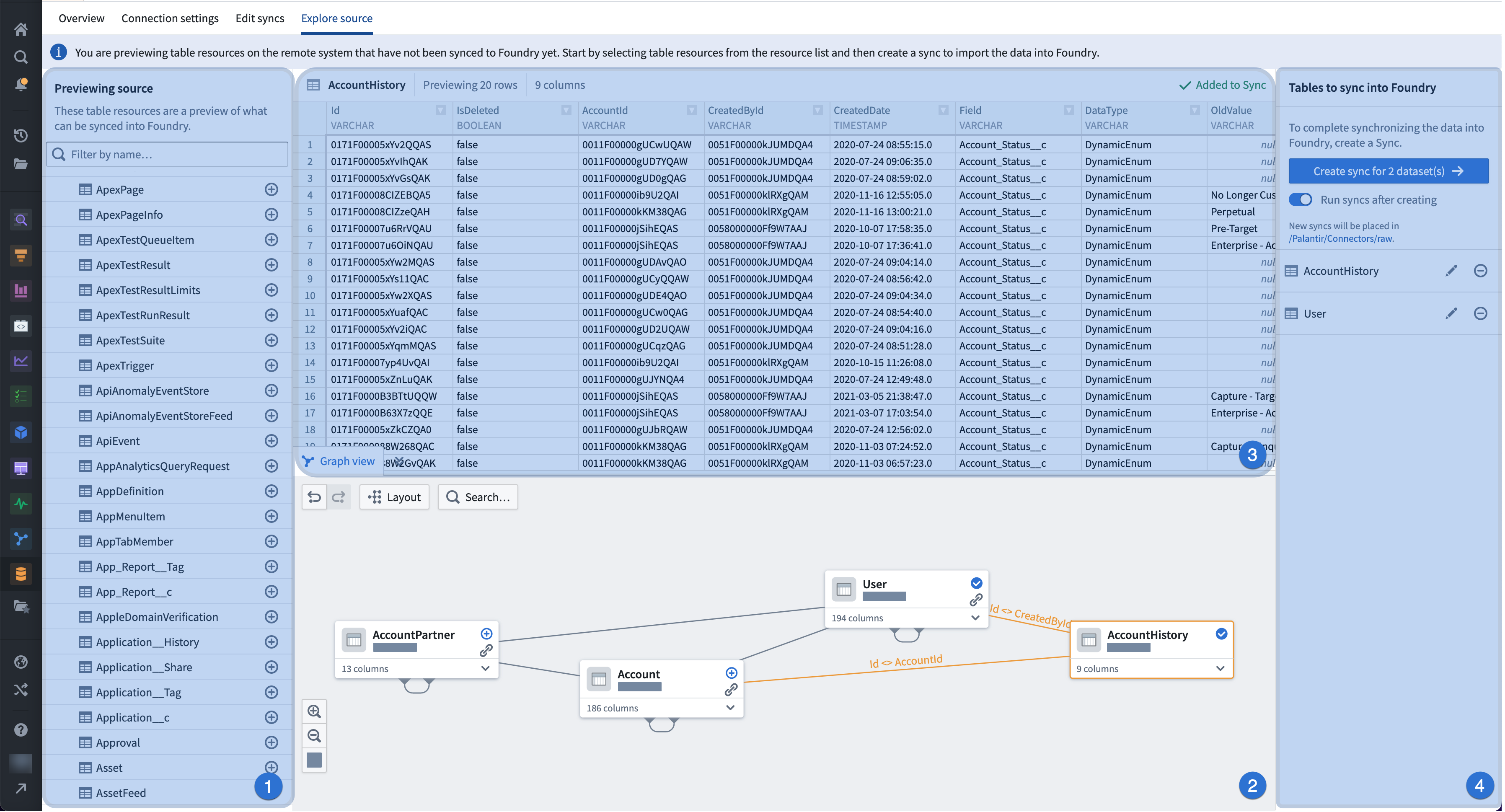
Table-based data
-
Left panel: Find and add tables and views from the source system to the graph. Use the free text search helper to find specific tables, or browse the tree to find resources.
-
Graph: Explore tables and views and the relationships between them. You can also create a sync from the graph by right-clicking on the table. When selecting a table with a relation, the foreign key will be highlighted within the expandable column list and above the link.
-
Note that the graph is not always available for table-based data exploration. For example, a graph would not appear for exploration of a table-based REST API model as there are no clear relations between objects.
-
Table details: Preview a sample of the selected table.
-
Right panel: Review chosen tables, and create syncs for the tables.
File-based data
-
Left panel: Explore and select the directory containing contents to sync into Foundry.
-
Preview: See a preview of the files that will be synced. A filter can be added to control which files get imported into Foundry.
-
Right panel: Review chosen tables, and create syncs for the tables.
中文翻译
源数据探索(Source exploration)
在配置从数据源同步时,您可能希望在将数据导入Foundry之前,先探索数据源及其包含的数据,以预览同步效果。根据数据源类型的不同,Data Connection允许您通过探索(Explore)页面预览同步数据。
要访问探索(Explore)页面,请按照以下步骤操作:
- 导航至数据源(Sources)页面,点击您要配置的数据源名称。
- 在同步页面的探索与创建同步(Explore and Create Syncs)组件中,选择探索(Explore)链接。
基于表的数据(Table-based data)
-
左侧面板: 查找并将数据源系统中的表和视图添加到图表中。使用自由文本搜索辅助工具查找特定表,或浏览树状结构查找资源。
-
图表(Graph): 探索表、视图及其之间的关系。您还可以通过右键单击表,从图表中创建同步。当选择带有关系的表时,外键将在可展开的列列表中和链接上方高亮显示。
-
请注意,图表并非始终可用于基于表的数据探索。例如,在探索基于表的REST API模型时,由于对象之间没有明确的关系,图表将不会显示。
-
表详情(Table details): 预览所选表的样本数据。
-
右侧面板: 查看已选择的表,并为这些表创建同步。
基于文件的数据(File-based data)
-
左侧面板: 探索并选择包含要同步到Foundry内容的目录。
-
预览(Preview): 查看将要同步的文件的预览。可以添加过滤器来控制哪些文件被导入Foundry。
-
右侧面板: 查看已选择的表,并为这些表创建同步。