Troubleshooting(故障排除)
When a source is not behaving as expected, use this page to diagnose and resolve the issue. It describes the troubleshooting tools available in Data Connection, where to look first when a connection is not working, and how to resolve common connectivity and certificate problems.
For problems specific to syncs or agents, see Capability-specific issues.
Where to start
Use this list as a first pass when a source or connection is not working.
- Confirm the source is reachable. On the source page, select Preview to confirm the connection is established. If it fails, open the source terminal and run
dig,curl, andopenssl s_clientagainst your source's hostname and port. - Check egress configuration. For Foundry worker sources, confirm that the correct egress policies are attached and that the addresses, ports, and protocols they allow match what the source connects to. Review the network egress logs.
- Check credentials. Re-enter credentials if you suspect they are stale, especially after a migration.
- Check certificates.
PKIXorSSLHandshakeExceptionerrors indicate that the correct certificates are not configured for the source. See Certificates and TLS. - Check OAuth authorization. If your source uses an outbound application,
HTTP 401: Unauthorizedand similar errors usually indicate that the calling user has not completed the interactive authorization flow, that the outbound application is disabled, or that the configured scopes are insufficient. See OAuth and outbound applications. - Hand off to AI FDE. For Foundry worker sources, use Debug with AI FDE to have AI FDE walk through these checks and surface specific fixes.
If your source uses an agent worker, also confirm the agent shows as Online in Data Connection and review the agents troubleshooting reference for status-specific guidance.
Troubleshooting tools
Data Connection provides several built-in tools to help you investigate connectivity, authentication, and data movement issues without leaving the platform.
Debug with AI FDE
For Foundry worker sources, you can hand off debugging to AI FDE, Palantir's AI-powered forward deployed engineer. AI FDE loads your source and its associated egress policies into context and uses the same egress logs and source debug tools described on this page to investigate connectivity failures on your behalf.
To start an AI FDE debugging session from a source:
- Open the source you want to debug in the Data Connection application.
- In the Connection details panel, select the dropdown caret next to Debug, then select Debug with AI FDE.
- AI FDE opens in a new tab with the source and its egress policies preloaded as context, and proposes a debugging plan that includes inspecting the source configuration, reviewing each egress policy, retrieving network egress logs, and running live connectivity tests.
AI FDE will summarize what is working, what is failing, and suggest specific fixes (for example: missing egress policies, incorrect address or port, TLS configuration issues, or credential problems).
:::callout{theme="neutral"} Debug with AI FDE is available only for sources that use a Foundry worker runtime. AI FDE requires AIP to be enabled on your enrollment. To learn more about how AI FDE works, what it can do, and how it manages context and permissions, see the AI FDE overview. :::
Source terminal
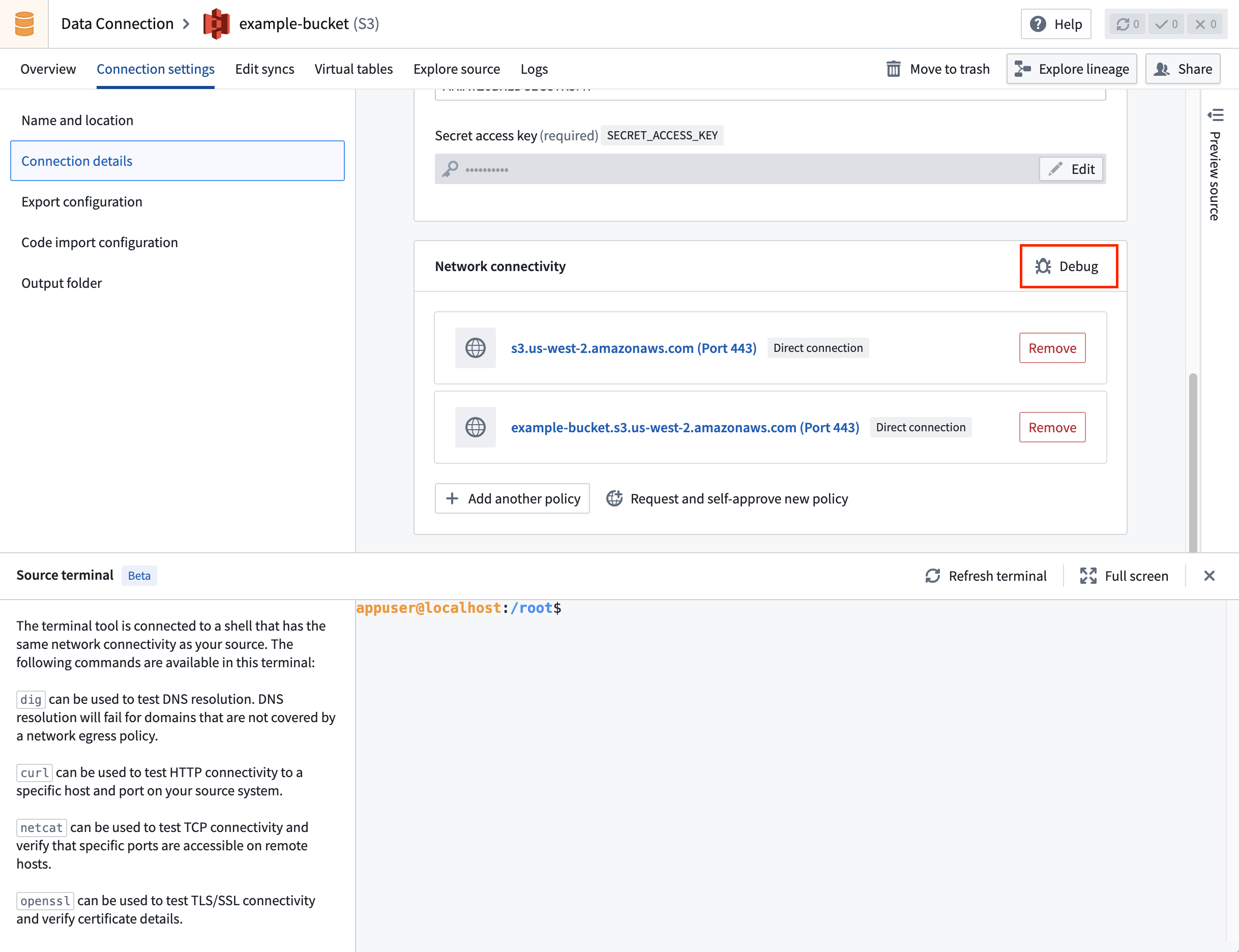
A terminal, using the same connectivity settings as your source, is available to help you test network connectivity with your external systems using commands such as dig, curl, netcat, and openssl.
To open the terminal, select Debug in the Network connectivity panel under Connection details on the source page.
dig
The dig command tests DNS resolution and can be used to check whether the hostname of your source resolves correctly. For example, to test whether DNS resolves palantir.com, run dig palantir.com. If you see an ANSWER SECTION in the response, DNS resolution succeeded.
The following is an example of a successful dig command:
appuser@localhost:/root$ dig palantir.com

; <<>> DiG 9.18.30-0ubuntu0.20.04.2-Ubuntu <<>> palantir.com
;; global options: +cmd
;; Got answer:
;; ->>HEADER<<- opcode: QUERY, status: NOERROR, id: 13561
;; flags: qr rd ra; QUERY: 1, ANSWER: 4, AUTHORITY: 0, ADDITIONAL: 0

;; QUESTION SECTION:
;palantir.com.                  IN      A

;; ANSWER SECTION:
palantir.com.           300     IN      A       151.101.129.170
palantir.com.           300     IN      A       151.101.1.170
palantir.com.           300     IN      A       151.101.193.170
palantir.com.           300     IN      A       151.101.65.170

;; Query time: 99 msec
;; SERVER: 10.100.0.53#53(10.100.0.53) (UDP)
;; WHEN: Fri Oct 31 14:56:58 UTC 2025
;; MSG SIZE  rcvd: 142
curl
The curl command tests HTTP connectivity to a specific host and port on the external system. If the port is not specified, it is inferred from the protocol (for example, 80 for HTTP or 443 for HTTPS). For example, to test whether connectivity can be established to https://palantir.com, run curl https://palantir.com.
The following is an example of a successful curl command:
appuser@localhost:/root$ curl https://palantir.com
<HTML><HEAD><meta http-equiv="content-type" content="text/html;charset=utf-8">
<TITLE>301 Moved</TITLE></HEAD><BODY>
<H1>301 Moved</H1>
The document has moved
<A HREF="https://www.palantir.com/">here</A>.
</BODY></HTML>
If the curl command is hanging, set a timeout (in seconds) using the --connect-timeout flag:
curl --connect-timeout 10 https://palantir.com
openssl
The openssl command tests SSL/TLS connectivity and verifies certificates for HTTPS connections. For example, to test whether an SSL/TLS connection can be established to palantir.com on port 443, run openssl s_client -connect palantir.com:443 -servername palantir.com.
The following is an example of a successful openssl command:
appuser@localhost:/root$ openssl s_client -connect palantir.com:443 -servername palantir.com
CONNECTED(00000003)
depth=2 C = BE, O = GlobalSign nv-sa, OU = Root CA, CN = GlobalSign Root CA
verify return:1
depth=1 C = BE, O = GlobalSign nv-sa, CN = GlobalSign Atlas R3 DV TLS CA 2024 Q2
verify return:1
depth=0 CN = *.palantir.com
verify return:1
---
Certificate chain
 0 s:CN = *.palantir.com
   i:C = BE, O = GlobalSign nv-sa, CN = GlobalSign Atlas R3 DV TLS CA 2024 Q2
   a:PKEY: rsaEncryption, 2048 (bit); sigalg: RSA-SHA256
   v:NotBefore: Jun 17 16:50:15 2024 GMT; NotAfter: Jul 19 16:50:14 2025 GMT
---
SSL handshake has read 3654 bytes and written 442 bytes
---
If the connection is successful, you will see certificate details and a message indicating the SSL handshake completed. If the command hangs or shows certificate verification errors, there may be network or certificate configuration issues.
Certificates configured in the UI are not automatically included in the terminal environment. To use them in the terminal, add them manually, either inline or with nano/vim:
echo "-----BEGIN CERTIFICATE-----
MIIGXjCCBUagAwIBAgIQASByQ6gv8Z6X7wEqsyBb1DANBgkqhkiG9w0BAQsFADBY
...
9lc=
-----END CERTIFICATE-----" > server-cert.pem
To test with custom certificates, such as self-signed certificates or mTLS, specify the certificate files:
openssl s_client -connect my-server.example.com:443 \
  -servername my-server.example.com \
  -CAfile server-cert.pem \
  -cert client-cert.pem \
  -key client-key.pem
If these commands succeed but your connection still does not work, some certificates or source credentials are likely configured incorrectly.
Network egress logs and metrics
For Foundry worker sources, network egress logs and metrics provide visibility into the actual network calls your source is making. These tools can help identify networking issues that may not be apparent from terminal-based debugging alone.
- Build logs: From a build page, select Logs and apply the Network egress logs filter to see the network egress activity for that build.
- Control Panel: Navigate to Control Panel > Network egress, select a policy, and open the Observability tab to view aggregated logs per source and usage metrics for the policy.
Source preview and exploration
Before debugging deeper, confirm whether the source is fundamentally reachable and configured correctly:
- Preview: On the source page, select Preview in the right panel to confirm that the connection has been successfully established.
- Explore: Use the source exploration view to inspect tables, files, and previews from the source. If exploration succeeds but a specific sync fails, the issue is more likely with the sync configuration than with the source.
Job tracker
To investigate the status of a running or recently completed sync, open the Job tracker application and select the sync. From there, you can inspect status, stages, and logs, including the _data-ingestion.log for JDBC syncs.
Connectivity and egress
For a connection to succeed, Foundry must be allowed to reach your external system over the network. Foundry worker sources control this through egress policies, which allowlist the specific hosts, ports, and protocols a source is permitted to connect to. A connection that fails before authentication is usually an egress problem.
To debug a suspected egress issue:
- Confirm that the correct egress policies are attached to the source, and that the host, port, and protocol they allow match the system you are connecting to.
- Use the source terminal to test whether the host is reachable at all, using
dig,curl, andopenssl s_client. - Review the network egress logs to see the actual outbound calls your source is making and identify which are being blocked.
To create or request an egress policy, see Configure egress policies.
Certificates and TLS
This section assumes that Foundry acts as the client establishing a connection to an external system that acts as the server. For background on the underlying concepts, see TLS ↗, mTLS ↗, and SSL ↗.
PKIX and SSL exceptions
PKIX exceptions and other SSLHandshakeExceptions occur when Foundry does not have the certificates needed to authenticate with the source. Install the correct certificates:
- Foundry worker sources: configure certificates in the source's settings. See Add certificates.
- Agent worker sources: see Data Connection and certificates.
For sources that only support the deprecated TLSv1.0 or TLSv1.1 protocols, see Connect to data sources using the insecure TLSv1.0 and TLSv1.1 protocols. Palantir discourages the use of deprecated TLS versions.
Server and client certificates
It is important to understand the difference between a server certificate and a client certificate.
Server certificates (TLS): When the Foundry client establishes a TLS connection with the external system, the external system presents a certificate to prove its identity and to provide the public key needed to establish an encrypted connection. The Foundry client then verifies the external system's identity by validating the certificate chain up to a trusted root Certificate Authority (CA). Most systems trust a well-known list of public CAs by default. You only need to add a server certificate to your source configuration (Foundry's truststore) if the external system presents a certificate that is not signed by one of these public CAs, such as a self-signed certificate or one issued by a private or internal CA. Server certificates are provided as the certificate only, never the private key.
Client certificates (mTLS): A client certificate is used by the Foundry client to prove its own identity to the external system. With mTLS, the external system and Foundry each verify the other's identity. Client certificates are provided as a certificate and private key pair.
To configure certificates, see Add certificates.
Common certificate errors
[SSL: CERTIFICATE_VERIFY_FAILED] certificate verify failed: self signed certificate in certificate chain
This error indicates that server certificates are missing from the source configuration. In Python environments, the entire certificate chain ↗ is validated by the underlying OpenSSL library when establishing secure connections.
To retrieve the entire certificate chain for an external system, run the following command:
openssl s_client -connect <external_systems_hostname>:<desired_port> -showcerts < /dev/null
:::callout{theme="neutral"} This command must be run from a host with network access to the external system. For Foundry worker sources, run it from the source terminal. For agent worker sources, run it from the agent host or another system with access to the agent's network. :::
OAuth and outbound applications
When a source is configured with an outbound application, authentication is delegated to an external OAuth 2.0 provider on behalf of the calling user. The user must complete the interactive authorization flow at least once before the source can be used from non-interactive contexts, such as scheduled functions or an automation.
Common OAuth errors
HTTP 401: Unauthorized
If a function or workflow returns HTTP 401: Unauthorized despite the source being configured with an outbound application, verify that:
- The user invoking the function has completed the interactive authorization flow at least once.
- The outbound application is Enabled in Control Panel.
- The scopes configured on the outbound application include the permissions required to access the requested API resource.
Credentials expired and no refresh handler provided
This error is surfaced when calling a source from a Python or TypeScript function. The cached refresh token has expired or was revoked by the external OAuth 2.0 server. The user must invoke the function (or another workflow backed by the same outbound application) from an interactive interface to complete the authorization flow again.
Resolved source credentials are not present on the Source
This error is surfaced when calling a source from a Python or TypeScript function. It indicates that the source does not have an outbound application configured, or that the calling identity could not be resolved to an authorized user. Confirm that the source's domain is configured with OAuth 2.0 authentication and that the function is invoked on behalf of an authenticated end user rather than a service account.
Capability-specific issues
The guidance above applies to any source. For problems specific to a particular capability, see the dedicated references:
- Syncs: Incremental JDBC behavior, intermittent failures and hangs,
REQUEST_ENTITY_TOO_LARGE,BadPaddingException, and unexpected data types: see the syncs troubleshooting reference. - Agent workers: Agent status, Agent Manager and Bootstrapper startup errors, out-of-memory conditions, download issues, and permissions: see the agents troubleshooting reference.
- Other common questions: Scheduling, duplicate rows, schema mismatches, and JDBC data types: see the Data Connection FAQ.
中文翻译
故障排除
当数据源(Source)行为不符合预期时,请使用本页面诊断并解决问题。本文介绍了Data Connection中可用的故障排除工具、连接异常时的首要排查方向,以及如何解决常见的连接性和证书问题。
有关同步(Sync)或代理(Agent)的特定问题,请参阅特定能力相关问题。
从何处入手
当数据源或连接无法正常工作时,请按以下列表进行初步排查。
- 确认数据源可达。 在数据源页面,选择预览(Preview)以确认连接已建立。如果失败,请打开数据源终端,针对数据源的主机名和端口运行
dig、curl和openssl s_client命令。 - 检查出口配置。 对于Foundry工作节点(Foundry worker)数据源,确认已附加正确的出口策略(Egress policies),并且策略允许的地址、端口和协议与数据源连接的目标相匹配。查看网络出口日志。
- 检查凭据。 如果怀疑凭据已过期(尤其是在迁移之后),请重新输入凭据。
- 检查证书。
PKIX或SSLHandshakeException错误表明数据源未配置正确的证书。请参阅证书与TLS。 - 检查OAuth授权。 如果数据源使用了出站应用程序(Outbound application),
HTTP 401: Unauthorized及类似错误通常表示调用用户尚未完成交互式授权流程、出站应用程序已被禁用,或配置的作用域(Scopes)不足。请参阅OAuth与出站应用程序。 - 交由AI FDE处理。 对于Foundry工作节点数据源,使用使用AI FDE调试让AI FDE逐步执行上述检查并给出具体的修复建议。
如果数据源使用了代理工作节点(Agent worker),还需确认代理在Data Connection中显示为在线(Online),并查阅代理故障排除参考以获取针对特定状态的指导。
故障排除工具
Data Connection提供了多种内置工具,帮助您在不离开平台的情况下调查连接性、身份验证和数据移动问题。
使用AI FDE调试
对于Foundry工作节点数据源,您可以交由AI FDE(Palantir的AI驱动前部署工程师)进行调试。AI FDE会将您的数据源及其关联的出口策略加载到上下文中,并使用本页面描述的出口日志和数据源调试工具代表您调查连接故障。
要从数据源启动AI FDE调试会话:
- 在Data Connection应用程序中打开您要调试的数据源。
- 在连接详情(Connection details)面板中,选择调试(Debug)旁边的下拉箭头,然后选择使用AI FDE调试(Debug with AI FDE)。
- AI FDE会在新标签页中打开,并预加载数据源及其出口策略作为上下文,同时提出一个调试计划,包括检查数据源配置、审查每条出口策略、检索网络出口日志以及运行实时连接测试。
AI FDE将总结哪些部分正常工作、哪些部分失败,并建议具体的修复措施(例如:缺少出口策略、地址或端口错误、TLS配置问题或凭据问题)。
:::callout{theme="neutral"} 使用AI FDE调试仅适用于使用Foundry工作节点运行时的数据源。AI FDE需要在您的注册中启用AIP。要了解更多关于AI FDE的工作原理、功能以及如何管理上下文和权限的信息,请参阅AI FDE概述。 :::
数据源终端
数据源提供了一个终端,使用与数据源相同的连接设置,可帮助您使用dig、curl、netcat和openssl等命令测试与外部系统的网络连接。
要打开终端,请在数据源页面的连接详情(Connection details)下的网络连接性(Network connectivity)面板中选择调试(Debug)。
dig
dig命令用于测试DNS解析,可用于检查数据源的主机名是否正确解析。例如,要测试DNS是否解析palantir.com,请运行dig palantir.com。如果在响应中看到ANSWER SECTION,则DNS解析成功。
以下是dig命令成功的示例:
appuser@localhost:/root$ dig palantir.com

; <<>> DiG 9.18.30-0ubuntu0.20.04.2-Ubuntu <<>> palantir.com
;; global options: +cmd
;; Got answer:
;; ->>HEADER<<- opcode: QUERY, status: NOERROR, id: 13561
;; flags: qr rd ra; QUERY: 1, ANSWER: 4, AUTHORITY: 0, ADDITIONAL: 0

;; QUESTION SECTION:
;palantir.com.                  IN      A

;; ANSWER SECTION:
palantir.com.           300     IN      A       151.101.129.170
palantir.com.           300     IN      A       151.101.1.170
palantir.com.           300     IN      A       151.101.193.170
palantir.com.           300     IN      A       151.101.65.170

;; Query time: 99 msec
;; SERVER: 10.100.0.53#53(10.100.0.53) (UDP)
;; WHEN: Fri Oct 31 14:56:58 UTC 2025
;; MSG SIZE  rcvd: 142
curl
curl命令用于测试到外部系统特定主机和端口的HTTP连接。如果未指定端口,则根据协议推断(例如,HTTP为80,HTTPS为443)。例如,要测试是否能够建立到https://palantir.com的连接,请运行curl https://palantir.com。
以下是curl命令成功的示例:
appuser@localhost:/root$ curl https://palantir.com
<HTML><HEAD><meta http-equiv="content-type" content="text/html;charset=utf-8">
<TITLE>301 Moved</TITLE></HEAD><BODY>
<H1>301 Moved</H1>
The document has moved
<A HREF="https://www.palantir.com/">here</A>.
</BODY></HTML>
如果curl命令挂起,请使用--connect-timeout标志设置超时时间(以秒为单位):
curl --connect-timeout 10 https://palantir.com
openssl
openssl命令用于测试SSL/TLS连接并验证HTTPS连接的证书。例如,要测试是否能够与palantir.com的443端口建立SSL/TLS连接,请运行openssl s_client -connect palantir.com:443 -servername palantir.com。
以下是openssl命令成功的示例:
appuser@localhost:/root$ openssl s_client -connect palantir.com:443 -servername palantir.com
CONNECTED(00000003)
depth=2 C = BE, O = GlobalSign nv-sa, OU = Root CA, CN = GlobalSign Root CA
verify return:1
depth=1 C = BE, O = GlobalSign nv-sa, CN = GlobalSign Atlas R3 DV TLS CA 2024 Q2
verify return:1
depth=0 CN = *.palantir.com
verify return:1
---
Certificate chain
 0 s:CN = *.palantir.com
   i:C = BE, O = GlobalSign nv-sa, CN = GlobalSign Atlas R3 DV TLS CA 2024 Q2
   a:PKEY: rsaEncryption, 2048 (bit); sigalg: RSA-SHA256
   v:NotBefore: Jun 17 16:50:15 2024 GMT; NotAfter: Jul 19 16:50:14 2025 GMT
---
SSL handshake has read 3654 bytes and written 442 bytes
---
如果连接成功,您将看到证书详细信息以及SSL握手完成的消息。如果命令挂起或显示证书验证错误,则可能存在网络或证书配置问题。
在UI中配置的证书不会自动包含在终端环境中。要在终端中使用它们,请手动添加,可以内联添加或使用nano/vim:
echo "-----BEGIN CERTIFICATE-----
MIIGXjCCBUagAwIBAgIQASByQ6gv8Z6X7wEqsyBb1DANBgkqhkiG9w0BAQsFADBY
...
9lc=
-----END CERTIFICATE-----" > server-cert.pem
要使用自定义证书(如自签名证书或mTLS)进行测试,请指定证书文件:
openssl s_client -connect my-server.example.com:443 \
  -servername my-server.example.com \
  -CAfile server-cert.pem \
  -cert client-cert.pem \
  -key client-key.pem
如果这些命令成功但您的连接仍然无法工作,则可能是某些证书或数据源凭据配置错误。
网络出口日志和指标
对于Foundry工作节点数据源,网络出口日志和指标可提供数据源实际发出的网络调用的可见性。这些工具有助于识别仅通过终端调试可能不明显的网络问题。
- 构建日志(Build logs): 从构建页面,选择日志(Logs)并应用网络出口日志(Network egress logs)过滤器,以查看该构建的网络出口活动。
- 控制面板(Control Panel): 导航至控制面板 > 网络出口(Control Panel > Network egress),选择一个策略,然后打开可观测性(Observability)选项卡,查看按数据源聚合的日志以及该策略的使用指标。
数据源预览和探索
在进行更深入的调试之前,请先确认数据源是否基本可达且配置正确:
- 预览(Preview): 在数据源页面,选择右侧面板中的预览(Preview)以确认连接已成功建立。
- 探索(Explore): 使用数据源探索视图检查数据源中的表、文件和预览。如果探索成功但特定同步失败,则问题更可能出在同步配置而非数据源本身。
任务跟踪器(Job tracker)
要调查正在运行或最近完成的同步的状态,请打开任务跟踪器(Job tracker)应用程序并选择该同步。从那里,您可以检查状态、阶段和日志,包括JDBC同步的_data-ingestion.log。
连接性与出口
要成功建立连接,必须允许Foundry通过网络访问您的外部系统。Foundry工作节点数据源通过出口策略控制这一点,这些策略白名单列出了数据源被允许连接的特定主机、端口和协议。在身份验证之前失败的连接通常是出口问题。
要调试疑似出口问题:
- 确认正确的出口策略已附加到数据源,并且策略允许的主机、端口和协议与您要连接的系统匹配。
- 使用数据源终端通过
dig、curl和openssl s_client测试主机是否可达。 - 查看网络出口日志,了解数据源实际发出的出站调用,并识别哪些调用被阻止。
要创建或请求出口策略,请参阅配置出口策略。
证书与TLS
本节假设Foundry作为客户端,建立与作为服务器的外部系统的连接。有关基础概念的背景信息,请参阅TLS ↗、mTLS ↗和SSL ↗。
PKIX和SSL异常
当Foundry没有与数据源进行身份验证所需的证书时,会出现PKIX异常和其他SSLHandshakeException。请安装正确的证书:
- Foundry工作节点数据源: 在数据源设置中配置证书。请参阅添加证书。
- 代理工作节点数据源: 请参阅Data Connection与证书。
对于仅支持已弃用的TLSv1.0或TLSv1.1协议的数据源,请参阅使用不安全的TLSv1.0和TLSv1.1协议连接到数据源。Palantir不鼓励使用已弃用的TLS版本。
服务器证书与客户端证书
理解服务器证书和客户端证书之间的区别非常重要。
服务器证书(TLS): 当Foundry客户端与外部系统建立TLS连接时,外部系统会出示证书以证明其身份,并提供建立加密连接所需的公钥。然后,Foundry客户端通过验证证书链直到受信任的根证书颁发机构(CA)来验证外部系统的身份。大多数系统默认信任一个众所周知的公共CA列表。仅当外部系统出示的证书不是由这些公共CA之一签名时(例如自签名证书或由私有/内部CA颁发的证书),您才需要将服务器证书添加到数据源配置(Foundry的truststore)中。服务器证书仅提供证书本身,绝不提供私钥。
客户端证书(mTLS): Foundry客户端使用客户端证书向外部系统证明其自身身份。使用mTLS时,外部系统和Foundry会相互验证对方的身份。客户端证书以证书和私钥对的形式提供。
要配置证书,请参阅添加证书。
常见证书错误
[SSL: CERTIFICATE_VERIFY_FAILED] certificate verify failed: self signed certificate in certificate chain
此错误表示数据源配置中缺少服务器证书。在Python环境中,建立安全连接时,底层OpenSSL库会验证整个证书链 ↗。
要检索外部系统的完整证书链,请运行以下命令:
openssl s_client -connect <external_systems_hostname>:<desired_port> -showcerts < /dev/null
:::callout{theme="neutral"} 此命令必须从具有外部系统网络访问权限的主机上运行。对于Foundry工作节点数据源,请从数据源终端运行。对于代理工作节点数据源,请从代理主机或具有代理网络访问权限的其他系统运行。 :::
OAuth与出站应用程序
当数据源配置了出站应用程序时,身份验证将代表调用用户委托给外部OAuth 2.0提供程序。用户必须至少完成一次交互式授权流程,然后才能从非交互式上下文(如计划函数或自动化)中使用该数据源。
常见OAuth错误
HTTP 401: Unauthorized
如果函数或工作流返回HTTP 401: Unauthorized,尽管数据源已配置了出站应用程序,请验证:
- 调用该函数的用户是否至少完成了一次交互式授权流程。
- 出站应用程序在控制面板中是否为已启用(Enabled)状态。
- 出站应用程序上配置的作用域(Scopes)是否包含访问所请求API资源所需的权限。
Credentials expired and no refresh handler provided
从Python或TypeScript函数调用数据源时会出现此错误。缓存的刷新令牌已过期或被外部OAuth 2.0服务器撤销。用户必须从交互式界面调用该函数(或由同一出站应用程序支持的其他工作流)以再次完成授权流程。
Resolved source credentials are not present on the Source
从Python或TypeScript函数调用数据源时会出现此错误。这表明数据源未配置出站应用程序,或者无法将调用身份解析为授权用户。请确认数据源的域配置了OAuth 2.0身份验证,并且该函数是代表经过身份验证的最终用户而非服务帐户调用的。
特定能力相关问题
上述指导适用于任何数据源。对于特定能力的相关问题,请参阅专门的参考资料:
- 同步(Syncs): 增量JDBC行为、间歇性故障和挂起、
REQUEST_ENTITY_TOO_LARGE、BadPaddingException以及意外数据类型:请参阅同步故障排除参考。 - 代理工作节点(Agent workers): 代理状态、Agent Manager和Bootstrapper启动错误、内存不足情况、下载问题和权限:请参阅代理故障排除参考。
- 其他常见问题: 调度、重复行、模式不匹配和JDBC数据类型:请参阅Data Connection常见问题解答。