BigQuery
Connect Foundry to Google BigQuery to read and sync data between BigQuery tables and Foundry datasets.
Supported capabilities
| Capability | Status |
|---|---|
| Exploration | 🟢 Generally available |
| Bulk import | 🟢 Generally available |
| Incremental | 🟢 Generally available |
| Virtual tables | 🟢 Generally available |
| Compute pushdown | 🟢 Generally available |
| Export tasks | 🟡 Sunset |
Setup
- Open the Data Connection application and select + New Source in the upper right corner of the screen.
- Select BigQuery from the available connector types.
- Follow the additional configuration prompts to continue the setup of your connector using the information in the sections below.
Learn more about setting up a connector in Foundry.
:::callout{theme="warning"} You must have a Google Cloud IAM service account ↗ to proceed with BigQuery authentication and set up. :::
Authentication
The following Identity and Access Management (IAM) roles are required to use a BigQuery connector:
Read BigQuery data:
BigQuery Read Session User: Granted on BigQuery ProjectBigQuery Data Viewer: Granted on BigQuery data to read data and metadataBigQuery Job User(optional): Granted to ingest views and run custom queries
Export data to BigQuery from Foundry:
BigQuery Data Editor: Granted on BigQuery dataset or ProjectBigQuery Job User: Granted on BigQuery ProjectStorage Object Admin: Granted on bucket if data is exported with Google Cloud Storage
Use temporary tables:
BigQuery Data Editor: Granted for BigQuery Project if dataset is automatically created by the connectorBigQuery Data Editor: Granted for the provided dataset as a place to store temporary tables
Learn more about required roles in the Google Cloud documentation on access control ↗.
Choose from one of the available authentication methods:
- GCP instance account: Refer to the Google Cloud documentation ↗ for information on how to set up instance-based authentication.
- Note that GCP instance authentication only works for connectors operating through agents that run on appropriately configured instances in GCP.
-
Note that virtual tables do not support GCP instance authentication credentials.
-
Service account key file: Refer to the Google Cloud documentation ↗ for information on how to set up service account key file authentication. The key file can be provided as JSON or PKCS8 credentials.
-
Workload Identity Federation (OIDC): Follow the displayed source system configuration instructions to set up OIDC. Refer to the Google Cloud Documentation ↗ for details on Workload Identity Federation and our documentation for details on how OIDC works with Foundry.
Networking
The BigQuery connector requires network access to the following domains on port 443:
bigquery.googleapis.combigquerystorage.googleapis.comstorage.googleapis.comwww.googleapis.com
Additional access may be required to the following domains:
oauth2.googleapis.comaccounts.google.com
If you are establishing a direct connection between Foundry on Google Cloud Platform (GCP) with BigQuery on GCP, you must also enable the connection through the relevant VPC service controls. If this connection is required for your setup, contact Palantir Support for additional guidance.
Connection details
The following configuration options are available for the BigQuery connector:
| Option | Required? | Description |
|---|---|---|
Project ID |
Yes | The ID of the BigQuery Project; This Project will be charged for BigQuery compute usage regardless of what data is synced |
Credentials settings |
Yes | Configure using the Authentication guidance shown above. |
Cloud Storage bucket |
No | Add a name of a Cloud Storage bucket to be used as a staging location for writing data to BigQuery. |
Proxy settings |
No | Enable to allow a proxy connection to BigQuery. |
Settings for temporary tables |
No [1] | Enable to use temporary tables. |
gRPC Settings |
No | Advanced settings used to configure gRPC channels. |
Spark settings |
No [2] | Enable Spark-compatible BIGNUMERIC scale and precision to read unparameterized BIGNUMERIC columns in Spark when using virtual tables. When enabled, unparameterized BIGNUMERIC columns will use maximum precision and scale that is compatible with Spark's DecimalType. |
Additional projects |
No | Add the IDs of any additional Projects that must be accessed by the same connection; the Google Cloud account used as credentials for this connector will need to have access to these Projects. The connector Project Id will be charged for any BigQuery data access or compute usage. |
[1] Temporary tables must be enabled when registering BigQuery views ↗ via virtual tables.
[2] Spark-compatible BIGNUMERIC scale and precision must be enabled in order to read unparameterized BIGNUMERIC columns. Given Spark supports a maximum precision and scale of 38 and 18 respectively, there may be data loss if the data's precision or scale in BigQuery exceeds these limits. Parameterized BIGNUMERIC columns with a precision or scale that exceed Spark's limits are not supported.
Sync data from BigQuery
:::callout{theme="neutral"} For more complex scenarios, use virtual tables or pro-code alternatives. :::
The BigQuery connector allows for advanced sync configurations for large data syncs and custom queries.
To set up a BigQuery sync, select Explore and create syncs in the upper right of the source Overview screen. Next, select the tables you want to sync into Foundry. When you are ready to sync, select Create sync for x datasets.
Learn more about source exploration in Foundry.
After exploring your available syncs and adding them to your connector, navigate to Edit syncs. From the Syncs panel to the left, find the sync you want to configure and select > to the right.
Data model
Tables from BigQuery are imported into Foundry with the data saved in Avro format. Columns of type BIGNUMERIC and TIME are not supported at the time of import.
When exporting data from Foundry to BigQuery, all column types except for MAPS, STRUCTS and ARRAYS are supported.
Import settings
Choose what data will be synced from BigQuery into Foundry.
Sync full table
Enter the following information to sync entire tables to Foundry:
| Option | Required? | Description |
|---|---|---|
BigQuery project Id |
No | The ID of the Project to which the table belongs. |
BigQuery dataset |
Yes | The name of the dataset to which the table belongs. |
BigQuery table |
No | The name of the table being synced into Foundry. |
Custom SQL
Any arbitrary query can be run, and the results will be saved in Foundry. The query output must be smaller than 20GB (the maximum BigQuery table size), or temporary table usage must be enabled. Queries must start with the keyword select or with. For example: SELECT * from table_name limit 100;.
Incremental syncs
Typically, syncs will import all matching rows from the target table, regardless if data changed between syncs or not. Incremental syncs, by contrast, maintain state about the most recent sync and only ingest new matching rows from the target.
Incremental syncs can be used when ingesting large tables from BigQuery. To use incremental syncs, the table must contain a column that is strictly monotonically increasing. Additionally, the table or query being read from must contain a column with one of the following data types:
INT64FLOAT64NUMERICBIGNUMERICSTRINGTIMESTAMPDATETIMEDATETIME
Example: A 5 TB table contains billions of rows that we want to sync to BigQuery. The table has a monotonically increasing column called id. The sync can be configured to ingest 50 million rows at a time using the id column as the incremental column, with an initial value of -1 and a configured limit of 50 million rows.
When a sync is initially run, the first 50 million rows (ascending based on id) containing an id value greater than -1 will be ingested into Foundry. For example, if this sync was run several times and the largest id that was ingested during the last run of this sync was 19384004822, the next sync will ingest the next 50 million rows starting with the first id greater than 19384004822, and so on.
Incremental syncs require the following configurations:
| Option | Required? | Description |
|---|---|---|
| Column | Yes | Select the column that will be used for incremental ingests. The dropdown will be empty if the table does not contain any supported columns types. |
Initial value |
Yes | The value from which to start syncing data. |
Limit |
No | The number of records to download in a single sync. |
Incremental syncs for custom queries
To enable incremental queries for custom query syncs, the query must be updated to match the following format:
SELECT * from table_name where incremental_column_name > @value order by incremental_column_name asc limit @limit
Temporary tables
When syncing more than 20GB of data from a non-standard BigQuery table, temporary tables must be enabled. Temporary tables allow BigQuery to import results from large query outputs, import data from views and other non-standard tables, and allow for large incremental imports and ingests.
A single sync can import data up to the size available on the disk. For syncs running on a Foundry worker, this is typically limited to 600 GB. Use incremental syncs to import larger tables.
To use temporary tables, enable Settings for temporary tables in the connector configuration and, if needed, configure the following settings:
- Automatically create dataset: Select this option to create a
Palantir_temporary_tablesdataset to store temporary tables. This option requires the BigQuery account to have theBigQuery Data Editorrole on the project. - Provide dataset to use: Select this option to manually add the Project ID and Dataset name of the dataset you want to use to store temporary tables. This option requires the BigQuery account to have the
BigQuery Data Editorrole on the dataset provided.
Note that temporary tables must be enabled when using BigQuery views ↗ with virtual tables.
Export data to BigQuery
:::callout{theme="neutral"} For more complex scenarios, use pro-code alternatives. :::
Export to BigQuery is done via export tasks.
The connector can export to BigQuery in two ways:
- Through Google Cloud Storage as an intermediary store (recommended). See the section below on exporting via Cloud Storage for more information.
- Through BigQuery APIs see Reading data from local files ↗ for details on API used
Writing through APIs is suitable for a data scale of several million rows. The expected performance for this mode is to export one million rows in approximately two minutes. If your data scale range reaches billions of rows, use Google Cloud Storage instead.
Task configuration
To begin exporting data, you must configure an export task. Navigate to the Project folder that contains the connector to which you want to export. Right select on the connector name, then select Create Data Connection Task.
In the left side panel of the Data Connection view, verify the Source name matches the connector you want to use. Then, add an input dataset to the Input field. The input dataset must be called inputDataset, and it is the Foundry dataset being exported. The export task also requires one Output to be configured. The output dataset must be called outputDataset and point to a Foundry dataset. The output dataset is used to run, schedule, and monitor the task.
In the left panel of the Data Connection view:
- Verify the
Sourcename matches the connector you want to use. - Add an
InputnamedinputDataset. The input dataset is the Foundry dataset being exported. - Add an
OutputnamedoutputDataset. The output dataset is used to run, schedule, and monitor the task. - Finally, add a YAML block in the text field to define the task configuration.
:::callout{theme="neutral"} The labels for the connector and input dataset that appear in the left side panel do not reflect the names defined in the YAMl. :::
Use the following options when creating the export task YAML:
| Option | Required? | Default | Description |
|---|---|---|---|
project |
No | The Project ID of the connector | The ID of the Project that the destination table belongs to. |
dataset |
Yes | The name of the dataset to which the table belongs. | |
table |
Yes | The name of the table to which the data will be exported. | |
incrementalType |
Yes | SNAPSHOT | The value can either be SNAPSHOT or REQUIRE_INCREMENTAL. • Export in snapshot mode: Contents of the destination table will be replaced. • Export in incremental mode: Contents will be appended to the existing table. |
:::callout{theme="neutral"}
To set up incremental exports, run the first export as SNAPSHOT, then change incrementalType to REQUIRE_INCREMENTAL.
:::
Example task configuration:
type: magritte-bigquery-export-task
config:
    table:
      dataset: datasetInBigQuery
      table: tableInBigQuery
      project: projectId #(Optional: Do not specify unless the Project for export differs from the Project configured for the connector.)
    incrementalType: SNAPSHOT | REQUIRE_INCREMENTAL
:::callout{theme="neutral"} Only datasets containing rows stored in Parquet format are supported for export to BigQuery. :::
After you configure the export task, select Save in the upper right corner.
Append rows to output table
If you need to append rows to the destination table, you can use REQUIRE_INCREMENTAL rather than replacing the dataset.
:::callout{theme="warning"} Incremental syncs require that rows are only appended to the input dataset and that the destination table in BigQuery matches the schema of the input dataset in Foundry. :::
Export via Cloud Storage (recommended)
To export via Cloud Storage, a Cloud Storage bucket must be configured in the connector configuration settings. Additionally, the Cloud Storage bucket must only be used for temporary tables for the connector so that any data temporarily written to the bucket is accessible to the least amount of users possible.
We recommend exporting to BigQuery via Cloud Storage rather than BigQuery APIs; Cloud Storage operates better at scale and does not create temporary tables in BigQuery.
Export via BigQuery APIs
The export job creates a temporary table alongside the destination table; this temporary table will not have extra access restrictions applied. Additionally, the SNAPSHOT export drops and recreates the table, meaning the extra access restrictions will also be dropped.
During an export via BigQuery APIs, data is exported to the temporary table datasetName.tableName_temp_$timestamp. Once the export is complete, rows are automatically transferred from the temporary table to the destination table.
:::callout{theme="warning"} Hive table partitions are not supported for export through BigQuery APIs. For datasets partitioned with Hive tables, export through Cloud Storage instead. :::
You can share the destination table if the export is run in REQUIRE_INCREMENTAL mode. Running in SNAPSHOT mode recreates the table on each run, and the sharing would need to be reapplied.
:::callout{theme="warning"} To successfully export via BigQuery APIs, do not apply BigQuery row-level or column-level permissions to the exported table. :::
Use BigQuery sources in code
Pro-code alternatives can be used to connect to BigQuery sources for more complex scenarios.
The examples below demonstrate how to connect to a BigQuery source using the Python client for Google BigQuery ↗ google-cloud-bigquery in an external transform.
These examples are based on a Shipments table stored in BigQuery that represents a list of package shipments with their weight, carrier, and tracking number.
Read from BigQuery with an external transform
This example reads shipments from a given list of carriers and above a certain weight.
from pandas import DataFrame
from transforms.api import lightweight, Output, Input, transform_pandas
from transforms.external.systems import ResolvedSource, external_systems, Source
from google.cloud import bigquery
import json

@lightweight
@external_systems(
    bigquery_source=Source("<source_rid>")
)
@transform_pandas(
    Output("<dataset_rid>"),
    carriers_df=Input("<dataset_rid>") # dataframe with schema [carrier_name: String, carrier_details: String]
)
def read(bigquery_source: ResolvedSource, carriers_df: DataFrame) -> DataFrame:
    # Authenticate BigQuery client
    account_info = json.loads(bigquery_source.get_secret("jsonCredentials"))
    client = bigquery.Client.from_service_account_info(account_info)

    # Table reference
    bigquery_project = "<bigquery_project_id>"
    bigquery_dataset = "<bigquery_dataset_id>"
    bigquery_table = "<bigquery_table_id>"
    table_ref = f"{bigquery_project}.{bigquery_dataset}.{bigquery_table}"

    # Filter parameters
    carrier_list = carriers_df['carrier_name'].drop_duplicates().tolist()
    min_weight = 10

    job_config = bigquery.QueryJobConfig(
        query_parameters=[
            bigquery.ArrayQueryParameter("carrier_list", "STRING", carrier_list),
            bigquery.ScalarQueryParameter("min_weight", "FLOAT64", min_weight)
        ]
    )

    query = f"""
        SELECT shipment_id, carrier, weight, tracking_number
        FROM `{table_ref}`
        WHERE carrier IN UNNEST(@carrier_list) AND weight >= @min_weight
    """

    query_job = client.query(query, job_config=job_config)
    return query_job.to_dataframe()
Write to BigQuery with an external transform
This function updates tracking numbers for shipments based on the provided shipment information, and then returns the updated shipment details.
from pandas import DataFrame
from transforms.api import lightweight, Output, Input, transform_pandas
from transforms.external.systems import ResolvedSource, external_systems, Source
from google.cloud import bigquery
import json

@lightweight
@external_systems(
    bigquery_source=Source("<source_rid>")
)
@transform_pandas(
    Output("<dataset_rid>"),
    shipments_df=Input("<dataset_rid>"), # DataFrame with schema [shipment_id: Long, tracking_number: String]
)
def update_tracking_numbers(bigquery_source: ResolvedSource, shipments_df: DataFrame) -> DataFrame:
    # Authenticate BigQuery client
    account_info = json.loads(bigquery_source.get_secret("jsonCredentials"))
    client = bigquery.Client.from_service_account_info(account_info)

    # Table reference
    bigquery_project = "<bigquery_project_id>"
    bigquery_dataset = "<bigquery_dataset_id>"
    bigquery_table = "<bigquery_table_id>"
    table_ref = f"{bigquery_project}.{bigquery_dataset}.{bigquery_table}"

    # 1. Clear temporary table if it exists
    temp_table_id = f"{bigquery_project}.{bigquery_dataset}.temp_update_tracking"
    client.delete_table(temp_table_id, not_found_ok=True)


    # 2. Upload shipments_df to a temporary table
    load_job_config = bigquery.LoadJobConfig(
        schema=[
            bigquery.SchemaField("shipment_id", "INT64"),
            bigquery.SchemaField("tracking_number", "STRING"),
        ]
    )
    job = client.load_table_from_dataframe(shipments_df, temp_table_id, job_config=load_job_config)
    job.result()  # Wait for load to finish

    # 3. MERGE to update tracking_number in main table
    merge_query = f"""
    MERGE `{table_ref}` T
    USING `{temp_table_id}` S
    ON T.shipment_id = S.shipment_id
    WHEN MATCHED THEN
      UPDATE SET tracking_number = S.tracking_number
    """

    client.query(merge_query).result()

    # 3. (Optional) Clean up temporary table
    client.delete_table(temp_table_id, not_found_ok=True)

    # Optionally, return the updated rows as a DataFrame for confirmation
    updated_ids = shipments_df["shipment_id"].tolist()
    query = f"""
        SELECT shipment_id, tracking_number
        FROM `{table_ref}`
        WHERE shipment_id IN UNNEST(@updated_ids)
    """
    job_config = bigquery.QueryJobConfig(
        query_parameters=[
            bigquery.ArrayQueryParameter("updated_ids", "INT64", [int(x) for x in updated_ids])
        ]
    )
    updated_rows = client.query(query, job_config=job_config).to_dataframe()
    return updated_rows
Virtual tables
This section provides additional details around using virtual tables with a BigQuery source. This section is not applicable when syncing to Foundry datasets.
The table below highlights the virtual table capabilities that are supported for BigQuery.
| Capability | Status |
|---|---|
| Bulk registration | 🟢 Generally available |
| Automatic registration | 🟢 Generally available |
| Table inputs | 🟢 Generally available: tables, views, materialized views in Code Repositories, Pipeline Builder |
| Table outputs | 🟢 Generally available: tables in Code Repositories, Pipeline Builder |
| Incremental pipelines | 🟢 Generally available: APPEND only [1] |
| Compute pushdown | 🟢 Generally available |
Consult the virtual tables documentation for details on the supported Foundry workflows where BigQuery tables can be used as inputs or outputs.
[1] To enable incremental support for pipelines backed by BigQuery virtual tables, ensure that Time Travel ↗ is enabled with the appropriate retention period. This functionality relies on Change History ↗ and is currently append-only. The current and added read modes in Python Transforms are supported. The _CHANGE_TYPE and _CHANGE_TIMESTAMP columns will be made available in Python Transforms.
:::callout{theme="warning"}
It is critical to ensure that incremental pipelines backed by virtual tables are built on APPEND-only source tables, as BigQuery does not provide UPDATE or DELETE change information. See official BigQuery documentation ↗ for more details.
:::
Source configuration requirements
When using virtual tables, remember the following source configuration requirements:
- You must use a Foundry worker source. Virtual tables do not support use of agent worker connections.
- Ensure that bi-directional connectivity and allowlisting is established as described in the Networking section of this documentation.
- If using virtual tables in Code Repositories, refer to the Virtual Tables documentation for details of additional source configuration required.
- Use service account key file credentials or Workload Identity Federation (OIDC). Instance-based authentication is not supported with virtual tables.
- Temporary tables must be enabled in order to register BigQuery views ↗, and the relevant roles must be added to the authentication credentials.
- Configure Spark settings to read unparameterized
BIGNUMERICcolumns in Spark.
See the Connection details and Temporary tables section above for more details.
Compute pushdown
Foundry offers the ability to push down compute to BigQuery when using virtual tables. Virtual table inputs leverage the BigQuery Spark connector ↗ which has built-in support for predicate pushdown.
When using BigQuery virtual tables registered to the same source as inputs and outputs to a pipeline, it is possible to fully federate compute to BigQuery. This feature is currently available in Python transforms. See the Python documentation for details on how to push down compute to BigQuery.
Troubleshooting
Not found: Dataset <dataset> was not found in location <location>
BigQuery determines the location where a given query will be run based on either the inputs used in the query or where the results of the query are being stored. When temporary tables are used, the output is set to a temporary table in the temporary tables dataset; the location of this dataset will determine where the query is run. Ensure that all inputs of the sync and the temporary tables dataset are in the same region. If the Automatically create dataset. setting is enabled, use the Google Cloud console or Google's SDKs/APIs to determine the location of the dataset called Palantir_temporary_tables.
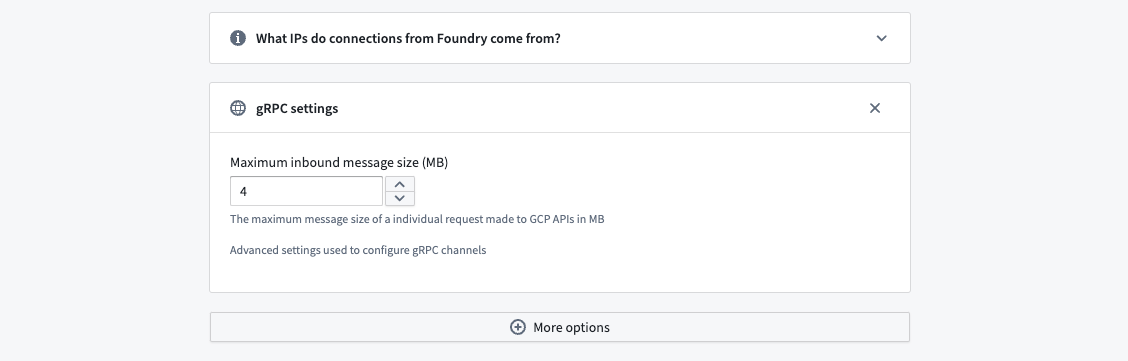
gRPC message exceeds maximum size
If syncing data with large content like JSON columns, the transfer may fail with the above error. Adjust BigQuery's Maximum inbound message size in gRPC Settings on the source to increase data transfer in a single API call. Remember, a single call fetches multiple rows, so setting it to the largest row size may not be enough.
You can find this configuration option by navigating to Connection Settings > Connection Details, then scrolling to More options and selecting gRPC Settings.
Preview fails to load for a dataset or virtual table based on a BigQuery view
If your preview fails to load and the target BigQuery table is a view, this may be the result of a schema mismatch. Views' schemas are determined by the result of the SQL query defined at the time of creation. Subsequent changes to the underlying table's structure are not automatically applied to the view's schema and may lead to unexpected behavior when trying to consume the view (such as via a sync/virtual table in the Palantir platform.)
You can verify this by comparing the schemas between the view and the underlying table in the BigQuery console, checking for any discrepancies. This can include:
- Columns present in the view but not in the underlying table (and vice versa)
- Having two different data types for the same column
In the case that any discrepancies are identified, you can address them by recreating or refreshing the view using CREATE OR REPLACE VIEW or ALTER VIEW. For more information, reference this Google Cloud community post ↗ which describes the expected behavior in more detail and provides additional guidance on best practices.
中文翻译
BigQuery
将 Foundry 连接到 Google BigQuery,以便在 BigQuery 表与 Foundry 数据集之间读取和同步数据。
支持的功能
| 功能 | 状态 |
|---|---|
| 数据探索 | 🟢 正式可用 |
| 批量导入 | 🟢 正式可用 |
| 增量同步 | 🟢 正式可用 |
| 虚拟表 | 🟢 正式可用 |
| 计算下推 | 🟢 正式可用 |
| 导出任务 | 🟡 即将停用 |
设置
- 打开 Data Connection 应用,在屏幕右上角选择 + New Source。
- 从可用连接器类型中选择 BigQuery。
- 按照附加配置提示,使用以下各节中的信息继续设置连接器。
了解更多关于在 Foundry 中设置连接器的信息。
:::callout{theme="warning"} 您必须拥有一个 Google Cloud IAM 服务账号 ↗ 才能进行 BigQuery 认证和设置。 :::
认证
使用 BigQuery 连接器需要以下身份与访问管理(IAM)角色:
读取 BigQuery 数据:
BigQuery Read Session User:授予 BigQuery 项目BigQuery Data Viewer:授予 BigQuery 数据以读取数据和元数据BigQuery Job User(可选):授予以摄取视图和运行自定义查询
从 Foundry 导出数据到 BigQuery:
BigQuery Data Editor:授予 BigQuery 数据集或项目BigQuery Job User:授予 BigQuery 项目Storage Object Admin:如果通过 Google Cloud Storage 导出数据,则授予存储桶
使用临时表:
BigQuery Data Editor:如果数据集由连接器自动创建,则授予 BigQuery 项目BigQuery Data Editor:授予提供的数据集,作为存储临时表的位置
在 Google Cloud 访问控制文档 ↗ 中了解更多关于所需角色的信息。
从以下可用的认证方法中选择:
- GCP 实例账号: 请参考 Google Cloud 文档 ↗ 了解如何设置基于实例的认证。
- 请注意,GCP 实例认证仅适用于通过运行在 GCP 中适当配置的实例上的代理进行操作的连接器。
-
请注意,虚拟表不支持 GCP 实例认证凭据。
-
服务账号密钥文件: 请参考 Google Cloud 文档 ↗ 了解如何设置服务账号密钥文件认证。密钥文件可以以 JSON 或 PKCS8 凭据形式提供。
-
工作负载身份联合(OIDC): 按照显示的系统源配置说明设置 OIDC。有关工作负载身份联合的详细信息,请参考 Google Cloud 文档 ↗;有关 OIDC 如何与 Foundry 配合使用的详细信息,请参考我们的文档。
网络
BigQuery 连接器需要在 443 端口上访问以下域名:
bigquery.googleapis.combigquerystorage.googleapis.comstorage.googleapis.comwww.googleapis.com
可能还需要访问以下域名:
oauth2.googleapis.comaccounts.google.com
如果您正在 Google Cloud Platform(GCP) 上的 Foundry 与 GCP 上的 BigQuery 之间建立直接连接,您还必须通过相关的 VPC 服务控制启用该连接。如果您的设置需要此连接,请联系 Palantir 支持以获取更多指导。
连接详情
BigQuery 连接器提供以下配置选项:
| 选项 | 是否必需 | 描述 |
|---|---|---|
Project ID |
是 | BigQuery 项目的 ID;无论同步什么数据,该项目都将被收取 BigQuery 计算费用 |
Credentials settings |
是 | 使用上方认证指南进行配置。 |
Cloud Storage bucket |
否 | 添加一个 Cloud Storage 存储桶的名称,用作向 BigQuery 写入数据的暂存位置。 |
Proxy settings |
否 | 启用以允许通过代理连接到 BigQuery。 |
Settings for temporary tables |
否 [1] | 启用以使用临时表。 |
gRPC Settings |
否 | 用于配置 gRPC 通道的高级设置。 |
Spark settings |
否 [2] | 启用 Spark-compatible BIGNUMERIC scale and precision 以在使用虚拟表时在 Spark 中读取未参数化的 BIGNUMERIC 列。启用后,未参数化的 BIGNUMERIC 列将使用与 Spark 的 DecimalType 兼容的最大精度和小数位数。 |
Additional projects |
否 | 添加需要通过同一连接访问的任何其他项目的 ID;用作此连接器凭据的 Google Cloud 账号需要有权访问这些项目。连接器的 Project Id 将被收取任何 BigQuery 数据访问或计算使用费用。 |
[1] 通过虚拟表注册 BigQuery 视图 ↗ 时必须启用临时表。
[2] 必须启用 Spark-compatible BIGNUMERIC scale and precision 才能读取未参数化的 BIGNUMERIC 列。鉴于 Spark 支持的最大精度和小数位数分别为 38 和 18,如果 BigQuery 中数据的精度或小数位数超过这些限制,可能会发生数据丢失。不支持精度或小数位数超过 Spark 限制的参数化 BIGNUMERIC 列。
从 BigQuery 同步数据
:::callout{theme="neutral"} 对于更复杂的场景,请使用虚拟表或代码替代方案。 :::
BigQuery 连接器支持针对大数据同步和自定义查询的高级同步配置。
要设置 BigQuery 同步,请在源 Overview 屏幕的右上角选择 Explore and create syncs。接下来,选择要同步到 Foundry 的表。当您准备好同步时,选择 Create sync for x datasets。
了解更多关于在 Foundry 中探索数据源的信息。
在探索可用的同步并将其添加到连接器后,导航到 Edit syncs。从左侧的 Syncs 面板中,找到要配置的同步,然后选择右侧的 >。
数据模型
从 BigQuery 导入的表将以 Avro 格式保存数据导入 Foundry。导入时不支持 BIGNUMERIC 和 TIME 类型的列。
当从 Foundry 导出数据到 BigQuery 时,除 MAPS、STRUCTS 和 ARRAYS 之外的所有列类型都受支持。
导入设置
选择将从 BigQuery 同步到 Foundry 的数据。
同步全表
输入以下信息以将整个表同步到 Foundry:
| 选项 | 是否必需 | 描述 |
|---|---|---|
BigQuery project Id |
否 | 表所属项目的 ID。 |
BigQuery dataset |
是 | 表所属数据集的名称。 |
BigQuery table |
否 | 正在同步到 Foundry 的表名称。 |
自定义 SQL
可以运行任意查询,结果将保存在 Foundry 中。查询输出必须小于 20GB(BigQuery 表的最大大小),或者必须启用临时表使用。查询必须以关键字 select 或 with 开头。例如:SELECT * from table_name limit 100;。
增量同步
通常,同步会从目标表导入所有匹配的行,无论数据在同步之间是否发生变化。相比之下,增量同步会维护最近一次同步的状态,并且仅从目标导入新的匹配行。
在从 BigQuery 摄取大表时,可以使用增量同步。要使用增量同步,表必须包含一个严格单调递增的列。此外,正在读取的表或查询必须包含具有以下数据类型之一的列:
INT64FLOAT64NUMERICBIGNUMERICSTRINGTIMESTAMPDATETIMEDATETIME
示例: 一个 5 TB 的表包含数十亿行数据,我们希望将其同步到 BigQuery。该表有一个名为 id 的单调递增列。可以将同步配置为使用 id 列作为增量列,初始值为 -1,配置的限制为 5000 万行,每次摄取 5000 万行。
当首次运行同步时,将摄取前 5000 万行(基于 id 升序排列),这些行的 id 值大于 -1。例如,如果此同步运行了多次,并且上次运行期间摄取的最大 id 为 19384004822,则下一次同步将从第一个大于 19384004822 的 id 开始摄取接下来的 5000 万行,依此类推。
增量同步需要以下配置:
| 选项 | 是否必需 | 描述 |
|---|---|---|
| Column | 是 | 选择将用于增量摄取的列。如果表不包含任何受支持的列类型,则下拉列表将为空。 |
Initial value |
是 | 开始同步数据的值。 |
Limit |
否 | 单次同步中要下载的记录数。 |
自定义查询的增量同步
要为自定义查询同步启用增量查询,必须将查询更新为以下格式:
SELECT * from table_name where incremental_column_name > @value order by incremental_column_name asc limit @limit
临时表
当从非标准 BigQuery 表同步超过 20GB 的数据时,必须启用临时表。临时表允许 BigQuery 从大型查询输出导入结果、从视图和其他非标准表导入数据,并允许进行大型增量导入和摄取。
单次同步可以导入的数据量最大可达磁盘可用大小。对于在 Foundry 工作节点上运行的同步,这通常限制为 600 GB。使用增量同步导入更大的表。
要使用临时表,请在连接器配置中启用 Settings for temporary tables,并根据需要配置以下设置:
- Automatically create dataset: 选择此选项以创建一个
Palantir_temporary_tables数据集来存储临时表。此选项要求 BigQuery 账号对该项目具有BigQuery Data Editor角色。 - Provide dataset to use: 选择此选项以手动添加要用于存储临时表的数据集的 Project ID 和 Dataset name。此选项要求 BigQuery 账号对提供的数据集具有
BigQuery Data Editor角色。
请注意,当将 BigQuery 视图 ↗ 与虚拟表一起使用时,必须启用临时表。
导出数据到 BigQuery
:::callout{theme="neutral"} 对于更复杂的场景,请使用代码替代方案。 :::
通过导出任务将数据导出到 BigQuery。
连接器可以通过两种方式导出到 BigQuery:
- 通过 Google Cloud Storage 作为中间存储(推荐)。有关更多信息,请参见下方通过 Cloud Storage 导出部分。
- 通过 BigQuery APIs,有关所用 API 的详细信息,请参见从本地文件读取数据 ↗
通过 API 写入适用于数百万行数据规模。此模式的预期性能约为每两分钟导出 100 万行。如果您的数据规模达到数十亿行,请改用 Google Cloud Storage。
任务配置
要开始导出数据,您必须配置一个导出任务。导航到包含要导出的连接器的项目文件夹。右键单击连接器名称,然后选择 Create Data Connection Task。
在 Data Connection 视图的左侧面板中,验证 Source 名称与您要使用的连接器匹配。然后,向 Input 字段添加一个输入数据集。输入数据集必须命名为 inputDataset,它是正在导出的 Foundry 数据集。导出任务还需要配置一个 Output。输出数据集必须命名为 outputDataset 并指向一个 Foundry 数据集。输出数据集用于运行、调度和监控任务。
在 Data Connection 视图的左侧面板中:
- 验证
Source名称与您要使用的连接器匹配。 - 添加一个名为
inputDataset的Input。输入数据集是正在导出的 Foundry 数据集。 - 添加一个名为
outputDataset的Output。输出数据集用于运行、调度和监控任务。 - 最后,在文本字段中添加一个 YAML 块来定义任务配置。
:::callout{theme="neutral"} 左侧面板中显示的连接器和输入数据集的标签不反映 YAML 中定义的名称。 :::
创建导出任务 YAML 时使用以下选项:
| 选项 | 是否必需 | 默认值 | 描述 |
|---|---|---|---|
project |
否 | 连接器的项目 ID | 目标表所属项目的 ID。 |
dataset |
是 | 表所属数据集的名称。 | |
table |
是 | 数据将导出到的表名称。 | |
incrementalType |
是 | SNAPSHOT | 值可以是 SNAPSHOT 或 REQUIRE_INCREMENTAL。 • 快照模式导出: 目标表的内容将被替换。 • 增量模式导出: 内容将追加到现有表中。 |
:::callout{theme="neutral"}
要设置增量导出,请将第一次导出作为 SNAPSHOT 运行,然后将 incrementalType 更改为 REQUIRE_INCREMENTAL。
:::
任务配置示例:
type: magritte-bigquery-export-task
config:
    table:
      dataset: datasetInBigQuery
      table: tableInBigQuery
      project: projectId #(可选:除非导出的项目与连接器配置的项目不同,否则不指定)
    incrementalType: SNAPSHOT | REQUIRE_INCREMENTAL
:::callout{theme="neutral"} 仅支持包含以 Parquet 格式存储的行的数据集导出到 BigQuery。 :::
配置导出任务后,选择右上角的 Save。
向输出表追加行
如果您需要向目标表追加行,可以使用 REQUIRE_INCREMENTAL 而不是替换数据集。
:::callout{theme="warning"} 增量同步要求仅向输入数据集追加行,并且 BigQuery 中的目标表与 Foundry 中输入数据集的模式匹配。 :::
通过 Cloud Storage 导出(推荐)
要通过 Cloud Storage 导出,必须在连接器配置设置中配置一个 Cloud Storage 存储桶。此外,该 Cloud Storage 存储桶应仅用于连接器的临时表,以便临时写入存储桶的数据尽可能少地被用户访问。
我们建议通过 Cloud Storage 而非 BigQuery API 导出到 BigQuery;Cloud Storage 在规模上表现更好,并且不会在 BigQuery 中创建临时表。
通过 BigQuery API 导出
导出作业会在目标表旁边创建一个临时表;此临时表不会应用额外的访问限制。此外,SNAPSHOT 导出会删除并重新创建表,这意味着额外的访问限制也会被删除。
在通过 BigQuery API 导出期间,数据被导出到临时表 datasetName.tableName_temp_$timestamp。导出完成后,行会自动从临时表传输到目标表。
:::callout{theme="warning"} 通过 BigQuery API 导出不支持 Hive 表分区。对于使用 Hive 表分区的数据集,请改用 Cloud Storage 导出。 :::
如果导出以 REQUIRE_INCREMENTAL 模式运行,您可以共享目标表。以 SNAPSHOT 模式运行会在每次运行时重新创建表,需要重新应用共享设置。
:::callout{theme="warning"} 要成功通过 BigQuery API 导出,请勿对导出的表应用 BigQuery 行级或列级权限。 :::
在代码中使用 BigQuery 数据源
对于更复杂的场景,可以使用代码替代方案连接到 BigQuery 数据源。
以下示例演示了如何在外部转换中使用 Python 客户端 for Google BigQuery ↗ google-cloud-bigquery 连接到 BigQuery 数据源。
这些示例基于 BigQuery 中存储的一个 Shipments 表,该表表示包裹发货列表,包含重量、承运商和追踪号码。
使用外部转换从 BigQuery 读取
此示例从给定的承运商列表中读取超过特定重量的发货记录。
from pandas import DataFrame
from transforms.api import lightweight, Output, Input, transform_pandas
from transforms.external.systems import ResolvedSource, external_systems, Source
from google.cloud import bigquery
import json

@lightweight
@external_systems(
    bigquery_source=Source("<source_rid>")
)
@transform_pandas(
    Output("<dataset_rid>"),
    carriers_df=Input("<dataset_rid>") # 模式为 [carrier_name: String, carrier_details: String] 的数据框
)
def read(bigquery_source: ResolvedSource, carriers_df: DataFrame) -> DataFrame:
    # 认证 BigQuery 客户端
    account_info = json.loads(bigquery_source.get_secret("jsonCredentials"))
    client = bigquery.Client.from_service_account_info(account_info)

    # 表引用
    bigquery_project = "<bigquery_project_id>"
    bigquery_dataset = "<bigquery_dataset_id>"
    bigquery_table = "<bigquery_table_id>"
    table_ref = f"{bigquery_project}.{bigquery_dataset}.{bigquery_table}"

    # 过滤参数
    carrier_list = carriers_df['carrier_name'].drop_duplicates().tolist()
    min_weight = 10

    job_config = bigquery.QueryJobConfig(
        query_parameters=[
            bigquery.ArrayQueryParameter("carrier_list", "STRING", carrier_list),
            bigquery.ScalarQueryParameter("min_weight", "FLOAT64", min_weight)
        ]
    )

    query = f"""
        SELECT shipment_id, carrier, weight, tracking_number
        FROM `{table_ref}`
        WHERE carrier IN UNNEST(@carrier_list) AND weight >= @min_weight
    """

    query_job = client.query(query, job_config=job_config)
    return query_job.to_dataframe()
使用外部转换写入 BigQuery
此函数根据提供的发货信息更新发货的追踪号码,然后返回更新后的发货详情。
from pandas import DataFrame
from transforms.api import lightweight, Output, Input, transform_pandas
from transforms.external.systems import ResolvedSource, external_systems, Source
from google.cloud import bigquery
import json

@lightweight
@external_systems(
    bigquery_source=Source("<source_rid>")
)
@transform_pandas(
    Output("<dataset_rid>"),
    shipments_df=Input("<dataset_rid>"), # 模式为 [shipment_id: Long, tracking_number: String] 的数据框
)
def update_tracking_numbers(bigquery_source: ResolvedSource, shipments_df: DataFrame) -> DataFrame:
    # 认证 BigQuery 客户端
    account_info = json.loads(bigquery_source.get_secret("jsonCredentials"))
    client = bigquery.Client.from_service_account_info(account_info)

    # 表引用
    bigquery_project = "<bigquery_project_id>"
    bigquery_dataset = "<bigquery_dataset_id>"
    bigquery_table = "<bigquery_table_id>"
    table_ref = f"{bigquery_project}.{bigquery_dataset}.{bigquery_table}"

    # 1. 如果临时表存在则清除
    temp_table_id = f"{bigquery_project}.{bigquery_dataset}.temp_update_tracking"
    client.delete_table(temp_table_id, not_found_ok=True)


    # 2. 将 shipments_df 上传到临时表
    load_job_config = bigquery.LoadJobConfig(
        schema=[
            bigquery.SchemaField("shipment_id", "INT64"),
            bigquery.SchemaField("tracking_number", "STRING"),
        ]
    )
    job = client.load_table_from_dataframe(shipments_df, temp_table_id, job_config=load_job_config)
    job.result()  # 等待加载完成

    # 3. 使用 MERGE 更新主表中的 tracking_number
    merge_query = f"""
    MERGE `{table_ref}` T
    USING `{temp_table_id}` S
    ON T.shipment_id = S.shipment_id
    WHEN MATCHED THEN
      UPDATE SET tracking_number = S.tracking_number
    """

    client.query(merge_query).result()

    # 3. (可选)清理临时表
    client.delete_table(temp_table_id, not_found_ok=True)

    # 可选地,将更新后的行作为 DataFrame 返回以进行确认
    updated_ids = shipments_df["shipment_id"].tolist()
    query = f"""
        SELECT shipment_id, tracking_number
        FROM `{table_ref}`
        WHERE shipment_id IN UNNEST(@updated_ids)
    """
    job_config = bigquery.QueryJobConfig(
        query_parameters=[
            bigquery.ArrayQueryParameter("updated_ids", "INT64", [int(x) for x in updated_ids])
        ]
    )
    updated_rows = client.query(query, job_config=job_config).to_dataframe()
    return updated_rows
虚拟表
本节提供有关将虚拟表与 BigQuery 数据源一起使用的更多详细信息。本节不适用于同步到 Foundry 数据集的情况。
下表突出显示了 BigQuery 支持的虚拟表功能。
| 功能 | 状态 |
|---|---|
| 批量注册 | 🟢 正式可用 |
| 自动注册 | 🟢 正式可用 |
| 表输入 | 🟢 正式可用:代码仓库、Pipeline Builder 中的表、视图、物化视图 |
| 表输出 | 🟢 正式可用:代码仓库、Pipeline Builder 中的表 |
| 增量管道 | 🟢 正式可用:仅 APPEND [1] |
| 计算下推 | 🟢 正式可用 |
请查阅虚拟表文档,了解 BigQuery 表可用作输入或输出的受支持 Foundry 工作流的详细信息。
[1] 要为基于 BigQuery 虚拟表的管道启用增量支持,请确保启用时间旅行 ↗并设置适当的保留期限。此功能依赖于变更历史 ↗,目前仅支持追加操作。支持 Python 转换中的 current 和 added 读取模式。_CHANGE_TYPE 和 _CHANGE_TIMESTAMP 列将在 Python 转换中提供。
:::callout{theme="warning"}
至关重要的是,确保基于虚拟表的增量管道建立在仅 APPEND 的源表上,因为 BigQuery 不提供 UPDATE 或 DELETE 变更信息。有关更多详细信息,请参见官方 BigQuery 文档 ↗。
:::
源配置要求
使用虚拟表时,请记住以下源配置要求:
- 您必须使用 Foundry 工作节点源。虚拟表不支持使用代理工作节点连接。
- 确保按照本文档的网络部分所述建立双向连接和允许列表。
- 如果在代码仓库中使用虚拟表,请参考虚拟表文档了解所需的其他源配置详情。
- 使用服务账号密钥文件凭据或工作负载身份联合(OIDC)。虚拟表不支持基于实例的认证。
- 必须启用临时表才能注册 BigQuery 视图 ↗,并且必须将相关角色添加到认证凭据中。
- 配置 Spark 设置以在 Spark 中读取未参数化的
BIGNUMERIC列。
计算下推
Foundry 提供在使用虚拟表时将计算下推到 BigQuery 的能力。虚拟表输入利用 BigQuery Spark 连接器 ↗,该连接器内置了对谓词下推的支持。
当使用注册到同一源的 BigQuery 虚拟表作为管道的输入和输出时,可以将计算完全联邦到 BigQuery。此功能目前在 Python 转换中可用。有关如何将计算下推到 BigQuery 的详细信息,请参见 Python 文档。
故障排除
Not found: Dataset <dataset> was not found in location <location>
BigQuery 根据查询中使用的输入或查询结果的存储位置来确定运行给定查询的位置。当使用临时表时,输出设置为临时表数据集中的临时表;此数据集的位置将决定查询的运行位置。确保同步的所有输入和临时表数据集位于同一区域。如果启用了 Automatically create dataset. 设置,请使用 Google Cloud 控制台或 Google 的 SDK/API 来确定名为 Palantir_temporary_tables 的数据集的位置。
gRPC message exceeds maximum size
如果同步包含大型内容(如 JSON 列)的数据,传输可能会因上述错误而失败。在源的 gRPC Settings 中调整 BigQuery 的 Maximum inbound message size,以增加单次 API 调用中的数据传输量。请记住,单次调用会获取多行,因此将其设置为最大行大小可能不够。
您可以通过导航到 Connection Settings > Connection Details,然后滚动到 More options 并选择 gRPC Settings 来找到此配置选项。
基于 BigQuery 视图的数据集或虚拟表的预览加载失败
如果您的预览加载失败,并且目标 BigQuery 表是一个视图,这可能是模式不匹配的结果。视图的模式由创建时定义的 SQL 查询结果决定。对底层表结构的后续更改不会自动应用于视图的模式,并且可能导致在尝试使用视图时出现意外行为(例如通过 Palantir 平台中的同步/虚拟表)。
您可以通过在 BigQuery 控制台中比较视图和底层表之间的模式来验证这一点,检查是否存在任何差异。这可能包括:
- 视图中存在但底层表中不存在的列(反之亦然)
- 同一列具有两种不同的数据类型
如果发现任何差异,您可以使用 CREATE OR REPLACE VIEW 或 ALTER VIEW 重新创建或刷新视图来解决。有关更多信息,请参考此 Google Cloud 社区帖子 ↗,该帖子更详细地描述了预期行为,并提供了有关最佳实践的额外指导。