Custom JDBC sources(自定义 JDBC 数据源)
Connect Foundry to JDBC sources to read and sync data between Foundry and most relational databases and data warehouses.
Once the source is configured, you can flexibly define how data should be synced from the database using a SQL query specified in the extract definition. In addition, you can configure an incremental sync that only reads data that has been updated since the last sync was run.
Setup
- Open the Data Connection application and select + New Source in the upper right corner of the screen.
- Find your specific source from the listed types (BigQuery or PostgreSQL, for example). If your connector type is not listed, select JDBC instead.
- Follow the additional configuration prompts to continue the setup of your connector using the information in the sections below.
Configuration options
| Parameter | Required? | Description |
|---|---|---|
URL |
Yes | Refer to the source system's documentation for the JDBC URL format, and review the Java documentation ↗ for additional information. |
Driver class |
Yes | Enter the driver class to use when connecting to the database. This driver must be on the classpath at Data Connection runtime. Learn more about JDBC drivers below. |
Credentials |
Yes | The username and password credentials of the JDBC connection. |
JDBC properties |
No | Add property names and values to configure connection behavior. Learn more about JDBC properties below. |
Advanced Options |
No | Expand this field to add optional JDBC output configurations. Learn more about output settings below. |
JDBC drivers
By default, Data Connection agents ship with the ability to connect to JDBC-compatible systems. However, you must provide a JDBC driver ↗ to successfully connect to the system. You also must specify the driver class, typically found in the public documentation of the particular driver. For example, you can find the class for Snowflake's JDBC driver in their public documentation ↗.
Foundry worker connections
Foundry worker connections do not require Palantir-signed drivers. You can typically find and download drivers from the documentation of your particular source type, such as Google BigQuery ↗. You can then upload the driver when you configure the connection.
Agent worker connections [Legacy]
:::callout{theme="warning" title="Legacy"} Agent worker is in the legacy phase of development. The configuration below is provided for existing agent worker sources. See Foundry worker vs agent worker. :::
For agent worker sources, drivers must be manually uploaded on the agent.
:::callout{theme="warning"} JDBC drivers uploaded to the agent may cause classpath conflicts with other JDBC drivers already present on the agent. To avoid potential conflicts, use a Palantir-provided connector instead of manually uploading a JDBC driver. :::
:::callout{theme="neutral"} For security reasons, the agent requires JDBC drivers to be signed by Palantir to guarantee its authenticity. Contact Palantir Support to obtain signed copies of drivers necessary for your connection. Uploading unsigned drivers to an agent will prevent it from starting. :::
To assign a driver to an agent, follow the steps below:
- Navigate to the agent overview page in Data Connection and select the Agent settings tab.
- Go to the JDBC Drivers section and select Edit.
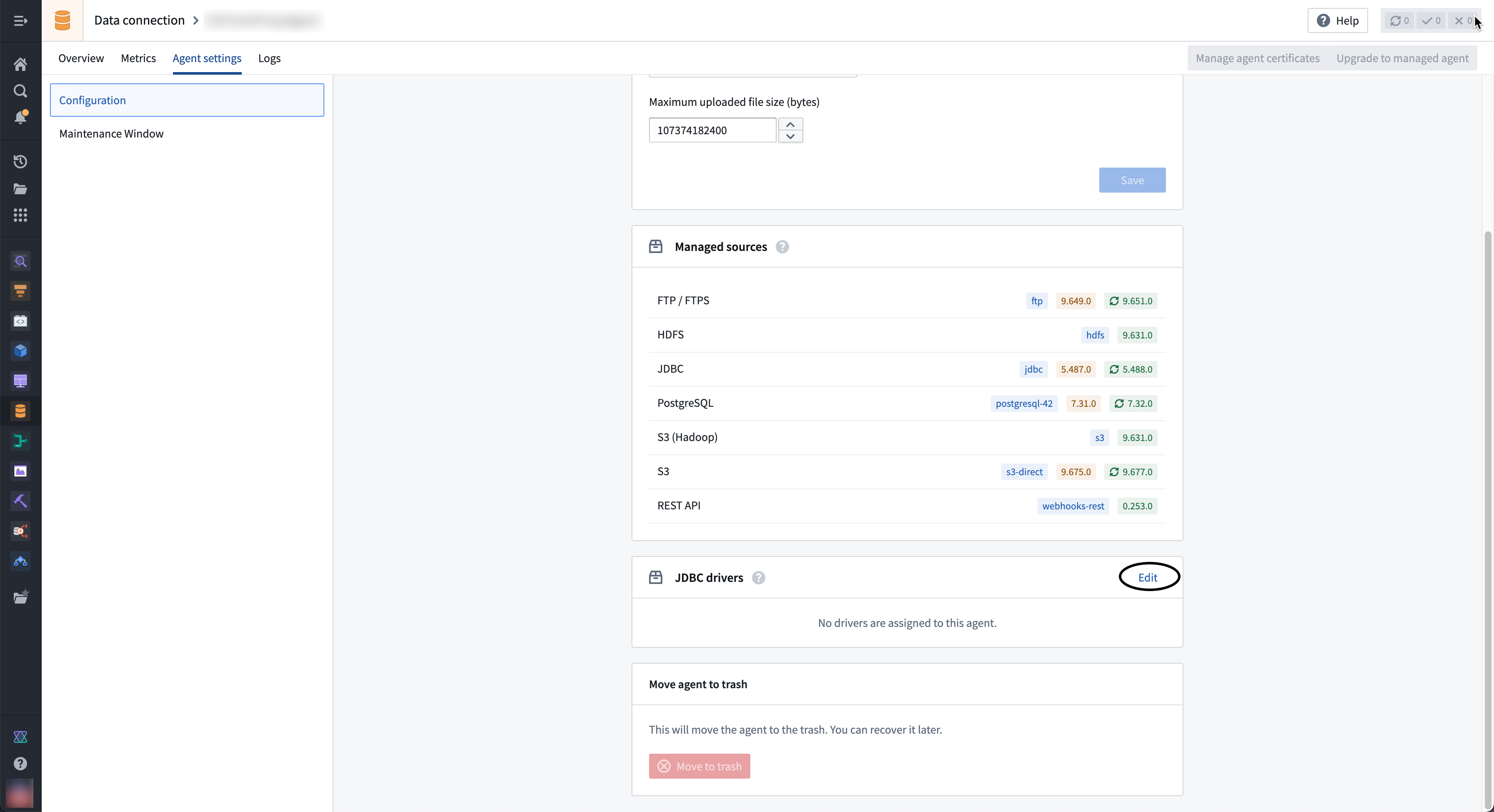
- If the driver you need is not available in the right sidebar, select Upload new in the top right corner to upload a new driver JAR file. Choose a location to store the driver.
- Select the ⊕ button next to the driver name to add the driver to the agent.
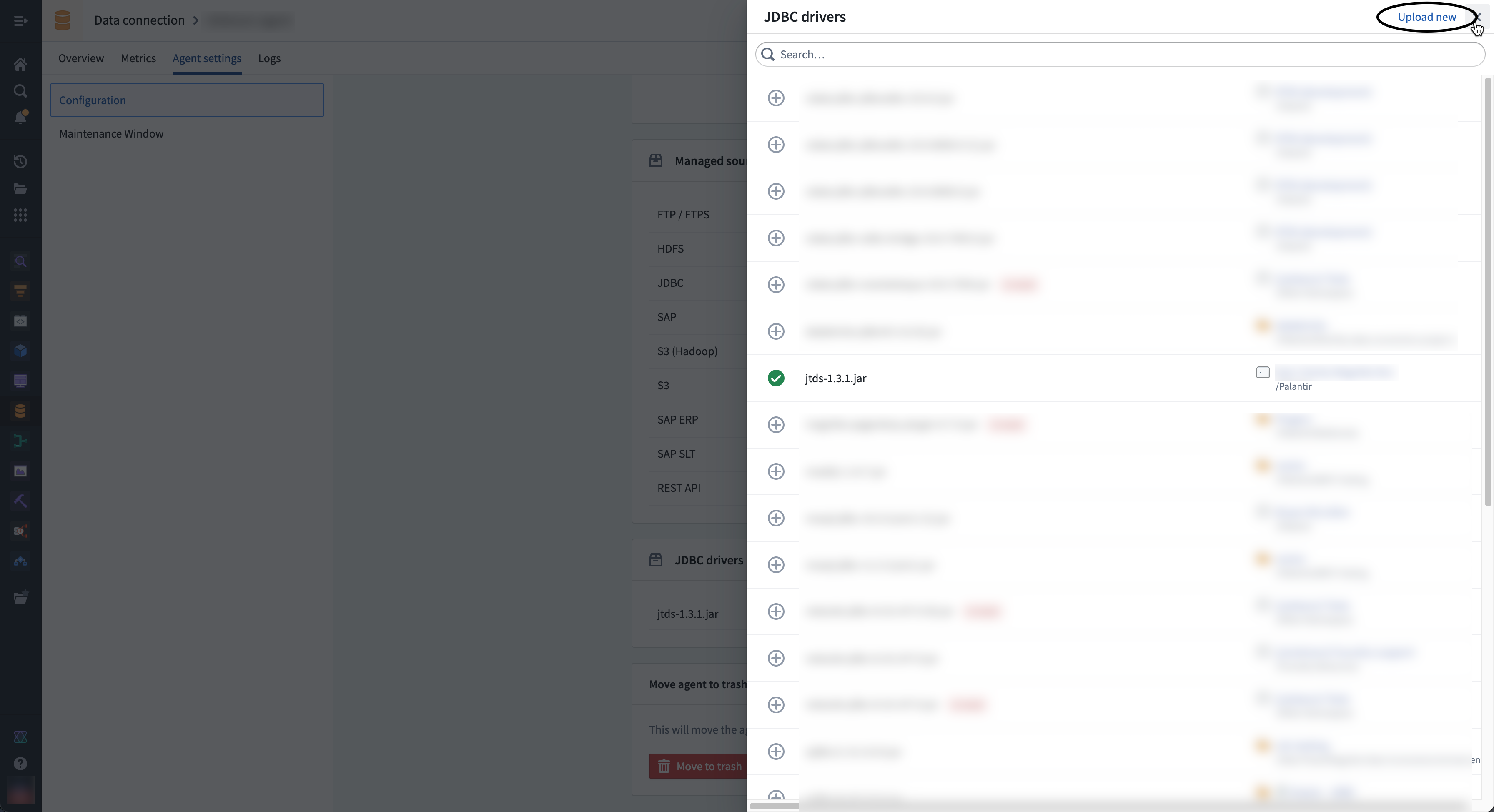
- Select ⊕ to add the driver to the agent and exit the sidebar.
:::callout{theme="neutral"} When configuring a connection to a JDBC source you can only specify the driver class, not the specific driver. For this reason, you should only add one driver of a given class to an agent. :::
- After selecting or uploading the needed driver, you must select Restart agent to use the new driver file.
JDBC properties
You can optionally add properties ↗ to your JDBC connection to configure behavior. Refer to the documentation of your specific source for additional available JDBC properties to add to your connection configuration.
Output overrides: Source
You can optionally add output overrides to modify the output file type and JDBC sync method. Configured settings will be applied to all JDBC syncs using the source. You can override these parameters for a specific sync by editing the sync configuration. To add output overrides, expand the Advanced Options section at the bottom of the setup page and enter the following:
| Parameter | Required? | Default | Description |
|---|---|---|---|
Output |
Yes | Parquet |
The format of the output file (Avro or Parquet) |
Compression Method |
No | None | Choose between SNAPPY,ZSTD, or no compression method. |
Fetch size |
No | None | The number of rows fetched with each database round trip for a query. Learn more in the section below. |
Max file size |
No | None | Specify the maximum size (in bytes or rows) of the output files. Learn more in the section below. |
Fetch size
The fetch size of an output is the number of rows fetched with each database round trip for a query. By tuning the fetch size, you can alter the total number of network calls per sync. However, the fetch size will affect memory usage; increasing the fetch size will speed up syncs at the cost of increased memory usage. We recommend starting with fetch size: 500 and tuning accordingly.
:::callout{theme="warning"} Fetch size configuration is available based on your JDBC driver. Ensure that your driver is compatible with the fetch size parameter if you require it for output configuration. :::
Maximum file size
You can also adjust the max file size (in bytes or rows) of your output files. Doing so may improve the performance and resiliency of your data upload to Foundry.
When specifying file size in Bytes, the number of bytes must be at least double the in-memory buffer size of the Parquet (128MB) or Avro (64KB) writer.
:::callout{theme="warning"} The maximum file size in bytes is approximate; output file sizes may be slightly smaller or larger. :::
Sync data from JDBC sources
To set up a JDBC sync, select Explore and create syncs in the upper right of the source Overview screen. Next, select the tables you want to sync into Foundry. When you are ready to sync, select Create sync for x datasets.
Learn more about source exploration in Foundry.
Configure JDBC syncs
Pre-queries
A pre-query is an optional array of SQL queries that run before the actual SQL query runs. We recommend using pre-queries for use cases where a database refresh must be triggered before running the actual query.
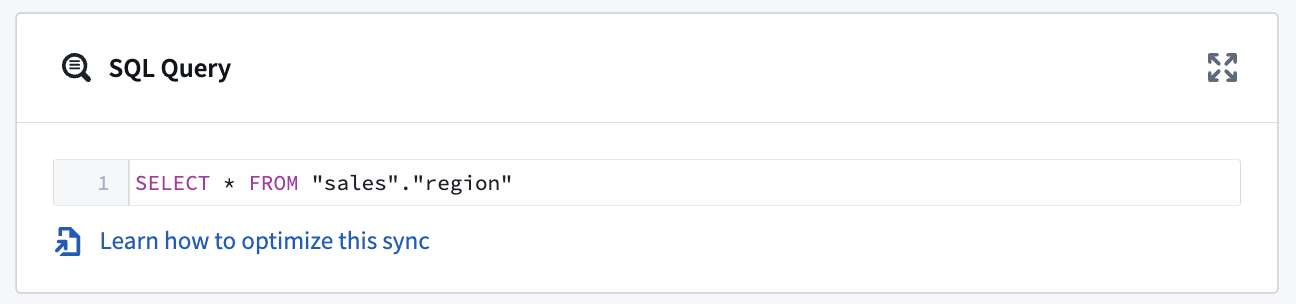
SQL queries
A single SQL query can be executed per sync. This query should produce a table of data as an output and should not perform operations like invoking stored procedures. The results of the query will be saved to the output dataset in Foundry.
Output overrides: Sync
Aside from configuring output overrides at the source configuration level, you can choose to apply specific overrides to individual sync outputs. The saved configuration will apply only to the individual sync. Review the output overrides section above for more information about configuration options.
Precision limits
At the sync configuration level, you can choose to Enforce precision limits for an individual JDBC sync. This limit rejects numeric values with precision over 38 decimal places. This setting is disabled by default.
Optimize JDBC syncs
If you are setting up a new sync or dealing with performance issues, consider switching to incremental syncs or parallelizing SQL queries to improve sync speed and reliability.
We recommend first trying the incremental sync method. If issues persist, move on to parallelizing the SQL query.
Incremental JDBC syncs
Typically, syncs will import all matching rows from the target table, regardless if data changed between syncs or not. Incremental syncs, by contrast, are stateful syncs that enable you to do APPEND style transactions from the same table without duplicating data.
Incremental syncs can be used when ingesting large tables from a JDBC source. To use incremental syncs, the table must contain a column that is strictly monotonically increasing.
Follow the steps below to configure an incremental JDBC sync:
- Set the transaction type to
APPENDon the Edit syncs page. - Then, choose to Enable in the Incremental section.
- Next, provide a monotonically increasing column and an initial value for this column. Select a value smaller than any value you intend to import; an incremental sync will import rows where the value is greater than the largest already imported.
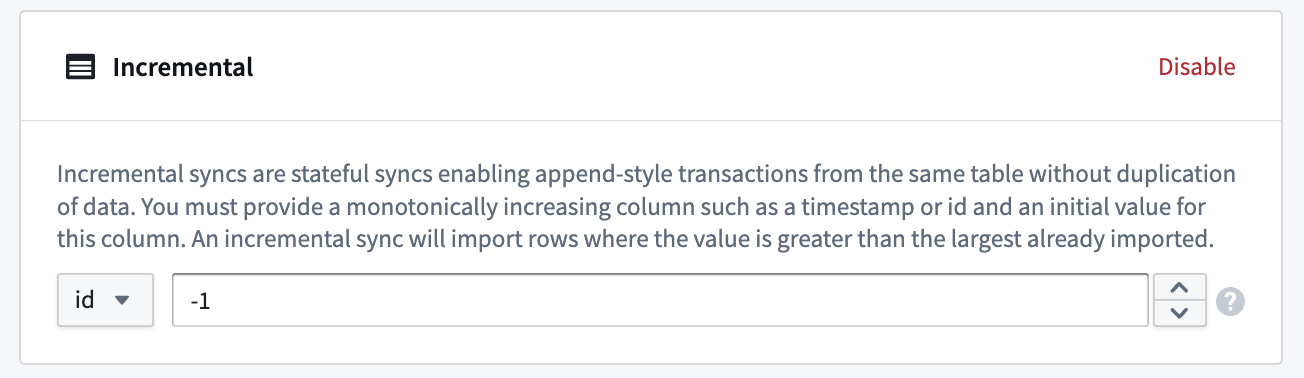
Example: A 5 TB table contains billions of rows that you want to sync to a JDBC source. The table has a monotonically increasing column called id. The sync can be configured to ingest 50 million rows at a time using the id column as the incremental column, with an initial value of -1 and a configured limit of 50 million rows.
When a sync is initially run, the first 50 million rows (ascending based on id) containing an id value greater than -1 will be ingested into Foundry. For example, if this sync was run several times and the largest id value ingested during the last run of the sync was 19384004822, the next sync will ingest the next 50 million rows starting with the first id value greater than 19384004822 and so on.
Remember to also add a limit to the SQL query. For example, if your query was SELECT * FROM "sales"."region", it could become SELECT * FROM "sales"."region" WHERE sale_id > ? limit 100000; every time the build runs, 100000 rows will be imported into Foundry. The ? value of the query will automatically update with the value from the last run.
:::callout{theme="neutral"} For JDBC systems handling timestamp columns with no timezone definition, the timestamp is assumed to be expressed in UTC and incremental queries will run accordingly. :::
Parallelize the SQL query
:::callout{theme="warning"} The parallel feature runs separate queries against the target database. Before parallelizing the SQL query, consider how it could affect live-updating tables that may be treated differently by queries that occur at slightly different times. :::
If performance does not improve after switching to incremental syncs, you can parallelize an SQL query to split it into multiple smaller queries that will be executed in parallel by the agent.
To achieve this, you must change your SQL query to a new structure. For example:
SELECT
/* FORCED_PARALLELISM_COLUMN(<column>), FORCED_PARALLELISM_SIZE(<size>) */
*
FROM <table_name>
The necessary parallelism details of the query are explained below.
FORCED_PARALLELISM_COLUMN(<column>): Specifies the column on which the table will be divided. It should be a numeric column (or a column expression that yields a numeric column) with a distribution as even as possible.
FORCED_PARALLELISM_SIZE(<size>): Specifies the degree of parallelism. For example, 4 would result in five simultaneous queries: four queries would split up the values for the specified parallelism column, and another would query for NULL values in the parallelism column.
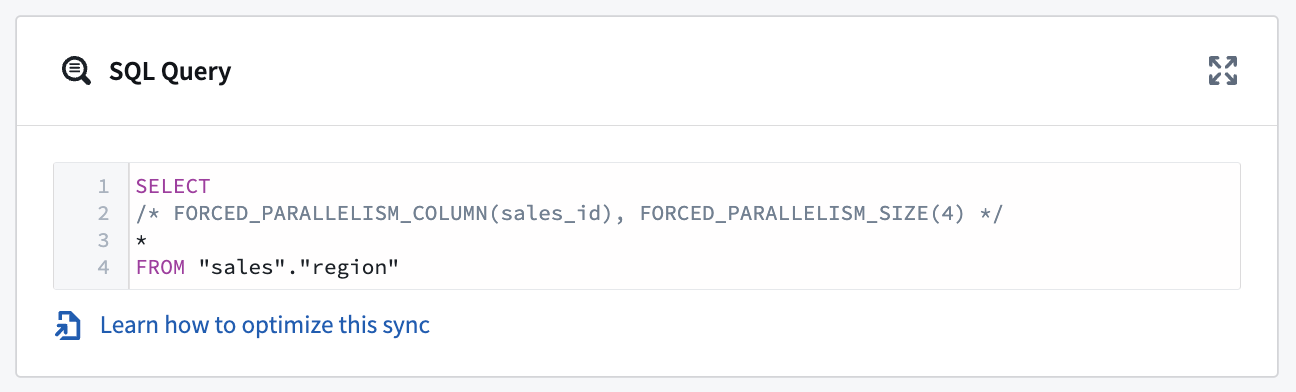
For example, using our SQL query above, SELECT * FROM sales_data, we can parallelize it by including additional details:
SELECT
/* FORCED_PARALLELISM_COLUMN(sales_id), FORCED_PARALLELISM_SIZE(4) */
*
FROM "sales"."region"
:::callout{theme="warning"}
When using parallelism with a WHERE clause that contains an OR condition, wrap conditions in parentheses to indicate how the conditions should be evaluated. For example: SELECT /* FORCED_PARALLELISM_COLUMN(sales_id), FORCED_PARALLELISM_SIZE(4) */ * FROM "sales"."region" WHERE (condition1 = TRUE OR condition2 = TRUE)
:::
Export data to JDBC sources
Data Connection supports table exports of datasets with schemas to JDBC sources.
Review our documentation to learn how to enable, configure, and schedule JDBC exports.
Export configuration options for JDBC sources
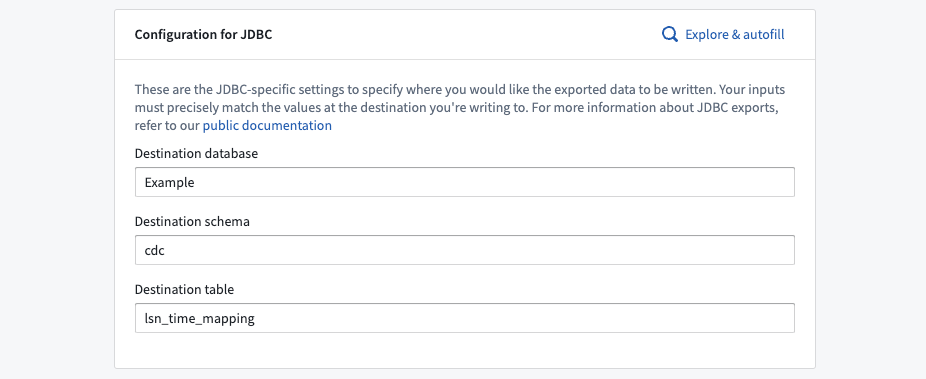
Table exports using a JDBC source require specifying a destination database, schema, and table. These inputs determine the destination of Foundry exports and must match the values that already exist in the target database.
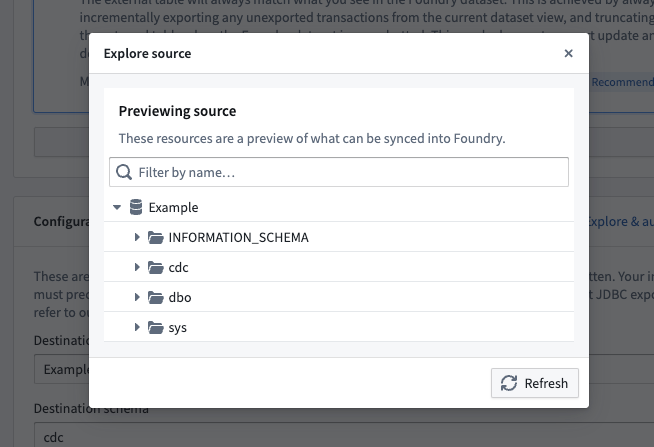
You can either manually enter values for the destination database, schema, and table, or you can use the Explore & autofill button to see a source preview to explore tables that exist in the target database, and autofills the inputs based on your selection.
Export mode
You must select an export mode.
Batch size
Batch size refers to the number of records processed in a single batch when transferring data between Foundry and your source. Adjusting the batch size can impact the performance and efficiency of data export operations, allowing for optimized resource usage and reduced execution time.
By default, export batching is disabled. After enabling export batching, you can choose a batch size between 2 and 5000. If the driver on which your source depends is eligible for export batching, this configuration will take effect upon the execution of next export.
Health checks
Health checks run on sources to verify liveness and availability of the underlying source. By default, these run every 60 minutes and are executed from each agent assigned to the source. For JDBC sources, the health check is implemented as a SELECT 1 query.
Export tasks (legacy)
:::callout{theme="warning"} Export tasks are a legacy feature that is not recommended for new implementations. All new exports should use the current recommended export workflow. This documentation is provided for users who are still using legacy export tasks. :::
Supported databases
Export tasks support the following databases:
- PostgreSQL
- Microsoft SQL Server
- MySQL
- IBM DB2
- Oracle
- Teradata
- Snowflake
- Vertica
Task configuration
A basic JDBC export task would look as follow:
type: export-jdbc-task
exporterType: parquet
datasets:
  - inputAlias: myInput  # only required if you have more than 1 input
    writeDirectly: true
    writeMode: Overwrite
    table:
      database: mydb  # Optional
      schema: public  # Optional
      table: mytable
The complete configuration options are:
type: export-jdbc-task
exporterType: parquet

# Parallel execution
parallelize: false  # Run exports for each dataset in parallel (up to 8)

# SQL execution hooks
preSql:  # SQL statements run before export
  - TRUNCATE TABLE staging_table
stagingSql:  # SQL statements run before table rename
  - SELECT 1
afterSql:  # SQL statements run after export
  - INSERT INTO production_table SELECT * FROM staging_table

# Transaction management
manualTransactionManagement: false  # Set true to manage transactions yourself
transactionIsolation: READ_COMMITTED  # java.sql.Connection.TransactionIsolationLevel

# Dataset-specific configurations
datasets:
  - inputAlias: myInput
    table:
      database: mydb
      schema: public
      table: mytable

    # Write configuration
    writeDirectly: false  # false = use staging table first
    copyMode: insert  # insert or directCopy (PostgreSQL only)
    batchSize: 1000  # Rows per insert statement
    writeMode: ErrorIfExists  # ErrorIfExists, Append, Overwrite, AppendIfPossible

    # Incremental export
    incrementalType: snapshot  # snapshot or incremental

    # Performance
    exporterThreads: 1  # Parallel file export threads

    # Identifier handling
    quoteIdentifiers: true  # Quote column names

    # Transaction isolation for this export
    exportTransactionIsolation: READ_UNCOMMITTED
Write modes
- ErrorIfExists: Fails if table exists (default)
- Append: Appends to existing table
- Overwrite: Replaces existing table data
- AppendIfPossible: Overwrite on first export, append on subsequent. May be desired when performing incremental exports.
Write directly vs. staging
When writeDirectly: false (default), the write flow is as follow:
- Data exports to
{tableName}_staged_ - Staging table is renamed to final table
- Original table is dropped
When writeDirectly: true, data is written directly in the final table, which might be desired for incremental exports.
Copy modes
copyMode controls how data is being copied to the database.
- insert uses consecutive INSERT statements (one per row) with configurable batch size (default)
- directCopy: uses one COPY statement per file for better performance. It is only available when exporting to PostgreSQL databases.
Quote identifiers
quoteIdentifiers controls if identifiers should be quoted.
The default is true because there are many cases where a valid Foundry column name wouldn't be a valid database column name, for example due to special characters (1_column, my column, my-column) or reserved words (level, values).
You may wish to turn this to false if you are exporting to Oracle DB or IBM DB2, since in these databases you will always need to quote the columns whenever you reference them.
Incremental exports
Incremental exports allow you to export only the data that has changed since the last export. When incrementalType is set to incremental, the first export behaves like a snapshot, exporting all data and remembering the last exported transaction. Subsequent exports only include new transactions if the previous transaction is still present in the dataset; otherwise, it falls back to a full snapshot.
For JDBC exports, this option is specified per dataset rather than globally.
The recommended approach uses a staging table pattern: incremental data is written to a temporary table, then merged into the final destination using preSql and afterSql statements. Set writeDirectly: true to avoid creating additional temporary tables, and use writeMode: AppendIfPossible to overwrite on the first run and append on subsequent runs.
type: export-jdbc-task
preSql:
  - TRUNCATE TABLE mytable_incremental
datasets:
  - inputAlias: myInput
    table:
      schema: public
      table: mytable_incremental
    writeDirectly: true
    writeMode: AppendIfPossible
    incrementalType: incremental
afterSql:
  - INSERT INTO mytable SELECT * FROM mytable_incremental
Database-specific considerations
Teradata
The export will create a MULTISET table with the first column in your dataset treated as the partition key. Please re-arrange your columns so the first column has many values so that rows do not get indexed under one partition.
Teradata does not support multiple Data Definition Language statements in one transaction. After each of DROP, CREATE, RENAME the exporter will make a commit.
By default, Foundry String columns are exported as LONG VARCHAR. To override the default and use VARCHAR(N) type instead, you can specify varchar size per column using the dbOptions config as shown below:
datasets:
  - table:
      table: mytable
    dbOptions:
      type: 'teradata'
      columnVarcharSize:
        someColumnName: 1000
Snowflake
It is recommended to increase batchSize to ~50,000 when exporting to Snowflake. Keep in mind this will consume more heap memory on the agent.
Oracle
When exporting to an Oracle database, you can adapt
the maximum column size (default 255 bytes) using columnVarcharSize:
datasets:
  - table:
      table: mytable
    dbOptions:
      type: 'oracle'
      columnVarcharSize:
        someColumnName: 1000
Performance optimization
When exporting large amounts of data, you may wish to use the following options:
-
Set
parallelize: trueto perform the export of each input dataset in parallel, and define the number of threads withdatasets.[].exporterThreads. The export of each file in this dataset will be performed in parallel, with the number of specified threads. A good starting value would be the number of available cores on agent. -
Adjust
batchSizebased on database and memory constraints
Troubleshooting
If you encounter batch insert errors (such as PreparedStatement batch request failures), consider these solutions:
Column ordering: Place high-cardinality columns first in your dataset. Databases like Teradata use the first column as a partition key, and low-cardinality first columns can cause all rows to be indexed under a single partition, leading to failures.
String encoding: Ensure your string data uses compatible character encoding for your target database. Teradata requires ASCII or Latin-1 encoding, not UTF-8. You may need to clean or transform your data before export.
Debugging with batch size: Reduce batchSize to 1 to isolate problematic rows. This slows the export but helps identify exactly which row is causing failures due to data quality issues or constraint violations.
中文翻译
自定义 JDBC 数据源
将 Foundry 连接到 JDBC 数据源,以在 Foundry 与大多数关系型数据库和数据仓库之间读取和同步数据。
配置好数据源后,您可以使用提取定义中指定的 SQL 查询灵活地定义如何从数据库同步数据。此外,您还可以配置增量同步,仅读取自上次同步以来已更新的数据。
设置
- 打开 Data Connection 应用程序,在屏幕右上角选择 + New Source。
- 从列出的类型中找到您的特定数据源(例如 BigQuery 或 PostgreSQL)。如果您的连接器类型未列出,请选择 JDBC。
- 按照其他配置提示,使用以下各节中的信息继续设置您的连接器。
配置选项
| 参数 | 是否必需 | 描述 |
|---|---|---|
URL |
是 | 请参考源系统的文档了解 JDBC URL 格式,并查阅 Java 文档 ↗ 获取更多信息。 |
Driver class |
是 | 输入连接到数据库时要使用的驱动程序类。该驱动程序必须在 Data Connection 运行时的类路径上。请参阅下面的 JDBC 驱动程序了解更多信息。 |
Credentials |
是 | JDBC 连接的用户名和密码凭据。 |
JDBC properties |
否 | 添加属性名称和值以配置连接行为。请参阅下面的 JDBC 属性了解更多信息。 |
Advanced Options |
否 | 展开此字段以添加可选的 JDBC 输出配置。请参阅下面的输出设置了解更多信息。 |
JDBC 驱动程序
默认情况下,Data Connection 代理具备连接到 JDBC 兼容系统的能力。但是,您必须提供 JDBC 驱动程序 ↗才能成功连接到系统。您还必须指定驱动程序类,通常可以在特定驱动程序的公开文档中找到。例如,您可以在 Snowflake 的公开文档 ↗中找到其 JDBC 驱动程序的类。
Foundry Worker 连接
Foundry Worker 连接不需要 Palantir 签名的驱动程序。您通常可以从特定源类型的文档中找到并下载驱动程序,例如 Google BigQuery ↗。然后,您可以在配置连接时上传驱动程序。
Agent Worker 连接 [旧版]
:::callout{theme="warning" title="旧版"} Agent Worker 处于旧版开发阶段。以下配置适用于现有的 Agent Worker 数据源。请参阅 Foundry Worker 与 Agent Worker。 :::
对于 Agent Worker 数据源,驱动程序必须手动上传到代理上。
:::callout{theme="warning"} 上传到代理的 JDBC 驱动程序可能与代理上已有的其他 JDBC 驱动程序发生类路径冲突。为避免潜在冲突,请使用 Palantir 提供的连接器,而不是手动上传 JDBC 驱动程序。 :::
:::callout{theme="neutral"} 出于安全原因,代理要求 JDBC 驱动程序由 Palantir 签名以保证其真实性。请联系 Palantir 支持以获取连接所需的已签名驱动程序副本。将未签名的驱动程序上传到代理将阻止其启动。 :::
要将驱动程序分配给代理,请按照以下步骤操作:
- 在 Data Connection 中导航到代理概览页面,选择 Agent settings 选项卡。
- 转到 JDBC Drivers 部分,选择 Edit。
- 如果右侧边栏中没有您需要的驱动程序,请选择右上角的 Upload new 上传新的驱动程序 JAR 文件。选择存储驱动程序的位置。
- 选择驱动程序名称旁边的 ⊕ 按钮,将驱动程序添加到代理。
- 选择 ⊕ 将驱动程序添加到代理并退出侧边栏。
:::callout{theme="neutral"} 在配置 JDBC 数据源连接时,您只能指定驱动程序类,而不能指定具体的驱动程序。因此,您应该只向代理添加一个给定类的驱动程序。 :::
- 选择或上传所需的驱动程序后,必须选择 Restart agent 才能使用新的驱动程序文件。
JDBC 属性
您可以选择向 JDBC 连接添加属性 ↗以配置行为。请参考特定数据源的文档,了解可添加到连接配置中的其他 JDBC 属性。
输出覆盖:数据源
您可以选择添加输出覆盖以修改输出文件类型和 JDBC 同步方法。配置的设置将应用于使用该数据源的所有 JDBC 同步。您可以通过编辑同步配置来覆盖特定同步的这些参数。要添加输出覆盖,请展开设置页面底部的 Advanced Options 部分并输入以下内容:
| 参数 | 是否必需 | 默认值 | 描述 |
|---|---|---|---|
Output |
是 | Parquet |
输出文件的格式(Avro 或 Parquet) |
Compression Method |
否 | 无 | 选择 SNAPPY、ZSTD 或无压缩方法。 |
Fetch size |
否 | 无 | 每次数据库往返查询时获取的行数。请参阅下面的章节了解更多信息。 |
Max file size |
否 | 无 | 指定输出文件的最大大小(以字节或行为单位)。请参阅下面的章节了解更多信息。 |
获取大小
输出的获取大小是指每次数据库往返查询时获取的行数。通过调整获取大小,您可以改变每次同步的网络调用总数。但是,获取大小会影响内存使用;增加获取大小会加快同步速度,但代价是增加内存使用。我们建议从获取大小:500 开始,然后相应地进行调整。
:::callout{theme="warning"} 获取大小配置取决于您的 JDBC 驱动程序。如果您需要获取大小参数用于输出配置,请确保您的驱动程序与该参数兼容。 :::
最大文件大小
您还可以调整输出文件的最大大小(以字节或行为单位)。这样做可能会提高数据上传到 Foundry 的性能和弹性。
当以 Bytes 为单位指定文件大小时,字节数必须至少是 Parquet(128MB)或 Avro(64KB)写入器内存缓冲区大小的两倍。
:::callout{theme="warning"} 以字节为单位的最大文件大小是近似值;输出文件大小可能略小或略大。 :::
从 JDBC 数据源同步数据
要设置 JDBC 同步,请在数据源 Overview 屏幕的右上角选择 Explore and create syncs。接下来,选择要同步到 Foundry 的表。当您准备好同步时,选择 Create sync for x datasets。
了解有关 Foundry 中数据源探索的更多信息。
配置 JDBC 同步
预查询
预查询是一个可选的 SQL 查询数组,在实际 SQL 查询运行之前执行。我们建议在需要在运行实际查询之前触发数据库刷新的用例中使用预查询。
SQL 查询
每次同步可以执行一个 SQL 查询。此查询应生成一个数据表作为输出,并且不应执行调用存储过程等操作。查询结果将保存到 Foundry 中的输出数据集。
输出覆盖:同步
除了在数据源配置级别配置输出覆盖之外,您还可以选择将特定的覆盖应用于单个同步输出。保存的配置将仅应用于该单个同步。有关配置选项的更多信息,请参阅上面的输出覆盖部分。
精度限制
在同步配置级别,您可以选择为单个 JDBC 同步 Enforce precision limits。此限制会拒绝精度超过 38 位小数的数值。此设置默认禁用。
优化 JDBC 同步
如果您正在设置新的同步或处理性能问题,请考虑切换到增量同步或并行化 SQL 查询以提高同步速度和可靠性。
我们建议首先尝试增量同步方法。如果问题仍然存在,则继续并行化 SQL 查询。
增量 JDBC 同步
通常,同步会从目标表中导入所有匹配的行,无论数据在同步之间是否发生变化。相比之下,增量同步是有状态的同步,使您能够从同一个表执行 APPEND 类型的事务,而不会重复数据。
在从 JDBC 数据源摄取大表时,可以使用增量同步。要使用增量同步,表必须包含一个严格单调递增的列。
按照以下步骤配置增量 JDBC 同步:
- 在 Edit syncs 页面上将事务类型设置为
APPEND。 - 然后,在 Incremental 部分选择 Enable。
- 接下来,提供一个单调递增的列以及该列的初始值。选择一个小于您打算导入的任何值的值;增量同步将导入值大于已导入的最大值的行。
示例: 一个 5 TB 的表包含数十亿行,您希望将其同步到 JDBC 数据源。该表有一个名为 id 的单调递增列。可以将同步配置为使用 id 列作为增量列,初始值为 -1,限制为 5000 万行,每次摄取 5000 万行。
当首次运行同步时,将摄取前 5000 万行(基于 id 升序),其中包含大于 -1 的 id 值。例如,如果此同步运行了多次,并且上次运行同步时摄取的 id 最大值为 19384004822,则下一次同步将从第一个大于 19384004822 的 id 值开始摄取接下来的 5000 万行,依此类推。
请记住还要为 SQL 查询添加限制。例如,如果您的查询是 SELECT * FROM "sales"."region",则可以改为 SELECT * FROM "sales"."region" WHERE sale_id > ? limit 100000;每次构建运行时,将有 100000 行导入 Foundry。查询中的 ? 值将自动更新为上次运行的值。
:::callout{theme="neutral"} 对于处理没有时区定义的时间戳列的 JDBC 系统,时间戳假定以 UTC 表示,增量查询将相应运行。 :::
并行化 SQL 查询
:::callout{theme="warning"} 并行功能会对目标数据库运行单独的查询。在并行化 SQL 查询之前,请考虑它可能如何影响实时更新的表,这些表可能会被在不同时间点运行的查询以不同方式处理。 :::
如果切换到增量同步后性能没有改善,您可以并行化 SQL 查询,将其拆分为多个较小的查询,由代理并行执行。
为此,您必须将 SQL 查询更改为新的结构。例如:
SELECT
/* FORCED_PARALLELISM_COLUMN(<column>), FORCED_PARALLELISM_SIZE(<size>) */
*
FROM <table_name>
查询的并行化细节说明如下。
FORCED_PARALLELISM_COLUMN(<column>):指定用于划分表的列。它应该是一个数值列(或产生数值列的列表达式),且分布尽可能均匀。
FORCED_PARALLELISM_SIZE(<size>):指定并行度。例如,4 将产生五个同时进行的查询:四个查询将拆分指定并行列的值,另一个查询将查询并行列中的 NULL 值。
例如,使用我们上面的 SQL 查询 SELECT * FROM sales_data,我们可以通过包含额外的详细信息来并行化它:
SELECT
/* FORCED_PARALLELISM_COLUMN(sales_id), FORCED_PARALLELISM_SIZE(4) */
*
FROM "sales"."region"
:::callout{theme="warning"}
当使用包含 OR 条件的 WHERE 子句进行并行化时,请将条件括在括号中以指示应如何评估条件。例如:SELECT /* FORCED_PARALLELISM_COLUMN(sales_id), FORCED_PARALLELISM_SIZE(4) */ * FROM "sales"."region" WHERE (condition1 = TRUE OR condition2 = TRUE)
:::
将数据导出到 JDBC 数据源
Data Connection 支持将带有模式的数据集表导出到 JDBC 数据源。
查阅我们的文档以了解如何启用、配置和调度 JDBC 导出。
JDBC 数据源的导出配置选项
使用 JDBC 数据源的表导出需要指定目标数据库、模式和表。这些输入决定了 Foundry 导出的目标,并且必须与目标数据库中已存在的值匹配。
您可以手动输入目标数据库、模式和表的值,也可以使用 Explore & autofill 按钮查看源预览以探索目标数据库中存在的表,并根据您的选择自动填充输入。
导出模式
您必须选择一种导出模式。
批处理大小
批处理大小是指在 Foundry 和您的数据源之间传输数据时,单个批处理中处理的记录数。调整批处理大小会影响数据导出操作的性能和效率,从而优化资源使用并减少执行时间。
默认情况下,导出批处理是禁用的。启用导出批处理后,您可以选择介于 2 和 5000 之间的批处理大小。如果您的数据源所依赖的驱动程序符合导出批处理的条件,此配置将在下次导出执行时生效。
健康检查
健康检查在数据源上运行,以验证底层数据源的存活性和可用性。默认情况下,这些检查每 60 分钟运行一次,并从分配给该数据源的每个代理执行。对于 JDBC 数据源,健康检查实现为 SELECT 1 查询。
导出任务(旧版)
:::callout{theme="warning"} 导出任务是一个旧版功能,不推荐用于新的实现。所有新的导出应使用当前的推荐导出工作流。本文档适用于仍在使用旧版导出任务的用户。 :::
支持的数据库
导出任务支持以下数据库:
- PostgreSQL
- Microsoft SQL Server
- MySQL
- IBM DB2
- Oracle
- Teradata
- Snowflake
- Vertica
任务配置
一个基本的 JDBC 导出任务如下所示:
type: export-jdbc-task
exporterType: parquet
datasets:
  - inputAlias: myInput  # 仅当您有多个输入时才需要
    writeDirectly: true
    writeMode: Overwrite
    table:
      database: mydb  # 可选
      schema: public  # 可选
      table: mytable
完整的配置选项如下:
type: export-jdbc-task
exporterType: parquet

# 并行执行
parallelize: false  # 并行运行每个数据集的导出(最多 8 个)

# SQL 执行钩子
preSql:  # 导出前运行的 SQL 语句
  - TRUNCATE TABLE staging_table
stagingSql:  # 表重命名前运行的 SQL 语句
  - SELECT 1
afterSql:  # 导出后运行的 SQL 语句
  - INSERT INTO production_table SELECT * FROM staging_table

# 事务管理
manualTransactionManagement: false  # 设置为 true 以自行管理事务
transactionIsolation: READ_COMMITTED  # java.sql.Connection.TransactionIsolationLevel

# 数据集特定配置
datasets:
  - inputAlias: myInput
    table:
      database: mydb
      schema: public
      table: mytable

    # 写入配置
    writeDirectly: false  # false = 首先使用临时表
    copyMode: insert  # insert 或 directCopy(仅限 PostgreSQL)
    batchSize: 1000  # 每个 INSERT 语句的行数
    writeMode: ErrorIfExists  # ErrorIfExists, Append, Overwrite, AppendIfPossible

    # 增量导出
    incrementalType: snapshot  # snapshot 或 incremental

    # 性能
    exporterThreads: 1  # 并行文件导出线程数

    # 标识符处理
    quoteIdentifiers: true  # 引用列名

    # 此导出的事务隔离级别
    exportTransactionIsolation: READ_UNCOMMITTED
写入模式
- ErrorIfExists: 如果表存在则失败(默认)
- Append: 追加到现有表
- Overwrite: 替换现有表数据
- AppendIfPossible: 首次导出时覆盖,后续导出时追加。在执行增量导出时可能需要此模式。
直接写入与临时表
当 writeDirectly: false(默认)时,写入流程如下:
- 数据导出到
{tableName}_staged_ - 临时表重命名为最终表
- 原始表被删除
当 writeDirectly: true 时,数据直接写入最终表,这对于增量导出可能是需要的。
复制模式
copyMode 控制数据如何复制到数据库。
- insert 使用连续的 INSERT 语句(每行一个),具有可配置的批处理大小(默认)
- directCopy: 每个文件使用一个 COPY 语句以获得更好的性能。仅在导出到 PostgreSQL 数据库时可用。
引用标识符
quoteIdentifiers 控制是否应引用标识符。
默认值为 true,因为在许多情况下,有效的 Foundry 列名可能不是有效的数据库列名,例如由于特殊字符(1_column、my column、my-column)或保留字(level、values)。
如果您要导出到 Oracle DB 或 IBM DB2,您可能希望将其设置为 false,因为在这些数据库中,您每次引用列时都需要引用它们。
增量导出
增量导出允许您仅导出自上次导出以来已更改的数据。当 incrementalType 设置为 incremental 时,首次导出行为类似于快照,导出所有数据并记住上次导出的事务。后续导出仅包含新事务(如果前一个事务仍在数据集中);否则,它将回退到完整快照。
对于 JDBC 导出,此选项是按数据集而不是全局指定的。
推荐的方法使用临时表模式:增量数据写入临时表,然后使用 preSql 和 afterSql 语句合并到最终目标。设置 writeDirectly: true 以避免创建额外的临时表,并使用 writeMode: AppendIfPossible 在首次运行时覆盖,在后续运行时追加。
type: export-jdbc-task
preSql:
  - TRUNCATE TABLE mytable_incremental
datasets:
  - inputAlias: myInput
    table:
      schema: public
      table: mytable_incremental
    writeDirectly: true
    writeMode: AppendIfPossible
    incrementalType: incremental
afterSql:
  - INSERT INTO mytable SELECT * FROM mytable_incremental
特定数据库注意事项
Teradata
导出将创建一个 MULTISET 表,并将数据集中的第一列视为分区键。请重新排列您的列,使第一列具有许多值,以便行不会被索引到单个分区下。
Teradata 不支持在一个事务中使用多个数据定义语言语句。在每个 DROP、CREATE、RENAME 之后,导出器将进行一次提交。
默认情况下,Foundry 字符串列导出为 LONG VARCHAR。要覆盖默认值并使用 VARCHAR(N) 类型,您可以按如下所示使用 dbOptions 配置为每列指定 varchar 大小:
datasets:
  - table:
      table: mytable
    dbOptions:
      type: 'teradata'
      columnVarcharSize:
        someColumnName: 1000
Snowflake
建议在导出到 Snowflake 时将 batchSize 增加到约 50,000。请记住,这将消耗代理上更多的堆内存。
Oracle
当导出到 Oracle 数据库时,您可以使用 columnVarcharSize 调整最大列大小(默认 255 字节):
datasets:
  - table:
      table: mytable
    dbOptions:
      type: 'oracle'
      columnVarcharSize:
        someColumnName: 1000
性能优化
当导出大量数据时,您可能希望使用以下选项:
-
设置
parallelize: true以并行执行每个输入数据集的导出,并使用datasets.[].exporterThreads定义线程数。该数据集中每个文件的导出将并行执行,使用指定的线程数。一个好的起始值是代理上可用的核心数。 -
根据数据库和内存限制调整
batchSize。
故障排除
如果您遇到批量插入错误(例如 PreparedStatement batch request 失败),请考虑以下解决方案:
列排序: 将高基数列放在数据集的前面。像 Teradata 这样的数据库使用第一列作为分区键,低基数的第一列可能导致所有行被索引到单个分区下,从而导致失败。
字符串编码: 确保您的字符串数据使用与目标数据库兼容的字符编码。Teradata 需要 ASCII 或 Latin-1 编码,而不是 UTF-8。您可能需要在导出之前清理或转换数据。
使用批处理大小进行调试: 将 batchSize 减小到 1 以隔离有问题的行。这会减慢导出速度,但有助于准确识别由于数据质量问题或约束违规而导致失败的行。