OneLake and Azure Blob Filesystem (ABFS)(OneLake 与 Azure Blob 文件系统 (ABFS))
Connect Foundry to OneLake ↗, Azure Data Lake Storage Gen2 (ADLS Gen2), and other eligible Azure products using Azure Blob Filesystem (ABFS) ↗. The ABFS connector allows files to be read into Foundry and written from Foundry to Azure.
:::callout{theme="warning"} Connections to Azure Data Lake Storage Gen1 are not supported. :::
Supported capabilities
| Capability | Status |
|---|---|
| Exploration | 🟢 Generally available |
| Bulk import | 🟢 Generally available |
| Incremental | 🟢 Generally available |
| Media sets | 🟢 Generally available |
| Virtual tables | 🟢 Generally available |
| Export tasks | 🟡 Sunset |
| File exports | 🟢 Generally available |
Data model
The connector can transfer files of any type into Foundry datasets. File formats are preserved and no schemas are applied during or after the transfer. Apply any necessary schema to the output dataset, or write a downstream transformation to access the data.
Performance and limitations
There is no limit to the size of transferable files. However, network issues can result in failures of large-scale transfers. In particular, syncs running on a Foundry worker that take more than two days to run will be interrupted. To avoid network issues, we recommend using smaller file sizes and limiting the number of files that are ingested in every execution of the sync. Syncs can be scheduled to run frequently.
Setup
- Open the Data Connection application and select + New Source in the upper right corner of the screen.
- Select ABFS—Azure Data Lake Storage Gen2 from the available connector types.
- Follow the additional configuration prompts to continue the set up of your connector using the information in the sections below.
:::callout{theme="warning"} We recommend using a Foundry worker with direct connection policies with the ABFS connector to simplify setup and configuration. :::
Learn more about setting up a connector in Foundry.
Authentication
To import data, the connector must list the filesystem contents and read the file contents in Azure. This behavior can be achieved through authorization patterns of the principal associated with the provided connection credentials.
- In the case of role-based access control (RBAC), a coarse-grain form of access control, the principal needs the
Storage Blob Data Reader↗ role on the container where the data is located. - For access control lists (ACL), a fine-grained form of access control, the principal needs the
ReadACL on the ingest files, and theExecuteACL on all path directories, from the container root to the file location.
Learn more about access control in ADLS Gen2 ↗.
The ABFS connector supports the following configurations options for authentication, listed from most to least recommended:
- Client credentials (recommended)
- Shared access signature
- Username and password
- Refresh token
- Shared key
- Workload Identity Federation
- Azure managed identity (legacy — for existing agent worker sources)
Client credentials (recommended for Foundry direct connections)
Client credentials ↗ rely on an app registration ↗ (Service Principal) in Entra ID. This method is preferred for all direct connections. Configure client credential authentication with the following fields:
| Option | Required? | Description |
|---|---|---|
Client endpoint |
Yes | The authentication endpoint for the connection. This typically takes the form https://login.microsoftonline.com/<directory-id>/oauth2/token, where <directory-id> is the subscription ID. See Azure's official documentation ↗ for more details. |
Client ID |
Yes | The ID of the app registration; also called Application ID. |
Client secret |
Yes | The secret generated in the app registration. |
Shared access signature
Shared access signature (SAS) ↗ authentication uses tokens that provide short-lived and tightly scoped credentials. These tokens are most useful when a service can generate them as needed and distribute them to clients who use them for a very limited time.
| Option | Required? | Description |
|---|---|---|
Blob SAS token |
Yes | The shared access signature token. |
The connector requires a static SAS token and will store a long-lived token to authenticate with the storage account.
:::callout{theme="warning"} Once the SAS token expires, your syncs will stop working until it is manually renewed. Therefore, we strongly recommend against using SAS tokens and encourage you to use a different authentication solution. :::
Shared access signature token
Follow the Azure guide ↗ to obtain SAS tokens.
Example token:
/container1/dir1?sp=r&st=2023-02-23T17:53:28Z&se=2023-02-24T01:53:28Z&spr=https&sv=2021-12-02&sr=d&sig=1gF9B%2FOnEmtYeDl6eB9tb0va1qpSBjZw3ZJuW2pMm1E%3D&sdd=1
We generally recommend generating SAS tokens at the storage container level. Find the storage container at the container view in the Azure portal (under Settings > Shared access tokens). If it is necessary to generate a SAS token at the storage account level (under Security > Networking > Shared access signature at the storage account view in the Azure portal), then the minimal set of permissions are as follows:
"Allowed services": "Blob""Allowed resource types": "Container" + "Object""Allowed permissions": "Read" + "List"
:::callout{theme="warning"} To connect to Azure Blob Storage with SAS tokens, you must specify the directory ↗ resource where the blobs are stored. :::
When generating a SAS token, be sure to set the following parameters:
Signed protocol: We recommend setting spr ↗ to mandate https for the connections.
Signed resource: Change the value ↗ based on the resource type to which access is being granted.
:::callout{theme="warning"}
If the signed resource in use is a specified directory, ensure that the directory depth ↗ is also specified. We recommend setting a high depth value to allow the connection to pull data from nested directories (for example, sdd=100).
:::
Username/password
The username/password ↗ authentication method follows OAuth protocol. Credentials are generated using the Azure page for your tenant (for example, https://login.microsoftonline.com/<tenant-id>/oauth2/token). Replace the <tenant-id> with the ID of the tenant to which you are connecting.
Set the following configurations:
| Option | Required? | Description |
|---|---|---|
Client endpoint |
Yes | The client endpoint from the OAuth configuration. |
Username |
Yes | The user's email address. |
Proxy password |
Yes | The password token. |
Refresh token
The refresh token ↗ authorization method follows OAuth protocol. Learn how to generate a refresh token using the Azure documentation ↗.
Set the following configurations:
| Option | Required? | Description |
|---|---|---|
Client ID |
Yes | The client ID; can be found in Microsoft Entra ID. |
Refresh Token |
Yes | The refresh token. |
Shared key
Every Azure storage account comes with two shared keys ↗. However, we do not recommend using shared keys in production as they are scoped at the storage account level rather than the container level. Shared keys have admin permissions by default, and rotating them is a manual operation.
To obtain a shared key, navigate to the desired storage account in the Azure portal and select Access keys under the Security + networking section.
| Option | Required? | Description |
|---|---|---|
Account key |
Yes | The account access key. |
Workload Identity Federation (OIDC)
The Azure workload identity federation ↗ authorization method follows the OpenID Connect (OIDC) protocol. Follow the displayed source system configuration instructions to set up workload identity federation. Review our documentation for details on how OIDC works with Foundry.
| Option | Required? | Description |
|---|---|---|
Tenant ID |
Yes | The Tenant ID can be obtained from Microsoft Entra ID ↗. |
Client ID |
Yes | The client ID can be found in Microsoft Entra ID. |
Azure managed identity (legacy — agent worker connections)
:::callout{theme="warning" title="Legacy"} This authentication method is available only for legacy agent worker sources. For new sources, use client credentials. :::
Azure managed identities ↗ do not require credentials to be stored in Foundry. The managed identity used for connecting to data must have appropriate permissions on the underlying storage.
| Option | Required? | Description |
|---|---|---|
Tenant ID |
No | The Tenant ID can be obtained from Microsoft Entra ID ↗. |
Client ID |
No | If multiple managed identities (assigned by either the system or user) were attached to the virtual machine (VM) where the agent is running, provide the ID that should be used to connect to storage. |
:::callout{theme="warning"} The managed identity authentication method relies on a local REST endpoint available to all processes on the virtual machine (VM). The method only works if the connections are made through an agent that is deployed on a VM inside the same Azure tenant. :::
Networking
When running the Azure connection in Foundry, you need to set up network access for Foundry to communicate with the source. This is a two-step process:
- Set up network access from Foundry to egress to the source. You can do this by applying the appropriate egress policies on the source in the Data Connection application. The Azure connector requires network access to the domain of the storage account on
port 443. For example, if you are connecting toabfss://file_system@account_name.dfs.core.windows.net, the domain of the storage account isaccount_name.dfs.core.windows.net. The Data Connection application suggests appropriate egress policies based on the connection details provided in the source. - Allowlist Foundry from your Azure storage container. You can do this by allowlisting your Foundry IP from your Azure storage account, as described in Azure's documentation ↗. Your Foundry IP details can be found under Network Egress in the Control Panel application.
:::callout{theme="neutral"} If you are setting up access to an Azure storage bucket hosted in the same Azure region as a Foundry enrollment, you will need to set a different networking configuration than the above, via PrivateLink. If this is the case, contact your Palantir administrator for assistance. :::
Configuration options
The connector has the following additional configuration options:
| Option | Required? | Description |
|---|---|---|
Root directory |
Yes | The directory from which to read / write data. |
Catalog |
No | Configure a catalog for tables stored in this storage container. See Virtual tables for more details. |
:::callout{theme="neutral"} ABFS is compatible with OneLake, and Microsoft OneLake URIs are supported. :::
The following are supported formats for the root directory:
- Azure Data Lake Storage Gen2 or Azure Blob Storage:
abfss://file_system@account_name.dfs.core.windows.net/<directory>/
- Microsoft Fabric:
abfss://file_system@onelake.dfs.fabric.microsoft.com/path/to/directory/
Examples:
abfss://file_system@account_name.dfs.core.windows.net/↗ to access all contents of that file system.abfss://file_system@account_name.dfs.core.windows.net/path/to/directory/↗ to access a particular directory.abfss://file_system@onelake.dfs.fabric.microsoft.com/path/to/directory/↗ to access a particular directory with Microsoft OneLake.
:::callout{theme="neutral"} If you are authenticating with SAS tokens and accessing blob storage, you must specify a directory in the root directory configuration. All contents must be in a subfolder of the specified directory to ensure proper access. :::
Sync data from Azure Data Lake/Blob Storage
The ABFS connector uses the file-based sync interface.
Export data to Azure Data Lake/Blob Storage
To export to ABFS, first enable exports for your ABFS connector. Then, create a new export.
Export tasks (legacy)
:::callout{theme="warning"} Export tasks are a legacy feature that we do not recommend for new implementations. For new exports, please use the recommended export workflow. This documentation is provided for users who are still using existing export tasks. :::
To begin exporting data, you must configure an export task. Navigate to the Project folder that contains the connector to which you want to export. Right select on the connector name, then select Create Data Connection Task.
In the left panel of the Data Connection view:
- Verify the
Sourcename matches the connector you want to use. - Add an
InputnamedinputDataset. The input dataset is the Foundry dataset being exported. - Add an
OutputnamedoutputDataset. The output dataset is used to run, schedule, and monitor the task. - Finally, add a YAML block in the text field to define the task configuration.
:::callout{theme="neutral"} The labels for the connector and input dataset that appear in the left side panel do not reflect the names defined in the YAMl. :::
Use the following options when creating the export task YAML:
| Option | Required? | Description |
|---|---|---|
directoryPath |
Yes | The directory where files will be written. The path must end with a trailing /. |
excludePaths |
No | A list of regular expressions; files with names matching these expressions will not be exported. |
rewritePaths |
No | See section below for more information. |
uploadConfirmation |
No | When the value is exportedFiles, the output dataset will contain a list of files that were exported. |
createTransactionFolders |
No | When enabled, data will be written to a subfolder within the specified directoryPath. Every subfolder will have a unique name for every exported transaction in Foundry and is based on the time the transaction was committed in Foundry. |
incrementalType |
No | For datasets that are built incrementally, set to incremental to only export transactions that occurred since the previous export. |
flagFile |
No | See section below for more information. |
spanMultipleViews |
No | If true, multiple transactions in Foundry will be exported at once. If false, a single build will export only one transaction at a time. If incremental is enabled, the files from the oldest transaction will be exported first. |
rewritePaths
If the first key matches the filename, the capture groups in the key will be replaced with the value. The value itself can have extra sections to add metadata to the filename.
If the value contains:
${dt:javaDateExpression}: This part of the value will be replaced by the timestamp of when the file is being exported. ThejavaDateExpressionfollows the DateTimeFormatter ↗ pattern.${transaction}: This part of the value will be replaced with the Foundry transaction ID of the transaction that contains this file.${dataset}: This part of the value will be replaced with the Foundry dataset ID of the dataset that contains this file.
Example:
Consider a file in a Foundry dataset called "spark/file_name", in a transaction with ID transaction_id and dataset ID dataset_id. If you use the expression fi.*ame as the key and file_${dt:DD-MM-YYYY}-${transaction}-${dataset}_end as a value, when the file is written to Azure it will be stored as spark/file_79-03-2023-transaction_id-dataset_id_end.
Flag file
The connector can write an empty flag file to Azure storage once all data is copied for a given build. The empty file signifies that the contents are ready for consumption and will no longer be modified. The flag file will be written to the directoryPath. However, if createTransactionFolders is enabled, a flag file will be made for every folder to which content was written. If flag files are enabled, and the flag file is called confirmation.txt, all flag files will be written at once after files being exported in the build are written
:::callout{theme="neutral"} The flag files are written at the end of a build, not when a subfolder has been exported. :::
If the files in Azure are newer than the flag file, this normally indicates that the previous export was not successful or an export is in progress for that folder.
After you configure the export task, select Save in the upper right corner.
Virtual tables
This section provides additional details around using virtual tables from an Azure Data Lake Storage Gen 2 (Azure Blob Storage) source. This section is not applicable when syncing to Foundry datasets.
The table below highlights the virtual table capabilities that are supported for ADLS Gen2.
| Capability | Status |
|---|---|
| Bulk registration | 🔴 Not available |
| Automatic registration | 🔴 Not available |
| Table inputs | 🟢 Generally available: Avro ↗, Delta ↗, Iceberg ↗, Parquet ↗ in Code Repositories, Pipeline Builder |
| Table outputs | 🟢 Generally available: Avro ↗, Delta ↗, Iceberg ↗, Parquet ↗ in Code Repositories, Pipeline Builder |
| Incremental pipelines | 🟢 Generally available for Delta tables: APPEND only (details)🟢 Generally available for Iceberg tables: APPEND only (details)🔴 Not available for Parquet tables |
| Compute pushdown | 🔴 Not available |
Consult the virtual tables documentation for details on the supported Foundry workflows where tables stored in ADLS Gen2 can be used as inputs or outputs.
Source configuration requirements
When using virtual tables, remember the following source configuration requirements:
- You must use a Foundry worker source. Virtual tables do not support use of agent worker connections.
- Ensure that bi-directional connectivity and allowlisting is established as described in the Networking section of this documentation.
- If using virtual tables in Code Repositories, refer to the Virtual Tables documentation for details of additional source configuration required.
- When setting up the source credentials, you must use one of
client credentials,username/passwordorworkload identity federation. Other credential options are not supported when using virtual tables.
Delta
To enable incremental support for pipelines backed by virtual tables, ensure that Change Data Feed ↗ is enabled on the source Delta table. The current and added read modes in Python Transforms are supported. The _change_type, _commit_version and _commit_timestamp columns will be made available in Python Transforms.
Iceberg
An Iceberg catalog is required to load virtual tables backed by an Apache Iceberg table. To learn more about Iceberg catalogs, see the Apache Iceberg documentation ↗. All Iceberg tables registered on a source must use the same Iceberg catalog.
By default, tables will be created using Iceberg metadata files in S3. A warehousePath indicating the location of these metadata files must be provided when registering a table.
Unity Catalog ↗ can be used as an Iceberg catalog when using Delta Universal Format (UniForm) in Databricks. To learn more about this integration, see the Databricks documentation ↗. The catalog can be configured in the Connection details tab on the source. You will need to provide the endpoint and a personal access token to connect to Unity Catalog. Tables should be registered using catalog_name.schema_name.table_name naming pattern.
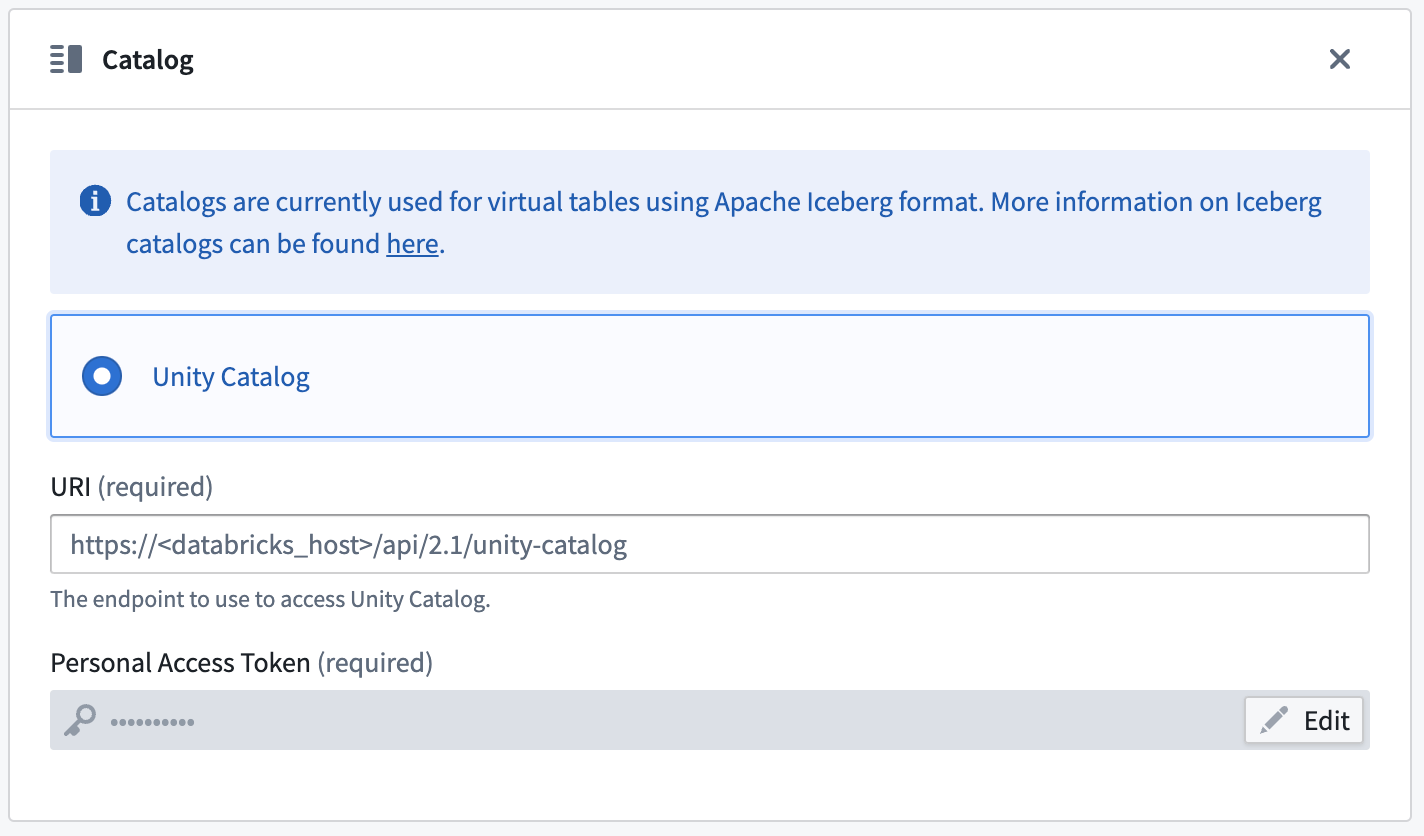
Incremental support relies on Iceberg Incremental Reads ↗ and is currently append-only. The current and added read modes in Python Transforms are supported.
Parquet
Virtual tables using Parquet rely on schema inference. At most 100 files will be used to determine the schema.
Troubleshooting
Use the following sections to troubleshooting known errors.
The resource does not support specified HTTP verb HEAD
Ensure that you are using the DFS location and not the blob storage.
For example:
# Correct:
abfsRootDirectory: 'abfss://<account_name>.dfs.core.windows.net/'
# Incorrect:
abfsRootDirectory: 'abfss://<account_name>.blob.core.windows.net/'
This endpoint does not support BlobStorageEvents or SoftDelete. Please disable these account features if you would like to use this endpoint
magritteabfs.source.org.apache.hadoop.fs.FileAlreadyExistsException: Operation failed:
"This endpoint does not support BlobStorageEvents or SoftDelete. Please disable these
account features if you would like to use this endpoint.", 409, HEAD,
https://STORAGE_ACCOUNT_NAME.dfs.core.windows.net/CONTAINER_NAME/?
upn=false&action=getAccessControl&timeout=90
This error is thrown because Hadoop ABFS currently does not support ↗ accounts with SoftDelete enabled. The only solution is to disable this feature for the storage account.
AADToken: HTTP connection failed for getting token from AzureAD. HTTP response: 401 Unauthorized
There is a known issue ↗ with the Client Credentials authentication mechanism. Service Principal client secrets containing a + or a / will not work if set up using the Data Connection interface. Resolve this issue by creating new credentials without a + or /. Reach out to your Palantir representative if this issue continues.
Confirm that a managed identity flow works outside the Data Connection agent
While troubleshooting, we recommend separating access problems from network problems. To do this, first test access to the source data independently (outside of Data Connection). Then, verify that the managed identity ↗ can be used to successfully establish a connection from the Data Connection VM to the storage account:
# Grab a new token using the local metadata endpoint.
# If you do not have jq on the box, you can manually export the value of the access_token key from
# the API call result to the TOKEN environment variable.
export TOKEN=`curl 'http://IP_ADDRESS_OF_VM/metadata/identity/oauth2/token?api-version=2018-02-01
&resource=https%3A%2F%2Fstorage.azure.com%2F' -H Metadata:true | jq '.access_token' | sed 's/"//g'`

# Be sure the token is properly set; this should be an OAuth2 token. For example `eyJ0e...` (no quotes).
echo $TOKEN

# List the contents of the container root.
curl -XGET -H "x-ms-version: 2018-11-09" -H "Authorization: Bearer $TOKEN"
"https://STORAGE_ACCOUNT_NAME.dfs.core.windows.net/CONTAINER_NAME?resource=filesystem&recursive=false"

# Display the contents of a file inside the container.
curl -XGET -H "x-ms-version: 2018-11-09" -H "Authorization: Bearer $TOKEN"
"https://STORAGE_ACCOUNT_NAME.dfs.core.windows.net/CONTAINER_NAME/path/to/file.txt"
AADToken: HTTP connection failed for getting token from AzureAD. HTTP response: 400 Bad Request
For an Azure Managed Identity, this message likely means there is an issue with the metadata endpoint used to retrieve a token on the VM. The VM itself may be in a bad state, or the managed identity may not be attached to the VM yet. To debug this, attempt to retrieve a token from the VM by using the cURL command in the section above.
Receiving an HTML 504 gateway timeout page, starting <!DOCTYPE html>
If the page contains the text For support, please email us at..., the error may come from a network issue. Be sure the proxies are properly configured between Foundry and the VM on which the agent is installed, and between the agent VM and the source. If the agent appears healthy in the interface and you are able to access the files on Azure from the VM using a terminal, file an issue to for additional assistance.
:::callout{theme="neutral"} The ABFS plugin does not manage proxy settings and relies on agent settings. :::
This request is not authorized to perform this operation using this resource type., 403, HEAD
This error usually happens when a SAS token has been generated with insufficient permissions. When trying to create a sync, a preview of the entire source would appear as expected; however, a preview with scoped down filters would result in the error. Refer to the shared access signature section for instructions on how to generate SAS tokens.
Export file location is using Magritte filesystem
When using export-abfs-task, if files are being exported to root/opt/palantir/magritte-bootvisor/var/data/processes/bootstrapper/ rather than the specified directoryPath, be sure that you have a trailing / at the end of your directory URL.
For example:
# Correct:
abfsRootDirectory: 'abfss://STORAGE_ACCOUNT_NAME.dfs.core.windows.net/'
# Incorrect:
abfsRootDirectory: 'abfss://STORAGE_ACCOUNT_NAME.blob.core.windows.net'
中文翻译
OneLake 与 Azure Blob 文件系统 (ABFS)
使用 Azure Blob 文件系统 (ABFS) ↗ 将 Foundry 连接到 OneLake ↗、Azure Data Lake Storage Gen2 (ADLS Gen2) 及其他符合条件的 Azure 产品。ABFS 连接器(Connector)支持将文件读取到 Foundry 中,以及从 Foundry 写入到 Azure。
:::callout{theme="warning"} 不支持连接到 Azure Data Lake Storage Gen1。 :::
支持的功能
| 功能 | 状态 |
|---|---|
| 浏览(Exploration) | 🟢 正式发布(Generally available) |
| 批量导入(Bulk import) | 🟢 正式发布 |
| 增量同步(Incremental) | 🟢 正式发布 |
| 媒体集(Media sets) | 🟢 正式发布 |
| 虚拟表(Virtual tables) | 🟢 正式发布 |
| 导出任务(Export tasks) | 🟡 已停用(Sunset) |
| 文件导出(File exports) | 🟢 正式发布 |
数据模型
该连接器可将任意类型的文件传输到 Foundry 数据集中。文件格式保持不变,在传输过程中或传输后不会应用任何模式(Schema)。请为输出数据集应用所需的模式,或编写下游转换(Downstream transformation)来访问数据。
性能与限制
可传输的文件大小没有限制。然而,网络问题可能导致大规模传输失败。特别是,在 Foundry 工作节点(Worker)上运行且运行时间超过两天的同步(Sync)将被中断。为避免网络问题,建议使用较小的文件大小,并限制每次同步执行时摄取的文件数量。同步可以按计划运行。
设置
- 打开 Data Connection 应用程序,在屏幕右上角选择 + New Source。
- 从可用的连接器类型中选择 ABFS—Azure Data Lake Storage Gen2。
- 按照后续配置提示,使用以下各节中的信息继续设置您的连接器。
:::callout{theme="warning"} 建议将 具有直接连接策略的 Foundry 工作节点(Foundry worker with direct connection policies) 与 ABFS 连接器配合使用,以简化设置和配置。 :::
了解更多关于在 Foundry 中设置连接器的信息。
身份验证(Authentication)
要导入数据,连接器必须在 Azure 中列出(list)文件系统内容并读取(read)文件内容。这可以通过与所提供连接凭据关联的主体(Principal)的授权模式来实现。
- 对于基于角色的访问控制 (RBAC)(一种粗粒度的访问控制形式),主体需要在数据所在的容器上拥有
Storage Blob Data Reader↗ 角色。 - 对于访问控制列表 (ACL)(一种细粒度的访问控制形式),主体需要对摄取文件拥有
ReadACL,并对从容器根目录到文件位置的所有路径目录拥有ExecuteACL。
了解更多关于 ADLS Gen2 中的访问控制 ↗ 的信息。
ABFS 连接器支持以下身份验证配置选项,按推荐程度从高到低排列:
- 客户端凭据(Client credentials)(推荐)
- 共享访问签名(Shared access signature)
- 用户名和密码(Username and password)
- 刷新令牌(Refresh token)
- 共享密钥(Shared key)
- 工作负载身份联合(Workload Identity Federation)
- Azure 托管标识(Azure managed identity)(旧版 — 适用于现有代理工作节点源)
客户端凭据(Client credentials)(推荐用于 Foundry 直接连接)
客户端凭据 ↗ 依赖于 Entra ID 中的应用注册(App registration) ↗(服务主体(Service Principal))。此方法适用于所有直接连接。使用以下字段配置客户端凭据身份验证:
| 选项 | 是否必需 | 描述 |
|---|---|---|
Client endpoint |
是 | 连接的身份验证端点。 通常格式为 https://login.microsoftonline.com/<directory-id>/oauth2/token,其中 <directory-id> 是订阅 ID。更多详情请参阅 Azure 的官方文档 ↗。 |
Client ID |
是 | 应用注册的 ID;也称为应用程序 ID。 |
Client secret |
是 | 在应用注册中生成的密钥。 |
共享访问签名(Shared access signature)
共享访问签名 (SAS) ↗ 身份验证使用提供短期且严格限定范围的凭据的令牌。当服务可以按需生成令牌并将其分发给在极短时间内使用令牌的客户端时,这些令牌最为有用。
| 选项 | 是否必需 | 描述 |
|---|---|---|
Blob SAS token |
是 | 共享访问签名令牌。 |
连接器需要一个静态 SAS 令牌,并将存储一个长期有效的令牌来验证存储帐户。
:::callout{theme="warning"} 一旦 SAS 令牌过期,您的同步将停止工作,直到手动续期。因此,强烈建议不要使用 SAS 令牌,并鼓励您使用其他身份验证解决方案。 :::
共享访问签名令牌
请按照 Azure 指南 ↗ 获取 SAS 令牌。
示例令牌:
/container1/dir1?sp=r&st=2023-02-23T17:53:28Z&se=2023-02-24T01:53:28Z&spr=https&sv=2021-12-02&sr=d&sig=1gF9B%2FOnEmtYeDl6eB9tb0va1qpSBjZw3ZJuW2pMm1E%3D&sdd=1
通常建议在存储容器级别生成 SAS 令牌。在 Azure 门户的容器视图中找到存储容器(在 设置(Settings) > 共享访问令牌(Shared access tokens) 下)。如果需要在存储帐户级别生成 SAS 令牌(在 Azure 门户的存储帐户视图中,位于 安全(Security) > 网络(Networking) > 共享访问签名(Shared access signature) 下),则最小权限集如下:
"允许的服务(Allowed services)": "Blob""允许的资源类型(Allowed resource types)": "Container" + "Object""允许的权限(Allowed permissions)": "Read" + "List"
:::callout{theme="warning"} 要使用 SAS 令牌连接到 Azure Blob 存储,您必须指定存储 Blob 的目录资源 ↗。 :::
生成 SAS 令牌时,请确保设置以下参数:
签名协议(Signed protocol): 建议设置 spr ↗ 以强制连接使用 https。
签名资源(Signed resource): 根据被授予访问权限的资源类型更改该值 ↗。
:::callout{theme="warning"}
如果使用的签名资源是指定目录,请确保同时指定了目录深度(Directory depth) ↗。建议设置较高的深度值,以允许连接从嵌套目录中拉取数据(例如,sdd=100)。
:::
用户名/密码(Username/password)
用户名/密码 ↗ 身份验证方法遵循 OAuth 协议。凭据使用您租户的 Azure 页面生成(例如,https://login.microsoftonline.com/<tenant-id>/oauth2/token)。将 <tenant-id> 替换为您要连接的租户的 ID。
设置以下配置:
| 选项 | 是否必需 | 描述 |
|---|---|---|
Client endpoint |
是 | OAuth 配置中的客户端端点。 |
Username |
是 | 用户的电子邮件地址。 |
Proxy password |
是 | 密码令牌。 |
刷新令牌(Refresh token)
刷新令牌 ↗ 授权方法遵循 OAuth 协议。了解如何使用 Azure 文档 ↗ 生成刷新令牌。
设置以下配置:
| 选项 | 是否必需 | 描述 |
|---|---|---|
Client ID |
是 | 客户端 ID;可在 Microsoft Entra ID 中找到。 |
Refresh Token |
是 | 刷新令牌。 |
共享密钥(Shared key)
每个 Azure 存储帐户都有两个共享密钥 ↗。但是,不建议在生产环境中使用共享密钥,因为其作用域是存储帐户级别而非容器级别。共享密钥默认具有管理员权限,轮换密钥需要手动操作。
要获取共享密钥,请在 Azure 门户中导航到所需的存储帐户,然后在 安全 + 网络(Security + networking) 部分下选择 访问密钥(Access keys)。
| 选项 | 是否必需 | 描述 |
|---|---|---|
Account key |
是 | 帐户访问密钥。 |
工作负载身份联合(Workload Identity Federation) (OIDC)
Azure 工作负载身份联合 ↗ 授权方法遵循 OpenID Connect (OIDC) 协议。按照显示的源系统配置说明设置工作负载身份联合。查看我们的文档了解 OIDC 如何与 Foundry 配合使用的详细信息。
| 选项 | 是否必需 | 描述 |
|---|---|---|
Tenant ID |
是 | 可以从 Microsoft Entra ID ↗ 获取租户 ID。 |
Client ID |
是 | 可以在 Microsoft Entra ID 中找到客户端 ID。 |
Azure 托管标识(Azure managed identity)(旧版 — 代理工作节点连接)
:::callout{theme="warning" title="旧版(Legacy)"} 此身份验证方法仅适用于旧版代理工作节点(Agent worker)源。对于新源,请使用客户端凭据。 :::
Azure 托管标识 ↗ 无需在 Foundry 中存储凭据。用于连接数据的托管标识必须对底层存储具有适当的权限。
| 选项 | 是否必需 | 描述 |
|---|---|---|
Tenant ID |
否 | 可以从 Microsoft Entra ID ↗ 获取租户 ID。 |
Client ID |
否 | 如果多个托管标识(由系统或用户分配)附加到运行代理的虚拟机 (VM),请提供应用于连接存储的 ID。 |
:::callout{theme="warning"} 托管标识身份验证方法依赖于虚拟机 (VM) 上所有进程都可用的本地 REST 端点。此方法仅在通过部署在同一 Azure 租户内 VM 上的代理进行连接时才有效。 :::
网络(Networking)
在 Foundry 中运行 Azure 连接时,您需要设置网络访问,以便 Foundry 与源通信。这是一个两步过程:
- 设置从 Foundry 到源出站的网络访问。 您可以通过在 Data Connection 应用程序中对源应用适当的出站策略(Egress policies)来实现。Azure 连接器需要通过
端口 443访问存储帐户的域。例如,如果您连接到abfss://file_system@account_name.dfs.core.windows.net,则存储帐户的域为account_name.dfs.core.windows.net。Data Connection 应用程序会根据源中提供的连接详细信息建议适当的出站策略。 - 将 Foundry 加入 Azure 存储容器的白名单。 您可以通过将 Foundry IP 加入 Azure 存储帐户的白名单来实现,如 Azure 的文档 ↗所述。您的 Foundry IP 详细信息可以在控制面板应用程序(Control Panel application)的 网络出站(Network Egress) 下找到。
:::callout{theme="neutral"} 如果您要设置对托管在与 Foundry 注册(Enrollment)相同 Azure 区域中的 Azure 存储桶的访问,则需要通过 PrivateLink 设置与上述不同的网络配置。如果是这种情况,请联系您的 Palantir 管理员寻求帮助。 :::
配置选项
连接器具有以下额外配置选项:
| 选项 | 是否必需 | 描述 |
|---|---|---|
Root directory |
是 | 读取/写入数据的目录。 |
Catalog |
否 | 为此存储容器中存储的表配置目录(Catalog)。更多详情请参阅虚拟表(Virtual tables)。 |
:::callout{theme="neutral"} ABFS 与 OneLake 兼容,并且支持 Microsoft OneLake URI。 :::
根目录支持以下格式:
- Azure Data Lake Storage Gen2 或 Azure Blob Storage:
abfss://file_system@account_name.dfs.core.windows.net/<directory>/
- Microsoft Fabric:
abfss://file_system@onelake.dfs.fabric.microsoft.com/path/to/directory/
示例:
abfss://file_system@account_name.dfs.core.windows.net/↗ 用于访问该文件系统的所有内容。abfss://file_system@account_name.dfs.core.windows.net/path/to/directory/↗ 用于访问特定目录。abfss://file_system@onelake.dfs.fabric.microsoft.com/path/to/directory/↗ 用于访问 Microsoft OneLake 中的特定目录。
:::callout{theme="neutral"} 如果您使用 SAS 令牌进行身份验证并访问 Blob 存储,则必须在根目录配置中指定一个目录。所有内容必须位于指定目录的子文件夹中,以确保正确访问。 :::
从 Azure Data Lake/Blob 存储同步数据
ABFS 连接器使用基于文件的同步接口(File-based sync interface)。
将数据导出到 Azure Data Lake/Blob 存储
要导出到 ABFS,首先为您的 ABFS 连接器启用导出。然后,创建一个新的导出。
导出任务(Export tasks)(旧版)
:::callout{theme="warning"} 导出任务是一项旧版功能,不建议用于新实施。对于新的导出,请使用推荐的导出工作流程。本文档适用于仍在使用现有导出任务的用户。 :::
要开始导出数据,您必须配置一个导出任务。导航到包含您要导出的连接器的项目文件夹。右键单击连接器名称,然后选择 Create Data Connection Task。
在 Data Connection 视图的左侧面板中:
- 确认
Source名称与您要使用的连接器匹配。 - 添加一个名为
inputDataset的Input。输入数据集(input dataset) 是要导出的 Foundry 数据集。 - 添加一个名为
outputDataset的Output。输出数据集(output dataset) 用于运行、调度和监控任务。 - 最后,在文本字段中添加一个 YAML 块来定义任务配置。
:::callout{theme="neutral"} 左侧面板中显示的连接器和输入数据集的标签不反映 YAML 中定义的名称。 :::
创建导出任务 YAML 时使用以下选项:
| 选项 | 是否必需 | 描述 |
|---|---|---|
directoryPath |
是 | 文件将写入的目录。路径必须以尾部斜杠 / 结尾。 |
excludePaths |
否 | 正则表达式列表;名称匹配这些表达式的文件将不会被导出。 |
rewritePaths |
否 | 更多信息请参见下文。 |
uploadConfirmation |
否 | 当值为 exportedFiles 时,输出数据集将包含已导出文件的列表。 |
createTransactionFolders |
否 | 启用后,数据将写入指定 directoryPath 内的子文件夹。每个子文件夹将根据 Foundry 中提交事务的时间拥有唯一的名称。 |
incrementalType |
否 | 对于增量构建的数据集,设置为 incremental 以仅导出自上次导出以来发生的事务。 |
flagFile |
否 | 更多信息请参见下文。 |
spanMultipleViews |
否 | 如果为 true,Foundry 中的多个事务将一次性导出。如果为 false,单次构建将一次只导出一个事务。如果启用了增量,将首先导出最旧事务中的文件。 |
rewritePaths
如果第一个键与文件名匹配,键中的捕获组将被替换为值。值本身可以包含额外的部分来向文件名添加元数据。
如果值包含:
${dt:javaDateExpression}:值的这一部分将被替换为文件导出时的时间戳。javaDateExpression遵循 DateTimeFormatter ↗ 模式。${transaction}:值的这一部分将被替换为包含此文件的 Foundry 事务 ID。${dataset}:值的这一部分将被替换为包含此文件的 Foundry 数据集 ID。
示例:
考虑一个名为 "spark/file_name" 的 Foundry 数据集中的文件,其事务 ID 为 transaction_id,数据集 ID 为 dataset_id。如果您使用表达式 fi.*ame 作为键,file_${dt:DD-MM-YYYY}-${transaction}-${dataset}_end 作为值,则当文件写入 Azure 时,它将存储为 spark/file_79-03-2023-transaction_id-dataset_id_end。
标志文件(Flag file)
连接器可以在给定构建的所有数据复制完成后,向 Azure 存储写入一个空的标志文件。该空文件表示内容已准备好供消费,并且将不再被修改。标志文件将写入 directoryPath。但是,如果启用了 createTransactionFolders,将为每个写入内容的文件夹创建一个标志文件。如果启用了标志文件,并且标志文件名为 confirmation.txt,则在构建中导出的文件写入后,所有标志文件将一次性写入。
:::callout{theme="neutral"} 标志文件在构建结束时写入,而不是在子文件夹导出时写入。 :::
如果 Azure 中的文件比标志文件新,这通常表示先前的导出未成功,或者该文件夹的导出正在进行中。
配置导出任务后,选择右上角的 Save。
虚拟表(Virtual tables)
本节提供有关从 Azure Data Lake Storage Gen 2 (Azure Blob Storage) 源使用虚拟表的额外详细信息。本节不适用于同步到 Foundry 数据集的情况。
下表突出显示了 ADLS Gen2 支持的虚拟表功能。
| 功能 | 状态 |
|---|---|
| 批量注册(Bulk registration) | 🔴 不可用 |
| 自动注册(Automatic registration) | 🔴 不可用 |
| 表输入(Table inputs) | 🟢 正式发布:Avro ↗、Delta ↗、Iceberg ↗、Parquet ↗ 在代码仓库(Code Repositories)、管道构建器(Pipeline Builder) 中 |
| 表输出(Table outputs) | 🟢 正式发布:Avro ↗、Delta ↗、Iceberg ↗、Parquet ↗ 在代码仓库(Code Repositories)、管道构建器(Pipeline Builder) 中 |
| 增量管道(Incremental pipelines) | 🟢 正式发布,适用于 Delta 表:仅 APPEND(详情)🟢 正式发布,适用于 Iceberg 表:仅 APPEND(详情)🔴 不适用于 Parquet 表 |
| 计算下推(Compute pushdown) | 🔴 不可用 |
请查阅虚拟表文档,了解支持的 Foundry 工作流程的详细信息,其中存储在 ADLS Gen2 中的表可用作输入或输出。
源配置要求
使用虚拟表时,请记住以下源配置要求:
- 您必须使用 Foundry 工作节点(Foundry worker) 源。虚拟表不支持使用代理工作节点(Agent worker)连接。
- 确保按照本文档的网络部分所述建立双向连接和加入白名单。
- 如果在代码仓库中使用虚拟表,请参阅虚拟表文档了解所需额外源配置的详细信息。
- 设置源凭据时,必须使用
客户端凭据(client credentials)、用户名/密码(username/password)或工作负载身份联合(workload identity federation)之一。使用虚拟表时不支持其他凭据选项。
Delta
要为基于虚拟表的管道启用增量支持,请确保在源 Delta 表上启用了变更数据馈送(Change Data Feed) ↗。Python 转换(Python Transforms) 中支持 current 和 added 读取模式。_change_type、_commit_version 和 _commit_timestamp 列将在 Python 转换中可用。
Iceberg
需要 Iceberg 目录(Catalog)来加载由 Apache Iceberg 表支持的虚拟表。要了解更多关于 Iceberg 目录的信息,请参阅 Apache Iceberg 文档 ↗。在源上注册的所有 Iceberg 表必须使用相同的 Iceberg 目录。
默认情况下,将使用 S3 中的 Iceberg 元数据文件创建表。注册表时必须提供指示这些元数据文件位置的 warehousePath。
在 Databricks 中使用 Delta 通用格式 (UniForm) 时,Unity Catalog ↗ 可用作 Iceberg 目录。要了解更多关于此集成的信息,请参阅 Databricks 文档 ↗。可以在源的 连接详情(Connection details) 选项卡中配置目录。您需要提供端点和个人访问令牌(Personal access token)来连接到 Unity Catalog。表应使用 catalog_name.schema_name.table_name 命名模式进行注册。
增量支持依赖于 Iceberg 增量读取(Incremental Reads) ↗,并且目前仅支持追加操作。Python 转换(Python Transforms) 中支持 current 和 added 读取模式。
Parquet
使用 Parquet 的虚拟表依赖于模式推断(Schema inference)。最多将使用 100 个文件来确定模式。
故障排除(Troubleshooting)
使用以下部分排查已知错误。
资源不支持指定的 HTTP 动词 HEAD
确保您使用的是 DFS 位置,而不是 Blob 存储。
例如:
# 正确:
abfsRootDirectory: 'abfss://<account_name>.dfs.core.windows.net/'
# 错误:
abfsRootDirectory: 'abfss://<account_name>.blob.core.windows.net/'
此端点不支持 BlobStorageEvents 或 SoftDelete。如果您想使用此端点,请禁用这些帐户功能
magritteabfs.source.org.apache.hadoop.fs.FileAlreadyExistsException: Operation failed:
"This endpoint does not support BlobStorageEvents or SoftDelete. Please disable these
account features if you would like to use this endpoint.", 409, HEAD,
https://STORAGE_ACCOUNT_NAME.dfs.core.windows.net/CONTAINER_NAME/?
upn=false&action=getAccessControl&timeout=90
抛出此错误是因为 Hadoop ABFS 目前不支持 ↗ 启用了 SoftDelete 的帐户。唯一的解决方案是为存储帐户禁用此功能。
AADToken: HTTP connection failed for getting token from AzureAD. HTTP response: 401 Unauthorized
已知问题 ↗ 与 客户端凭据(Client Credentials) 身份验证机制有关。如果使用 Data Connection 界面设置,包含 + 或 / 的服务主体客户端密钥将无法工作。通过创建不包含 + 或 / 的新凭据来解决此问题。如果问题仍然存在,请联系您的 Palantir 代表。
确认托管标识流在 Data Connection 代理之外工作
在故障排除时,建议将访问问题与网络问题分开处理。为此,首先独立测试对源数据的访问(在 Data Connection 之外)。然后,验证托管标识 ↗ 能否成功用于从 Data Connection VM 建立到存储帐户的连接:
# 使用本地元数据端点获取新令牌。
# 如果机器上没有 jq,您可以手动将 API 调用结果中 access_token 键的值导出到 TOKEN 环境变量。
export TOKEN=`curl 'http://IP_ADDRESS_OF_VM/metadata/identity/oauth2/token?api-version=2018-02-01
&resource=https%3A%2F%2Fstorage.azure.com%2F' -H Metadata:true | jq '.access_token' | sed 's/"//g'`

# 确保令牌已正确设置;这应该是一个 OAuth2 令牌。例如 `eyJ0e...`(不带引号)。
echo $TOKEN

# 列出容器根目录的内容。
curl -XGET -H "x-ms-version: 2018-11-09" -H "Authorization: Bearer $TOKEN"
"https://STORAGE_ACCOUNT_NAME.dfs.core.windows.net/CONTAINER_NAME?resource=filesystem&recursive=false"

# 显示容器内文件的内容。
curl -XGET -H "x-ms-version: 2018-11-09" -H "Authorization: Bearer $TOKEN"
"https://STORAGE_ACCOUNT_NAME.dfs.core.windows.net/CONTAINER_NAME/path/to/file.txt"
AADToken: HTTP connection failed for getting token from AzureAD. HTTP response: 400 Bad Request
对于 Azure 托管标识(Azure Managed Identity),此消息通常意味着用于在 VM 上检索令牌的元数据端点存在问题。VM 本身可能处于不良状态,或者托管标识可能尚未附加到 VM。要调试此问题,请尝试使用上一节中的 cURL 命令从 VM 检索令牌。
收到 HTML 504 网关超时页面,以 <!DOCTYPE html> 开头
如果页面包含文本 For support, please email us at...,则错误可能来自网络问题。请确保 Foundry 与安装代理的 VM 之间,以及代理 VM 与源之间的代理配置正确。如果代理在界面中显示健康,并且您能够使用终端从 VM 访问 Azure 上的文件,请提交问题以获取额外帮助。
:::callout{theme="neutral"} ABFS 插件不管理代理设置,而是依赖于代理设置。 :::
此请求无权使用此资源类型执行此操作。, 403, HEAD
当使用权限不足的 SAS 令牌时,通常会发生此错误。尝试创建同步时,整个源的预览会按预期显示;但是,使用范围缩小的过滤器进行预览会导致错误。请参阅共享访问签名部分,了解如何生成 SAS 令牌的说明。
导出文件位置正在使用 Magritte 文件系统
使用 export-abfs-task 时,如果文件被导出到 root/opt/palantir/magritte-bootvisor/var/data/processes/bootstrapper/ 而不是指定的 directoryPath,请确保目录 URL 末尾有尾部斜杠 /。
例如:
# 正确:
abfsRootDirectory: 'abfss://STORAGE_ACCOUNT_NAME.dfs.core.windows.net/'
# 错误:
abfsRootDirectory: 'abfss://STORAGE_ACCOUNT_NAME.blob.core.windows.net'