PostgreSQL
Connect Foundry to PostgreSQL ↗ to read and sync data between PostgreSQL databases and Foundry. This connector uses the official PostgreSQL driver ↗ on major version 42, which is compatible with all versions of PostgreSQL 8.2 and above.
Supported capabilities
| Capability | Status |
|---|---|
| Exploration | 🟢 Generally available |
| Batch syncs | 🟢 Generally available |
| Incremental | 🟢 Generally available |
| Change data capture syncs | 🟡 Beta |
| Streaming exports | 🟡 Beta |
| Table Exports | 🟢 Generally available |
Setup
- Open the Data Connection application and select + New Source in the upper right corner of the screen.
- Select PostgreSQL from the available connector types.
- Follow the additional configuration prompts to continue the setup of your connector using the information in the sections below.
Learn more about setting up a connector in Foundry.
Authentication
The Foundry PostgreSQL connector requires the use of a username and password for authentication. We recommend the use of service credentials rather than individual user credentials.
Username and password authentication may be used in conjunction with client and/or server certificates and SSL modes requiring verification of these certificates.
You must ensure that the provided user has the necessary privileges on the target database, as well as permission to read from or write to the target table(s). For change data capture, the user may also require CREATE and REPLICATION permissions on the target database.
Networking
The PostgreSQL connector requires network access to the database instance that you wish to connect to. PostgreSQL connections will normally use a hostname or IP to connect on port 5432.
If you are runnning the connection to PostgreSQL in Foundry, the appropriate egress policies must be added when setting up the source in the Data Connection application.
For cloud-hosted PostgreSQL instances accessible over the Internet, such as PostgreSQL in Amazon Relational Database Service (RDS), you must add an egress policy for the hostname of the database or the IP address if you are not using a hostname. Review the official documentation for the provider of your managed, cloud-hosted PostgreSQL instance for more details on the required networking configuration.
You will need to ensure that you have allowed inbound traffic from Foundry to your PostgreSQL instance. You can view the egress IPs where traffic from Foundry will originate in the Network egress page in Control Panel. Review the documentation for your hosting provider to learn how to allow traffic from these IPs to your database instance.
PostgreSQL in Amazon RDS
If you are connecting to a managed instance of PostgreSQL hosted in Amazon RDS, you can use a direct connection with the necessary egress policies.
- To find the hostname for your PostgreSQL instance hosted in Amazon RDS, navigate to your instance in the AWS console. An example hostname-based egress policy for RDS PostgreSQL is
<your-database-name>.<unique-identifier>.<region>.rds.amazonaws.com (port 5432)
When connecting to an RDS PostgreSQL instance, you may need to add the RDS root Certificate Authority (CA) as a server certificate in the source configuration panel. Download the rds-ca-2019-root.pem from the Amazon S3 site ↗, then copy the certificate details into Foundry to trust connections to Amazon RDS. For more information on connecting to RDS database instances using SSL/TLS, review the official AWS documentation ↗.
Connection details
| Option | Required? | Description |
|---|---|---|
Host type |
Yes | Specify how Foundry should connect with your PostgreSQL database. Option 1: Hostname Provide a hostname. This is the recommended option for all PostgreSQL connetions and should always be used when connecting to a cloud-hosted PostgreSQL instance. For example, an instance hosted in Amazon RDS ↗. Option 2: IPv4 Provide an IPv4 address. If you normally connect using an IPv4 address, either within a corporate network or over the Internet, you can use this option. Option 3: IPv6 Provide an IPv6 address. Use this option if you normally connect using an IPv6 address. |
Port |
Yes | Specify a port to use when connecting. The default port for most PostgreSQL instances will be 5432. For more information on ports, see the official documentation ↗ for PostgreSQL as well as the configuration for your database instance. |
Database name |
Yes | The name of the database you are connecting to within your instance of PostgreSQL. |
Authentication |
Yes | Configure using the Authentication guidance shown above. |
Network Connectivity |
Yes | You must provide egress policies to allow connections to your PostgreSQL instance. Refer to the Networking section for more details. |
SSL Mode |
Yes | Defaults to verify-full. For more details, review the official documentation ↗ for the ssl-mode connection parameter on the PostgreSQL JDBC driver. |
Change data capture [Beta]
:::callout{theme="neutral" title="Beta"} Change data capture syncs for PostgreSQL are in the beta phase of development and may not be available on your enrollment. Functionality may change during active development. Contact Palantir Support to request access to this feature. :::
The PostgreSQL source supports change data capture (CDC) syncs.
Since PostgreSQL supports logical replication, change data capture can stream changes to configured tables in near realtime. According to the PostgreSQL documentation ↗:
Logical replication is a method of replicating data objects and their changes, based upon their replication identity (usually a primary key).
Foundry change data capture syncs from PostgreSQL function by using an existing replication slot or creating a new replication slot and publication on the target database. Only one replication slot and publication may be configured per data connection source, however any number of tables may be streamed to Foundry over a single connection. If you wish to use multiple replication slots or publications, you can create multiple data connection sources that connect to your database.
Before setting up a change data capture sync, first ensure that you have a working PostgreSQL source connection. Then, navigate to the CDC syncs tab and provide the additional required configuration for change data capture.
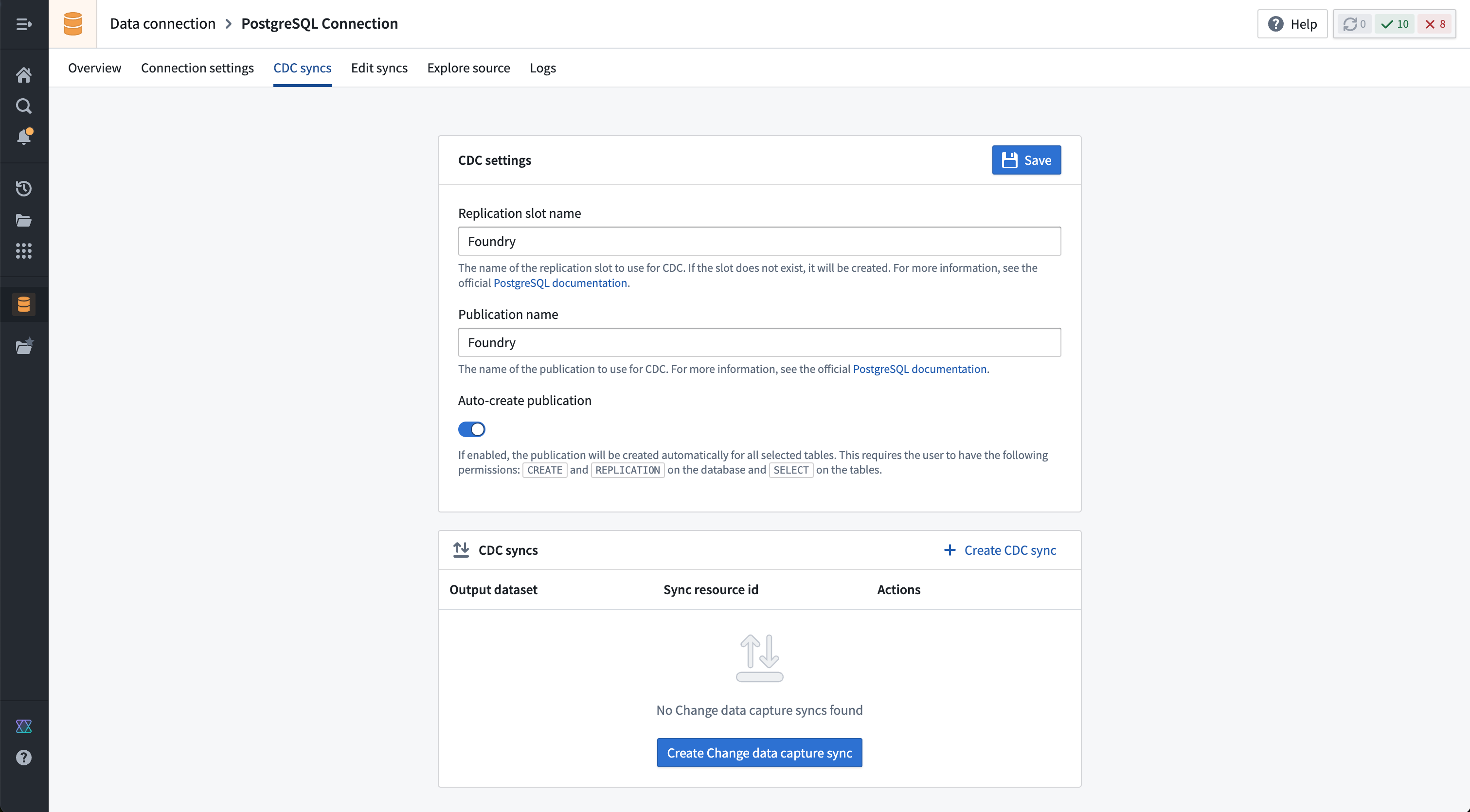
| Option | Required? | Description |
|---|---|---|
| Replication slot name | Yes | The name of the replication slot to use for CDC. If the slot does not exist, it will be created. For more information, see the official PostgreSQL documentation ↗. |
| Publication name | Yes | The name of the publication to use for CDC. For more information, see the official PostgreSQL documentation ↗. |
| Auto-create publication | Yes | If enabled, the publication will be created automatically for all selected tables. This requires the user to have the following permissions: CREATE and REPLICATION on the database, and SELECT on the tables. |
Once the required settings for change data capture are configured, you can navigate to the Overview page or stay on the CDC syncs page and select + Create CDC sync to create a new change data capture sync.
:::callout{theme="neutral"} The exploration runtime must be working to create a change data capture sync. If the runtime is still initializing, you may need to wait a few seconds and refresh the page to proceed with creating a change data capture sync. :::
For more information on using CDC with PostgreSQL, review the official documentation ↗ on logical replication for the version of PostgreSQL in use.
Use PostgreSQL sources in code
Read from PostgreSQL with an external transform
The following example queries the Postgres source used in the Deep Dive: Creating Your First Data Connection ↗ guide.
This example uses the psycopg2 ↗ package to query the Postgres source.
from transforms.api import transform_pandas, Output
from transforms.external.systems import external_systems, Source
import psycopg2
import pandas as pd


@external_systems(
    postgres_source=Source()
)

@transform_pandas(output=Output())
def compute(postgres_source):

    conn = psycopg2.connect(
        host="host",            # Database host address
        port="5432",            # Database port
        database="postgres",    # Database name
        user="user",            # Database username
        password=postgres_source.get_secret("PASSWORD") # Database password
    )

    query = "SELECT * FROM plants;"

    return pd.read_sql_query(query, conn)
Write to PostgreSQL with an external transform
This example writes rows from an input dataset to a PostgreSQL table using psycopg2 ↗. It creates the target table if it does not already exist. A column mapping dictionary handles differences between Foundry column names and PostgreSQL column names.
import logging
from transforms.api import lightweight, Output, transform_pandas, Input
from transforms.external.systems import external_systems, Source
import psycopg2
import pandas as pd

logger = logging.getLogger(__name__)

# Maps Foundry column names to PostgreSQL column names
COLUMN_MAPPING = {
    "plant_name": "name",
    "plant_height": "height_cm",
    "plant_color": "color",
}

CREATE_TABLE_SQL = """
    CREATE TABLE IF NOT EXISTS plants (
        name TEXT PRIMARY KEY,
        height_cm DOUBLE PRECISION,
        color TEXT
    )
"""


@lightweight
@external_systems(
    postgres_source=Source("<source_rid>")
)
@transform_pandas(
    Output("<output_dataset_rid>"),
    plants_df=Input("<input_dataset_rid>")
)
def compute(postgres_source, plants_df):
    conn = psycopg2.connect(
        host="<your_host>",
        port="5432",
        database="<your_database>",
        user="<your_user>",
        password=postgres_source.get_secret("PASSWORD"),
    )

    pg_columns = [COLUMN_MAPPING[c] for c in plants_df.columns]
    placeholders = ", ".join(["%s"] * len(pg_columns))
    columns_str = ", ".join(pg_columns)
    insert_sql = f"INSERT INTO plants ({columns_str}) VALUES ({placeholders})"

    try:
        with conn:
            with conn.cursor() as cursor:
                cursor.execute(CREATE_TABLE_SQL)
                for _, row in plants_df.iterrows():
                    cursor.execute(insert_sql, tuple(row))
    except Exception as e:
        logger.error(f"Error writing to PostgreSQL plants table: {e}")
        raise RuntimeError(f"Failed to write data to PostgreSQL: {e}") from e
    finally:
        conn.close()

    return pd.DataFrame({"rows_written": [len(plants_df)]})
中文翻译
PostgreSQL
将 Foundry 连接到 PostgreSQL ↗,以便在 PostgreSQL 数据库与 Foundry 之间读取和同步数据。此连接器使用主版本号为 42 的 官方 PostgreSQL 驱动程序 ↗,兼容 PostgreSQL 8.2 及以上所有版本。
支持的功能
| 功能 | 状态 |
|---|---|
| 数据探索 | 🟢 正式发布 |
| 批量同步 | 🟢 正式发布 |
| 增量同步 | 🟢 正式发布 |
| 变更数据捕获同步 | 🟡 Beta 测试 |
| 流式导出 | 🟡 Beta 测试 |
| 表导出 | 🟢 正式发布 |
设置
- 打开 Data Connection 应用程序,在屏幕右上角选择 + New Source。
- 从可用的连接器类型中选择 PostgreSQL。
- 按照后续配置提示,使用以下各节中的信息完成连接器设置。
了解更多关于在 Foundry 中设置连接器的信息。
身份验证
Foundry PostgreSQL 连接器需要使用用户名和密码进行身份验证。建议使用服务凭证而非个人用户凭证。
用户名和密码身份验证可与客户端和/或服务器证书以及需要验证这些证书的 SSL 模式结合使用。
您必须确保所提供的用户对目标数据库拥有必要的权限,并且具有读取或写入目标表的权限。对于变更数据捕获,用户可能还需要对目标数据库拥有 CREATE 和 REPLICATION 权限。
网络连接
PostgreSQL 连接器需要能够通过网络访问您要连接的数据库实例。PostgreSQL 连接通常使用主机名或 IP 地址通过端口 5432 进行连接。
如果您在 Foundry 中运行 PostgreSQL 连接,则在 Data Connection 应用程序中设置数据源时必须添加相应的出站策略。
对于可通过互联网访问的云托管 PostgreSQL 实例(例如 Amazon Relational Database Service (RDS) 中的 PostgreSQL),您必须为数据库的主机名或 IP 地址(如果不使用主机名)添加出站策略。请查阅托管云 PostgreSQL 实例提供商的官方文档,了解所需网络配置的更多详细信息。
您需要确保已允许从 Foundry 到 PostgreSQL 实例的入站流量。您可以在控制面板的 Network egress 页面查看 Foundry 流量的出站 IP 地址。请查阅托管提供商的文档,了解如何允许来自这些 IP 地址的流量访问您的数据库实例。
Amazon RDS 中的 PostgreSQL
如果您要连接到托管在 Amazon RDS 中的 PostgreSQL 托管实例,可以使用直接连接并配置必要的出站策略。
- 要查找托管在 Amazon RDS 中的 PostgreSQL 实例的主机名,请导航至 AWS 控制台中的实例。RDS PostgreSQL 基于主机名的出站策略示例为:
<your-database-name>.<unique-identifier>.<region>.rds.amazonaws.com (port 5432)
当连接到 RDS PostgreSQL 实例时,您可能需要在源配置面板中添加 RDS 根证书颁发机构 (CA) 作为服务器证书。从 Amazon S3 站点 ↗ 下载 rds-ca-2019-root.pem,然后将证书详细信息复制到 Foundry 中以信任与 Amazon RDS 的连接。有关使用 SSL/TLS 连接到 RDS 数据库实例的更多信息,请查阅官方 AWS 文档 ↗。
连接详情
| 选项 | 是否必需 | 描述 |
|---|---|---|
主机类型 |
是 | 指定 Foundry 如何连接到您的 PostgreSQL 数据库。 选项 1:主机名 提供主机名。这是所有 PostgreSQL 连接的推荐选项,在连接到云托管的 PostgreSQL 实例时应始终使用。例如,托管在 Amazon RDS ↗ 中的实例。 选项 2:IPv4 提供 IPv4 地址。如果您通常使用 IPv4 地址进行连接(无论是在企业网络内还是通过互联网),可以使用此选项。 选项 3:IPv6 提供 IPv6 地址。如果您通常使用 IPv6 地址进行连接,请使用此选项。 |
端口 |
是 | 指定连接时使用的端口。大多数 PostgreSQL 实例的默认端口为 5432。有关端口的更多信息,请参阅 PostgreSQL 的官方文档 ↗以及数据库实例的配置。 |
数据库名称 |
是 | 您在 PostgreSQL 实例中连接的数据库名称。 |
身份验证 |
是 | 使用上方身份验证指南进行配置。 |
网络连接 |
是 | 您必须提供出站策略以允许连接到您的 PostgreSQL 实例。有关更多详细信息,请参阅网络连接部分。 |
SSL 模式 |
是 | 默认为 verify-full。有关更多详细信息,请查阅 PostgreSQL JDBC 驱动程序中 ssl-mode 连接参数的官方文档 ↗。 |
变更数据捕获 [Beta]
:::callout{theme="neutral" title="Beta 测试"} PostgreSQL 的变更数据捕获同步处于开发阶段的 beta 测试阶段,您的环境中可能尚不可用。功能在活跃开发期间可能会发生变化。请联系 Palantir 支持以请求访问此功能。 :::
PostgreSQL 数据源支持变更数据捕获 (CDC) 同步。
由于 PostgreSQL 支持逻辑复制,变更数据捕获可以近乎实时地将更改流式传输到配置的表中。根据 PostgreSQL 文档 ↗:
逻辑复制是一种基于复制标识(通常是主键)复制数据对象及其更改的方法。
Foundry 从 PostgreSQL 进行的变更数据捕获同步通过使用现有的复制槽或在目标数据库上创建新的复制槽和发布来实现。每个数据连接源只能配置一个复制槽和一个发布,但可以通过单个连接将任意数量的表流式传输到 Foundry。如果您希望使用多个复制槽或发布,可以创建多个连接到数据库的数据连接源。
在设置变更数据捕获同步之前,请首先确保您有一个可用的 PostgreSQL 源连接。然后,导航至 CDC syncs 选项卡并提供变更数据捕获所需的额外配置。
| 选项 | 是否必需 | 描述 |
|---|---|---|
| 复制槽名称 | 是 | 用于 CDC 的复制槽名称。如果该槽不存在,则会创建。有关更多信息,请参阅官方 PostgreSQL 文档 ↗。 |
| 发布名称 | 是 | 用于 CDC 的发布名称。有关更多信息,请参阅官方 PostgreSQL 文档 ↗。 |
| 自动创建发布 | 是 | 如果启用,将自动为所有选定的表创建发布。这要求用户具有以下权限:对数据库的 CREATE 和 REPLICATION 权限,以及对表的 SELECT 权限。 |
配置完变更数据捕获所需的设置后,您可以导航至 Overview 页面或停留在 CDC syncs 页面,然后选择 + Create CDC sync 以创建新的变更数据捕获同步。
:::callout{theme="neutral"} 数据探索运行时必须处于工作状态才能创建变更数据捕获同步。如果运行时仍在初始化,您可能需要等待几秒钟并刷新页面才能继续创建变更数据捕获同步。 :::
有关在 PostgreSQL 中使用 CDC 的更多信息,请查阅所使用 PostgreSQL 版本关于逻辑复制的官方文档 ↗。
在代码中使用 PostgreSQL 数据源
使用外部转换从 PostgreSQL 读取数据
以下示例查询了 Deep Dive: Creating Your First Data Connection ↗ 指南中使用的 Postgres 数据源。
此示例使用 psycopg2 ↗ 包来查询 Postgres 数据源。
from transforms.api import transform_pandas, Output
from transforms.external.systems import external_systems, Source
import psycopg2
import pandas as pd


@external_systems(
    postgres_source=Source()
)

@transform_pandas(output=Output())
def compute(postgres_source):

    conn = psycopg2.connect(
        host="host",            # 数据库主机地址
        port="5432",            # 数据库端口
        database="postgres",    # 数据库名称
        user="user",            # 数据库用户名
        password=postgres_source.get_secret("PASSWORD") # 数据库密码
    )

    query = "SELECT * FROM plants;"

    return pd.read_sql_query(query, conn)
使用外部转换向 PostgreSQL 写入数据
此示例使用 psycopg2 ↗ 将输入数据集中的行写入 PostgreSQL 表。如果目标表不存在,则会创建该表。列映射字典用于处理 Foundry 列名与 PostgreSQL 列名之间的差异。
import logging
from transforms.api import lightweight, Output, transform_pandas, Input
from transforms.external.systems import external_systems, Source
import psycopg2
import pandas as pd

logger = logging.getLogger(__name__)

# 将 Foundry 列名映射到 PostgreSQL 列名
COLUMN_MAPPING = {
    "plant_name": "name",
    "plant_height": "height_cm",
    "plant_color": "color",
}

CREATE_TABLE_SQL = """
    CREATE TABLE IF NOT EXISTS plants (
        name TEXT PRIMARY KEY,
        height_cm DOUBLE PRECISION,
        color TEXT
    )
"""


@lightweight
@external_systems(
    postgres_source=Source("<source_rid>")
)
@transform_pandas(
    Output("<output_dataset_rid>"),
    plants_df=Input("<input_dataset_rid>")
)
def compute(postgres_source, plants_df):
    conn = psycopg2.connect(
        host="<your_host>",
        port="5432",
        database="<your_database>",
        user="<your_user>",
        password=postgres_source.get_secret("PASSWORD"),
    )

    pg_columns = [COLUMN_MAPPING[c] for c in plants_df.columns]
    placeholders = ", ".join(["%s"] * len(pg_columns))
    columns_str = ", ".join(pg_columns)
    insert_sql = f"INSERT INTO plants ({columns_str}) VALUES ({placeholders})"

    try:
        with conn:
            with conn.cursor() as cursor:
                cursor.execute(CREATE_TABLE_SQL)
                for _, row in plants_df.iterrows():
                    cursor.execute(insert_sql, tuple(row))
    except Exception as e:
        logger.error(f"写入 PostgreSQL plants 表时出错: {e}")
        raise RuntimeError(f"向 PostgreSQL 写入数据失败: {e}") from e
    finally:
        conn.close()

    return pd.DataFrame({"rows_written": [len(plants_df)]})