Web Feature Service (WFS)
Connect Foundry to a WFS ↗ version 1.1.0 server and pull geospatial data into a Foundry dataset.
Setup
- Open the Data Connection application and select + New Source in the upper right corner of the screen.
- Select WFS from the available connector types under Protocol sources.
- Choose to use a direct connection over the Internet or to connect through an intermediary agent.
- Follow the additional configuration prompts to continue the setup of your connector using the information in the sections below.
Learn more about setting up a connector in Foundry.
Source configuration
On the Connection details page, enter the Upstream host URL in the WFS Source Config panel to connect to a single WFS server.
Authorization
The WFS connector currently supports two types of authorization configuration: No Auth and GEOAxIS. If you select GEOAxIS, then you must also upload any non-person entity (NPE) certificates and private keys required to connect to the server. To upload NPE certificates or private keys, select More Options before choosing Configure server certificates for NPE certificates or Configure client certificates for private keys.
Optional source configuration
The More options menu provides two additional configuration options:
- Use lower-case WFS requests: By default, the WFS connector sends all query parameters as upper-case strings. If your server handles this in a case-sensitive manner, you can toggle the connector to use lower-case query parameters.
- Header overrides: Use this option to configure additional headers for all requests made by the WFS connector.
Networking
You must access your WFS server on port 443. Ensure an egress policy exists for the source.
Source previews
After you configure your source, select Preview sources on the right side of your screen to view the names of feature layers available on the WFS server.
Sync configuration
After you create your source, you can create syncs that import data for a specific feature type into Foundry. You will need to specify the name of the feature to import in the WFS feature import config.
By default, the WFS connector creates a dataset with two columns: one for the feature ID and one for a JSON string of the properties on that feature. You can optionally configure the connector to parse the schema definition from the WFS server to create a dataset with a typed column for each property on the feature type. To do this, change the Feature import mode from JSON to Schematized.
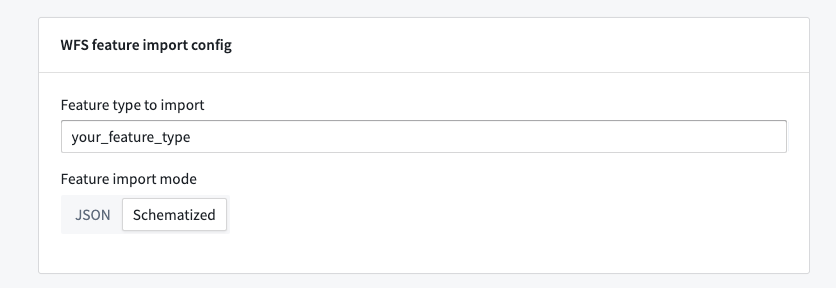
:::callout{theme="neutral"} The Schematized import mode may result in longer build times for feature types with many properties or more failure-prone builds in cases where WFS servers have a non-standard schema definition. :::
Optional sync configuration
The More options menu provides two additional configuration options:
- Maximum batch size for imports: The WFS connector creates batches of data to import into Foundry, and the batch size can influence performance depending on the geometry type of imported features. Generally, syncs that pull in more complicated geometry should use a smaller batch size and syncs that pull in simple geometry, like points, can use a larger batch size. Similarly, you can fix failing builds by increasing the batch size so the connector pulls in more data per request from the WFS server. The default batch size is 1000 features.
- Maximum requests to send to upstream per second: Builds for the WFS connector can run for a long time if there is a lot of data to sync. Upstream WFS servers may rate limit a client if it sends too many requests within a short period. To avoid hitting server rate limits, you can configure rate limiting at the sync level. The default sync rate limit is 10 requests per second.
WFS restrictions
The WFS connector may fail as a result of the following restrictions on the server's 1.1.0 specification:
- Specification violations: If a server does not adhere to the WFS
1.1.0specification, then the WFS connector cannot query features correctly. The connector usesGetFeaturerequests to respond with the number of features fetched, but some servers will always respond with 0. In this case, the connector cannot determine how much data to fetch and will exit. - Small geographic regions with many features: WFS
1.1.0does not provide a mechanism to page through feature data, so the connector will try to page through it in batches. If there is more data in one small region than can fit in a single batch, the connector cannot import that data and the sync will fail. By default, the smallest region possible is a single 10-kilometer by 10-kilometer area. Although this is not configurable, the default batch size is configurable at the sync level.
中文翻译
Web Feature Service (WFS)
将 Foundry 连接到 WFS ↗ 版本 1.1.0 服务器,并将地理空间数据拉取到 Foundry 数据集中。
设置
- 打开 Data Connection 应用程序,并在屏幕右上角选择 + New Source。
- 在 Protocol sources 下的可用连接器类型中选择 WFS。
- 选择通过互联网使用 直接连接(direct connection),或通过 中间代理(intermediary agent) 进行连接。
- 按照其他配置提示,使用以下部分中的信息继续设置您的连接器。
了解更多关于在 Foundry 中 设置连接器(setting up a connector) 的信息。
源配置
在 Connection details 页面上,在 WFS Source Config 面板中输入 Upstream host URL,以连接到单个 WFS 服务器。
授权
WFS 连接器目前支持两种类型的授权配置:No Auth 和 GEOAxIS。如果您选择 GEOAxIS,则还必须上传连接到服务器所需的任何非个人实体(NPE)证书和私钥。要上传 NPE 证书或私钥,请选择 More Options,然后为 NPE 证书选择 Configure server certificates,或为私钥选择 Configure client certificates。
可选源配置
More options 菜单提供了两个额外的配置选项:
- Use lower-case WFS requests: 默认情况下,WFS 连接器将所有查询参数作为大写字符串发送。如果您的服务器以区分大小写的方式处理这些参数,您可以切换连接器以使用小写查询参数。
- Header overrides: 使用此选项为 WFS 连接器发出的所有请求配置额外的标头。
网络
您必须通过端口 443 访问您的 WFS 服务器。确保为该源存在 出口策略(egress policy)。
源预览
配置源后,选择屏幕右侧的 Preview sources 以查看 WFS 服务器上可用的要素图层名称。
同步配置
创建源后,您可以 创建同步(create syncs),将特定要素类型的数据导入 Foundry。您需要在 WFS feature import config 中指定要导入的要素名称。
默认情况下,WFS 连接器会创建一个包含两列的数据集:一列用于要素 ID,另一列用于该要素属性的 JSON 字符串。您可以选择配置连接器以解析 WFS 服务器的模式定义,从而为要素类型的每个属性创建一个具有类型化列的数据集。为此,请将 Feature import mode 从 JSON 更改为 Schematized。
:::callout{theme="neutral"} Schematized 导入模式可能会导致具有许多属性的要素类型构建时间更长,或者在 WFS 服务器具有非标准模式定义的情况下导致更容易失败的构建。 :::
可选同步配置
More options 菜单提供了两个额外的配置选项:
- Maximum batch size for imports: WFS 连接器会创建数据批次以导入 Foundry,批次大小可能会根据导入要素的几何类型影响性能。通常,拉取更复杂几何图形的同步应使用较小的批次大小,而拉取简单几何图形(如点)的同步可以使用较大的批次大小。同样,您可以通过增加批次大小来修复失败的构建,这样连接器每次从 WFS 服务器请求时就能拉取更多数据。默认批次大小为 1000 个要素。
- Maximum requests to send to upstream per second: 如果有大量数据需要同步,WFS 连接器的构建可能会运行很长时间。如果客户端在短时间内发送过多请求,上游 WFS 服务器可能会对客户端进行速率限制。为避免达到服务器速率限制,您可以在同步级别配置速率限制。默认同步速率限制为每秒 10 个请求。
WFS 限制
由于服务器 1.1.0 规范的以下限制,WFS 连接器可能会失败:
- 规范违规: 如果服务器不遵守 WFS
1.1.0规范,则 WFS 连接器无法正确查询要素。连接器使用GetFeature请求来响应获取的要素数量,但某些服务器始终响应 0。在这种情况下,连接器无法确定要获取多少数据,并将退出。 - 具有许多要素的小地理区域: WFS
1.1.0不提供分页浏览要素数据的机制,因此连接器将尝试分批分页浏览。如果一个小区域内的数据量超过单个批次所能容纳的量,连接器将无法导入该数据,同步将失败。默认情况下,可能的最小区域是单个 10 公里乘 10 公里的区域。虽然这不可配置,但默认批次大小可在同步级别配置。