Create a connected flow(创建连接流(Connected Flow))
In the Logic Flows App, you can:
- Create new connected flows (Top right corner)
- View existing connected flows, grouped by automation
To open the app, go to /workspace/logic-flows.
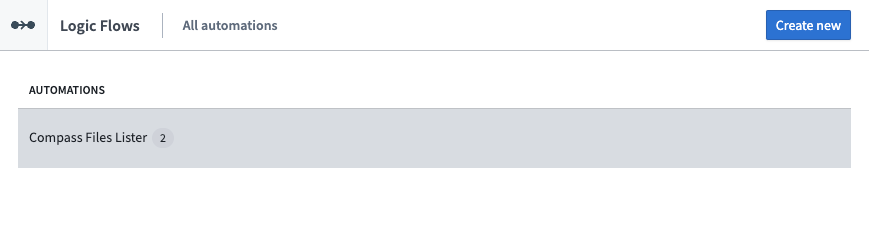
To create a connected flow in the Compass Files Lister, follow these steps:
- When creating a new connected flow, you will be presented with a dialog that allows you to set a name, project & required parameters and configuration. These are validated as it is being typed in or manually by clicking Validate.
For Compass Files lister automation, you are required to set input folder and output repository.
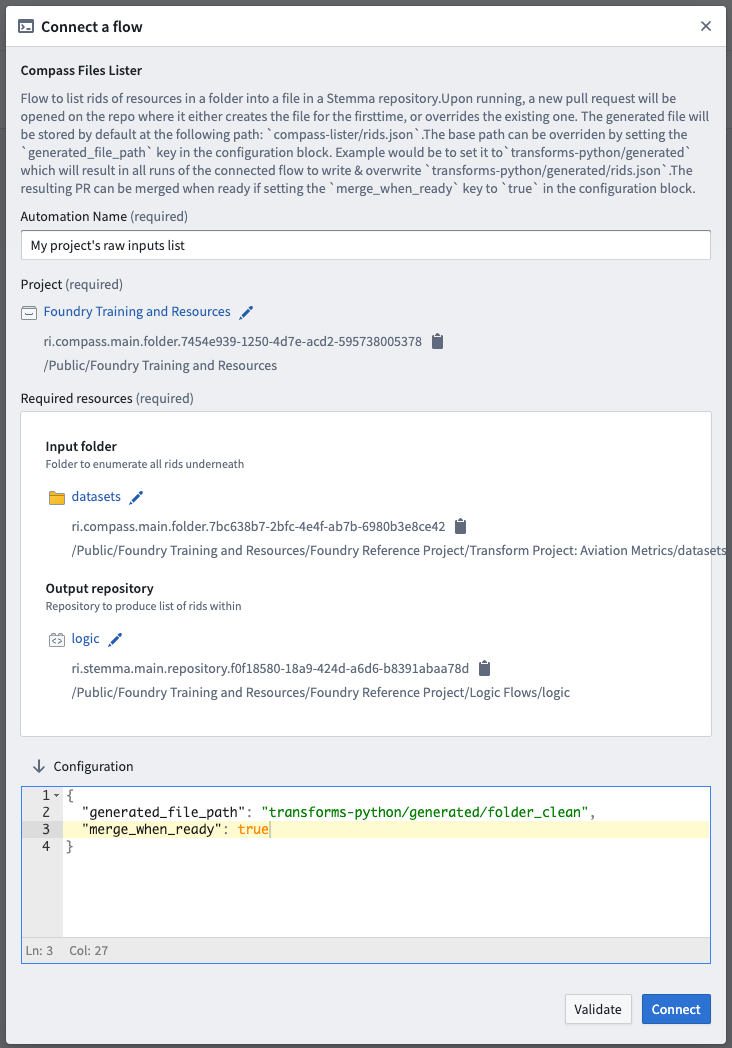
:::callout{theme="neutral"} Logic flows are project-scoped, meaning you must specify the project where the connected flow resource will be created. Connected flows should be saved in the same project as any parameters used to connect the flow. :::
-
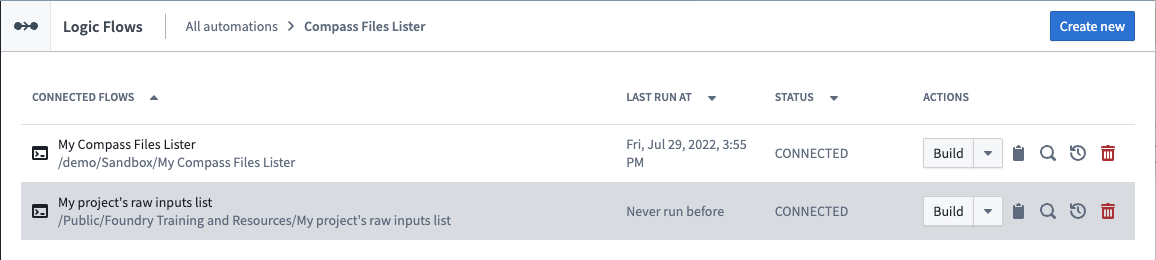
After saving the connected flow, it will appear in the list of connected flows.
-
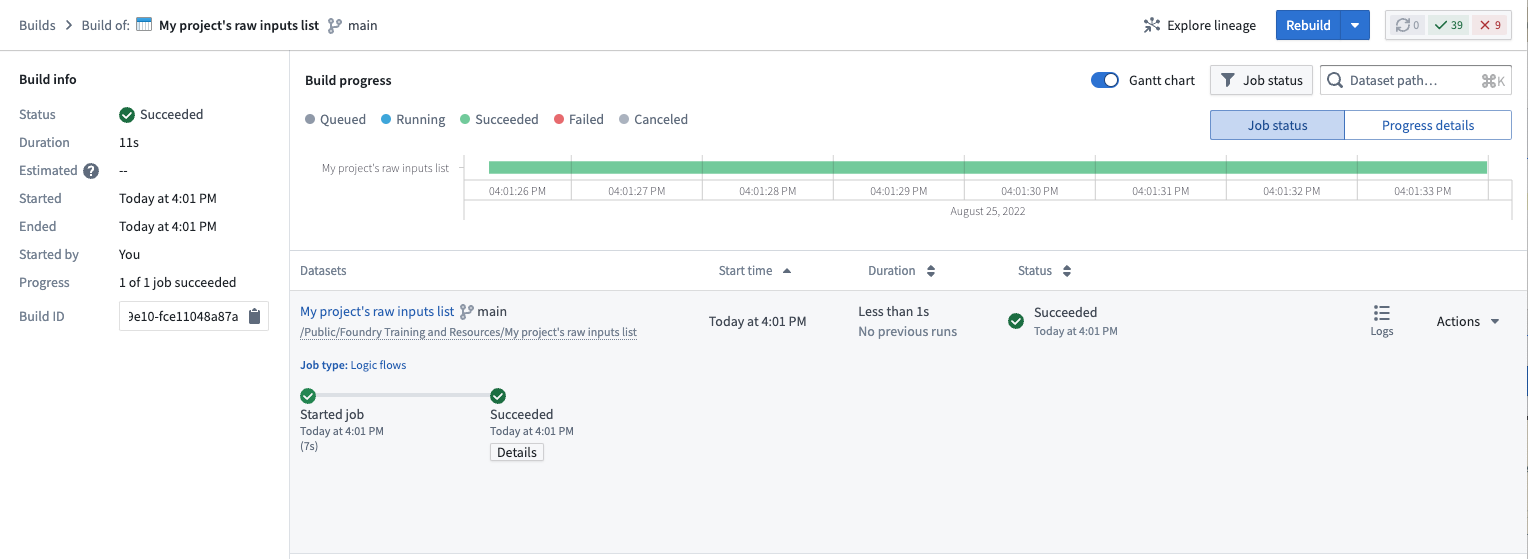
To trigger the job, click Build in-line with the specific connected flow. A message will point you to the Builds application view where you can monitor the status of the job.
-
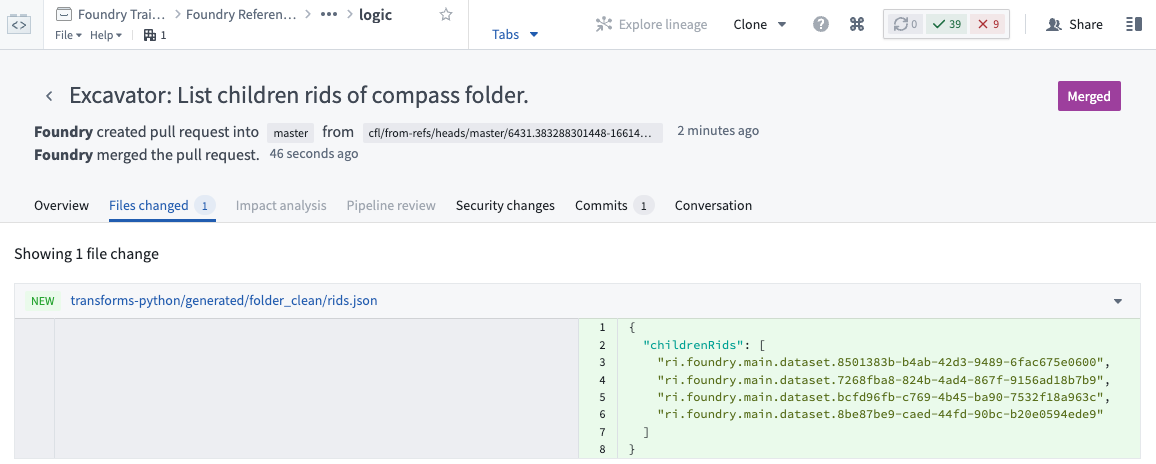
To check the results of your job, verify the pull request in the target repository view.
-
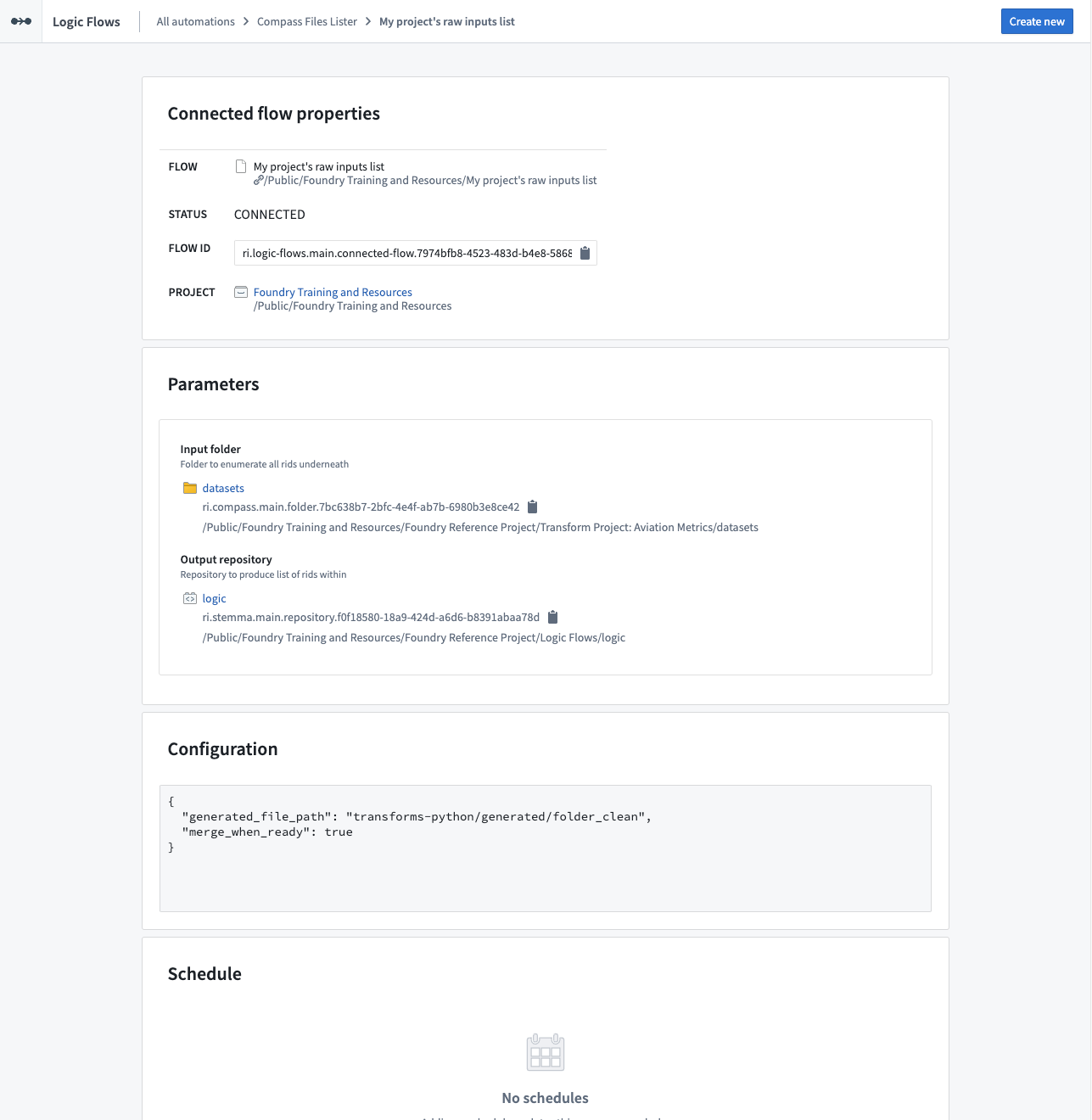
By heading back to Logic Flows application, you can see your connected flow, its parameters and configuration, and create a schedule from there.
中文翻译
创建连接流(Connected Flow)
在逻辑流应用(Logic Flows App)中,您可以:
- 创建新的连接流(右上角)
- 查看现有的连接流,按自动化分组
要打开该应用,请访问 /workspace/logic-flows。
要在 Compass Files Lister 中创建连接流,请按照以下步骤操作:
- 创建新的连接流时,系统会弹出一个对话框,允许您设置名称、项目及所需参数和配置。这些内容会在输入时自动验证,或通过点击 Validate 手动验证。
对于 Compass Files lister 自动化,您需要设置输入文件夹和输出仓库。
:::callout{theme="neutral"} 逻辑流是项目作用域(project-scoped)的,这意味着您必须指定创建连接流资源的项目。连接流应保存在与用于连接流的任何参数相同的项目中。 :::
-
保存连接流后,它将出现在连接流列表中。
-
要触发作业,请点击特定连接流对应的 Build。系统会提示您前往构建应用(Builds application)视图,您可以在其中监控作业状态。
-
要检查作业结果,请在目标仓库视图中验证拉取请求(Pull Request)。
-
返回逻辑流应用后,您可以查看连接流及其参数和配置,并从中创建调度计划。