Create a dataset batch pipeline with Code Repositories(使用代码仓库创建数据集批处理管道)
This guide will step you through a simple data transformation example using the Code Repositories application. You will learn how to write and edit SQL code as well as build your datasets. You will also learn how to work on branches to allow you to collaborate with colleagues.
1. Create a repository
Get started by creating a new repository. To do so, navigate to a Project in Foundry, select + New in the top-right, then select Code repository.
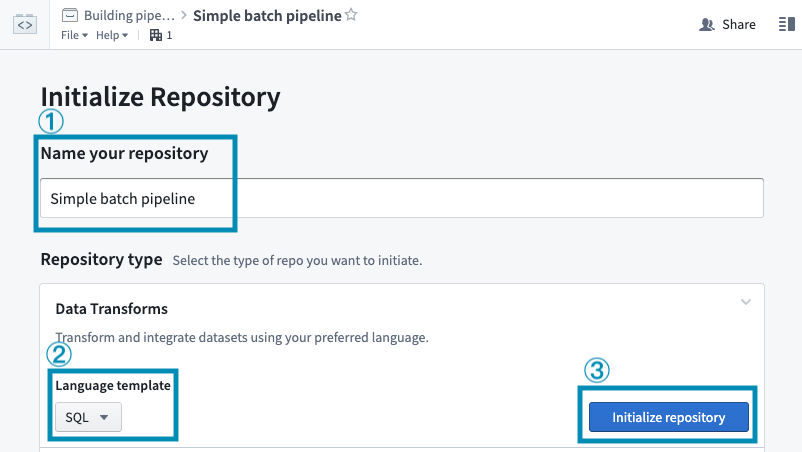
For this guide, we will write a SQL transform. Give your repository a name, then select SQL in the dropdown under Language template. Then, select Initialize repository.
2. Import your data
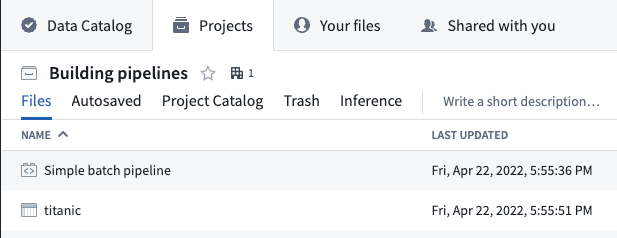
If you’ve already imported a raw dataset that you will be working with, you can move on to the next step. Otherwise, you can download this sample dataset:
Refer to the guide on manual data uploads to learn how to upload this dataset into your Project alongside your repository.
3. Create a branch
By creating personal branches to make changes, instead of directly editing the master version of the code, you can safely collaborate on the same Code Repository with your colleagues. You can track and undo changes as well as merge changes into the master code. Code can be reviewed on a line-by-line basis meaning that changes to production pipelines can easily be discussed amongst teammates. To learn more about branching in Foundry, see this page.
When you navigate to a Code Repository, you will be on the master branch by default. It is best practice for the master branch to be protected, meaning that it is not possible to directly edit code on that branch. Note that you can read files on protected branches, but you cannot edit or create files.
Before you can add changes to your Code Repository, you must first create your own branch which contains a copy of the code on the master branch. To create your branch, click the  icon next to the current branch name.
This opens a dialog for selecting an existing branch and choosing a custom name for the new branch:
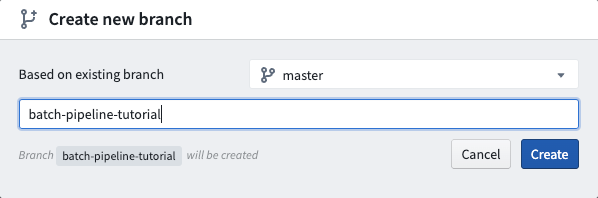
After you create a new branch, you will see an identical file tree on the left-hand side. You’ve simply created a copy of the code on the master branch you started on. You can now edit files in your branch.
4. Edit code
Creating a new file
Now that you’re working in your own branch, create a new SQL file by clicking the ellipses icon when you hover over a folder and then selecting New file. Once you select New file, you will be prompted to select the type of file and give it a name. For this example, select SQL Transformation and pick a filename (without spaces or special characters):
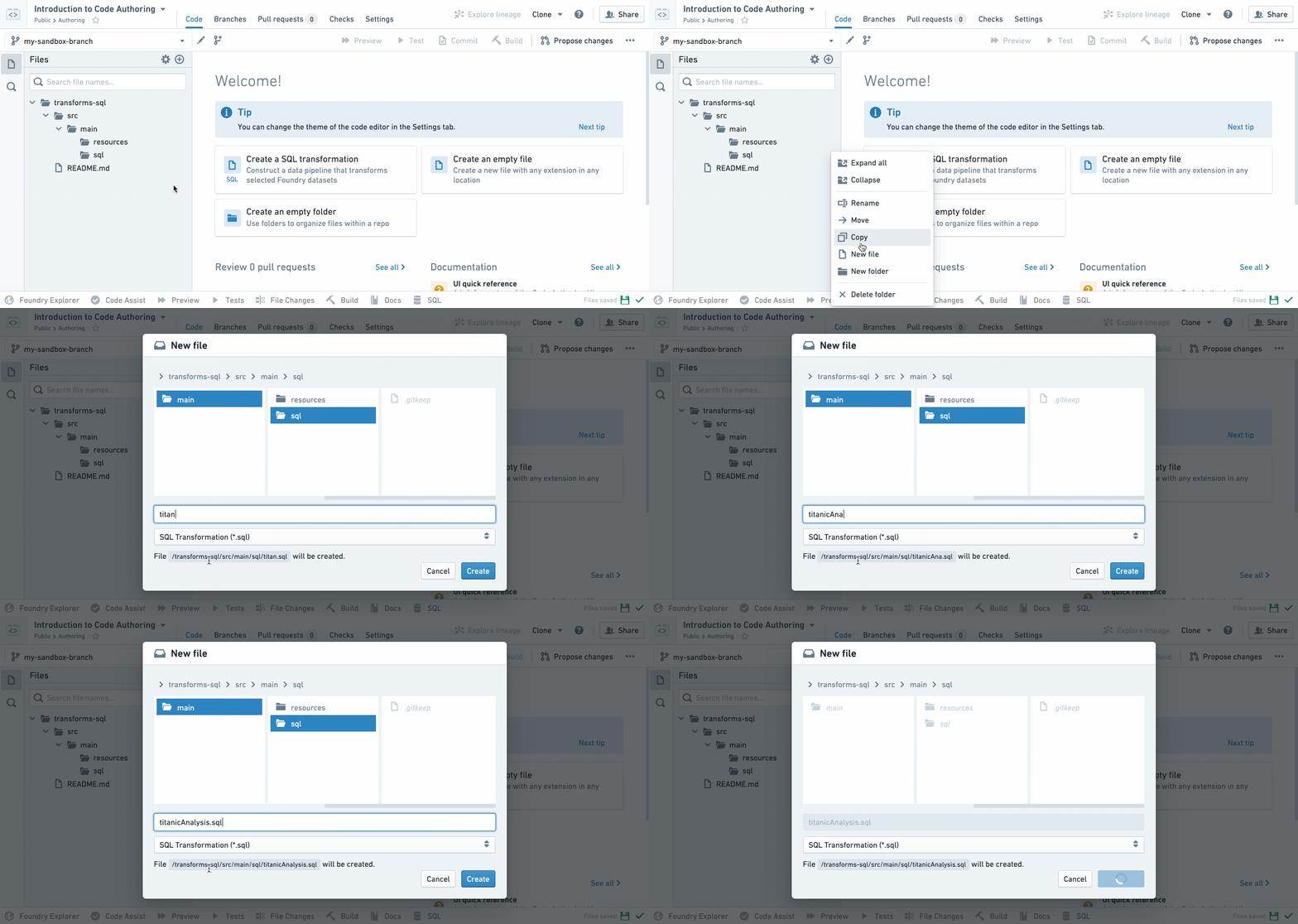
Notice that your new SQL file is highlighted in the file tree at the position where the resulting dataset will exist when you build it.
:::callout{theme="neutral"}
If a filename is green in the file tree, it means it’s a newly created file in your branch that doesn’t exist on the master branch where you started. If a filename is orange, it means it’s a file that exists on the master but has been modified in your branch.
:::
Your newly created .sql file will declare an output dataset based on the filename you provide. For instance, if your repository is inside /Public/Authoring and you create titanicAnalysis.sql, your new file will automatically declare an output dataset /Public/Authoring/titanicAnalysis.
Edit your file
Next, replace the placeholder text with your actual data transformation code. First, replace `SOURCE_DATASET_PATH` with the path to an actual input dataset. In this example, you will use the titanic dataset you imported in step (2) of this tutorial.
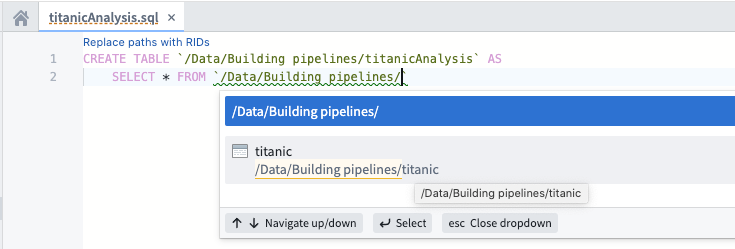
Notice that when you start typing a backtick, auto-complete will show you an interactive menu listing datasets you can use. When you select a dataset from the list, the dataset reference will be replaced by the unique ID of the dataset. This makes it so that your transformation code will continue to work even if the dataset is moved later.
Type the name of your project in the backticks, find the titanic dataset, and select it from the menu.
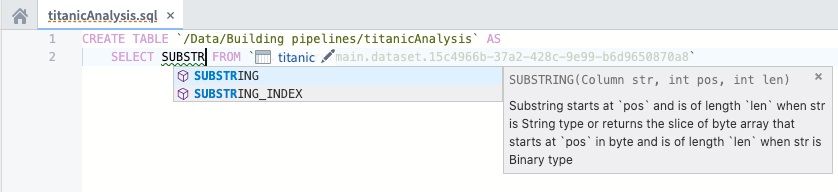
Continue writing SQL code to perform transformations on your data. You will see various help dialogs appear as you type SQL functions. For instance, say you want to create a new column with a one-letter abbreviated gender of passengers in your “titanic” dataset. You can view information about how to use the SUBSTRING function:
Before moving on, finish writing your data transformation code to select the “Name”, “Age”, “Survived”, and “Ticket” columns as well as a derived column called “Gender”. The “Gender” column represents the abbreviated gender of passengers; to create this column, call the SUBSTRING function on the “Sex” column.
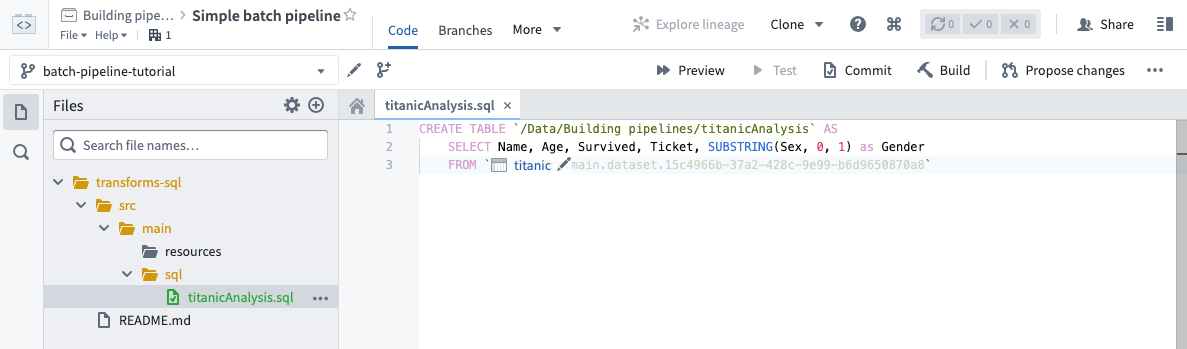
Note that you must define an alias for any derived columns you create in SQL. For more information about writing SQL data transformations, refer to the Spark SQL language reference.
5. Test your changes
:::callout{theme="neutral"} In Foundry, datasets can be branched (similar to code). This is useful for testing the design of multi-step data pipelines. For instance, you can test changes to pieces of data pipelines in isolation without breaking downstream dependencies for anyone who doesn’t rely on your branch. :::
Now that you’ve written your data transformation code, you should test the changes you’ve made in your branch. It’s important to test your changes to be sure your code is working as expected before merging your changes into the master branch.
Use preview to iterate on your changes
As you write your code, you can use the Preview feature to accelerate the development cycle and iterate on changes quickly. Preview runs your code on sampled inputs and provides a sample output without the need to commit your changes, run checks, or materialize a dataset in Foundry. Sample outputs may not be representative of the result of a build, but they can provide a way to confirm your code is working and producing the expected results.
To use, click Preview from the header, or open the Preview helper in the bottom bar of Code Editor. It's possible to preview file-based datasets or ones with schema.
For datasets with a schema, you can customize the inputs used when previewing your changes by clicking the settings icon for the input you wish to edit. The options are:
- Original input: Use a sample of the original input.
- Previous preview: For datasets produced in the same repository, you can chain previewed changes and use a preview of the dataset as an input to your preview.
- Apply custom filters: Apply filters on supported columns to test your changes on a specific subset of the input. For example: "all rows with a timestamp within a given window", or "all rows with a given string value".
- Select a different dataset: Select another dataset with all the columns that your code requires, to test specific cases or to provide any other custom sample as your input.
When running Preview for the first time on a dataset containing files, you must configure the files that will be used within the sample. Once the sample files have been selected, they can be reconfigured by selecting the relevant input. After saving the configuration, Preview will execute the code on the chosen sample of files.
When running Preview again, there will be no need to reconfigure input files. Once Preview has executed, you can view the sample output as rows or files. If you have the required permissions, you can also choose to download the output files.
Commit your changes
After writing new code, you can commit your changes. In Code Repositories, you commit changes when you want to label the work you’ve performed. Even before you make a commit, your work is auto-saved by default. A commit specifically labels your set of changes when you reach a stopping point.
:::callout{theme="success" title="Tip"} Clicking the Commit button commits your changes and runs automatic checks on your code. Clicking the Build button also commits your changes. Specifically, clicking Build runs automatic code checks and starts building your output dataset. If you want to quickly test your changes without building your dataset to ensure your code passes the code checks, click Commit. Otherwise, you can skip ahead to build your dataset. :::
To commit the changes you’ve made, click the  button at the top right corner and enter a summary of the changes you've made. Committing changes triggers automatic checks to run on your code. An icon in the top-right corner indicates the status of these checks; hover over it to see more details.

Build your dataset on your branch
To test your changes, click the  button at the top of the screen.
Once you click the build button, two things happen: automatic checks run on your code and your output dataset starts to build. During this time, either a new output dataset will be created from the code in your branch or an existing output dataset will get updated to reflect your changes. You can view the progress of the running tasks in the Build helper. Once the tasks complete, the  icon indicates that each task has successfully completed. If you see the
  icon instead, click the details button in the Build helper to learn more about what went wrong. This will take you to the Checks tab where you can look for error messages and also re-trigger your build.
Here is some important information about testing your changes and building your datasets:
- Clicking the Build button at the top right corner is equivalent to clicking the Build button in the Build helper at the bottom of the Code Repositories interface.
- You must select the file containing your data transformation logic before you can actually click the build button to run checks and start building your output dataset.
- Each time you trigger a build on your branch, it will queue up behind existing builds that are already running.
Preview your dataset
Once your tasks successfully complete and your dataset gets built, you can preview your built dataset in the Build helper:
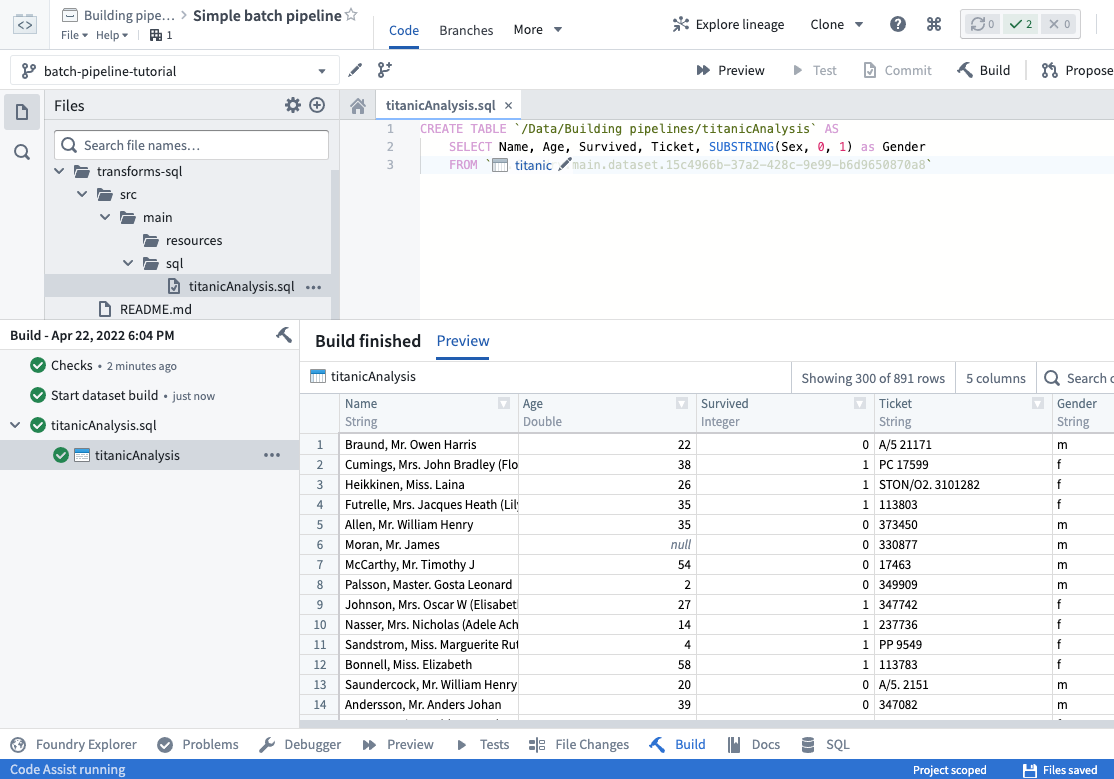
Click on the link to your dataset in the Build helper to open your full dataset.
Now, you have built the dataset on your own branch. Continue reading through the rest of this guide to learn how to merge your data transformation code into the master branch.
6. Propose your changes for review
By this point, you have:
- Created your own branch to make your changes on,
- Created a new SQL file with your data transformation code,
- Tested your changes and built your dataset in your branch, and
- Previewed your built output dataset.
Now, you will propose your changes for review by your teammates. After you’ve tested your changes and are happy with your resulting output dataset, you can propose your changes for review by your teammates.
:::callout{theme="success" title="Tip"} Users with Owner permissions will be able to enable the option to “Automatically merge changes” when creating a pull request. This option is only available if at least one required check is configured and passing for your repository’s branch. If you enable the option to “Automatically merge changes”, your pull request will automatically get merged into the main code after you create it. Once the changes from your branch are merged into the main code, your branch will also get automatically deleted. :::
To create a new Pull Request, click the  button at the top right corner. This will open the "New pull request" page where you can write a description of your changes and click the Create pull request button.
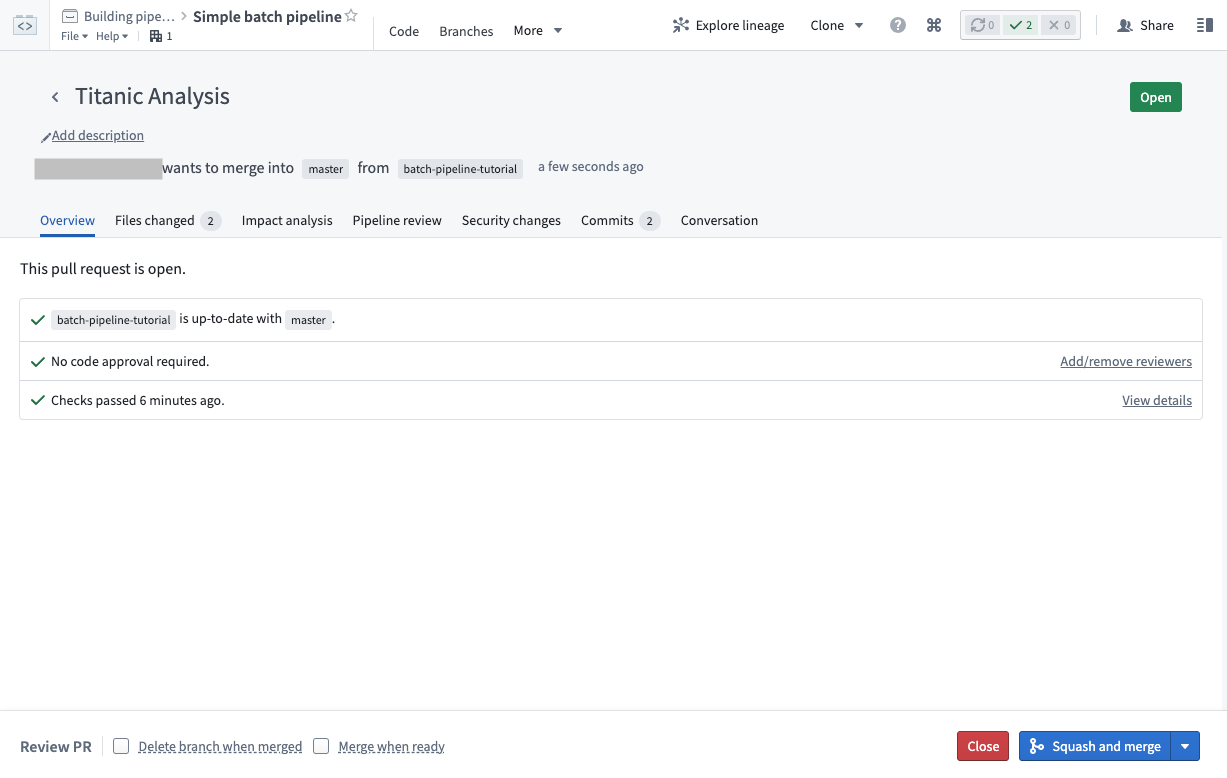
This creates a new pull request with your proposed changes. The pull request page provides a wide range of tools you can use to review how the proposed changes will affect your data pipeline:
- The Files changed tab allows teammates to review your code on a line-by-line basis
- The Impact analysis tab shows how affected datasets have changed on your branch, including changes to dataset schemas and health checks
- The Pipeline review tab shows a graph of your data pipeline and highlights how changes in this pull request affect the pipeline visually.
Learn more about understanding the impact of changes in a Pull Request.
In general, it's important to invite others to review your changes before they’re merged into the master branch. Users can approve or reject on a file-by-file basis to keep track of which files still need to be adjusted before the pull request can be merged. To see which users have already approved or rejected a particular file, hover over the corresponding indicator icon.
Using the individual file review buttons is optional, but when you reject one file, this automatically rejects the pull request. Similarly, when you approve the pull request, all individual files get approved.
7. Merge your changes into the master branch
Finalizing your changes
Once your changes have been reviewed, a user with the appropriate permissions (by default, Owners and Editors) can merge the changes on your pull request to combine them into master.
For the purposes of this tutorial, proceed by selecting the Squash and merge button at the bottom-right of your screen, then select Squash and merge again in the confirmation dialog.
:::callout{theme="neutral"} Your repository may have different policies that must be met before changes are merged. Policies are defined by the repository owner in the branch settings page and presented to code authors in the Pull Request page. :::
Validating that your changes are on master
Once your proposed changes have been accepted, you should validate that your the changes you made in your branch are reflected on the master branch. To do so, click the Code tab, select the master branch, and browse the files. Make sure you see the changes that you made in your branch.
Deleting your branch
:::callout{theme="warning" title="Warning"} Do not delete any branches that you did not create. For others working in the same Code Repository, this could result in lost work! :::
Now you can delete the branch you created at the start of this tutorial to reduce clutter. Since your changes have been merged into the master branch, there is no need to keep your branch. Navigate to the Branches tab, and look under “Personal branches”. Delete the branch you created by clicking the  icon:
icon:
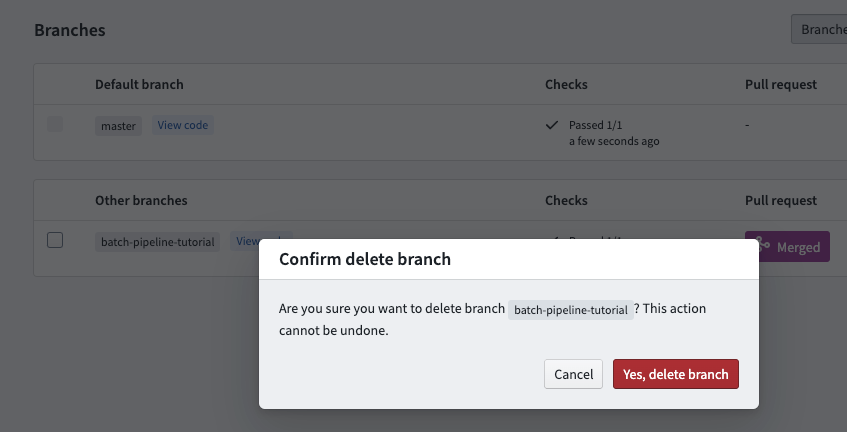
:::callout{theme="neutral"} The pull request page offers a "Delete branch after merge" option to allow for quick clean-up of branches. This option is unavailable for protected branches. :::
To delete a protected branch, you first need to unprotect it and then follow the steps above.
8. Build your dataset on the master branch
The final step is to build your new dataset on the master branch. Similar to build the dataset in your branch, click the button at the top of the screen when your SQL code file is selected.
Once your tasks successfully complete and your dataset gets built, you can click on the link to your dataset in the Build helper to open your full dataset.
Congratulations! You have successfully created a new data transformation and published your changes using Code Repositories. Here are some possible next steps to continue learning:
- Learn how to create an incremental pipeline.
- Learn how to create more complex pipelines using Python Transforms.
- Explore details about core concepts like datasets, branching, and builds.
9. Revert changes
If you notice problems with a code change you have already merged into the master branch, there is an easy way to undo those changes. You can revert a specific commit by locating it in the commit history of the master branch. On the Branches tab of your repository, click on master to see the chronological list of all commits.
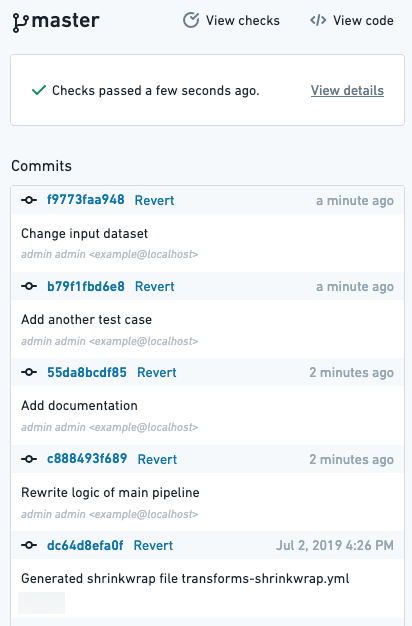
You can view a certain commit's code changes by clicking on the commit hash. Once you have located the commit you want to revert, click Revert. This will open a pull request into the master branch which you can review and merge.
中文翻译
使用代码仓库创建数据集批处理管道
本指南将通过一个简单的数据转换示例,逐步介绍如何使用代码仓库(Code Repositories)应用程序。您将学习如何编写和编辑SQL代码以及构建数据集。您还将学习如何在分支上工作,以便与同事协作。
1. 创建仓库
首先创建一个新仓库。为此,请导航到Foundry中的项目(Project),选择右上角的+新建(+ New),然后选择代码仓库(Code repository)。
在本指南中,我们将编写一个SQL转换。为您的仓库命名,然后在语言模板(Language template)下的下拉菜单中选择SQL。然后,选择初始化仓库(Initialize repository)。
2. 导入数据
如果您已经导入了将要使用的原始数据集,可以直接进入下一步。否则,您可以下载此示例数据集:
请参考手动数据上传指南,了解如何将此数据集与您的仓库一起上传到项目中。
3. 创建分支
通过创建个人分支(branches)来进行更改,而不是直接编辑主版本的代码,您可以与同事安全地在同一个代码仓库上协作。您可以跟踪和撤销更改,也可以将更改合并到主代码中。代码可以逐行审查,这意味着生产管道的更改可以轻松地在团队成员之间讨论。要了解更多关于Foundry中分支的信息,请参见此页面。
当您导航到代码仓库时,默认会处于master分支上。最佳实践是保护master分支,这意味着无法直接在该分支上编辑代码。请注意,您可以在受保护的分支上读取文件,但不能编辑或创建文件。
在向代码仓库添加更改之前,您必须首先创建自己的分支,该分支包含master分支上代码的副本。要创建分支,请单击当前分支名称旁边的图标。
这将打开一个对话框,用于选择现有分支并为新分支选择自定义名称:
创建新分支后,您将在左侧看到相同的文件树。您只是创建了所起始的master分支上代码的副本。现在,您可以在自己的分支中编辑文件。
4. 编辑代码
创建新文件
现在您正在自己的分支中工作,通过将鼠标悬停在文件夹上时单击省略号图标,然后选择新建文件(New file)来创建一个新的SQL文件。选择新建文件(New file)后,系统将提示您选择文件类型并为其命名。对于此示例,选择SQL转换(SQL Transformation)并选择一个文件名(不含空格或特殊字符):
请注意,您的新SQL文件在文件树中会高亮显示,其位置即为构建后结果数据集所在的位置。
:::callout{theme="neutral"}
如果文件名在文件树中显示为绿色,表示它是您分支中新建的文件,在您起始的master分支上不存在。如果文件名显示为橙色,表示该文件存在于master分支上,但已在您的分支中被修改。
:::
您新创建的.sql文件将根据您提供的文件名声明一个输出数据集。例如,如果您的仓库位于/Public/Authoring中,并且您创建了titanicAnalysis.sql,则您的新文件将自动声明一个输出数据集/Public/Authoring/titanicAnalysis。
编辑文件
接下来,将占位文本替换为实际的数据转换代码。首先,将`SOURCE_DATASET_PATH`替换为实际输入数据集的路径。在此示例中,您将使用本教程第(2)步中导入的titanic数据集。
请注意,当您开始输入反引号时,自动补全功能会显示一个交互式菜单,列出您可以使用的数据集。当您从列表中选择一个数据集时,数据集引用将被替换为该数据集的唯一ID。这样,即使数据集后来被移动,您的转换代码也能继续工作。
在反引号中输入您的项目名称,找到titanic数据集,然后从菜单中选择它。
继续编写SQL代码以对数据执行转换。当您输入SQL函数时,会看到各种帮助对话框出现。例如,假设您想在"titanic"数据集中创建一个新列,其中包含乘客的单字母缩写性别。您可以查看有关如何使用SUBSTRING函数的信息:
在继续之前,完成您的数据转换代码,以选择"Name"、"Age"、"Survived"和"Ticket"列,以及一个名为"Gender"的派生列。"Gender"列表示乘客的缩写性别;要创建此列,请在"Sex"列上调用SUBSTRING函数。
请注意,您必须为在SQL中创建的任何派生列定义别名。有关编写SQL数据转换的更多信息,请参考Spark SQL语言参考。
5. 测试更改
:::callout{theme="neutral"} 在Foundry中,数据集可以分支(类似于代码)。这对于测试多步骤数据管道的设计非常有用。例如,您可以隔离地测试数据管道的部分更改,而不会破坏不依赖您分支的任何人的下游依赖关系。 :::
现在您已经编写了数据转换代码,应该测试在分支中所做的更改。在将更改合并到master分支之前,测试更改以确保代码按预期工作非常重要。
使用预览快速迭代更改
在编写代码时,您可以使用预览(Preview)功能来加速开发周期并快速迭代更改。预览功能在采样输入上运行您的代码,并提供采样输出,无需提交更改、运行检查或在Foundry中物化数据集。采样输出可能无法代表构建结果,但它们可以确认您的代码正在工作并产生预期结果。
要使用预览,请单击标题中的预览(Preview),或打开代码编辑器底部栏中的预览(Preview)助手。可以预览基于文件的数据集或具有模式(schema)的数据集。
对于具有模式的数据集,您可以通过单击要编辑的输入的设置图标来自定义预览更改时使用的输入。选项包括:
- 原始输入(Original input): 使用原始输入的样本。
- 上次预览(Previous preview): 对于在同一仓库中生成的数据集,您可以链接预览的更改,并使用数据集的预览作为预览的输入。
- 应用自定义过滤器(Apply custom filters): 在支持的列上应用过滤器,以测试特定输入子集上的更改。例如:"时间戳在给定窗口内的所有行",或"具有给定字符串值的所有行"。
- 选择不同的数据集(Select a different dataset): 选择另一个包含代码所需所有列的数据集,以测试特定情况或提供任何其他自定义样本作为输入。
首次在包含文件的数据集上运行预览时,必须配置将在样本中使用的文件。选择样本文件后,可以通过选择相关输入来重新配置它们。保存配置后,预览将在所选文件样本上执行代码。
再次运行预览时,无需重新配置输入文件。预览执行后,您可以以行或文件的形式查看采样输出。如果您拥有所需权限,还可以选择下载输出文件。
提交更改
编写新代码后,您可以提交更改。在代码仓库中,当您想要标记已完成的工作时,可以提交更改。即使在提交之前,您的工作默认也会自动保存。提交会在您达到一个停顿时专门标记您的更改集。
:::callout{theme="success" title="提示"} 单击提交(Commit)按钮会提交您的更改并在代码上运行自动检查。单击构建(Build)按钮也会提交您的更改。具体来说,单击构建(Build)会运行自动代码检查并开始构建您的输出数据集。如果您想在不构建数据集的情况下快速测试更改以确保代码通过代码检查,请单击提交(Commit)。否则,您可以跳到构建数据集。 :::
要提交您所做的更改,请单击右上角的按钮,并输入您所做更改的摘要。提交更改会触发在代码上运行自动检查。右上角的图标指示这些检查的状态;将鼠标悬停在其上可查看更多详细信息。
在分支上构建数据集
要测试您的更改,请单击屏幕顶部的按钮。
单击构建按钮后,会发生两件事:自动检查在您的代码上运行,并且您的输出数据集开始构建。在此期间,要么从您分支中的代码创建一个新的输出数据集,要么更新现有的输出数据集以反映您的更改。您可以在构建(Build)助手中查看正在运行的任务的进度。任务完成后,图标表示每个任务已成功完成。如果您看到的是图标,请单击构建(Build)助手中的详细信息(details)按钮以了解出错原因。这将带您进入检查(Checks)选项卡,您可以在其中查找错误消息,也可以重新触发构建。
以下是关于测试更改和构建数据集的一些重要信息:
- 单击右上角的构建(Build)按钮等同于单击代码仓库界面底部构建(Build)助手中的构建(Build)按钮。
- 您必须先选择包含数据转换逻辑的文件,然后才能单击构建按钮来运行检查并开始构建输出数据集。
- 每次在分支上触发构建时,它都会排在已在运行的现有构建之后。
预览数据集
任务成功完成且数据集构建完成后,您可以在构建(Build)助手中预览构建的数据集:
单击构建(Build)助手中数据集的链接以打开完整数据集。
现在,您已经在自己的分支上构建了数据集。继续阅读本指南的其余部分,了解如何将您的数据转换代码合并到主分支中。
6. 提出更改以供审查
至此,您已经:
- 创建了自己的分支以进行更改,
- 创建了一个包含数据转换代码的新SQL文件,
- 测试了更改并在分支中构建了数据集,以及
- 预览了构建的输出数据集。
现在,您将提出更改以供团队成员审查。在测试了更改并对生成的输出数据集感到满意后,您可以提出更改以供团队成员审查。
:::callout{theme="success" title="提示"} 具有所有者(Owner)权限的用户可以在创建拉取请求(pull request)时启用"自动合并更改"选项。仅当为仓库的分支配置了至少一个必需的检查并且该检查通过时,此选项才可用。如果启用"自动合并更改"选项,您的拉取请求将在创建后自动合并到主代码中。一旦您分支中的更改合并到主代码中,您的分支也将自动删除。 :::
要创建新的拉取请求(Pull Request),请单击右上角的按钮。这将打开"新建拉取请求"页面,您可以在其中编写更改描述,然后单击创建拉取请求(Create pull request)按钮。
这将创建一个包含您提议更改的新拉取请求。拉取请求页面提供了多种工具,您可以使用这些工具来审查提议的更改将如何影响您的数据管道:
- 文件更改(Files changed)选项卡允许团队成员逐行审查您的代码
- 影响分析(Impact analysis)选项卡显示受影响的数据集在您的分支上如何变化,包括数据集模式(schema)和健康检查的变化
- 管道审查(Pipeline review)选项卡显示数据管道的图形,并直观地突出显示此拉取请求中的更改如何影响管道。
通常,在更改合并到主分支之前,邀请其他人审查您的更改非常重要。用户可以逐文件批准或拒绝,以跟踪在拉取请求可以合并之前哪些文件仍需要调整。要查看哪些用户已批准或拒绝了特定文件,请将鼠标悬停在相应的指示器图标上。
使用单个文件审查按钮是可选的,但当您拒绝一个文件时,这会自动拒绝整个拉取请求。同样,当您批准拉取请求时,所有单个文件都会被批准。
7. 将更改合并到master分支
最终确定更改
更改经过审查后,具有适当权限的用户(默认为所有者和编辑者)可以合并(merge)拉取请求上的更改,将其合并到master中。
就本教程而言,请继续选择屏幕右下角的压缩并合并(Squash and merge)按钮,然后在确认对话框中选择压缩并合并(Squash and merge)。
:::callout{theme="neutral"} 您的仓库可能有不同的策略,必须在更改合并之前满足这些策略。策略由仓库所有者在分支设置页面中定义,并在拉取请求页面中呈现给代码作者。 :::
验证更改已在主分支上
一旦您提议的更改被接受,您应该验证您在分支中所做的更改是否反映在master分支上。为此,请单击代码(Code)选项卡,选择master分支,然后浏览文件。确保您看到在分支中所做的更改。
删除分支
:::callout{theme="warning" title="警告"} 不要删除您未创建的任何分支。对于在同一代码仓库中工作的其他人来说,这可能导致工作丢失! :::
现在,您可以删除在本教程开始时创建的分支以减少杂乱。由于您的更改已合并到master分支,因此无需保留您的分支。导航到分支(Branches)选项卡,在"个人分支"下查找。通过单击图标删除您创建的分支:
:::callout{theme="neutral"} 拉取请求页面提供了"合并后删除分支"选项,以便快速清理分支。此选项不适用于受保护的分支。 :::
要删除受保护的分支,您首先需要取消保护,然后按照上述步骤操作。
8. 在master分支上构建数据集
最后一步是在master分支上构建您的新数据集。与在分支中构建数据集类似,在选中您的SQL代码文件时,单击屏幕顶部的按钮。
任务成功完成且数据集构建完成后,您可以单击构建(Build)助手中数据集的链接以打开完整数据集。
恭喜!您已成功创建了新的数据转换,并使用代码仓库发布了您的更改。以下是一些可以继续学习的后续步骤:
- 学习如何创建增量管道。
- 学习如何使用Python转换(Python Transforms)创建更复杂的管道。
- 探索核心概念的详细信息,如数据集(datasets)、分支(branching)和构建(builds)。
9. 还原更改
如果您注意到已合并到主分支中的代码更改存在问题,有一种简单的方法可以撤销这些更改。您可以通过在master分支的提交历史中找到特定提交来还原它。在仓库的分支(Branches)选项卡上,单击master以查看所有提交的时间顺序列表。
您可以通过单击提交哈希来查看特定提交的代码更改。找到要还原的提交后,单击还原(Revert)。这将打开一个指向master分支的拉取请求,您可以审查并合并它。