View and modify schedules(查看和修改调度)
View metrics
To view metrics and run history of an existing schedule:
- Navigate to the dataset view, open the Actions menu, and select Manage Schedules.
- This will bring you to the Data Lineage graph for that dataset, with the schedule panel open on the right.
To view metrics and build history for a schedule, select the Metrics button.

View schedule edit history
A new version of a schedule is created whenever the schedule is edited. The schedule versions page allows you to:
- See previous versions of the schedule.
- Compare two schedule versions to see what has changed.
To view the previous versions of a schedule:
- Navigate to the schedule's metrics page.
- Select the versions tab:
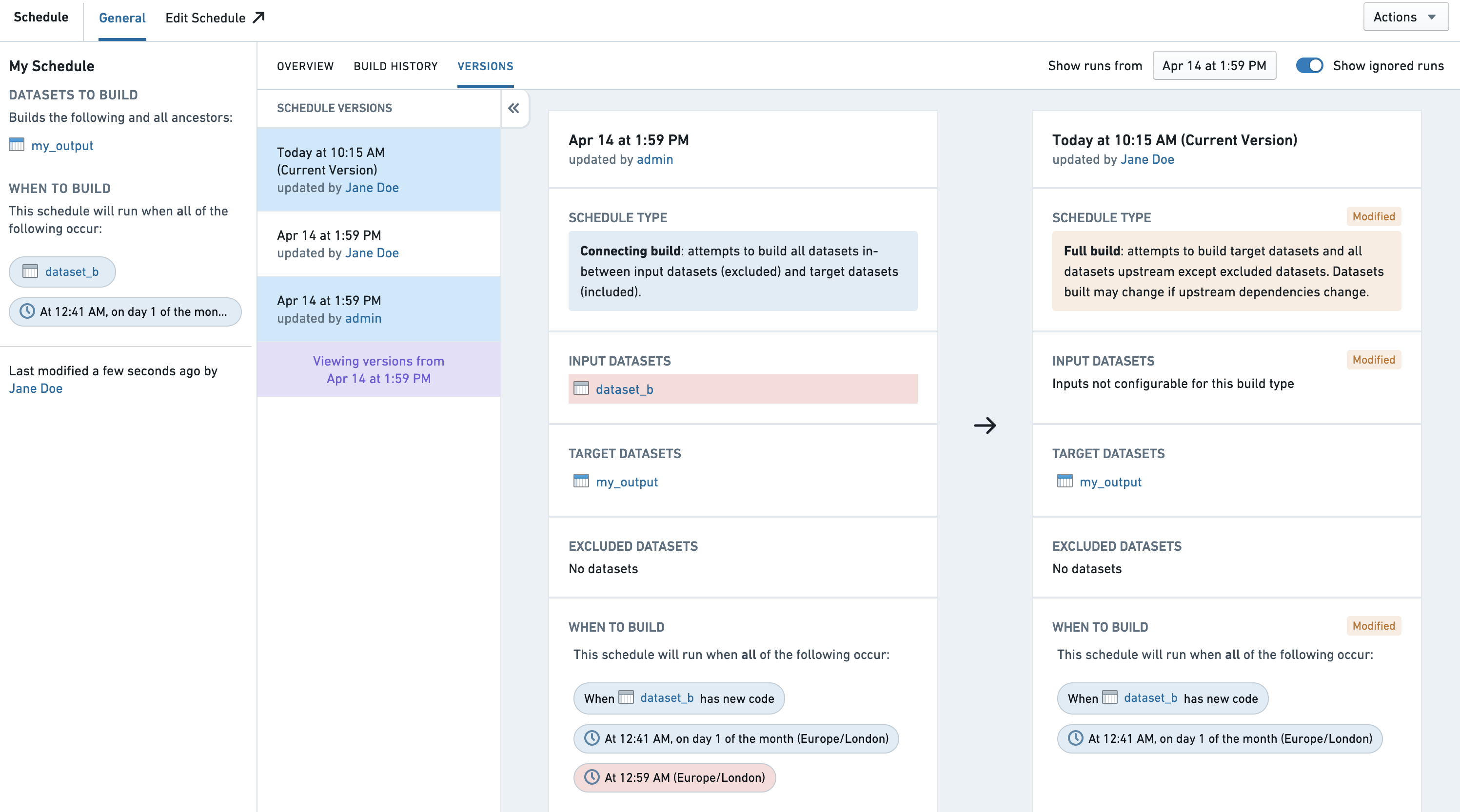
Only the versions up until the date displayed will be shown. If you need to see older versions, edit the date picker in the top right corner of the page.
Edit a schedule
To edit an existing schedule:
-
Navigate to the dataset view, open the Actions menu, and select Manage Schedules.
-
This will bring you to the Data Lineage graph for that dataset, with the schedule panel open on the right.
-
To edit a schedule, click on the entry for that schedule.

-
To edit the schedule, select the edit button. Learn how to edit a schedule using the schedule editor.
-
When you have finished editing your schedule, click the Save button.
Pause a schedule
To pause a schedule:
- Navigate to the dataset in Data Lineage, and open the schedule sidebar, selecting the schedule from the sidebar.
- This will bring you to the schedules page for the dataset.
- To pause a schedule, select the pause icon in the top right.

Resume a schedule
To resume a schedule:
- Navigate to the dataset in Data Lineage, and open the schedule sidebar, selecting the schedule from the sidebar.
- This will bring you to the schedules page for the dataset.
- To resume a schedule, select Resume in the top right.

Automatically paused schedules
Foundry automatically pauses schedules that fail all jobs consecutively and over multiple times. Once the schedule is run successfully, the schedule will automatically unpause and the failure counter will be reset. If your schedule was paused and you would like to resume it, follow these steps:
- Navigate to the schedule by clicking the link in the email sent to you.
- Debug the schedule. Refer to the troubleshooting guide for reference.
- Run the schedule after the fix is applied. After a job initiated by the schedule is completed successfully, the schedule will be automatically unpaused.
If you have a specific schedule that you want to exempt from being paused, contact your Palantir representative and provide the schedule RID.
Delete a schedule
To delete a schedule:
- Navigate to the schedule in Data Lineage, and choose the Edit button on the schedule.
- To delete a schedule, select the trash icon in the top right.
中文翻译
查看和修改调度
查看指标
要查看现有调度的指标和运行历史:
- 导航至数据集视图,打开 操作 菜单,然后选择 管理调度。
- 这将带您进入该数据集的数据血缘(Data Lineage)图,并在右侧打开调度面板。
要查看调度的指标和构建历史,请选择 指标 按钮。
查看调度编辑历史
每次编辑调度时都会创建一个新版本的调度。调度版本页面允许您:
- 查看调度的历史版本。
- 比较两个调度版本以查看更改内容。
要查看调度的历史版本:
- 导航至调度的指标页面。
- 选择版本选项卡:
系统仅显示截至所显示日期的版本。如果需要查看更早的版本,请修改页面右上角的日期选择器。
编辑调度
要编辑现有调度:
-
导航至数据集视图,打开 操作 菜单,然后选择 管理调度。
-
这将带您进入该数据集的数据血缘图,并在右侧打开调度面板。
-
要编辑调度,请点击该调度的条目。
-
要编辑调度,请选择编辑按钮。了解如何使用调度编辑器编辑调度。
-
完成调度编辑后,点击 保存 按钮。
暂停调度
要暂停调度:
- 在数据血缘中导航至该数据集,打开调度侧边栏,并从侧边栏中选择该调度。
- 这将带您进入该数据集的调度页面。
- 要暂停调度,请选择右上角的暂停图标。
恢复调度
要恢复调度:
- 在数据血缘中导航至该数据集,打开调度侧边栏,并从侧边栏中选择该调度。
- 这将带您进入该数据集的调度页面。
- 要恢复调度,请选择右上角的 恢复。
自动暂停的调度
Foundry 会自动暂停连续多次作业全部失败的调度。一旦调度成功运行,调度将自动取消暂停,并且失败计数器将被重置。如果您的调度被暂停且您希望恢复它,请按照以下步骤操作:
- 点击发送给您的电子邮件中的链接,导航至该调度。
- 调试该调度。请参阅故障排除指南以获取参考。
- 应用修复后运行该调度。由该调度触发的作业成功完成后,调度将自动取消暂停。
如果您有特定的调度需要豁免暂停,请联系您的 Palantir 代表并提供调度 RID。
删除调度
要删除调度:
- 在数据血缘中导航至该调度,并选择该调度上的 编辑 按钮。
- 要删除调度,请选择右上角的垃圾桶图标。