Branches(分支(Branches))
Version control with branching is widely used throughout Foundry and is a key part of Pipeline Builder. Version control is crucial to maintaining healthy pipeline workflows, supporting safe collaboration, and ensuring that the main production branch remains protected.
Pipeline Builder refers to each unique version of a pipeline workflow as a pipeline branch (similar to a branch in Git), with one branch serving as main.
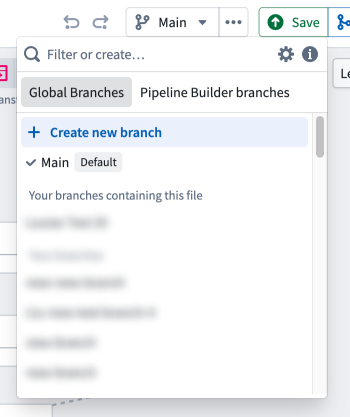
A branch is a copy of the pipeline on which a user can iterate without saving back to the main pipeline. Branches in Pipeline Builder are analogous to code branches in a Git repository; users work within their own branches to make edits and test changes without the risk of negatively affecting the pipeline. Every pipeline workflow starts with one main branch, and users can create additional branches from the main branch when they want to collaborate. Once users are happy with changes in their branch, they can propose to merge the branch into the main branch.
Global and Pipeline Builder branches
When creating a branch, you can select a Pipeline Builder branch or a global branch. Global branches allow you to make changes to multiple applications on a single branch, while Pipeline Builder branches are scoped to the pipeline you are working on. Note that object types created in Pipeline Builder are not modifiable in Ontology Manager on a branch.
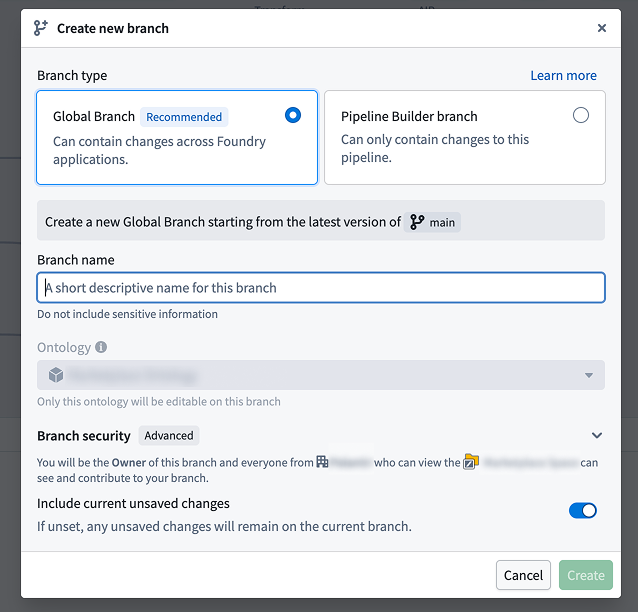
:::callout{theme="neutral" title="Working with Code Repositories branches"} You can create a Pipeline Builder branch with the same name as a Code Repositories branch to have your Pipeline Builder transforms read input datasets from that matching branch. This allows you to iterate on both your Pipeline Builder pipeline and your Code Repositories transforms together on a shared branch name. You can also configure fallback branches in Pipeline Builder to control which branch is used when an input dataset has not been built on the current branch, functioning the same way as authoring fallbacks in Code Repositories. :::
Learn more about branching workflows in Foundry.
Manage branches
To manage branches, navigate to the top toolbar and select Manage branches under Settings.

Active branches
In the Active branches tab, view all currently active branches, or choose to archive an active branch. Archived branches will not show in the branch dropdown menu in the pipeline graph and cannot be edited or used unless restored. To restore an archived branch, choose to View archived branches in the Active branches tab. Find the branch to restore, then select the Restore branch icon on the right.
Branch protection
In this tab, enable Require proposals... to protect one or more branches by preventing users from making direct changes to the specified branch or branches. This option requires users to make a change to a separate branch before it can be merged into any of the protected branches.
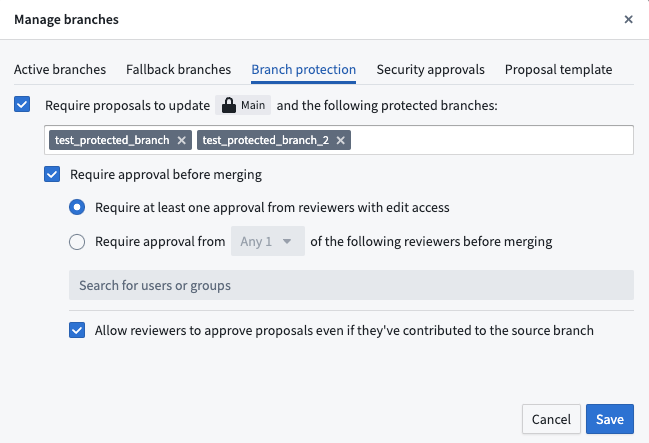
Choose to Require at least one approval... to add another layer of protection with an additional user approval of the proposed change before it can be merged into the main branch. Valid approvers are users with Edit permissions for the pipeline who did not contribute to the proposed change. Learn more about multiple protected branches in the documentation on branch protection.
Under General settings, you can choose from:
- Require proposals to update protected branches
- Require at least one approval before merging into protected branches
Proposal template
Add or view a proposal template in this tab. Write a new proposal in Markdown in the available text box, or preview your text in the Preview tab. If a template is added, it will be included in the body of all new proposals in the pipeline.
中文翻译
分支(Branches)
基于分支的版本控制在 Foundry 中广泛应用,是 Pipeline Builder 的关键组成部分。版本控制对于维护健康的管道工作流、支持安全协作以及确保主生产分支保持受保护状态至关重要。
Pipeline Builder 将管道的每个独特版本称为管道分支(branch)(类似于 Git 中的分支),其中有一个分支作为主分支(main)。
分支(branch) 是管道的一个副本,用户可以在其上迭代,而无需将更改保存回主管道。Pipeline Builder 中的分支类似于 Git 仓库中的代码分支;用户在各自的分支内进行编辑和测试更改,而不会对管道产生负面影响。每个管道工作流都从一个 主分支(main) 开始,当用户需要协作时,可以从主分支创建额外的分支。一旦用户对分支中的更改满意,就可以提议将分支合并到 主分支(main) 中。
全局分支(Global)与 Pipeline Builder 分支
创建分支时,您可以选择 Pipeline Builder 分支或全局分支(global branch)。全局分支允许您在单个分支上对多个应用程序进行更改,而 Pipeline Builder 分支则限定于您正在处理的管道。请注意,在 Pipeline Builder 中创建的对象类型无法在分支上的 Ontology Manager 中进行修改。
:::callout{theme="neutral" title="使用代码仓库分支(Code Repositories branches)"} 您可以创建一个与代码仓库分支同名的 Pipeline Builder 分支,以便您的 Pipeline Builder 转换从该匹配分支读取输入数据集。这样,您就可以在共享的分支名称上同时迭代 Pipeline Builder 管道和代码仓库转换。您还可以在 Pipeline Builder 中配置回退分支(fallback branches),以控制在当前分支上输入数据集尚未构建时使用哪个分支,其工作方式与代码仓库中的创作回退(authoring fallbacks in Code Repositories)相同。 :::
了解更多关于 Foundry 中的分支工作流(branching workflows)。
管理分支(Manage branches)
要管理分支,请导航至顶部工具栏,在 设置(Settings) 下选择 管理分支(Manage branches)。
活跃分支(Active branches)
在 活跃分支(Active branches) 选项卡中,查看所有当前活跃的分支,或选择归档某个活跃分支。归档的分支将不会显示在管道图的分支下拉菜单中,并且除非恢复,否则无法编辑或使用。要恢复归档分支,请在 活跃分支(Active branches) 选项卡中选择 查看归档分支(View archived branches)。找到要恢复的分支,然后选择右侧的 恢复分支(Restore branch) 图标。
分支保护(Branch protection)
在此选项卡中,启用 要求提议(Require proposals...) 以保护一个或多个分支,防止用户直接对指定分支进行更改。此选项要求用户先对单独的分支进行更改,然后才能将其合并到任何受保护的分支中。
选择 要求至少一个批准(Require at least one approval...) 以增加另一层保护,即在提议的更改合并到主分支之前,需要额外的用户批准。有效的审批人是具有管道 编辑(Edit) 权限且未参与提议更改的用户。在分支保护文档中了解更多关于多个受保护分支的信息。
在 通用设置(General settings) 下,您可以选择:
- 要求提议以更新受保护分支(Require proposals to update protected branches)
- 要求至少一个批准才能合并到受保护分支(Require at least one approval before merging into protected branches)
提议模板(Proposal template)
在此选项卡中添加或查看提议模板。在可用的文本框中用 Markdown 编写新的提议,或在 预览(Preview) 选项卡中预览您的文本。如果添加了模板,它将包含在管道中所有新提议的正文中。