Add datasets(添加数据集)
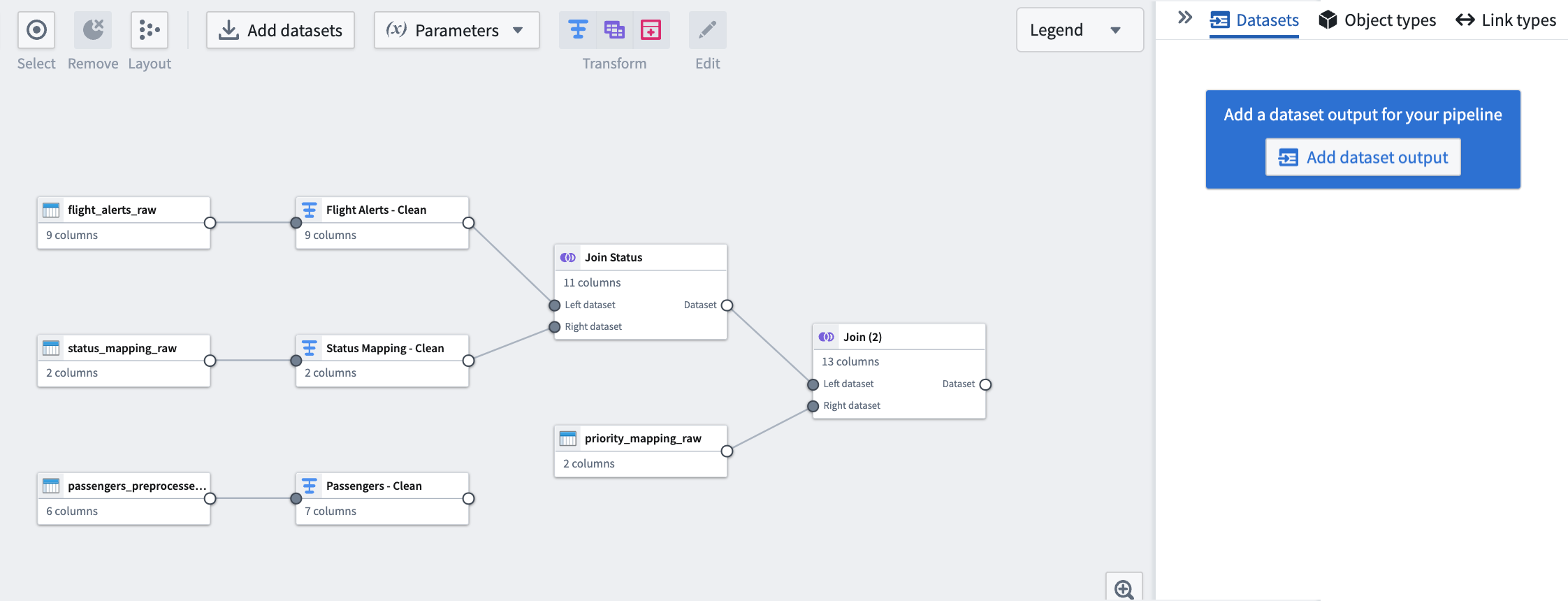
To begin building a pipeline, add data to your graph using one of the following four methods:
- Data Connection application
- Select a dataset or media set from Foundry
- Manually upload data
- Manually enter data in your pipeline file
Add data to Pipeline Builder from Data Connection
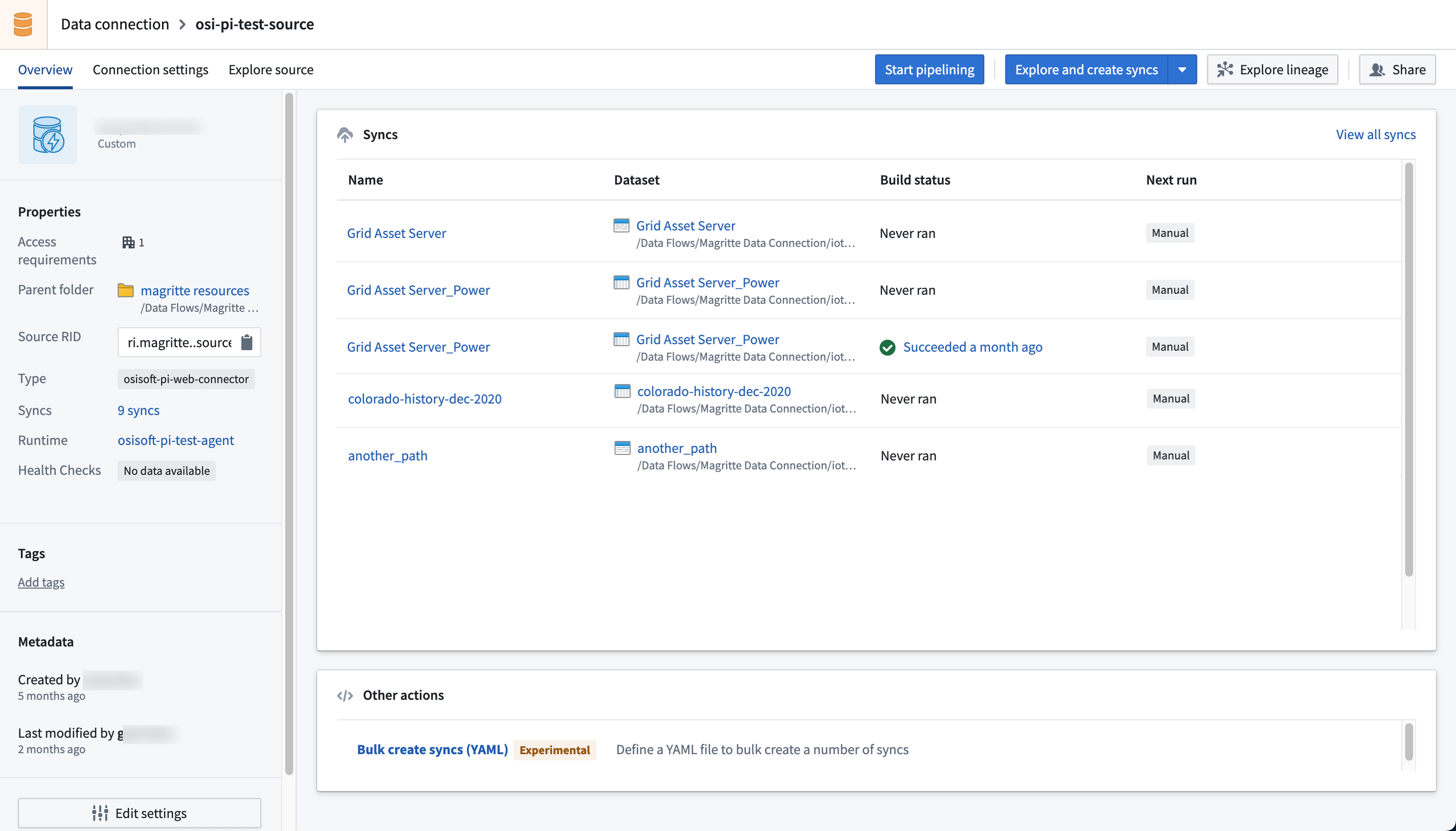
To access data from a data source, navigate to the Data Connection app in the Foundry navigation sidebar. Find the data source you want to integrate, then click Start Pipelining. Choose a location for your new pipeline, then click Save. This will create a new pipeline, and all syncs connected to your data source will be imported to your Pipeline Builder graph.
:::callout{theme="neutral"} You cannot save a new pipeline to your personal file folder. Set up the recommended Project structure so that data security and governance are organized from the beginning of your development process. :::
Add data from Foundry to Pipeline Builder
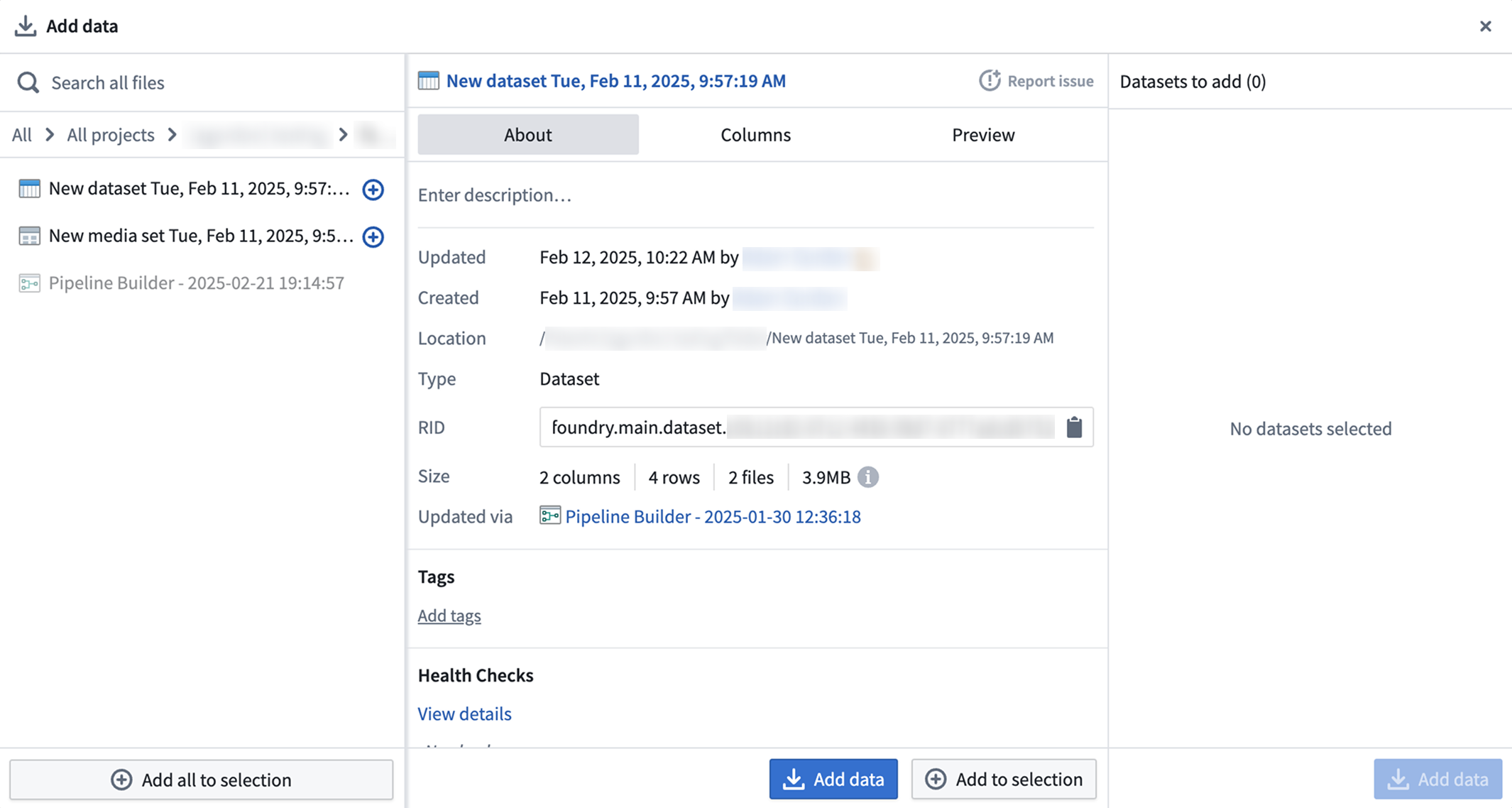
To import datasets or media sets that already exist in your Foundry filesystem, proceed to the Pipeline Builder application and select Add Foundry data in the center of your graph space. Search for and select an available dataset, then choose Add data.
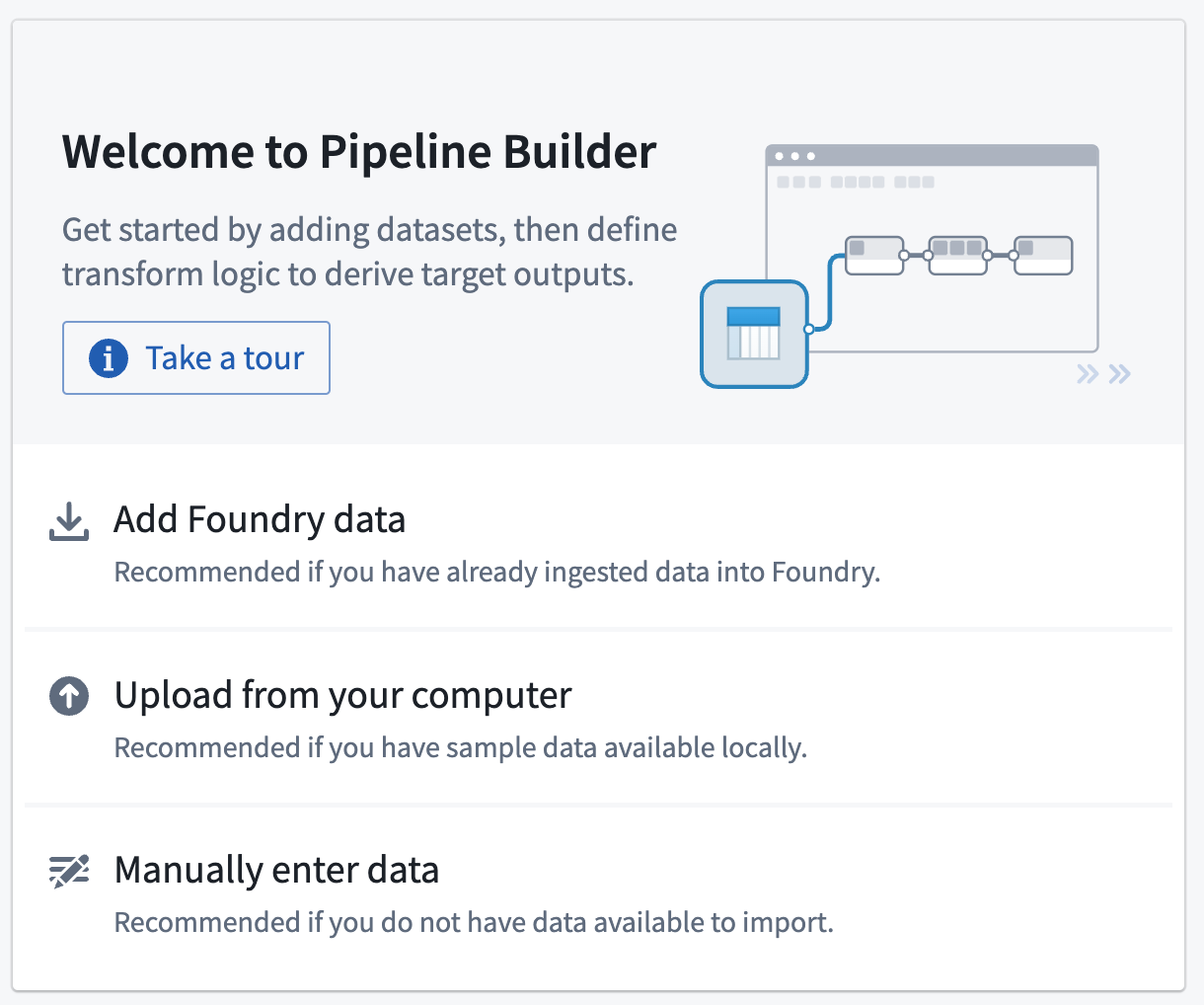
You can add multiple datasets or media sets by adding each of them and choosing Add to selection; once all are selected, choose Add data.
Upload data from your computer to Pipeline Builder
You can also upload dataset or media set files from your computer. Select Upload from your computer to select the file you want to add, or drag and drop the file onto your graph.

Manually enter data in Pipeline Builder
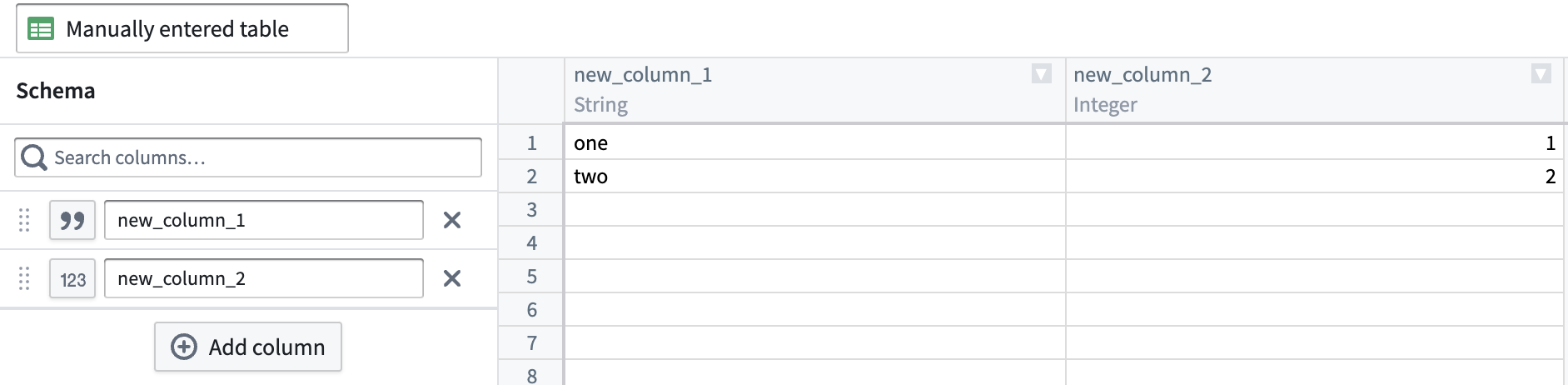
Input datasets can also be created by defining a data table and manually populating it with data.

Define the new table's schema by selecting column names and types, then manually add values to the table. Manually entered tables can be modified at any point.
The following table lists some of the most common column types in a manual entry table:
| Column type | Format |
|---|---|
| String | All characters |
| Timestamp | mm/dd/yyy hh:mm:ss; additional timestamp formats can be used |
| Date | mm/dd/yyyy |
| Boolean | 0 → false, not 0 → true |
| Binary | All characters, will be shown as base64 |
| Integer, long | Positive and negative numbers, no decimal point |
| Double | Positive and negative numbers, including decimal point |
:::callout{theme="neutral"} You may experience longer loading times when viewing proposed changes to large manually entered tables. As an alternative, you can view the raw tables side by side. :::
Next steps
After adding datasets or media sets to Pipeline Builder, you can change their computation mode, choose to transform the data or add outputs.
中文翻译
添加数据集
要开始构建流水线(pipeline),请使用以下四种方法之一将数据添加到您的画布中: * 数据连接(Data Connection)应用 * 从Foundry中选择数据集(dataset)或媒体集(media set) * 手动上传数据 * 在流水线文件中手动输入数据
从数据连接(Data Connection)向流水线构建器(Pipeline Builder)添加数据
要从数据源获取数据,请在Foundry侧边导航栏中找到数据连接(Data Connection)应用。找到您要集成的数据源,点击Start Pipelining(开始构建流水线),为新流水线选择存储位置后点击Save(保存)。操作完成后将创建一条新流水线,所有与该数据源关联的同步任务(sync)都将导入到您的流水线构建器(Pipeline Builder)画布中。
:::callout{theme="neutral"} 您无法将新流水线保存到个人文件夹。请先搭建推荐项目结构,以便从开发初期就能有序开展数据安全与治理工作。 :::
从Foundry向流水线构建器(Pipeline Builder)添加数据
要导入已存在于Foundry文件系统中的数据集(dataset)或媒体集(media set),请打开流水线构建器(Pipeline Builder)应用,点击画布中央的Add Foundry data(添加Foundry数据)。搜索并选择可用的数据集,然后点击Add data(添加数据)即可。
您可以添加多个数据集或媒体集:逐个选中目标资源并点击Add to selection(添加到选择项),全部选完后点击Add data(添加数据)即可。
从本地计算机向流水线构建器(Pipeline Builder)上传数据
您也可以从本地计算机上传数据集或媒体集文件。点击Upload from your computer(从本地上传)选择要添加的文件,或者直接将文件拖拽到画布中即可。
在流水线构建器(Pipeline Builder)中手动输入数据
您也可以通过定义数据表并手动填充数据的方式创建输入数据集。
先定义新表的模式(schema),设置列名与列类型,再手动向表中添加值。手动录入的表格随时都可以修改。
下表列出了手动录入表格中最常用的几种列类型:
| 列类型 | 格式 |
|---|---|
| 字符串(String) | 所有字符 |
| 时间戳(Timestamp) | mm/dd/yyy hh:mm:ss;也支持其他时间戳格式 |
| 日期(Date) | mm/dd/yyyy |
| 布尔值(Boolean) | 0 → 假(false),非0 → 真(true) |
| 二进制(Binary) | 所有字符,将以base64格式展示 |
| 整数(Integer)、长整数(long) | 正负整数,不含小数点 |
| 双精度浮点数(Double) | 正负数值,可包含小数点 |
:::callout{theme="neutral"} 查看大型手动录入表格的变更建议时,加载时间可能较长。您可以选择并排查看原始表格作为替代方案。 :::
后续步骤
将数据集或媒体集添加到流水线构建器(Pipeline Builder)后,您可以修改其计算模式(computation mode)、选择转换数据或者添加输出。