Automatically generate input data(自动生成输入数据)
When creating a manually-entered dataset in Pipeline Builder, you can generate notional data to populate your dataset.
To do this, inside your manually-entered dataset, select Generate notional data.
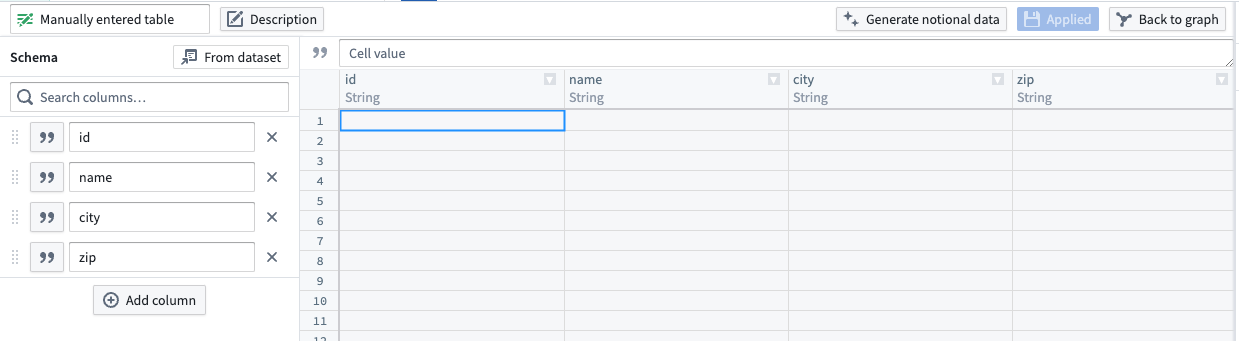
On the left side, select the column for which you want to generate data. Then, in the Auto populate with field, select the category of data that column should contain. To view examples of what the notional data would look like, select Examples.
To specify how many rows you want generated, you can enter a number between 1 to 1000 for the Pick number of rows field.
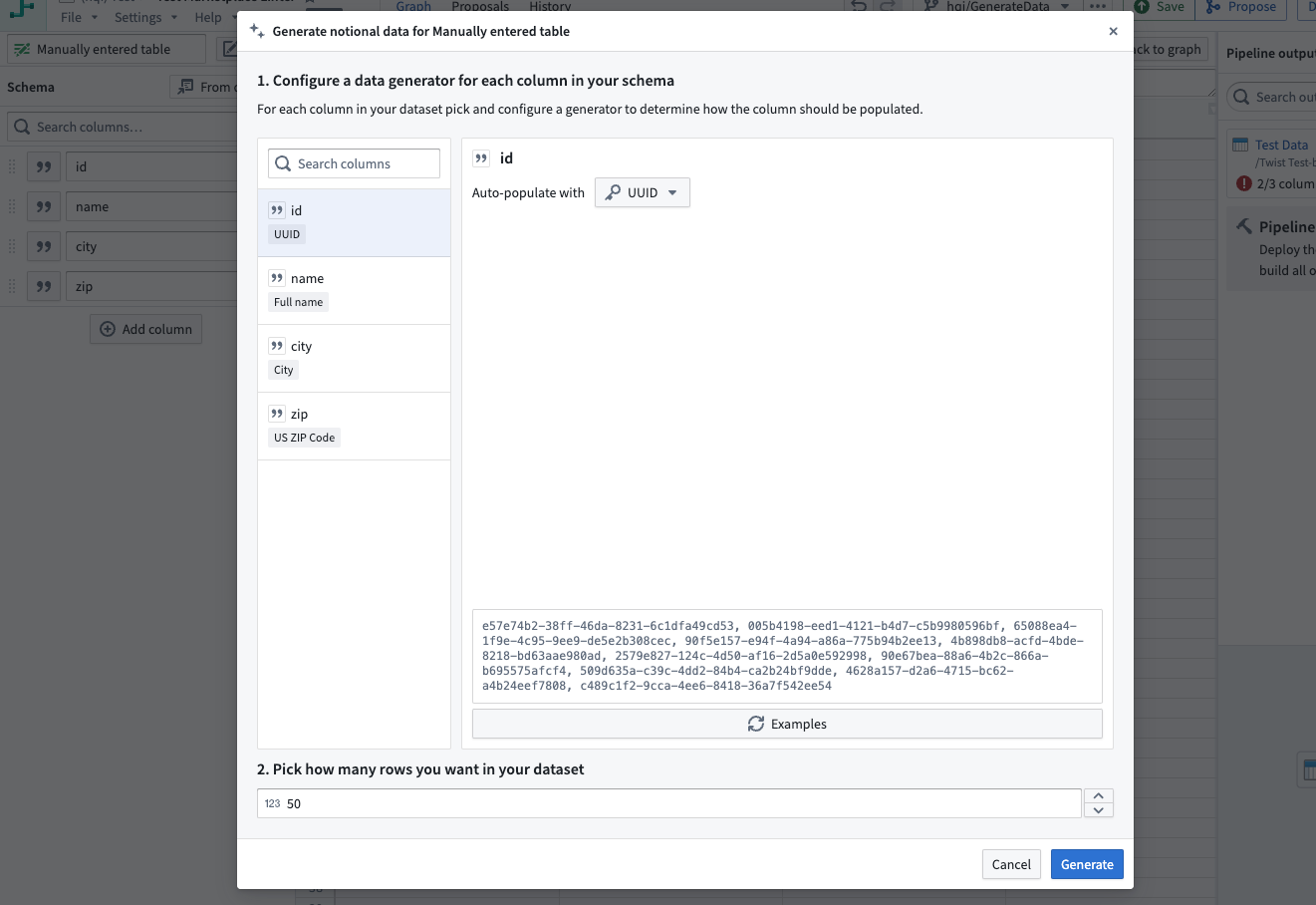
If you want to preview your manually entered table select Preview. This will open a new tab in the bottom panel called Preview generated data.
After you are finished with configuring your columns, select Generate table located on the right.
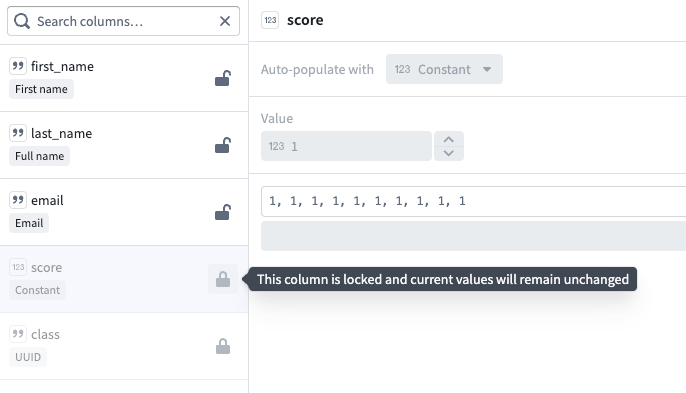
By default, Generate table will overwrite any previously-existing data in your manually-entered table.
If you want to keep the values of any columns, you can use the lock option located next to the specific column. When a column is locked, even when a table is re-generated, the values in that column will remain unchanged.
You can also use another dataset to generate a foreign key. This will link the dataset with a column from another dataset.
Other examples of data that can be auto-populated in Pipeline Builder include:
- City: Generates a random city name.
- Company: A fictional name for a company.
- Constant: Always produce the same value.
- Country code: A two-letter country code.
- Email: A valid but notional email address.
- First Name: A string containing a notional first name.
- Foreign key: Links this dataset with a column from another dataset.
- Full Name: A first and second name combined into a single string.
- Last Name: A notional last name.
- List: Pick a weighted random value from a predefined list.
- Null: Always produces null.
- One of: Choose randomly from a weighted list of generators.
- Street address: A random street address.
- Template: Generate random string from a template using helper function.
- US State: A random state name from the USA.
- US State code: A random two letter abbreviated state name form the USA.
- US ZIP code: A ZIP code located in the provided state.
- UUID: A universally unique identifier.
Generate data with LLMs
If none of the existing auto-population categories suit your needs, you can use a Large Language Model (LLM) to generate data based on your custom column description.
To select the LLM option, under Auto-populate with, choose Generate with LLM.
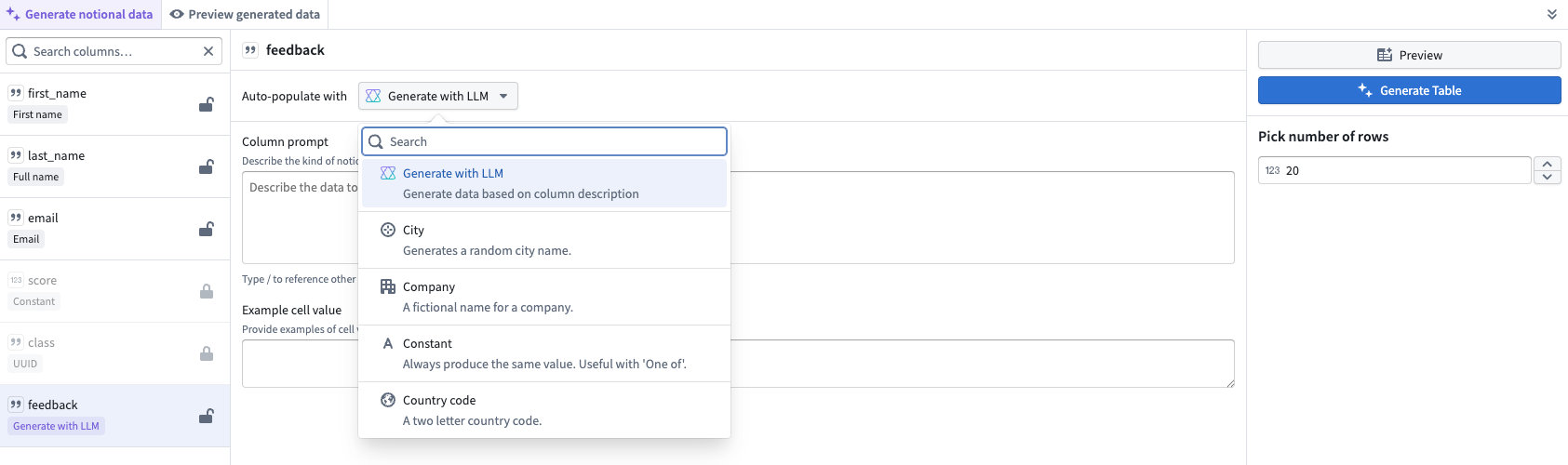
In the column prompt, enter a clear description of the data you want to generate. You can reference other columns by typing /[name of column]
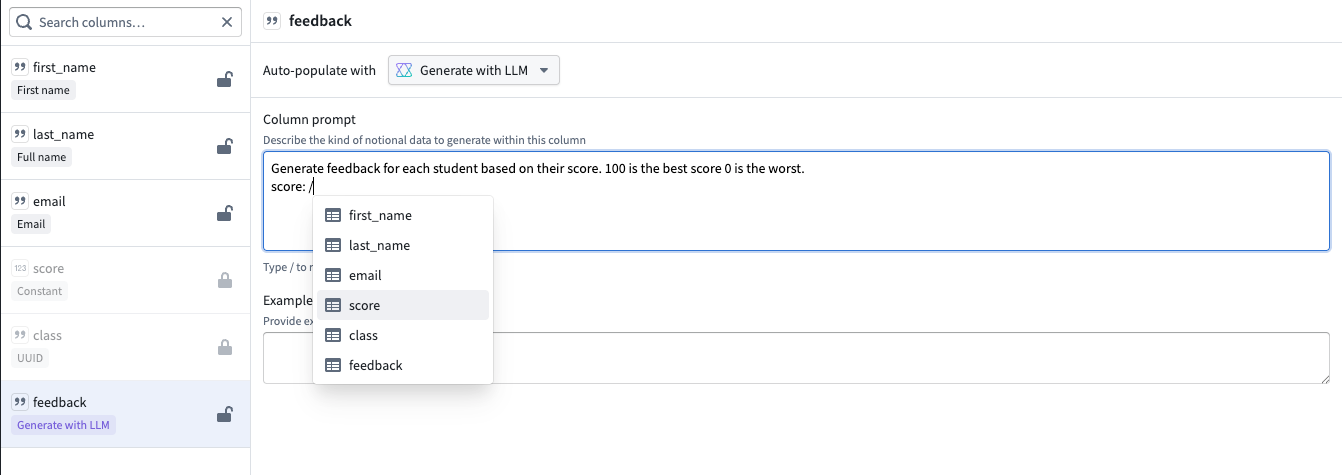
Example cell values are highly encouraged to help the LLM understand the type and format of data you expect. You can provide examples of cell values for the LLM to reference in Example cell value.
Note that you can preview 10 rows at most for LLM-generated data.
:::callout{theme="warning"} Generating a large number of rows or using a complex prompt may take up to one minute. :::
中文翻译
自动生成输入数据
在Pipeline Builder中创建手动输入数据集时,您可以生成模拟数据来填充数据集。
为此,请在手动输入的数据集中选择生成模拟数据(Generate notional data)。
在左侧,选择要为其生成数据的列。然后,在自动填充方式(Auto populate with)字段中,选择该列应包含的数据类别。要查看模拟数据的示例,请选择示例(Examples)。
要指定生成的行数,您可以在选择行数(Pick number of rows)字段中输入1到1000之间的数字。
如果您想预览手动输入的表,请选择预览(Preview)。这将在底部面板中打开一个名为预览生成数据(Preview generated data)的新标签页。
完成列配置后,选择右侧的生成表(Generate table)。
默认情况下,生成表(Generate table)将覆盖手动输入表中任何先前存在的数据。
如果您想保留某些列的值,可以使用特定列旁边的锁定选项。当列被锁定时,即使重新生成表,该列中的值也将保持不变。
您还可以使用另一个数据集来生成外键(Foreign key)。这将把该数据集与另一个数据集中的列关联起来。
Pipeline Builder中可自动填充的其他数据示例包括:
- 城市(City): 生成随机城市名称。
- 公司(Company): 虚构的公司名称。
- 常量(Constant): 始终生成相同的值。
- 国家代码(Country code): 两个字母的国家代码。
- 电子邮件(Email): 有效但模拟的电子邮件地址。
- 名字(First Name): 包含模拟名字的字符串。
- 外键(Foreign key): 将该数据集与另一个数据集中的列关联。
- 全名(Full Name): 将名和姓合并为单个字符串。
- 姓氏(Last Name): 模拟的姓氏。
- 列表(List): 从预定义列表中按加权随机方式选取值。
- 空值(Null): 始终生成空值。
- 随机选择(One of): 从加权生成器列表中随机选择。
- 街道地址(Street address): 随机街道地址。
- 模板(Template): 使用辅助函数从模板生成随机字符串。
- 美国州名(US State): 来自美国的随机州名。
- 美国州代码(US State code): 来自美国的两个字母缩写州名。
- 美国邮政编码(US ZIP code): 位于指定州的邮政编码。
- UUID: 通用唯一标识符。
使用LLM生成数据
如果现有的自动填充类别都不符合您的需求,您可以使用大语言模型(LLM)根据自定义列描述生成数据。
要选择LLM选项,请在自动填充方式(Auto-populate with)下选择使用LLM生成(Generate with LLM)。
在列提示框中,输入您要生成数据的清晰描述。您可以通过输入/[列名]来引用其他列。
强烈建议提供示例单元格值,以帮助LLM理解您期望的数据类型和格式。您可以在示例单元格值(Example cell value)中提供供LLM参考的单元格值示例。
请注意,对于LLM生成的数据,您最多可以预览10行。
:::callout{theme="warning"} 生成大量行或使用复杂提示可能需要最多一分钟时间。 :::