Find and replace in Pipeline Builder(在 Pipeline Builder 中查找和替换)
Pipeline Builder provides several search-related features to help with managing and debugging your pipelines. You can access these features via the Search pipeline panel (magnifying glass icon on the right side of the interface).
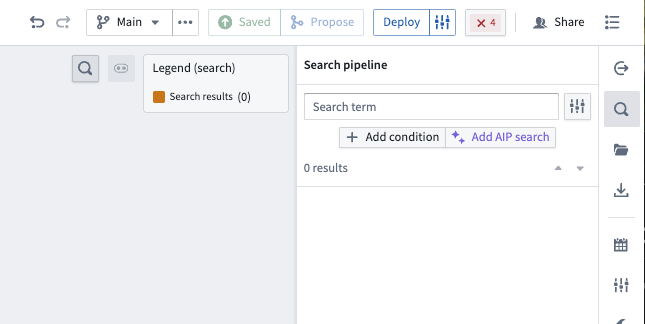
The search panel allows you to search your pipelines along several parameters, such as:
- Names of nodes
- Description/text board
- Column referenced
- Parameter referenced
- Transform names
- Constants used
- RIDs
- Column outputs and schemas
- Transform IDs
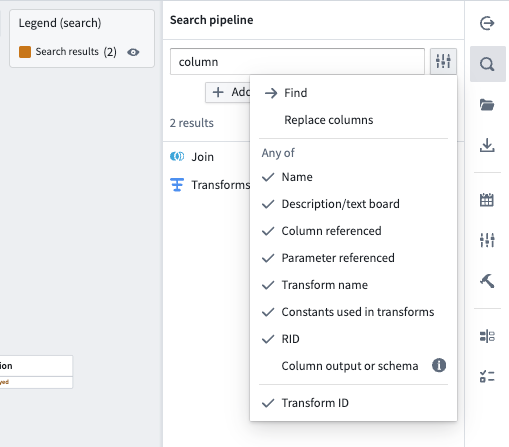
To narrow down your search, you can unselect any of the options above.
Replace columns
Pipeline Builder's Replace columns feature allows you to replace one instance or bulk replace all instances of a column name with another.
Without the ability to bulk replace column names, if you change a column input name, you would need to go into your pipeline and manually change each original column name to the new column name.
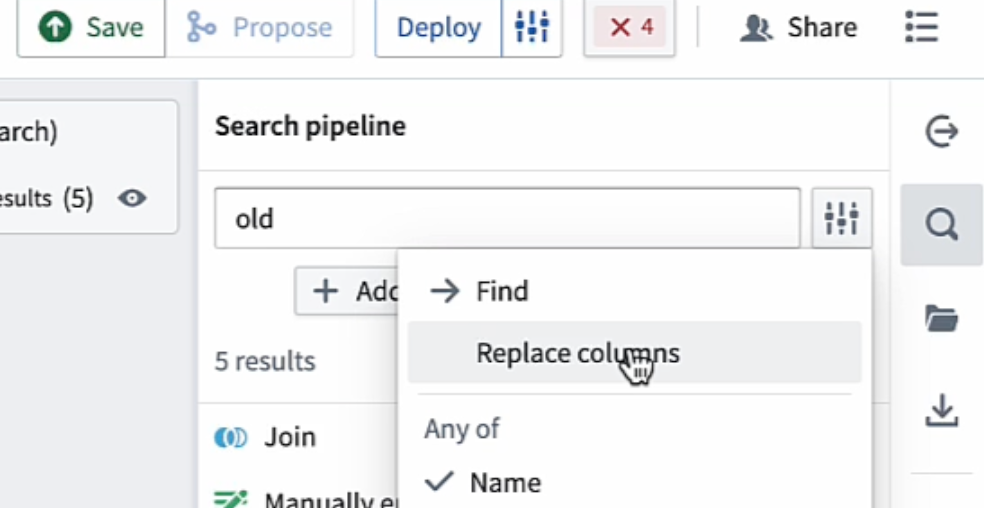
To access the Replace columns menu, open the dropdown to the right of the search input area.
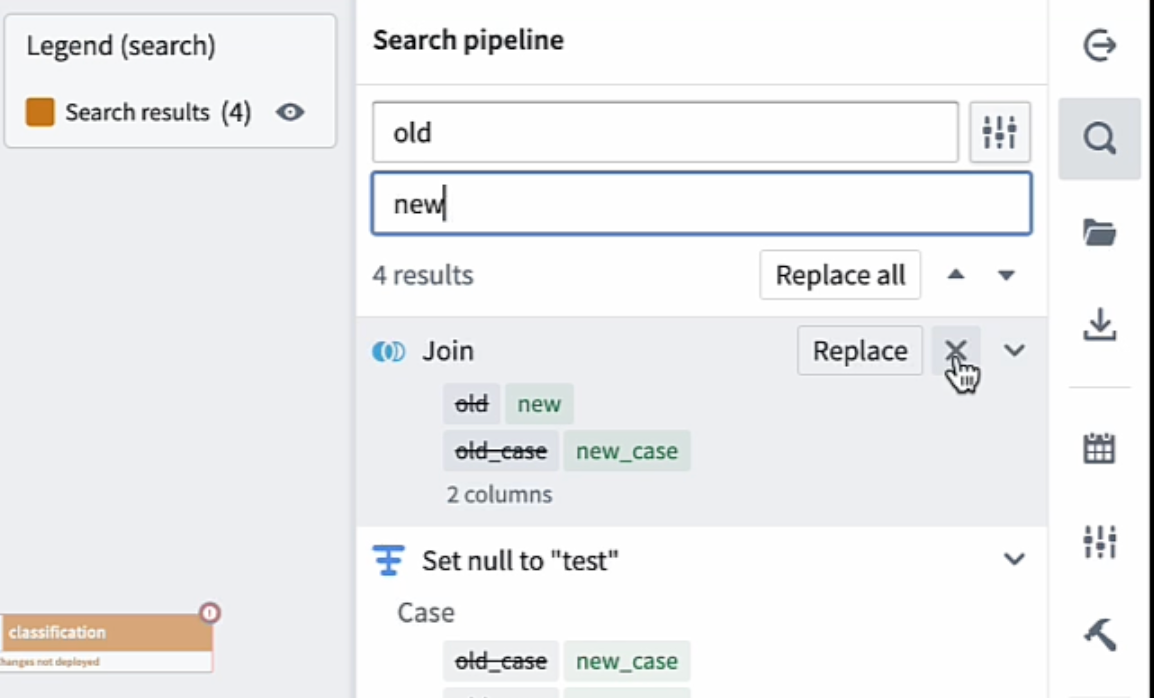
Enter the replacement string in the lower text box. In the area below the replacement string, you will see a preview of all the instances in your pipeline where the original string will be replaced with the replacement string.
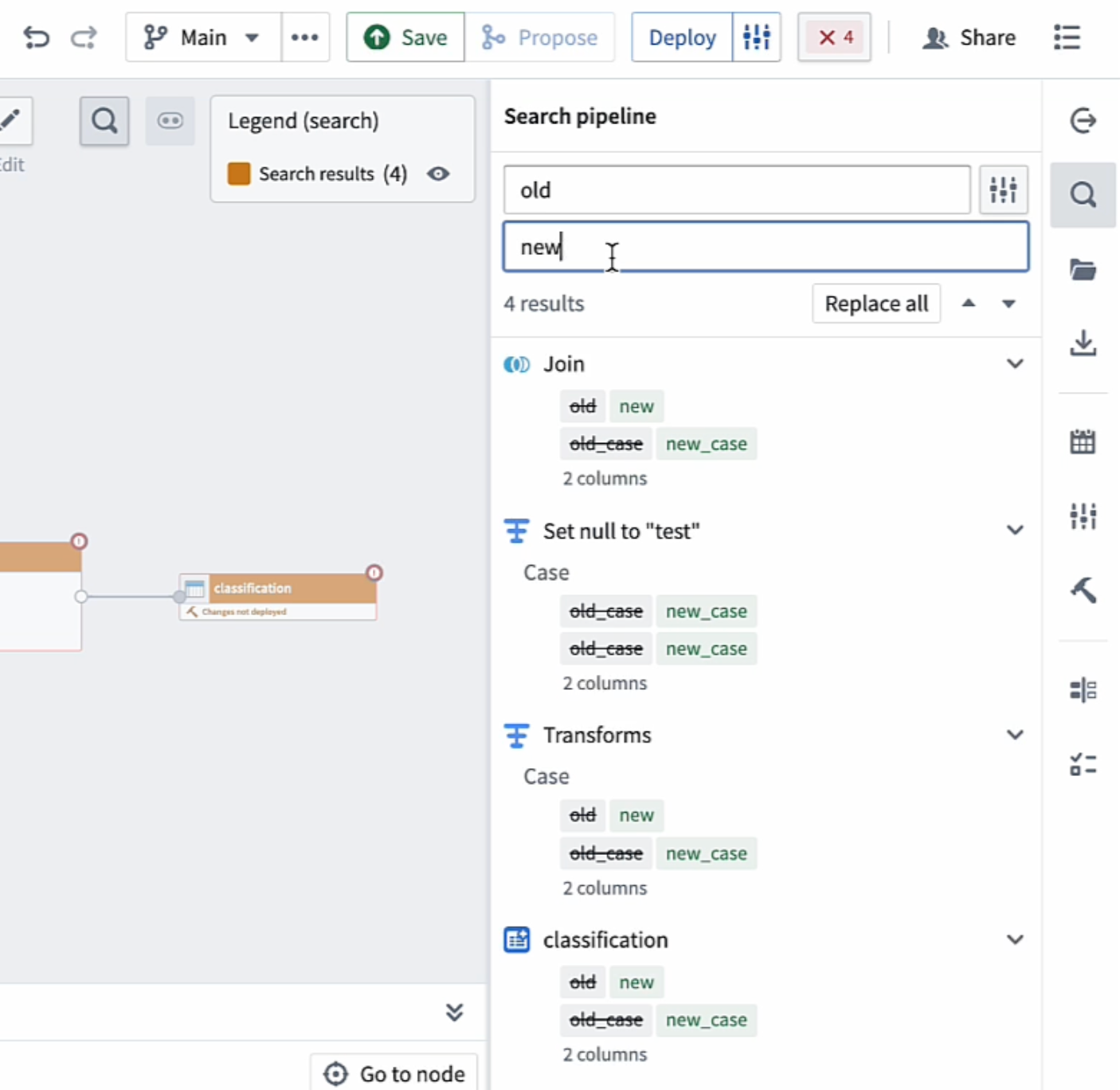
You can choose to replace all instances of the original string by selecting Replace all. You can also replace strings individually by hovering over the specific row and selecting Replace. If you want to replace all strings except for a selection of rows, you can select the x next the instances you want to exclude from the Replace all operation.
中文翻译
在 Pipeline Builder 中查找和替换
Pipeline Builder 提供了多项搜索相关功能,帮助您管理和调试管道。您可以通过 搜索管道(Search pipeline) 面板(界面右侧的放大镜图标)访问这些功能。
搜索面板允许您按多个参数搜索管道,例如:
- 节点名称
- 描述/文本面板
- 引用的列
- 引用的参数
- 转换名称
- 使用的常量
- RID
- 列输出和模式
- 转换 ID
要缩小搜索范围,您可以取消选择上述任意选项。
替换列
Pipeline Builder 的 替换列(Replace columns) 功能允许您将列名称的单个实例或所有实例批量替换为另一个名称。
如果没有批量替换列名称的功能,当您更改列输入名称时,就需要进入管道,手动将每个原始列名称更改为新列名称。
要访问 替换列(Replace columns) 菜单,请打开搜索输入区域右侧的下拉菜单。
在下方文本框中输入替换字符串。在替换字符串下方的区域中,您将看到管道中所有原始字符串将被替换为替换字符串的实例预览。
您可以选择 全部替换(Replace all) 来替换原始字符串的所有实例。您也可以将鼠标悬停在特定行上并选择 替换(Replace) 来单独替换字符串。如果您想替换除某些行之外的所有字符串,可以选择要排除在 全部替换(Replace all) 操作之外的实例旁边的 x。