Job groups(作业组(Job groups))
In Pipeline Builder, each successful deployment initiates a single build. By default, each batch pipeline output is built as its own job, and those jobs will succeed or fail independently. In streaming pipelines, all outputs are bundled into a single job running on a single Flink cluster, so all output streams will either succeed or fail together.
Job grouping in Pipeline Builder allows you to bundle outputs into one job in a batch pipeline, or split each output into its own job in a streaming pipeline. You can also specify compute profiles for each job grouping, providing granular control over how your outputs are built. The compute resources are shared across all outputs in the job group.
Grouping outputs into a single job is useful when you want output logic to update in parallel. In batch pipelines, outputs must be placed into the same job group to efficiently compute shared logic through checkpoints. Learn more about checkpoints in Pipeline Builder.
Dividing outputs into smaller groups or single-output jobs is helpful when you want the output to run independently of other outputs. Remember that each job group in a streaming pipeline will require its own Flink cluster, which will increase computation costs.
:::callout{theme="warning"} Moving outputs between job groups in streaming or incremental pipelines is considered a breaking change and will trigger mandatory replays. Learn more about breaking changes in Pipeline Builder. :::
Assign job groups
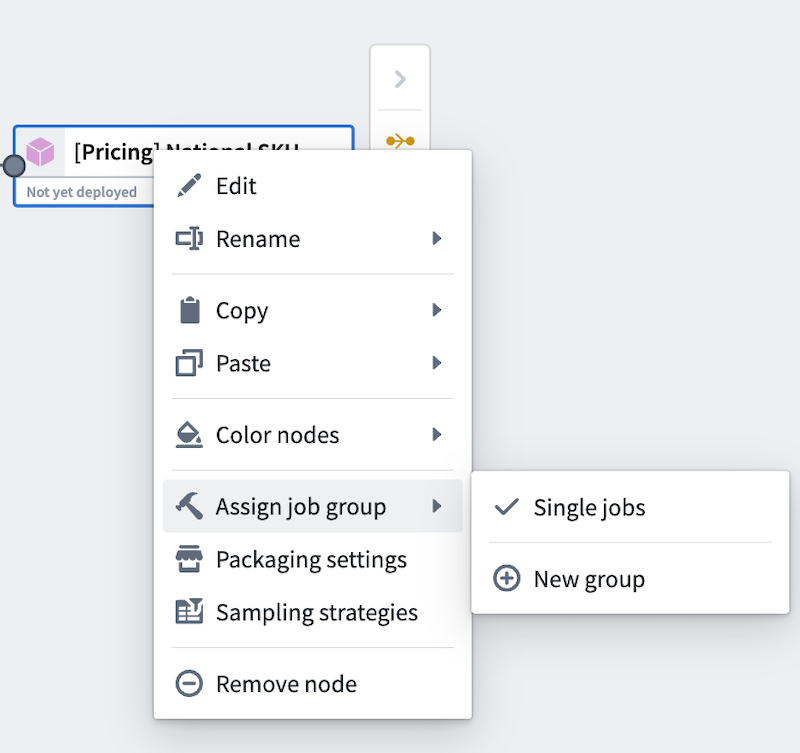
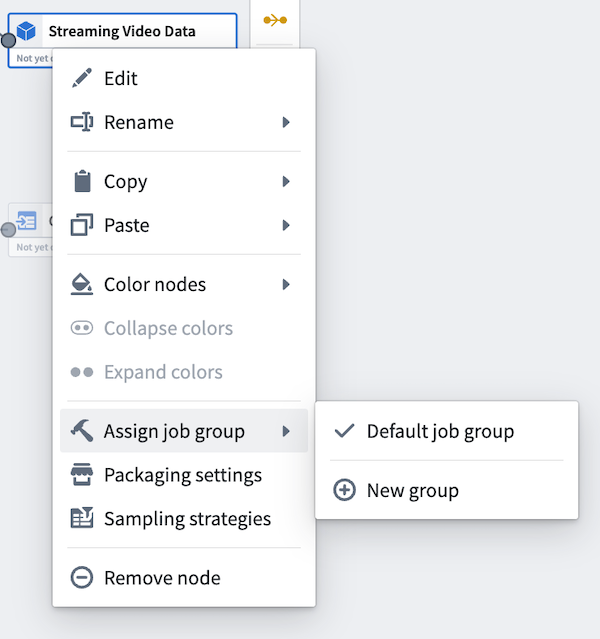
To assign job groups, right-click on any output node in your Pipeline Builder graph to open the context menu. Then, hover over Assign job group. In batch pipelines, outputs will default to single jobs. In streaming pipelines, outputs will default to a single job group.
Batch view | Streaming view
-------- |------------------
 |
| 
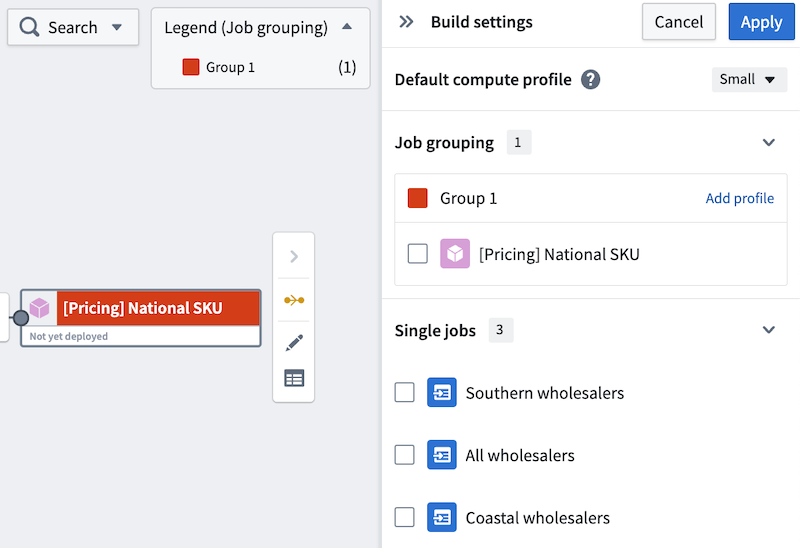
Select New group to assign the output to a new job group. A Build settings panel will open to the right side and automatically assign a color to the job group for easy identification on the graph.
Batch view | Streaming view
------ |------------------
 |
| 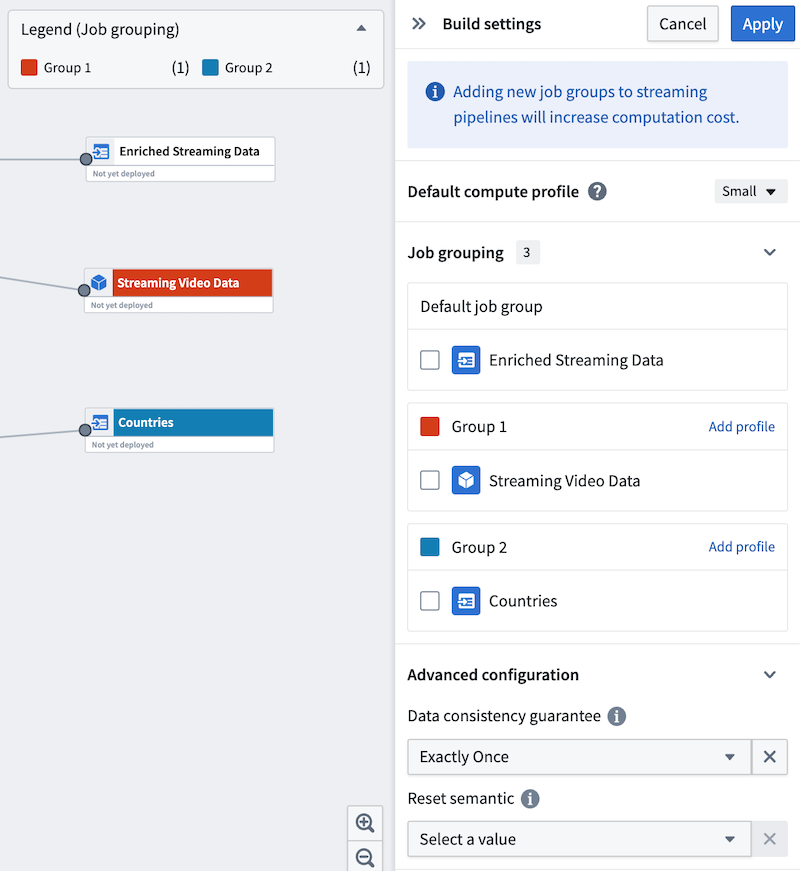
Continue to edit other outputs to add them to existing or new job groups. Alternatively, use the side panel to move outputs to new groups.
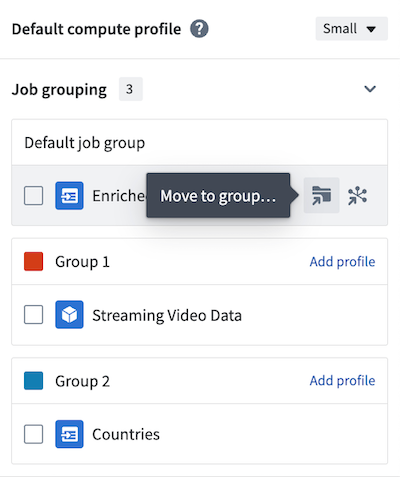
The default compute profile is shown at the top of the panel. To add custom profiles for each job group, select Add profile in the header of each group. In the example below, the default compute profile is Small, but Group 1 is configured with a Medium compute profile.
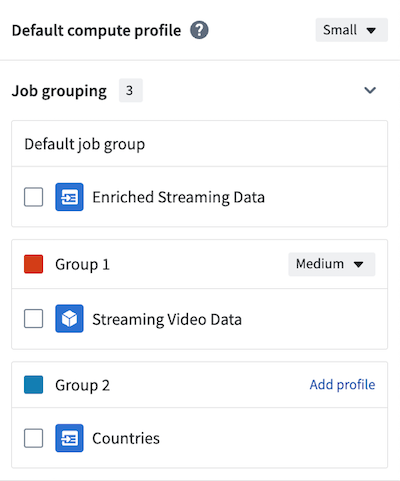
Once you have created your job groups, select Apply in the upper right of the panel to save your changes.

You are now ready to deploy your pipeline.
Job groupings and Markings
:::callout{theme="neutral"} In a job group, Markings from all inputs will be inherited by all outputs within the same job group, even if the outputs are not directly connected to the marked inputs. Learn more about Markings inheritance. :::
In the following example, Input_A has Markings and Input_B has no Markings. Output_X and Output_Y are in the same job group. Although Output_Y is not directly connected to Input_A, it will inherit all Markings from Input_A upon deployment.
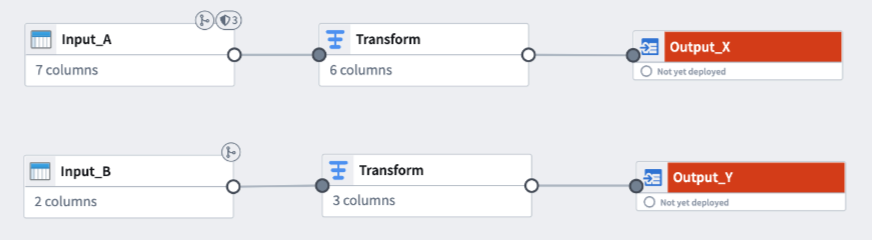
You can preemptively remove Markings inherited from job groupings if you do not want the markings on Output_Y.
中文翻译
作业组(Job groups)
在Pipeline Builder中,每次成功部署都会启动一次构建。默认情况下,每个批处理管道的输出会作为独立的作业进行构建,这些作业将独立地成功或失败。而在流式管道中,所有输出会被捆绑到单个Flink集群上运行的单个作业中,因此所有输出流将同时成功或失败。
Pipeline Builder中的作业分组(Job grouping)功能允许您将输出捆绑到批处理管道中的单个作业中,或者将每个输出拆分为流式管道中的独立作业。您还可以为每个作业分组指定计算配置文件(compute profiles),从而对输出的构建方式进行精细控制。计算资源将在作业组内的所有输出之间共享。
当您希望输出逻辑并行更新时,将输出分组到单个作业中非常有用。在批处理管道中,输出必须放在同一个作业组中,才能通过检查点(checkpoints)高效计算共享逻辑。了解更多关于Pipeline Builder中检查点(checkpoints)的信息。
将输出划分为更小的组或单输出作业,有助于让输出独立于其他输出运行。请注意,流式管道中的每个作业组都需要自己的Flink集群,这将增加计算成本。
:::callout{theme="warning"} 在流式或增量管道中移动输出到不同作业组被视为破坏性更改(breaking change),并将触发强制重放。了解更多关于Pipeline Builder中破坏性更改(breaking changes)的信息。 :::
分配作业组(Assign job groups)
要分配作业组,请右键单击Pipeline Builder图中的任意输出节点以打开上下文菜单。然后,将鼠标悬停在分配作业组(Assign job group)上。在批处理管道中,输出默认会作为单个作业。在流式管道中,输出默认会归入单个作业组。
批处理视图 | 流式视图
-------- |------------------
|
选择新建组(New group)可将输出分配到新的作业组。右侧会打开构建设置(Build settings)面板,并自动为作业组分配一种颜色,以便在图上轻松识别。
批处理视图 | 流式视图
------ |------------------
|
继续编辑其他输出,将其添加到现有或新的作业组中。或者,使用侧面板将输出移动到新组。
默认计算配置文件显示在面板顶部。要为每个作业组添加自定义配置文件,请选择每个组标题中的添加配置文件(Add profile)。在下面的示例中,默认计算配置文件为Small,但组1配置了Medium计算配置文件。
创建好作业组后,选择面板右上角的应用(Apply)以保存更改。
现在,您可以部署管道了。
作业分组与标记(Job groupings and Markings)
:::callout{theme="neutral"} 在作业组中,所有输入的标记(Markings)将被同一作业组内的所有输出继承,即使这些输出并未直接连接到带有标记的输入。了解更多关于标记继承(Markings inheritance)的信息。 :::
在以下示例中,Input_A带有标记,而Input_B没有标记。Output_X和Output_Y位于同一作业组中。尽管Output_Y未直接连接到Input_A,但在部署后,它将继承Input_A的所有标记。
如果您不希望Output_Y上存在这些标记,可以预先移除从作业分组继承的标记。