Text nodes(文本节点)
You can add text nodes to your pipelines to help document and call attention to details in your graph. Text nodes use Markdown syntax ↗, and they can be colored like regular nodes. They will not be affected by layout options and are not attached to any specific node on your graph.
Add text nodes
-
To add a text node to your graph, select Text in the upper left of the graph.

-
Double-click the text node to edit and add Markdown text.

-
Select save when you are done.
Color text nodes
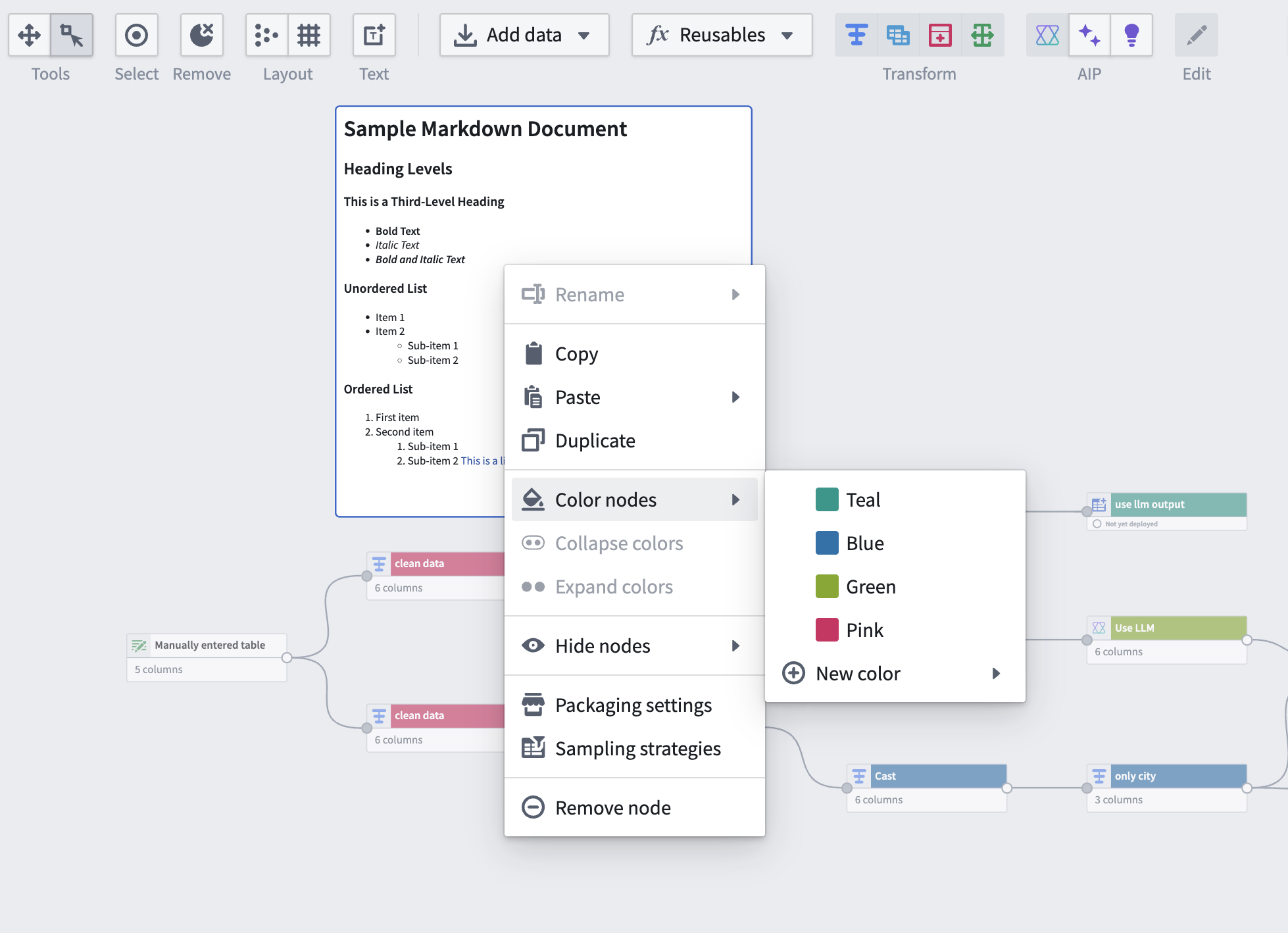
To color a text node, right click and select Color nodes. Choose a color or add a new color.
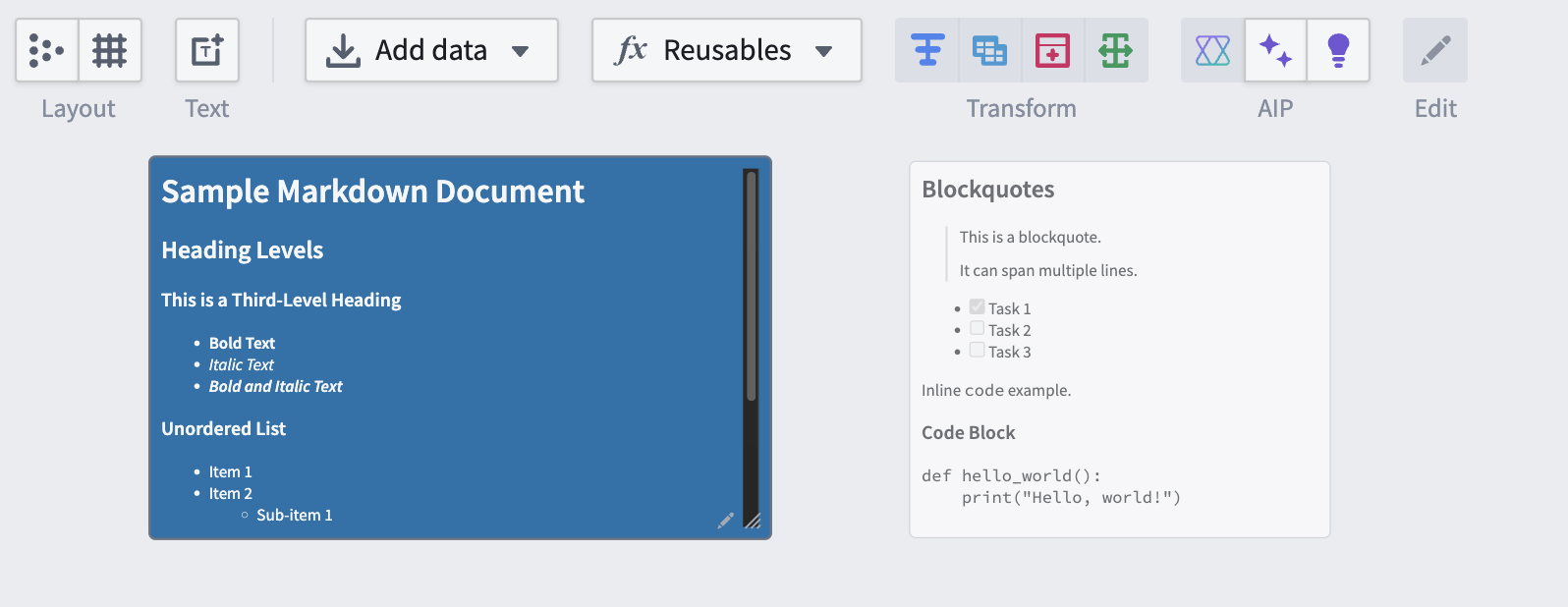
You can also resize text nodes using the three lines in the bottom right corner. If the length of your text is greater than the length of the text node, the node will automatically become scrollable.
This feature is also supported in Workflow Lineage.
中文翻译
文本节点
您可以在管道中添加文本节点,以帮助记录和突出显示图中的细节。文本节点使用 Markdown 语法 ↗,并且可以像普通节点一样着色。它们不会受到布局选项的影响,也不会附加到图中的任何特定节点上。
添加文本节点
-
要在图中添加文本节点,请选择图左上角的 文本(Text)。
-
双击文本节点进行编辑并添加 Markdown 文本。
-
完成后选择 保存(save)。
为文本节点着色
要为文本节点着色,请右键单击并选择 为节点着色(Color nodes)。选择一种颜色或添加新颜色。
您还可以使用右下角的三条线调整文本节点的大小。如果文本长度超过文本节点的长度,节点将自动变为可滚动状态。
此功能在 工作流谱系(Workflow Lineage) 中也受支持。