Add a dataset output(添加数据集输出(Dataset Output))
You can choose to add a dataset output in Pipeline Builder to guide your pipeline integration towards clean, transformed data. Learn more about different output types.
Create a dataset output
First, click Add next to the Dataset type in the outputs panel to the right of the graph.

Now you've created a new output dataset. After the first build of your pipeline, your dataset output will be created in the same folder as your pipeline. For example, the Vendor dataset output of the Demo Pipeline would have the following file path: /Palantir/Pipeline Builder/Demo Pipeline/Vendor.
Rename your output dataset by clicking into the name field. Choose Add column to manually add columns to your output schema, or connect a transform node to use its output schema with Use updated schema.

Once you've added an output schema, use the Search columns... field to quickly find columns within the dataset. To view only the errors in your output schema, toggle the Show errors only button.

After adding an output dataset, click Back to all outputs to view a list of all outputs in your pipeline. Understand the status of each output at a glance, including whether the output schema matches the input transform node schema. The three outputs below represent the different statuses that output schemas can have:
- Dataset 1 has 5/5 required columns, meaning that every column in the input transform node will be built in the output dataset.
- Dataset 2 has 3/3 required columns with 2 dropped, meaning that the input transform node has 5 columns but only 3 will be built in the output dataset. This is desirable in cases when you have unnecessary columns in the input transform node.
- Dataset 3 has 5/7 required columns, which is an error state. You will not be able to deploy your pipeline until the 2 missing columns are mapped to columns in an input transform node.
Click Edit to update the output schema at any time.

Learn more about dataset schemas in data integration.
Configure output settings
In addition to schema configuration, each individual output has a variety of default settings that can be customized.


Configure expectations
Add an expectation on your output dataset to enforce pipeline stability. If any check fails during a pipeline build, the build will fail.
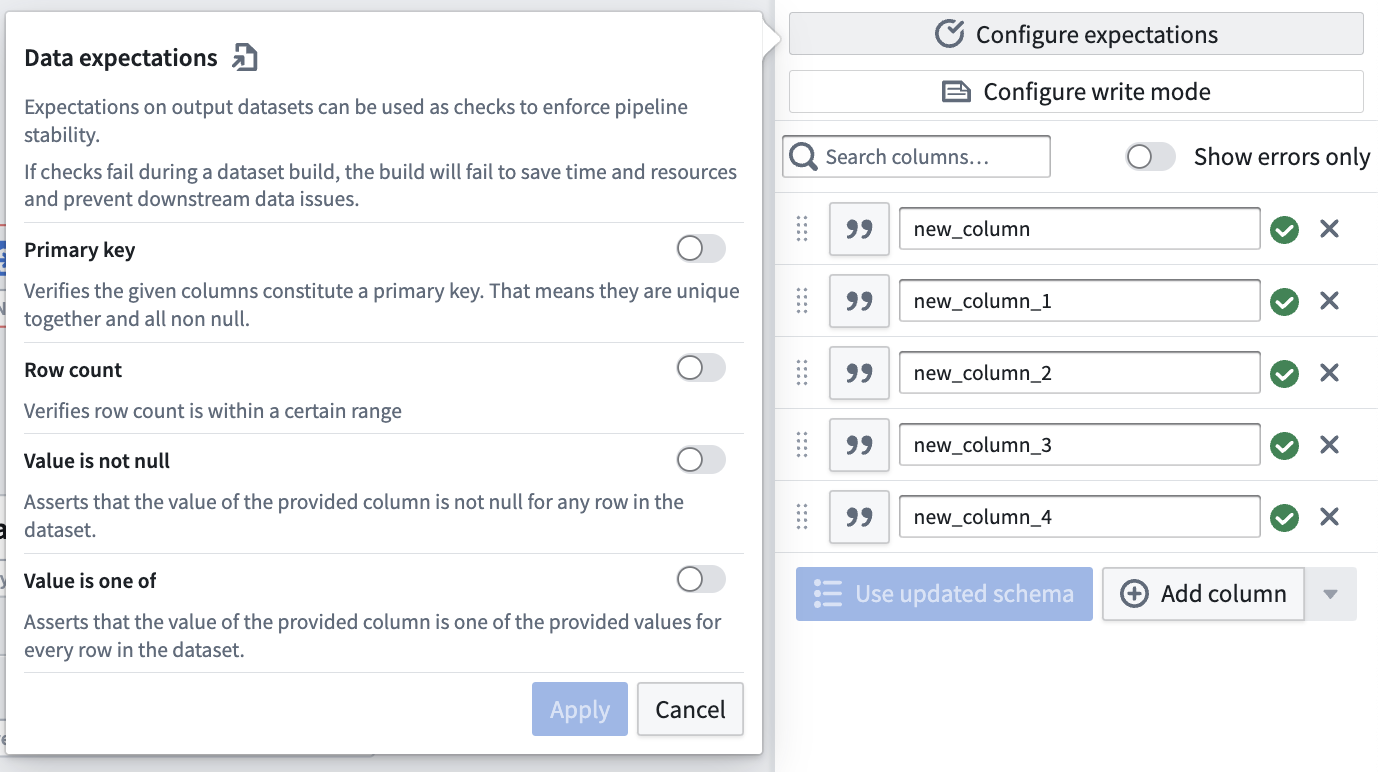
Configure write mode
Define how data is added to a dataset output in future deployments.
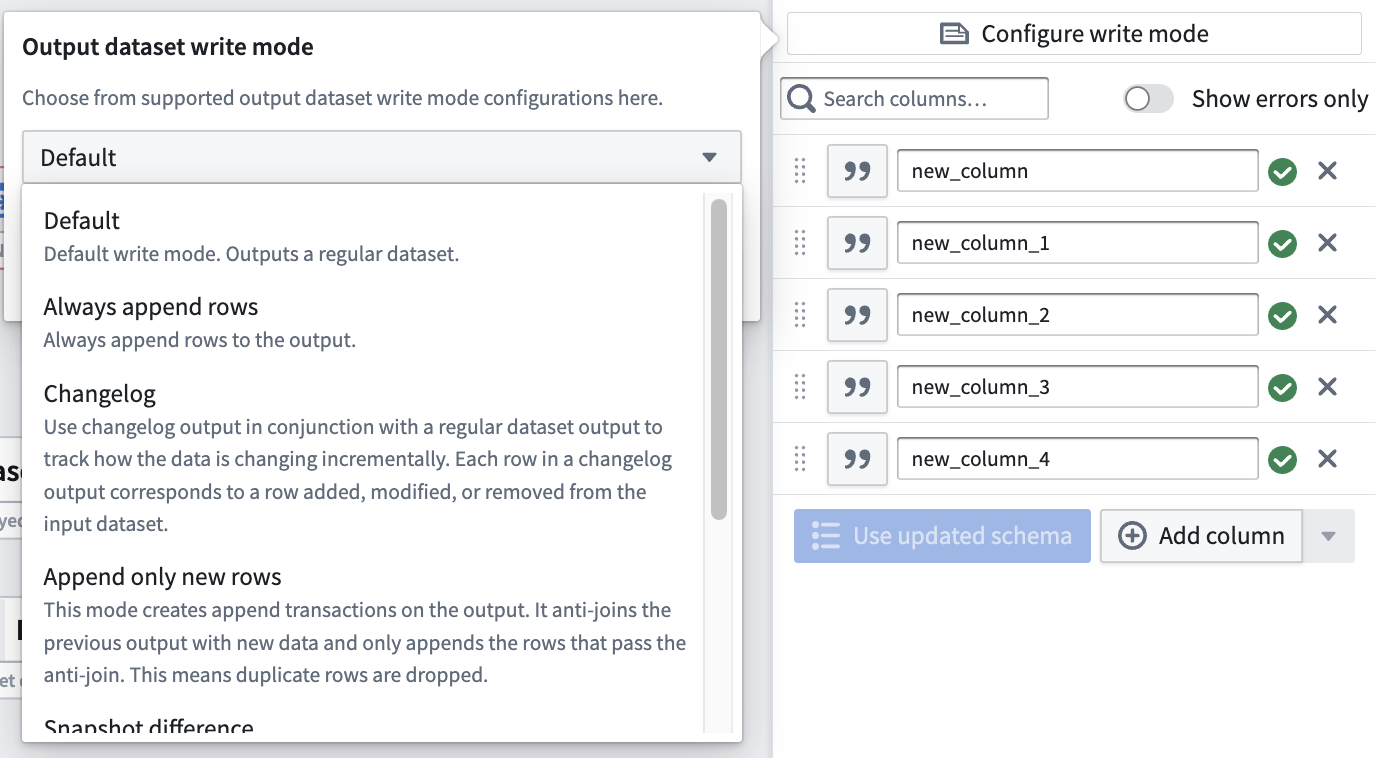
Default: This is recommended for most batch pipelines, both snapshot and incremental. The default write mode will output the result as an APPEND transaction if at least one input is marked as incremental and all inputs that are marked as incremental have only had APPEND or additive UPDATE transactions since the previous build. Otherwise, the default write mode will output the result as a SNAPSHOT transaction. Learn more about transaction types.
Always append rows: Outputs the result as an APPEND transaction.
Append only new rows: Outputs the result as an APPEND transaction where only new rows, defined as newly seen primary keys, are added to the output. If duplicate rows exist within the current transaction, one is dropped at random. Rows with a primary key that exists in the previous output are dropped.
Changelog: Outputs a series of APPEND transactions that contain the complete history of changes to all records. In Object Storage V1, you can optimize an object type's sync performance by setting a Changelog dataset configured in this way as the backing datasource. Learn more about Changelog datasets.
Snapshot difference: Outputs the result as a SNAPSHOT transaction where only rows with newly seen primary keys are kept in the output. If duplicate rows exist within the current transaction, they will be kept. All other rows will be dropped.
Snapshot replace: Outputs the result as a SNAPSHOT transaction where the new data is merged with the previous output. Existing primary keys in the previous output will be dropped in favor of the new rows. If duplicate rows exist within the current transaction, all but one are dropped at random so the output will only end up with one row per primary key.
Snapshot replace and remove: This is equivalent to Snapshot replace, followed by a post-filtering stage to selectively remove rows from the old data. Outputs the result as a SNAPSHOT transaction where the new data is merged with the previous output followed by a post-filtering stage to remove rows from previous transactions based on a provided boolean post_filtering_column. Existing primary keys in the previous output will be dropped in favor of the new rows if post_filtering_column = TRUE. However, if a row exists in the current transaction with post_filtering_column = FALSE for a given primary key, then the corresponding row from the old data will be filtered out (although this does not override new rows with post_filtering_column = TRUE being stored). If duplicate rows with post_filtering_column = TRUE exist within the current transaction, all but one are dropped at random so the output will only end up with one row per primary key.
Dataset write format
The output file format of your dataset can be changed after initial deployment, and will take effect upon the next deployment of your pipeline. Learn more about file formats.

Overwrite dataset
A one time action that grants ownership of an existing dataset to a new output in Pipeline Builder. Note that this action may require additional actions outside of Pipeline Builder.

Build a dataset output
After adding your dataset output to your pipeline, be sure to save your changes. If you are finished transforming your data and defining your pipeline workflow, you are ready to deploy your pipeline and build your dataset output. After deploying your pipeline, use your final dataset output as a foundation for Ontology building in the Ontology Manager.
Learn how to deploy your pipeline.
中文翻译
添加数据集输出(Dataset Output)
您可以在 Pipeline Builder 中选择添加数据集输出,以引导您的管道集成生成干净、经过转换的数据。了解更多关于不同输出类型的信息。
创建数据集输出
首先,点击图表右侧输出面板中数据集类型旁的 添加。
现在您已创建了一个新的输出数据集。在管道首次构建后,您的数据集输出将创建在与管道相同的文件夹中。例如,演示管道的 Vendor 数据集输出的文件路径为:/Palantir/Pipeline Builder/Demo Pipeline/Vendor。
点击名称字段即可重命名您的输出数据集。选择 添加列 手动向输出模式(Schema)添加列,或连接一个转换节点(Transform Node)并使用 使用更新后的模式 来应用其输出模式。
添加输出模式后,使用 搜索列... 字段快速查找数据集中的列。如需仅查看输出模式中的错误,请切换 仅显示错误 按钮。
添加输出数据集后,点击 返回所有输出 查看管道中所有输出的列表。您可以一目了然地了解每个输出的状态,包括输出模式是否与输入转换节点模式匹配。以下三种输出代表了输出模式可能具有的不同状态:
- 数据集 1 有 5/5 个必需列,表示输入转换节点中的每一列都将在输出数据集中构建。
- 数据集 2 有 3/3 个必需列,但丢弃了 2 列,表示输入转换节点有 5 列,但输出数据集中仅构建 3 列。当输入转换节点中存在不必要的列时,这种状态是理想的。
- 数据集 3 有 5/7 个必需列,这是一个错误状态。您需要将缺失的 2 列映射到输入转换节点中的列,否则无法部署管道。
随时点击 编辑 更新输出模式。
在数据集成中了解更多关于数据集模式的信息。
配置输出设置
除了模式配置外,每个输出还有多种可自定义的默认设置。
配置期望(Expectations)
为输出数据集添加期望,以增强管道稳定性。如果在管道构建过程中任何检查失败,构建将失败。
配置写入模式(Write Mode)
定义未来部署中数据如何添加到数据集输出。
默认: 推荐用于大多数批处理管道,包括快照和增量。默认写入模式会在至少一个输入标记为增量,且所有标记为增量的输入自上次构建以来仅包含 APPEND 或附加型 UPDATE 事务时,将结果输出为 APPEND 事务。否则,默认写入模式会将结果输出为 SNAPSHOT 事务。了解更多关于事务类型的信息。
始终追加行: 将结果输出为 APPEND 事务。
仅追加新行: 将结果输出为 APPEND 事务,仅添加新行(定义为新出现的主键)。如果当前事务中存在重复行,则随机丢弃一行。主键已存在于先前输出中的行将被丢弃。
变更日志(Changelog): 输出一系列 APPEND 事务,包含所有记录的完整变更历史。在对象存储 V1 中,您可以通过将按此方式配置的变更日志数据集设置为后端数据源,来优化对象类型的同步性能。了解更多关于变更日志数据集的信息。
快照差异: 将结果输出为 SNAPSHOT 事务,仅保留具有新出现主键的行。如果当前事务中存在重复行,则保留所有行。其他所有行将被丢弃。
快照替换: 将结果输出为 SNAPSHOT 事务,新数据与先前输出合并。先前输出中已有的主键将被新行替换。如果当前事务中存在重复行,则随机丢弃除一行外的所有行,因此输出中每个主键最终仅保留一行。
快照替换并移除: 这相当于先执行快照替换,然后进行后过滤阶段以选择性移除旧数据中的行。 将结果输出为 SNAPSHOT 事务,新数据与先前输出合并,随后进行后过滤阶段,根据提供的布尔型 post_filtering_column 移除先前事务中的行。如果 post_filtering_column = TRUE,则先前输出中已有的主键将被新行替换。但是,如果当前事务中存在某主键的行且 post_filtering_column = FALSE,则旧数据中的对应行将被过滤掉(但这不会覆盖存储的 post_filtering_column = TRUE 的新行)。如果当前事务中存在 post_filtering_column = TRUE 的重复行,则随机丢弃除一行外的所有行,因此输出中每个主键最终仅保留一行。
数据集写入格式
数据集的输出文件格式可在初始部署后更改,并在下次部署管道时生效。了解更多关于文件格式的信息。
覆盖数据集
一次性操作,将现有数据集的所有权授予 Pipeline Builder 中的新输出。请注意,此操作可能需要在 Pipeline Builder 之外执行额外操作。
构建数据集输出
将数据集输出添加到管道后,请务必保存更改。如果您已完成数据转换并定义了管道工作流,即可部署管道并构建数据集输出。部署管道后,将最终数据集输出用作本体管理器中本体构建的基础。
了解如何部署管道。