Add a virtual table output(添加虚拟表(virtual table)输出)
You can choose to add a virtual table output in Pipeline Builder to guide your pipeline integration towards clean, transformed data that is stored outside of Foundry. Learn more about different output types.
Create a virtual table output
First, select Add next to the virtual table type in the outputs panel to the right of the graph.

Next, select the source to which you would like to write your new table. Sources that have already been used in your pipeline (for example, any input virtual table's associated sources) will show up under Sources in this pipeline for ease of use. You will only be able to select source types currently supported by virtual tables. Sources must also have exports enabled in the export configuration settings in Data Connection.
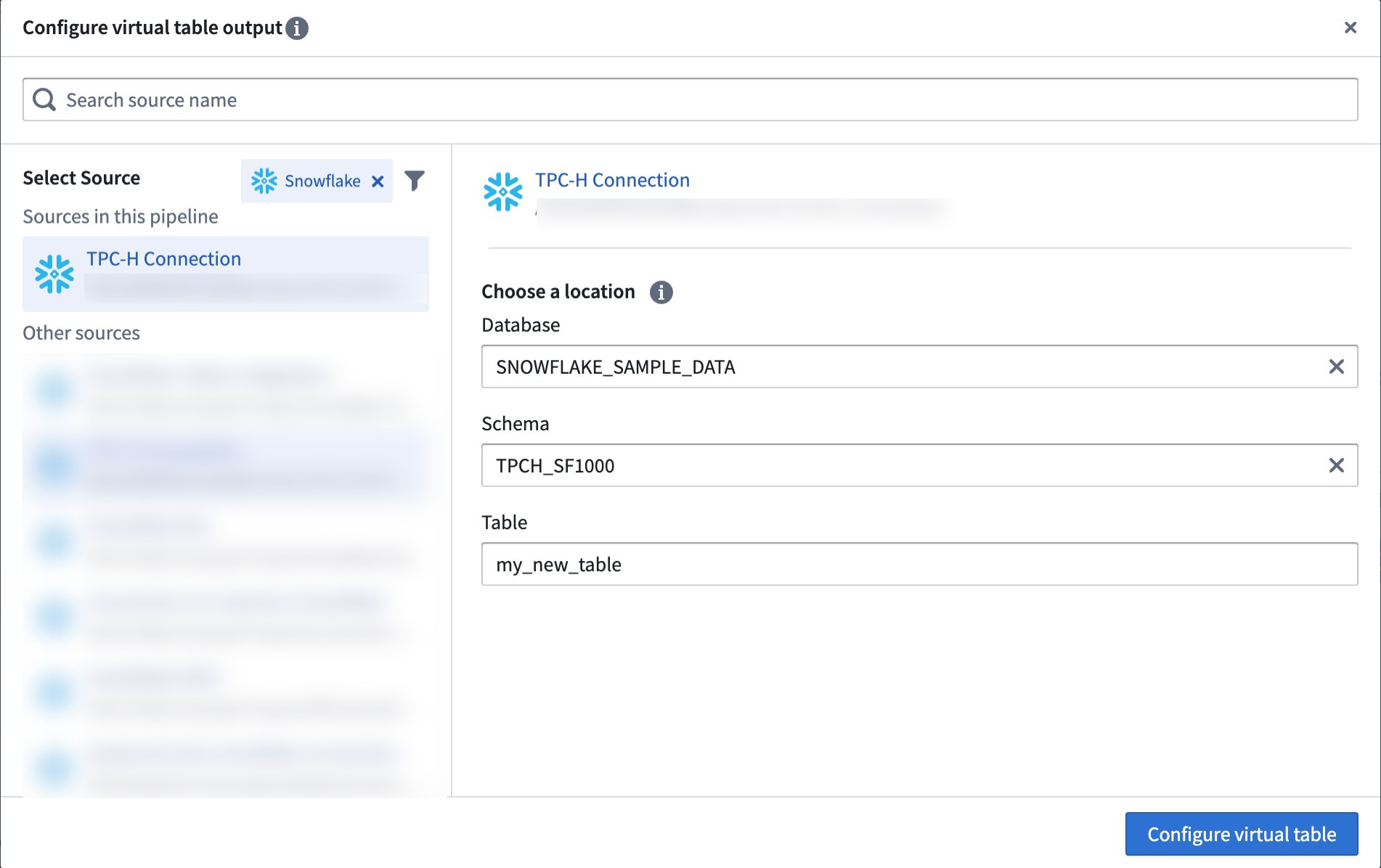
Configure the external location. Follow the source documentation and any requirements listed there for configuring where virtual tables will be stored in the source type you have chosen.
From here, you can follow the same steps as adding a dataset output, though please note that configuring write modes and write formats are not supported for virtual tables.
中文翻译
添加虚拟表(virtual table)输出
你可以选择在Pipeline Builder中添加虚拟表输出,引导流水线(pipeline)集成产出的干净、已转换数据存储至Foundry外部。如需了解更多信息,请参阅不同输出类型。
创建虚拟表输出
首先,在画布右侧输出面板的虚拟表类型旁,选择添加。
接下来,选择你要将新表写入的数据源(source)。当前流水线中已使用的数据源(例如所有输入虚拟表关联的数据源)会展示在本流水线内的数据源下方,方便选用。你仅可选择虚拟表当前支持的数据源类型。此外,所选数据源必须已在Data Connection的导出配置设置中开启导出功能。
配置外部存储位置。请参照数据源文档及其列出的所有要求,为你选定的数据源类型配置虚拟表的存储位置。