Remove markings and organizations from outputs(从输出中移除标记(markings)和组织(organizations))
Access requirements for platform resources are controlled by markings and organizations. Markings restrict access in an all-or-nothing fashion: to access a resource, a user must be a member of all markings applied to the resource. Additionally, markings are inherited through file hierarchies and direct dependencies. On the other hand, for organizations, users must be a member or guest member of at least one organization applied to a project to meet access requirements. Organizations are inherited via the file hierarchy and direct dependencies.
If you have the Remove marking permission for a specific marking, you can now remove that inherited Marking from outputs in Pipeline Builder. This is equivalent to the stop_propagation argument in Code Repositories.
:::callout{theme="neutral"} Removing a marking on an output is equivalent to stopping the propagation of a marking from an input. :::
Prerequisites
You must complete the following steps before you can remove markings or organizations using Pipeline Builder.
Enable branch protection
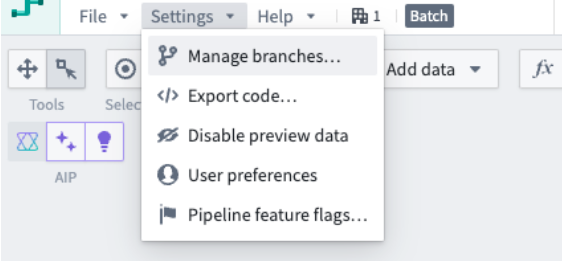
- In Pipeline Builder, select Settings, then Manage branches.
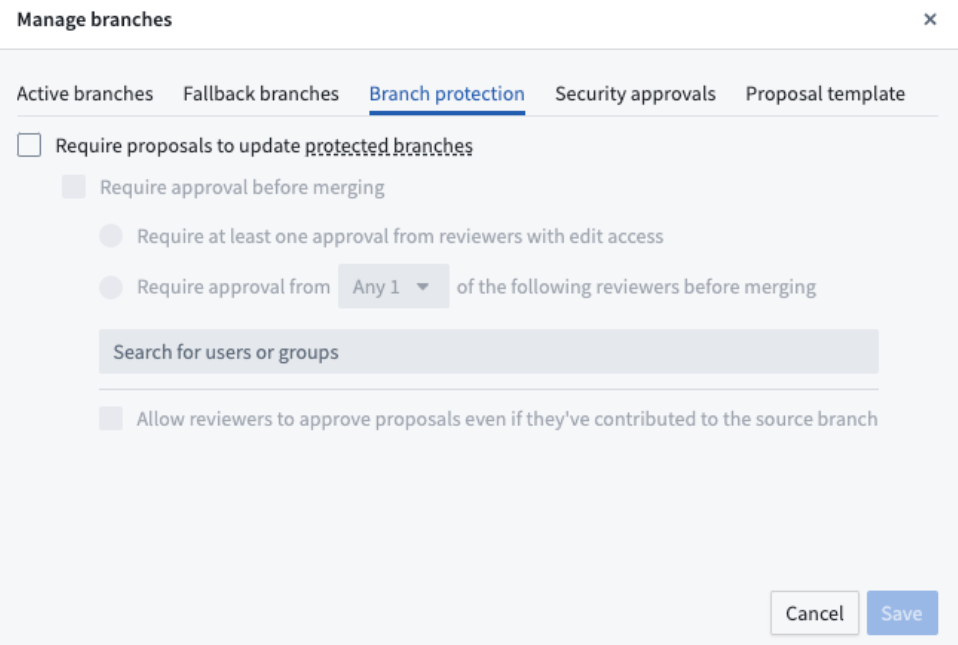
- Select the Branch protection tab.
Require code approvals
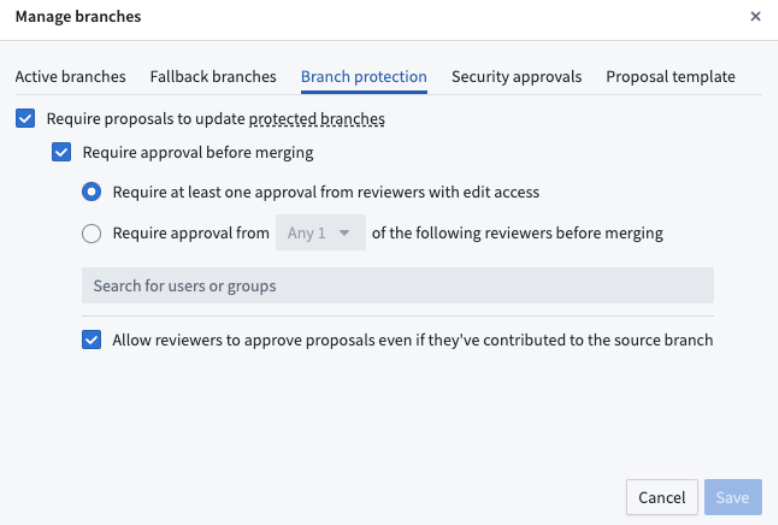
- From the Branch protection tab, check the boxes to Require proposals to update protected branches and Require approval before merging.
- Specify the desired approval policy. An example approval policy is shown below.
Enable changes to security markings in pipeline settings
Navigate to the Security approvals tab and check the box next to Allow changes to security markings in this pipeline. You must have the Owner role on the pipeline to complete this step.
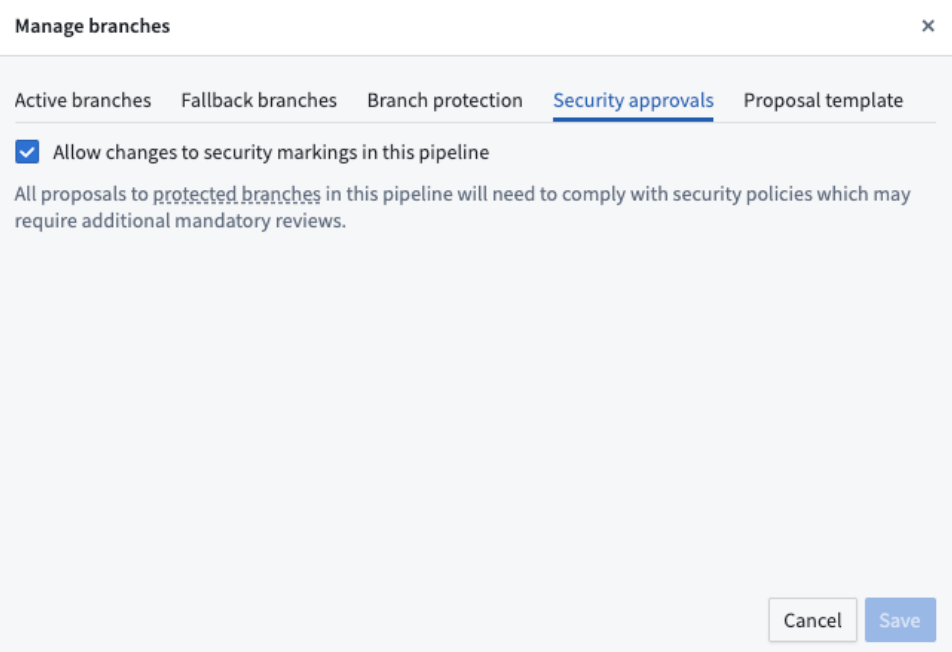
Once you Allow changes to security markings in this pipeline, you cannot disable branch protection or remove code approval requirements. You must disable Allow changes to security markings in this pipeline to disable those features.
Once you remove a marking in a protected branch, you cannot disable the Allow changes to security markings in this pipeline from the Security approvals tab. You must undo the removal of the marking first to disable this setting.
Remove markings or organizations
-
Create a branch off of the protected branch.
-
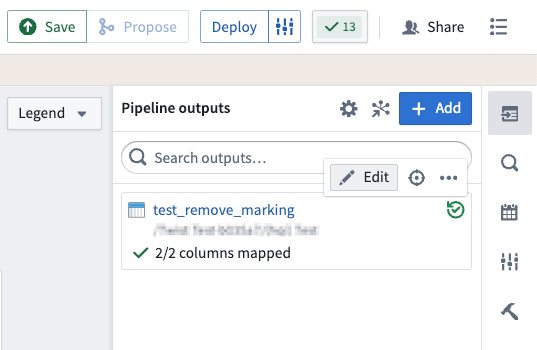
Navigate to Pipeline outputs on the right side of your screen, and hover over the output with the markings(s) you want to remove. Then, select Edit.
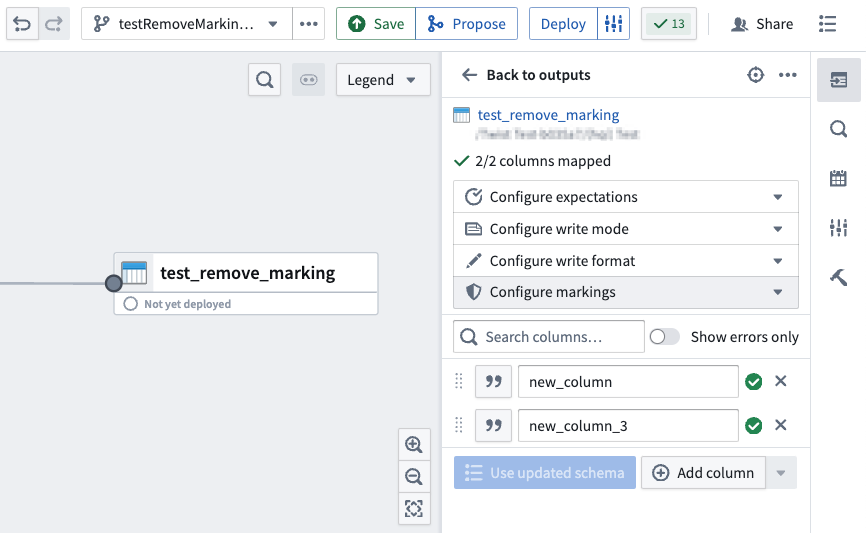
- Select the Configure markings dropdown menu under the output dataset.
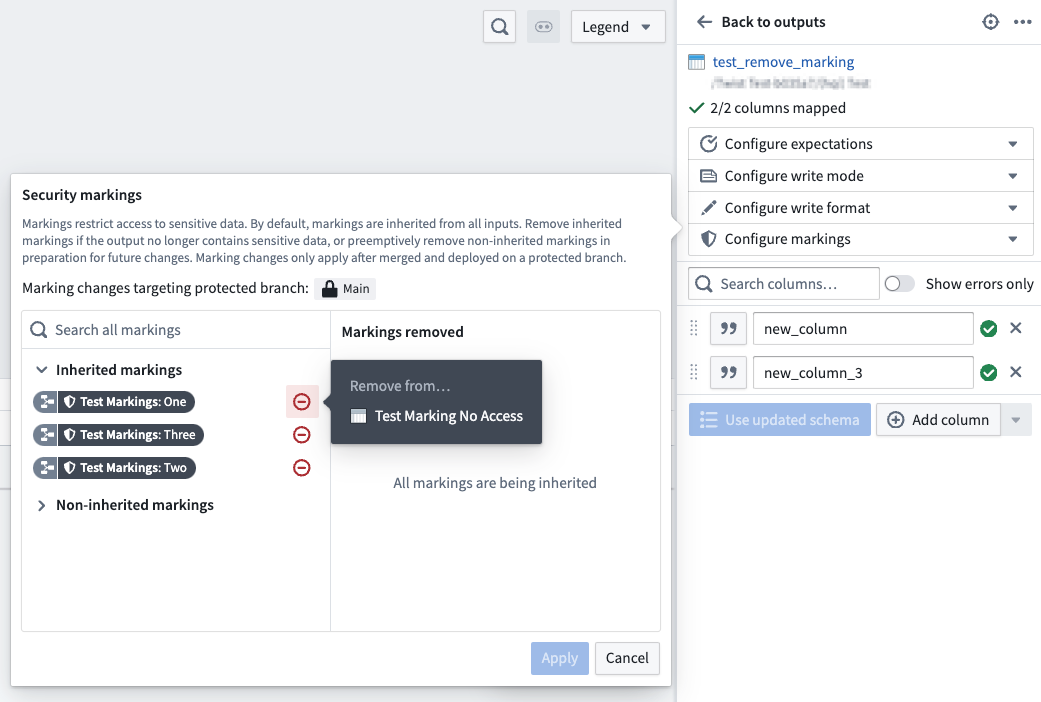
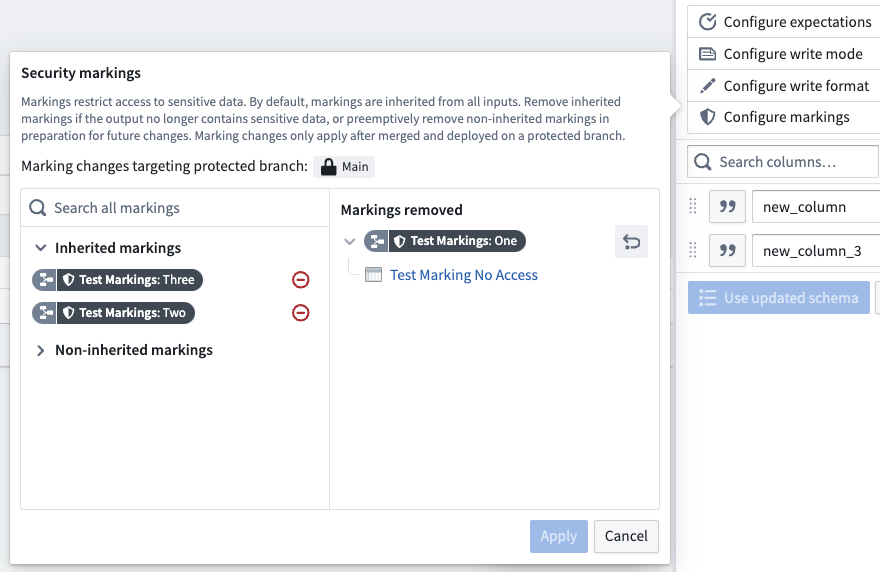
- To remove markings: Under the Markings tab in the pop-up menu, select the red remove icon next to the marking(s) you want to remove.
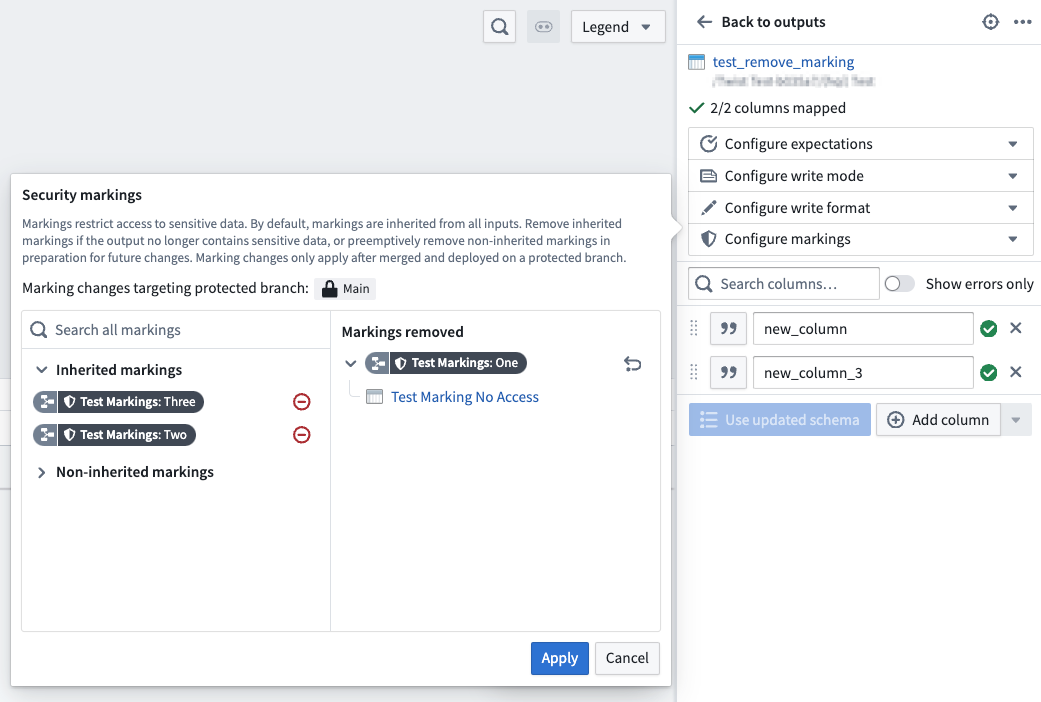
The removed markings will now show up under the Markings removed section in the dialog.
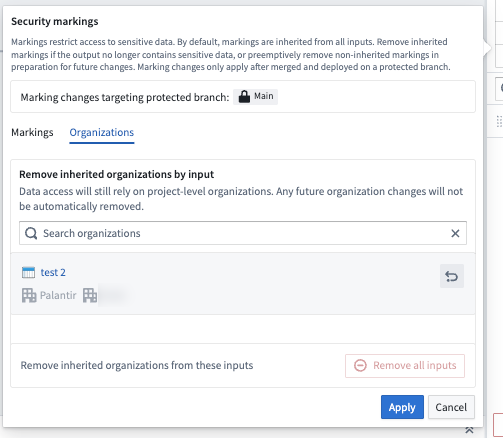
- To remove organizations, select the Organizations tab. To fully remove an organization marking, you must remove all inputs that contains the desired organization you want to remove. If you want to remove all organizations from all inputs, select Remove all inputs.
:::callout{theme="warning"} Outputs inherit organizations from the project they are in. Move your output to a separate project if you need to remove an organization that is on the existing project. :::
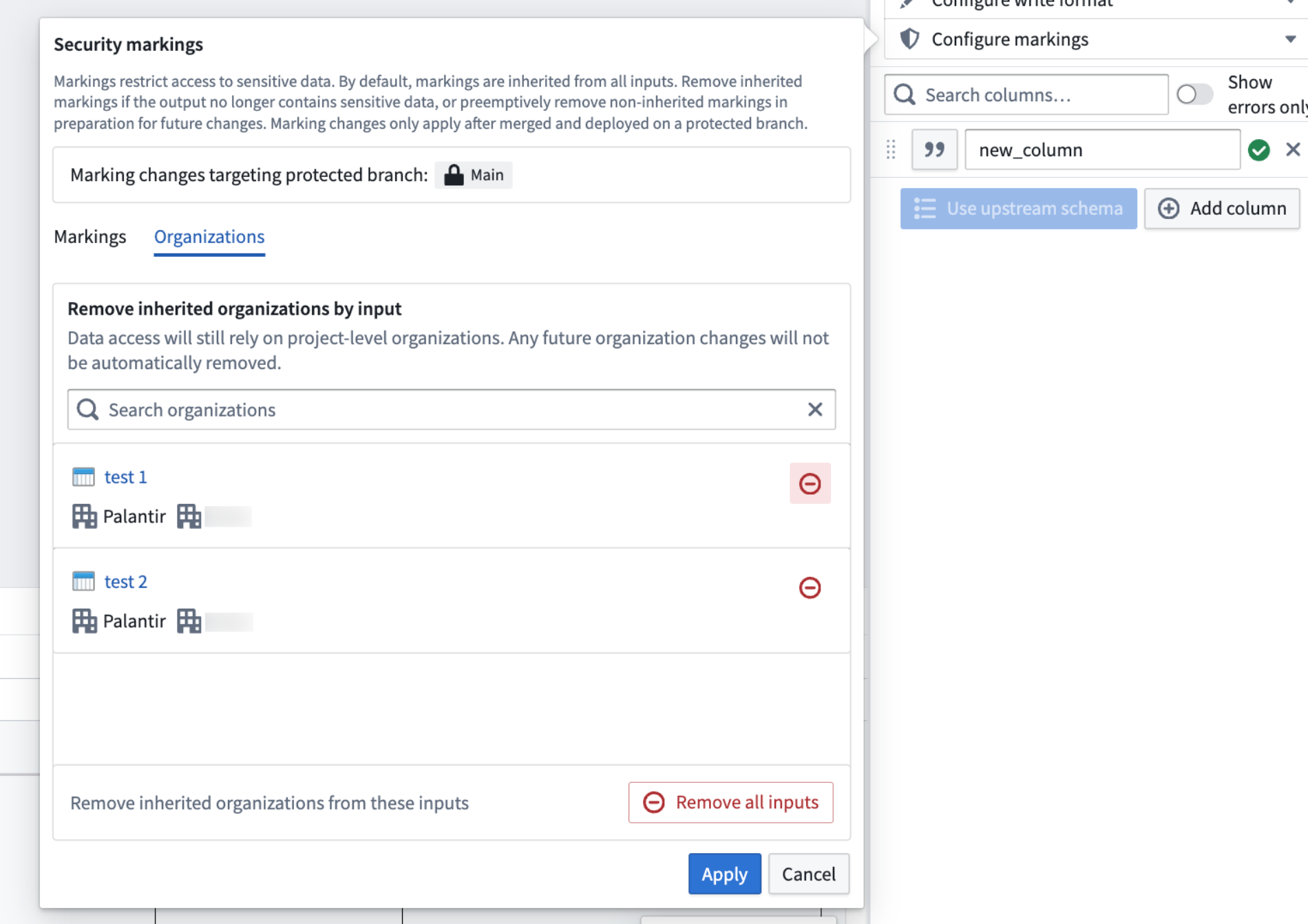
- Select Apply. You should now see a shield icon in the upper left of your output board with a negative number signifying how many markings and organizations you are removing.
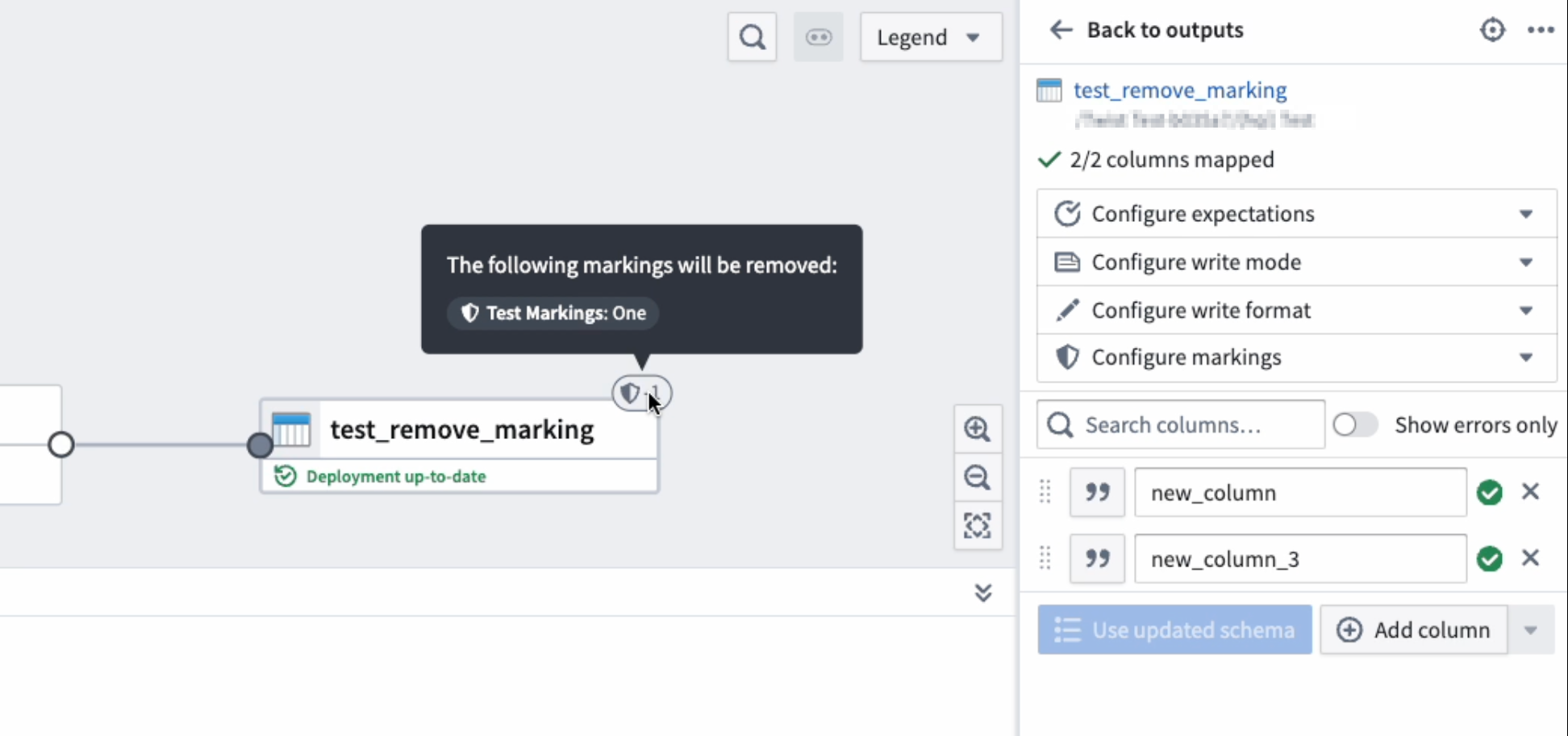
:::callout{theme="neutral"} The changes you applied to markings and organizations on outputs will not go into effect until the branch is merged successfully and deployed on the protected branch. If you try building the dataset on your branch, it will still show the original markings. :::
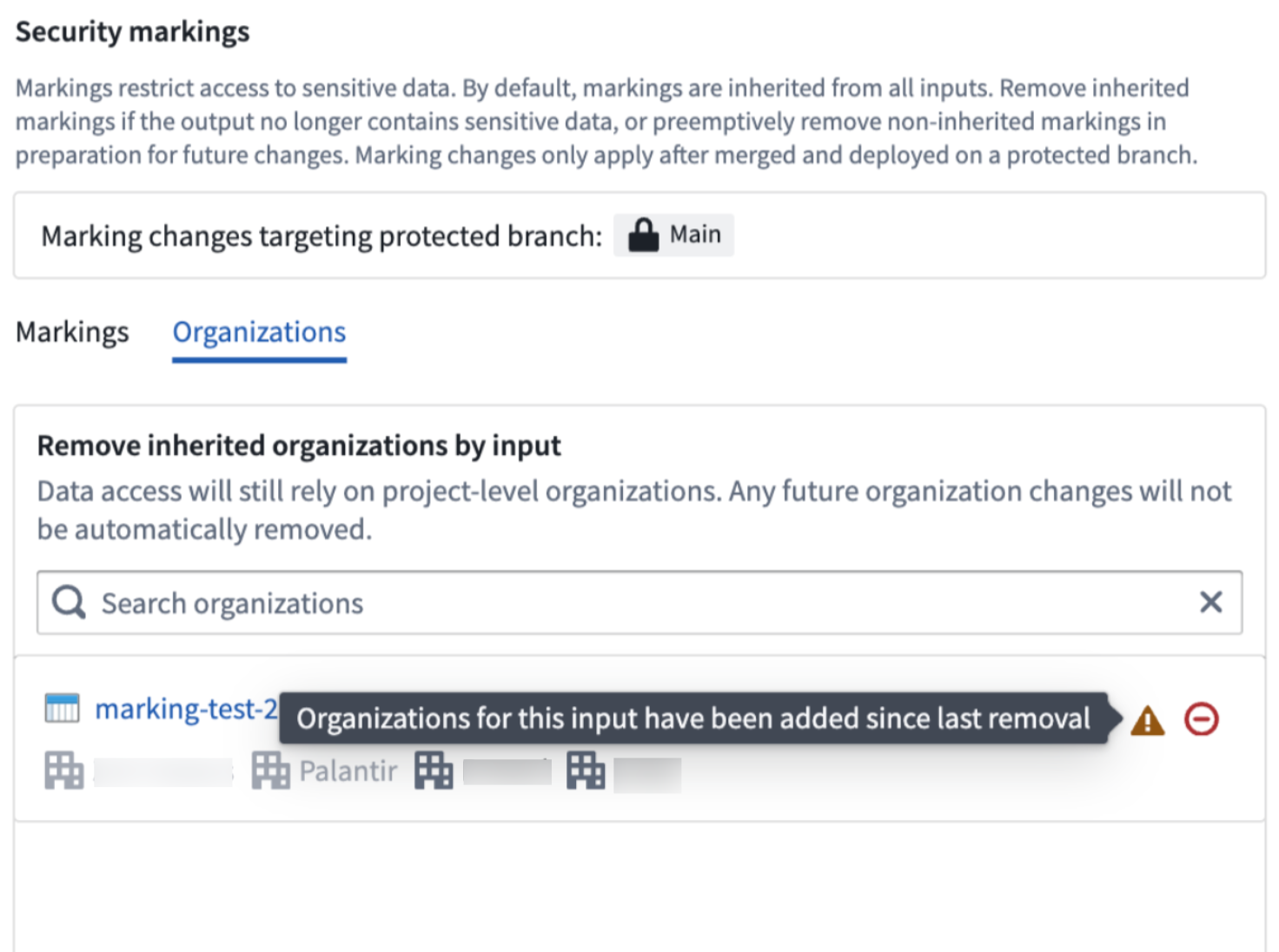
Organization removal only affects organizations that are present on the input at the time of the removal. If the organizations associated with the input have changed since your last removal, a warning icon will appear to indicate that the organizations for this input have been modified since the previous removal action.
Propose your changes
- For your changes to markings and organizations on pipeline output to take effect, create a proposal to merge your changes into the protected branch. The proposal will include a section for approving Marking removals, a function similar to pipeline code approvals.
You must have the Remove marking permission to approve the change. Approvers for proposals to remove markings do not need to be pipeline owners and only require View access to the proposal.
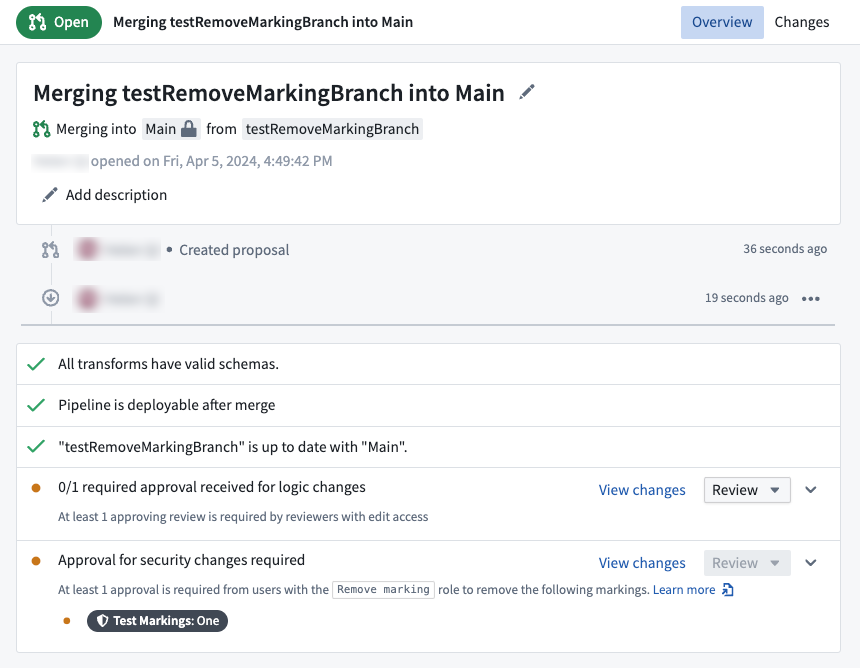
Every removed marking or organization will require a separate check, meaning that you could have multiple checks in one proposal. When you approve a marking removal, your approval will apply for every marking that you have permission to review.
Once all required approvals have been granted, the proposal is allowed to merge. Deploying that version will allow the marking removals to take effect.
Undo a marking or organization removal from a pipeline output
-
To undo the removal of a marking, navigate to Pipeline outputs on the right side of your screen and hover over the output with the marking(s) you removed.
-
Select Edit.
- Select the Configure markings dropdown menu under the output dataset.
- For markings: Select the undo icon next to the Markings not propagated section in the pop-up dialog.
- For organizations, select the undo icon next to the inputs associated with the organization.
- Select Apply, then save your pipeline from the top right of your screen.

-
Propose your changes to begin approval checks.
-
Once approved, deploy your pipeline.
:::callout{theme="neutral"} Elevated permissions are not required to undo the removal of a marking, unlike the permissions required to remove a marking. :::
Markings and job groups
In a job group, markings from all inputs will be inherited by all outputs within the same job group. To view an example and learn more about job groups, review our documentation.
Markings and multiple protected branches
If there are marking removals on any branch, you must stop removing markings from all branches in the pipeline before protecting or unprotecting branches. When multiple branches are protected, marking removals will target all protected branches.
When security approval settings are enabled, you will not be able to change branch protection settings, including protecting or unprotecting branches.
中文翻译
从输出中移除标记(markings)和组织(organizations)
平台资源的访问权限由标记(markings)和组织(organizations)管控。标记采用全有或全无的方式限制访问:用户必须是资源关联的所有标记的成员,才能访问该资源。此外,标记会沿文件层级结构和直接依赖关系继承。而针对组织的访问规则为:用户必须是项目关联的至少一个组织的成员或访客成员,才能满足访问要求。组织同样会通过文件层级结构和直接依赖关系继承。
如果你拥有某一特定标记的Remove marking权限,现在即可在Pipeline Builder中从输出移除这类继承的标记。该功能等价于Code Repositories中的stop_propagation参数。
:::callout{theme="neutral"} 移除输出上的标记等价于阻止标记从输入侧传播。 :::
前提条件
使用Pipeline Builder移除标记或组织前,你必须完成以下步骤。
启用分支保护
- 在Pipeline Builder中选择Settings,然后选择Manage branches。
- 选择Branch protection标签页。
要求代码审批
- 在Branch protection标签页中,勾选Require proposals to update protected branches和Require approval before merging对应的复选框。
- 指定所需的审批策略,下方给出了一个审批策略示例。
在流水线设置中启用安全标记修改权限
前往Security approvals标签页,勾选Allow changes to security markings in this pipeline旁的复选框。你必须拥有该流水线的Owner角色才能完成此步骤。
一旦你勾选了Allow changes to security markings in this pipeline,就无法再禁用分支保护或移除代码审批要求。你必须先取消勾选该选项,才能禁用前述功能。
如果你已经在受保护分支中移除过某一标记,就无法再从Security approvals标签页取消勾选Allow changes to security markings in this pipeline选项,必须先撤销该标记的移除操作,才能禁用此设置。
移除标记或组织
-
基于受保护分支创建分支。
-
前往屏幕右侧的Pipeline outputs,将鼠标悬停在你要移除标记的输出上,然后选择Edit。
- 选择输出数据集下方的Configure markings下拉菜单。
- 移除标记:在弹窗的Markings标签页中,点击你要移除的标记旁的红色移除图标。
被移除的标记会显示在对话框的Markings removed区块中。
- 如需移除组织,选择Organizations标签页。要完全移除某个组织标记,你必须移除所有携带目标组织的输入。如果你想要移除所有输入关联的全部组织,选择Remove all inputs。
:::callout{theme="warning"} 输出会继承其所在项目的组织。如果你需要移除现有项目上的组织,请将输出移动到其他独立项目中。 :::
- 选择Apply。此时你会在输出面板的左上角看到一个盾牌图标,上面的负数代表你移除的标记和组织的总数。
:::callout{theme="neutral"} 你对输出的标记和组织所做的修改,只有在分支成功合并并部署到受保护分支后才会生效。如果你在自己的分支上构建数据集,仍然会显示原始标记。 :::
组织移除操作仅对移除操作执行时输入上已有的组织生效。如果自上次移除操作后,输入关联的组织发生了变更,会出现一个警告图标,提示该输入的组织自上次移除操作后已被修改。
提交变更申请
你需要拥有Remove marking权限才能审批该变更。标记移除变更申请的审批人不需要是流水线所有者,仅需要拥有该申请的View访问权限即可。
每一个被移除的标记或组织都需要单独的校验,也就是说一份变更申请中可能会有多个校验项。当你审批某一标记移除申请时,你的审批会自动覆盖所有你有权限审核的标记。
所有必需的审批通过后,即可合并变更申请。部署对应版本的流水线后,标记移除操作就会生效。
撤销流水线输出的标记或组织移除操作
-
要撤销标记移除操作,前往屏幕右侧的Pipeline outputs,将鼠标悬停在你已移除标记的输出上。
-
选择Edit。
- 选择输出数据集下方的Configure markings下拉菜单。
- 针对标记:在弹窗对话框的Markings not propagated区块旁点击撤销图标。
- 针对组织:点击该组织关联的输入旁的撤销图标。
- 选择Apply,然后点击屏幕右上角的按钮保存流水线。
:::callout{theme="neutral"} 与移除标记需要较高权限不同,撤销标记移除操作不需要特殊的高权限。 :::
标记与任务组(job groups)
在同一个任务组(job group)中,所有输入的标记都会被该任务组内的所有输出继承。如需查看示例并了解更多关于任务组的内容,请查阅我们的文档。
标记与多个受保护分支
如果任意分支上存在标记移除操作,那么在保护或取消保护分支前,你必须先停止所有流水线分支上的标记移除操作。当存在多个受保护分支时,标记移除操作会作用于所有受保护分支。