Join data(连接数据)
In addition to transforming single datasets, Pipeline Builder allows you to bring datasets together with joins and unions.
A join combines two datasets that have at least one matching column. Depending on the type of join you configure, your join output can combine matching rows and exclude non-matching rows.
Select datasets
To join two datasets together, select the first dataset node in your graph and click Join.
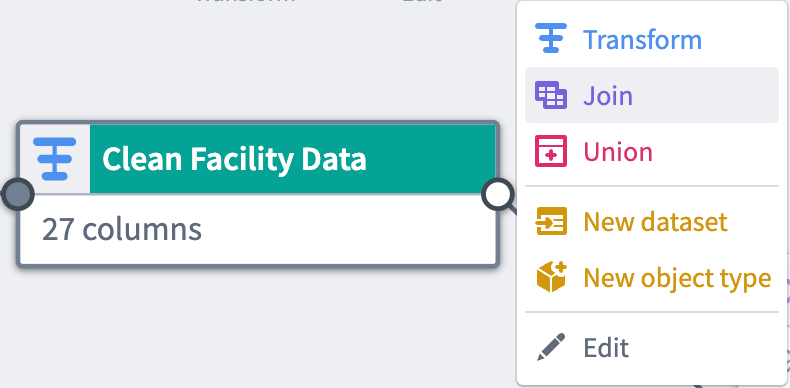
The first selected dataset is the Left side dataset. Select another dataset node to be the Right side dataset. Click Start to configure the join.

Configure a join
In the join form, you can edit the join type, select match conditions, and preview the output table.
- Join type: Choose whether to create a left, right, inner, or outer join.
- Left: Keep all rows from the left table and matching rows from the right table.
- Right: Keep all rows from the right table and matching rows from the left table.
- Inner: Only keep matching rows between both tables.
- Outer: Keep all rows from both tables, with
nullfilled in columns for non-matching rows. - Match condition: Select a column from the left dataset to mark it as equal to a column from the right dataset. For example, the
citycolumn in the leftClean Facility Datadataset is equal to theCITYcolumn in the rightFacility Persondataset. - Preview: View preview data from both the right and left input datasets. After applying a join, view preview data from the output table. If any errors occur while applying a join, view them in the Errors tab.
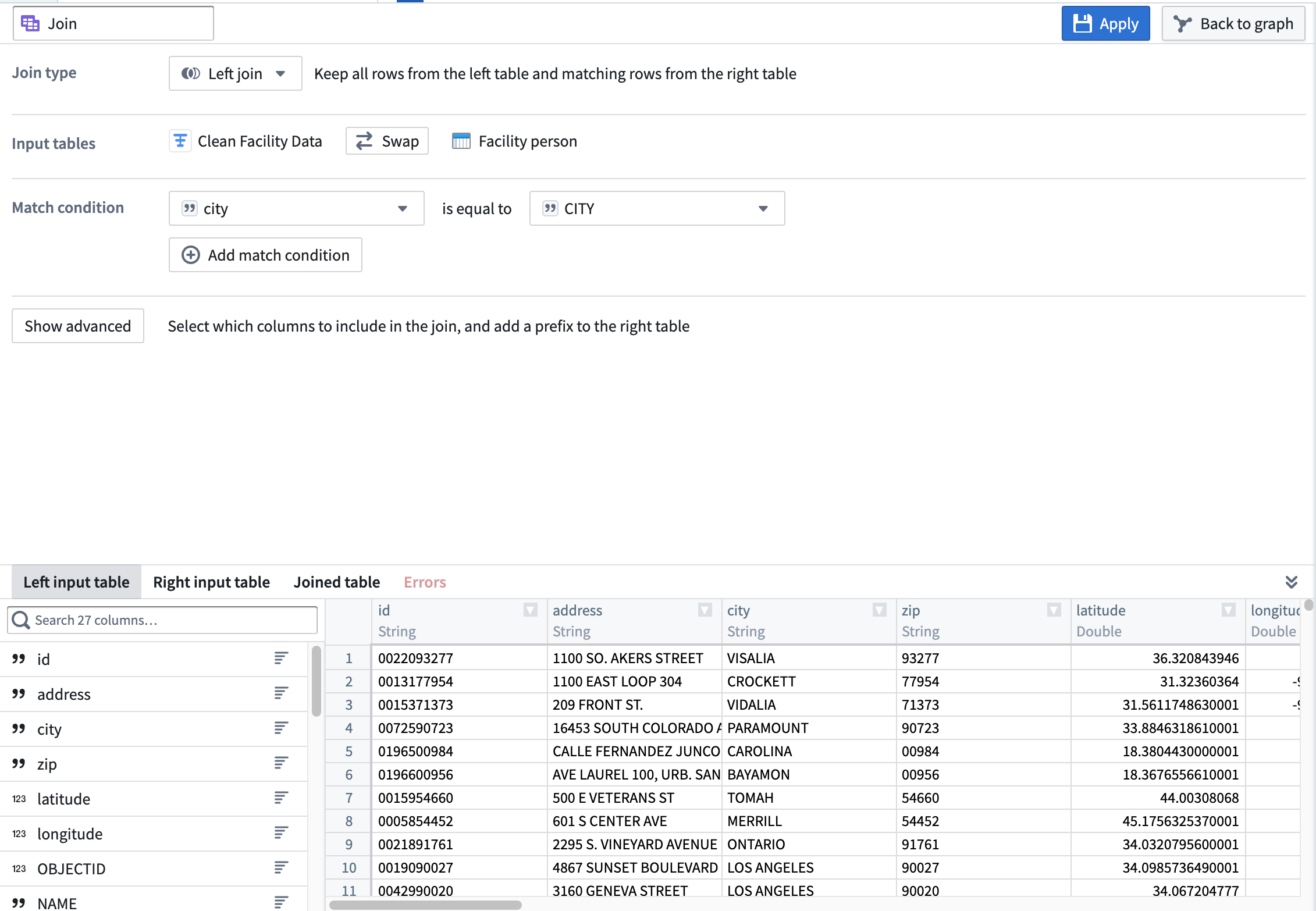
All data in the above and following examples was randomly generated and is non-representational.
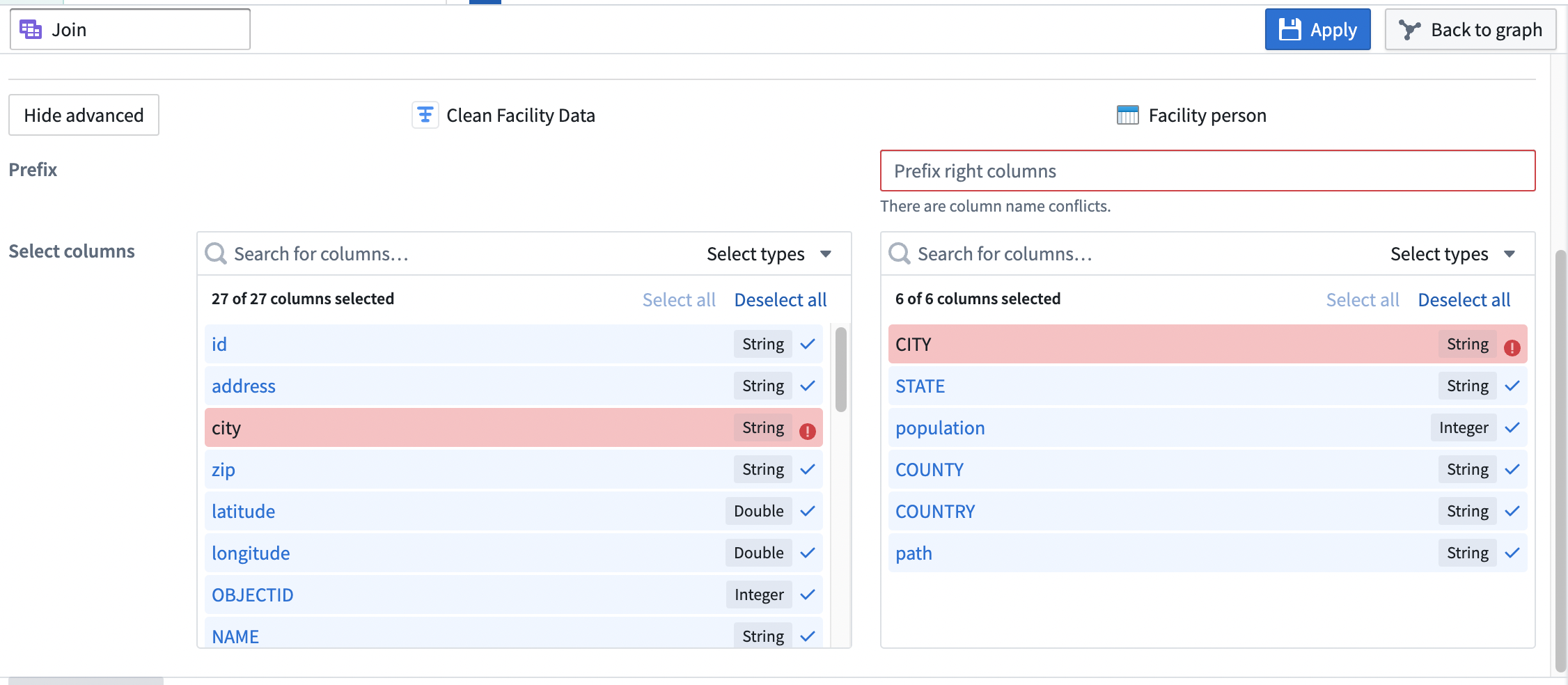
You can decide to include specific columns in the join and add a prefix to the right table. Select Show advanced to expand the prefix and column fields, enter a prefix for the right table, and select the columns to include in the join. In the example below, we are keeping all columns from the left dataset and only including the STATE and population columns from the right dataset.
Apply a join
Once you finish configuring your join, click Apply to add the join to your workflow. You will see the join node connected to the two joined datasets in your graph. We named our new join Join person data, and it is a direct output of the original Clean Facility Data and Facility person datasets.
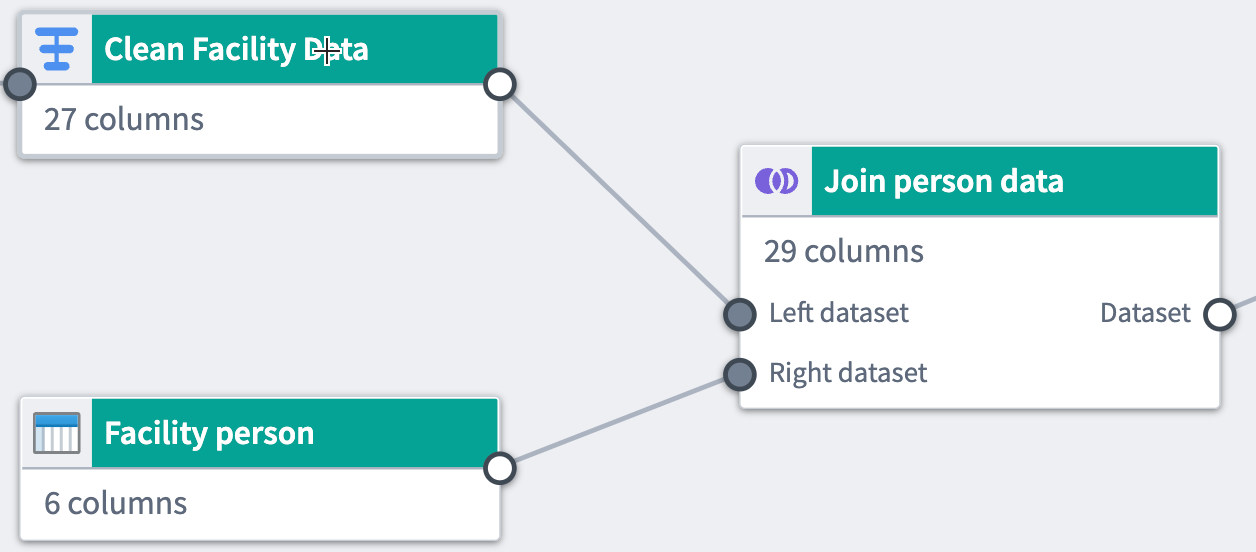
Rename or edit the join by clicking the join node and selecting Edit.
:::callout{theme="neutral"} Drag the white or gray circles on nodes to change connections and remove links on the graph. :::
中文翻译
连接数据
除了转换单个数据集外,Pipeline Builder 还允许您通过连接(Join)和合并(Union)操作将数据集整合在一起。
连接(Join)操作将两个至少有一个匹配列的数据集合并。根据您配置的连接类型,输出结果可以包含匹配的行并排除不匹配的行。
选择数据集
要连接两个数据集,请先在图表中选择第一个数据集节点,然后点击连接(Join)。
第一个选中的数据集为左侧(Left)数据集。选择另一个数据集节点作为右侧(Right)数据集。点击开始(Start)配置连接。
配置连接
在连接表单中,您可以编辑连接类型、选择匹配条件并预览输出表。
- 连接类型(Join type): 选择创建左连接、右连接、内连接或外连接。
- 左连接(Left): 保留左表中的所有行以及右表中的匹配行。
- 右连接(Right): 保留右表中的所有行以及左表中的匹配行。
- 内连接(Inner): 仅保留两个表之间的匹配行。
- 外连接(Outer): 保留两个表中的所有行,不匹配行的列填充为
null。 - 匹配条件(Match condition): 从左侧数据集中选择一列,将其标记为与右侧数据集中的一列相等。例如,左侧
Clean Facility Data数据集中的city列等于右侧Facility Person数据集中的CITY列。 - 预览(Preview): 查看右侧和左侧输入数据集的预览数据。应用连接后,查看输出表的预览数据。如果在应用连接时出现任何错误,可在错误(Errors)选项卡中查看。
以上及以下示例中的所有数据均为随机生成,不具代表性。
您可以选择在连接中包含特定列,并为右侧表添加前缀。选择显示高级(Show advanced)以展开前缀和列字段,为右侧表输入前缀,并选择要包含在连接中的列。在下面的示例中,我们保留了左侧数据集的所有列,仅包含右侧数据集中的STATE和population列。
应用连接
完成连接配置后,点击应用(Apply)将连接添加到您的工作流中。您将看到连接节点连接到图表中两个已连接的数据集。我们将新的连接命名为Join person data,它是原始Clean Facility Data和Facility person数据集的直接输出。
通过点击连接节点并选择编辑(Edit),可以重命名或编辑该连接。
:::callout{theme="neutral"} 拖动节点上的白色或灰色圆圈可以更改连接并移除图表中的链接。 :::