Transform data(转换数据)
You can start transforming and structuring your data in Pipeline Builder after adding datasets to your workspace.
Select a dataset
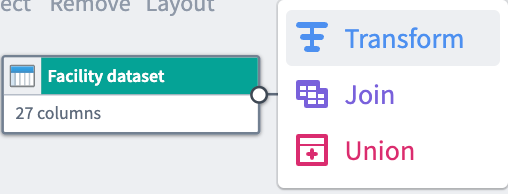
To apply a transform to a dataset, select a dataset node in your workspace and click Transform.
Search for a transform
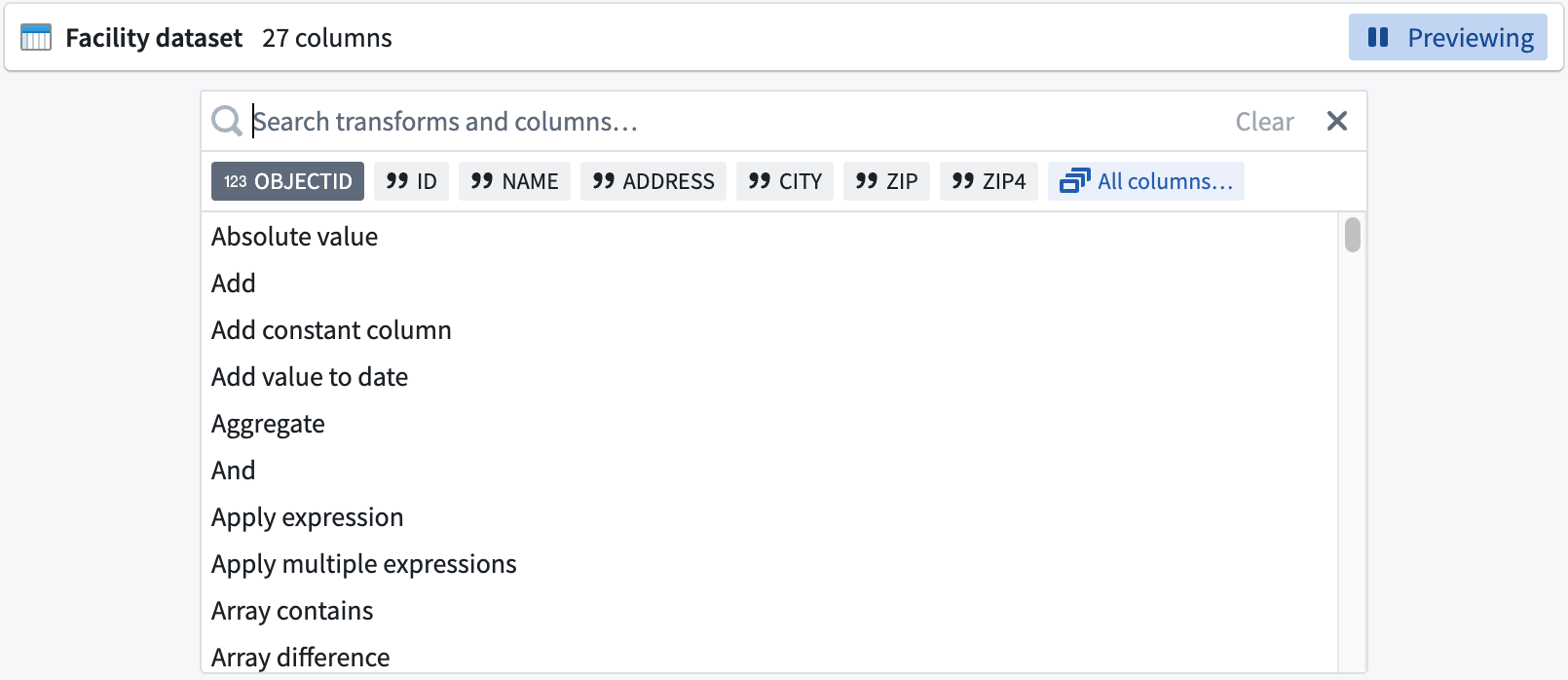
In the transform page, search for a transform type by name or browse from a list of available transforms. If you are using a structured (tabular) dataset, this field shows a comprehensive list of table transforms.
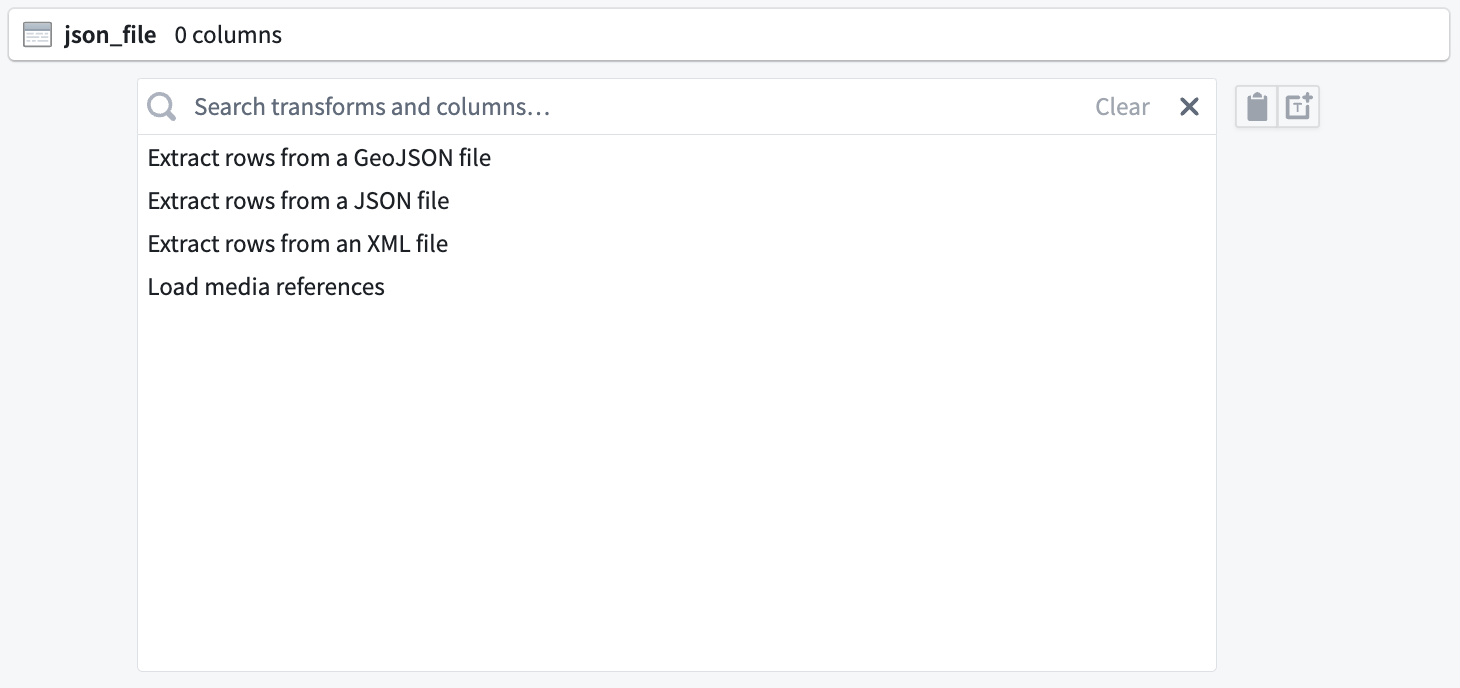
For semi-structured datasets like JSON files, the search field includes file transforms that allow you to parse your dataset into table format.
Configure a transform
Complete the transform configuration board with required information, including columns, expressions, or values. In the example below, we chose the Rename columns transform, selected columns to rename, and entered new name values for the columns.

Reuse existing expressions
Pipeline Builder lets you reuse values from existing expressions when creating new ones.
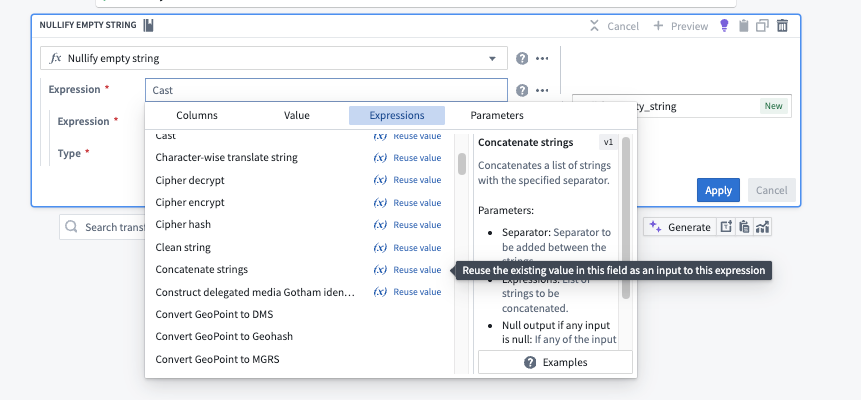
When you replace an expression within a nested expression, the new expression will, by default, remove any fields or values you previously set. If you want to keep these existing fields or values, select Reuse values next to the expression. This will automatically copy the previous values into your new expression.
Apply a transform
After completing the transform form, click Apply to add the transform to your workflow. You will see the transform node connected to the origin dataset in your graph. We named our new transform Clean Facility Data, and it is a direct output of the original Facility dataset.

You can rename or edit the transform by clicking the transform node and selecting Edit.
:::callout{theme="neutral"} Drag the white output circles on nodes to change connections on the graph. :::
Transform view
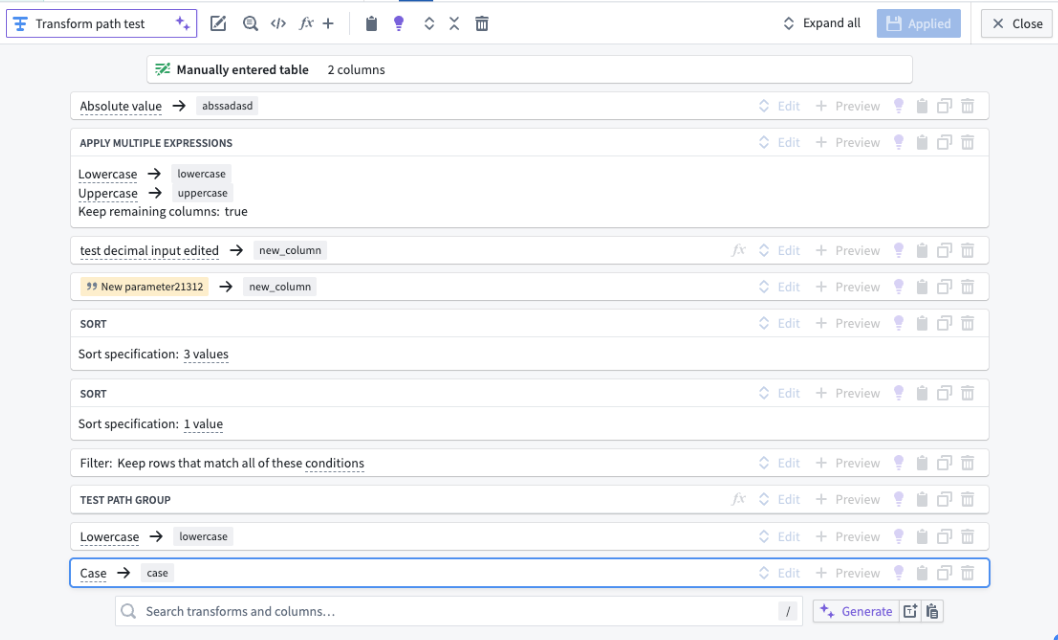
Pipeline Builder offers two ways to view transforms: the traditional collapsed board rendering and pseudocode rendering. Setting your view preference will update your personal view globally across the Palantir platform.
Collapsed board rendering
The collapsed board rendering format displays transforms in a compact, board-like structure. This view is the traditional format and may be preferred by users who are accustomed to this layout.
Pseudocode rendering
The pseudocode rendering format displays transforms in a cleaner format resembling code but does not adhere to any specific programming language's syntax.
:::callout{theme="warning"} The joins, unions, and LLM nodes are not affected by the pseudocode rendering option. :::
This option is particularly beneficial for users familiar with coding or those who prefer a more textual representation of their pipeline logic. The pseudocode automatically adjusts to fit your screen, reducing the need for scrolling as well.
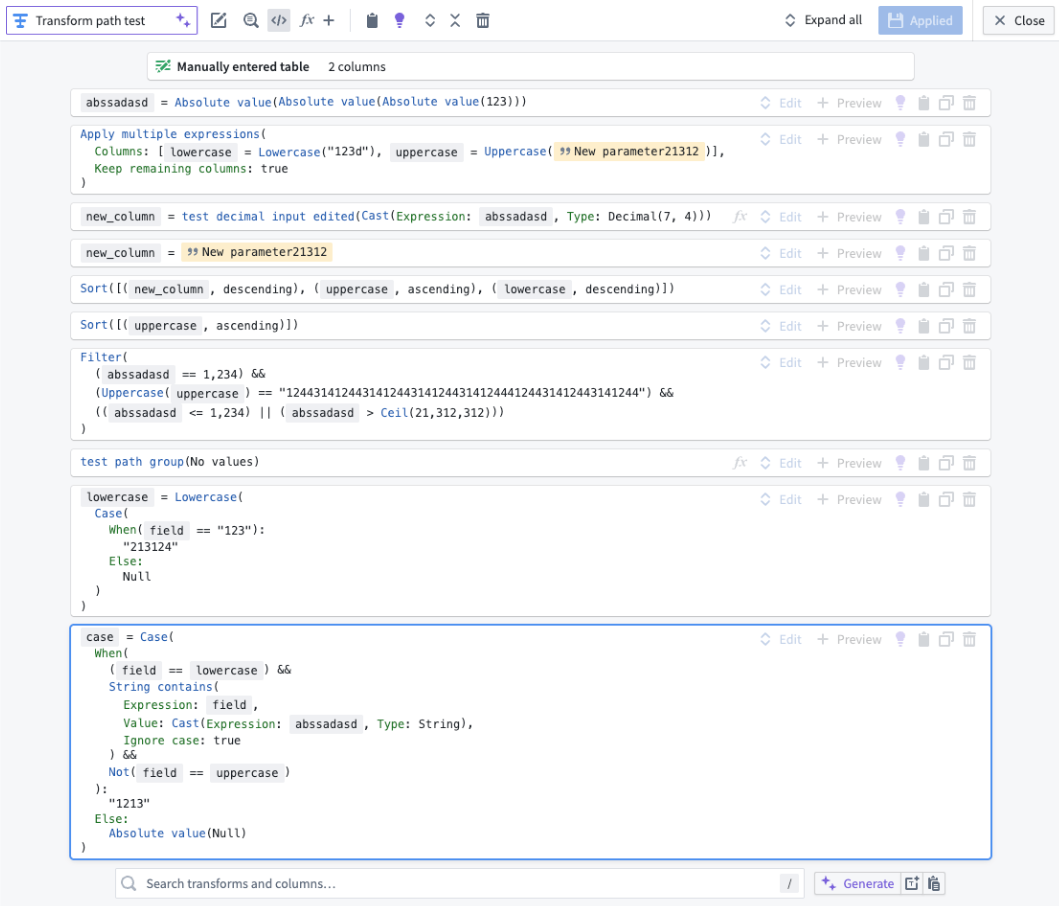
:::callout{theme="warning"} Enabling pseudocode rendering does not allow code editing within Pipeline Builder. The format is solely to create a more familiar view. :::
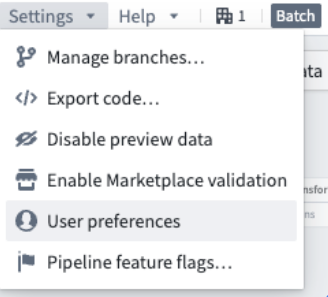
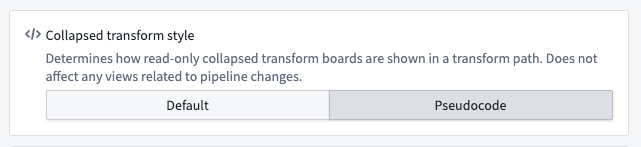
You can enable the pseudocode rendering option via the following methods:
- Settings menu: Navigate to the Settings menu. Then, select User preferences and toggle the option for Pseudocode under Collapsed transform style.
- Within a transform path: Within any transform path, select the \</> icon.

中文翻译
转换数据
在将数据集添加到工作区后,即可开始在 Pipeline Builder 中转换和结构化数据。
选择数据集
要对数据集应用转换,请在工作区中选择一个数据集节点,然后点击转换(Transform)。
搜索转换类型
在转换页面中,按名称搜索转换类型,或从可用转换列表中浏览。如果您使用的是结构化(表格型)数据集,此字段会显示全面的表格转换列表。
对于半结构化数据集(如 JSON 文件),搜索字段包含文件转换选项,允许您将数据集解析为表格格式。
配置转换
在转换配置面板中填写所需信息,包括列、表达式或值。在下面的示例中,我们选择了重命名列(Rename columns)转换,选择了要重命名的列,并为这些列输入了新的名称值。
复用现有表达式
Pipeline Builder 允许您在创建新表达式时复用现有表达式中的值。
当您在嵌套表达式中替换表达式时,新表达式默认会移除您之前设置的任何字段或值。如果您希望保留这些现有字段或值,请选择表达式旁边的复用值(Reuse values)。这将自动将先前的值复制到您的新表达式中。
应用转换
填写完转换表单后,点击应用(Apply)将转换添加到您的工作流中。您将看到转换节点连接到图表中的原始数据集。我们将新的转换命名为清理设施数据(Clean Facility Data),它是原始设施数据集(Facility dataset)的直接输出。
您可以通过点击转换节点并选择编辑(Edit)来重命名或编辑转换。
:::callout{theme="neutral"} 拖动节点上的白色输出圆圈可以更改图表上的连接关系。 :::
转换视图
Pipeline Builder 提供两种查看转换的方式:传统的折叠面板渲染和伪代码渲染。设置您的视图偏好将全局更新您在 Palantir 平台上的个人视图。
折叠面板渲染
折叠面板渲染格式以紧凑的面板式结构显示转换。这种视图是传统格式,可能更适合习惯此布局的用户。
伪代码渲染
伪代码渲染格式以更简洁的类代码形式显示转换,但不遵循任何特定编程语言的语法。
:::callout{theme="warning"} 连接(joins)、合并(unions)和 LLM 节点不受伪代码渲染选项的影响。 :::
此选项特别适合熟悉编码的用户,或偏好以更文本化方式查看管道逻辑的用户。伪代码会自动调整以适应您的屏幕,从而减少滚动需求。
:::callout{theme="warning"} 启用伪代码渲染不允许在 Pipeline Builder 中进行代码编辑。该格式仅用于创建更熟悉的视图。 :::
您可以通过以下方法启用伪代码渲染选项:
- 设置菜单: 导航至设置(Settings)菜单。然后选择用户偏好(User preferences),并在折叠转换样式(Collapsed transform style)下切换伪代码(Pseudocode)选项。
- 在转换路径内: 在任何转换路径内,选择\</>图标。