Transform media(转换媒体)
In addition to transforming tabular structured data, Pipeline Builder allows you to transform unstructured data, represented in the Palantir platform as media sets.
Transforming media generally means one of two things: either manipulating media or extracting information from media. A transform that manipulates media will take a media input and produce a media output. An expression that extracts information from media will take a media input and produce a tabular output.
You can start transforming your unstructured data in Pipeline Builder after adding data from Foundry in the form of a media set to your workspace.
:::callout{theme="neutral"} Media set inputs do not need to be converted to tables. When a media set input is added to a pipeline, it can be read as a media set or tabular input, meaning you can apply media transformations or tabular expressions without needing to convert it. :::
Select a media set
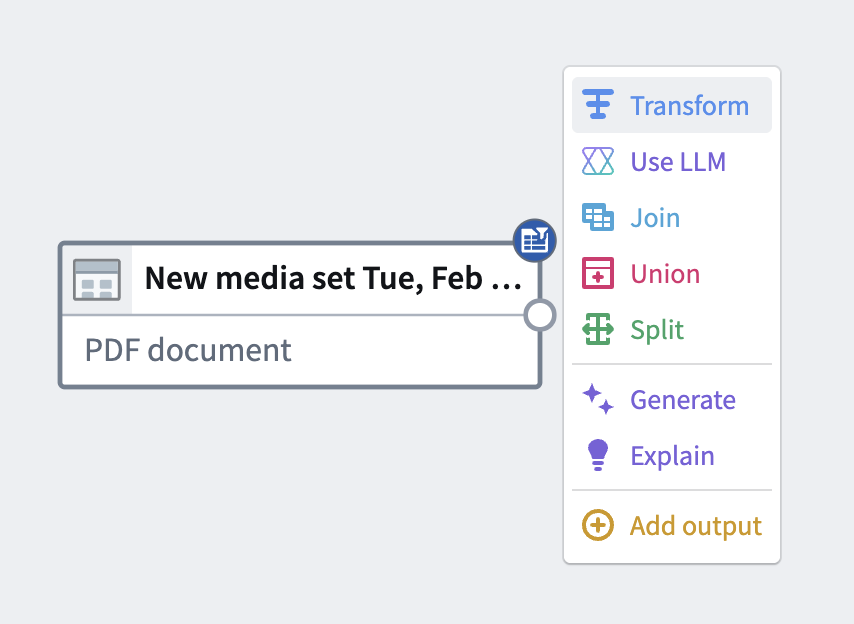
To apply a transform to a media set, choose a media set node in your workspace and select Transform.
Search for a transform
In the transform page, search for a transform type by name or browse from a list of available transforms. You can also select the Media category on the left-hand side to browse only available media transforms.
The example below shows how to take a media set input containing PDF documents and trim down, or "slice", the documents to a subset of their pages. You can do this by searching for and selecting the Slice PDF transform.
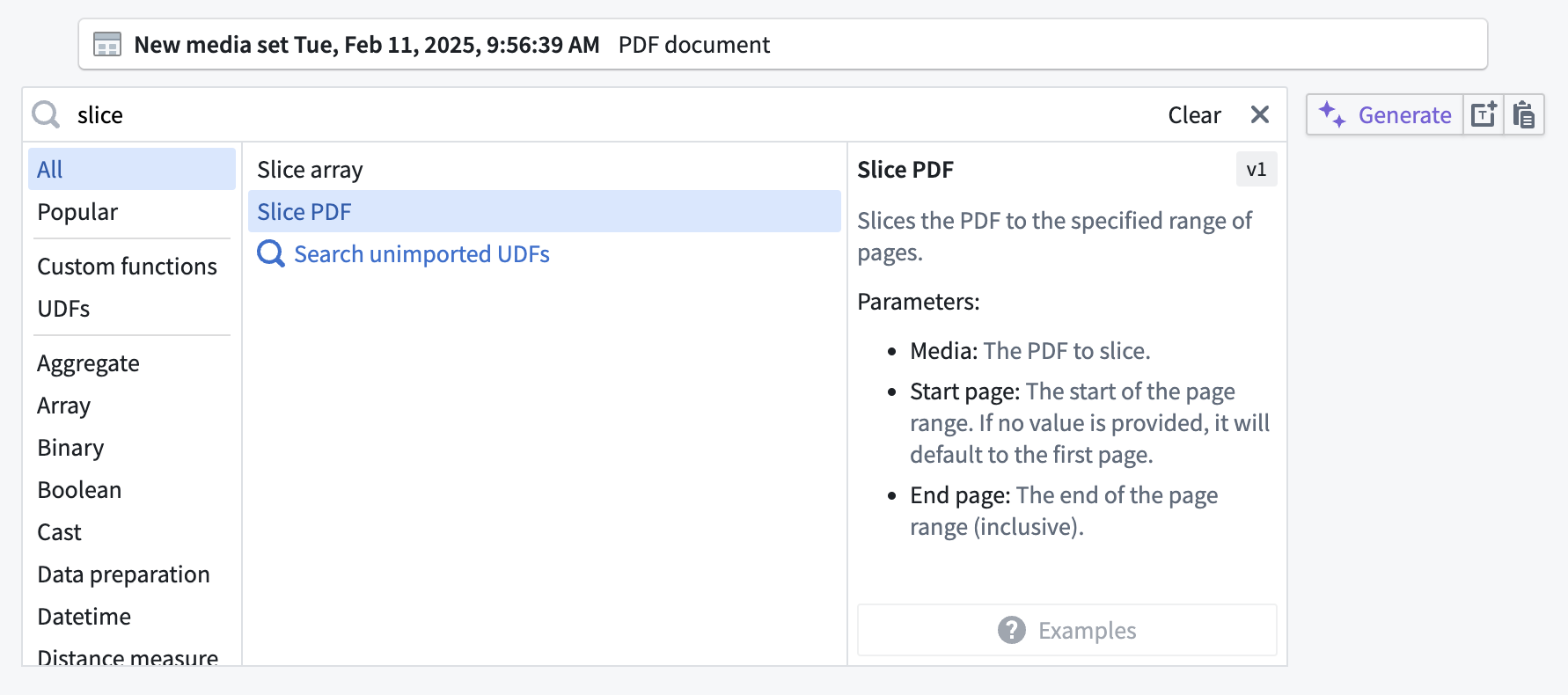
Slicing PDF documents is an example of transforming media by manipulating it. However, you may wish to extract information from your documents instead.
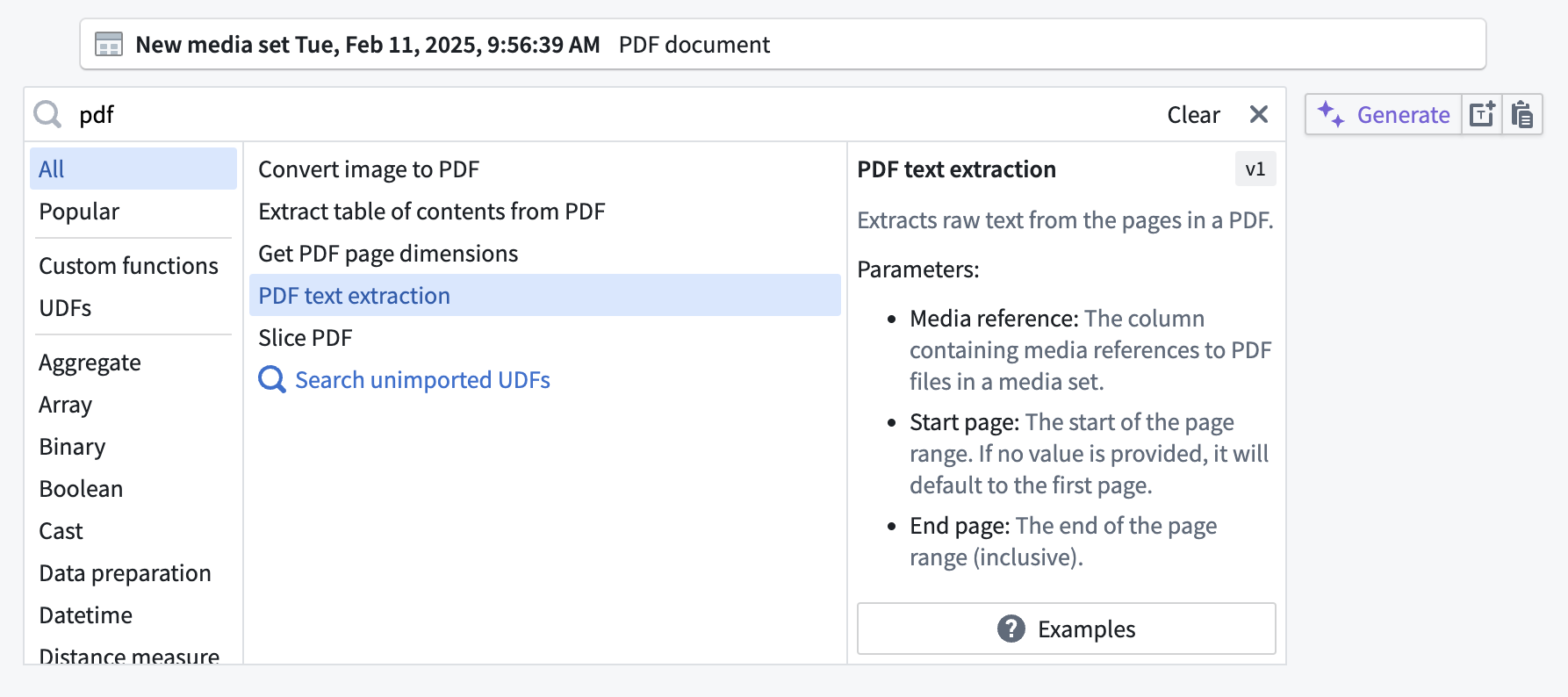
The example below begins with the same media set input containing PDF documents; if you want to extract the text from the documents, you can search for and then select the PDF text extraction transform.
Configure a transform
Many transforms will prompt you to provide parameters to configure how the transform should run. Complete these parameters as appropriate for your workflow.
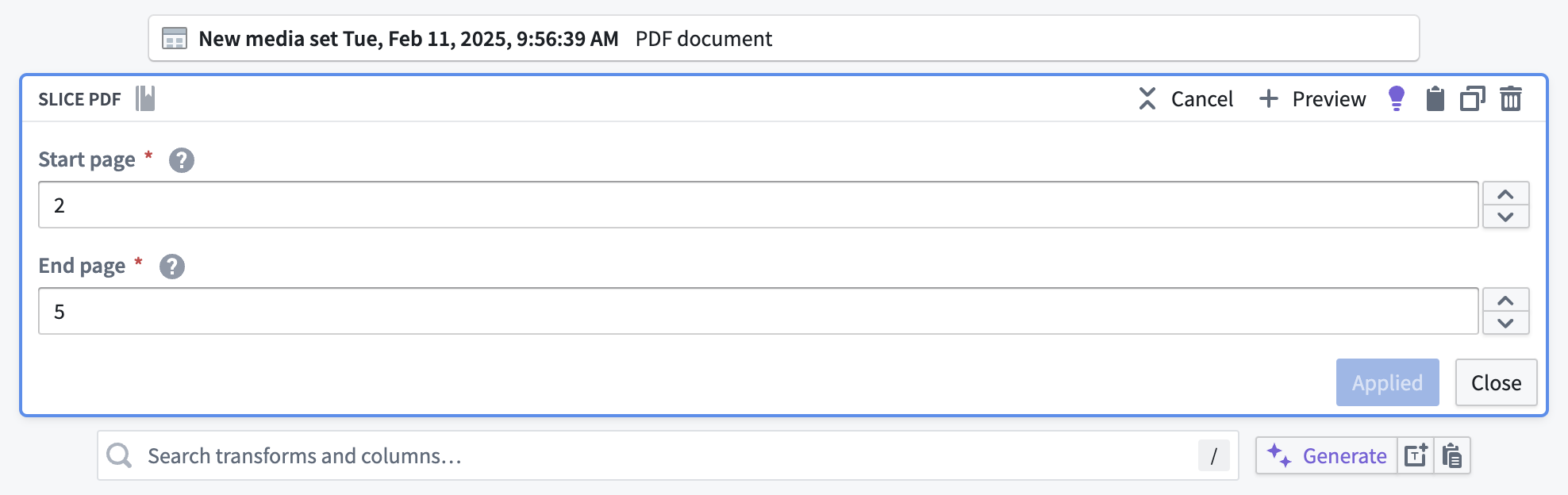
The example below shows how to configure the Slice PDF transform in order to slice the documents to pages 2 through 5.
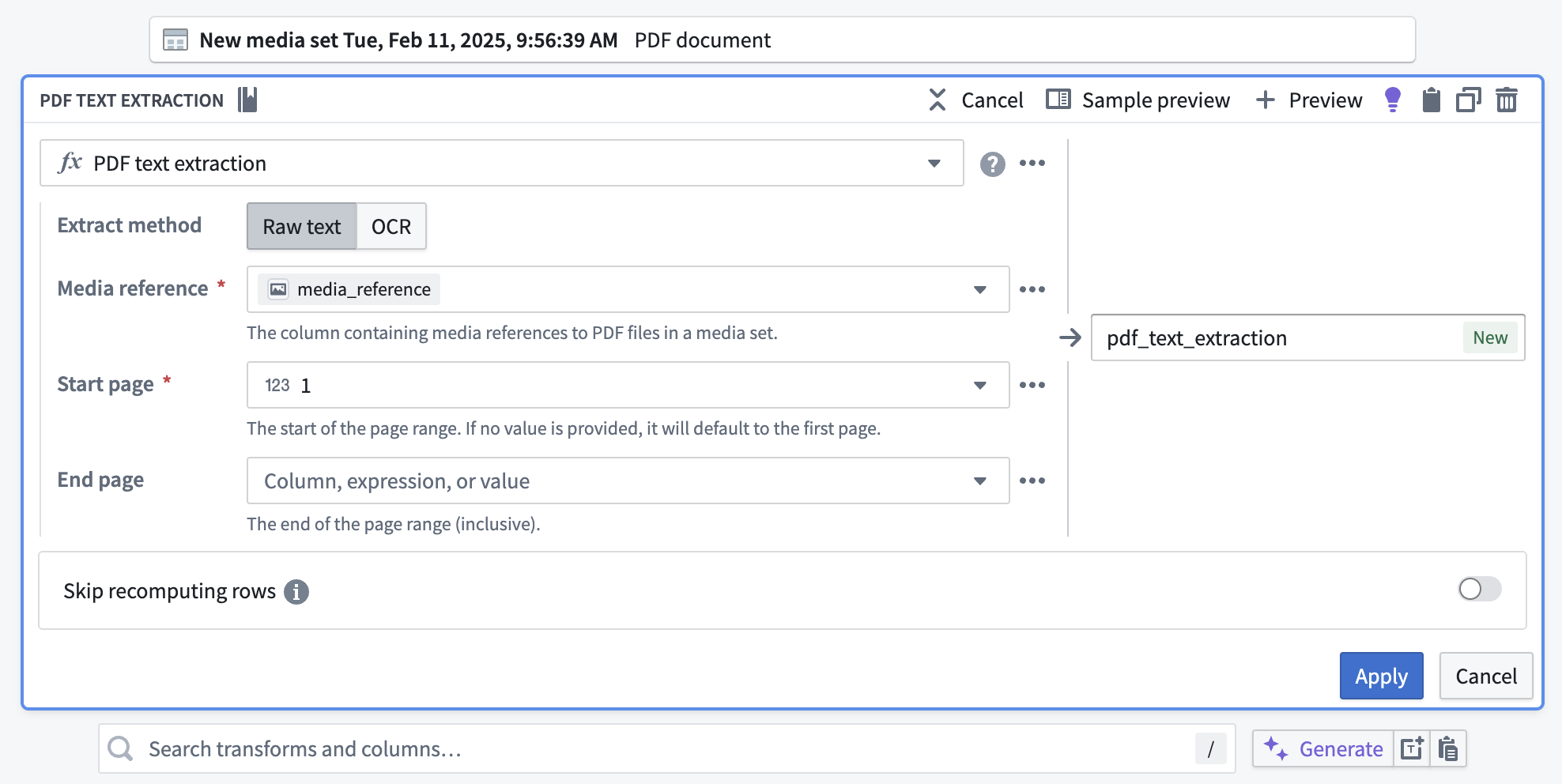
Below is an example of how to use the PDF text extraction transform to extract text for an entire document. In configuration, select Raw text because the text is embedded in the documents, but OCR is available if that were not the case.
For Media reference, select the media_reference column from the dropdown. For Start page and End page, leave the default values at 1 and empty respectively in order to extract text for all pages.
Apply a transform
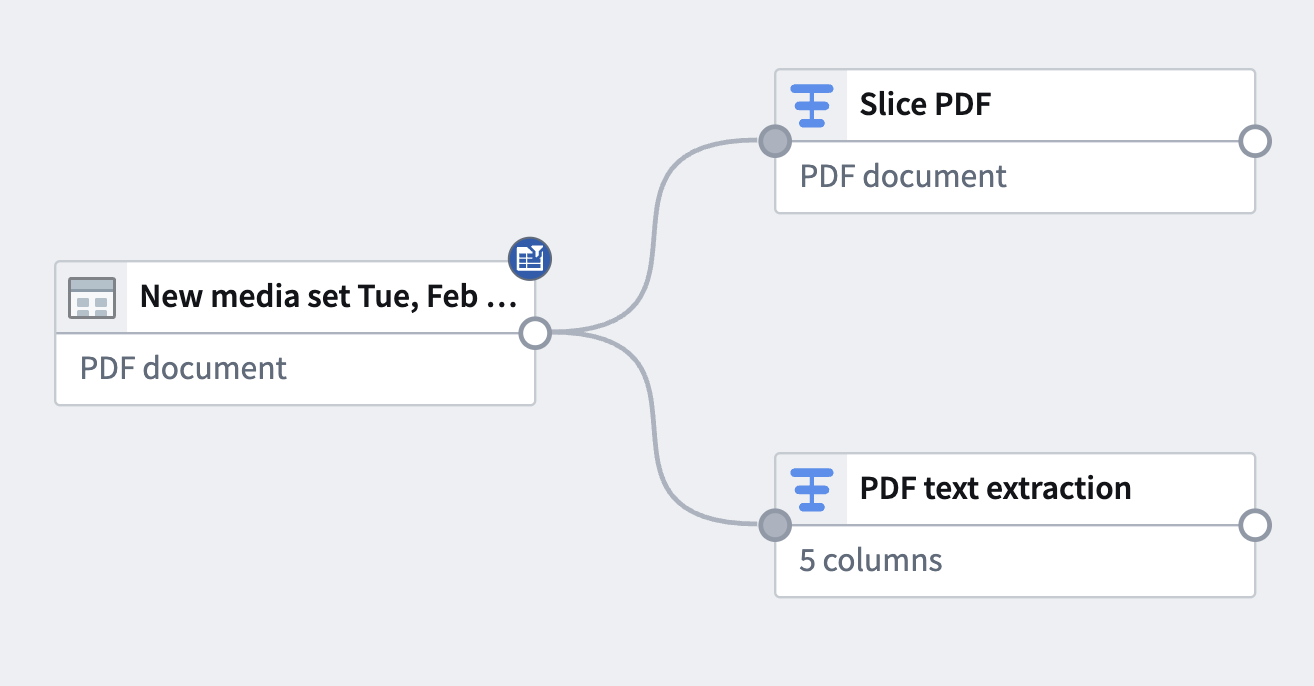
After configuring the transform board, select Apply to add the transform to your pipeline. The example below shows the addition of two different transform paths with the transforms used above, renamed to Slice PDF and PDF text extraction respectively.
From here, you can add an output or add subsequent downstream transforms.
Learn more about adding pipeline outputs.
:::callout{theme="warning"}
It is not currently possible to extract information from media that has been transformed, or to transform media that is referenced in a dataset.
It is also not possible to transform media in changelog mode when using a media set input that contains deleted items.
:::
中文翻译
转换媒体
除了转换表格结构化数据外,Pipeline Builder 还允许您转换非结构化数据,这些数据在 Palantir 平台中表示为媒体集(media sets)。
转换媒体通常指两件事之一:操作媒体或从媒体中提取信息。操作媒体的转换会接收媒体输入并生成媒体输出。从媒体中提取信息的表达式则会接收媒体输入并生成表格输出。
在将 Foundry 中的数据以媒体集的形式添加到工作区后,您即可在 Pipeline Builder 中开始转换非结构化数据。
:::callout{theme="neutral"} 媒体集输入无需转换为表格。将媒体集输入添加到管道(pipeline)时,可以将其作为媒体集或表格输入读取,这意味着您可以直接应用媒体转换或表格表达式,而无需进行转换。 :::
选择媒体集
要将转换应用于媒体集,请在工作区中选择一个媒体集节点,然后选择 Transform。
搜索转换
在转换页面中,按名称搜索转换类型,或从可用转换列表中浏览。您还可以选择左侧的 Media 类别,仅浏览可用的媒体转换。
以下示例展示了如何获取包含 PDF 文档的媒体集输入,并将文档裁剪或“切片”为其页面的子集。您可以通过搜索并选择 Slice PDF 转换来实现此操作。
对 PDF 文档进行切片是通过操作来转换媒体的一个示例。不过,您可能希望改为从文档中提取信息。
以下示例同样以包含 PDF 文档的媒体集输入开始;如果您想从文档中提取文本,可以搜索并选择 PDF text extraction 转换。
配置转换
许多转换会提示您提供参数,以配置转换的运行方式。请根据您的工作流适当填写这些参数。
以下示例展示了如何配置 Slice PDF 转换,以便将文档切片为第 2 页到第 5 页。
以下是使用 PDF text extraction 转换提取整个文档文本的示例。在配置中,由于文本已嵌入文档中,请选择 Raw text;但如果并非如此,则可以选择 OCR。
对于 Media reference,从下拉菜单中选择 media_reference 列。对于 Start page 和 End page,将默认值分别保留为 1 和空,以便提取所有页面的文本。
应用转换
配置转换面板后,选择 Apply 将转换添加到您的管道中。以下示例展示了添加两条不同的转换路径,分别使用上述转换,并重命名为 Slice PDF 和 PDF text extraction。
接下来,您可以添加输出或添加后续的下游转换。
了解有关添加管道输出的更多信息。
:::callout{theme="warning"}
目前无法从已转换的媒体中提取信息,也无法转换数据集中引用的媒体。
此外,当使用包含已删除项目的媒体集输入时,无法在变更日志模式(changelog mode)下转换媒体。
:::