Union data(合并数据(Union data))
Another way to transform and structure your data in Pipeline Builder is to apply a union. A union combines two datasets to include all rows from each dataset. In Pipeline Builder, a union retains all rows, including duplicates.
Select datasets
To union two datasets together, select the first dataset node in your workspace and click Union.
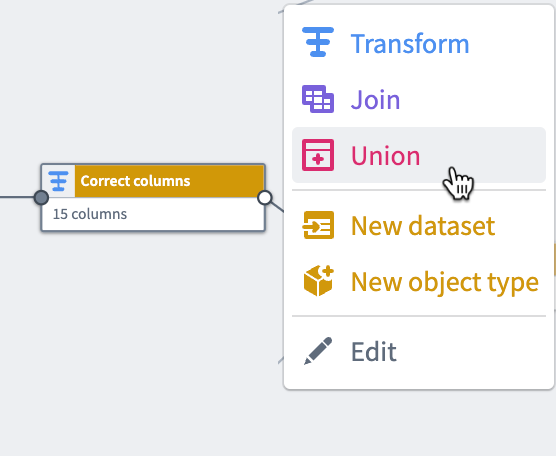
The first selected dataset is the Left side dataset. Select another dataset node to be the Right side dataset. Click Start to navigate to the union output preview page.
Preview a union
In the preview pane, click Create union, then view the output dataset preview.

A union requires that all inputs have the same schema. If input schemas do not all match, the union will display an error message with a list of missing columns.
To resolve, remove the references to the missing columns or review your input.
Apply a union
Once you finish creating your union, click Apply to add the union to your workflow. You will see the union node connected to the two unioned datasets in your graph. We named our new union Union, and it is a direct output of the original Correct columns and Vendor Cut 2 - demo data datasets.
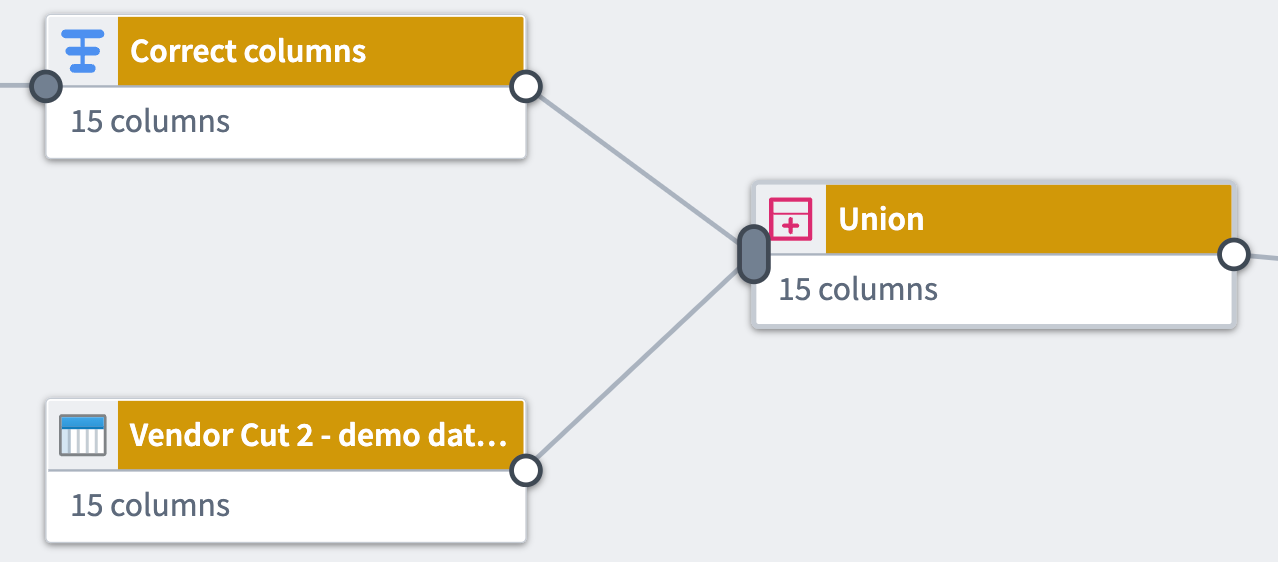
You can rename or edit the union by clicking the union node and selecting Edit.
:::callout{theme="neutral"} Drag the white or gray circles on nodes to change connections and remove links on the graph. Click the gray oval on a union node to remove multiple connections. :::
Remember, a union keeps all rows from both the right and left datasets, including duplicate rows. To remove duplicate rows, add a Drop duplicates transform to your union output.
中文翻译
合并数据(Union data)
在Pipeline Builder中,另一种转换和结构化数据的方式是应用合并操作(union)。合并操作将两个数据集组合在一起,包含每个数据集中的所有行。在Pipeline Builder中,合并操作会保留所有行,包括重复行。
选择数据集(Select datasets)
要合并两个数据集,请在工作区中选择第一个数据集节点,然后点击合并(Union)。
第一个选中的数据集是左侧(Left)数据集。选择另一个数据集节点作为右侧(Right)数据集。点击开始(Start)进入合并输出预览页面。
预览合并(Preview a union)
在预览窗格中,点击创建合并(Create union),然后查看输出数据集的预览。
合并操作要求所有输入具有相同的模式(schema)。如果输入模式不匹配,合并操作将显示错误消息,并列出缺失的列。
要解决此问题,请移除对缺失列的引用,或检查您的输入。
应用合并(Apply a union)
完成创建合并后,点击应用(Apply)将合并添加到您的工作流中。您将看到合并节点连接到图表中的两个合并数据集。我们将新的合并命名为Union,它是原始Correct columns和Vendor Cut 2 - demo data数据集的直接输出。
您可以通过点击合并节点并选择编辑(Edit)来重命名或编辑合并。
:::callout{theme="neutral"} 拖动节点上的白色或灰色圆圈可以更改连接并移除图表中的链接。点击合并节点上的灰色椭圆可以移除多个连接。 :::
请记住,合并操作会保留右侧和左侧数据集中的所有行,包括重复行。要移除重复行,请在合并输出中添加一个删除重复项(Drop duplicates)转换。