Streaming profiles(流式处理配置文件(Streaming profiles))
When streaming with the Palantir platform, all aspects of configuring Flink runtime environments are managed for you, including reasonable and cost-effective defaults for Flink job configurations. In most cases, you do not need to configure anything yourself to start running a job on the Flink computation engine in a performant manner.
However, sometimes your job will require additional resources than what Foundry streaming provides by default. Such resources might include additional parallelism (if your stream has very high throughput, for example) or additional resources for JobManagers or TaskManagers that might be required if you have a very large state or very large records.
For these cases where your job requires additional resources, Palantir offers a set of job profiles that can be used to adjust specific configuration options. Note that we provide access to a limited set of the total available Flink configurations since the Palantir streaming platform can manage most things for you.
Similar to Spark profiles in Code Repositories, each streaming job profile manages a specific component of the streaming job’s resource requirements, and streaming job profiles can be composed with each other to meet your use case requirements.
When to use streaming profiles
Typically, you should never need to use streaming profiles in the platform since our default streaming configurations are designed to be performant and cost-effective for a majority of use cases. However, we do recommend using streaming profiles only if you are encountering specific issues with your streaming job relating to the following:
- Very high throughput
- Very large records
- Very large state requirements
You can decide which additional profiles are needed by considering your job requirements, logs and error messages available within the JobTracker interface, and a basic understanding of Flink.
Set up a streaming profile
The streaming profile set up interface will differ depending on where you are using the Foundry streaming platform.
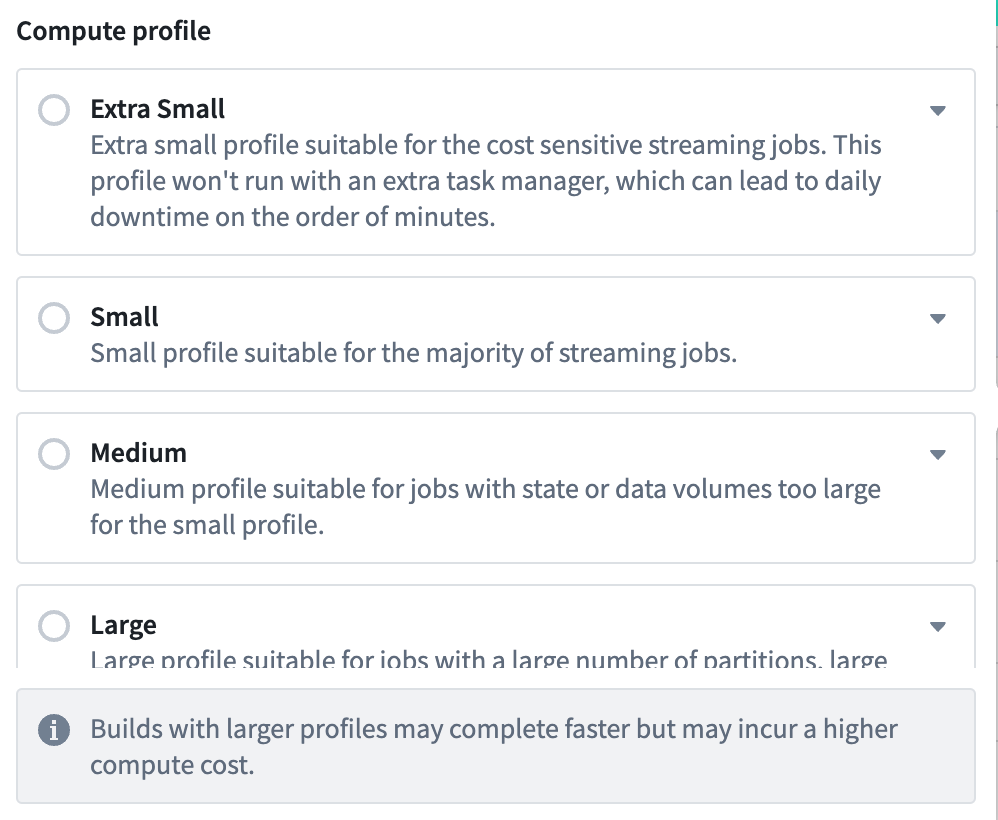
In most cases, when setting up a streaming use case, you will notice a selection box that lists all streaming profiles available to you. For example, in Pipeline Builder, you can see the list of configurable streaming profiles by selecting the build settings next to the Deploy button:
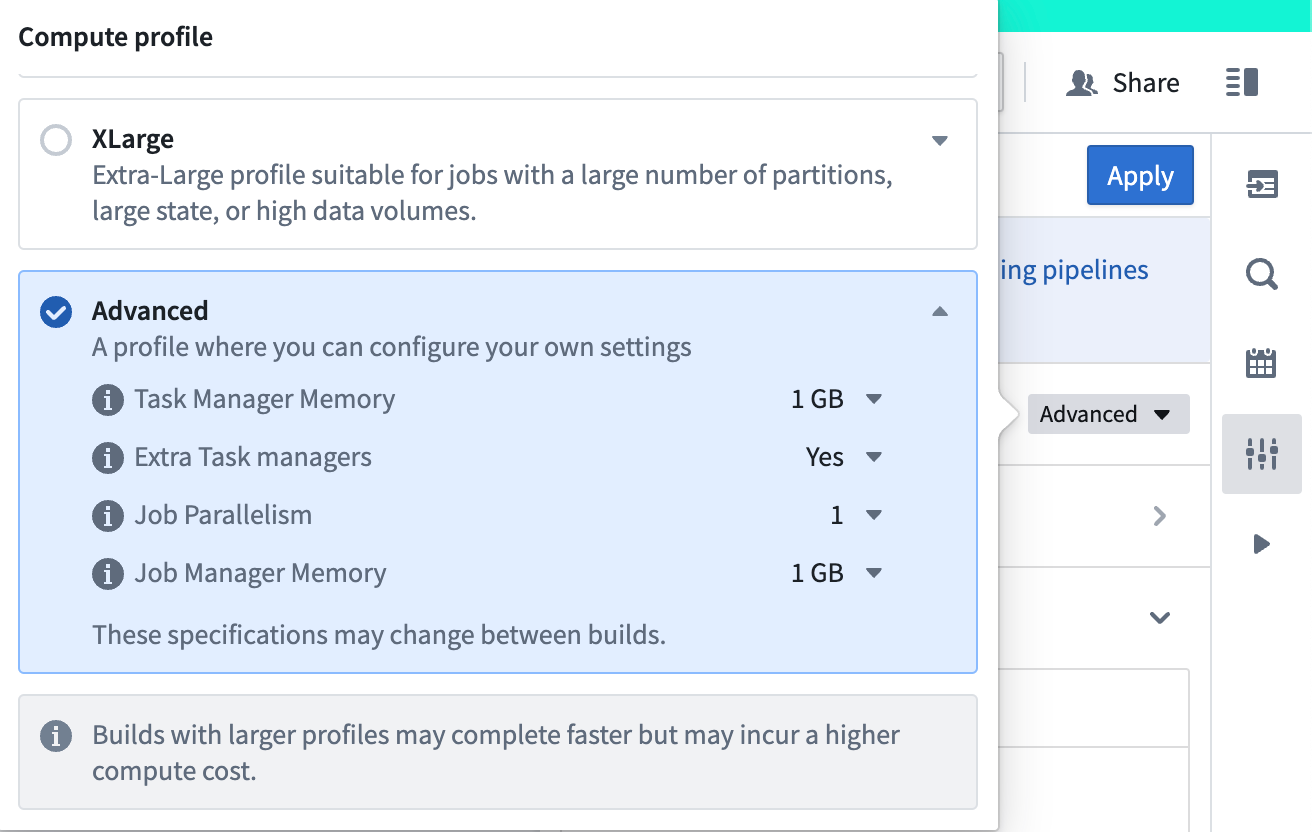
Additionally, Pipeline Builder allows you to combine different aspects of these profiles together with the Advanced profile option:
Note that the selection of streaming profiles available to you may differ based on which application you are using and any other security or visibility requirements applied to your working environment.
Manage streaming profiles
Because streaming profiles can be used to determine the total number of resources allocated to perpetually running streaming jobs, several administrative controls are placed on these profiles to manage streaming costs.
Project references
In the Palantir platform, Projects define the conceptual boundary around related work and a security boundary for applying and managing access. The default application of security and administrative controls is at the Project level. Typically, using data or resources requires that they are present in or imported into your current Project, granting them a Project Reference. You can see all references in a Project in the References section of the Project workspace side panel.
The primary administrative control applied to streaming profiles is the requirement that they are added as Project references to the same Project as the related streaming pipeline or application. If you try to use a streaming profile that is not imported to your Project, your job will fail with an error indicating this missing requirement.
By using Project references as the administrative control, more advanced users can be granted the ability to import profiles into Projects on behalf of other users. This allows for administrators to control where streaming profiles are used at a granular level while allowing more operational users to use the profiles to which they have been granted access.
Import profiles as Project references
Typically, profiles will be imported automatically into Projects within the relevant application by using the profile selector component. For example, the profile selector in Pipeline Builder will import the selected profiles automatically.
All users are able to import most profiles as Project references into their Projects, provided they have sufficient permission to import resources. This generally means that the user has been assigned a Role which grants them the compass:import-resource-to permission on the Project. You can find Role configurations by navigating to the Roles tab in your user Settings. Search for the permission using the Filter operations... search tool on the page.
To view a list of all available streaming profiles, visit the “Streaming profiles” tab in the “Enrollment Settings” section of Control Panel. From here you can pick any specific profile and see all Projects (to which you have access) where that profile has been added as a Project reference, as well as import it into new Projects. You can also remove references to a profile from an Project that it has been imported into; but note this will break any streaming jobs in that Project that rely on that profile, because we require that profiles be imported into the same Project as a streaming job in order to be used.
Use large streaming profiles
For profiles that grant a large number of resources, Project references must be created using the Streaming profiles tab in the Enrollment Settings section of Control Panel. This setting is enabled only for users who are designated as Enrollment Resource Administrators. These administrators can be assigned in the Enrollment permissions tab and can import restricted profiles into any Project to which they have access.
Once an administrator imports a profile into a Project, any user who has access to that Project may then use that profile.
中文翻译
流式处理配置文件(Streaming profiles)
在使用 Palantir 平台进行流式处理时,Flink 运行时环境的所有配置方面都由平台为您管理,包括 Flink 作业配置中合理且经济高效的默认设置。在大多数情况下,您无需自行配置任何内容即可在 Flink 计算引擎上高效运行作业。
然而,有时您的作业需要比 Foundry 流式处理默认提供的更多资源。这些资源可能包括额外的并行度(例如,如果您的流具有非常高的吞吐量),或者如果您有非常大的状态或非常大的记录,则可能需要为 JobManager 或 TaskManager 提供额外资源。
对于这些需要额外资源的作业场景,Palantir 提供了一组可用于调整特定配置选项的作业配置文件(Job Profiles)。请注意,我们仅提供有限数量的可用 Flink 配置,因为 Palantir 流式处理平台可以为您管理大部分内容。
与代码仓库中的 Spark 配置文件(Spark profiles)类似,每个流式处理作业配置文件管理流式处理作业资源需求的特定组件,并且流式处理作业配置文件可以相互组合以满足您的用例需求。
何时使用流式处理配置文件
通常情况下,您永远不需要在平台中使用流式处理配置文件,因为我们的默认流式处理配置旨在满足大多数用例的性能和成本效益要求。但是,我们建议仅在遇到与以下方面相关的特定流式处理作业问题时才使用流式处理配置文件:
- 非常高的吞吐量
- 非常大的记录
- 非常大的状态需求
您可以通过考虑作业需求、JobTracker 界面中可用的日志和错误消息以及对 Flink 的基本了解,来决定需要哪些额外的配置文件。
设置流式处理配置文件
流式处理配置文件的设置界面将根据您使用 Foundry 流式处理平台的位置而有所不同。
在大多数情况下,设置流式处理用例时,您会注意到一个选择框,其中列出了所有可用的流式处理配置文件。例如,在管道构建器(Pipeline Builder)中,您可以通过选择 部署(Deploy) 按钮旁边的构建设置来查看可配置的流式处理配置文件列表:
此外,管道构建器允许您通过 高级(Advanced) 配置文件选项将这些配置文件的不同方面组合在一起:
请注意,可供您选择的流式处理配置文件可能因您使用的应用程序以及应用于您工作环境的任何其他安全或可见性要求而有所不同。
管理流式处理配置文件
由于流式处理配置文件可用于确定分配给持续运行的流式处理作业的资源总量,因此对这些配置文件设置了若干管理控制措施,以管理流式处理成本。
项目引用(Project References)
在 Palantir 平台中,项目(Projects)定义了相关工作的概念边界以及应用和管理访问权限的安全边界。安全和管理控制的默认应用是在项目级别。通常,使用数据或资源需要它们存在于当前项目中或导入到当前项目中,从而获得项目引用(Project Reference)。您可以在项目工作区侧面板的 引用(References) 部分查看项目中的所有引用。
应用于流式处理配置文件的主要管理控制措施是要求将它们作为项目引用添加到与相关流式处理管道或应用程序相同的项目中。如果您尝试使用未导入到项目中的流式处理配置文件,您的作业将失败,并显示指示此缺失要求的错误。
通过使用项目引用作为管理控制措施,可以授予更高级的用户代表其他用户将配置文件导入项目的能力。这允许管理员在细粒度级别控制流式处理配置文件的使用位置,同时允许更多操作型用户使用他们已被授予访问权限的配置文件。
将配置文件作为项目引用导入
通常,配置文件将通过使用配置文件选择器组件自动导入到相关应用程序的项目中。例如,管道构建器中的配置文件选择器将自动导入所选配置文件。
所有用户都可以将大多数配置文件作为项目引用导入到他们的项目中,前提是他们拥有足够的导入资源权限。这通常意味着用户已被分配了一个角色,该角色授予他们在项目上拥有 compass:import-resource-to 权限。您可以通过导航到用户 设置(Settings) 中的 角色(Roles) 选项卡来查找角色配置。使用页面上的 过滤操作(Filter operations...) 搜索工具搜索该权限。
要查看所有可用流式处理配置文件的列表,请访问控制面板(Control Panel)中"注册设置(Enrollment Settings)"部分的"流式处理配置文件(Streaming profiles)"选项卡。在这里,您可以选择任何特定配置文件,查看该配置文件已作为项目引用添加到的所有项目(您有权访问的项目),以及将其导入到新项目中。您还可以从已导入配置文件的项目中移除对配置文件的引用;但请注意,这将破坏该项目中依赖该配置文件的任何流式处理作业,因为我们要求配置文件必须导入到与流式处理作业相同的项目中才能使用。
使用大型流式处理配置文件
对于授予大量资源的配置文件,必须使用控制面板(Control Panel)中"注册设置(Enrollment Settings)"部分的"流式处理配置文件(Streaming profiles)"选项卡来创建项目引用。此设置仅对指定为"注册资源管理员(Enrollment Resource Administrators)"的用户启用。这些管理员可以在"注册权限(Enrollment permissions)"选项卡中分配,并且可以将受限配置文件导入到他们有权访问的任何项目中。
一旦管理员将配置文件导入到项目中,任何有权访问该项目的用户都可以使用该配置文件。