Views(视图(Views))
A View behaves similarly to a Foundry dataset view, but it does not hold any files containing data. Instead, it is composed of the union of other datasets (known as backing datasets) when it is read. Views can be thought of as "pointing" to their backing datasets.
Views can also automatically perform deduplication of data with the addition of a primary key. If any of a View's backing datasets have new data, a build will be automatically triggered to ensure that the latest data is available after deduplication. Views build like regular datasets but complete almost instantly since no data is actually read or written as part of the build.
Generally, you can use Views like regular datasets. However, Views cannot be specified as valid transform outputs; instead, they can be specified as valid transform inputs.
Additionally, Views can only be used with datasets that have a schema, since Views operates with rows.
:::callout{theme="warning"} Views built over incremental datasets should not be used as incremental inputs in downstream transforms. When Views are read incrementally, the deduplication is done within the incrementally read transaction range and not across the entire View. :::
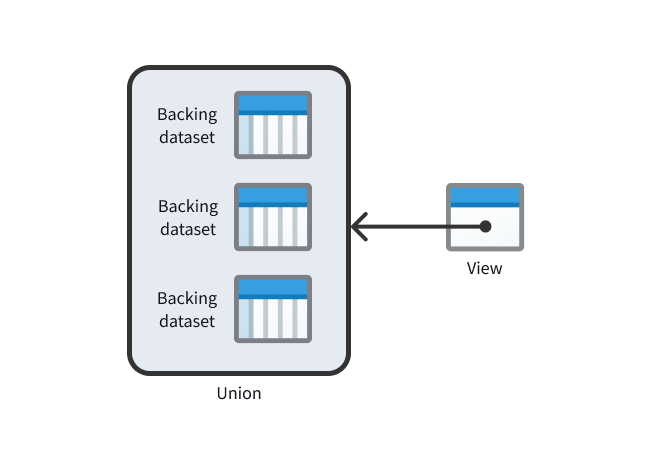
Some primary use cases for views include the following:
- Automatic updates: Create a union dataset that is always up-to-date without having to perform a transform.
- Folder organization: Replicate a dataset in a different location without incurring additional compute and storage costs.
- Data uniqueness: Automatically guarantee data with primary key deduplication without transforms.
Create a View
To create a new View, open Files from the left workspace navigation panel, then find your desired Project or folder. Once there, select New > View in the top right to create a new View within the current Project or folder:
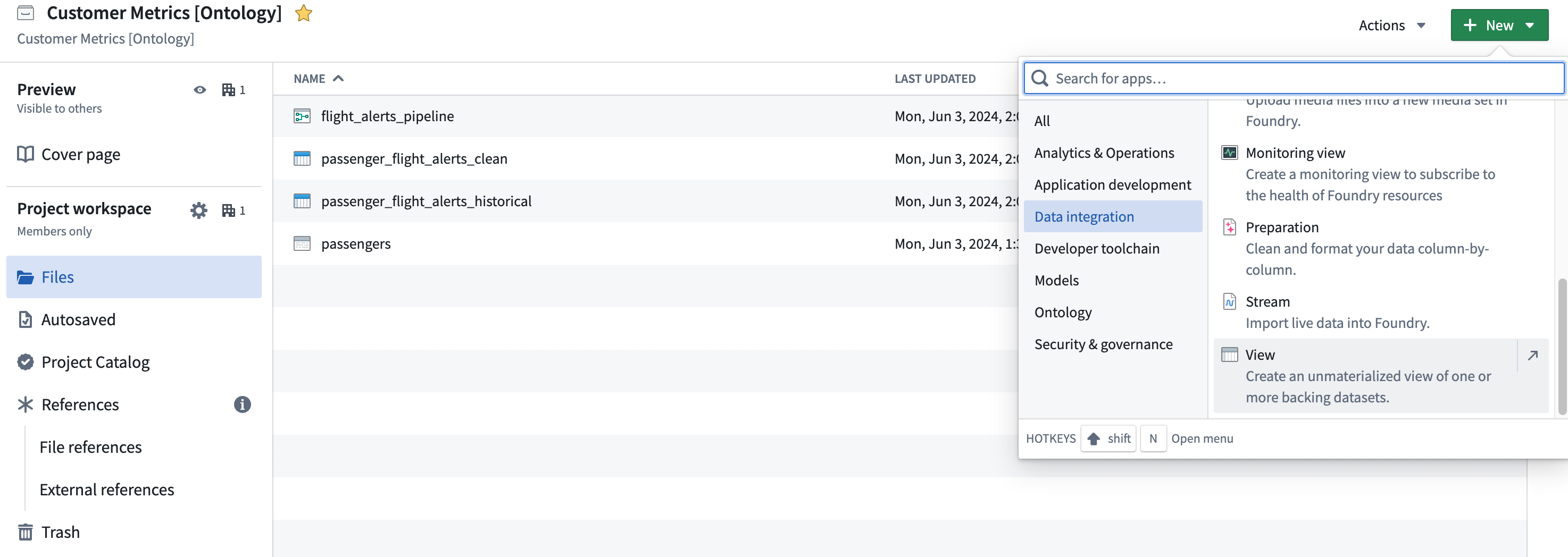
Choose a name and location for the View, then proceed with configuration. When the View is created, a build schedule will be automatically created in the background that will rebuild the View any time the backing datasets update. If you want to immediately read the View after creating or modifying it, you must build the View manually.
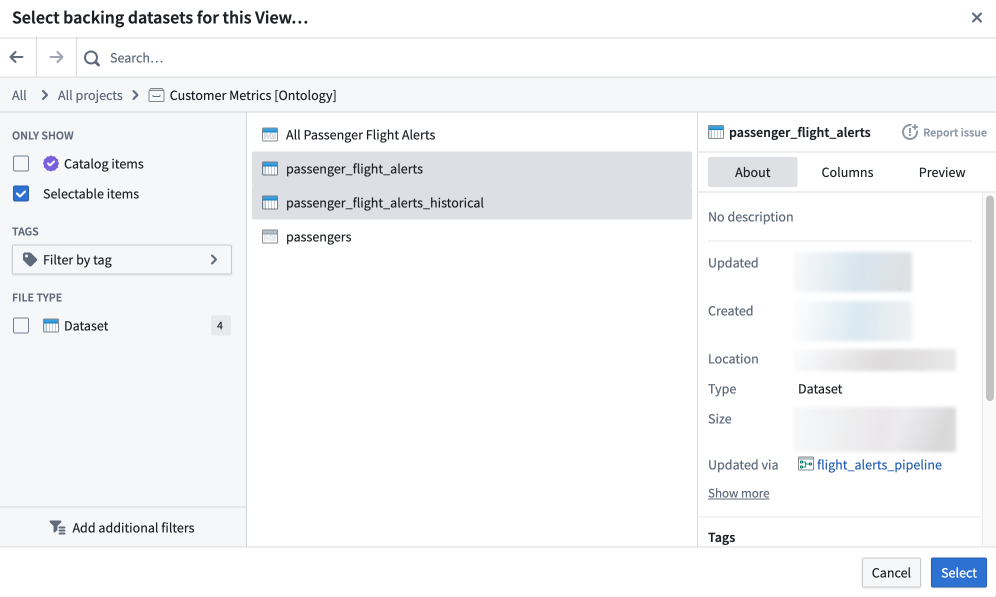
Select backing datasets
:::callout{theme="warning"} Because a View is composed of the union of its backing datasets, every backing dataset for a given View must possess the same set of column names and types (though the column order can be different). :::
One or more backing datasets are required to construct a View. After initial configuration, a View's backing datasets can be modified by navigating to Details > Dataset view settings.
Add a primary key
Data deduplication is a key feature of Views that you can enable by adding a primary key. Once the primary key is configured, the View is guaranteed to have primary key uniqueness; each primary key present in the View appears in only one row. Add a primary key to ensure that only the most up-to-date data for each primary key is returned when the View is read. This automatic deduplication can be especially useful in cases when the View's backing dataset(s) may contain unwanted duplicate rows.
:::callout{theme="warning"} Once the primary key is set, it cannot be modified without creating a new View. :::
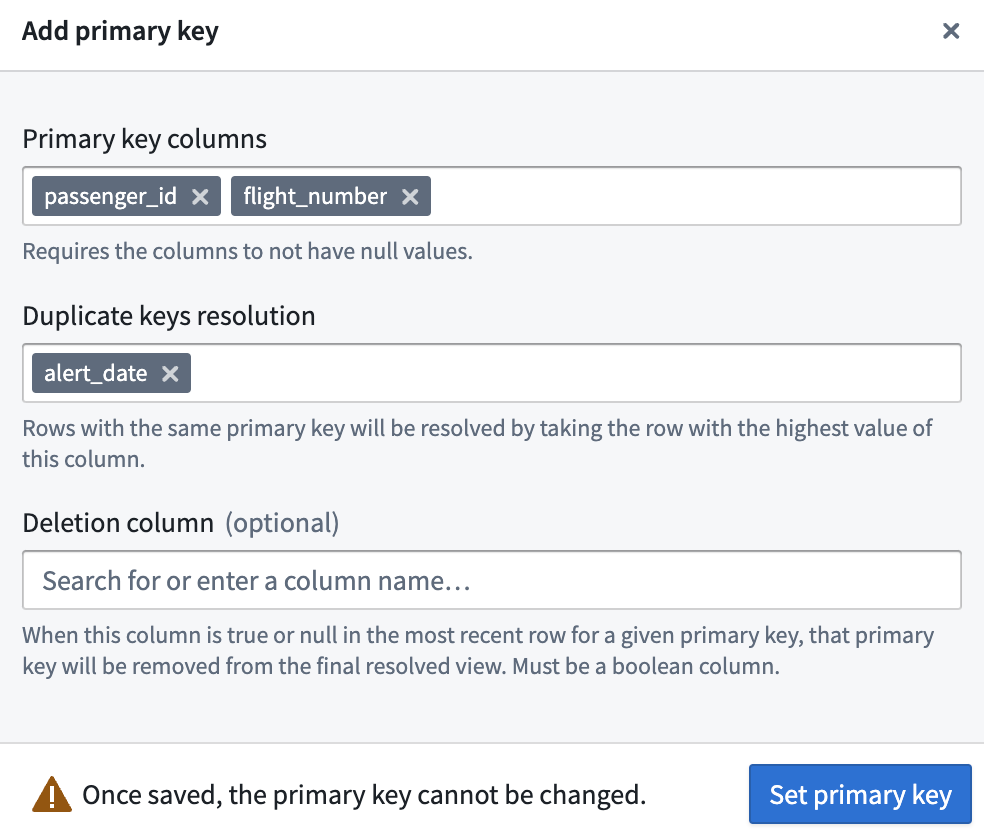
To add a primary key, select one or more columns which, when combined, will form the primary key. The column(s) must not contain null values.
If you do not add a primary key during initial configuration, you can do so later by navigating to Details > Dataset view settings.
Resolve duplicate keys
To add a primary key, you must also specify a column (or combination of columns) for resolving duplicate primary keys. Deduplication of rows with the same primary key is performed by keeping the row with the highest values of these columns in order and discarding the others. This ensures that every primary key appearing in the View is unique.
Select a deletion column
You can also optionally specify a deletion column, which must contain Boolean values. After deduplication, if the final remaining row for a given primary key has true in the deletion column, that row will be excluded from the View.
Deduplication and deletion in practice
Duplicate primary keys are resolved before the deletion column is used to exclude rows. Therefore, only the value of the deletion column in the “latest” row for a given primary key matters.
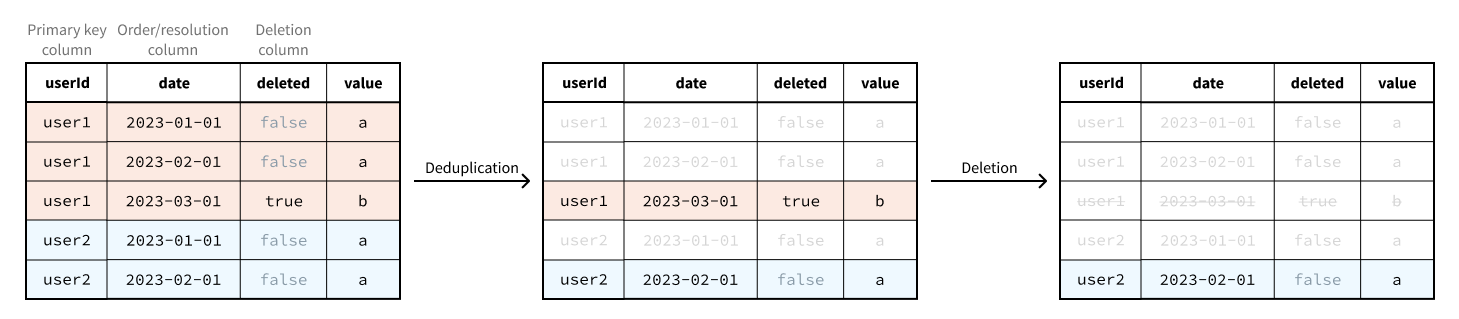
Deduplication and deletion is performed across all of the backing datasets:
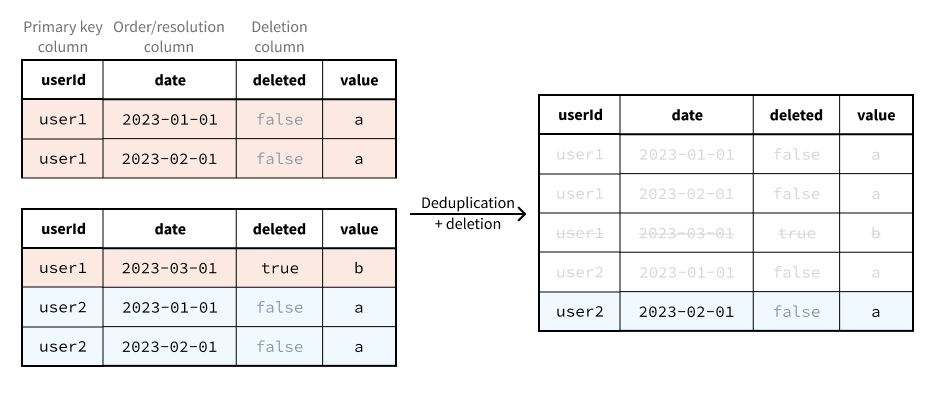
Deduplication and deletion is implemented with a combination of the following:
- An appropriately configured, automatically created projection on the View.
- Window function-based filter logic that is evaluated on every read.
Although the filter logic is evaluated on every read, the evaluation of this logic has a negligible impact on runtime and compute cost provided the projection is up to date and the backing datasets of the View have only had APPEND or UPDATE transactions since the last projection build.
Considering this architecture, we recommend only creating a View with primary key configuration in the following cases.
- All of the backing datasets are updated with
APPENDor strictly additiveUPDATEtransactions. - Some of the backing datasets are updated with
APPENDor strictly additiveUPDATEtransactions and some are updated withSNAPSHOTtransactions, but the ones that are updated withSNAPSHOTtransactions are built infrequently.
If updates to the backing datasets require a full rebuild of the projection, considerable compute costs will be incurred since readers (Contour, transform jobs, and so on) must apply the filter logic without the benefit of the projection until the projection rebuild is complete.
Use Views
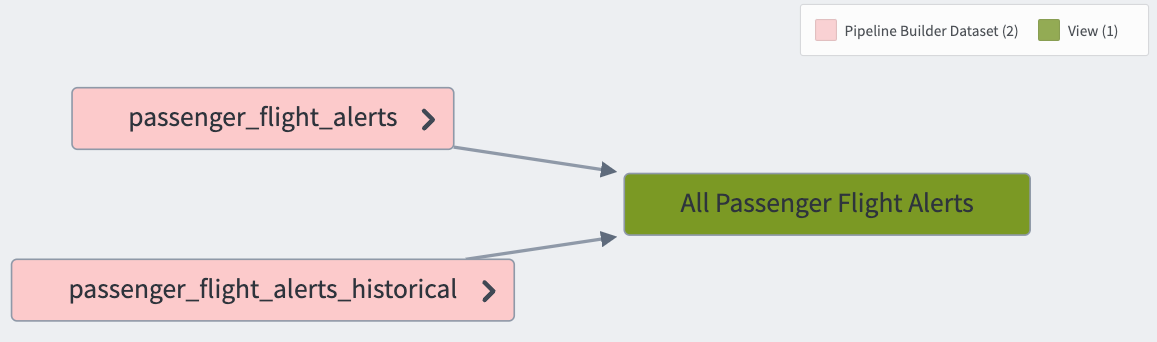
Views are visible in Foundry like regular Foundry datasets and can be used anywhere that regular datasets can be used. The only exception to this is that Views are not valid transform outputs (though they are valid transform inputs). An example use case for Views is to create a union of multiple datasets efficiently, using a primary key to ensure the resulting View has data uniqueness.
Remove Markings with Views
:::callout{theme="neutral"} Views do not support the removal of Organizations from datasets, only mandatory control Markings. :::
:::callout{theme="neutral"} Removing Markings with Views may not be enabled on your Foundry enrollment. Contact Palantir Support to enable this feature. :::
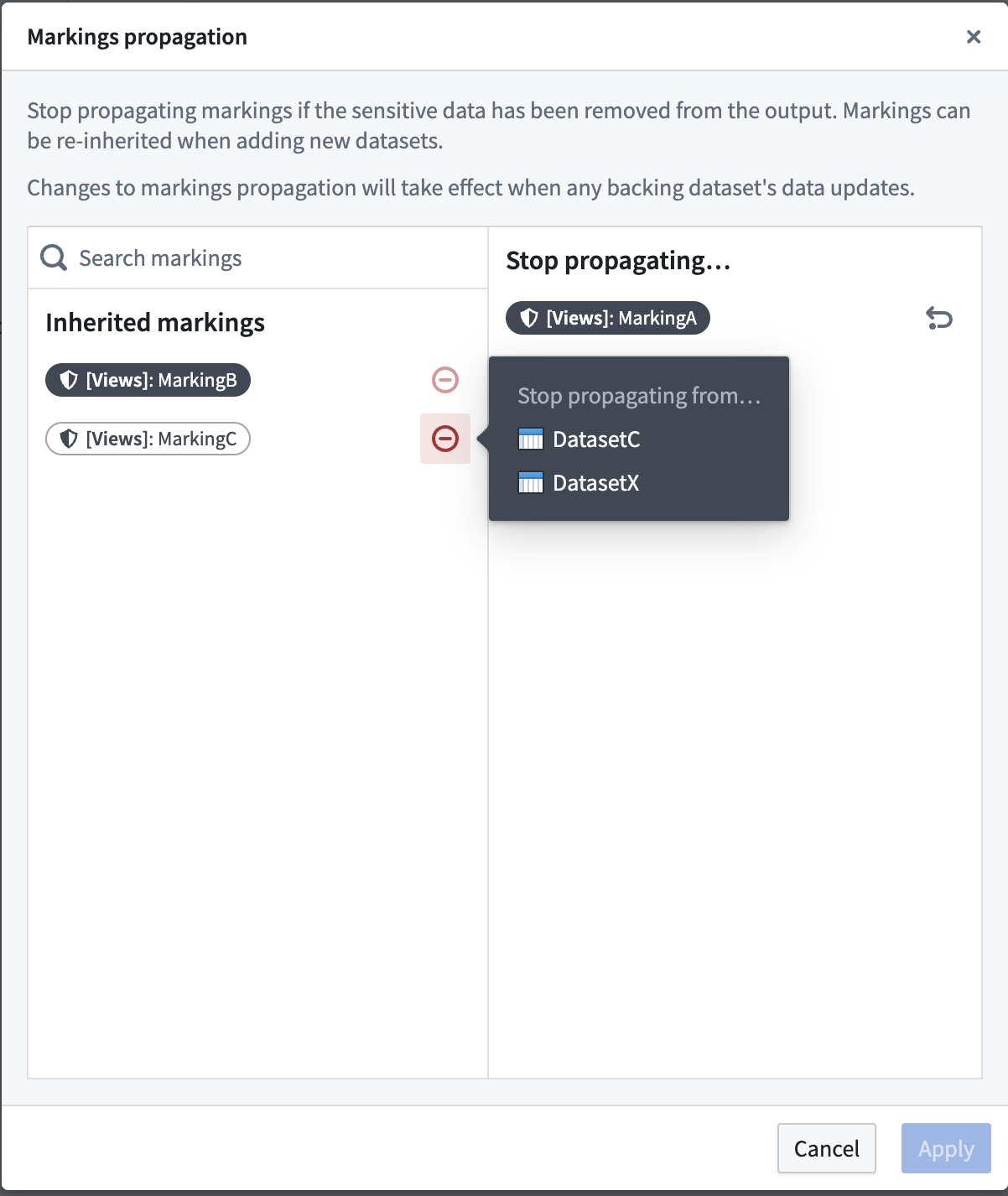
You can use Views to stop propagating Markings on datasets backing the View. You can do this by navigating to Dataset view settings in the Details tab of the View, then selecting Edit > Manage marking propagation.
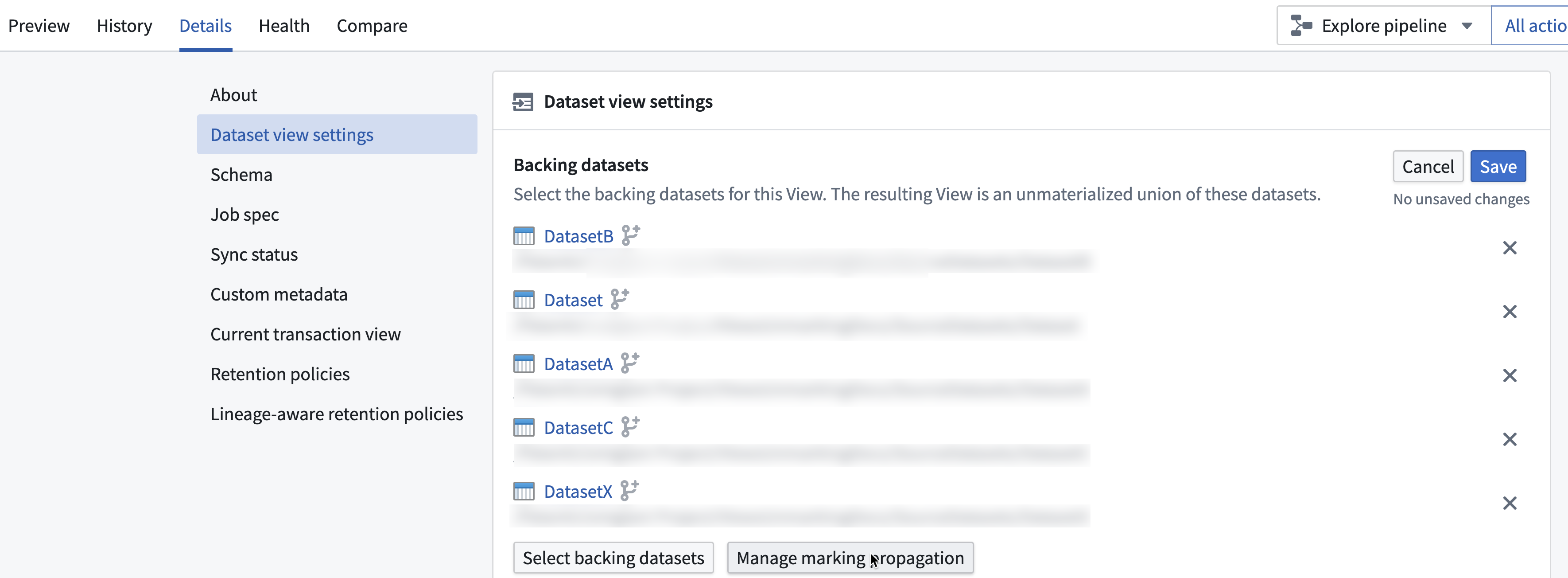
Only users with Remove Marking permissions will be able to stop propagation of the Marking. Changes to Marking propagation will take effect when any updates to the backing dataset occurs.
Review our guidance on removing Markings for more information.
中文翻译
视图(Views)
视图(View) 的行为类似于 Foundry 数据集视图(dataset view),但它不包含任何存储数据的文件。相反,它在被读取时由其他数据集(称为后备数据集(backing datasets))的并集组成。可以认为视图(View)是"指向"其后备数据集的。
视图(View)还可以通过添加主键(primary key)自动对数据进行去重。如果视图(View)的任何一个后备数据集有新数据,将自动触发构建(build),以确保去重后提供最新数据。视图(View)的构建方式与常规数据集类似,但由于构建过程中实际上不读取或写入任何数据,因此几乎可以瞬间完成。
通常,您可以像使用常规数据集一样使用视图(View)。但是,视图(View)不能指定为有效的转换(transform)输出;相反,它们可以指定为有效的转换(transform)输入。
此外,视图(View)只能与具有模式(schema)的数据集一起使用,因为视图(View)是按行操作的。
:::callout{theme="warning"} 基于增量数据集(incremental datasets)构建的视图(View)不应在下游转换(downstream transforms)中用作增量输入(incremental inputs)。当增量读取视图(View)时,去重操作仅在增量读取的事务范围内进行,而不是在整个视图(View)范围内进行。 :::
视图(View)的一些主要用例包括:
- 自动更新: 创建一个始终最新的并集数据集,无需执行转换(transform)。
- 文件夹组织: 在不同位置复制数据集,而无需产生额外的计算和存储成本。
- 数据唯一性: 通过主键去重自动保证数据的唯一性,无需转换(transform)。
创建视图(Create a View)
要创建新的视图(View),请从左侧工作区导航面板打开文件(Files),然后找到您想要的项目(Project)或文件夹。进入后,选择右上角的新建(New) > 视图(View),在当前项目(Project)或文件夹中创建新的视图(View):
为视图(View)选择名称和位置,然后进行配置。创建视图(View)后,系统会在后台自动创建一个构建计划(build schedule),每当后备数据集更新时,该计划将重新构建视图(View)。如果您希望在创建或修改视图(View)后立即读取它,则必须手动构建视图(View)。
选择后备数据集(Select backing datasets)
:::callout{theme="warning"} 由于视图(View)由其后备数据集的并集组成,因此给定视图(View)的每个后备数据集必须具有相同的列名和类型集合(但列顺序可以不同)。 :::
构建视图(View)需要一个或多个后备数据集。初始配置后,可以通过导航到详情(Details) > 数据集视图设置(Dataset view settings)来修改视图(View)的后备数据集。
添加主键(Add a primary key)
数据去重是视图(View)的一项关键功能,您可以通过添加主键(primary key)来启用该功能。配置主键后,视图(View)保证主键的唯一性;视图(View)中出现的每个主键只出现在一行中。添加主键可确保在读取视图(View)时,每个主键只返回最新的数据。当视图(View)的后备数据集可能包含不需要的重复行时,这种自动去重功能尤其有用。
:::callout{theme="warning"} 一旦设置了主键,如果不创建新的视图(View),则无法修改。 :::
要添加主键,请选择一个或多个列,这些列组合后将形成主键。这些列不能包含空值(null values)。
如果您在初始配置期间没有添加主键,可以稍后通过导航到详情(Details) > 数据集视图设置(Dataset view settings)来添加。
解决重复键(Resolve duplicate keys)
要添加主键,还必须指定一个列(或列的组合)用于解决重复的主键。对具有相同主键的行进行去重时,会保留这些列中值最高的行,并丢弃其他行。这确保了视图(View)中出现的每个主键都是唯一的。
选择删除列(Select a deletion column)
您还可以选择指定一个删除列(deletion column),该列必须包含布尔值(Boolean values)。去重后,如果某个主键最终保留的行在删除列中为true,则该行将从视图(View)中排除。
实际应用中的去重与删除
重复主键的解析在使用删除列排除行之前完成。因此,对于给定的主键,只有"最新"行中删除列的值才起作用。
去重和删除操作在所有后备数据集上执行:
去重和删除是通过以下组合实现的:
- 在视图(View)上自动创建的、经过适当配置的投影(projection)。
- 每次读取时都会评估的基于窗口函数(window function)的过滤逻辑。
尽管每次读取时都会评估过滤逻辑,但只要投影(projection)是最新的,并且视图(View)的后备数据集自上次投影构建以来只进行了APPEND或UPDATE事务,那么该逻辑的评估对运行时间和计算成本的影响可以忽略不计。
考虑到这种架构,我们建议仅在以下情况下创建带有主键配置的视图(View)。
- 所有后备数据集都通过
APPEND或严格递增的UPDATE事务进行更新。 - 部分后备数据集通过
APPEND或严格递增的UPDATE事务进行更新,部分通过SNAPSHOT事务进行更新,但通过SNAPSHOT事务更新的数据集不经常构建。
如果后备数据集的更新需要完全重建投影(projection),则将产生可观的计算成本,因为读取器(Contour、转换作业(transform jobs)等)在投影重建完成之前,必须在不借助投影的情况下应用过滤逻辑。
使用视图(Use Views)
视图(View)在Foundry中像常规数据集一样可见,并且可以在任何可以使用常规数据集的地方使用。唯一的例外是视图(View)不能作为有效的转换输出(transform outputs)(尽管它们是有效的转换输入(transform inputs))。视图(View)的一个示例用例是高效地创建多个数据集的并集,使用主键确保生成的视图(View)具有数据唯一性。
使用视图移除标记(Remove Markings with Views)
:::callout{theme="neutral"} 视图(View)不支持从数据集中移除组织(Organizations),仅支持移除强制控制标记(mandatory control Markings)。 :::
:::callout{theme="neutral"} 您的Foundry注册可能未启用使用视图(View)移除标记的功能。请联系Palantir支持以启用此功能。 :::
您可以使用视图(View)来阻止标记(Markings)传播到支持视图(View)的后备数据集。您可以通过导航到视图(View)的详情(Details)选项卡中的数据集视图设置(Dataset view settings),然后选择编辑(Edit) > 管理标记传播(Manage marking propagation)来执行此操作。
只有拥有移除标记(Remove Marking)权限的用户才能停止标记的传播。对标记传播的更改将在后备数据集发生任何更新时生效。
请查阅我们关于移除标记的指南以获取更多信息。