Health checks(健康检查(Health checks))
Health checks enable monitoring and alerting on common issues across datasets and other resource types. You can monitor for potential issues related to dataset status, time, size, content, and schema using customizable checks. When problems are detected, you will receive in-platform notifications and emails alerting you to the issue.
This section of documentation provides detailed references about available health check options. For high-level guidance on how to set up effective health checks, review the section on maintaining pipelines. In particular, the page on recommended health checks may be helpful.
If you need to monitor resources that health checks do not cover, if you want coverage that scales when additional resources are added, or if you need an easier way to monitor many similar resources, consider using monitoring views instead of health checks.
Create and configure health checks
You can create checks for the following resources:
- Datasets
- You can also create checks through code.
- Schedules
- Tables
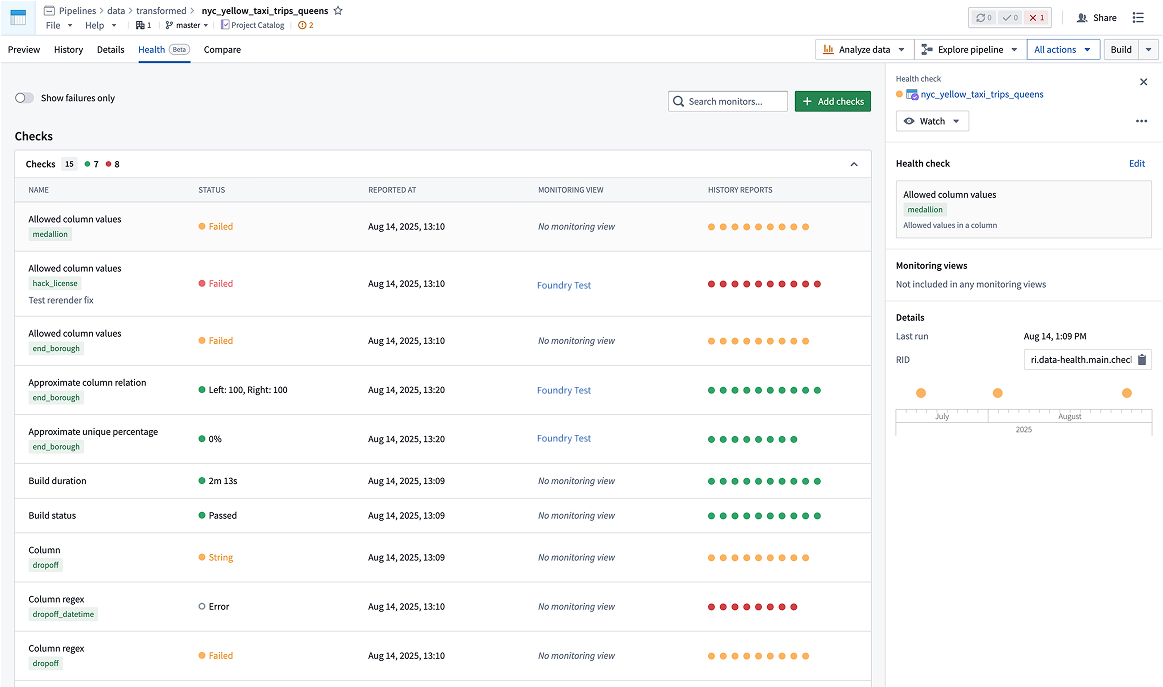
The checks that are available for a specific resource type can be found on the Health tab of the Data Health application. Review the monitoring rules reference to learn the available checks.
Health tab
The location of the Health tab is resource-dependent.
-
For datasets: While viewing a dataset in Dataset Preview, you can navigate to the Health tab to add new checks, modify existing checks and view historic check results.
-
For schedules: With a schedule open in Data Lineage, select Metrics > Health to view health checks and monitoring views, each listed in its own view.
-
For tables: While viewing a table in Dataset Preview, you can navigate to the Health tab to add new checks, modify existing checks and view historic check results.
Add new health checks to multiple datasets
You can add the same health check to multiple datasets at once from Data Lineage:
- In Data Lineage, select the datasets you want to add health checks to on the lineage graph. You can select multiple datasets by holding
Cmd(Mac) orCtrl(Windows) while selecting. - Right-click on the selection and choose Add health check.
- Configure the health check parameters. The check will be applied to all selected datasets.
Viewing health
You can access health check status and details at different levels depending on your monitoring needs.
Pipeline health
In Data Lineage, datasets can be colored by their health check status. Additionally, the Data Health tab at the bottom of the page (toggled on in Settings) shows the health checks and their statuses for all datasets in the lineage graph.
Platform-wide health
To see an overview of health checks for all datasets, select the Data Health application from the sidebar. In the Data Health application, you can filter or sort datasets by their status or name. You can also toggle to show only the datasets that you are watching. This page also lets you add new health checks by selecting Add health check in the top-right corner.
中文翻译
健康检查(Health checks)
健康检查(Health checks)能够对数据集及其他资源类型的常见问题进行监控和告警。您可以使用可自定义的检查来监控与数据集状态、时间、大小、内容和模式相关的潜在问题。当检测到问题时,您将收到平台内通知和邮件提醒。
本文档详细介绍了可用的健康检查选项。有关如何设置有效健康检查的高层指导,请参阅维护管道部分。其中,推荐健康检查页面可能对您有所帮助。
如果您需要监控健康检查未覆盖的资源,希望在添加更多资源时监控范围能够自动扩展,或者需要更简便的方式来监控大量相似资源,请考虑使用监控视图(monitoring views)替代健康检查。
创建和配置健康检查
您可以为以下资源创建检查:
- 数据集(Datasets)
- 您也可以通过代码创建检查。
- 调度(Schedules)
- 表(Tables)
特定资源类型可用的检查可在 Data Health 应用程序的健康(Health)选项卡中找到。请参阅监控规则参考了解可用的检查。
健康选项卡(Health tab)
健康(Health)选项卡的位置取决于资源类型。
-
对于数据集: 在数据集预览(Dataset Preview)中查看数据集时,您可以导航到健康(Health)选项卡来添加新检查、修改现有检查以及查看历史检查结果。
-
对于调度: 在 Data Lineage 中打开调度后,选择指标(Metrics) > 健康(Health)即可查看健康检查和监控视图,每个视图单独列出。
-
对于表: 在数据集预览(Dataset Preview)中查看表时,您可以导航到健康(Health)选项卡来添加新检查、修改现有检查以及查看历史检查结果。
向多个数据集添加新健康检查
您可以通过数据血缘(Data Lineage)同时向多个数据集添加相同的健康检查:
- 在数据血缘(Data Lineage)中,在血缘图上选择要添加健康检查的数据集。按住
Cmd(Mac)或Ctrl(Windows)键可选择多个数据集。 - 右键单击所选内容,选择添加健康检查(Add health check)。
- 配置健康检查参数。该检查将应用于所有选定的数据集。
查看健康状况
根据您的监控需求,您可以在不同层级查看健康检查状态和详细信息。
管道健康(Pipeline health)
在数据血缘(Data Lineage)中,数据集可根据其健康检查状态显示不同颜色。此外,页面底部的 Data Health 选项卡(在设置中开启)会显示血缘图中所有数据集的健康检查及其状态。
平台级健康(Platform-wide health)
要查看所有数据集的健康检查概览,请从侧边栏选择Data Health应用程序。在 Data Health 应用程序中,您可以按状态或名称筛选或排序数据集。您还可以切换为仅显示您关注的数据集。此页面还允许您通过选择右上角的添加健康检查(Add health check)来添加新的健康检查。